
ScyllaDB 1 million operations/second DEMOs
This repository contains Terraform and Ansible based projects to help you set up DEMOs and POCs with ScyllaDB in a cloud environment.
Currently supported DEMOs:
- ScyllaDB Cloud 1 million operations/second (AWS and ScyllaDB Cloud account needed)
- ScyllaDB Enterprise 1 million operations/second (AWS account needed)
- Scaling from 3 to 6 nodes (AWS account needed))
Prerequisites
Usage
-
Clone the repository
git clone https://github.com/scylladb/1m-ops-demo.git cd 1m-ops-demo/ -
Make sure AWS CLI is configured properly, and know the location of the credentials file (e.g.
~/.aws/credentials) -
Edit
config.py{ "aws_creds_file": "/home/user/.aws/credentials", "region": "us-east-1", "scylla_cloud_token": "API-TOKEN", "running_in_docker": true }aws_creds_file: the location (absolute path) of your AWS credentials fileregion: AWS region you want to use for the demoscylla_cloud_token: You can generate an API token in ScyllaDB Cloudrunning_in_docker: Normally this should betrue
-
Run the web app (by default, it uses port 5000)
./build_and_run.shThis will spin up a Docker container and run the web app on the
5000port. You can stop the container withdocker stop scylla-demo -
Open DEMO UI application
Go to http://0.0.0.0:5000
-
Select a demo you want to try (this will run
terraform initunder the hood)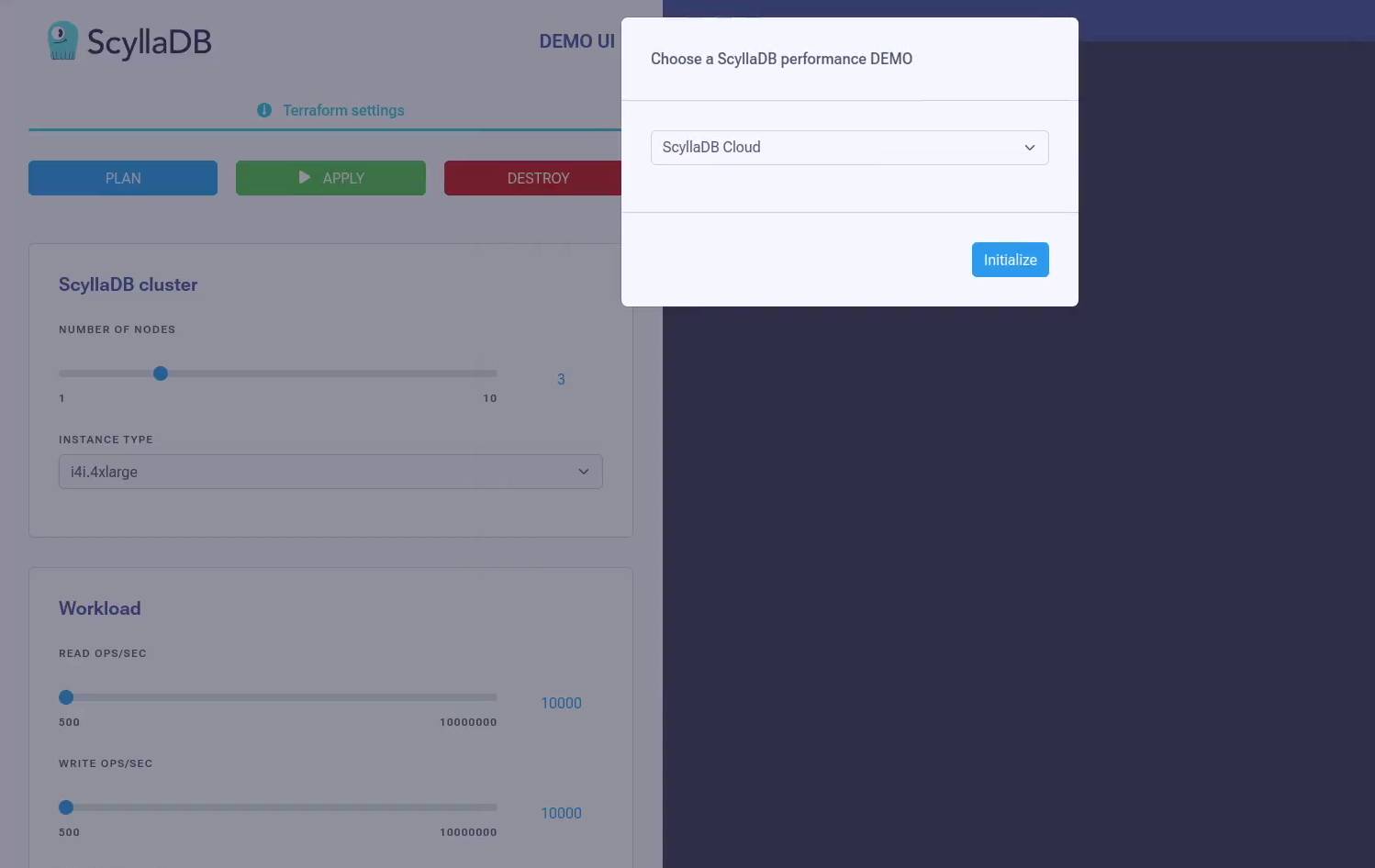
-
(Optional) Configure cluster size and workload settings on the left side
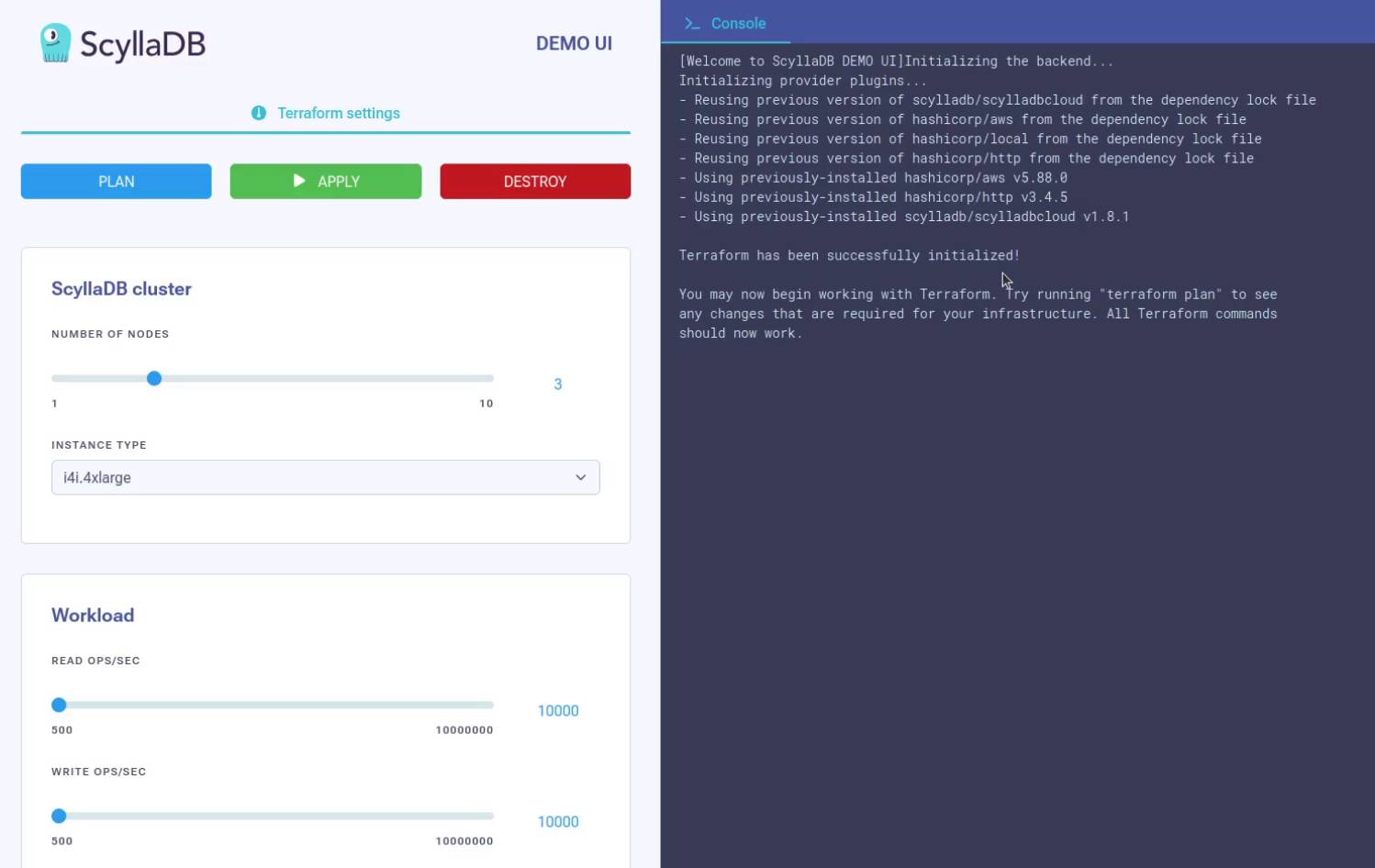
-
Hit
APPLY(this runsterraform apply) -
Keep an eye on the console output to see when Terraform finishes
-
Click on the different dashboard tabs to monitor the cluster.
-
If you are done, don't forget to run
DESTROYto remove infrastructure elements and avoid unnecessary costs.
Usage tips
- In case you need to manually access
terraform, you can always access it through the container's shell (keep in mind, that you need to change to a directory that contains the TF files):docker exec -it scylla-demo sh cd <demo-folder> - To run
terraform applyfrom within the container:terraform apply -var-file=user.tfvars.json -auto-approve - To run
terraform destroyfrom within the container:terraform destroy -var-file=user.tfvars.json -auto-approve - You can change the underlying Terraform implementation by stopping the container, making your changes then running
build_and_run.shscript again. - If Terraform fails after spinning up some parts of the infrastructure, you can do two things:
- Either just click the
DESTROYbutton, fix the problem, then runbuild_and_run.shagain or - Open the container's shell, fix the problem, and run
terraform apply -var-file=user.tfvars.json -auto-approve
- Either just click the
- If you want to install some package using the container's shell, you can use
apk add <package-name>(the image is based onAlpine)
Local development
Requirements:
- NodeJS 22 (
npm install -g node@22ornvm install 22) - Python 3
- Install Python packages and start Flask server
virtualenv env && source env/bin/activate pip install -r reqiurements.txt python app.py - Install frontend requirements and start dev server:
cd frontend npm install npm run dev - Edit
config.json:
If you are running the app locally for development purposes, make sure to set{ "aws_creds_file": "/home/user/.aws/credentials", "region": "us-east-1", "scylla_cloud_token": "API-TOKEN", "running_in_docker": false }running_in_dockertofalse.