
📦 Acumatica Inventory Scanner
Scan barcodes, fetch live Acumatica inventory, and see per-warehouse stock—manual setup today, guided onboarding coming soon.
Developed by AcuPower LTD - Acumatica Implementation Experts
✨ Features
- 📷 Real-time Barcode Scanning - Fast camera-based barcode detection
- 🔍 Inventory Lookup - Instantly search and view stock item details
- 🔐 OAuth 2.0 Authentication - Secure API access to Acumatica
- 💾 Settings Persistence - Save credentials for quick re-login
- 🎨 Modern Dark Theme - Industrial-inspired UI design
- 📱 Cross-Platform - Works on Android and iOS
📋 Prerequisites
Before using this app, ensure you have:
- Acumatica ERP Instance (version 20.2 or later)
- User Account with API access permissions
- OAuth Connected Application configured in Acumatica
🔧 Acumatica Configuration
Step 1: Create an OAuth Connected Application
The app requires OAuth credentials for secure API access. Follow these steps:
-
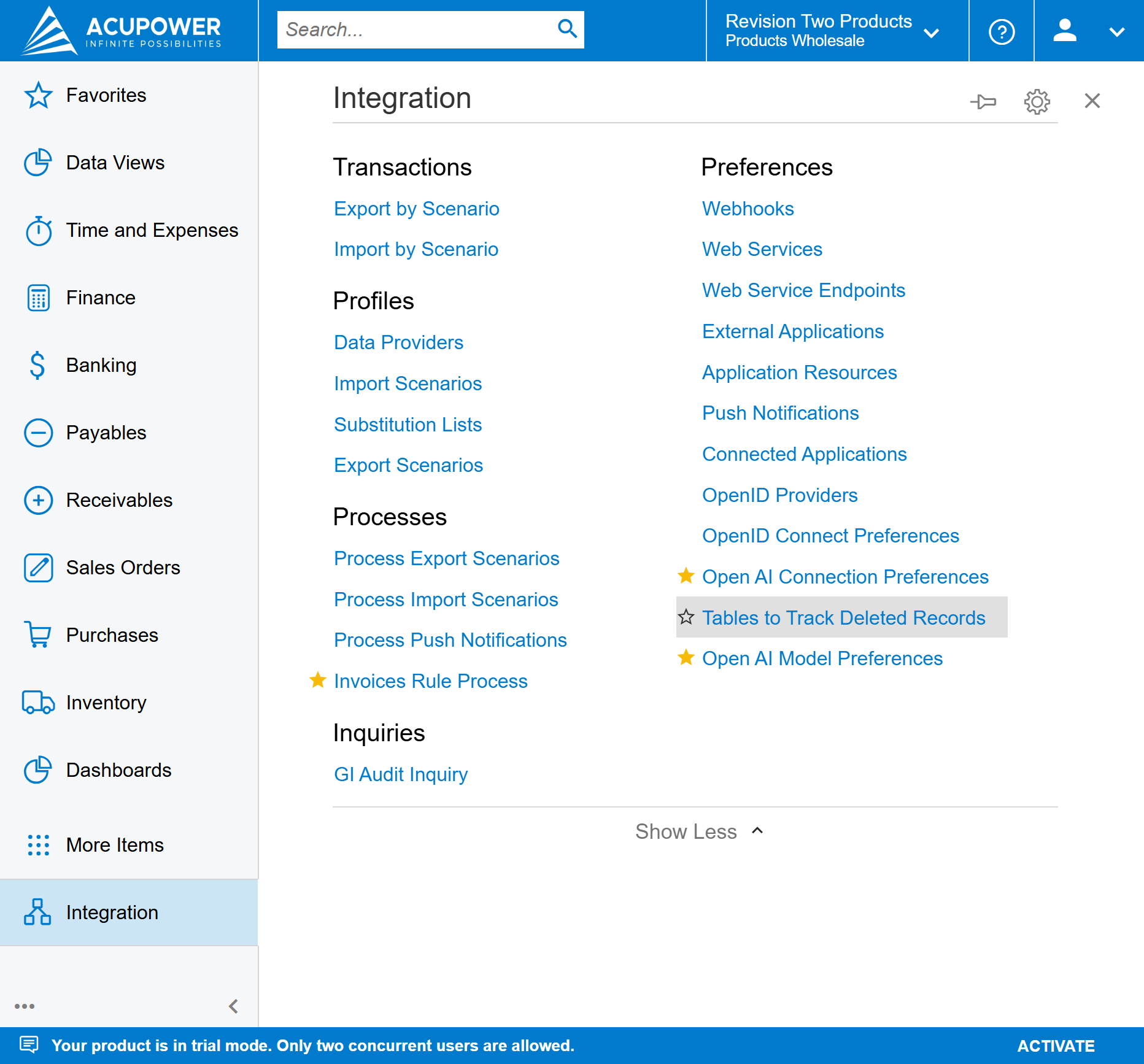
Navigate to Connected Applications
- In Acumatica, go to: System → Integration → Connected Applications
- Or use the screen ID:
SM303010
-
Create New Application
- Click the "+" button to create a new record
- Fill in the following fields:
Field Value Client Name InventoryScanner(or your preferred name)Active ✅ Checked Flow Resource Owner Password CredentialsPlug-In No Plug-In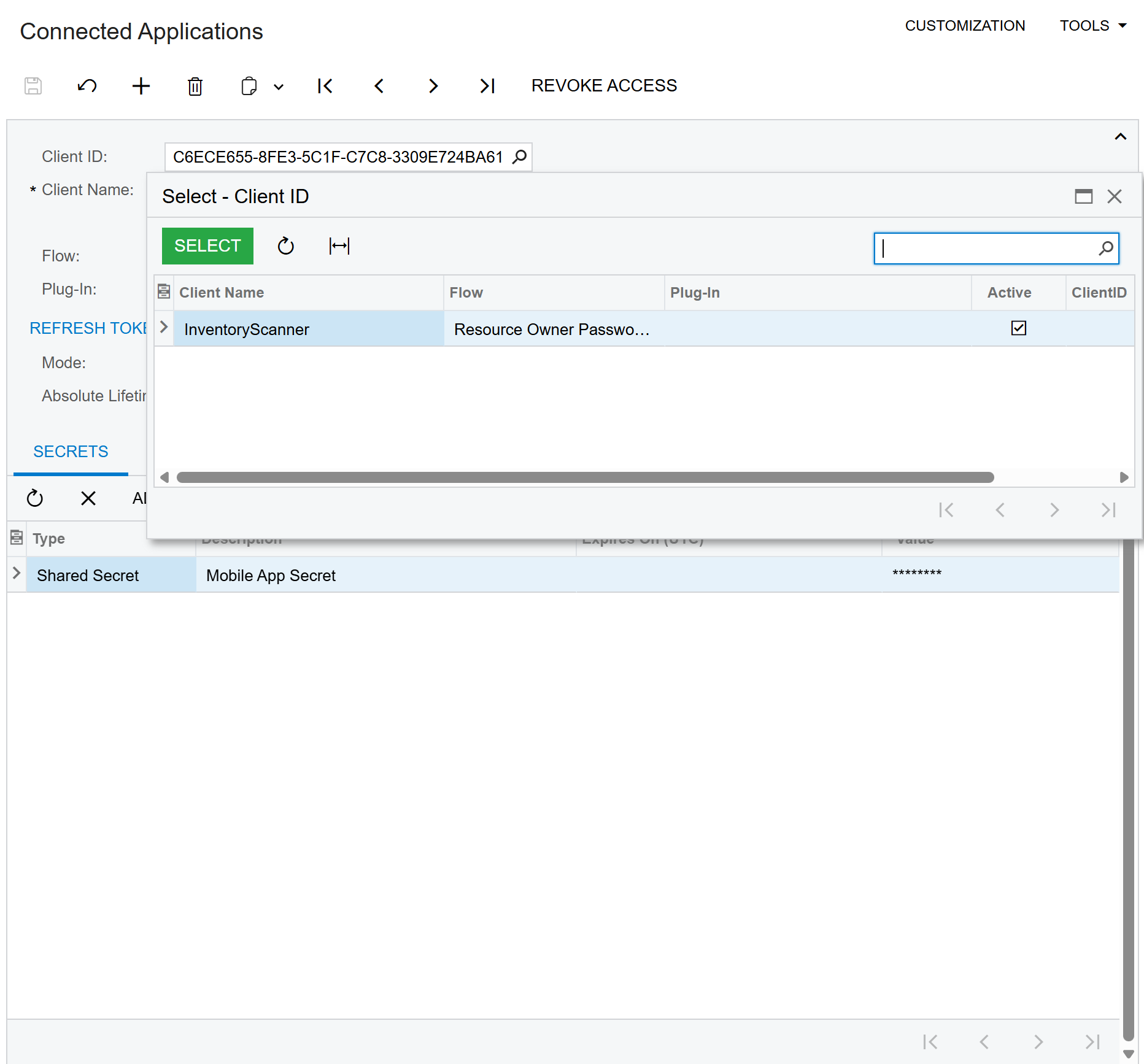
-
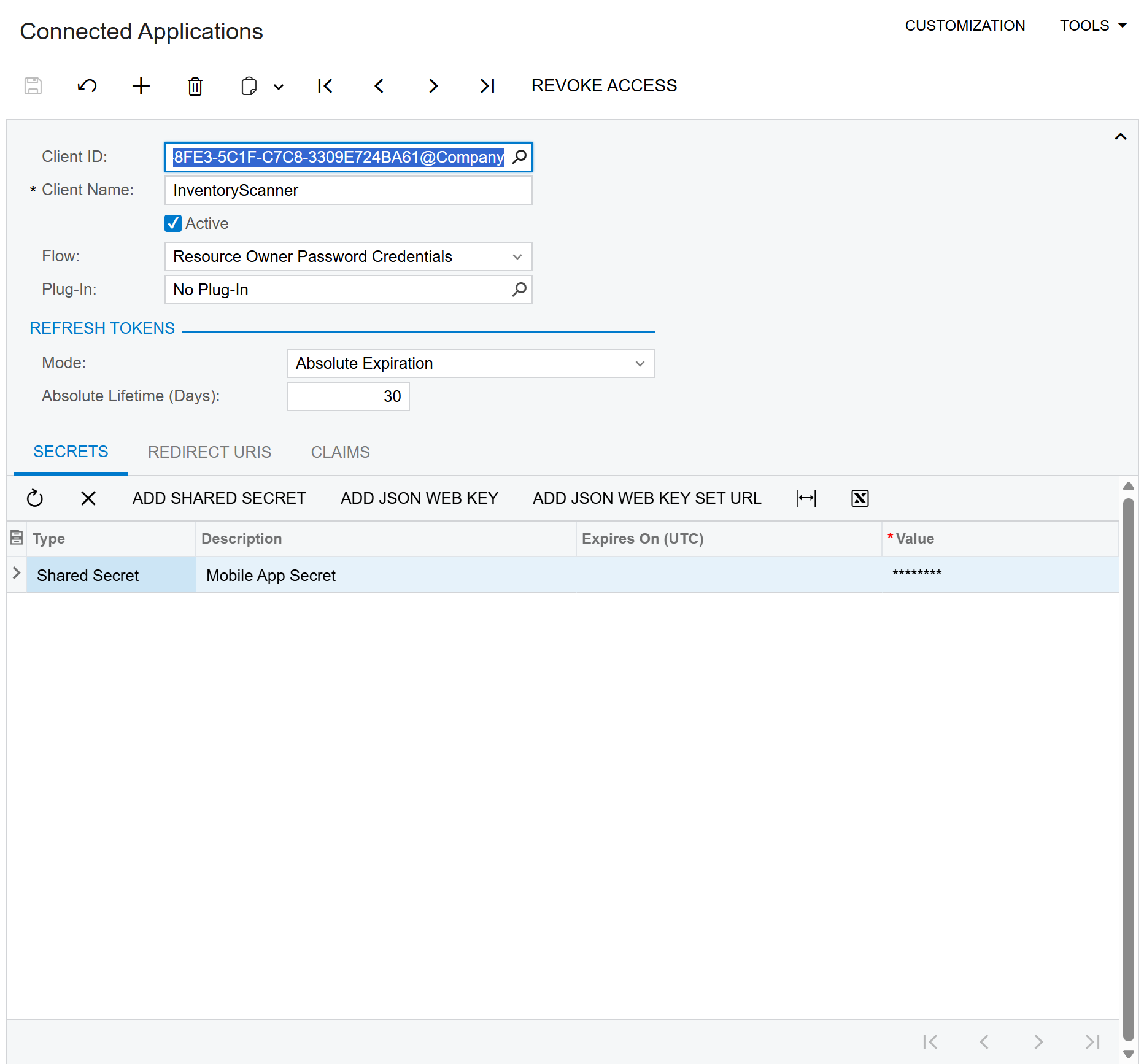
Add a Client Secret
- Click "Add Shared Secret" in the Secrets tab
- Enter a description (e.g., "Mobile App Secret")
- ⚠️ IMPORTANT: Copy and save the generated secret value immediately!
- The secret is only shown once and cannot be retrieved later
- Click OK to add the secret
-
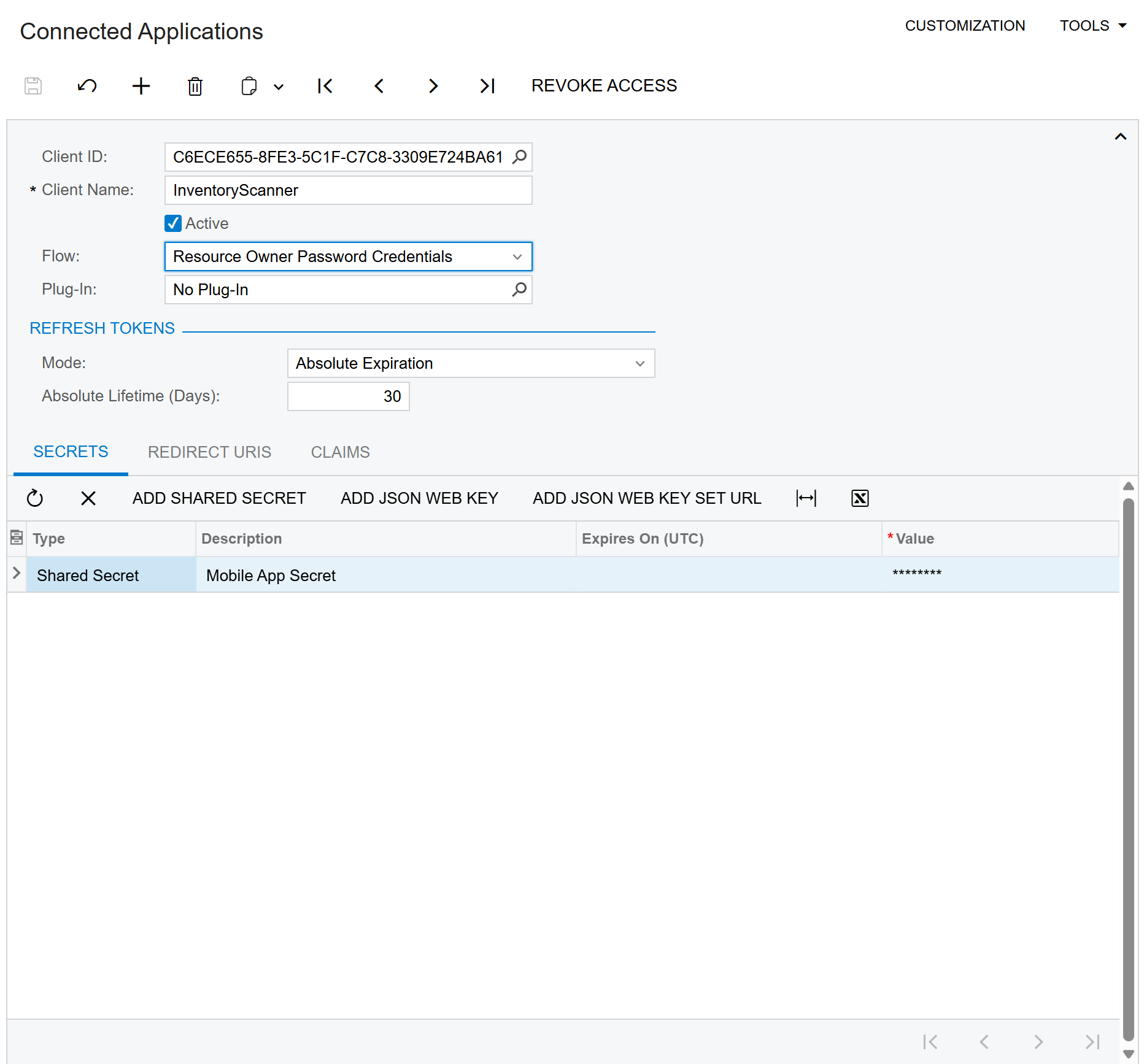
Save and Note Credentials
- Press Ctrl+S to save
- Note the following values:
- Client ID (e.g.,
C6ECE655-8FE3-5C1F-C7C8-3309E724BA61@Company) - Client Secret (the value you copied in step 3)
- Client ID (e.g.,
Step 2: Find Your API Version
The app needs to know which API version your Acumatica instance supports:
-
Check Available Endpoints
- Open your browser and navigate to:
https://your-instance.acumatica.com/YourSite/entity - This returns a JSON list of available API endpoints
- Open your browser and navigate to:
-
Note the Version
- Look for entries with
"name": "Default" - Common versions:
24.200.001,23.200.001,22.200.001 - Use the latest version available for your instance
- Look for entries with
📱 App Configuration
First Launch Setup
-
Open the App
- Launch the Acumatica Inventory Scanner on your device
-
Enter Connection Details
Field Description Example Instance URL Your Acumatica site URL https://mycompany.acumatica.com/MySiteUsername Your Acumatica username adminPassword Your Acumatica password ****Tenant Optional - leave empty for single-tenant API Version From Step 2 above 24.200.001Client ID OAuth Client ID from Step 1 GUID@CompanyClient Secret OAuth Secret from Step 1 your-secret-key -
Test Connection
- Tap "Test Connection" to verify settings
- A green success message confirms API access
-
Save Settings
- Tap "Save Settings" to persist for future use
- Enable "Remember credentials" for auto-fill on next launch
🎯 Using the Scanner
Scanning Barcodes
- Point camera at barcode - Position within the scanning frame
- Hold steady - The red scanning line indicates detection area
- Automatic detection - Barcode is recognized and searched automatically
Search Results
After scanning, the app displays:
- Item ID - Acumatica Inventory ID
- Description - Item description
- Availability - Current stock levels
- Warehouse Location - Where the item is stored
⚙️ Settings
Access settings anytime via the Settings tab:
Connection Settings
- Edit Acumatica URL and credentials
- Change API version
- Update OAuth credentials
App Preferences
- Play sound on scan - Audio feedback
- Vibrate on scan - Haptic feedback
- Auto-search after scan - Immediate lookup
- Remember credentials - Save login info
Reset
- Reset All Settings - Clear all saved data and start fresh
🔒 Security Notes
- OAuth is Required - Cookie-based auth is not supported for REST API
- Credentials Storage - Passwords are stored in platform-secure storage
- Token Expiration - OAuth tokens expire after 1 hour; re-login if needed
- HTTPS Only - Always use secure connections
🐛 Troubleshooting
"401 Unauthorized" Error
- OAuth credentials may be incorrect or expired
- Verify Client ID and Secret in Acumatica
- Check that the Connected Application is Active
"404 Not Found" Error
- API version mismatch
- The endpoint uses
StockItem, notInventoryItem - Try a different API version from the
/entityendpoint
"Connection Failed"
- Check network connectivity
- Verify the instance URL is correct
- Ensure no VPN or firewall is blocking access
Scanner Not Detecting
- Ensure camera permissions are granted
- Hold device steady with good lighting
- Barcode must be within the scanning frame
🏷️ Barcode Generator Utility
This repository includes a Windows desktop application for generating test barcodes. Located in the BarcodeGenerator/ folder.
Features
- Generate multiple barcode formats
- Batch generation (semicolon-separated codes)
- Customizable dimensions
- Export to PNG, JPEG, BMP, or PDF
- Real-time preview
Supported Barcode Formats
| Format | Characters | Length Requirements | Best For |
|---|---|---|---|
| Code 128 | Alphanumeric + special | Any length | ✅ Inventory IDs (recommended) |
| QR Code | Any text, URLs | Any length | URLs, long text |
| Data Matrix | Any text | Any length | Small items, high density |
| PDF417 | Any text | Any length | Documents, IDs |
| EAN-13 | Digits only | 12-13 digits | Retail products (worldwide) |
| EAN-8 | Digits only | 7-8 digits | Small retail products |
| UPC-A | Digits only | 11-12 digits | Retail products (US/Canada) |
| UPC-E | Digits only | 7-8 digits | Small packages (US) |
| ITF | Digits only | Even number of digits | Shipping cartons |
| Codabar | 0-9, A-D, -, $, :, /, ., + | Any length | Libraries, blood banks |
Barcode Format Rules
Alphanumeric Formats (Flexible)
Code 128 - Most versatile, recommended for Acumatica Inventory IDs
✅ AALEGO500
✅ ITEM-001-A
✅ Any alphanumeric string
QR Code / Data Matrix / PDF417 - Can encode any text
✅ https://acupowererp.com
✅ Long product descriptions
✅ Special characters: @#$%^&*
Numeric-Only Formats (Strict Rules)
EAN-13 (European Article Number)
✅ 5901234123457  (13 digits)
✅ 590123412345   (12 digits - checksum auto-added)
❌ AALEGO500      (letters not allowed)
❌ 12345          (too short)
EAN-8 (Short EAN)
✅ 96385074  (8 digits)
✅ 9638507   (7 digits - checksum auto-added)
❌ 123456789 (too long)
UPC-A (Universal Product Code - North America)
✅ 012345678905  (12 digits)
✅ 01234567890   (11 digits - checksum auto-added)
❌ 1234567890    (too short)
UPC-E (Compressed UPC)
✅ 01234565  (8 digits)
✅ 0123456   (7 digits - checksum auto-added)
❌ 012345678 (too long)
ITF (Interleaved 2 of 5)
✅ 1234567890  (10 digits - even count)
✅ 12345678    (8 digits - even count)
❌ 123456789   (9 digits - odd count not allowed)
Usage
- Run the application: Open
BarcodeGenerator.exeor build from source - Enter code(s): Type inventory IDs (use
;for multiple)AALEGO500; WIDGET001; PART-123 - Select format: Choose barcode type from dropdown
- Set dimensions: Adjust width/height (default: 300×150)
- Generate: Click "Generate Barcode"
- Save: Export as image (PNG/JPEG/BMP) or PDF
Integration with Mobile Scanner
Use the Barcode Generator to:
- Create barcodes with your Acumatica Inventory IDs
- Print them or display on screen
- Scan with the mobile app to test the integration
- Verify API connectivity and item lookup
Building from Source
cd BarcodeGenerator
dotnet build
dotnet run
Requirements: .NET 8.0, Windows
📞 Support
Created by AcuPower LTD
- 🌐 Website: acupowererp.com
- 📧 Email: [email protected]
📄 License
This project is licensed under the MIT License - a permissive open source license.
You are free to:
- ✅ Use commercially
- ✅ Modify
- ✅ Distribute
- ✅ Use privately
- ✅ Sublicense
See the LICENSE file for full details.
MIT License
Copyright (c) 2024-2026 AcuPower LTD (https://acupowererp.com)
🔄 Version History
| Version | Date | Changes |
|---|---|---|
| 1.0.0 | 2024 | Initial release with barcode scanning |
| 1.1.0 | 2025 | Added OAuth support, Settings page |
| 1.2.0 | 2026 | Modern UI redesign, persistent settings |