
AI Tasks

Table of Contents
- About
- Quick Start
- Samples
- Features
- How To Use It
- Installation
- Configuration
- Extending
- Good to Remember
- Known Issues
- Team
- License
- Disclaimer
About
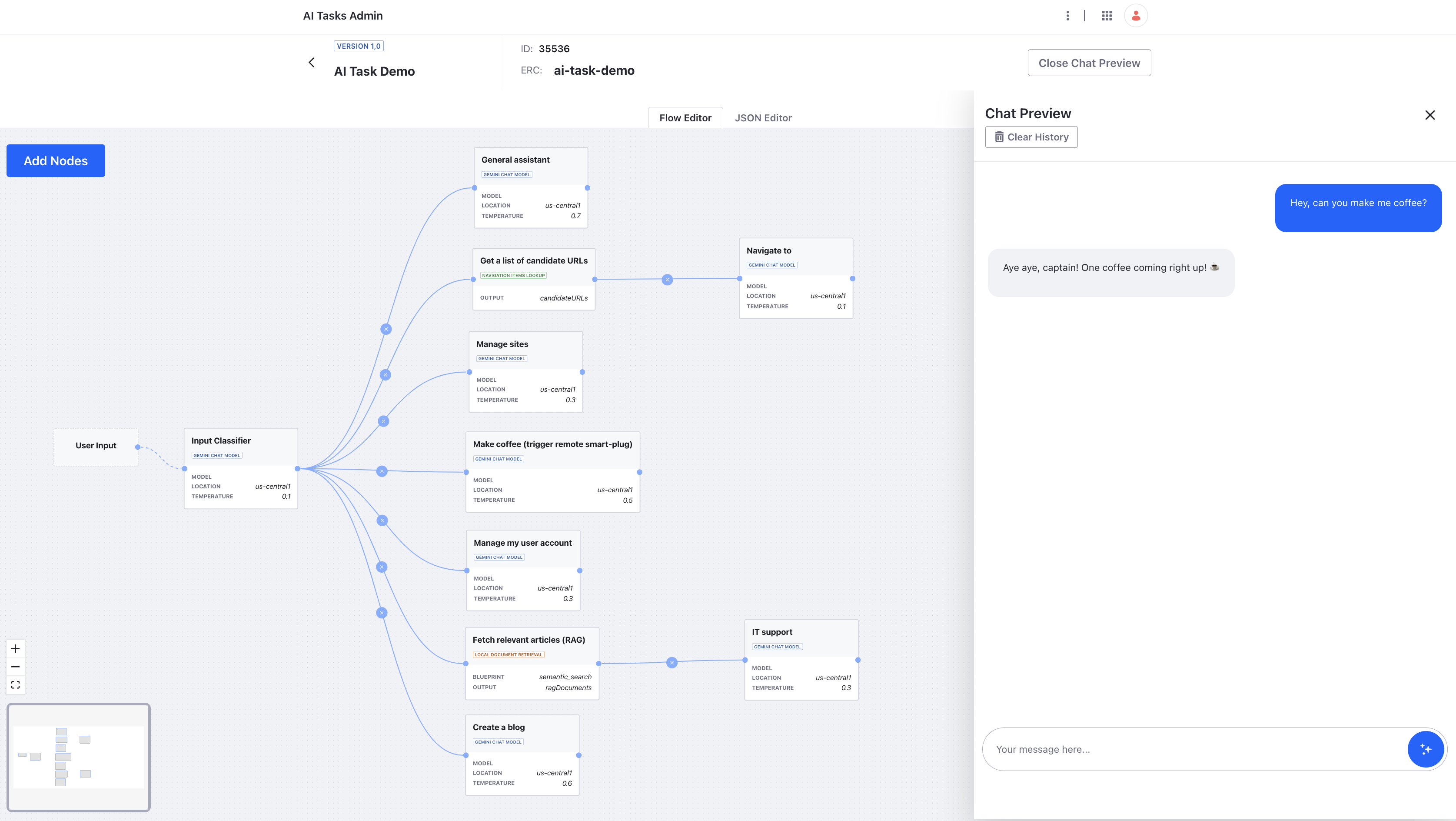
AI Tasks is a tool for Liferay allowing to easily build and manage AI-assisted, agentic workflows without extensive programming knowledge. It leverages large language models (LLMs) and an agent-based approach. It can be used standalone, for example for Liferay chatbots and chat interfaces but also integrated to Liferay workflows and to external orchestrators and vice versa. It lets to visually define LLM driven workflows which are then exposed through a REST endpoint. Liferay integration enables governing access, permissions and auditing with the standard Liferay tools as well as easy integration to existing or new Liferay features, to leverage AI.
AI Tasks backend is built on LangChain4J and supports the Model Context Protocol (MCP) for creating standardized integrations to external and internal services.
Quick Start
See the quick start tutorial here.
Samples
Several sample AI Tasks are provided in the samples folder.
Features
- AI integration: Integrate with Anthropic, Vertex AI, OpenAI, Ollama or HuggingFace chat and image LLMs.
- MCP support: Integrate the tasks to MCP servers
- Workflow orchestration: Design workflows with a visual editor. Export & import as JSON configuration files.
- Liferay integration: Manage access, permissions and policies with Liferay. Trigger and consume the tasks through REST API.
- Data locality: Local LLMs supported through Ollama.
- 3rd Party Integration: Integrate to 3rd party workflow automation tools. Let 3rd party tools to integrate to it via REST APIs.
- Open Source: Extend and customize the task node types and function callback to your needs
Example Use Cases
- Create Liferay chatbots
- Create multi-agent tasks operating with internal or external services with the help of MCP
- Add AI translation capabilities to Liferay pages, display templates or applications
- Add AI summarization capabilities to Liferay pages, display templates or applications
- Add image & content generation capabilities to Liferay pages, display templates or applications
- Create RAG chatbots grounded to local Liferay semantic search or for example to Google Search
- Integrate Liferay OOTB workflows with AI
How To Use It
- Create an AI Task, for example a simple LLM chat using the visual designer
- From the provided test chatbot, a Liferay display template, client extension, your own frontend or from anywhere, consume the AI Task through its
generateREST endpoint:
For example, to send the text Please tell me a joke for an AI Tasks with external reference code sampleJokingChatbotUsingVertexAI, one would send a payload like this:
curl -X 'POST' \
  'http://localhost:8080/o/ai-tasks/v1.0/generate/sampleJokingChatbotUsingVertexAI' \
  -H 'accept: application/json' \
  -H 'Content-Type: application/json' \
  -H 'x-csrf-token: kPNn0CrS' \
  -d '{
  "input": {
"text": "Please tell me a joke"}
}'
If everything was set up correctly, the response, with trace enabled, should look something like this:
{
  "executionTrace": {
    "llmNodeid": {
      "userMessage": "Please tell me a joke",
      "executionTime": "1921ms",
      "systemMessage": "",
      "tokenUsage": {
        "inputTokenCount": 21,
        "totalTokenCount": 72,
        "outputTokenCount": 51
      },
      "finishReason": "STOP",
      "content": "Why did the golfer wear two pants? Because he's afraid he might get a \"Hole-in-one.\" \n\nThis is a classic punny joke!  Let me know if you'd like to hear another one. 😊"
    }
  }
  "output": {
    "text": "Why did the golfer wear two pants? Because he's afraid he might get a \"Hole-in-one.\" \n\nThis is a classic punny joke!  Let me know if you'd like to hear another one. 😊"
  },
  "took": "1921ms"
}
Installation
Requirements
- Liferay DXP 7.4
- Java 17
- The desired AI services / accounts set up
1. Install the Modules
- Clone the repository:
[email protected]:peerkar/ai-tasks.git
- Set up the Liferay bundle. If using the workspace bundle, go to the
liferay-workspacefolder and run:
gw initBundle
- Start up the DXP and deploy the license
- In both the
modulesandclient-extensionsdirectory run:
gw deploy
- Verify from Liferay logs that all the modules were deployed and started succesfully
- Access the AI Tasks Admin app in the Applications menu
2. Set up the LLMs
Set up your preferred APIs and services as needed:
- Ollama
- HuggingFace
- OpenAI API
- Vertex AI. In local development environment, the gcloud CLI is required.
3. Access the Admin Application
Log in to the portal and go to the Application -> AI Tasks -> AI Tasks Admin
4. Test
Import a sample or create your own task and either test it:
- In the AI Task Admin preview
- On the local API test page
- In the provided test chatbot client extension
Configuration
See the configuration reference.
Extending
Currently there are 3 extension points:
- Nodes
- Tools
- Chat model listeners
See the SPI module.
For extending the tooling, using MCP is recommended.
Good to Remember
Set Up the LLM Quotas
Always use quotas when integrating to external LLM service providers.
Known Issues
Performance
LLM calls can take a long time to execute, meaning blocked threads. This issue will be mitigated with https://github.com/peerkar/ai-tasks/issues/2
Multimodality
AI Tasks is using the LangChain4J AI Services, which don't currently support multimodal input. Please see https://github.com/langchain4j/langchain4j/issues/938
GCloud Client Authentication & Timeouts
Authentication to Vertex AI doesn't work if the gcloud authentication is not done before starting the DXP. To authenticate, enter on the command line:
gcloud auth application-default login
gcloud auth login
If the authorization key is timed out. The portal needs to be shut down before reauthenticating.
Team
License
This software is licensed under LGPL v.3.
Disclaimer
This software is provided “as is”, without warranty of any kind.