

Your activity, into automation.




AutomatiQ
[!Note] Alpha ⟶ Things will break and change. Read VISION.md to understand why Automatiq exists and where it's headed.
AutomatiQ watches you browse, then an AI agent reverse-engineers your session into a standalone Python automation/extraction script; no manual inspection needed.
How it works
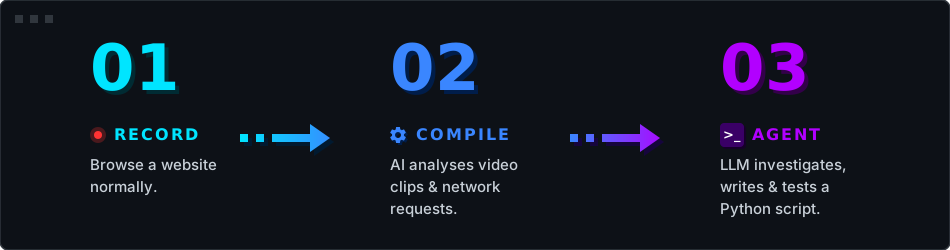
- Record (Browser Capture) ⟶ Chrome is launched with CDP instrumentation. Every network request, response body, cookie, and user interaction (clicks, typing, navigation) is recorded with timestamps. Press
Ctrl+Cwhen you're done. - Compile (Vision Analysis) ⟶ The recording is split into per-action video clips. A vision LLM watches each clip and produces structured annotations (what was clicked, what changed, whether the action succeeded). Network requests are decoded, deduplicated, and structured into a workspace dump.
- Agent (Sandbox Execution) ⟶ An LLM investigator reads the workspace dump, experiments in an isolated Python/IPython environment, and iteratively produces a working script. It can test hypotheses against the live site with guardrails against loops and repetition.
Getting Started
Requirements: Python 3.11+
pip install automatiq
Set your API key (AutomatiQ uses Gemini 3 Flash by default, but any litellm-supported provider works):
# On Linux/macOS
export GEMINI_API_KEY=your-key-here

# On Windows (PowerShell)
$env:GEMINI_API_KEY="your-key-here"
Run the magic command:
automatiq run https://example.com
That's it. Browse the site, press Ctrl+C, and the agent takes over.
Usage Modes
AutomatiQ offers two main ways to operate depending on your workflow:
1. All-in-one execution
The run command records a session and immediately launches the agent to write the script.
automatiq run https://example.com
2. Step-by-step execution
If you want to record multiple sessions, or run the agent later, you can split the process:
automatiq record https://example.com   # Opens the browser and records your session
automatiq agent                        # Builds an automation script from the last recording
automatiq agent --target path/to/sess  # Builds an automation script from a specific recording
Models & Custom Endpoints
AutomatiQ relies on LiteLLM under the hood, meaning you can easily swap the default Gemini models for OpenAI, Anthropic, GitHub Copilot, or Local LLMs (like Ollama, LM Studio, or vLLM).
To change the default models on the fly, use the --model (for the Agent) and --recorder-model (for Vision compilation) flags.
Using Local Models (Ollama, LM Studio, vLLM)
If you are running a local inference server with an OpenAI-compatible endpoint, use the --base-url flag. You must prefix your model name with openai/ so LiteLLM knows to route it through the OpenAI protocol.
Example using Ollama (running locally on port 11434):
automatiq run https://example.com \
  --model openai/llama3.3 \
  --recorder-model openai/llava \
  --base-url http://localhost:11434/v1
Note: For a permanent configuration so you don't have to pass flags every time, see the Configuration section below.
Reference
Keyboard Shortcuts
| Phase | Key | Action |
|---|---|---|
| Recording | Ctrl+C |
Stop recording and save session |
| Compilation | Esc |
Skip AI analysis for remaining segments |
| Compilation | y / n |
Confirm or deny the skip prompt |
| Agent | q |
Quit the agent session |
| Agent | Esc |
Cancel current LLM call or code execution |
Note: Ctrl+C force-quits the application at any phase.
CLI Options
| Flag | Description |
|---|---|
--target PATH |
Path to a specific session folder to run the agent on |
--model MODEL |
LiteLLM model string for the agent |
--recorder-model MODEL |
Vision model for video-clip analysis |
--base-url URL |
Custom OpenAI-compatible API endpoint |
--max-steps N |
Maximum agent loop iterations (default: 60) |
--sandbox-timeout SEC |
Seconds per IPython cell (default: 60) |
--output-dir PATH |
Root directory for all output (default: ./output) |
--no-banner |
Skip the startup animation |
--verbose |
Show detailed diagnostic output |
-V, --version |
Show version |
-h, --help |
Show help message |
Configuration
On first run, AutomatiQ creates ~/.automatiq/config.toml with commented defaults. Edit this file to permanently override models, custom endpoints, timeouts, and recording settings.
[models]
agent    = "gemini/gemini-3-flash-preview"
recorder = "gemini/gemini-3.1-flash-lite-preview"
# base_url = "http://localhost:11434/v1"   # Uncomment for Ollama / LM Studio / vLLM

[agent]
max_steps       = 60
sandbox_timeout = 60

[recording]
fps                   = 3
segment_pad           = 2
merge_gap_threshold   = 1.5
max_frames_per_prompt = 8
Priority order: CLI flag > ~/.automatiq/config.toml > built-in defaults.
Development
AutomatiQ is managed using uv.
# Clone and setup environment
git clone https://github.com/StoneSteel27/AutomatiQ.git
cd AutomatiQ
uv sync

# Run the project from source
uv run automatiq run https://example.com
Dev Setup
Development dependencies (pytest, ruff, pre-commit, etc.) are installed automatically via uv sync. To set up the git hooks:
uv run pre-commit install
Run tests:
uv run pytest
This ensures ruff, build, twine, pytest, and pre-commit hooks (lint + format on every commit) are properly configured in your isolated environment.
License
MIT