
Application execution
Directly download the AW client in dist. format to run AW nodes, without needing to use the command line below (which is intended for technical users
Windows
Download the aw client in exe.
Mac
Download the aw client in aw-mac.
First unzip the downloaded file
Double-click the .zip package to unzip the file
Troubleshooting File Opening Issues on macOS
If you encounter situations where a aw cannot be opened or is being blocked (as shown in the picture), you may need to adjust your settings. This issue occurs because the application is not distributed through the App Store.
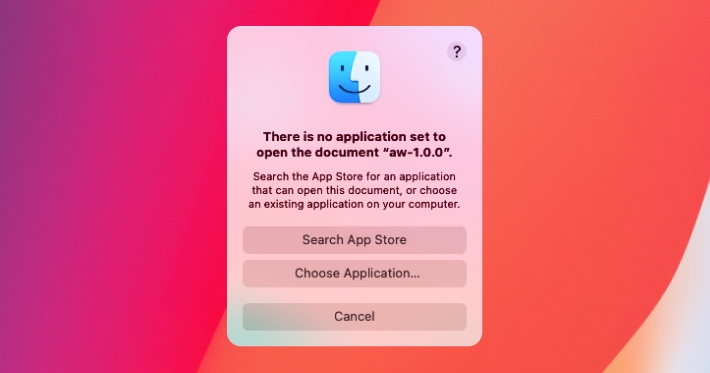
Resolution Steps
-
Open System Preferences:
- Navigate to Privacy & Security.
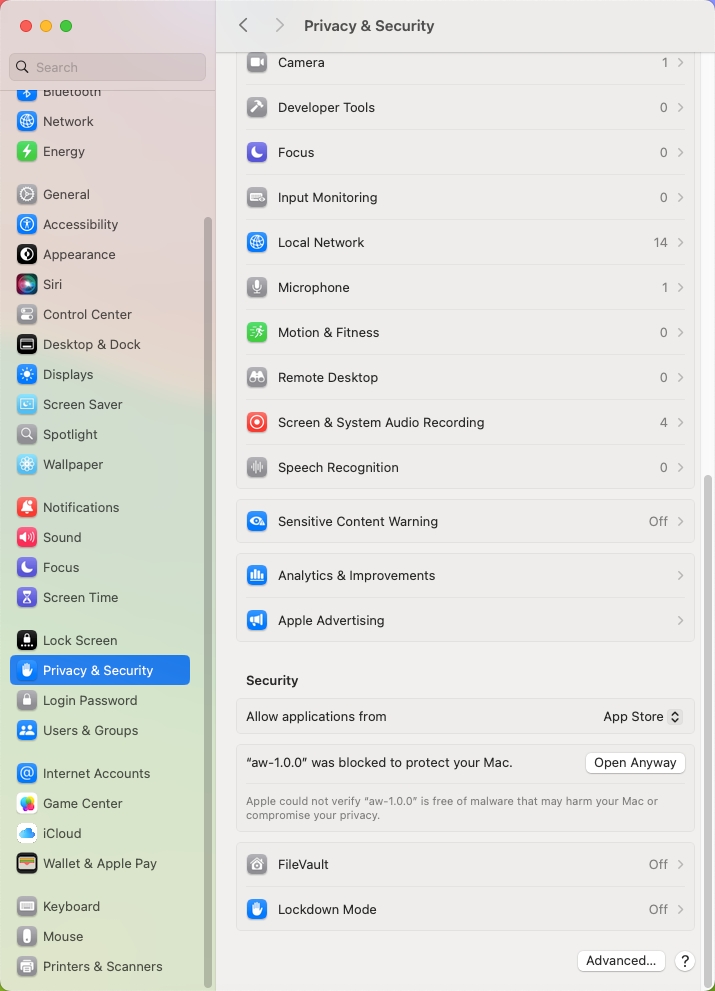
- Navigate to Privacy & Security.
-
Access Security Settings:
- Within the Privacy & Security panel, scroll to the Security section.
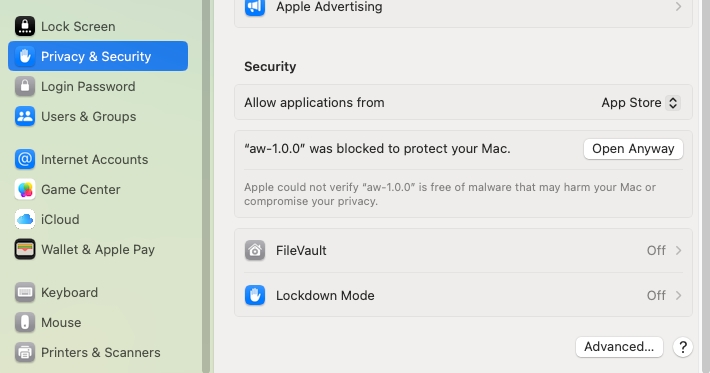
- Within the Privacy & Security panel, scroll to the Security section.
-
Locate the Application:
- Find the "aw-1.0.0" in the list of blocked
-
Allow the Application:
- Click on Open Anyway to bypass the block and open the file.
Note: This configuration is necessary because macOS security settings restrict applications not available via the App Store.
Linux
Support:
ubuntu20.04+、debian11+、fedora39+
Download the aw client in aw-linux.
unzip aw-linux-1.0.0.zip
./aw
Command line run
1.Install Git
To install git-lfs as an additional tool, check out (https://git-lfs.com/)
Windows
Go to the Git official website(https://git-scm.com/downloads/win) to download the specified version of Git for installation.
Mac
/bin/bash -c "$(curl -fsSL https://raw.githubusercontent.com/Homebrew/install/HEAD/install.sh)"
brew install git git-lfs
Linux
Debian/Ubuntu
For the latest stable version for your release of Debian/Ubuntu
# apt-get install git git-lfs
For Ubuntu, this PPA provides the latest stable upstream Git version
# add-apt-repository ppa:git-core/ppa
# apt update; apt install git git-lfs
Fedora
# yum install git git-lfs (up to Fedora 21)
# dnf install git git-lfs (Fedora 22 and later)
Gentoo
# emerge --ask --verbose dev-vcs/git
Arch Linux
# pacman -S git
openSUSE
# zypper install git
Mageia
# urpmi git
Nix/NixOS
# nix-env -i git
FreeBSD
# pkg install git
Solaris 9/10/11 (OpenCSW)
# pkgutil -i git
Solaris 11 Express, OpenIndiana
# pkg install developer/versioning/git
OpenBSD
# pkg_add git
Alpine
$ apk add git git-lfs
Red Hat Enterprise Linux, Oracle Linux, CentOS, Scientific Linux, et al.
RHEL and derivatives typically ship older versions of git. You can download a tarball and build from source, or use a 3rd-party repository such as the IUS Community Project to obtain a more recent version of git.
Slitaz
$ tazpkg get-install git
2.Build virtual environment
Windows
Step 1: Download and Install Python 3.9
Navigate to the Python Downloads Page : Open your web browser and go to the official Python website: python.org/downloads
Step 2: Install virtualenv
pip install virtualenv
Step 3: Create a Virtual Environment
\your\python3.9version\path\python -m venv venv
Step 4: Activate the Virtual Environment
venv\Scripts\activate
Mac
Apple Silicon
mkdir -p ~/miniconda3
curl https://repo.anaconda.com/miniconda/Miniconda3-latest-MacOSX-arm64.sh -o ~/miniconda3/miniconda.sh
bash ~/miniconda3/miniconda.sh -b -u -p ~/miniconda3
rm ~/miniconda3/miniconda.sh
Intel
mkdir -p ~/miniconda3
curl https://repo.anaconda.com/miniconda/Miniconda3-latest-MacOSX-x86_64.sh -o ~/miniconda3/miniconda.sh
bash ~/miniconda3/miniconda.sh -b -u -p ~/miniconda3
rm ~/miniconda3/miniconda.sh
Linux
Linux x86
mkdir -p ~/miniconda3
wget https://repo.anaconda.com/miniconda/Miniconda3-latest-Linux-x86_64.sh -O ~/miniconda3/miniconda.sh
bash ~/miniconda3/miniconda.sh -b -u -p ~/miniconda3
rm ~/miniconda3/miniconda.sh
AWS Graviton2/ARM64
mkdir -p ~/miniconda3
wget https://repo.anaconda.com/miniconda/Miniconda3-latest-Linux-aarch64.sh -O ~/miniconda3/miniconda.sh
bash ~/miniconda3/miniconda.sh -b -u -p ~/miniconda3
rm ~/miniconda3/miniconda.sh
IBMZ/LinuxOne/s390x
mkdir -p ~/miniconda3
wget https://repo.anaconda.com/miniconda/Miniconda3-latest-Linux-s390x.sh -O ~/miniconda3/miniconda.sh
bash ~/miniconda3/miniconda.sh -b -u -p ~/miniconda3
rm ~/miniconda3/miniconda.sh
3.Start running the node
Windows
venv\Scripts\activate
git clone https://github.com/earos-ai/aw-client \your\project\path\aw-node
cd \your\project\path\aw-node
pip install -r requirements.txt
python aw.py
Mac or Linux
source ~/miniconda3/bin/activate
conda create -y -n aw-node python==3.10
conda activate aw-node
git clone https://github.com/earos-ai/aw-client /root/aw-node
cd /root/aw-node
pip install -r requirements.txt
python aw.py