
Better Agent Terminal





A Tauri-powered terminal aggregator with multi-workspace support and built-in AI agent integration
Manage multiple project terminals in one window, with built-in Claude Code and Codex agent panels, file browser, git viewer, snippet manager, and remote access — all in a single Tauri app.
Version 3.0 is the Tauri-only release. The Electron runtime has been removed; the app now uses a Rust/Tauri host, a React renderer, and a small bundled Node sidecar only where JavaScript SDK/runtime support is still required.
Mobile Apps
Mobile apps require Better Agent Terminal v3.1.3 or later.
| iOS TestFlight | Android |
|---|---|
https://l.tonyq.org/bat-ios
|
https://l.tonyq.org/bat-android
|
Screenshots
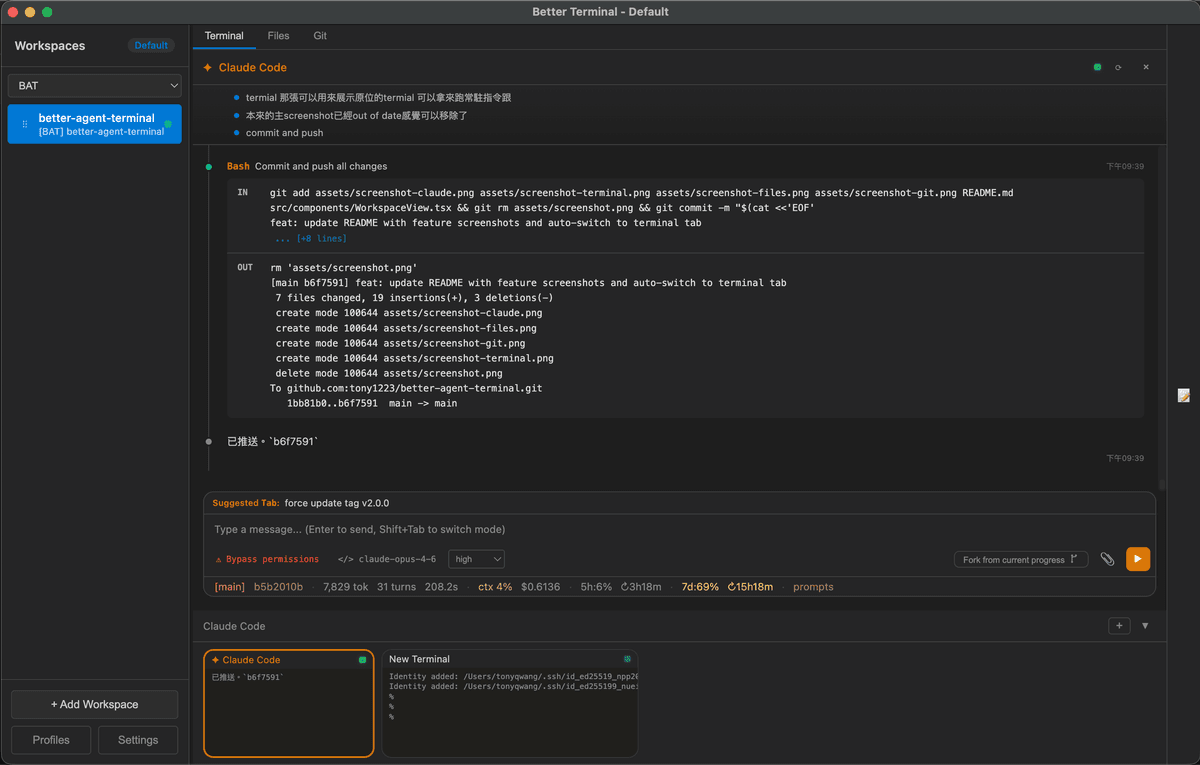
Claude Code Agent Panel — Built-in AI agent with permission controls, status line, and streaming output
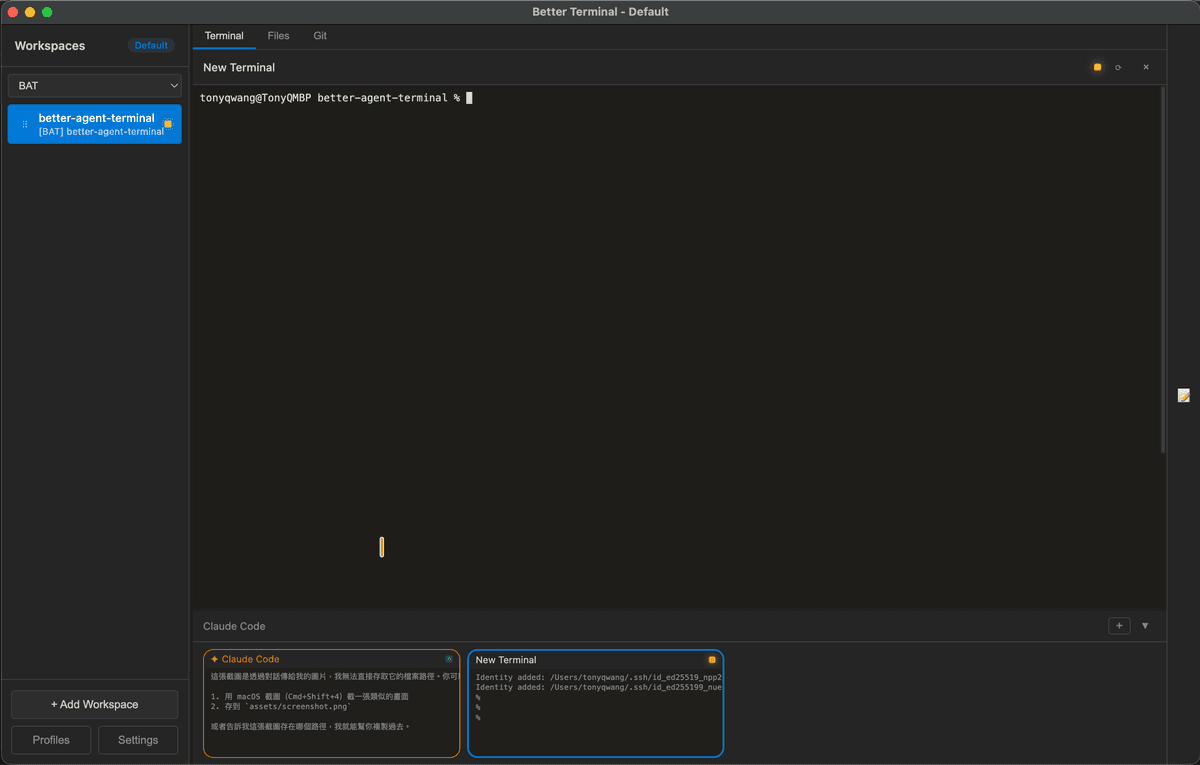
Terminal — Run persistent terminals alongside your agent for long-running commands and monitoring
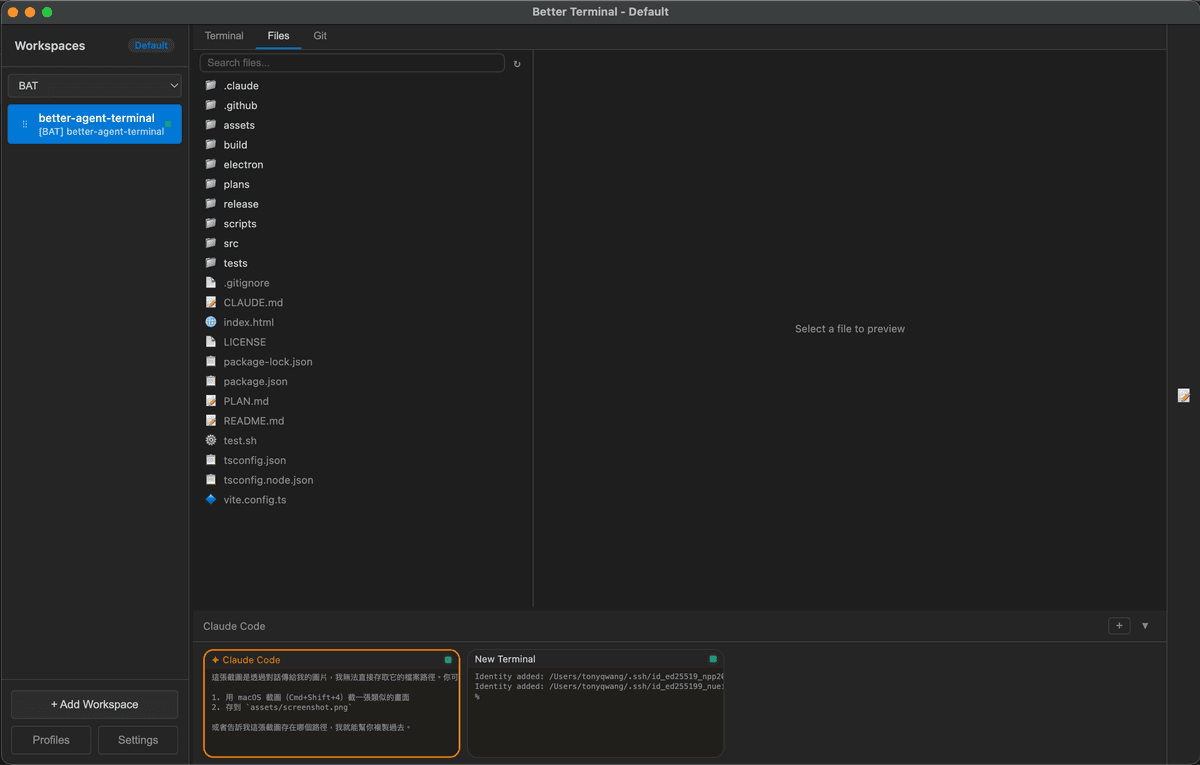
File Browser — Browse and preview project files without leaving the app
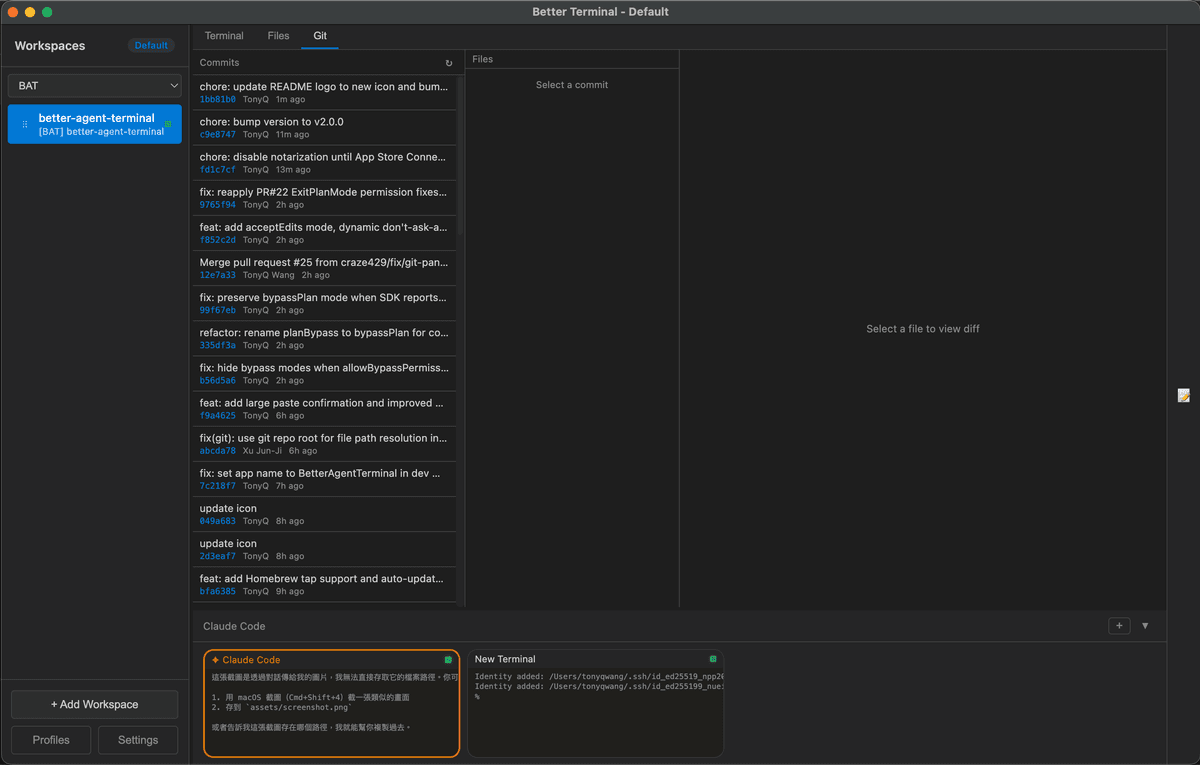
Git Viewer — View commit history and diffs at a glance
Features
Workspace Management
- Multi-Workspace — Organize terminals by project folders; each workspace binds to a directory
- Drag & Drop — Reorder workspaces freely in the sidebar
- Groups — Categorize workspaces into named groups with a filter dropdown
- Profiles — Save and switch between multiple workspace configurations (local or remote)
- Detachable Windows — Pop out individual workspaces to separate windows; auto-reattach on restart
- Per-Workspace Env Vars — Configure custom environment variables per workspace
- Activity Indicators — Visual dots showing which workspaces have active terminal processes
- Double-click to rename, right-click context menu for all workspace actions
Terminal
- Split-panel layout — 70% main panel + 30% scrollable thumbnail bar showing all terminals
- Multiple terminals per workspace — Powered by xterm.js with full Unicode/CJK support
- Agent presets — Pre-configured terminal roles: Claude Code, Claude Code (worktree), Codex Agent, or plain terminal
- Git worktree isolation — Spawn Claude agents in an isolated worktree to prevent destructive changes to your main working tree
- Tab navigation — Switch between Terminal, Files, and Git views per workspace
- File browser — Search, navigate, and preview files with syntax highlighting (highlight.js)
- Git integration — Commit log, diff viewer, branch display, untracked file list, GitHub link detection
- GitHub panel — Browse PRs and issues directly from the Git tab
- Snippet manager — Save, organize, search, and paste code snippets (SQLite-backed with categories and favorites)
- Markdown preview — Preview
.mdfiles in a dedicated right sidebar panel with live file watching and right-click context menu - Worker panel (Procfile) — Run multiple processes from a Procfile in a single tab with combined log view and per-process start/stop/restart controls, inspired by Overmind
- Per-terminal prompt history — Access previous commands per terminal session
Claude Code Agent
- Built-in Claude Code via SDK — Runs the agent directly inside the app; no separate terminal needed
- Message streaming with extended thinking blocks (collapsible)
- Permission modes — Multiple levels of tool execution control:
- Default — Approve each tool call individually
- Accept Edits — Auto-approve file edits, prompt for other tools
- Plan mode — Agent proposes a plan file first; approve the plan to auto-execute
- Bypass — Full auto-approval (use with caution)
- Subagent tracking — See spawned subagent tasks with progress indicators, elapsed time, and stall detection
- Session resume — Persist conversations and resume them across app restarts
- Session fork — Branch off from any point in a conversation with pending prompt auto-send
- Rest/Wake sessions — Pause and resume agent sessions from the context menu to save resources
- Effort level — Configure default effort level (high/medium/low) for new agent sessions
- Auto-compact — Automatically compact context when token count exceeds a configurable threshold
Statusline
A configurable status bar at the bottom of the agent panel, with 15 items across three zones (left / center / right):
| Item | Description |
|---|---|
| Session ID | First 8 chars of SDK session ID (click to resume a past session) |
| Git Branch | Current git branch name |
| Tokens | Total input + output token count (click for context breakdown) |
| Turns | Number of conversation turns |
| Duration | Session duration |
| Context % | Percentage of context window used (color-coded) |
| Cost | Total session cost in USD |
| Workspace | Current workspace name |
| 5h Usage / Reset | 5-hour API rate limit usage and reset countdown |
| 7d Usage / Reset | 7-day API rate limit usage and reset countdown |
| Max Output | Maximum output tokens for current model |
| Cache Eff. | Cache read efficiency percentage (click for cache history with per-turn cost breakdown) |
| Prompts | Link to view prompt history |
Items can be reordered, colored, and toggled on/off via a drag-and-drop template editor in Settings.
Cache Cost Awareness
- Cache history — Per-turn cache read/write breakdown with cost calculations per model (Opus, Sonnet, Haiku)
- Cache TTL countdown — Optional floating badge in the top-right corner showing remaining time for 5-minute and 1-hour cache TTLs; updates every 30 seconds, only appears after 1 minute of idle
- Cache expiry warning — Pre-send confirmation dialog when >150k cached tokens have expired (>1 hour), preventing accidental full-price reprocessing
Account & Usage
- Multi-account switching —
/switchto manage and switch between multiple Claude accounts - Usage monitoring — Track API rate limits (5-hour and 7-day windows) via Anthropic OAuth or Chrome session key
- Context usage panel — Visualize token usage breakdown by category (code, conversation, tools, memory, MCP, etc.)
UI & Interaction
- Image attachment — Drag-drop or use the attach button (up to 5 images per message)
- Clickable URLs — Markdown links and bare URLs open in the default browser
- Clickable file paths — Click any file path in agent output to preview it with syntax highlighting and search (Ctrl+F)
- Ctrl+P file picker — Fuzzy-search project files and attach them to the conversation context
- Skills & Agents panels — Browse available slash commands and agent configurations in the right sidebar
- Markdown preview search — In-pane Ctrl+F search inside markdown previews and file previews
- Long MCP tool output collapse — Auto-collapse oversized MCP tool results with a one-click expand
- Notifications — Dock badge, sound, and system notifications on agent completion (configurable)
- Update notifications — Automatic check for new releases on GitHub
Codex Agent
Optional alternate agent backend powered by @openai/codex-sdk. Pick Codex Agent (or Codex Agent (worktree)) from the agent preset list when creating a terminal.
- GPT-5.5 / 5.4 / 5.3-codex / o4-mini / o3 / GPT-4.1 — Switch models inline; ChatGPT login or OpenAI API key
- Sandbox modes —
read-only,workspace-write, ordanger-full-access - Approval policies —
untrusted,on-request, ornever(auto) - Worktree preset — Spawn Codex in an isolated git worktree, same as the Claude worktree flow
- Session resume — JSONL transcripts under
~/.codex/sessions/are auto-indexed; resume hits a local cache so re-opening a thread is fast even with months of history - Inline plan approval — Codex
planitems render as approvable blocks in the panel
Semantic Code Navigation (cx)
Optional integration with cx — a tree-sitter-based CLI that gives agents file overviews, symbol search, definitions, and references without spinning up a language server. Useful for cutting context tokens on large codebases: agents can run cx overview (~20 tokens) before deciding which files to actually read.
When enabled in Settings → Agents → cx semantic navigation, BAT:
- Detects
cxonPATH(or uses a custom binary path) - Appends a short system-prompt section telling the agent to prefer
cx overview / symbols / definition / referencesover full file reads - Sets
CX_CACHE_DIRto a per-app cache directory so repeated queries are fast
Install:
| Platform | Command |
|---|---|
| macOS (Homebrew) | brew tap ind-igo/cx && brew install cx |
| Cargo | cargo install cx-cli |
| macOS / Linux (script) | curl -sL https://raw.githubusercontent.com/ind-igo/cx/master/install.sh | sh |
| Windows (PowerShell) | irm https://raw.githubusercontent.com/ind-igo/cx/master/install.ps1 | iex |
After installing, run cx lang add <language> for each language you want grammars for (e.g. rust, typescript, python), then toggle the option in BAT settings. The toggle is off by default — agents continue to work normally without cx installed.
Internationalization (i18n)
- English, Traditional Chinese (繁體中文), Simplified Chinese (简体中文)
Keyboard Shortcuts
| Shortcut | Action |
|---|---|
Ctrl+` (Windows) |
Switch to the next BAT window |
Cmd+` (macOS) / Ctrl+` (Linux) |
Toggle between Agent terminal and first regular terminal |
Ctrl+←/→ / Cmd+←/→ |
Cycle workspace tabs (Terminal / Files / Git) |
Ctrl+↑/↓ / Cmd+↑/↓ |
Switch to previous / next workspace |
Ctrl+P / Cmd+P |
File picker (search & attach files to agent context) |
Ctrl+N / Cmd+N |
Open new window |
Ctrl+Shift+T / Cmd+T |
Open the new-terminal quick-pick (choose Shell, Worktree, Claude / Codex agent…) |
Ctrl+Shift+W / Cmd+Shift+W |
Close the focused terminal |
Shift+Tab |
Switch between Terminal and Agent mode |
Enter |
Send message |
Shift+Enter |
Insert newline (multiline input) |
Escape |
Stop streaming / close modal |
Ctrl+Shift+C |
Copy selected text |
Ctrl+Shift+V |
Paste from clipboard |
Right-click |
Copy (if text selected) or Paste |
Slash Commands
| Command | Description |
|---|---|
/resume |
Resume a previous Claude session from history |
/model |
Switch between available Claude models |
/new / /clear |
Reset session (clear conversation, fresh start) |
/abort |
Stop the current agent session immediately |
/snippet |
Show snippets to Claude for management |
/switch |
Switch between Claude accounts |
/login |
Sign in to Claude (switch account) |
/logout |
Sign out of Claude |
/whoami |
Show current account info and usage |
/auto-continue / /ac |
Auto-resend a prompt when the agent stops — see Auto-Continue |
Auto-Continue
Some tasks are too long to finish in a single turn — the agent stops mid-plan, or pauses waiting for the user to say "keep going". /auto-continue (alias /ac) tells the host to re-send a prompt automatically when the turn ends, up to N times.
Syntax (typed into the agent input box):
/auto-continue                  # enable, max 3, prompt="繼續"
/auto-continue 5                # enable, max 5, prompt="繼續"
/auto-continue 繼續做完         # enable, max 3, custom prompt
/auto-continue 10 keep going    # enable, max 10, custom prompt
/ac 5                           # short alias
/auto-continue off              # disable (also: /ac stop)
Behavior
- State lives on the host (per-session), so remote clients and other views see the same counter.
- The counter resets to
0every time you manually send a new message — your own input always restarts the budget. - Triggers only when the previous turn ended with
subtype=success; errors, abort, max-turns, or rate-limit halts stop auto-continue. - Skipped if the session is streaming, aborted, or has queued messages.
- Each auto-sent turn shows
<prompt> [auto N/max]in the message list so you can tell the agent didn't type that. /abortand manual session stop clear the auto-continue state.
Tips
- Use a concrete prompt like
/auto-continue 5 請依照 plan 的 step 繼續,做完一步就停下instead of just繼續— the agent behaves more predictably. - Set a low
max(3–5) the first time you try it on a new task, then raise it once you trust the loop. - Turn it off with
/ac offbefore a long lunch break — auto-continue will happily burn credits while you're away.
Quick Start
Option 1: Homebrew (macOS)
brew install --cask tonyq-org/tap/better-agent-terminal
Option 2: Chocolatey (Windows) (coming soon)
choco install better-agent-terminal
Package is currently pending review on Chocolatey.org.
Option 3: Download Release
Download from Releases for your platform:
| Platform | Format | Architectures |
|---|---|---|
| Windows | NSIS installer, .zip |
x86_64 |
| macOS | .dmg |
Apple Silicon (arm64) & Intel (x86_64) |
| Linux | .AppImage |
x86_64 & arm64/aarch64 |
The x86_64 AppImage keeps its historical name (BetterAgentTerminal-<version>.AppImage); the arm64 build is published as BetterAgentTerminal-<version>-arm64.AppImage. The install script picks the right one automatically.
Headless / remote server (e.g. ARM cloud hosts):
The same AppImage doubles as a headless remote server — handy for an arm64 cloud box you drive from a mobile/remote client:
# arm64 host
./BetterAgentTerminal-<version>-arm64.AppImage --bat-server --help
Since it is a WebKitGTK app, on a box with no display server, run it under a virtual display:
xvfb-run -a ./BetterAgentTerminal-<version>-arm64.AppImage --bat-server
macOS DMG installation:
- Download the
.dmgfile from Releases - Double-click the
.dmgto mount it - Drag Better Agent Terminal into the Applications folder
- On first launch, macOS may block the app — go to System Settings > Privacy & Security, scroll down and click Open Anyway
- The Claude Code binary is bundled — no separate install needed. (You can still
npm install -g @anthropic-ai/claude-codeif you prefer to use a system-wide CLI; BAT will pick the global one when present.)
Option 4: Build from Source
Prerequisites:
- Node.js 18+
- Rust stable toolchain
- Platform build tools for Tauri 2: Xcode Command Line Tools on macOS, Microsoft C++ Build Tools/WebView2 on Windows, or the standard Tauri Linux WebKitGTK dependencies
- A Claude account (sign in via
/logininside the app, or pre-authenticate the Claude Code CLI — the binary is bundled, no separate global install required)
git clone https://github.com/tony1223/better-agent-terminal.git
cd better-agent-terminal
corepack enable
pnpm install
Development mode:
pnpm run dev
Build for production:
pnpm run build
For an unsigned local installer/package check, use:
pnpm run tauri:build:debug
Option 5: Quick Install (Script)
Run the following command in your terminal (macOS, Linux, or Windows with Git Bash/MSYS2):
curl -fsSL https://raw.githubusercontent.com/tony1223/better-agent-terminal/main/install.sh | bash
This script will detect your OS and install the application to the standard location.
macOS Build Notes
Native dependencies (node-pty, better-sqlite3) require Xcode Command Line Tools:
xcode-select --install
Then:
corepack enable
pnpm install
pnpm run dev      # Development
pnpm run build    # Build signed/release package when signing env is configured
pnpm run tauri:build:debug  # Local unsigned package
Architecture
better-agent-terminal/
├── renderer/                          # React renderer running inside the Tauri webview
│   └── src/
│       ├── App.tsx                    # Root component, layout, profile orchestration
│       ├── components/                # Workspace, terminal, agent, file, git, settings UI
│       ├── stores/                    # Renderer state stores
│       ├── locales/                   # EN / zh-TW / zh-CN translations
│       ├── types/                     # Shared renderer/domain TypeScript types
│       ├── host-api.ts                # Tauri host adapter used by renderer code
│       └── styles/                    # Component-specific styles
├── src-tauri/                         # Tauri host runtime (Rust)
│   ├── src/                           # Commands, PTY, profiles, remote server, sidecar bridge
│   ├── capabilities/                  # Tauri IPC capability declarations
│   ├── windows/                       # Windows installer hooks
│   └── tauri.conf.json                # Tauri app and bundle configuration
├── node-sidecar/                      # Bundled Node sidecar for SDK/runtime pieces not yet native Rust
├── assets/                            # App icons and screenshots
├── scripts/
│   └── build-version.js               # Version string generator
└── package.json
Tech Stack
- Frontend: React 18 + TypeScript + i18next (EN / zh-TW / zh-CN)
- Terminal: xterm.js + node-pty
- Framework: Tauri 2, with Rust as the host/runtime layer
- AI:
@anthropic-ai/claude-agent-sdk+ bundled@anthropic-ai/claude-codebinary (Claude);@openai/codex-sdk(Codex Agent) - Build: Vite + Tauri
- Storage: better-sqlite3 (snippets, session data)
- Remote: Rust WebSocket server/client + QR code connection flow
- Syntax Highlighting: highlight.js
Remote Access & Mobile Connect
BAT includes a built-in WebSocket server that allows other BAT instances or mobile devices to connect and control it remotely. This feature is currently experimental.
How It Works
- The Host enables the WebSocket server in Settings → Remote Access (default port: 9876)
- On startup, the server generates a Connection Token (32-character hex string) used to authenticate connections
- The Client connects by entering the host IP, port, and token via a Remote Profile
- Once connected, the client can operate all terminals, Claude Agent sessions, workspaces, and other features on the host
Connection Methods
Method 1: Remote Profile (BAT-to-BAT)
On the client BAT instance:
- Open Settings → Profiles
- Create a new profile and set the type to Remote
- Enter the host IP, port (9876), and token
- Load the profile to connect to the remote host
Method 2: QR Code (Mobile Devices)
On the host BAT instance:
- Open Settings → Remote Access → Generate QR Code
- If the server is not yet running, it will start automatically
- Scan the QR code with a mobile device to retrieve the connection info
- The QR code contains the WebSocket URL and token (in JSON format)
Recommended: Use Tailscale for Cross-Network Connections
If the host and client are not on the same local network (e.g., connecting from home to an office machine), we recommend using Tailscale to establish a secure peer-to-peer VPN:
- Free plan supports up to 100 devices
- No port forwarding or additional server setup required
- Each device gets a stable
100.x.x.xIP address - BAT automatically detects Tailscale IPs and uses them preferentially
Installation:
| Platform | Install |
|---|---|
| macOS | Download or brew install tailscale |
| Windows | Download |
| iOS | App Store |
| Android | Google Play |
| Linux | Install Guide |
After installation, sign in with the same account on all devices and they will be able to communicate. BAT's QR code will automatically use the Tailscale IP.
Security Notice
Warning: Enabling the Remote Server opens a WebSocket connection. Any device with the token can fully control BAT on the host machine, including executing terminal commands, accessing the file system, and controlling Claude Agent sessions.
- Do not start the server on untrusted networks
- Do not share the token with untrusted parties
- Shut down the server when not in use
- Strongly recommended to use Tailscale to avoid direct exposure to the public internet
Headless Mode (bat-server)
bat-server starts the same Tauri/Rust Remote Server without opening the GUI. It is useful for always-on hosts, SSH sessions, and container-style deployments where another BAT instance connects remotely.
pnpm run start:server -- --port=9876 --bind=localhost
Options:
| Option | Description |
|---|---|
--port=N |
TCP port to listen on (default: 9876) |
--bind=localhost|tailscale|all |
Bind only localhost, the first Tailscale 100.x.x.x address, or all interfaces |
--data-dir=PATH |
Override the persistent state directory |
--token=HEX |
Use a fixed connection token instead of the persisted/random token |
--debug |
Enable debug logging |
Environment variables mirror the flags: BAT_DATA_DIR, BAT_TAURI_DATA_DIR, BAT_PORT, BAT_BIND, BAT_TOKEN, and BAT_DEBUG.
On startup, the server prints the wss:// URL, token, certificate fingerprint, data directory, and a one-shot connect URL that can be pasted into a Remote Profile.
Configuration
Workspaces, settings, and session data are saved to:
| Platform | Path |
|---|---|
| Windows | %APPDATA%/better-agent-terminal/ |
| macOS | ~/Library/Application Support/better-agent-terminal/ |
| Linux | ~/.config/better-agent-terminal/ |
Debug Logging
Set the BAT_DEBUG=1 environment variable to enable disk-based debug logging. Logs are written to debug.log in the configuration directory.
Release
Version Format
Follows semantic versioning: vMAJOR.MINOR.PATCH (e.g., v2.2.27)
Pre-release versions use the -pre.N suffix (e.g., v2.2.28-pre.1). Tags containing -pre are automatically marked as pre-release on GitHub and do not update the Homebrew tap.
Automated Release (GitHub Actions)
Push a tag to trigger builds for all platforms:
git tag v2.2.28
git push origin v2.2.28
License
MIT License - see LICENSE for details.
Author
TonyQ - @tony1223
Contributors
- lmanchu - @lmanchu - macOS/Linux support, workspace roles
- bluewings1211 - @bluewings1211 - Shift+Enter newline, preserve workspace state, resizable panels
- Henry Hu - @ninedter - Key API discovery and valuable architectural feedback
- craze429 - @craze429 - Windows/Linux credential reading, permission fix, git parsing fix, async dialog
- Owen - @Owen0857 - Windows zombie process fix, terminal resize black screen fix, debug log cleanup
- MikeThai - @mikethai - macOS .dmg spawn ENOENT fix
- Luke Chang - @lukeme117 - Snippet sidebar and UI improvements
Acknowledgments
- Overmind — Inspired our Worker panel and Procfile-based multi-process management integration
- cx — Semantic code navigation CLI integrated as an optional context-saver for agents
Star History
Built with Claude Code