
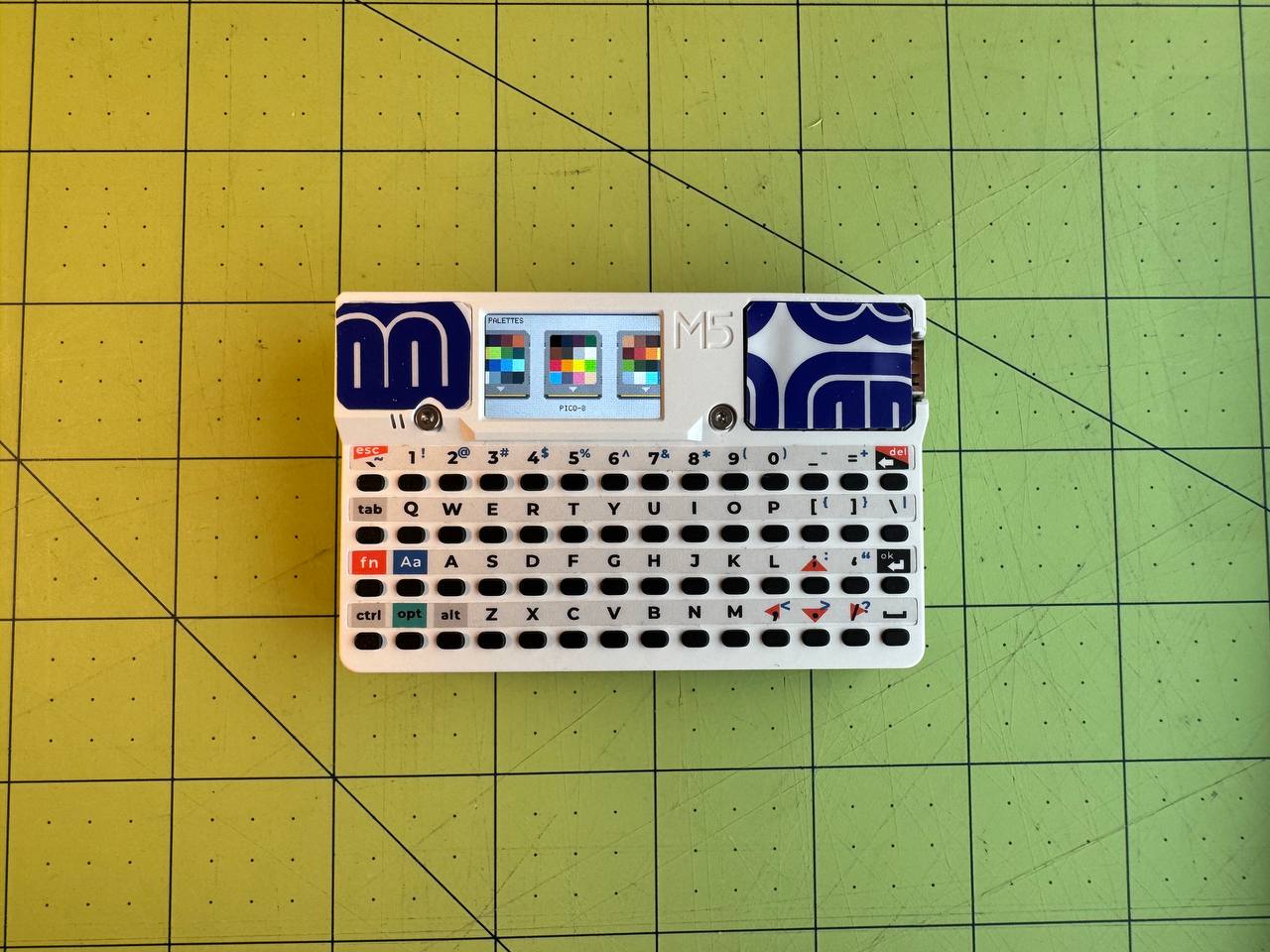
BitMap16 DX is a tiny pixel art sketchbook for M5Stack Cardputer devices, channeling the vibe of 2000s handheld gaming consoles.

Features
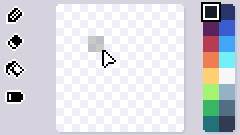
- 8×8 and 16×16 canvas modes
- Draw, Erase, Fill, Move tools
- Undo last action
- Save/open sketches from SD card
- Built-in 16, 8, and 4-color palettes
- Switching palettes remaps your canvas to the new colors, clamping the palette down to the new size, you can always switch back to restore the original palette.
- Export
.pngfiles tobitmap16dx/exports/(128x128 or logical size) - Dark mode!
- Charging mode!
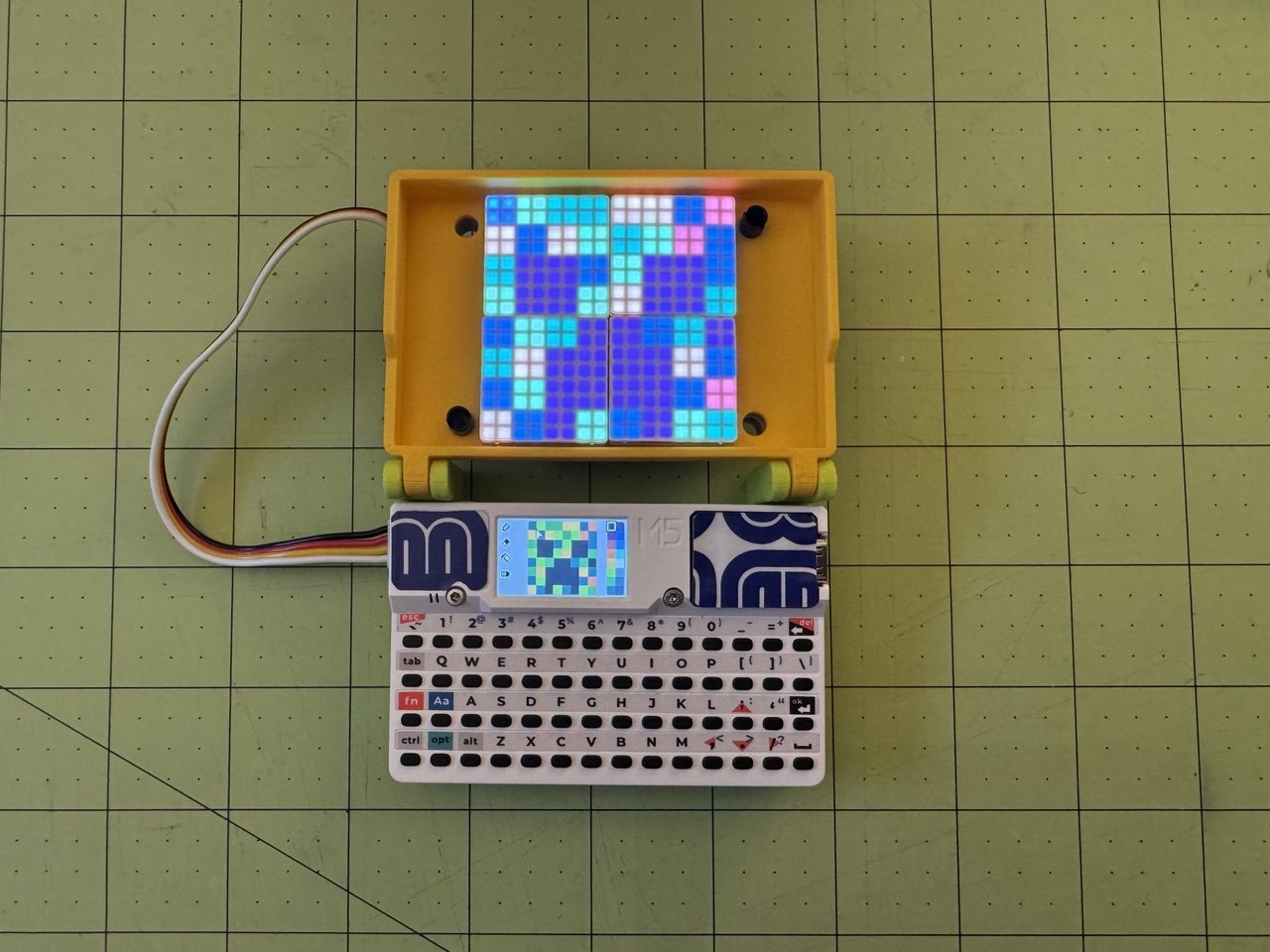
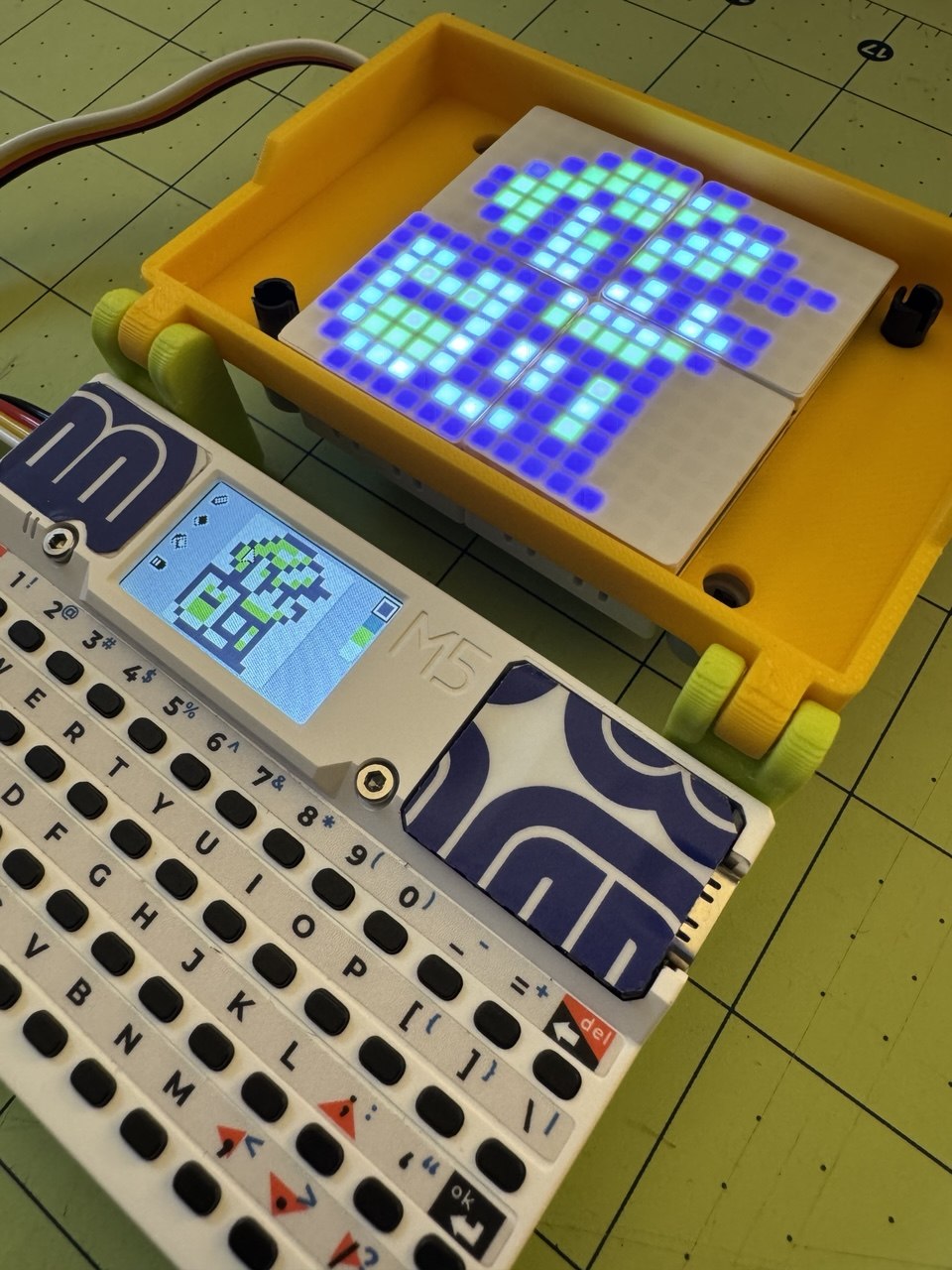
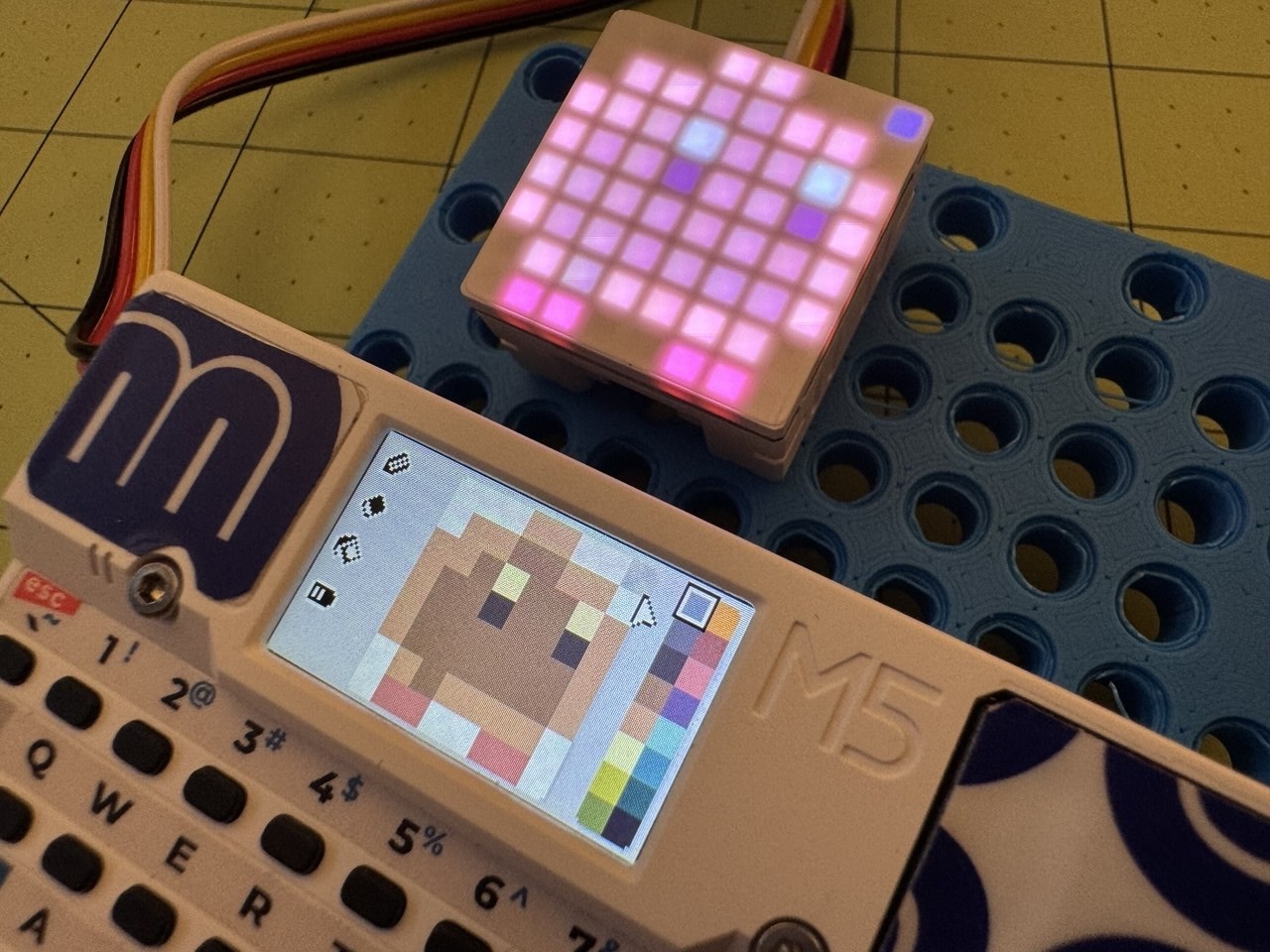
- Display mirroring with Puzzle Unit 8x8 RGB LED Matrix (WS2812E)
First Boot
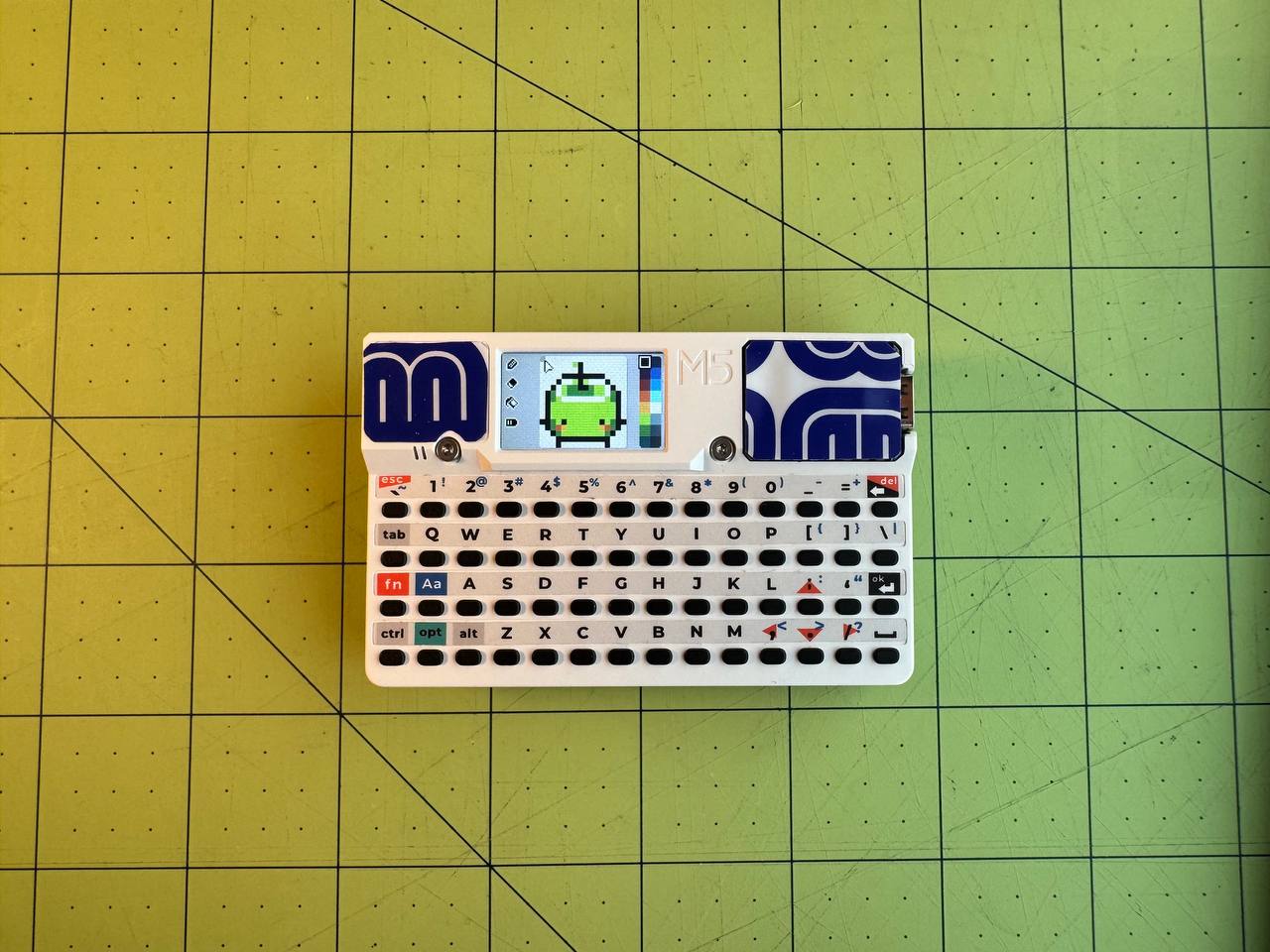
- Insert SD card before powering on (FAT32 format recommended)
- Power on your Cardputer
- BitMap16 DX will automatically create these folders:
/bitmap16dx/ ├── sketches/ # Your saved artwork ├── exports/ # Exported PNG files └── palettes/ # Custom color palettes (optional) - Start drawing!
Adding Custom Palettes (Optional)
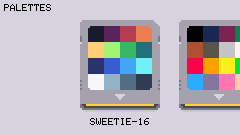
- Download
.hexpalette files from Lospec - Copy to
/bitmap16dx/palettes/on your SD card - Power cycle your Cardputer
- Access custom palettes in the Palette Menu
Supports 4, 8, or 16-color palettes. Maximum 32 total (12 built-in + 20 custom).
How to Use
Drawing Mode
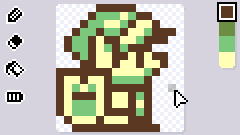
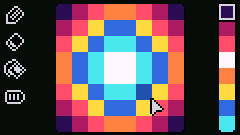
| Key | Function |
|---|---|
Arrow keys (↑ ← ↓ →) |
Move cursor (hold to repeat) |
ok/enter |
Place pixel with selected color |
del/backspace |
Erase pixel |
F |
Flood fill |
M + Arrow keys |
Move canvas |
1-8 |
Quick color selection (colors 1-8) |
fn + 1-8 |
Quick color selection (colors 9-16) |
C |
Cycle to next color |
G |
Toggle between 8×8 and 16×16 grid |
R |
Toggle rulers (center guide lines) |
T |
Toggle Settings |
Z |
Undo last action (or just shake to undo) |
g0 button |
Clear canvas |
S |
Save sketch (update current or create new) |
FN + S |
Save as new sketch (always creates new file) |
X |
Export PNG (128×128 scaled) |
FN + X |
Export PNG (logical size: 8×8 or 16×16) |
H |
Open help screen (key commands) |
P |
Open Palette Menu |
O |
Open Sketches Menu |
V |
Open Preview Mode |
B + +/- |
Adjust brightness |
FN + B |
Charging Mode |
L + Ok |
RGB Matrix on/off |
L + +/- |
RGB Matrix brightness |
Drawing Preview (V)
| Key | Function |
|---|---|
1 |
Black background |
2 |
White background |
3 |
Light gray background |
4 |
Dark gray background |
esc |
Dismiss |
Palette Menu (P)
| Key | Function |
|---|---|
←/→ |
Navigate palettes |
ok/enter |
Select palette |
esc |
Dismiss |
4 |
Toggle 4-color filter |
8 |
Toggle 8-color filter |
1 |
Toggle 16-color filter |
U |
Toggle custom user palettes filter (can be combined with 4/8/16 filters) |
0 |
Clear all filters |
Sketches Menu (O)

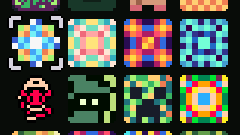
| Key | Function |
|---|---|
Arrow keys (↑ ← ↓ →) |
Navigate sketch grid |
ok/enter |
Load selected sketch |
V |
Open slideshow view |
esc |
Dismiss |
g0 button |
Delete focused sketch |
z |
undo |
Sketch Slideshow View (V from Sketches Menu)
View your saved sketches in a fullscreen slideshow with optional auto-advance.
| Key | Function |
|---|---|
←/→ |
Navigate previous/next sketch |
space |
Toggle auto-advance (3 second intervals) |
1 |
Black background |
2 |
White background |
3 |
Light gray background |
4 |
Dark gray background |
B + +/- |
Adjust brightness |
esc |
Return to Sketches |
Settings (T)
- Set UI theme (light, dark)
- Set default grid (8x8, 16x16)
- Set RGB matrix count (1, 4)
- Set RGB matrix rotation (0, 90, 180, 270)
- Set export format (RGB888, RGB565)
- Enable Shake to Undo (IMU accelerometer)
Project Structure
BitMap16DX/
├── platformio.ini          # PlatformIO configuration
├── src/
│   ├── main.cpp           # Main firmware code
│   ├── palettes.h         # Default Color palette definitions
│   ├── icons.h            # UI icons
│   ├── cartridge_graphic.h # Cartridge sprite
│   └── boot_image.h       # Splash screen
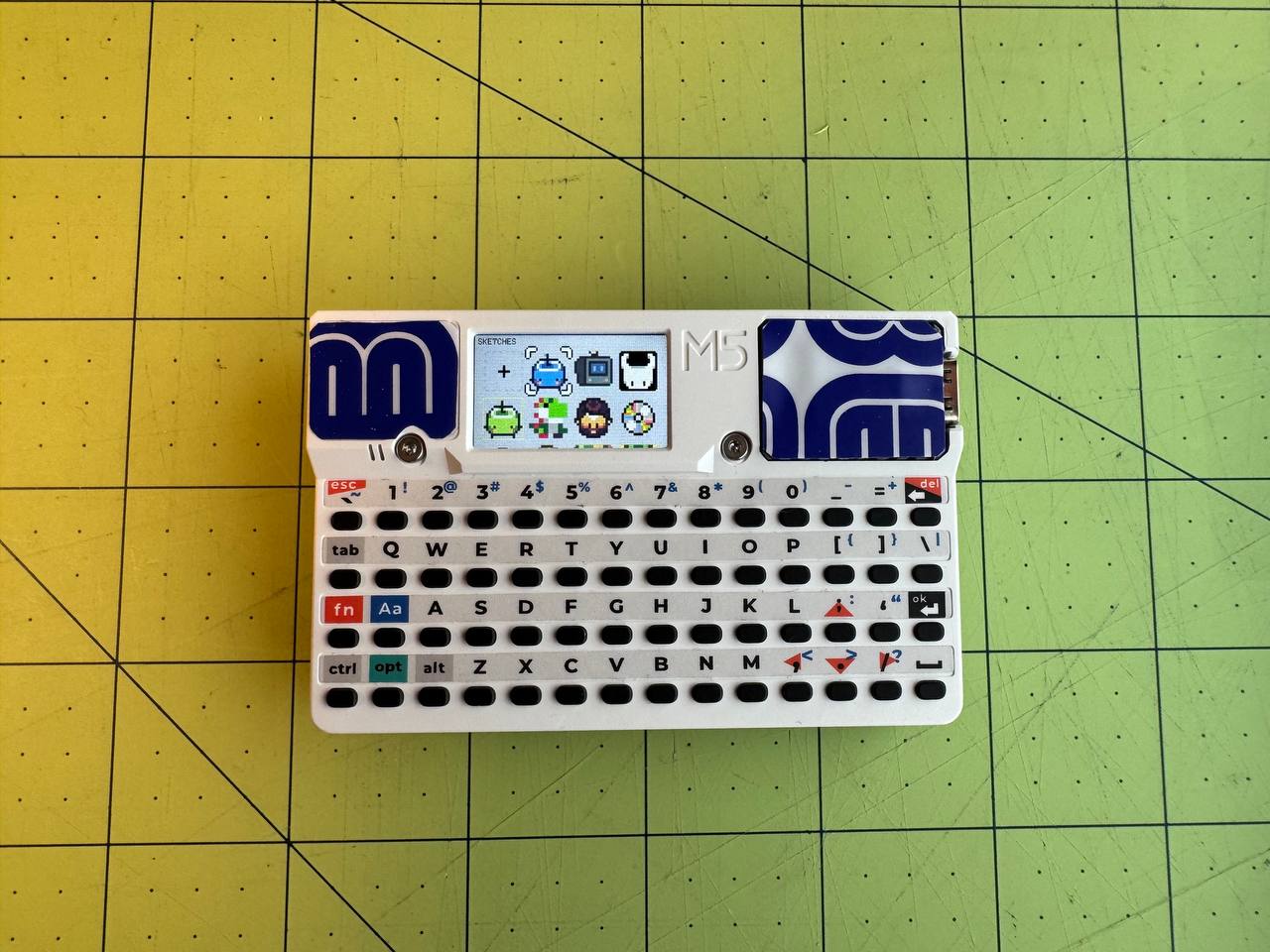
LED Matrix Display mirroring
The RGB LED matrix display mirrors your canvas in real-time. Connect 1 or 4 Puzzle Unit 8x8 RGB LED Matrix (WS2812E) modules + chain returns to the Cardputer ADV via the expansion port. Matrix brightness and rotation are configurable in Settings.
Quad Matrix (16x16)
Single Matrix (8x8)
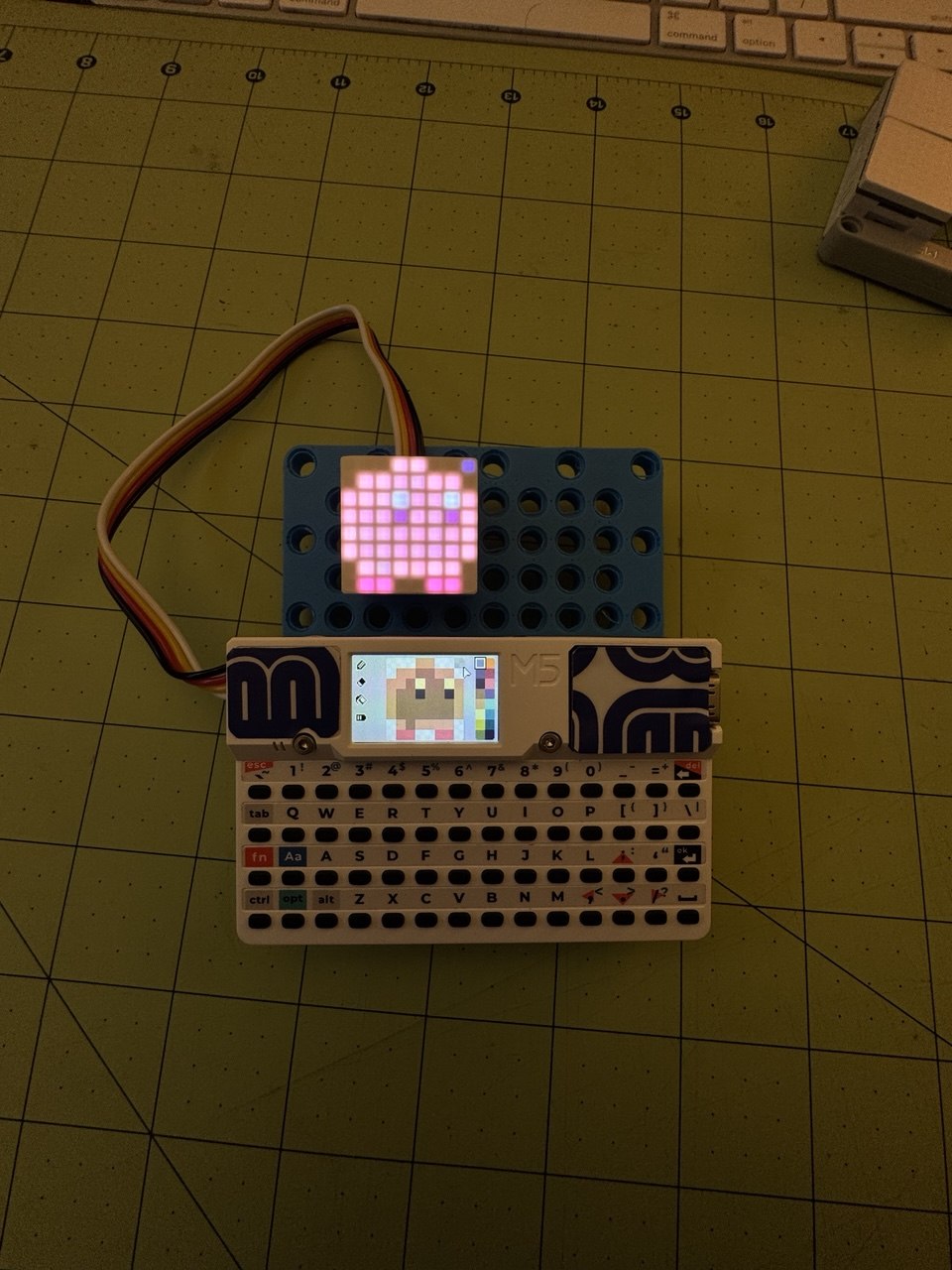
Technic Panel Board
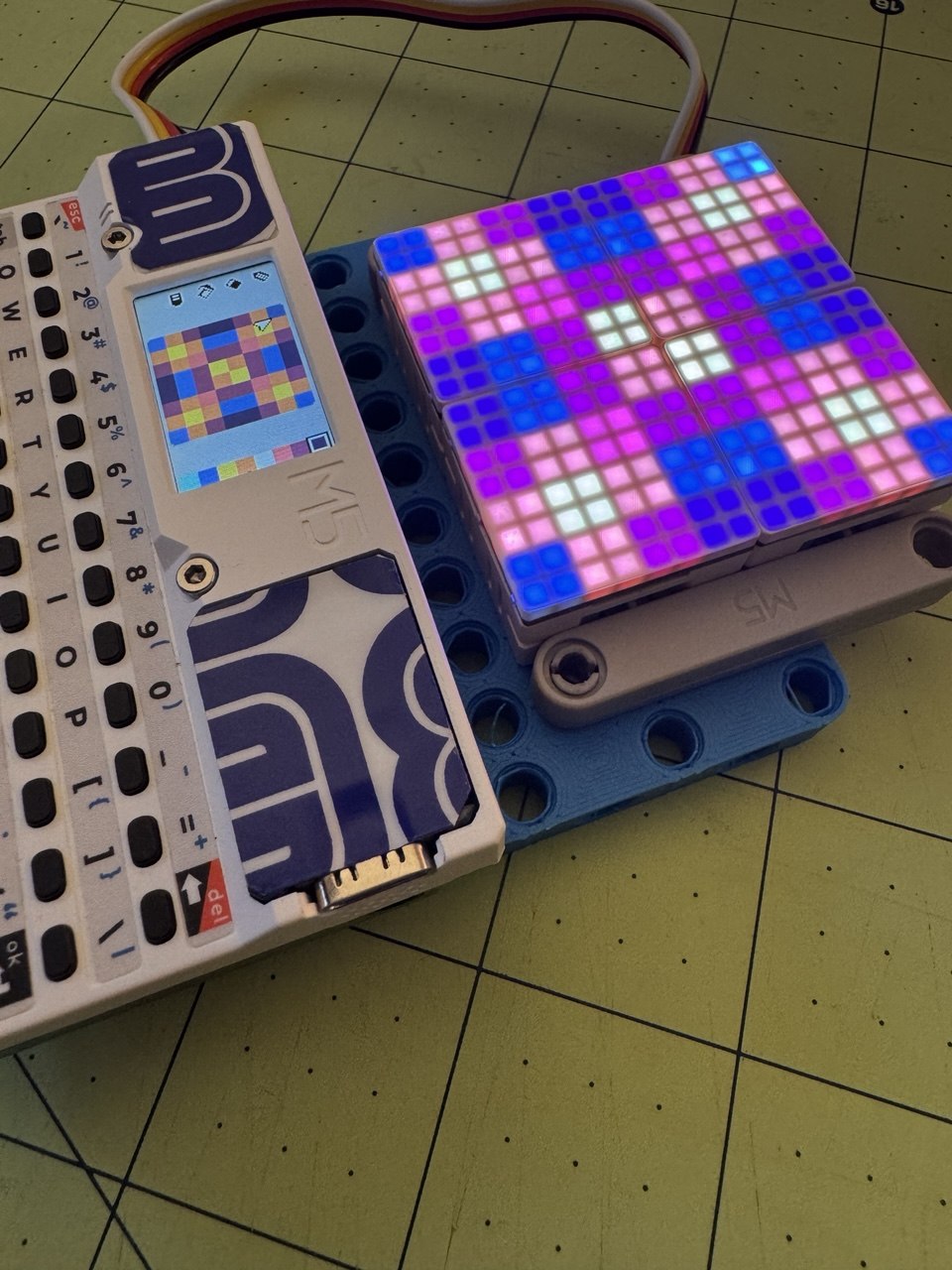
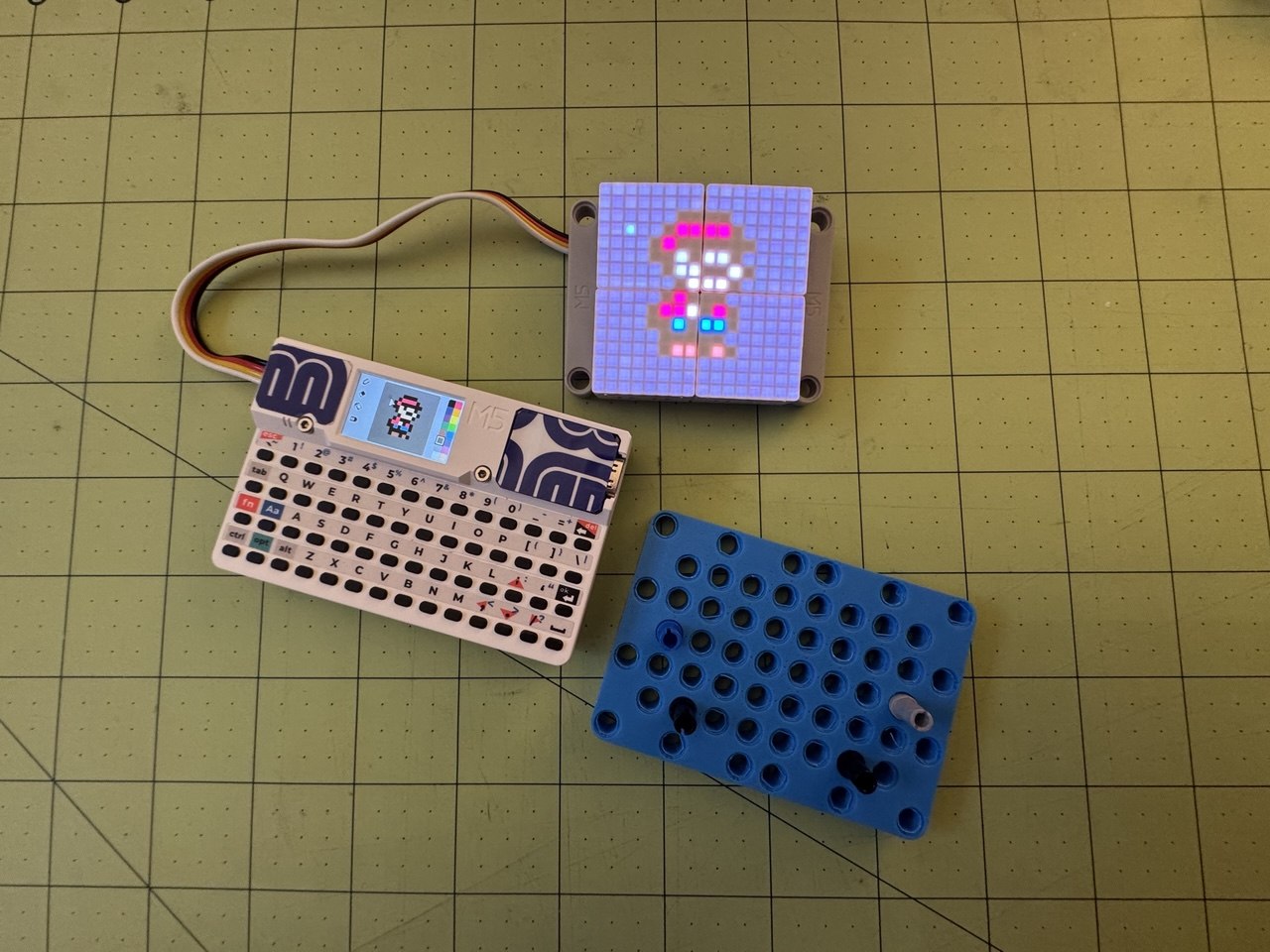
A Cardputer-sized prototype board with Lego Technic-compatible mounting holes. Designed for snapping peripherals — like the RGB matrix modules — into modular, reconfigurable layouts.