
BluFiles
A lightweight and modern selfhosted file management and sharing system.
Easily upload, manage, and share files, folders, pastes, and collections, with a clean web UI and accompanying REST API.
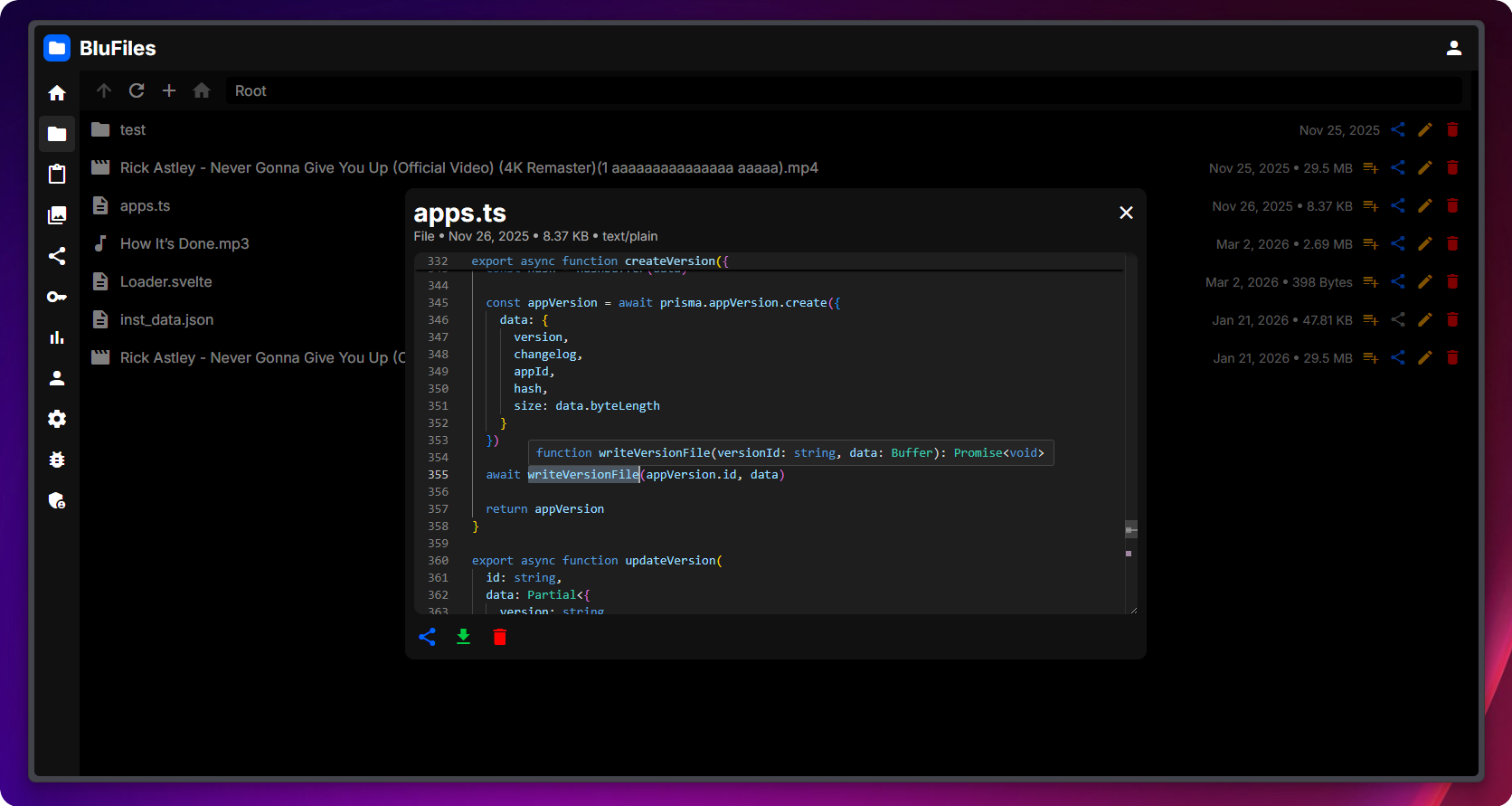
Features
- File Management: BluFiles provides a user-friendly interface for managing your files and folders
- Pastes: Create and share text-based pastes with syntax highlighting for code snippets
- Collections: Organize your files, folders and pastes into collections for sharing a set of items together
- Sharing: Share files, folders, pastes or collections with a simple link
- Admin Panel: Manage users, quotas, and other configuration through the web interface
- API Integrations: Allows for easy integration with custom uploaders using an API, with prebuilt templates for ShareX
Documentation
If you want a further look at the features, setup, API usage and more, you can find the full documentation available on docs.files.bludood.com.
Getting Started
-
Check that you have Docker + Docker Compose installed
-
Create a directory and add a
compose.yml:services: blufiles: image: ghcr.io/bludood/files:latest restart: unless-stopped ports: - 1337:1337 volumes: - ./data:/data environment: - DATABASE_URL=postgresql://postgres:DB_PASSWORD_PLEASE_CHANGE@postgres:5432/files - STORAGE_DIR=/data # - TRUST_PROXY=true # uncomment this line when running behind a reverse proxy depends_on: postgres: condition: service_healthy postgres: image: postgres:16 environment: POSTGRES_USER: postgres POSTGRES_PASSWORD: DB_PASSWORD_PLEASE_CHANGE POSTGRES_DB: files volumes: - postgres:/var/lib/postgresql/data healthcheck: test: ['CMD-SHELL', 'pg_isready -U postgres'] interval: 5s timeout: 5s retries: 5 volumes: postgres:Replace
DB_PASSWORD_PLEASE_CHANGEwith a randomly generated password in bothDATABASE_URLandPOSTGRES_PASSWORD.Here you can also choose where BluFiles stores uploaded files by changing the
STORAGE_DIRvariable or the mount point.Adjust the network and environment configuration if you want to use a reverse proxy or a different port.
-
Start the BluFiles container using Docker Compose:
docker compose up -d -
Access BluFiles by navigating to
http://localhost:1337in your web browser. The first registered user will be an administrator, and then registration will be turned off by default.
You can find further documentation about the features here.
Environment Configuration
The most of the configuration is done using the web interface, but these are some startup options you can set using environment variables:
| Environment Variable | Description | Default |
|---|---|---|
DATABASE_URL |
PostgreSQL connection string | - |
STORAGE_DIR |
Directory for uploaded files on disk | /data |
PORT |
Port the server listens on | 1337 |
TRUST_PROXY |
Set to true when running behind a reverse proxy (nginx, Caddy, Traefik). |
- |
Contributing
Contributions are very welcome! Make sure to follow the guidelines laid out in CONTRIBUTING.md.
Development
- Clone the repository and go to the project directory:
git clone https://github.com/BluDood/BluFiles cd BluFiles - Create an
.envfile based on.env.example. Fill inDATABASE_URLwith the connection string for your local PostgreSQL instance - Install dependencies and start the backend server:
npm i
npm run dev
This will start the backend on port 1337, or whatever you configured in
.env. - Open a new terminal, go to the
webdirectory, install dependencies and start the frontend development server:cd web npm i npm run devThis will start the frontend on port 5173.
- (optional) For development on the documentation, go to the
docsdirectory, install dependencies and start the Vitepress development server:cd docs npm i npm run devThis will start the documentation on port 5173 if available, or scan for the next available port.
Support
Having issues with the app? Feel free to open issues in this repository, or join my discord server for further support.