

Clipman
A clipboard history manager for Ubuntu/GNOME on Wayland
Like Windows Win+V — but for Linux.















Press Super+V to view your clipboard history, search entries, pin favorites, and instantly paste previous copies.
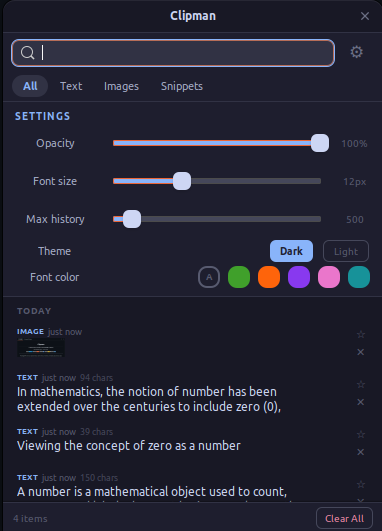
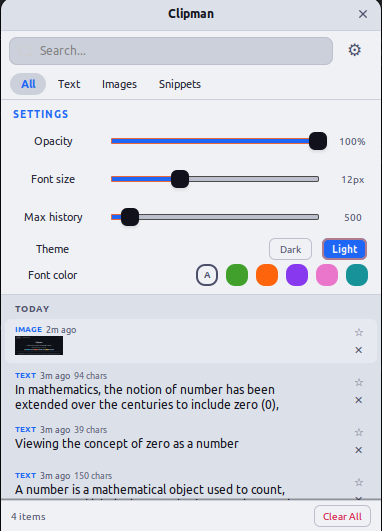
Clipman is a Wayland-native clipboard manager built on a GNOME Shell extension — no polling, no subprocesses, no screen flicker. It detects clipboard changes through Meta.Selection signals and communicates over D-Bus, making it fundamentally different from tools that rely on wl-paste --watch or timer-based polling. Privacy is built in: incognito mode, automatic sensitive data detection with 30-second auto-clear, and restrictive file permissions. The entire app is Python + GTK3 — no Electron, no heavy frameworks.
Features
Clipboard
- Text and image support — stores both content types with SHA256 deduplication
- Full-text search — instantly filter history by content
- Pin favorites — keep important entries permanently, exempt from pruning
- Filter tabs — switch between All, Text, Images, and Snippets views
- Snippet templates — save reusable text blocks for quick pasting
- Date grouping — entries organized into Today, Yesterday, and Older sections
- Inline editing — edit any text entry directly from the history
- Preview expansion — expand long entries inline to see full content
- URL detection — auto-detected with a one-click open button
- Character count — text entries show a character count badge
- Image preview — hover for a larger tooltip preview
- Auto-pruning — history capped at a configurable limit (pinned entries exempt)
Keyboard
| Key | Action |
|---|---|
| Super + V | Toggle the popup |
| Arrow keys | Navigate entries |
| Enter | Paste selected entry |
| Shift + Enter | Copy without pasting |
| P | Pin / unpin selected entry |
| Delete | Delete selected entry |
| Escape | Close popup |
Appearance
- Dark and light themes — Catppuccin Mocha and Catppuccin Latte
- Font customization — adjustable size (8–20px) and 6 color presets (Default, Green, Peach, Mauve, Pink, Teal)
- Window opacity — configurable transparency from 30% to 100%
Privacy and Security
- Incognito mode — pause clipboard recording entirely
- Sensitive data detection — tokens and passwords auto-detected and cleared after 30 seconds
- Restrictive permissions — data directory
0o700, image files0o600 - Path traversal protection — all image paths validated before file operations
- Backup validation — imported databases checked for schema integrity and sanitized
- Parameterized SQL — no injection vectors
- No shell execution — all subprocesses use argument lists, never
shell=True - Update notifications without telemetry — when enabled, the daemon does a single anonymous
GETtoapi.github.com/repos/.../releases/latestonce per day (no body, no params, no cookies, no identifiers). Default ON for source / PyPI / AUR installs, OFF for Snap and Flatpak (they auto-refresh). Settings → Updates to toggle. See ADR 0007.
Integration
- Terminal-aware paste — sends Ctrl+Shift+V in terminal emulators, Ctrl+V elsewhere
- XWayland support — clipboard detection for VSCode, Electron, and other XWayland apps via MIME type fallback
- Systemd autostart — runs as a background daemon, auto-restarts on crash
- Backup and restore — export and import your clipboard database from settings
- GNOME Shell extension — native clipboard monitoring with zero overhead
Performance
- Zero polling — event-driven via
Meta.Selectionsignals and D-Bus - SHA256 deduplication — copying the same content bumps it to the top without creating duplicates
- Configurable history — 50 to 5,000 entries
- Lightweight — Python + GTK3, no Electron or heavy frameworks
Requirements
- Ubuntu 22.04+ with GNOME 46–48 and Wayland
- Python 3.10+
- GTK 3
Dependencies are installed automatically by the install script.
Quick Start
# Clone the repo
git clone https://github.com/MohammedEl-sayedAhmed/clipman.git
cd clipman

# Install dependencies, extension, keybinding, systemd service, and autostart
./install.sh

# Log out and back in to activate the GNOME Shell extension

# Start the daemon (runs automatically on next login)
systemctl --user start clipman.service
The systemd service auto-restarts on crash and starts automatically on login.
If you cloned the repo and Clipman is useful to you, please star it on GitHub — source installs aren't counted anywhere else, and stars are how the project gets visibility.
Alternative Installation
Snap (Ubuntu, auto-refreshes)
sudo snap install clipman
Snap users still need the GNOME Shell extension installed in the host session for clipboard detection — snap confinement blocks both the extension path and the wl-paste --watch fallback inside the sandbox.
PyPI
# System dependencies (pip can't install these)
sudo apt install python3-gi python3-dbus gir1.2-gtk-3.0 wl-clipboard

pip install clipman-clipboard
After installing, set up the Super+V shortcut (the install script does this automatically, but pip doesn't):
# Remove GNOME's default Super+V binding (notification tray)
gsettings set org.gnome.shell.keybindings toggle-message-tray "['<Super>m']"

# Register Clipman toggle on Super+V
CUSTOM_KEYS_PATH="/org/gnome/settings-daemon/plugins/media-keys/custom-keybindings"
gsettings set org.gnome.settings-daemon.plugins.media-keys custom-keybindings "['$CUSTOM_KEYS_PATH/clipman/']"
gsettings set "org.gnome.settings-daemon.plugins.media-keys.custom-keybinding:$CUSTOM_KEYS_PATH/clipman/" name "Clipman Toggle"
gsettings set "org.gnome.settings-daemon.plugins.media-keys.custom-keybinding:$CUSTOM_KEYS_PATH/clipman/" command "clipman toggle"
gsettings set "org.gnome.settings-daemon.plugins.media-keys.custom-keybinding:$CUSTOM_KEYS_PATH/clipman/" binding "<Super>v"
For clipboard detection, install the GNOME Shell extension or Clipman will fall back to wl-paste --watch.
.deb (Debian/Ubuntu)
Download clipman_<version>_all.deb from the latest release and install:
sudo apt install ./clipman_*_all.deb
The package installs /usr/bin/clipman, the Python module, .desktop file, and icon. The per-user GNOME Shell extension and the Super+V keybinding are not registered by the package — after install, run ./install.sh from a source checkout to enable them.
.rpm (Fedora/RHEL)
Download clipman-<version>-1.noarch.rpm from the latest release and install:
sudo dnf install ./clipman-*-1.noarch.rpm
Same caveat as the .deb: the per-user extension + keybinding are not registered by the package; run ./install.sh from a source checkout for the full setup.
GNOME Shell Extension (installed automatically by install.sh)
The companion extension is required for clipboard detection. It is installed automatically by the install script, but can also be installed manually from GNOME Extensions:
gnome-extensions install clipman-extension.zip
AUR (Arch Linux)
yay -S clipman-clipboard
Or with paru: paru -S clipman-clipboard
Flatpak / Flathub (not currently published)
Clipman is not currently published on Flathub and there is no
submission in flight. A reference manifest is kept at
flathub/io.github.MohammedEl_sayedAhmed.Clipman.json so that a future
submission has somewhere to start, but it should not be treated as a
released channel.
Usage
| Action | How |
|---|---|
| Open clipboard history | Super + V |
| Paste an entry | Click on it or press Enter |
| Copy without pasting | Shift + Enter |
| Pin / unpin an entry | Click the star icon or press P |
| Delete an entry | Click the X icon or press Delete |
| Filter by type | Click All, Text, Images, or Snippets tabs |
| Create a snippet | Switch to Snippets tab and click + Add |
| Search history | Type in the search bar |
| Edit a text entry | Click the edit icon on any text entry |
| Expand long text | Click the expand icon to see full content |
| Open a URL | Click the arrow icon on URL entries |
| Toggle incognito | Click the eye icon in the status bar |
| Clear all unpinned | Click Clear All |
| Close popup | Escape or click outside |
Settings
Click the gear icon to access settings. The panel is organised into five sections:
| Section | Setting | Description |
|---|---|---|
| APPEARANCE | Theme | Segmented control: Dark (Catppuccin Mocha) / Light (Catppuccin Latte) |
| Font size | Text size for entries (8–20px) | |
| Font color | Default, Green, Peach, Mauve, Pink, or Teal | |
| Opacity | Window transparency (30%–100%) | |
| HISTORY | Max history | Number of entries to keep (50–5,000) |
| SHORTCUTS | Toggle shortcut | Customize the popup-toggle keybinding (default Super+V) via an in-app capture dialog |
| Paste mode | How Clipman pastes after copy: Auto-detect (default — Ctrl+Shift+V in terminals, Ctrl+V elsewhere), Ctrl+V, Ctrl+Shift+V, or Shift+Insert | |
| UPDATES | Check for updates | Toggle the daily anonymous check against GitHub Releases. Default: ON for source / PyPI / AUR, OFF for Snap and Flatpak (they auto-refresh). See ADR 0007 |
| Check now | Manual check button — bypasses the 24h cooldown | |
| DATA | Backup / Restore | Export and import your clipboard database |
Settings are saved automatically and persist across sessions.
How It Works
- A GNOME Shell extension detects clipboard changes natively via
Meta.Selection'sowner-changedsignal — no polling, no subprocesses, no screen flicker - The extension reads the content using a MIME type fallback chain (
text/plain;charset=utf-8→UTF8_STRING→text/plain→STRING) and sends it to the daemon over D-Bus - The daemon stores entries in an SQLite database (WAL mode) at
~/.local/share/clipman/ - Duplicates are detected via SHA256 hashing — copying the same content updates the timestamp and bumps it to the top
- Pressing Super+V sends a D-Bus toggle to the daemon, which shows the popup window near the cursor
- Clicking an entry copies it via
wl-copy, hides the popup, and the extension simulates a paste keystroke using a Clutter virtual keyboard
Architecture
Clipman is split into a GNOME Shell extension that detects clipboard changes natively and a Python + GTK3 daemon that stores history in a local SQLite database. The two halves talk over D-Bus on the session bus; there is no polling, no telemetry, and only one network call (the daily anonymous update check, opt-out — see ADR 0007).
See ARCHITECTURE.md for the full process model, data model, D-Bus contract, trust boundaries, and decision-record backlinks.
Project structure
clipman/
├── clipman.py                     # Entry point (start daemon / toggle popup)
├── clipman/
│   ├── __init__.py                # __version__ + i18n/gettext setup
│   ├── app.py                     # GTK Application lifecycle
│   ├── clipboard_monitor.py       # Event-driven clipboard monitor
│   ├── database.py                # SQLite storage with dedup/search/pin/snippets
│   ├── dbus_service.py            # D-Bus IPC for toggle and clipboard events
│   ├── keybindings.py             # gsettings helpers for Super+V customization
│   ├── updates.py                 # Anonymous update-check against GitHub Releases
│   ├── window.py                  # GTK3 popup window UI
│   └── style.css                  # CSS theme template (Catppuccin, $variable syntax)
├── extension/
│   ├── extension.js               # GNOME Shell extension (clipboard detection + paste)
│   └── metadata.json              # Extension metadata
├── data/
│   ├── com.clipman.Clipman.desktop
│   ├── com.clipman.Clipman.svg    # App icon
│   ├── com.clipman.Clipman.metainfo.xml         # AppStream metadata
│   ├── io.github.MohammedEl_sayedAhmed.Clipman.desktop      # Flatpak-namespaced
│   ├── io.github.MohammedEl_sayedAhmed.Clipman.metainfo.xml # Flatpak AppStream
│   └── clipman.service            # Systemd user service
├── po/
│   ├── POTFILES.in                # Files with translatable strings
│   └── clipman.pot                # Translation template (70 strings)
├── tests/
│   ├── test_database.py           # Database unit tests (93 tests)
│   ├── test_clipboard_monitor.py  # Monitor unit tests (105 tests)
│   ├── test_keybindings.py        # Keybinding-customization tests (32 tests)
│   ├── test_updates.py            # Update-check tests (38 tests)
│   ├── test_entry_point.py        # D-Bus mainloop init tests (7 tests)
│   └── test_window_utils.py       # URL detection & time formatting (28 tests)
├── docs/
│   ├── adr/                       # Architecture Decision Records
│   ├── releases/                  # Per-release notes (mirrors GH Releases)
│   ├── dark-theme.png             # Screenshot (dark theme)
│   └── light-theme.png            # Screenshot (light theme)
├── snap/
│   └── snapcraft.yaml             # Snap packaging
├── flathub/
│   └── io.github.MohammedEl_sayedAhmed.Clipman.json  # Flathub manifest
├── aur/
│   └── PKGBUILD                   # AUR packaging
├── scripts/
│   └── bump-version.sh            # Single command to bump version everywhere
├── .github/
│   └── workflows/                 # CI: tests, lint, CodeQL, Scorecard, secret-scan,
│                                  #     release, snap-refresh, dependency-review, …
├── launcher.sh                    # Environment wrapper for snap terminals
├── install.sh
├── uninstall.sh
├── CODE_OF_CONDUCT.md
├── CONTRIBUTING.md
├── SECURITY.md
├── CHANGELOG.md
└── LICENSE / NOTICE
Troubleshooting
Extension not loading after install Log out and back in. GNOME Shell extensions require a session restart to activate.
Super+V doesn't open Clipman The install script reassigns Super+V from GNOME's message tray. Check for conflicts:
gsettings get org.gnome.shell.keybindings toggle-message-tray
If it still shows <Super>v, the keybinding wasn't reassigned. Re-run ./install.sh.
XWayland apps (VSCode, Electron) not detected Verify the extension is enabled:
gnome-extensions list --enabled | grep clipman
If missing, enable it with gnome-extensions enable [email protected] and log out/in.
Pasting shows ^V in VSCode/Electron integrated terminals
Clipman auto-pastes with Ctrl+V, which standalone terminals interpret correctly. However, integrated terminals inside editors (VSCode, Cursor) expect Ctrl+Shift+V. Use Shift+Enter in Clipman to copy without auto-pasting, then manually Ctrl+Shift+V in the terminal.
Daemon not starting Check the service status:
systemctl --user status clipman.service
journalctl --user -u clipman.service -n 20
Contributing
Contributions are welcome. See CONTRIBUTING.md for setup instructions, project structure, coding guidelines, and how to run the test suite (303 tests, no GTK or D-Bus required).
Uninstall
./uninstall.sh
This stops the systemd service and removes the GNOME Shell extension, keybinding, systemd service, app icon, and optionally your clipboard history data.
License
Copyright 2025–2026 Mohammed El-sayed Ahmed
Licensed under the Apache License, Version 2.0. You may use, modify, and distribute this software, provided you:
- Include the original LICENSE and NOTICE files
- Give appropriate credit to the original author
- State any changes you made
See the LICENSE and NOTICE files for full details.
Star History
Acknowledgements
- Theme palette by Catppuccin
- CI powered by GitHub Actions