
cockpit-file-sharing
A Cockpit plugin for managing Samba, NFS, iSCSI, and S3 storage services.
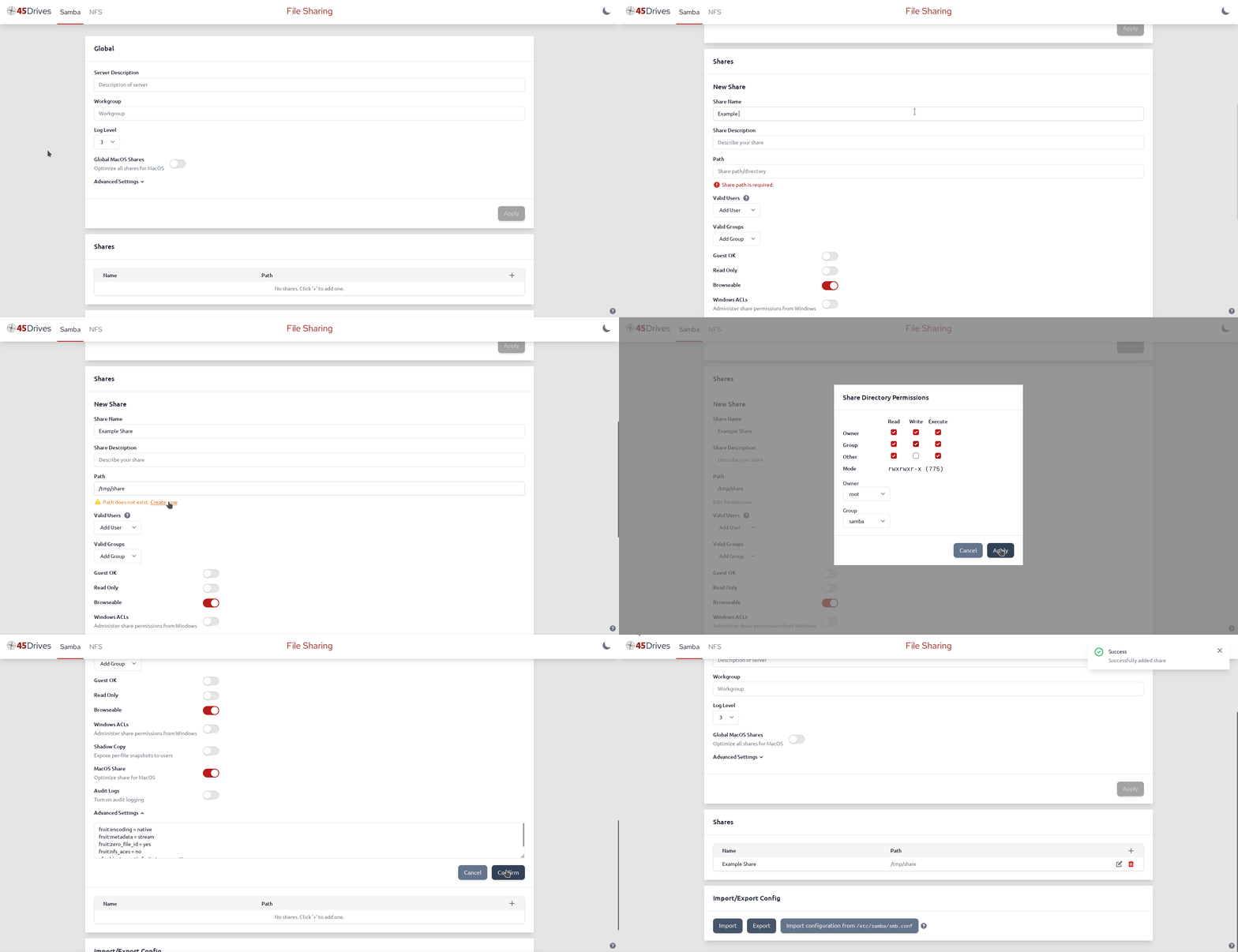
Features
Samba
- Manage global setings
- Server description, workgroup, log level
- Any other settings can be configured through the Advanced Settings dropdown
- One-click advanced configuration global MacOS share optimization
- Manage user Samba passwords
- Manage shares
- Create, edit, and remove shares
- Manage allow-list of valid users and groups
- One-click advanced configuration for Windows ACLs, shadow copy, MacOS share optimization, and audit logging
- Create non-existing share path from UI
- Manage Linux-side share path permissions
- Ceph-specific options
- Quota
- Layout pool
- Cephfs remount for properly reporting quota to client
- Export and import of configuration (same format as
/etc/samba/smb.conf)
NFS
- Create, edit, and remove shares
- Manage individual client settings
- Export and import of configuration (same format as
/etc/exports)
iSCSI
- Manage virtual devices
- Create, edit, and remove devices
- Support for single-server and clustered environments
- Manage targets
- Create, edit, and remove targets
- Manage target portals, initiator groups, and CHAP configuration
- View active sessions
- Import and export iSCSI configuration
S3
- Detect and manage supported S3 backends
- MinIO
- RustFS
- Ceph RGW
- Garage
- Bucket management
- Create, edit, and delete buckets
- View bucket usage/statistics
- Access management
- MinIO/RustFS: users, policies, and groups
- RustFS: access keys
- Ceph RGW: user/access management
- Garage: key management
Installation
Ubuntu 20.04, Ubuntu 22.04
From 45Drives Repo (Recommended)
curl -sSL https://repo.45drives.com/setup | sudo bash
sudo apt update
sudo apt install cockpit-file-sharing
Direct from .deb
Installing this way may work for other versions of Ubuntu and Debian, but it is unsupported. You won't get automatic updates this way.
curl -LO https://github.com/45Drives/cockpit-file-sharing/releases/download/v4.6.0/cockpit-file-sharing_4.6.0-1jammy_all.deb
sudo apt install ./cockpit-file-sharing_4.6.0-1jammy_all.deb
Rocky 8, Rocky 9
From 45Drives Repo (Recommended)
curl -sSL https://repo.45drives.com/setup | sudo bash
sudo dnf install cockpit-file-sharing
Direct from .rpm
Installing this way may work for other versions of Rocky/Centos/RHEL/Fedora/etc, but it is unsupported. You won't get automatic updates this way.
# dnf or yum
sudo dnf install https://github.com/45Drives/cockpit-file-sharing/releases/download/v4.6.0/cockpit-file-sharing-4.6.0-1.el9.noarch.rpm
Generic Installation
- Install Dependencies
# debian-like
cockpit-bridge
coreutils
attr
findutils
hostname
iproute2
libc-bin
systemd
nfs-kernel-server
samba-common-bin
# RHEL-like
cockpit-bridge
coreutils
attr
findutils
hostname
iproute
glibc-common
systemd
nfs-utils
samba-common-tools
- Install Build Dependencies
spongecommand frommoreutilsyarnpackage managermake
- Clone git repo, build, and install
git clone https://github.com/45Drives/cockpit-file-sharing.git
cd cockpit-file-sharing
make
sudo make install
Usage
Samba Management Tab
The Samba tab in cockpit-file-sharing is a front end UI for the net conf registry used by Samba. Any shares manually configured in /etc/samba/smb.conf won't show up in the UI, but they can be imported with the Import button at the bottom of the page. Your Samba configuration file must have include = registry in the [global] section, which can be automatically configured in one click in the UI.
Adding a Share
Simply click the + in the top right of the shares list, fill out the required fields, and click Confirm.
Fields/Settings
- Share Name - Unique name for the share
- Share Description - Optional description for the share
- Path - The path to share out from the server
Valid Users/Groupsremoved in v4 - valid users property still available through advanced settings.Allow-lists for users and groupsBy default, any user or group is allowed
- Guest Ok - Allow accessing share with no password, privileges mapped to
guest account(default=nobody) - Read Only - Disallow creation/modification of files/directories
- Browsable - Controls whether this share is seen in the list of available shares in a net view and in the browse list
- Inherit Permissions - New directories inherit the mode of the parent directory, including bits such as setgid. New files inherit their read/write bits from the parent directory.
- Windows ACLs - Administer share permissions from Windows, sets the following advanced settings
map acl inherit = yes acl_xattr:ignore system acls = yes vfs objects = acl_xattr - Shadow Copy - Expose per-file snapshots to users, sets the following advanced settings
- ZFS:
vfs objects = shadow_copy2 shadow:snapdir = .zfs/snapshot shadow:sort = desc shadow:format = %Y-%m-%d-%H%M%S - Ceph:
vfs objects = ceph_snapshots
- ZFS:
- MacOS Share - Optimize share for MacOS, sets the following advanced settings
vfs objects = catia fruit streams_xattr fruit:encoding = native fruit:metadata = stream fruit:zero_file_id = yes fruit:nfs_aces = no - Audit Logs - Turn on audit logging, sets the following advanced settings
vfs objects = full_audit full_audit:priority = notice full_audit:facility = local5 full_audit:success = connect disconnect mkdir rmdir read write rename full_audit:failure = connect full_audit:prefix = %u|%I|%S - Advanced Settings - Dropdown for configuring any other share parameters. See smb.conf(5) for a full list of parameters.
Editing a Share
Click the pencil icon at the right side of the share list entry to edit the share. Settings are the same as creating a share, except you cannot change the share name or path.
Removing a Share
Click the trash can icon at the right side of the share list entry, then click Yes in the confirmation prompt to delete the share. This only removes the share definition from Samba, it does not remove any files.
Samba User Password Management
Samba passwords for user accounts can be managed by clicking the Manage Samba Passwords button at the bottom of the Global Configuration section.
This opens a dialog where you can view all users and set/change/remove their Samba passwords. Note that the user must already exist on the system, and this only sets the Samba password, not the Linux account password.
Import Shares from /etc/samba/smb.conf
To allow cockpit-file-sharing to manage existing shares defined in /etc/samba/smb.conf, click the Import configuration from /etc/samba/smb.conf button at the bottom of the page.
It will confirm before overwriting your current share settings, and prompt to replace the content of /etc/samba/smb.conf with only include = registry in the [global] section,
backing up the original content to /etc/samba/smb.conf.bak.~1~.
NFS Management Tab
The NFS tab in cockpit-file-sharing is a graphical way of editing the contents of /etc/exports.d/cockpit-file-sharing.exports, which has the same syntax as /etc/exports.
Adding a Share
Much like the Samba tab, simply click the + in the top right of the shares list to start adding an NFS export. The only settings are the path to the directory you want to share, and a list of clients consiting of a host and a comma-separated list of export options for that host. See exports(5) for options and machine name formats for the host field.
Editing a Share
Click the pencil icon at the right side of the share list entry to edit the share. Settings are the same as creating a share.
Removing a Share
Click the trash can icon at the right side of the share list entry, then click Yes in the confirmation prompt to delete the share. This only removes the share definition from Samba, it does not remove any files.
Import Shares (Exports) from /etc/exports
To allow cockpit-file-sharing to manage existing shares defined in /etc/exports, do the following (as root):
- Create a backup copy of exports:
cp /etc/exports /etc/exports.bak - Move exports to cockpit-file-sharing managed location:
mv /etc/exports /etc/exports.d/cockpit-file-sharing.exports - Create an empty default exports file:
touch /etc/exports
iSCSI Management Tab
The iSCSI tab allows managing virtual devices and targets. For each target, you can manage portals, initiator groups, and CHAP settings, and view active sessions. In single-server mode, iSCSI configuration import/export is available from the tab.
S3 Management Tab
The S3 tab detects supported backends available on the host (MinIO, RustFS, Ceph RGW, and Garage), then provides:
- Bucket Management for creating, editing, deleting, and viewing bucket usage/statistics.
- Access Management for backend-specific identity and policy operations (for example users, policies, groups, access keys, and keys).