
DGX SPARK Remote Virtual Desktop with Headless Sunshine Setup
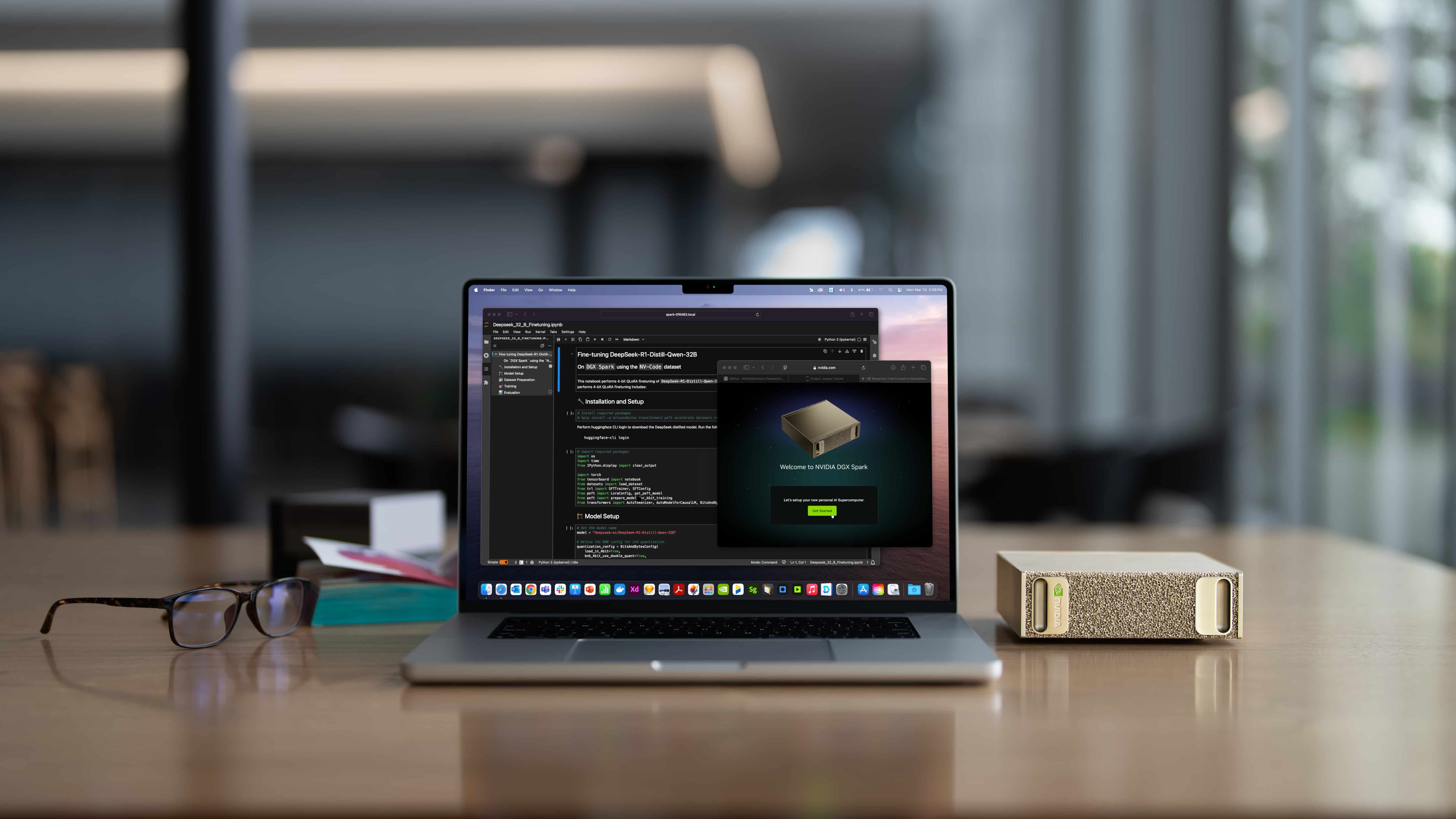
Dont have a display and want to use your DGX SPARK In its native Desktop Environment? This repo provides an Automated setup for headless remote desktop streaming on NVIDIA DGX SPARK systems using Sunshine and a moonshine client.
Overview
This repository provides a complete, automated solution for configuring NVIDIA DGX SPARK workstations for headless native remote desktop access via Sunshine streaming. It's designed for systems running Ubuntu 24.04 ARM64 with NVIDIA Blackwell (GB10) GPUs.
What This Does
- Installs Sunshine streaming server and all dependencies
- Configures NVIDIA DRM modesetting for proper GPU access
- Sets up virtual display support for headless operation
- Configures GDM and X11 for automatic login and display initialization
- Enables NVENC hardware encoding for efficient video streaming
Use Cases
- Remote access to DGX SPARK workstations without physical displays
- GPU-accelerated desktop streaming for AI/ML development
- Remote visualization and CUDA application testing
- Headless compute nodes that occasionally need desktop access
Requirements
- NVIDIA DGX SPARK system
- Ubuntu 24.04 LTS (ARM64)
- NVIDIA GB10 (Blackwell) GPU
- NVIDIA drivers installed
- Root/sudo access
Quick Start
1. Clone this repository
git clone https://github.com/eelbaz/dgx-spark-headless-sunshine.git
cd dgx-spark-headless-sunshine
2. Run the configuration script
sudo ./configure_headless_sunshine.sh
The script will:
- Download and install Sunshine (v2025.1014.193231)
- Install all required system dependencies
- Configure GRUB kernel parameters for NVIDIA DRM modesetting
- Set up Xorg with virtual display support
- Configure GDM for X11 and autologin
- Create autostart entries for display initialization and Sunshine
3. Verify the configuration
# Check Sunshine was installed
which sunshine
sunshine --version

# Check GRUB was updated
grep nvidia-drm /etc/default/grub

# Verify Xorg configuration
ls -la /etc/X11/xorg.conf*

# Check GDM configuration
grep -A 4 "[daemon]" /etc/gdm3/custom.conf
4. Reboot
sudo reboot
5. Verify operation after reboot
# Check kernel parameter is active
cat /proc/cmdline | grep nvidia-drm.modeset

# Verify modeset enabled (should output: Y)
cat /sys/module/nvidia_drm/parameters/modeset

# Check if Sunshine is running
ps aux | grep sunshine

# Monitor Sunshine logs
journalctl --user -u sunshine -f
6. Access Sunshine Web UI
After reboot, access the Sunshine web interface to configure and pair:
https://<hostname>.local:47990/
For example:
https://spark-alpha.local:47990/
IMPORTANT:
- Use HTTPS (not HTTP) - Sunshine only accepts HTTPS connections
- Accept the self-signed certificate warning in your browser
- On first access, you'll be prompted to create a username and password
7. Connect with Moonlight
Once Sunshine is configured, use Moonlight on your client device to:
- Discover the DGX SPARK host on your network
- Pair with the host using the PIN from
https://<hostname>:47990/pin - Start streaming
Setting Up Moonlight Client on macOS
Installation
-
Download Moonlight for macOS
Visit moonlight-stream.org and download the macOS version, or download directly from GitHub:
# Download the latest macOS release
# Visit: https://github.com/moonlight-stream/moonlight-qt/releases
Alternatively, install via Homebrew:
brew install --cask moonlight -
Install the Application
- Open the downloaded
.dmgfile - Drag Moonlight to your Applications folder
- Launch Moonlight from Applications
- Open the downloaded
Pairing with Sunshine
Method 1: Automatic Discovery (Recommended)
-
Open Moonlight on your Mac
-
Automatic Discovery
Moonlight will automatically scan your local network for Sunshine hosts. Your DGX SPARK should appear in the list with its hostname or IP address.
-
Click on the DGX SPARK host to initiate pairing
-
Enter the PIN
Moonlight will display a 4-digit PIN code. You need to enter this PIN in the Sunshine web interface.
Method 2: Manual Pairing via Sunshine Web UI
-
Find your DGX SPARK IP address
On the DGX SPARK, run:
hostname -IOr for Tailscale IP:
tailscale ip -4 -
Access Sunshine Web UI
Open a web browser on your Mac and navigate to:
https://<DGX-IP>:47990/For example:
https://100.77.88.110:47990/Or use the hostname:
https://spark-alpha.local:47990/IMPORTANT:
- Use HTTPS (not HTTP) - Sunshine only accepts HTTPS connections
- You'll get a security warning because Sunshine uses a self-signed certificate
- Click "Advanced" → "Proceed to site" (Chrome) or "Show Details" → "Visit this website" (Safari)
-
Set up Sunshine credentials (first time only)
If this is your first time accessing the web UI, you'll be prompted to create a username and password.
-
Navigate to the PIN page
Go to:
https://<DGX-IP>:47990/pinFor example:
https://100.77.88.110:47990/pin -
Enter the Moonlight PIN
When you try to connect from Moonlight, it will display a 4-digit PIN. Enter this PIN in the Sunshine web UI and click "Send".
-
Pairing Complete
Once paired, your Mac will be authorized to stream from the DGX SPARK.
Connecting and Streaming
-
Launch Moonlight on your Mac
-
Select the DGX SPARK from the list of hosts
-
Choose an application to stream:
- Desktop - Streams the full Ubuntu desktop
- Other applications configured in Sunshine
-
Stream Settings (optional)
Before connecting, you can adjust stream quality:
- Click the settings icon in Moonlight
- Configure resolution (up to 4K)
- Set frame rate (30/60/120 fps)
- Adjust bitrate for your network
-
Start Streaming
Click on "Desktop" or your desired application to begin streaming.
Keyboard Shortcuts
While streaming:
- Ctrl+Alt+Shift+Q - Quit the stream
- Ctrl+Alt+Shift+M - Toggle mouse capture
- Ctrl+Alt+Shift+D - Show debug overlay
Troubleshooting
Can't Find DGX SPARK Host
- Ensure both devices are on the same network
- Check if Sunshine is running:
ps aux | grep sunshine - Verify firewall isn't blocking ports 47984-47990
- Try manual connection by clicking "+" and entering the IP address
Connection Refused
- Verify Sunshine web UI is accessible:
https://<DGX-IP>:47990/ - Check Sunshine logs:
journalctl --user -u sunshine -f - Ensure virtual display is configured:
xrandr
Poor Performance
- Lower the streaming resolution in Moonlight settings
- Reduce bitrate if on WiFi
- Use wired Ethernet connection for best performance
- Check network latency with:
ping <DGX-IP>
Files
configure_headless_sunshine.sh- Main configuration script that automates the entire setup processsunshine_setup_journal.md- Detailed documentation of the configuration process, troubleshooting, and technical details
Configuration Details
GRUB Kernel Parameters
The script adds these kernel parameters to enable proper GPU access:
nvidia-drm.modeset=1- Enables DRM modesetting for NVIDIAnvidia.NVreg_UsePageAttributeTable=1- Performance optimization
Xorg Configuration
Virtual display configured as:
- Output: HDMI-0
- Resolution: 1600x900 (customizable)
- Virtual heads: 1
- Connected monitor: DFP-0
- Coolbits: 28 (enables GPU fan control)
GDM Configuration
- Wayland: Disabled
- Default session: gnome-xorg.desktop
- Autologin: Enabled for the user who ran the script
Autostart Entry
Automatically runs on login:
/usr/bin/xrandr --output HDMI-0 --mode 1600x900
Launches Sunshine with proper environment variables if not already running.
Troubleshooting
Sunshine fails to find display
Symptoms:
Error: GPU driver doesn't support universal planes: /dev/dri/card1
Error: Couldn't find monitor
Fatal: Unable to find display or encoder during startup
Solution:
-
Verify DRM modeset is enabled:
cat /sys/module/nvidia_drm/parameters/modesetShould output:
Y -
Check if virtual display is active:
xrandrShould show HDMI-0 at 1600x900
-
Verify Xorg is running (not Wayland):
echo $XDG_SESSION_TYPEShould output:
x11
NVENC initialization fails
Check NVIDIA driver and GPU status:
nvidia-smi
cat /proc/driver/nvidia/version
Autostart doesn't launch Sunshine
Check the autostart entry:
cat ~/.config/autostart/headless-xrandr.desktop
Check system logs:
journalctl --user -u sunshine -n 50
Rollback
If you need to revert the changes:
# Restore original xorg.conf
sudo cp /etc/X11/xorg.conf.backup-before-sunshine /etc/X11/xorg.conf

# Remove kernel parameters from GRUB
sudo nano /etc/default/grub
# Remove: nvidia-drm.modeset=1 nvidia.NVreg_UsePageAttributeTable=1
sudo update-grub

# Disable autologin in GDM (optional)
sudo nano /etc/gdm3/custom.conf
# Set: AutomaticLoginEnable=false

# Reboot
sudo reboot
Technical Background
Why DRM Modesetting?
NVIDIA's DRM (Direct Rendering Manager) modesetting is required for:
- Proper virtual display support
- KMS (Kernel Mode Setting) functionality
- Compatibility with modern display management
- Hardware encoder access without physical displays
Why Virtual Displays?
Physical displays are not always available on compute-focused DGX systems. Virtual displays allow:
- Desktop environment initialization
- GPU-accelerated rendering
- Hardware video encoding via NVENC
- Remote streaming via Sunshine/Moonlight
Performance
Sunshine uses NVIDIA NVENC for hardware-accelerated H.264/H.265 encoding:
- Minimal CPU overhead
- Low latency streaming (typically <50ms on local network)
- Up to 4K 120fps capable (depends on network bandwidth)
- Supports HDR with compatible clients
Security Considerations
Autologin
The script enables autologin for convenience. If this is a security concern:
- Edit
/etc/gdm3/custom.conf - Set
AutomaticLoginEnable=false - Restart GDM:
sudo systemctl restart gdm3
Sunshine Access
Sunshine requires pairing with client devices. Access is controlled by:
- PIN-based pairing process
- HTTPS for web UI (if configured)
- Network isolation (only accessible on local network by default)
For additional security, configure firewall rules to restrict Sunshine ports (47984-47990).
Contributing
Issues, improvements, and pull requests are welcome! If you encounter problems specific to:
- Different DGX models
- Different GPU generations
- Different Ubuntu versions
Please open an issue with full system details.
License
MIT License - See LICENSE file for details
Acknowledgments
- LizardByte/Sunshine - Game streaming server
- moonlight-stream - Client application
- NVIDIA DGX documentation and community
Resources
Repository: https://github.com/eelbaz/dgx-spark-headless-sunshine Tested on: DGX SPARK with NVIDIA GB10 (Blackwell), Ubuntu 24.04 ARM64 Last Updated: 2025-10-19