
Best practices for writing ETL and ELT pipelines
This repository contains the code for the webinar demo shown in: Best practices for writing ETL and ELT pipelines.
Watch the webinar here for free!
This repository is configured to spin up 7 Docker containers when you run astro dev start (See Install the Astro CLI). if you cannot use the Astro CLI see Running the demo in GH codespaces.
The containers are:
- Postgres, port 5432: Airflow's Metadata Database
- API server, port 8080: The Airflow component responsible for rendering the Airflow UI and serving several APIs
- Scheduler: The Airflow component responsible for monitoring and triggering tasks
- DAG Processor: The Airflow component responsible for parsing DAGs
- Triggerer: The Airflow component responsible for triggering deferred tasks
- Postgres, port 5433: A Postgres database for the demo data
- MinIO, port 9000: An S3-compatible object storage service for the demo data
To connect Airflow to both the Postgres database and MinIO, create a .env file in the root directory of the project with the exact contents of the .env.example file. Note that you need to restart the Airflow instance with astro dev restart after creating the .env file for the changes to take effect.
[!TIP] You need to be on at least version 1.34.0 of the Astro CLI in oder to run this repo. You can check your version with
astro versionand upgrade withbrew upgrade astro
All the DAGs run without any further setup or tools needed!
Content
This repository contains:
dag-factory_dags: A folder containing the code necessary to generate 3 DAGs with thedag-factorypackage.config_file.yml: Config file creating the 3 DAGs.generate_dags.py: The code to generate DAGs from the config file.
helper: This folder contains two DAGs meant to help you explore and develop.query_tables: A DAG that queries the tables in the Postgres database to return the number of records for each table.drop_tables_postgres: A DAG that drops all the tables in the Postgres database.
modularized_task_groups: This folder contains a DAG with a modularized task group, stored in `include/custom_task_group/etl_task_group.py.pattern_dags: Contains several DAGs showing different ETL and ELT patterns. They all use the Open Meteo API as a source system and load data to Postgres.
All supporting SQL code is stored in the include folder.
include/dag_factory: Contains the SQL code for the 3 DAG factory tasks.include/sql: Contains the SQL code for all other tasks.
The SQL code is repetitive for demo purposes, meaning you can manipulate the code for just one DAG to explore the DAGs without affecting other DAGs. In a real-world scenario you would likely modularize the SQL code further and avoid repetition.
How to run the demo
- Fork and clone this repository.
- Make sure you have the Astro CLI installed and are at least on version 1.34.0.
- Copy the
.env.examplefile to a new file called.env. If you want to use a custom XCom backend with MinIO uncomment the last 4 lines in the.envfile. - Run
astro dev startto start the Airflow instance. The webserver with the Airflow UI will be available atlocalhost:8080. - Run any DAG. They all are independent from each other.
- Use the
query_tablesDAG to check the number of records in the tables.
If you'd like to directly interact with the Postgres database, you can use the following commands to connect to the database:
docker ps
This command will list all the running containers. Look for the container with the image postgres:17.5-alpine. Copy the container ID (in the format 30cfd7660be9) and run the following command:
docker exec -it <container_id> psql -U postgres
You are now in a psql session connected to the Postgres database. You can list the tables with the command \dt and query the tables with SELECT * FROM <table_name>;.
Resources
- Ebook: Apache Airflow® Best Practices for ETL and ELT Pipelines
- Webinar: Best practices for writing ETL and ELT pipelines
- Book on Airflow 3: Practical Guide to Apache Airflow® 3
Running the demo in GH codespaces
If you can't install the CLI, you can run the project from your forked repo using GitHub Codespaces.
-
Fork this repository
-
Click on the green "Code" button and select the "Codespaces" tab.
-
Click on the 3 dots and then
+ New with options...to create a new Codespace with a configuration, make sure to select a Machine type of at least8-core.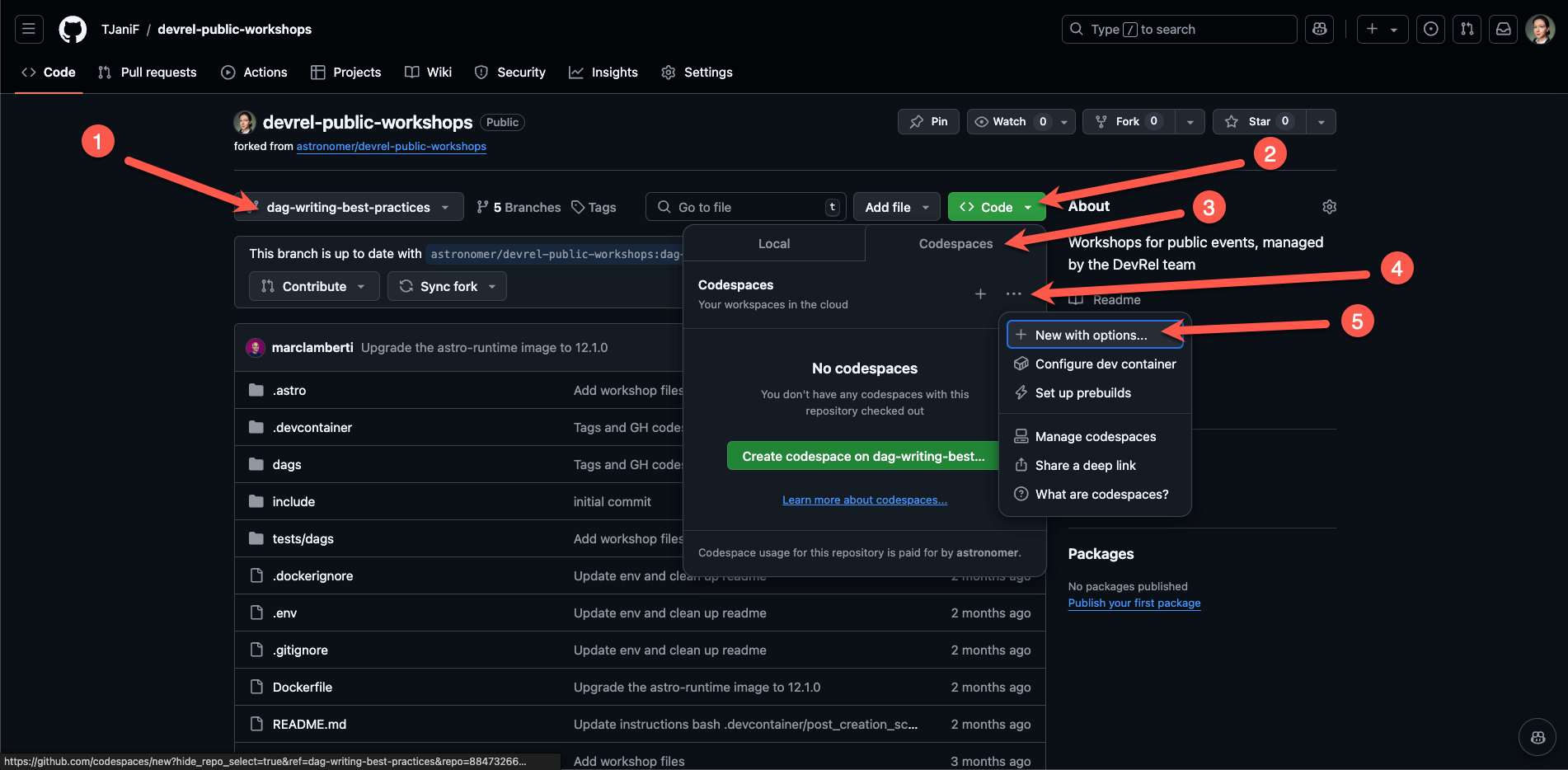
-
Copy the
.env.examplefile to a new file called.env. If you want to use a custom XCom backend with MinIO uncomment the last 4 lines in the.envfile. -
Run
astro dev start -n --wait 5min the Codespaces terminal to start the Airflow environment using the Astro CLI. This can take a few minutes.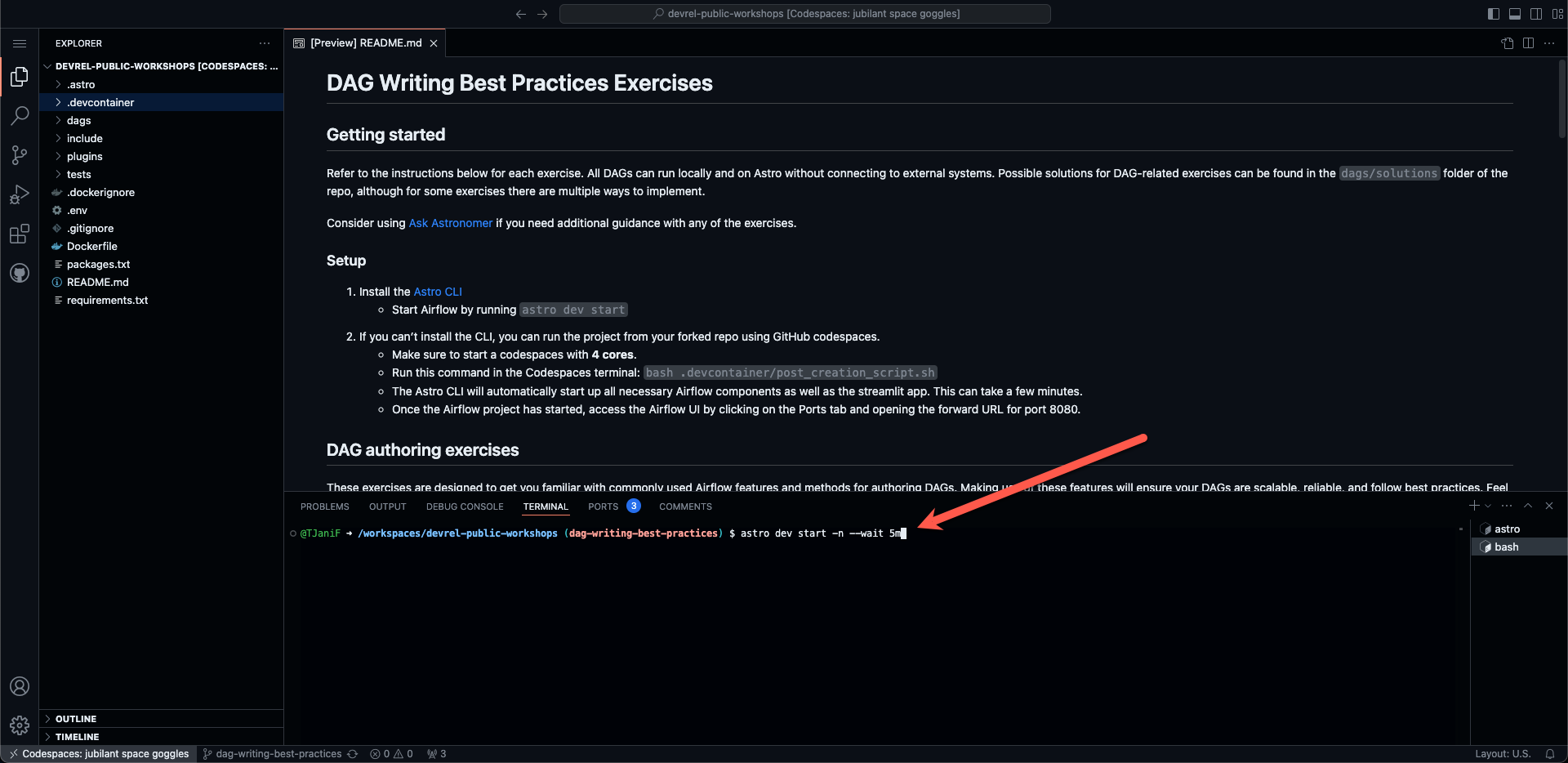
Once you see the following printed to your terminal, the Airflow environment is ready to use:
✔ Project image has been updated ✔ Project started ➤ Airflow UI: http://localhost:8080 ➤ Postgres Database: postgresql://localhost:5435/postgres ➤ The default Postgres DB credentials are: postgres:postgres -
Once the Airflow project has started, access the Airflow UI by clicking on the Ports tab and opening the forward URL for port
8080.
[!TIP] If when accessing the forward URL you get an error like
{"detail":"Invalid or unsafe next URL"}, you will need to modify the forwarded URL. Delete everything forward ofnext=....(this should be after/login?, ). The URL will update, adn then remove:8080, so your URL should endd in.app.github.dev
- Log into the Airflow UI. It is possible that after logging in you see an error, in this case you have to open the URL again from the ports tab.