
Excalidraw to Miro Converter
Convert Excalidraw diagrams to editable Miro board objects. Import .excalidraw files into Miro with full support for shapes, connectors, text, images, freedraw, and frames — preserving styles, colors, and layout. Available as a CLI tool, Node.js library, and web UI.
Looking for an Excalidraw-to-Miro importer? This is the only tool that converts Excalidraw drawings into native, editable Miro items via the Miro REST API — not screenshots or static images, but real shapes, connectors, and text you can edit on your board.
Demo
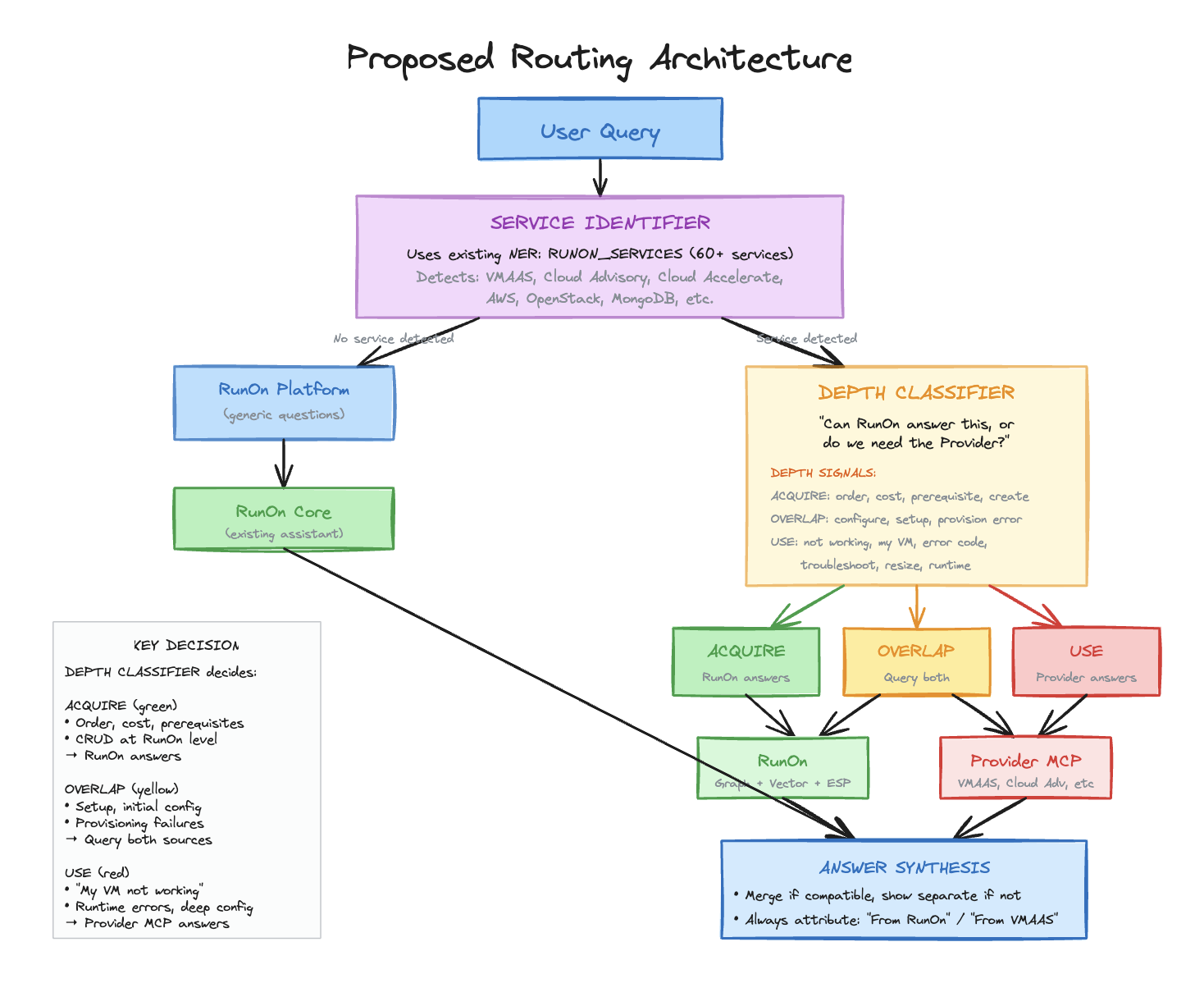
Excalidraw (input) to Miro (output)
| Excalidraw | Miro |
|---|---|
 |
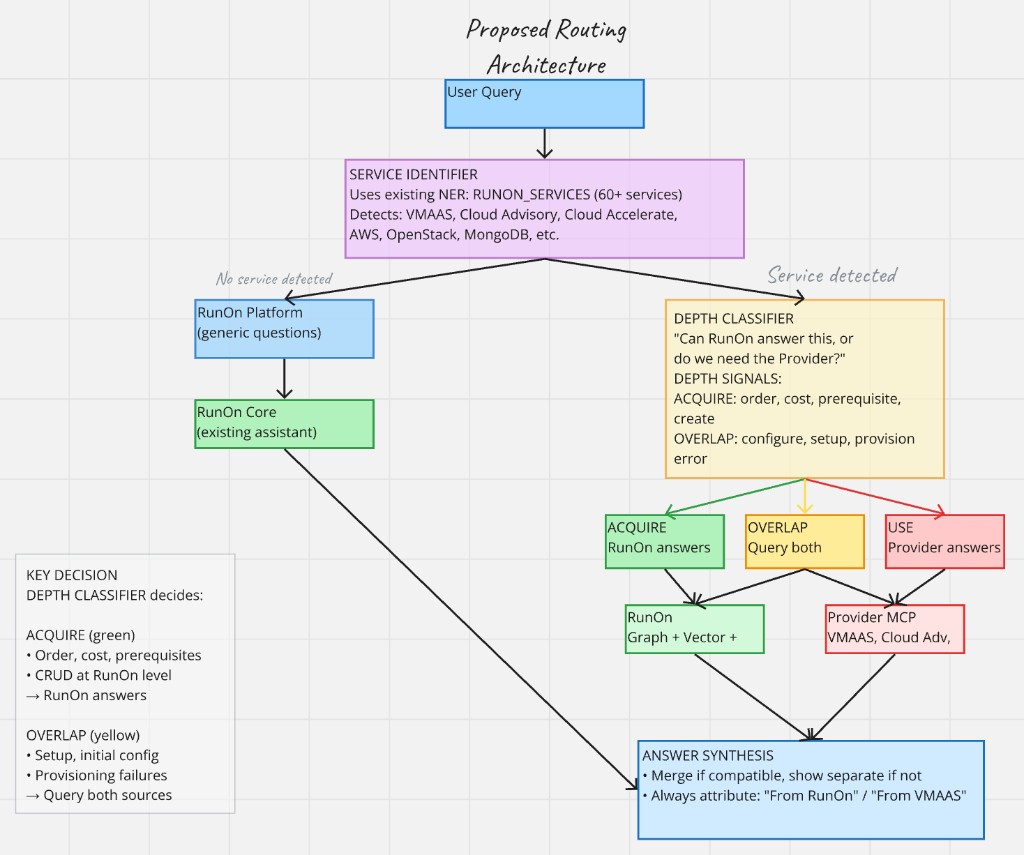 |
Shapes, colors, text, connectors, and layout are preserved. Text inside shapes is automatically merged into shape content rather than created as separate overlapping items.
Web UI — Upload, Configure & Convert
| Web UI - Add MIRO Board | Upload & Configure | Conversion Results |
|---|---|---|
 |
 |
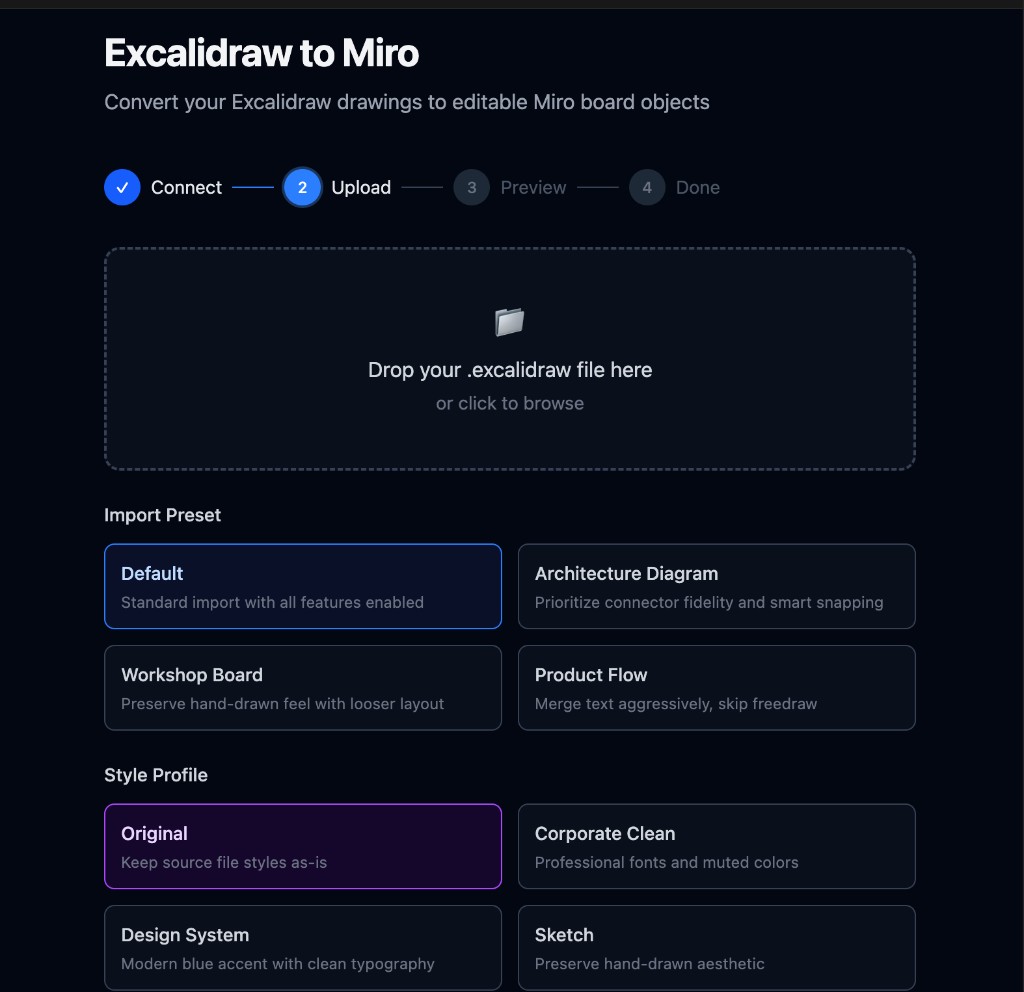 |
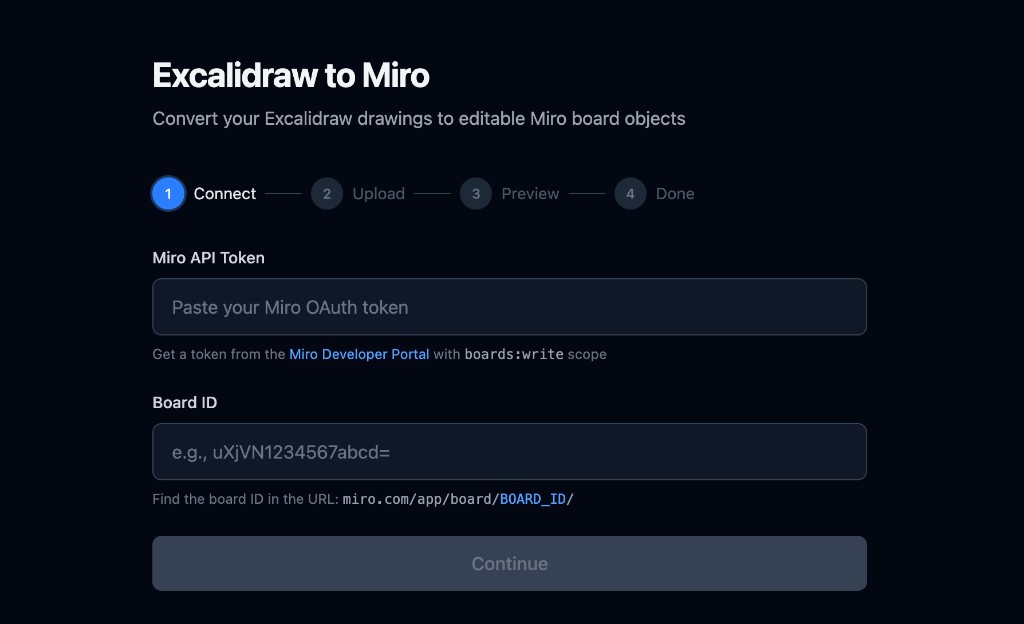
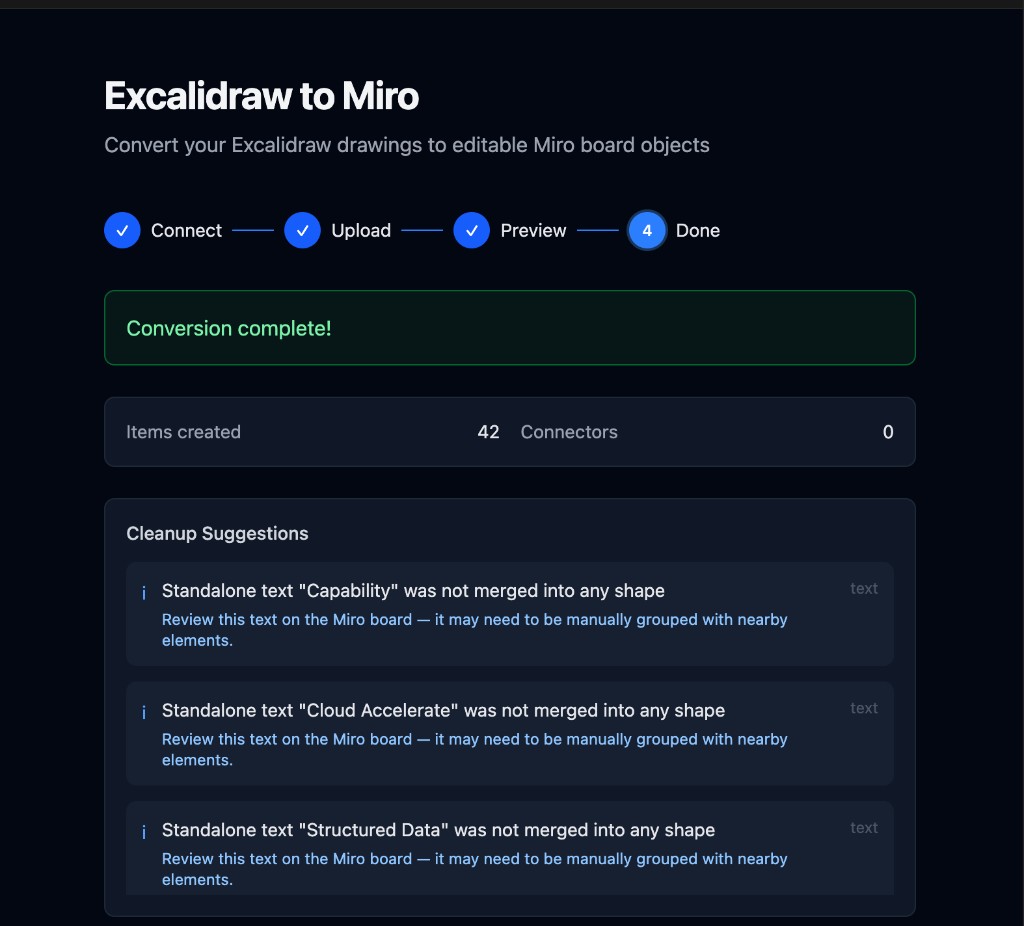
Guided 4-step web interface with drag-and-drop upload, import presets, style profiles, and post-conversion cleanup suggestions.
Why excalidraw-to-miro?
- Native Miro objects — Not screenshots. Your Excalidraw shapes, text, and connectors become real, editable Miro items.
- Full element support — Rectangles, ellipses, diamonds, arrows, lines, images, freedraw strokes, and frames all convert.
- Style fidelity — Colors, fonts, stroke styles, opacity, and fill patterns carry over.
- Smart layout — Auto-centering, arrow snapping, table/grid detection, and text-shape merging.
- Multiple interfaces — CLI for automation and scripting, web UI for one-off imports, Node.js API for integration.
- Obsidian compatible — Import
.excalidraw.mdfiles directly from your Obsidian vault.
Features
Core Conversion
- Shapes: Rectangles, ellipses, and diamonds become editable Miro shapes
- Text: Standalone text and text bound to shapes
- Connectors: Arrows and lines become Miro connectors with proper endpoint binding
- Images: Embedded images are extracted and uploaded to Miro
- Freedraw: Hand-drawn strokes are converted to SVG and uploaded as images
- Frames: Excalidraw frames become Miro frames with children properly attached
- Groups: Excalidraw visual groups (
groupIds) are preserved as native Miro groups, including nested groups - Styles: Stroke colors, fill colors, border styles, and opacity
- Auto-centering: Content is automatically centered on the Miro board
- Smart snapping: Unbound arrow endpoints snap to nearby shapes
- Table layout detection: Wide background shapes (table rows, banners) are kept separate from overlapping text, preserving grid/column layouts
Web UI
- Guided 4-step flow: Connect, Upload, Preview, and Convert with drag-and-drop
- Import Preview: See exactly what will be created, skipped, or degraded before writing to Miro
- Presets: Architecture Diagram, Workshop Board, and Product Flow import presets
- Style Profiles: Apply Corporate Clean, Design System, or Sketch visual overrides
- Cleanup Suggestions: Post-conversion actionable feedback for elements that may need manual review
- Summary Card: Copy a Markdown summary to share in Slack, Notion, or Jira
CLI
- Multiple commands:
convert,preview,guided,batch,repair - Output formats: Text, Markdown, and JSON output for summaries and previews
- Interactive guided mode: Step-by-step wizard with readline prompts for beginners
- Batch import: Import multiple
.excalidrawfiles from a directory (supports Obsidian vaults) - Connector repair: Interactive flow to re-establish broken connectors from a previous import
- Smart re-import:
create,update, andupsertmodes with persistent ID mapping across runs - Style profiles: Built-in and custom JSON profiles for visual overrides
- Metadata preservation: Excalidraw
linkandcustomDatafields carry over into Miro item content
Installation
npm install
npm run build
Or for development:
npm install
npm run dev -- --help
Prerequisites
1. Get a Miro OAuth Token
- Go to Miro Developer Portal
- Create a new app or use an existing one
- Add the
boards:writescope - Generate an access token
2. Get Your Board ID
The board ID is in the URL when viewing a board:
https://miro.com/app/board/uXjVN1234567=/
                          ^^^^^^^^^^^^^^^ this is the board ID
Usage
Web UI
# Start the API server
npm run dev:server

# In another terminal, start the web UI
npm run dev:web
Open http://localhost:5173 and follow the guided flow:
- Connect — Enter your Miro API token and board ID
- Upload — Drop your
.excalidrawfile and pick an import preset - Preview — Review what will be created, skipped, or imported with reduced fidelity
- Convert — Run the import and get results with a copyable summary card
For production, npm run build compiles everything, then npm run start:server serves the API and static frontend together on port 3000.
CLI
# Basic conversion
excal2miro convert --in drawing.excalidraw --board uXjVN1234567abcd= --token YOUR_TOKEN

# With options
excal2miro convert \
  --in drawing.excalidraw \
  --board uXjVN1234567abcd= \
  --token YOUR_TOKEN \
  --scale 1.5 \
  --output-format markdown \
  --verbose

# Dry-run preview
excal2miro preview --in drawing.excalidraw

# Interactive guided mode
excal2miro guided

# Batch import from a directory (Obsidian vault support)
excal2miro batch --dir ./vault --board uXjVN1234567abcd= --token YOUR_TOKEN

# Smart re-import (update existing items)
excal2miro convert --in drawing.excalidraw --board uXjVN1234567abcd= \
  --token YOUR_TOKEN --import-mode upsert --mapping-file mapping.json

# Using environment variable for token
export MIRO_TOKEN=YOUR_TOKEN
excal2miro convert --in drawing.excalidraw --board uXjVN1234567abcd=
Options (convert command)
| Option | Description | Default |
|---|---|---|
-i, --in <path> |
Path to Excalidraw file (required) | - |
-b, --board <id> |
Miro board ID (required) | - |
-t, --token <token> |
Miro OAuth token (or use MIRO_TOKEN env) |
- |
-s, --scale <number> |
Scale factor for coordinates | 1 |
--offset-x <number> |
X offset on Miro board | 0 (auto-center) |
--offset-y <number> |
Y offset on Miro board | 0 (auto-center) |
--snap-threshold <number> |
Distance for snapping arrows to shapes | 50 |
--preset <name> |
Use a preset (flowchart, architecture, wireframe, mindmap) | - |
--style-profile <path> |
Path to a JSON style profile | - |
--import-mode <mode> |
Import mode: create, update, or upsert |
create |
--mapping-file <path> |
Path to ID mapping file for re-imports | - |
--output-format <fmt> |
Output format: text, markdown, or json |
text |
--no-connectors |
Skip creating connectors from arrows | false |
--no-images |
Skip converting embedded images | false |
--no-freedraw |
Skip converting freedraw to SVG | false |
--skip-freedraw |
Skip freedraw elements silently | false |
--no-frames |
Skip converting frames | false |
-v, --verbose |
Enable verbose logging | false |
Programmatic API
import { Converter } from 'excalidraw-to-miro';

const converter = new Converter({
  miroToken: 'YOUR_TOKEN',
  boardId: 'YOUR_BOARD_ID',
  options: {
    scale: 1,
    convertImages: true,
    convertFreedraw: true,
    convertFrames: true,
    verbose: true,
  },
});

const result = await converter.convert('drawing.excalidraw');

console.log(`Items created: ${result.itemsCreated}`);
console.log(`Connectors created: ${result.connectorsCreated}`);
console.log(`Frames created: ${result.framesCreated}`);
console.log(`Images uploaded: ${result.imagesCreated}`);
console.log(`Freedraw converted: ${result.freedrawConverted}`);
Element Mapping
| Excalidraw | Miro |
|---|---|
rectangle |
Shape (rectangle or round_rectangle) |
ellipse |
Shape (circle) |
diamond |
Shape (rhombus) |
text |
Text item (or merged into parent shape) |
arrow |
Connector |
line |
Connector |
freedraw |
Image (SVG conversion) |
image |
Image (uploaded from embedded data) |
frame |
Frame (with children attached) |
groupIds |
Group (via Miro Groups API) |
Text Handling
Text elements are handled intelligently:
- Text inside shapes: If a standalone text element's center falls within a shape's bounds, it is merged into the shape's content rather than created as a separate overlapping text item. Multiple texts in the same shape are joined with line breaks, ordered top-to-bottom.
- Table layout detection: Shapes with a wide aspect ratio (> 6:1) are recognized as table rows or background strips. Their overlapping text elements are kept as independent items at their original positions, preserving column/grid layouts.
- Bound text: Text with a
containerIdis automatically included in the parent shape (standard Excalidraw binding). - Standalone text: Text that doesn't overlap any shape is created as a separate Miro text item.
Font Mapping
| Excalidraw | Miro |
|---|---|
Virgil (hand-drawn, 1) |
caveat |
Helvetica (2) |
arial |
Cascadia (code, 3) |
roboto_mono |
Liberation Sans (4) |
arial |
Image Support
Embedded images in .excalidraw files are automatically extracted, decoded from base64, and uploaded to Miro via the image API. Limitations:
- Maximum upload size is 6 MB per image (Miro API limit)
- Images must have
status: "saved"in the Excalidraw file - The
scaleproperty on images is applied to the output dimensions
Freedraw Conversion
Freedraw (hand-drawn) elements are converted to SVG paths and uploaded as images:
- Points are smoothed using quadratic bezier curves for natural-looking strokes
- Paths with 500+ points are simplified using Douglas-Peucker decimation
- Stroke color, width, style (dashed/dotted), and opacity are preserved
- Use
--no-freedrawto disable this and skip freedraw elements
Frame Support
Excalidraw frames are converted to Miro frames:
- Frames are created first, then child items are attached via the Miro API
- Children are identified by their
frameIdproperty in the Excalidraw data - Frame title/name is preserved
- Miro frames don't support rotation; rotated frames are created without rotation
Group support: Excalidraw groupIds (visual selection groups) are converted to native Miro groups via the Miro Groups API. Nested groups (elements with multiple groupIds) are created innermost-first. Groups require at least 2 successfully created items; groups with fewer members are skipped with a cleanup suggestion.
Connector Behavior
Connectors (arrows/lines) are handled as follows:
- Bound arrows: If an arrow is bound to shapes in Excalidraw, the connector attaches to those Miro items
- Unbound arrows: Endpoints snap to the nearest shape within the snap threshold
- Unresolvable arrows: If either endpoint can't be matched to a shape, the connector is skipped (Miro requires both endpoints to reference board items)
- Self-referencing: Arrows where both endpoints resolve to the same shape are skipped
Arrowhead Mapping
| Excalidraw | Miro |
|---|---|
arrow |
arrow |
triangle |
filled_triangle |
bar |
stealth |
dot |
filled_oval |
null |
none |
Conversion Phases
The converter processes elements in a specific order to maintain references:
- Phase 0: Create frames (so children can be attached later)
- Phase 1: Create shapes, text, images, and freedraw SVGs
- Phase 1d: Attach child items to their parent frames
- Phase 2: Create connectors (which reference shapes by Miro ID)
- Phase 3: Create groups from
groupIds(all items must exist first)
Coordinate System
- Excalidraw uses top-left origin with Y increasing downward
- Miro uses center-based positioning for shapes
- By default, content is auto-centered at (0, 0) on the Miro board
- Use
--offset-xand--offset-yto position content elsewhere
Rate Limiting
The converter includes a 100ms delay between API calls to respect Miro's rate limits. For large drawings, the conversion may take some time.
Development
# Install dependencies
npm install

# Build
npm run build

# Run in development mode
npm run dev -- --in test.excalidraw --board BOARD_ID --token TOKEN

# Run tests
npm test
Project Structure
src/
├── api/                 # Miro API client
│   └── miro-client.ts
├── converter/           # Main conversion orchestrator
│   └── converter.ts
├── mappers/             # Element type mappers
│   ├── shape-mapper.ts
│   ├── text-mapper.ts
│   ├── connector-mapper.ts
│   ├── image-mapper.ts
│   ├── freedraw-mapper.ts
│   ├── frame-mapper.ts
│   ├── style-mapper.ts
│   └── coordinate-transformer.ts
├── parser/              # Excalidraw JSON parser
│   └── excalidraw-parser.ts
├── types/               # TypeScript types
│   ├── excalidraw.ts
│   └── miro.ts
├── server.ts            # Express API server for web UI
├── cli.ts               # CLI entry point
└── index.ts             # Library exports
web/
├── src/
│   ├── App.tsx          # Main React component (4-step guided flow)
│   ├── main.tsx         # React entry point
│   └── index.css        # Tailwind styles
├── index.html           # HTML entry point
└── vite.config.ts       # Vite + Tailwind config
License
MIT