

GeekMagic Display for Home Assistant

A Home Assistant custom integration for GeekMagic displays (SmallTV Pro, Ultra, and similar ESP8266/ESP32-based devices).
How it works: This integration renders dashboard images directly in Home Assistant using Python/Pillow and pushes them to your GeekMagic device over HTTP. It supports the known stock firmware profiles and the newer SD_PRO-style firmware used by some Ultra units.
Disclaimers
Early Software: This project is in active development. Expect bugs, breaking changes, and incomplete features. The API and configuration format may change between versions.
Vibe Coded: This integration was largely vibe-coded with AI assistance. While functional, it may contain unconventional patterns or rough edges. Contributions and feedback welcome!
Background & Credits
I have a GeekMagic Ultra with ESP8266, which has limited possibilities for flashing with ESPHome. Instead of fighting the hardware, this integration takes a different approach: render everything server-side and push images to the device.
Special thanks to:
- The Home Assistant Community thread for documenting GeekMagic device capabilities
- Aydar (@aydarik) for sharing the bash script that demonstrated how to push images to these devices - the core inspiration for this integration
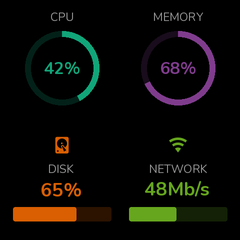
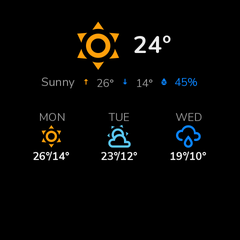
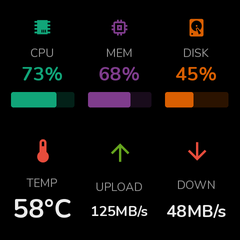
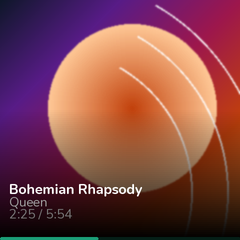
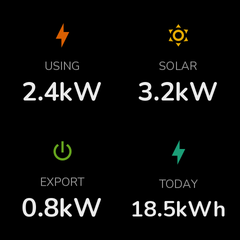
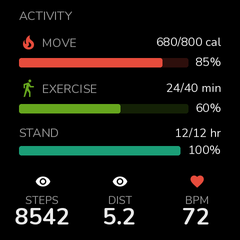
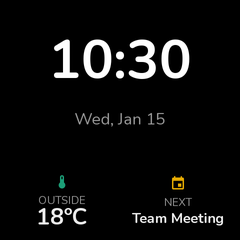
Dashboard Samples
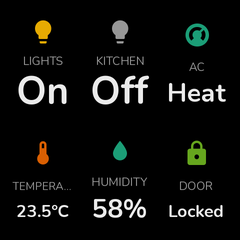
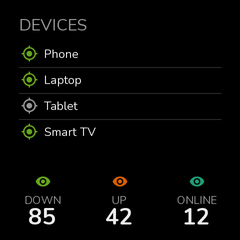
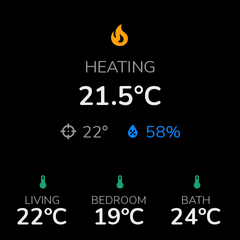
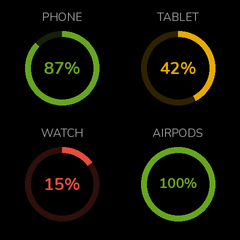
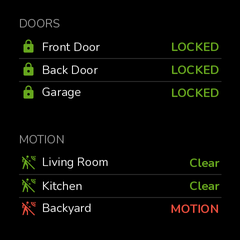
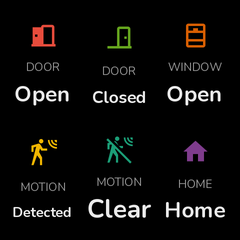
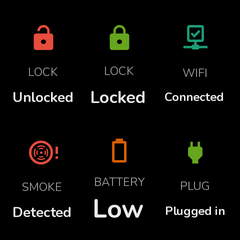
Binary Sensor States & Icons
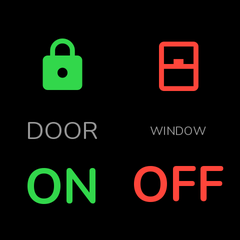
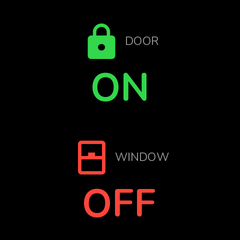
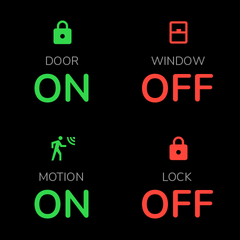
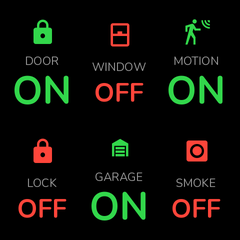
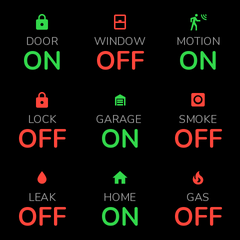
Binary sensors display human-readable states and state-specific icons based on their device_class. Icons are sourced from Home Assistant's official icon definitions.
Domain State Icons
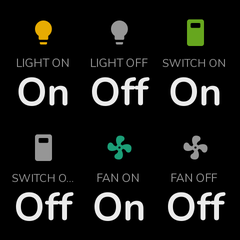
Entities like lights, switches, and fans show different icons based on their state (on/off).
Widget Gallery
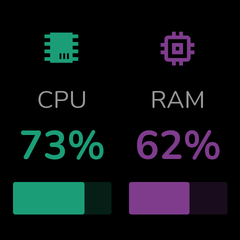
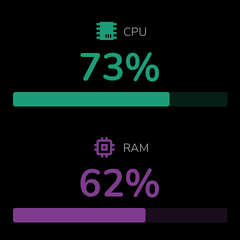
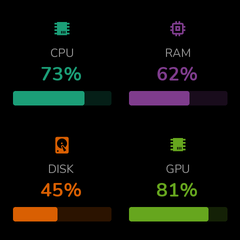
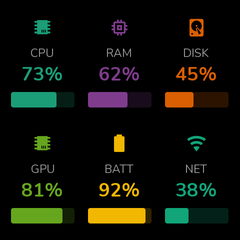
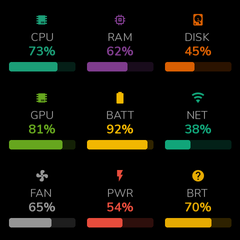
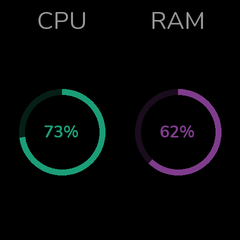
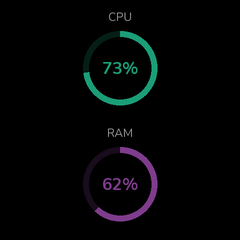
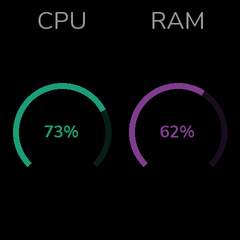
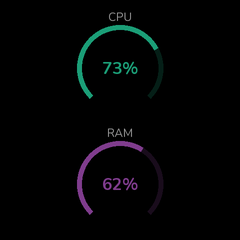
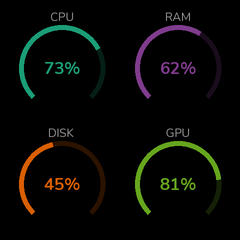
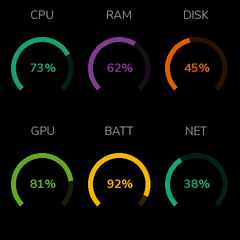
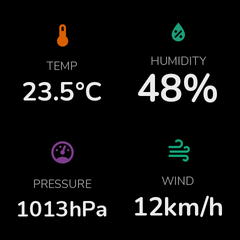
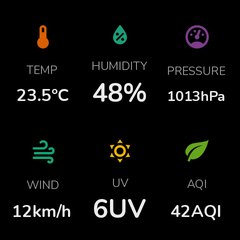
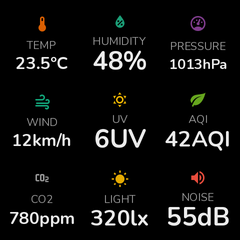
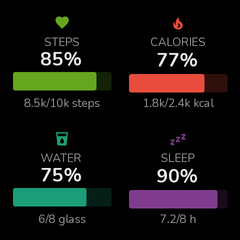
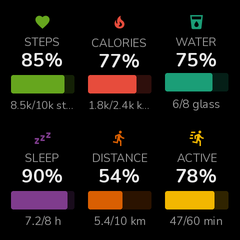
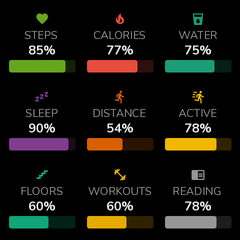
| Widget | 1x1 | 1x2 | 2x1 | 2x2 | 2x3 | 3x3 |
|---|---|---|---|---|---|---|
| Gauge (Bar) | 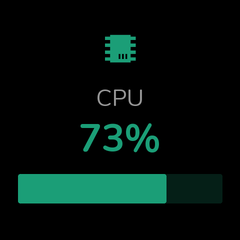 |
 |
 |
 |
 |
 |
| Gauge (Ring) | 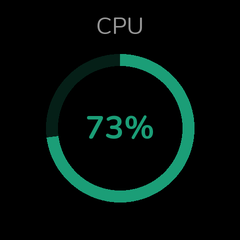 |
 |
 |
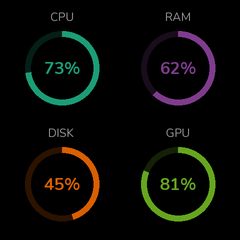 |
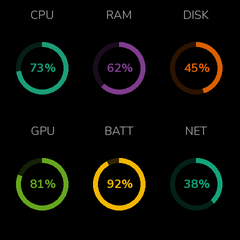 |
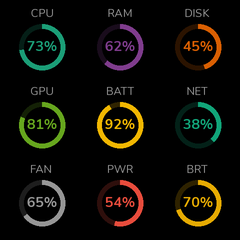 |
| Gauge (Arc) | 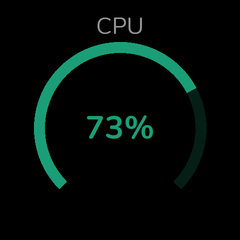 |
 |
 |
 |
 |
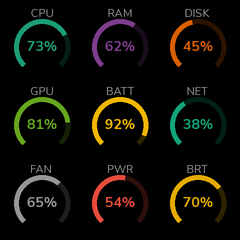 |
| Entity (Icon) | 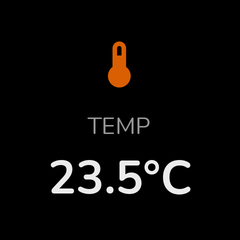 |
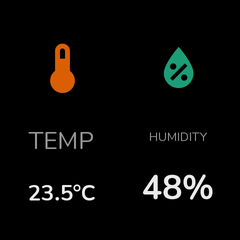 |
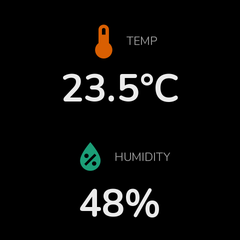 |
 |
 |
 |
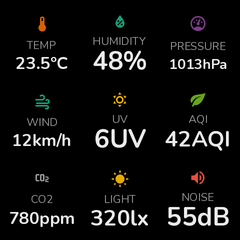
| Entity (Plain) | 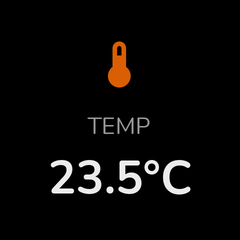 |
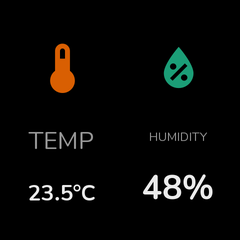 |
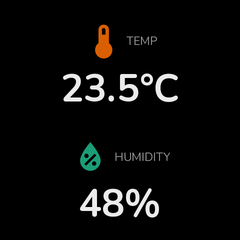 |
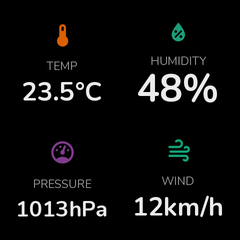 |
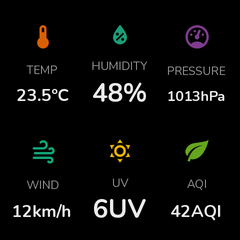 |
 |
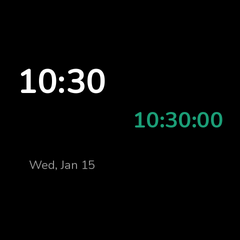
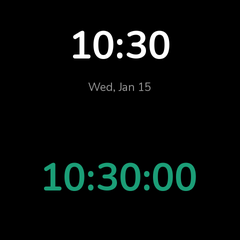
| Clock | 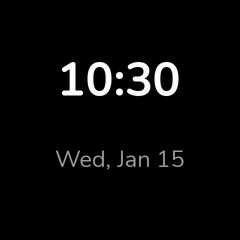 |
 |
 |
 |
 |
 |
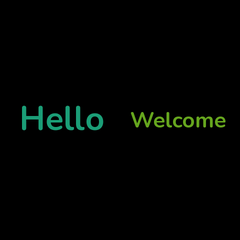
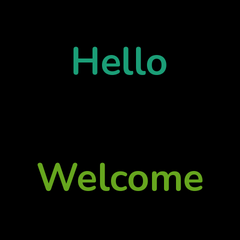
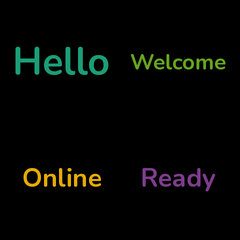
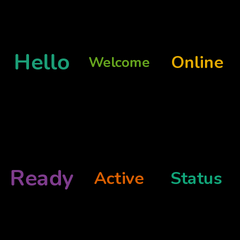
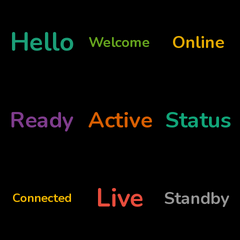
| Text |  |
 |
 |
 |
 |
 |
| Progress | 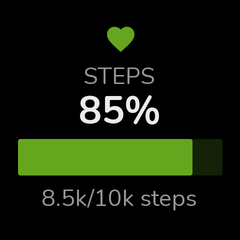 |
 |
 |
 |
 |
 |
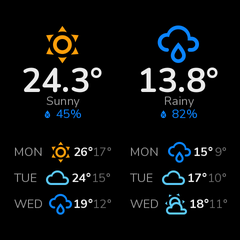
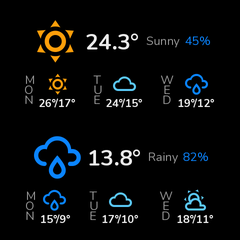
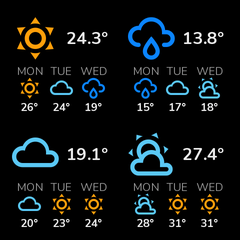
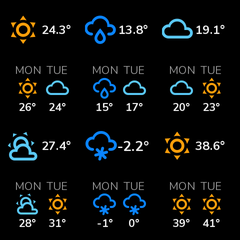
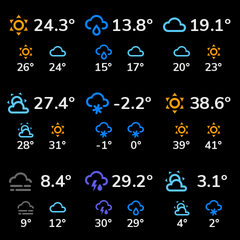
| Weather | 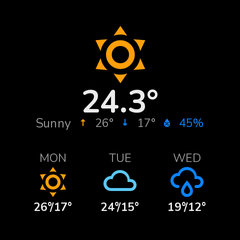 |
 |
 |
 |
 |
 |
| Status | 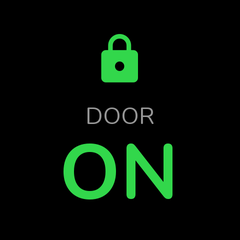 |
 |
 |
 |
 |
 |
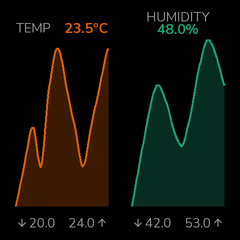
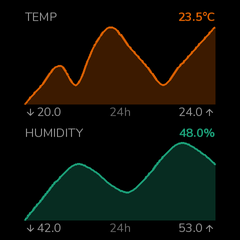
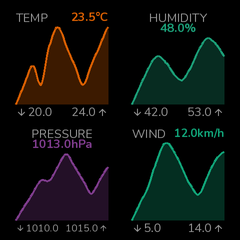
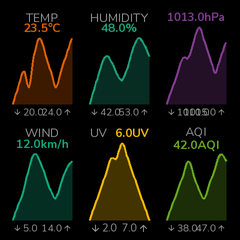
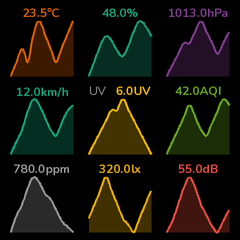
| Chart | 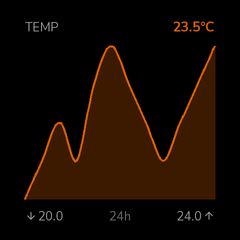 |
 |
 |
 |
 |
 |
| Candlestick | 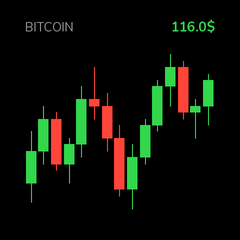 |
 |
 |
 |
 |
 |
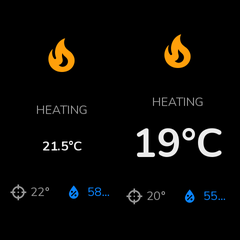
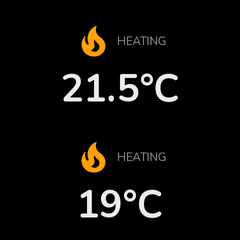
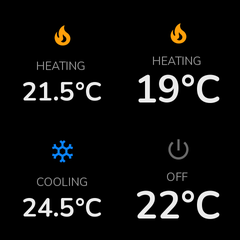
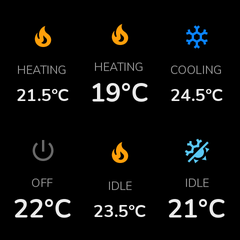
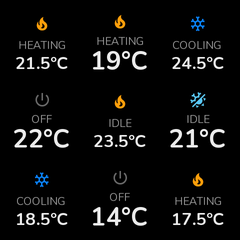
| Climate | 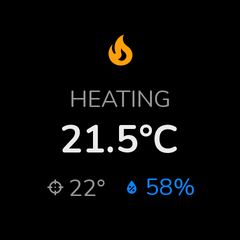 |
 |
 |
 |
 |
 |
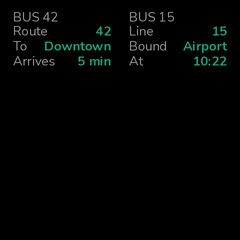
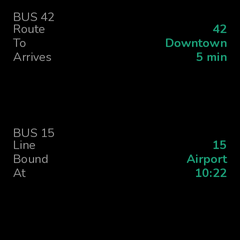
| Attribute List | 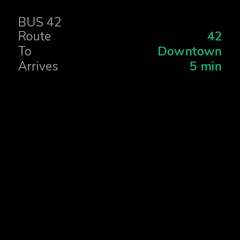 |
 |
 |
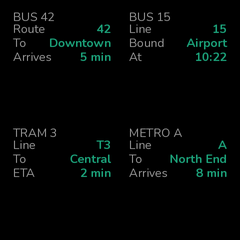 |
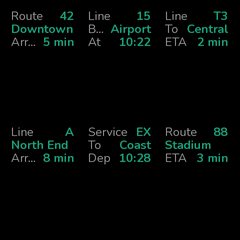 |
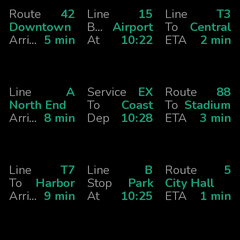 |
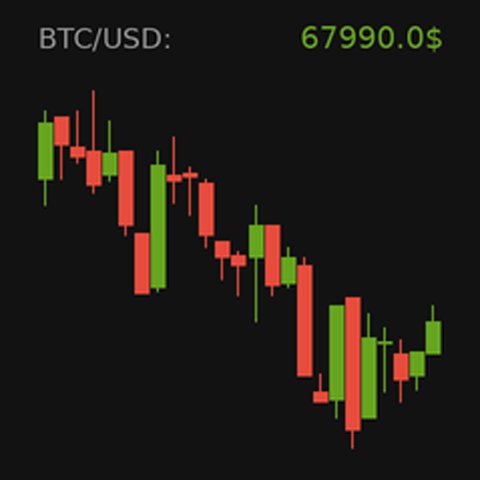
Candlestick Chart
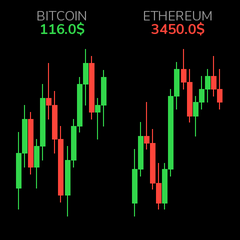
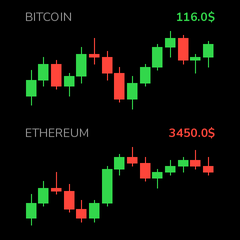
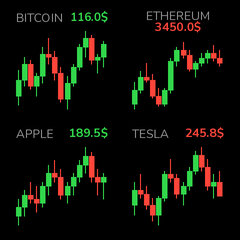
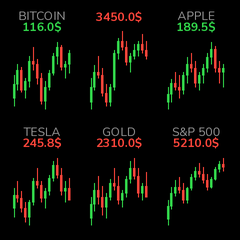
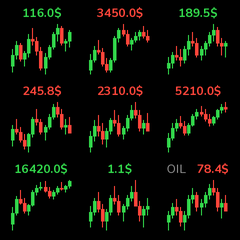
Display OHLC (Open/High/Low/Close) candlestick charts from any numeric entity's history. Configurable candle intervals (1 hour, 4 hours, 1 day) and count.
Layout Examples
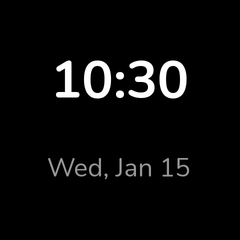
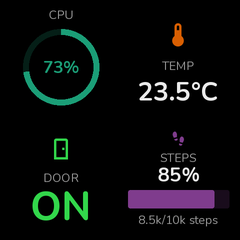
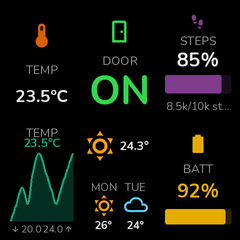
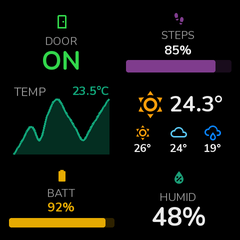
Fullscreen & Grid Layouts
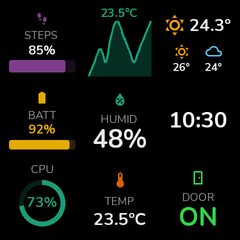
Split Layouts
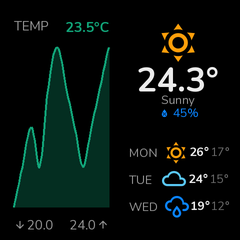
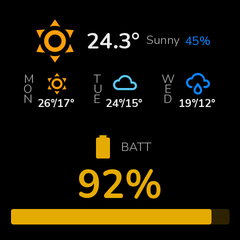
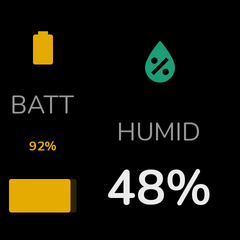
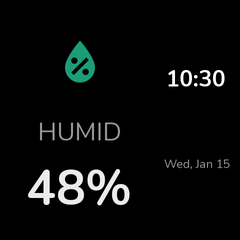
Column & Row Layouts
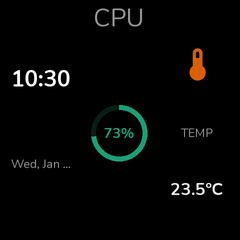
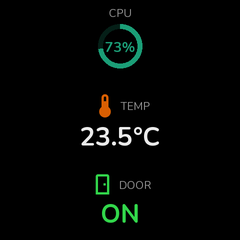
Hero Layouts
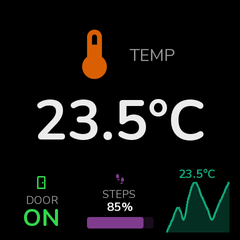
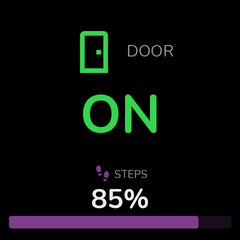
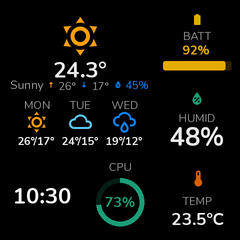
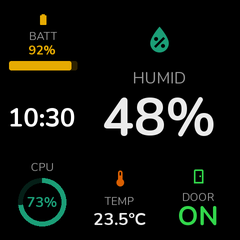
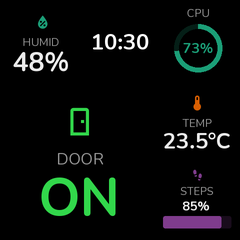
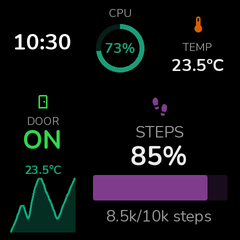
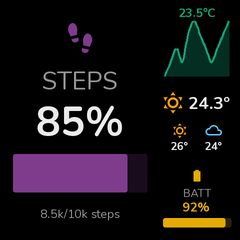
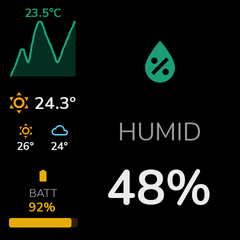
Sidebar Layouts
Themes
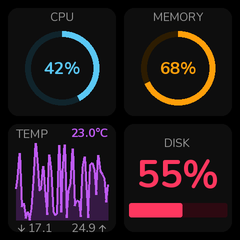
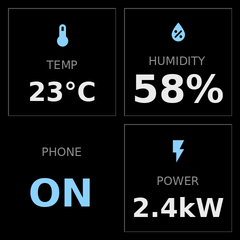
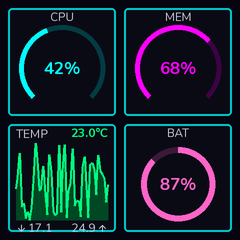
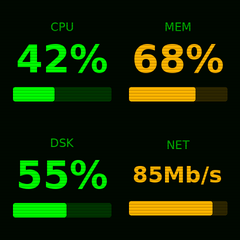
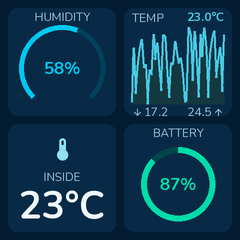
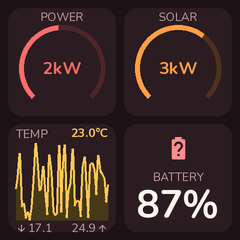
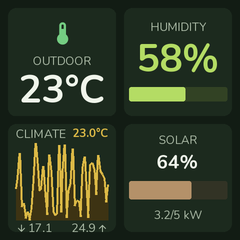
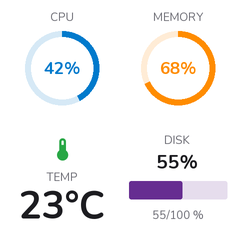
Choose from 11 built-in themes that go beyond just colors — they apply a complete design system: typography (rounded Nunito font on most themes), spacing, shapes, tinted gauge tracks, and visual effects.
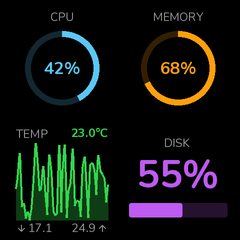
The default watchOS theme is inspired by Apple's watchOS Human Interface Guidelines: true-black background, Apple system colors (red/orange/yellow/green/mint/teal/cyan/blue/indigo/purple/pink), opacity-based text hierarchy, tinted Activity-ring style gauges, and no card chrome — widgets float on the background for maximum information density.
Dark Themes
| watchOS | Classic | Minimal | Neon | Retro | Soft |
|---|---|---|---|---|---|
 |
 |
 |
 |
 |
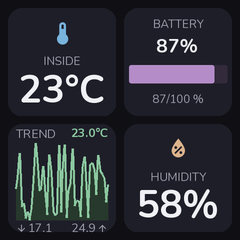 |
| Default — Apple watchOS HIG-inspired | Subtle card chrome, system colors | Sharp, monochrome | Cyberpunk with glow | Terminal scanlines | Cozy, very rounded |
Colored & Light Themes
| Ocean | Sunset | Forest | Light | Candy |
|---|---|---|---|---|
 |
 |
 |
 |
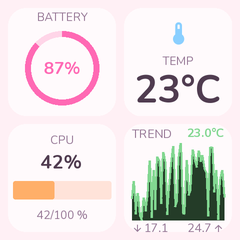 |
| Deep blue, nautical | Warm coral/orange | Natural earth tones | Clean white background | Playful pastels |
Features
- 15 widget types: Clock, entity, attribute list, media, chart, candlestick, text, gauge, progress, weather, status, climate, camera, and more
- 19 layout options: Fullscreen, grids, splits, hero variants, sidebars, and more
- 11 visual themes: watchOS (default), Classic, Minimal, Neon, Retro, Soft, Light, Ocean, Sunset, Forest, Candy
- Visual configuration: Custom sidebar panel with live preview
- Global views: Create views once, assign to multiple devices
- Multi-screen support: Assign multiple views per device with auto-cycling
- Notification service: Show temporary alerts with text, icons, or camera images
- Pure Python rendering: Uses Pillow for image generation (no browser required)
- Configurable refresh: Updates every 5-300 seconds
Installation
HACS (Recommended)
- Open HACS in Home Assistant
- Click "Custom repositories"
- Add this repository URL
- Install "GeekMagic Display"
- Restart Home Assistant
Manual
- Copy
custom_components/geekmagicto your Home Assistant'scustom_componentsfolder - Restart Home Assistant
Configuration
Adding a Device
- Go to Settings → Devices & Services
- Click Add Integration
- Search for "GeekMagic"
- Enter your device's IP address
Using the GeekMagic Panel
After installation, a GeekMagic item appears in your sidebar.
Views Tab
Create and manage display views:
- Create views with the "+ Add View" button
- Edit views by clicking on them
- Delete views via the menu on each card
View Editor
The editor provides a live preview and widget configuration:
- Preview: See real-time rendering as you configure
- Layout: Choose grid size (2x2, 2x3, 3x2, hero, split, etc.)
- Theme: Select from 10 visual themes
- Widgets: Each slot shows a position grid - click cells to swap widget positions
- Entity picker: Native Home Assistant entity selector with filtering
Devices Tab
Assign views to your GeekMagic devices:
- Check which views each device should display
- Devices automatically cycle through assigned views
- Drag to reorder the rotation sequence
Device Info Page
Each device exposes entities for brightness, refresh interval, mode selection, and status:
Entities
Each GeekMagic device creates the following entities for control and monitoring:
Controls
| Entity | Type | Description |
|---|---|---|
number.geekmagic_brightness |
Number | Display brightness (0-100%) |
number.geekmagic_refresh_interval |
Number | Update interval (5-300 seconds) |
number.geekmagic_cycle_interval |
Number | View cycle interval (0 = manual only) |
select.geekmagic_mode |
Select | Device mode (Custom Views, Clock, Weather, System Info) |
select.geekmagic_current_view |
Select | Currently displayed view (when in Custom mode) |
switch.geekmagic_active |
Switch | Enable/disable the display (sleep/wake) |
switch.geekmagic_view_cycling |
Switch | Enable/disable automatic view cycling |
Sensors
| Entity | Type | Description |
|---|---|---|
sensor.geekmagic_status |
Sensor | Connection status with device attributes |
sensor.geekmagic_storage_used |
Sensor | Device storage usage percentage |
sensor.geekmagic_storage_free |
Sensor | Free storage in KB |
Buttons
| Entity | Type | Description |
|---|---|---|
button.geekmagic_refresh |
Button | Force immediate display refresh |
button.geekmagic_next_screen |
Button | Switch to next view in rotation |
button.geekmagic_previous_screen |
Button | Switch to previous view in rotation |
Presence-Based Sleep/Wake
The Active switch (switch.geekmagic_active) lets you pause the display when no one is in the room. When turned off, the screen dims to zero and all rendering stops (saving CPU cycles and flash memory writes). When turned on, brightness is restored and the display refreshes immediately.
Wire it to any HA presence sensor, motion sensor, or media player via an automation:
automation:
  - alias: "GeekMagic: sleep when room is empty"
    trigger:
      - platform: state
        entity_id: binary_sensor.office_presence
        to: "off"
        for: "00:05:00"   # optional: wait 5 min before sleeping
    action:
      - action: switch.turn_off
        target:
          entity_id: switch.geekmagic_smalltv_active

  - alias: "GeekMagic: wake when room is occupied"
    trigger:
      - platform: state
        entity_id: binary_sensor.office_presence
        to: "on"
    action:
      - action: switch.turn_on
        target:
          entity_id: switch.geekmagic_smalltv_active
Any HA entity works as a trigger — presence sensors, media players, motion sensors, person trackers, etc.
Services
geekmagic.notify
Shows a temporary notification on the display, interrupting the normal view rotation.
| Parameter | Required | Default | Description |
|---|---|---|---|
device_id |
Yes | - | GeekMagic device(s) to show the notification on |
message |
No | - | Notification text. If omitted, the image/icon displays fullscreen |
icon |
No | - | MDI icon to display (e.g., mdi:bell, mdi:alert) |
image |
No | - | Entity for image source (camera.*, image.*, or media_player.*) |
duration |
No | 10 | How long to show the notification (1-300 seconds) |
theme |
No | watchos | Visual theme for the notification |
Examples
Simple text notification:
service: geekmagic.notify
data:
  device_id: "abc123"
  message: "Motion detected!"
  icon: mdi:motion-sensor
Doorbell with camera snapshot:
service: geekmagic.notify
data:
  device_id: "abc123"
  message: "Someone at the door"
  image: camera.front_door
  duration: 30
Fullscreen camera (no message):
service: geekmagic.notify
data:
  device_id: "abc123"
  image: camera.front_door
  duration: 15
Now playing notification:
service: geekmagic.notify
data:
  device_id: "abc123"
  message: "Now Playing"
  image: media_player.spotify
  theme: neon
Widget Types
| Type | Description |
|---|---|
gauge |
Bar, ring, or arc gauge (style: bar/ring/arc) |
entity |
Any HA entity value (with optional icon, attribute) |
attribute_list |
Display multiple entity attributes as key-value pairs |
climate |
Thermostat/HVAC (show_target, show_humidity, show_mode) |
clock |
Time and date |
text |
Static or dynamic text |
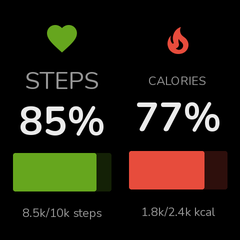
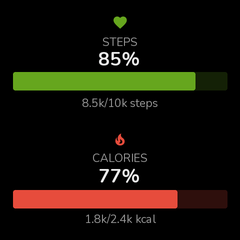
progress |
Goal tracking with progress bar |
weather |
Weather with forecast |
status |
Binary sensor indicator |
chart |
Sparkline from entity history |
candlestick |
OHLC candlestick chart from entity history (candle_interval, candle_count, show_value) |
camera |
Camera snapshot display |
media |
Now playing from media player |
multi_progress |
Multiple progress items |
status_list |
Multiple status indicators |
Layout Types
| Layout | Slots | Description |
|---|---|---|
fullscreen |
1 | Single widget fills entire display (no padding) |
grid_2x2 |
4 | 2x2 grid of equal widgets |
grid_2x3 |
6 | 2 rows, 3 columns |
grid_3x2 |
6 | 3 rows, 2 columns |
grid_3x3 |
9 | 3x3 grid of equal widgets |
split_horizontal |
2 | Left/right side by side |
split_vertical |
2 | Top/bottom stacked |
split_h_1_2 |
2 | Narrow left (1/3), wide right (2/3) |
split_h_2_1 |
2 | Wide left (2/3), narrow right (1/3) |
three_column |
3 | 3 vertical columns |
three_row |
3 | 3 horizontal rows |
hero |
4 | Large hero + 3 footer widgets |
hero_simple |
2 | Large hero + 1 footer widget |
hero_corner_tl |
6 | 2x2 hero top-left + 4 small widgets |
hero_corner_tr |
6 | 2x2 hero top-right + 4 small widgets |
hero_corner_bl |
6 | 2x2 hero bottom-left + 4 small widgets |
hero_corner_br |
6 | 2x2 hero bottom-right + 4 small widgets |
sidebar_left |
4 | Wide left panel + 3 right rows |
sidebar_right |
4 | 3 left rows + wide right panel |
Device Compatibility
GeekMagic devices with the same case/name can ship with very different firmware. The integration detects the firmware/API profile first, then uses the matching upload and display flow.
| Device / firmware profile | Detection | Render support | Notes |
|---|---|---|---|
| SmallTV Ultra stock firmware | /app.json or /v.json with Ultra model |
Full | Uses /doUpload?dir=/image/, /set?theme=3, and /set?img=/image/{filename}. |
| SmallTV-PRO stock firmware | /v.json with GeekMagic SmallTV-PRO, or /.sys/app.json |
Full, with managed album | Uses /doUpload?dir=/image/ and /set?theme=4. Picture mode is an album slideshow, so the integration can manage the album and keep only dashboard.jpg. |
| Ultra / SD_PRO community-style firmware | /theme/list and /photo/list |
Supported through Photo slideshow | This firmware is very different from stock Ultra firmware. It uses /config, /api/set?key=..., /photo/upload, /photo/toggle, and /theme/list; it does not support direct /set?img= image selection. |
Other GeekMagic devices may work if they expose one of those API profiles. If a device has the same product name but a different web UI or endpoint set, run the repo-local probe command from the development section below and attach the output to an issue.
SmallTV-PRO note: Pro Picture mode is an album slideshow. During Pro setup,
Home Assistant asks for confirmation to manage that album. When enabled, the
integration removes other pictures from the Pro album and keeps one managed
dashboard.jpg image updated so the display cannot rotate away from the HA
dashboard. After setup, manually select the Picture app on the device; the
integration does not press the Pro menu buttons automatically because the
firmware does not expose enough menu state to do that reliably.
Alternative Firmware
For users interested in open-source firmware, @bvweerd has created an ESP8266 firmware that implements the same API:
- geekmagic-tv-esp8266 - Open-source firmware for GeekMagic devices
Device doesn't work? Help us add support
If the integration doesn't work with your device or firmware version, you can generate a per-device reference report yourself and either attach it to a bug report or open a PR to add the device to docs/devices/. The repo ships with a Claude Code skill (.claude/skills/geekmagic-reverse-engineer/) that crawls your device, watches it run in a headless browser, and produces a redacted Markdown report describing every page, endpoint, parameter, and payload — purely from what the device tells us about itself.
To run it from a clone of this repo, point Claude Code at your device and ask:
"Use the geekmagic-reverse-engineer skill against
<DEVICE-IP>and produce a PR-ready report."
The skill handles privacy by default (credentials, SSIDs, IP addresses, MAC addresses are auto-redacted; review the output and scrub anything else before sharing). Existing captures live under docs/devices/ and are good examples of the format.
Development
uv sync                              # Install dependencies
uv run pytest                        # Run tests
uv run ruff check .                  # Lint
uv run pre-commit run --all-files    # Run all checks
uv run python scripts/generate_samples.py  # Generate samples
Live Device Testing
You can smoke-test the device client from a repo checkout before installing into Home Assistant:
uv run python scripts/device_cli.py probe <DEVICE-IP>
uv run python scripts/device_cli.py render-test <DEVICE-IP> --dashboard clock
uv run python scripts/device_cli.py upload-file <DEVICE-IP> path/to/image.jpg
uv run python scripts/device_cli.py brightness <DEVICE-IP> get
uv run python scripts/device_cli.py brightness <DEVICE-IP> set 80
probe only reads from the device. render-test, upload-file, and brightness set change the display.
The render/upload smoke tests back up readable device settings first, hold the
test image on screen for 15 seconds, then restore the original settings. Use
--hold-seconds N to change the viewing window. --takeover-album can make Pro
Picture mode deterministic by backing up the existing album, clearing it for the
test, and restoring it afterward. If a Pro test image uploads but is not visible,
manually select the Picture app on the device, or add --try-enter-picture to
let the CLI press the Pro menu buttons during a live smoke test. Home Assistant
does not press those buttons automatically. If your workstation has multiple
routes to the device subnet, add --bind-address LOCAL-IP to the CLI command to
force the source interface used for both aiohttp and raw firmware fallback
requests.
License
MIT