
emporia_vue Home Assistant Integration
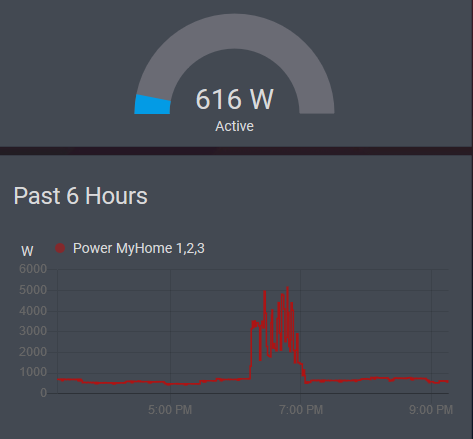
Reads data from the Emporia Vue energy monitor. Creates a sensor for each device channel showing average usage over each minute.
Note: This project is not associated with or endorsed by Emporia Energy.
Data is pulled from the Emporia API using the PyEmVue python module, also written by me.
Installation with HACS

The simplest way to install this integration is with the Home Assistant Community Store (HACS). This is not (yet) part of the default store and will need to be added as a custom repository.
Setting up a custom repository is done by:
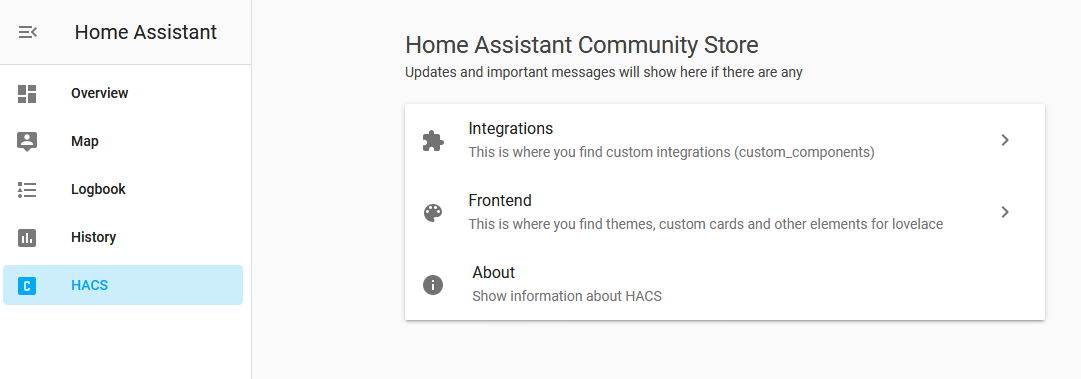
- Go into HACS from the side bar.
- Click into Integrations.
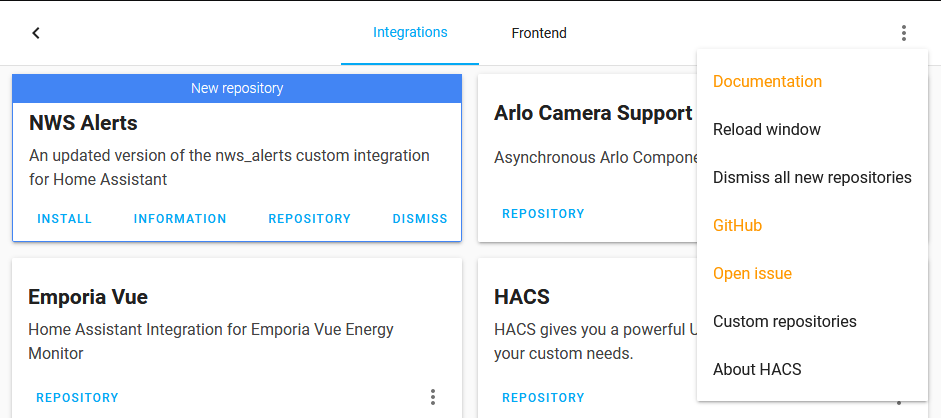
- Click the 3-dot menu in the top right and select
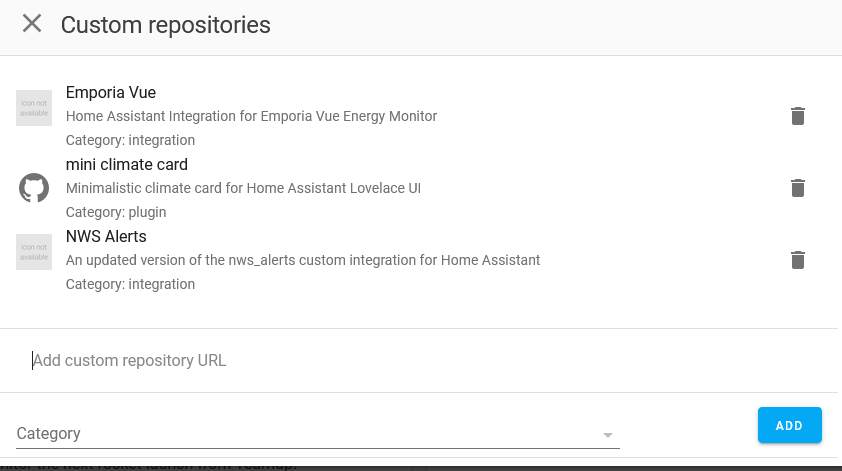
Custom repositories - In the UI that opens, copy and paste the url for this github repo into the
Add custom repository URLfield. - Set the category to
Integration. - Click the
Addbutton. - Select Emporia Vue from the list and press the download button.
- Further configuration is done within the Integrations configuration in Home Assistant. You may need to restart home assistant and clear your browser cache before it appears, try ctrl+shift+r if you don't see it in the configuration list.

Manual Installation
If you don't want to use HACS or just prefer manual installs, you can install this like any other custom component. Just merge the custom_components folder with the one in your Home Assistant config folder and you may need to manually install the PyEmVue library.
Configuration
Configuration is done directly in the Home Assistant UI, no manual config file editing is required.
- Go into the Home Assistant
Configuration - Select
Integrations - Click the
+button at the bottom - Search for "Emporia Vue" and add it. If you do not see it in the list, ensure that you have installed the integration.
- In the UI that opens, enter the email and password used for the Emporia App. If your account uses Google/Apple, see the Google/Apple Accounts section below.
- Done! You should now have a sensor for each "channel".
Google/Apple Accounts
If your Emporia account was created via Sign in with Google or Apple, the easiest solution is to set an Emporia password using the create account flow on the Emporia website or app using the same email address as you'd use with Google/Apple. Once set, you can log in using the standard email and password method above.
If you are unable to set a password, the integration also supports token-based authentication. To obtain your tokens:
- Open web.emporiaenergy.com in a browser and sign in with Google/Apple.
- Open your browser's Developer Tools (F12) and go to the Application tab (Chrome/Edge) or Storage tab (Firefox).
- Under IndexedDB → com.amplify.awsCognitoAuthPlugin → default.store, look for keys ending in
.hostedUi.idToken,.hostedUi.accessToken, and.hostedUi.refreshToken- copy the values of all three, making sure to only keep the values within the quotes (should start witheyJor similar) - Use those values in the token authentication step of the integration setup.