

HAKboard
📫 Contact: [email protected] 🌐 Language: 🇺🇸 English | 🇪🇸 Español
Table of Contents
- Introduction
- Features
- Functionality
- Why integrate a project management system with Home Assistant?
- Why Kanboard?
- Screenshots
- How do I get started?
- Documentation
- Roadmap
Introduction
HAKboard integrates project, task and user data from Kanboard, a free and open source Kanban project management tool, into Home Assistant, an open source home automation platform. It stores project data in a collection of dynamically generated sensor entities for easy integration into automations and dashboards.
Background: While developing HAKboard we wanted to explore what a low-code Home Assistant integration could look like and hopefully make it easy for non-technical users. This necessitated a focus on:
- User experience: Must be easy to install and UI-configurable
- Documentation: Users should not have to look at code to understand how an integration works, and a data schema must be included.
- Compliance: Implement the latest, HA-approved methods to create and manage entities, perform API calls, construct the UI and generate native Lovelace cards.
- Speed: Implement HA best practices for installation & re-configuration UI flows, network calls and entity management.
Features
- UI-driven configuration (no YAML or code required), installable via HACS.
- Includes three pre-built Lovelace cards: System Status, Users, and Projects. (see Screenshots).
- Connects to Kanboard using the official JSON-RPC API (webhook support planned).
- Adjustable polling interval (minimum 5 seconds) for near-real-time updates - use responsibly.
- Project filters let you sync only the projects you want to appear in HA.
- Supports multiple concurrent instances of the integration. This enables blue/green deployment.
- Connection Profiles allow different sync rules for the same Kanboard server
(e.g., projects 1,3–5,7 refresh every 10s while project 23 refreshes every 24h). - Automatic entity creation with collision detection and orphan cleanup.
- Optimized for network performance using Home Assistant’s DataUpdateCoordinator
- Localization included: 🇺🇸 English, 🇪🇸 Español.
Functionality
HAKboard pulls data from Kanboard to HA on a configurable schedule. It creates entities for summary data (total projects, total users etc..) and an entity for every project that provides aggregate data for tasks, status, assignees, columns etc.. giving you a birds-eye view of your environment, as well as the ability to create automations via the sensor data. A very near release (see Roadmap) will introduce the creation of entities for each task and person, and likely others. We wanted to ensure the core entity generation system is rock-solid before opening it up to potentially thousands of new task entities and thought it prudent to stagger this functionality.
There are 3 dashboard cards available. A native Lovelace HAKboard Status Card (add via Dashboard > Add Card), and two YAML cards that dynamically generate card content by filtering on HAKboard entities. Note The YAML cards require the installation of several HACS add-ons. Please see the header of the files for details.
Why integrate a project management system with Home Assistant?
HAKboard enables Kanboard to become an active participant in your smart home. This unlocks some obvious use cases, such as triggering events when software-related milestones are achieved or critical bugs are updated. While this alone opens up some interesting possibilities, it becomes truly powerful when applied creatively. Other ideas include:
- Replace to-do/grocery apps that are increasingly bumping basic features to paid tiers.
- Compile household newsletters, updates, or even your smart home environment release notes directly from Tasks, then send a push notification only to members that have subscribed to, or are members of a particular project/group.
- Automatically add items to dynamic lists/projects based on home data. For example, when the filter or battery in that bothersome device needs replacing, automatically add it to a shopping list and/or automated online cart, including the make/model/accessory information, create a task in the 'Home Maintenance' project called 'Install New Filters', assign it to the owner of the device or project, set it to Ready when the filter arrives, notify the owner via push message, then finally set it to complete when the new sensor is installed and online with updated readings.
- Share a Home Assistant dashboard for chore tracking (where chores are Kanboard Tasks) that incorporate real-time device sensors (like a washer or dryer) alongside the chore.
While some of these examples are elongated and over-managed, it serves to illustrate the possibilities of a tightly-coupled project management system with Home Assistant.
Why Kanboard?
It's tiny, free, fast (both client and server-side), highly customizable, supports branding and themes (including mobile responsive themes), plugins and an official Docker image. The Docker image does not require a separate database as it ships with SQLite. It has sensible defaults and pre-configured board layouts so it's running in minutes, not hours or painful weekends.
Notes
- You need access to an existing Kanboard installation, HAKboard does not install Kanboard for you.
- HAKboard is not affiliated with Kanboard, we just think it's neat. 💖
Screenshots

Dashboard overview showing status, users, and projects. Includes controls to refresh the integration or jump to the re-configuration screen straight from the Dashboard. Clicking on a user will bring up their HA entity history card and show their active task history. Clicking on a project will open that project directly in Kanboard.
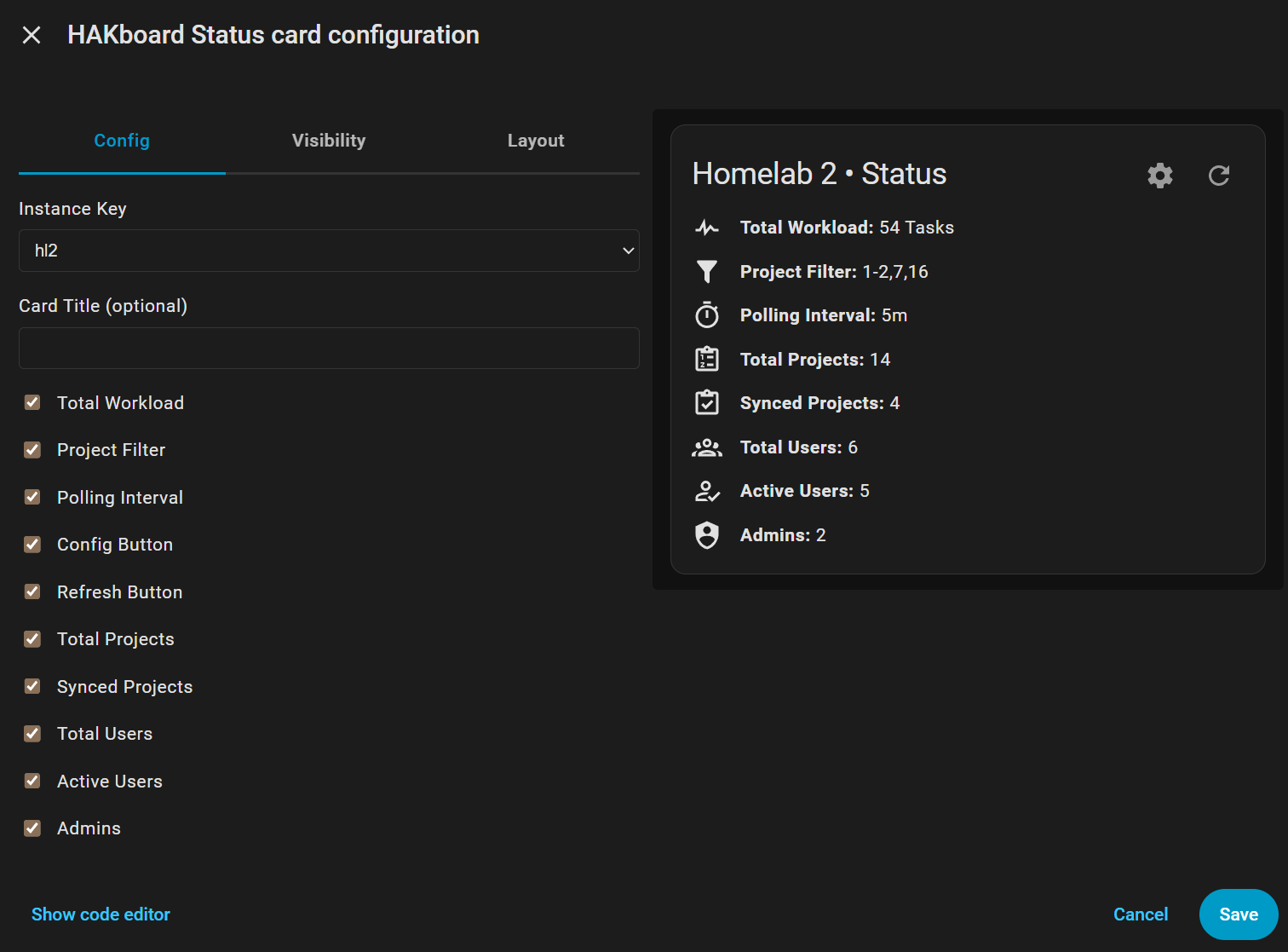
Status card editor with customization options. Every element on the card can be configured.

Setup / re-configuration screen.
How do I get started?
⚠️ IMPORTANT INSTALL NOTES: HAKboard is currently going through the official HACS approval process. In the meantime, please follow these instructions if you would like to install HAKboard (existing Kanboard server required):
- HA > HACS > ⚙️ (Top right) > Custom Repositories > Add: https://github.com/aktive/hakboard as type Integration
- Configure your Kanboard instance via Settings (Bottom left) > Devices & services > Add (Bottom right) > Search for HAKboard
- NOTE: If HAKboard does not appear (either as an integration or a dashboard card), please refresh your browser or restart HA.
Please read the Documentation section below so you know what to expect post-installation.
Installing via HACS (Recommended)
HACS installations offer upgrade notifications, one-click upgrades and rollback support.
- Login to HA and open HACS
- Search the community store for
HAKboardand select it - Review the notes and click the
Downloadbutton to start the guided installation
Manual installation
Manual installation is not recommended unless you plan to manually keep on top of updates.
- Download the repo contents
- Extract to your HA
config/custom_components/HAKboarddirectory - Restart HA
- Navigate to
Settings / Devices & services / + Add Integrationand search for HAKboard.
Documentation
Installation
During installation, you must specify a Kanban Endpoint (your Kanboard server). At this time, you must also specify a unique Instance Key. This fictional identifier is prefixed to all created entity IDs to ensure uniqueness and make them human-readable. You can enter any name you like, but it's recommended to pick a succinct name you can rapidly identify as it will appear on all HAKboard created entity IDs. Further, you must specify a project filter to govern which projects will be synced from Kanboard to HA. Kanboard's Project ID is also added to the entity IDs for uniqueness.
Re-configuration
To re-configure an existing integration, visit the Settings / Devices & services / HAKboard screen and click the ⚙️ icon on the integration. Or, simply click the ⚙️ icon directly from the HAKBoard Status Card via the dashboard! Re-configuration enables you to change the Instance Name, Endpoint URL, API Token, Project Filter and Polling Interval. You cannot change the Instance Key as this is used as a part of the key for unique entity generation. If you need to change the Instance Key, remove the integration and re-add it with a new value. No data will be lost if you remove and re-create an integration.
Integration and Entities
HAKboard will automatically generate a collection of HA sensor entities to store Kanboard data. Sensors are used because they're a well-supported entity type in HA, can receive real-time updates, store history, and are powerful dashboard allies.
If you configure your Homelab 2 instance with an Instance Key of hl2, HAKboard will use the following naming schema for the newly created entities:
sensor.hakboard_{instance_key}_xxx
For example: sensor.hakboard_hl2_system_status
Please see docs/ENTITIES.md for a detailed list of entities.
Any integration that threatens to introduce potentially unlimited dynamically generated entities is scary. Nightmare scenarios include unintended bulk entity creation with possible overwrites, entity duplication, zombie entities that magically reappear after being deleted, or flaky entities that behave inconsistently, especially upon HA reboots. HAKboard was written carefully to ensure all created entities are in tight sync with their counterparts in Kanboard, and most importantly, well documented. This is further highlighted with some scenarios around the deletion and modification of entities and projects:
Scenario 1: Entity deleted from Home Assistant
Home Assistant does not allow you to delete the dynamically generated entities via the UI as they are 'managed' by the HAKboard integration. However, in the case of entity deletion by unsupported or other means, entities will be re-created when the affected HAKboard integration is reloaded via Settings › Integrations › HAKboard › {Instance Name} › ⋮ Menu › Reload or when HA restarts. This is intended behavior. If entities are being re-created that you do not want, simply modify your integration(s) to exclude the unwanted projects from the project filter.
Scenario 2: Project deleted from Kanboard
If a project is deleted from Kanboard, it is no longer 'seen' by HAKboard and all associated entities will be removed automatically upon the next integration reload/HA reboot. This was purposefully implemented to maintain state between HA and Kanboard, however if you'd like to change this default behavior we'd like to hear from you.
Scenario 3: Project renamed in Kanboard
If a project is renamed in Kanboard, the project entity's friendly name (NOT the entity ID) in HA will be renamed the next time the integration is reloaded or when HA restarts. For example, Kanboard project 4 called 'Video Surveillance' is already synced via HAKboard, and therefore the following project entity will have been automatically created: sensor.hakboard_hl2_project_4 with the name Homelab 2 • Project 4: Video Surveillance. If you rename this project in Kanboard to 'Cameras', the next time HA starts or the integration is reloaded, the entity ID will remain unchanged but the name attribute will be updated to Homelab 2 • Project 4: Cameras.
Scenario 4: Entity renamed or deleted in Home Assistant
If an entity's unique ID or name are edited in HA, those changes will persist unless manually renamed back to their original name. To reset the name, simply delete the custom name from the entity edit screen and it will revert to the default name generated by HAKboard. To reset the entity ID, you must manually rename it back to its original state. Entities deleted from HA are retained in HA's entity registry (.storage/core.entity_registry). So if you delete the integration then re-add it specifying the same Kanboard server and endpoint ID, the renamed entities will still be renamed in the new integration. This is expected HA behavior.
Scenario 5: Project filter scope change
Reducing or increasing an existing integration's project filter will cause HAKboard to apply those changes (and add/remove entities as required) as soon as the Submit button is clicked on the configuration screen. This was purposefully implemented to maintain state between HA and Kanboard, however if you'd like to change this default behavior we'd like to hear from you.
Card Configuration
Three cards are included with HAKboard. See Screenshots to view them on the dashboard.
HAKBoard Status Card (frontend/hakboard-status-card.js)
Displays useful information about your HAKboard integration. This is a native Lovelace card that can be easily added to your dashboard via the UI.
- USAGE: From your dashboard, select the
+ Add Cardbutton and choose theHAKboard Statuscard. It has multi-endpoint support, enables the user to configure which elements are displayed, and includes🔗 Link,🔄️ Refreshand⚙️ Configbuttons that allow you to link directly to your Kanboard instance (or configure a custom URL), force a sync, or configure the integration. The buttons are especially useful during the initial configuration period, after which they can be hidden using the checkboxes.
Users Card (lovelace_card_users.yaml)
NOTE: This is not a native Lovelace card, and is instead provided in .yaml format for educational purposes as it demonstrates how to perform grouping/sorting by Kanboard instance and task counts. No YAML editing is required, it is ready to pasted as-is.
Displays a list of all users and their total assigned tasks. It denotes Admins, Users and Project Managers using icons. Items on this card are clickable entities that will open the HA Entity view. This card automatically looks for any HAKboard user entities and adds them to the card. Please review lovelace_card_users.yaml for examples.
- USAGE: From your HA dashboard, select
Edit(top right),+ Add Card(bottom right), choose any type of card then selectShow code editor(bottom left) and paste the contents oflovelace_card_users.yaml. It will automatically detect all relevanthakboard.user entities and display them on the card.
Projects Card (lovelace_card_projects.yaml)
NOTE: This is not a native Lovelace card, and is instead provided in .yaml format for educational purposes as it demonstrates how to perform grouping/sorting by Kanboard instance and task counts. No YAML editing is required, it is ready to pasted as-is.
Displays vital statistics for each project, including the total number of tasks, #️⃣ Project ID, 🕑 Last Activity, 👤 Project Owner, ⚠️ Overdue Tasks and 📊 statistics on the number of open tasks for each column configured in the project. Each entry is a clickable link that will take you directly to the project in Kanboard.
- USAGE: From your HA dashboard, select
+ Add Card, choose any type of card then selectShow code editor(bottom left) and paste the contents oflovelace_card_projects.yaml. It will automatically detect all relevanthakboard.project entities and display them on the card.
The Users and Projects yaml cards use several excellent HACS addons developed by @thomasloven.
Note: These addons are purely for display purposes and do not alter your Home Assistant's core functionality.
Roadmap:
Q4-25DONEImplement configurable SSL verification for Kanboard API (verify_ssl currently set to off for MVP launch)Q1-26Webhooks for real-time updatesQ4-25Entities for each taskQ4-25Kanboard Labels exposed as attributesQ1-26Create/update Kanboard tasks from HA/automationsQ1-26Additional Lovelace template cards for advanced statistics and graphsQ1-26Aggregated reporting statistics to enable useful context such as, "How many high priority issues were closed this month that took >20% longer than average?". Or better yet, get creative with Home Assistant! "How many issues were closed faster than average while I was at home, logged into my development PC vs my archaic laptop, while Hall and Oates was playing on Spotify, while my coffee machine has been refilled more than 3 times?"
License: MIT – free to use, fork, remix, pickle, whatever - just keep credit.