
🌐 HitTechBlogV2: A Cloudflare D1 Database and Cloudflare Pages based Deploy-and-Maintain-Cost-Free Serverless-based Note-taking and Blog System, supporting both Image and Rich-text, responsive for PC and Mobile Phone, Nuxt3 Full-stack Project with Tailwindcss, NO USE of Cloudflare Workers ONLY Using Cloudflare Pages and D1 Database, Production-Ready-Deploy NEEDS ONLY 5 LINES CODE
0. Demo
- admin account: [email protected]
- password: 122
- 中文教程,五行代码即可部署
1. Introduction
- Welcome to HitTechBlogV2 Project!
1.1 Features:
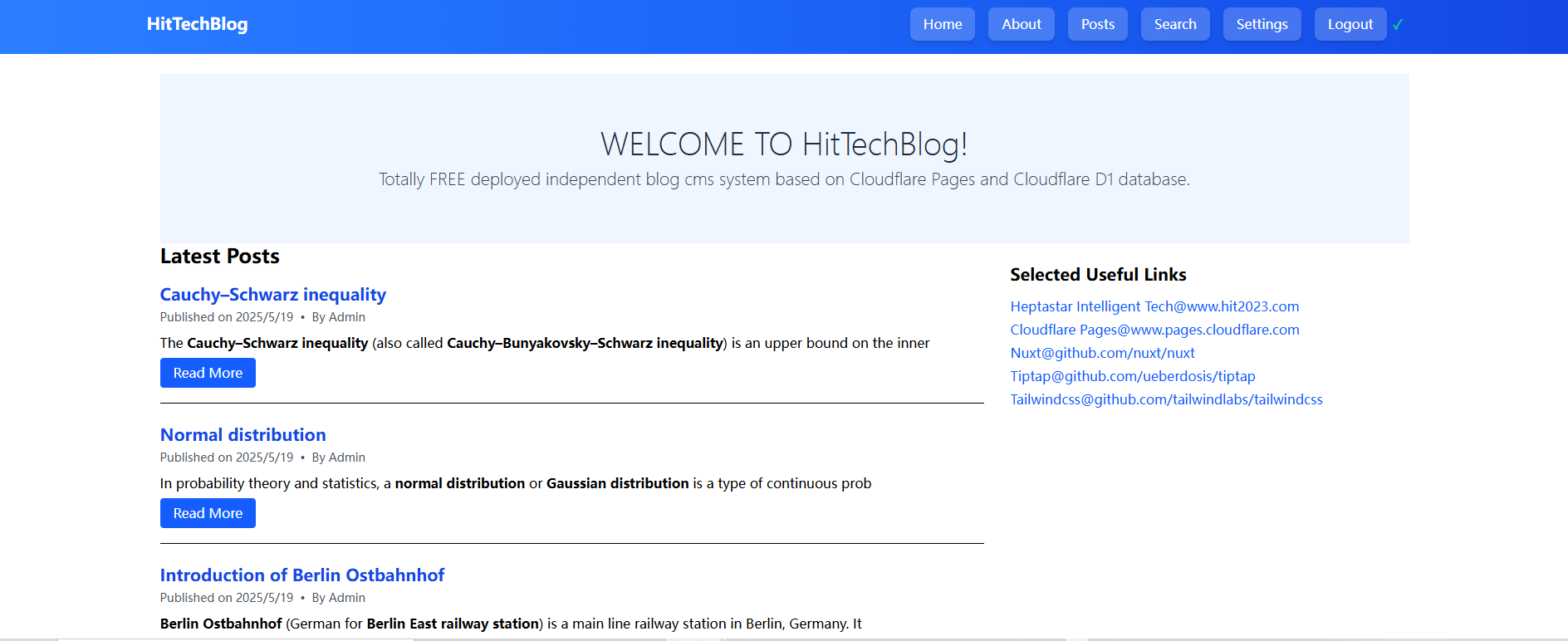
- TOTALLY ZERO-COST-DEPLOY-AND-MAINTAIN note-taking and blog system which can be deployed and go online in seconds.
- NO SERVER NEEDED!!! but using FREE Cloudflare's severless Pages system with daily 100,000 free visit volume, ZERO COST.
- NO DATABASE NEEDED!!! but using FREE Cloudflare's D1 which is a sqlite database with 5G free space, ZERO COST.
- NO DOMAIN NAME NEEDED!!! but using FREE given one by Cloudflare Pages with pattern: http://www.your-self-domain-name.pages.dev
1.2 Functionalties:
- User registration and login using emails are supported.
- Creating, editing, and deleting blog posts for admin user whose userrank.
- Commenting on posts is supported for anonymous users.
- Searching for posts supporting full-text search for post's catefory, title and content in western and eastern languages.
- User settings: setting of blog name, hero title, hero content and displaying of selected links.
- Admin features: registered users' retrieving, updating and deleting and posts' creating, retrieving, updating and deleting.
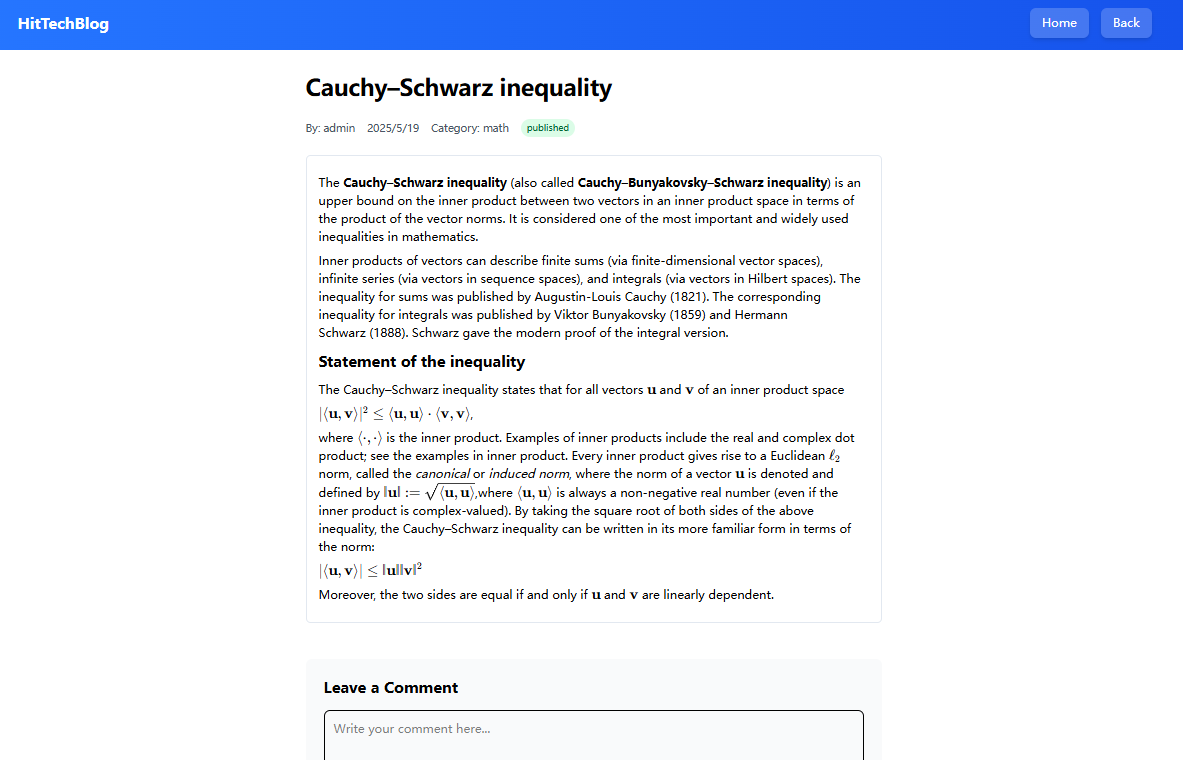
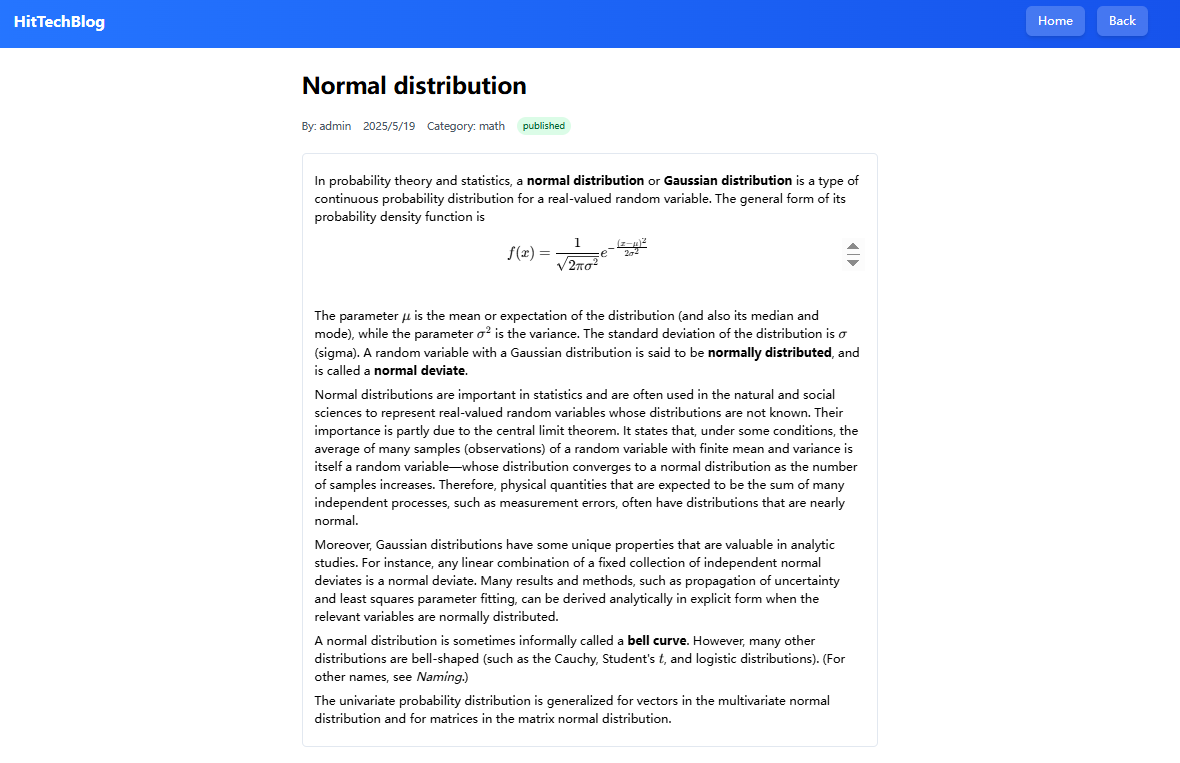
- Use Tiptap rich text editor, supporting images, LaTex math formula based on Katex, code block, headings from H1 to H3, ordered list, unordered list, bold and italic.
- Personal note-taking and public posts, both modes are supported.
- This note-taking and blog system is both rich-text and image supported and both rich-text and image are stored in Cloudflare D1. Since Cloudflare D1 has restriction on row, hence images together in one post should not larger than 1M.
2. Usage (use the following steps to install and use)
- go to https://www.cloudflare.com/ to register an account for using free Cloudflare Pages and D1 database
2.0 Download
- download or clone the project to local windows or macbook machine.
2.1 Install
- change the name of envexample.txt under root folder of the project to .env
- under the root folder of the project, run the following command to install needed packages listed in package.json
npm install -g wrangler

npm install
2.2 Cloudflare D1 database settings
- create a D1 database named htbblogd1imgpgdb250520
npx wrangler d1 create htbblogd1imgpgdb250520
- you will obtain the following result
 ⛅️ wrangler 4.14.4 (update available 4.15.2)
-------------------------------------------------------
✅ Successfully created DB 'htbdb250519' in region WNAMCreated your new D1 database.

{
  "d1_databases": [
    {
      "binding": "DB",
      "database_name": "htbblogd1imgpgdb250520",
      "database_id": "obtained-your-specific-database-id"
    }
  ]
}
- add the previous json data to wrangler.jsonc, see example in the following
{
	"$schema": "node_modules/wrangler/config-schema.json",
	"name": "htb-blogd1pages-250515a1122-js-nu-cfpages",
	"compatibility_date": "2025-05-15",
	"pages_build_output_dir": "./dist",
	"observability": {
		"enabled": true
	},
	"d1_databases": [
		{
		  "binding": "DB",
		  "database_name": "htbblogd1imgpgdb250520",
		  "database_id": "obtained-your-specific-database-id"
		}
	  ]
- then go to execute commands to create related tables and indices
- all tables and indices can be done with command individually for remote and local:
npx wrangler d1 execute htbblogd1imgpgdb250527 --remote --file schemas/allinone2.sql
npx wrangler d1 execute htbblogd1imgpgdb250527 --file schemas/allinone2.sql
2.3 start the project
- run the project in local machine
npm run dev
2.3.1 add an admin account in local (OPTIONAL)
- go to server\api\user\register.ts
- modify line 27
await db.prepare('INSERT INTO users (email, password_hash, userrank) VALUES (?, ?, 0)')
to the following, 0 is changed to 3
await db.prepare('INSERT INTO users (email, password_hash, userrank) VALUES (?, ?, 3)')
- then restart project
npm run dev
- then go to register an admin account, then stop the project and go to change 3 back to 0 in line 27 of server\api\user\register.ts
- then restart the project and login with the admin account,
- everything is all DONE in local.
2.3.2 customize blog
- customize the blog as you want by modifying variables' values in .env file
BLOG_NAME="HitTechBlogV2"
HERO_TITLE="WELCOME TO HitTechBlogV2!"
HERO_CONTENT="Totally FREE deployed independent blog cms system based on Cloudflare Pages and Cloudflare D1 database."
LINK1LABEL="Heptastar Intelligent [email protected]"
LINK2LABEL="Cloudflare [email protected]"
LINK3LABEL="[email protected]/nuxt/nuxt"
LINK4LABEL="[email protected]/ueberdosis/tiptap"
LINK5LABEL="[email protected]/tailwindlabs/tailwindcss"

LINK1URL="https://hit2023.com/"
LINK2URL="https://pages.cloudflare.com/"
LINK3URL="https://github.com/nuxt/nuxt"
LINK4URL="https://github.com/ueberdosis/tiptap"
LINK5URL="https://github.com/tailwindlabs/tailwindcss"
2.3.3 preview before deploy to remote (OPTIONAL)
- check if the blog fulfill your expectation
npm run preview
2.3.4 formal deploy the project to Cloudflare Pages
- use the command to login then deploy which will upload all needed files to remote
npx wrangler login
npm run deploy
- it may encounter Cloudflare login, then use your registered account to finish login
- then the project will be uploaded and deployed to the remote, then you will obtain success response from remote if ALL DONE.
 Compiled Worker successfully
✨ Uploading Worker bundle
✨ Uploading _routes.json
🌎 Deploying...
✨ Deployment complete! Take a peek over at https://YourSpecificAssignedName.pags.dev
- then go to browser to open url:https://YourSpecificAssignedName.pags.dev, it may cost a little while that the remote can finish the first time deploy.
2.3.5 set admin account with setting userrank from 0 to 3 after deploy (REQUIRED!!!)
- open url https://YourSpecificAssignedName.pags.dev then click login button then click register link to register admin account, e.g. [email protected]
- sign in on cloudflare-> side-bar-> Storage & Databases-> D1 SQL Database-> htbblogd1imgpgdb250520 (previously created D1 database)-> tables-> users (created by previous command and used for store user registeration)
- check the [email protected] then go to update by clicking the button in the tail of the row, to change the userrank from 0 to 3 which is the admin's rank.
- BY HERE ALL DONE YOU CAN ENJOY TO POST YOUR MASTER-WORK.
3. Contact
- HitTechBlogV2 is continuously dev and maintained by Heptastar Intelligent Tech. Any questions or suggestions please contact us: Heptastar Intelligent Tech
- Github addr: https://github.com/heptastar/HitTechBlogV2