Home-Assistant on Kubernetes


Detailed Setup Guide
For a complete walkthrough of this setup, please refer to my Medium article series:
- Part 1: Getting Started with Home Assistant on Kubernetes
- Part 2: Configuration and Integrations
- Part 3: Integration with Generative AI
Table of Contents
- Overview
- Architecture
- Installation Guide
- Helm Chart Installation
- Migration from Raw Manifests
- Multi-Node Setup
- FAQ
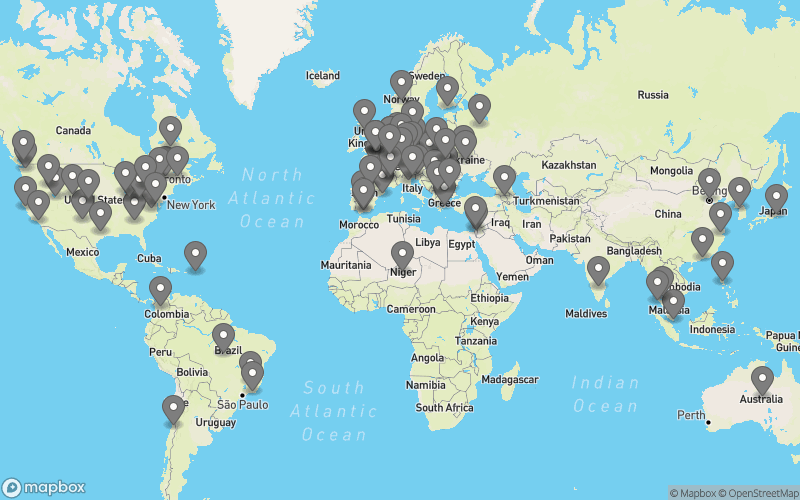
- Project Statistics
1. Overview
Personal project to run home-assistant on K3s locally on Nvidia Jetson(ARM64). This project demonstrates running Home Assistant in a Kubernetes environment with various integrations.
2. Architecture
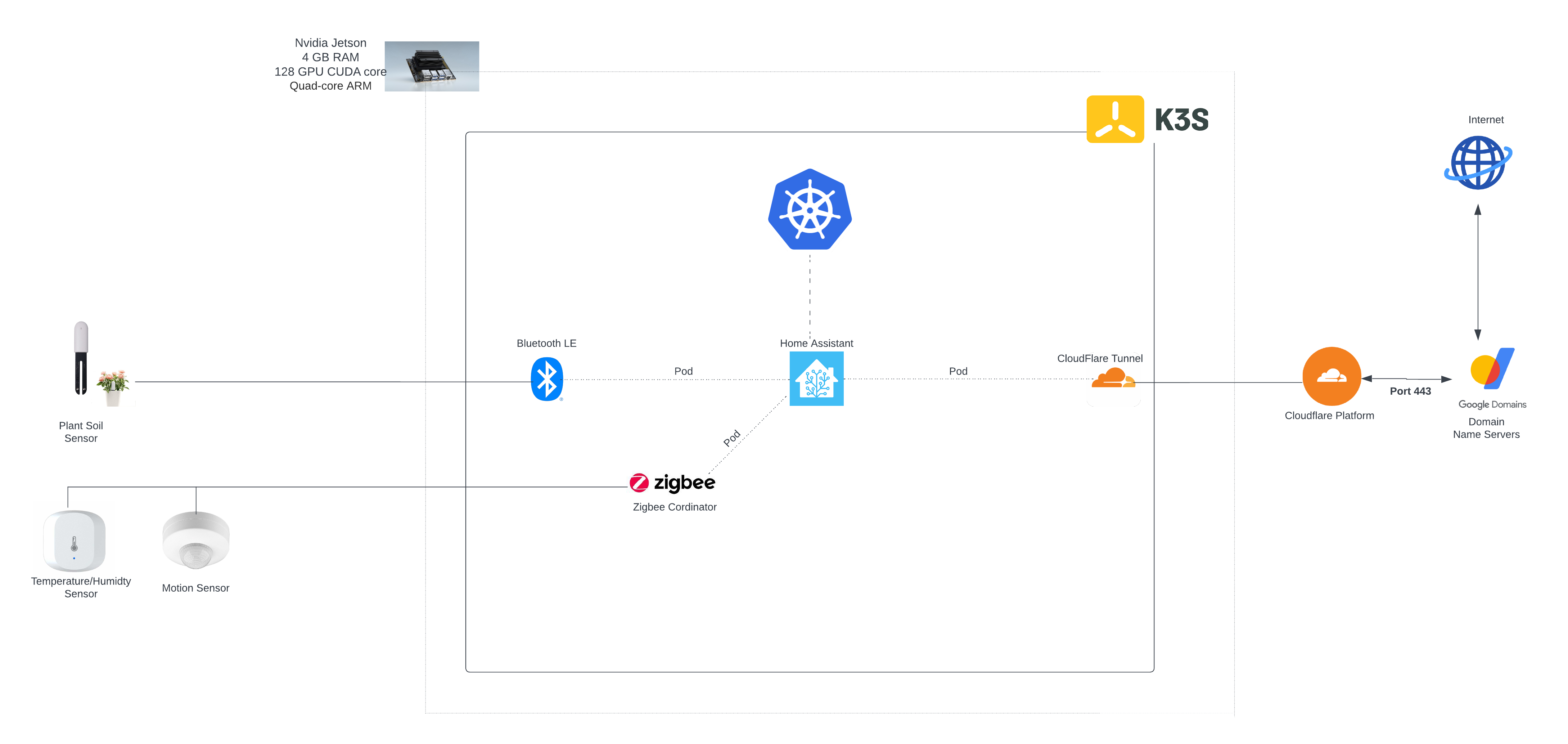
In this setup, we have:
Core Infrastructure
- K3s cluster running on a single ARM64 NVidia Jetson Nano device
- Home-assistant pod using official container image
- All services running in the same namespace for simplified management
Hardware Integration Services
-
Bluetooth Integration
- Bluez service pod for Bluetooth interface
- Interfaces with Plant soil sensor via BLE (Bluetooth Low Energy)
- Direct USB connection to Nvidia Jetson
-
Zigbee Integration
- Zigbee coordinator service for zigbee hardware
- Connected via USB to Nvidia Jetson
- Handles communication with zigbee-based sensors
- Easy integration with Home Assistant using built-in add-ons
External Access Setup
- Cloudflare tunnel service running inside the cluster
- External access enabled through Cloudflare's secure tunnel
- Domain resolution configured through:
- Google Domain Servers
- Cloudflare name server integration
- Custom domain mapping for easy access
3. Installation Guide
3.1. K3s Installation
curl -sfL https://get.k3s.io | INSTALL_K3S_EXEC="server --tls-san SERVERIP --disable servicelb --disable traefik --write-kubeconfig-mode 644 --cluster-cidr=10.10.0.0/16" INSTALL_K3S_VERSION="v1.35.0+k3s1" sh -s -
3.2. Nvidia Setup
Follow K3s Nvidia Setup documentation and run:
kubectl create -f https://raw.githubusercontent.com/NVIDIA/k8s-device-plugin/v0.10.0/nvidia-device-plugin.yml
3.3. Cloudflare Setup
Deploy Cloudflare daemon for secure public access:
kubectl create -f ./cloudflare-daemon/deployment.yaml
3.4. MetalLB Installation
# Install MetalLB
kubectl apply -f https://raw.githubusercontent.com/metallb/metallb/v0.9.3/manifests/namespace.yaml
kubectl apply -f https://raw.githubusercontent.com/metallb/metallb/v0.9.3/manifests/metallb.yaml

# Create secret for encrypted speaker communications
kubectl create secret generic -n metallb-system memberlist --from-literal=secretkey="$(openssl rand -base64 128)"
MetalLB Configuration:
apiVersion: v1
kind: ConfigMap
metadata:
  namespace: metallb-system
  name: config
data:
  config: |
    address-pools:
    - name: address-pool-1
      protocol: layer2
      addresses:
      - 192.168.2.128/25
3.5. Cert Manager Installation
helm repo add jetstack https://charts.jetstack.io
helm repo update
helm install cert-manager jetstack/cert-manager --namespace cert-manager --create-namespace --set installCRDs=true
4. Helm Chart Installation
A Helm chart is available for deploying the core Home Assistant stack (Home Assistant, Z-Wave JS, Mosquitto). The chart is published automatically via GitHub Pages when changes are pushed to main.
From the Helm repository
helm repo add home-assistant https://mysticrenji.github.io/home-assistant-on-kubernetes
helm repo update
helm install my-ha home-assistant/home-assistant -f my-values.yaml
From local source
git clone https://github.com/mysticrenji/home-assistant-on-kubernetes.git
cd home-assistant-on-kubernetes
helm install my-ha ./charts/home-assistant -f my-values.yaml
Minimal example (no hardware devices)
# my-values.yaml
homeAssistant:
  hostNetwork: false
  privileged: false
  bluez:
    enabled: false
  matter:
    enabled: false
  devices:
    zigbee:
      enabled: false
    dbus:
      enabled: false
zwavejs:
  enabled: false
ingress:
  enabled: false
certIssuer:
  enabled: false
Full example (Zigbee + Z-Wave + Bluetooth + Ingress)
# my-values.yaml
homeAssistant:
  pvc:
    size: 20Gi
  devices:
    zigbee:
      enabled: true
      path: /dev/ttyUSB1
    dbus:
      enabled: true
  bluez:
    enabled: true
  matter:
    enabled: true
zwavejs:
  enabled: true
  devices:
    zwave:
      path: /dev/ttyACM0
mosquitto:
  enabled: true
ingress:
  enabled: true
  host: home.example.com
certIssuer:
  enabled: true
  email: [email protected]
Accessing the dashboard
- With Ingress:
https://<your-host>(e.g.https://home.example.com) - With hostNetwork:
http://<node-ip>:8123 - Port forward:
kubectl port-forward -n home-assistant svc/home-assistant 8123:80
Full configuration reference
For the complete list of all configurable values, example configurations, device path discovery, and troubleshooting, see charts/home-assistant/README.md.
5. Migration from Raw Manifests
If you are currently using the raw Kubernetes manifests in home-automation/, you can migrate to the Helm chart:
- Back up your existing PVC data
- Delete the existing resources:
kubectl delete -f home-automation/ - Create a
my-values.yamlwith your customizations (device paths, domain, storage sizes) - Install via Helm:
helm install my-ha ./charts/home-assistant -f my-values.yaml
The raw manifests in home-automation/ are kept as reference but the Helm chart is the recommended deployment method.
6. Multi-Node Setup
- Install Tailscale VPN on all nodes:
curl -fsSL https://tailscale.com/install.sh | sh
- On worker nodes, run:
TOKEN="get token from the control server"
curl -sfL https://get.k3s.io | INSTALL_K3S_EXEC="agent" INSTALL_K3S_VERSION="v1.31.4+k3s1" K3S_URL=http://[ipfromtailscale]:6443 K3S_TOKEN=$TOKEN sh -s - --snapshotter=native
7. FAQ
Q: How to enable HACS Addon on Home Assistant?
A: Install HACS manually by running this command in the Home Assistant Pod:
wget -O - https://get.hacs.xyz | bash -
Then restart the deployment to see HACS in the left-hand side panel.
8. Project Statistics
Stars World Map