

Home Organizer (HO)
The complete AI-powered home inventory & smart voice assistant system for Home Assistant




Home Organizer is a dedicated full-screen application for your Home Assistant sidebar. It allows you to manage your home inventory with ease using nested folders, live stock tracking, and a powerful Google Gemini AI integration that acts as your personal home assistant.
Developed by Guy Azria.
🚀 What's New in the Latest Update
Our latest update transforms Home Organizer from a smart inventory manager into a fully interactive Personal Home Assistant.
🎙️ The Ultimate Voice Assistant Capabilities
HO can now be configured as your official Home Assistant Conversation Agent! You can speak naturally and ask for almost anything:
- Smart Shopping List: Say "Add eggs to the shopping list," "Clear my shopping list," or even "Send my shopping list to WhatsApp."
- Voice Inventory: Add items directly to locations by saying, "Add 3 batteries to the kitchen drawer."
- Your Personal Sous-Chef: Want to bake? Ask, "How do I make a cheesecake?" The AI will instantly cross-reference your HO inventory, tell you what ingredients you have, offer to add missing ones to your shopping list, and guide you step-by-step. It will even add automatic Home Assistant reminders and timers while you cook!
- Smart Reminders Assistant: Say, "Remind me in an hour to pick up the kids." When the time comes, the reminder will return as an audio voice message directly to the specific user's phone who requested it!
- Calendar Secretary: Seamlessly manage your schedule. Just say, "Add a meeting tomorrow morning with Mr. Bean," and it's booked.
- Free-Speech HA Control: Control your lights, switches, and devices using completely natural language, or ask for the time, weather, and daily news.
📱 HOCameraApp (Native Android Companion App)
Modern browsers often block camera and microphone access over local HTTP connections. We built HOCameraApp—a native Android companion app that fixes this and adds serious magic:
- "Ghost Screen" & Shake-to-Speak: Run the app silently in the background as a transparent overlay. Enable "Shake to Speak" to wake the assistant with a simple shake—no need to say "Hey Google" or press any buttons!
- Native Google STT: Uses Google's highly accurate native Speech-to-Text engine, drastically outperforming local Whisper models.
- Unblocked Camera: Flawless, instant camera access for visual tasks (like barcode and invoice scanning) on local networks. (Note: Invoice and barcode scanning are visual features performed via the camera button, not via voice commands).
🧠 Processing Flexibility
Choose how your AI runs: Local Only (for ultimate privacy), Cloud, or a Hybrid API mode that utilizes the cloud but gracefully falls back to local processing if your connection drops.
✨ Core Features
🤖 Advanced AI Capabilities
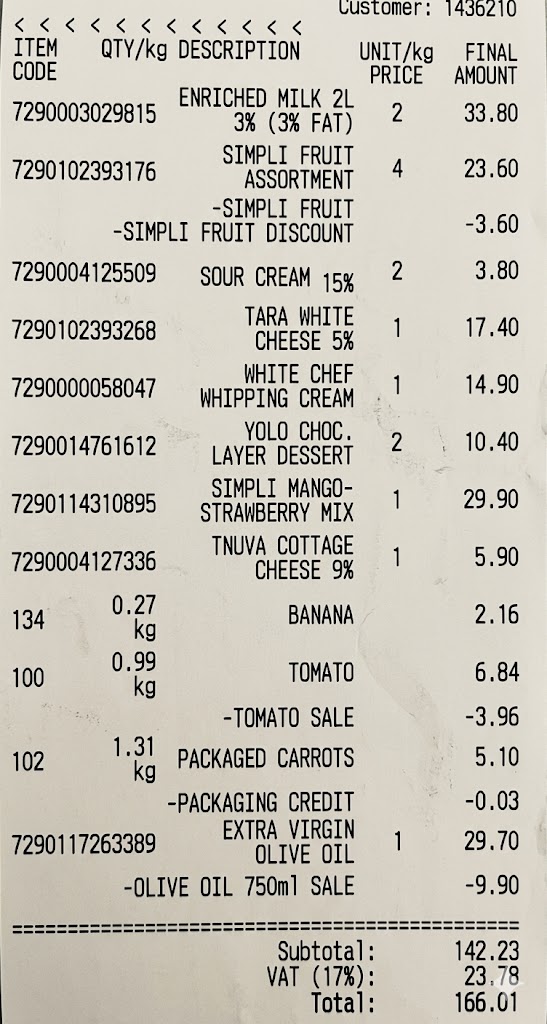
- Receipt & Invoice Scanning (Visual) — Snap a photo or upload a PDF of your grocery receipt using the camera interface. The AI will automatically extract all items, quantities, and intelligently map them to your existing home locations.
- Auto-Categorization & Icons — The AI automatically assigns the correct Main Category, Sub-category, Measurement Unit (Kg, Liter, Units), and a beautiful 3D icon to every item it processes.
- Smart "Review" Pipeline — AI-extracted items go into a secure "Review Tab." Check, edit, confirm, or reject the AI's imports before they are permanently added.
- Native Multilingual Support — Chat and interact in English, Hebrew, Arabic, or any other language.
📦 Smart Inventory Management
- Hierarchical Explorer — Navigate through Rooms, Furniture, Shelves, and Boxes with unlimited depth.
- Live Stock Tracking & Shopping Mode — Instantly update stock. When an item hits
0, it is marked Out of Stock and sent directly to your Shopping List. - Date Tracking & Management Tools — Track expiration dates, Rename, Move (Cut/Paste), Duplicate, and Delete functions.
📸 Camera & Visual Tools
- AI Background Removal — Take photos of your items directly in the app. The built-in camera tool automatically filters out messy backgrounds to create clean, professional item thumbnails.
- Visual Search — Use photos to identify unknown items and locate where they are stored in your home.
📖 User Manual & Visual Guide
Welcome to Home Organizer! This step-by-step guide will walk you through setting up your home, managing your items, and unleashing the power of the AI Assistant.
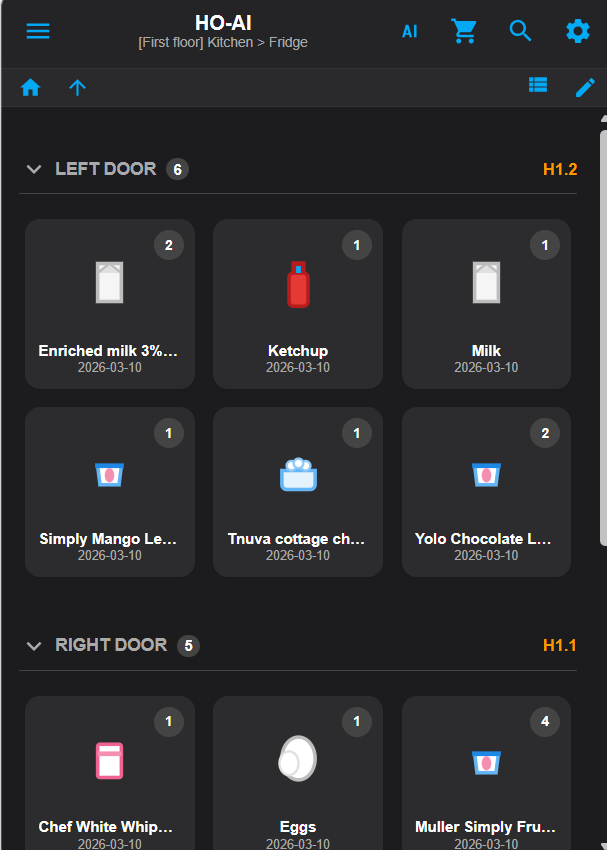
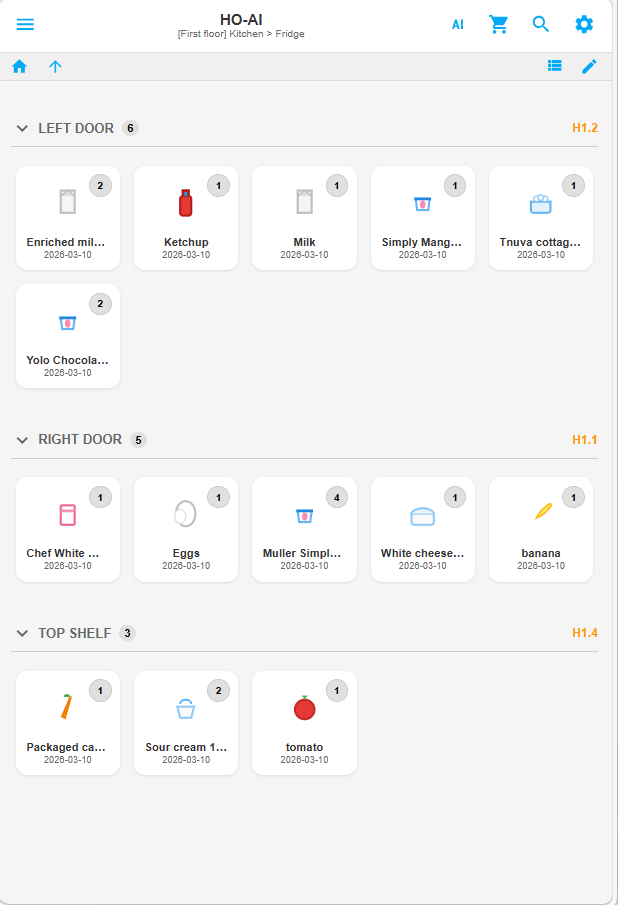
1. Personalizing Your Settings (Language & Themes)
Click the Gear Icon (⚙️) in the top right corner of the navigation bar.
- Language: Select your preferred language and the entire interface—including text direction (LTR/RTL)—will instantly adapt.
- Theme: Choose between a sleek Dark Theme or a clean Light Theme.
2. Setting up Zones and Rooms
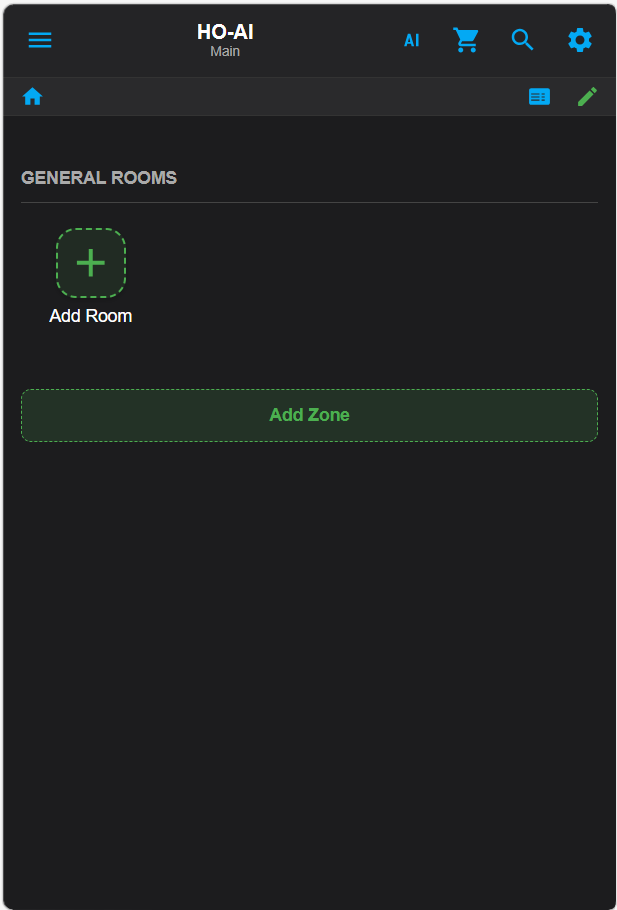
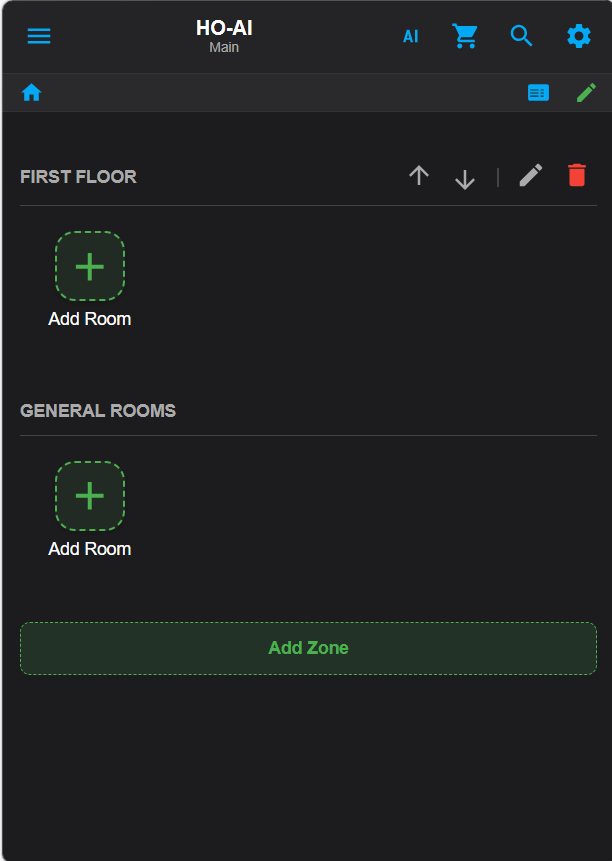
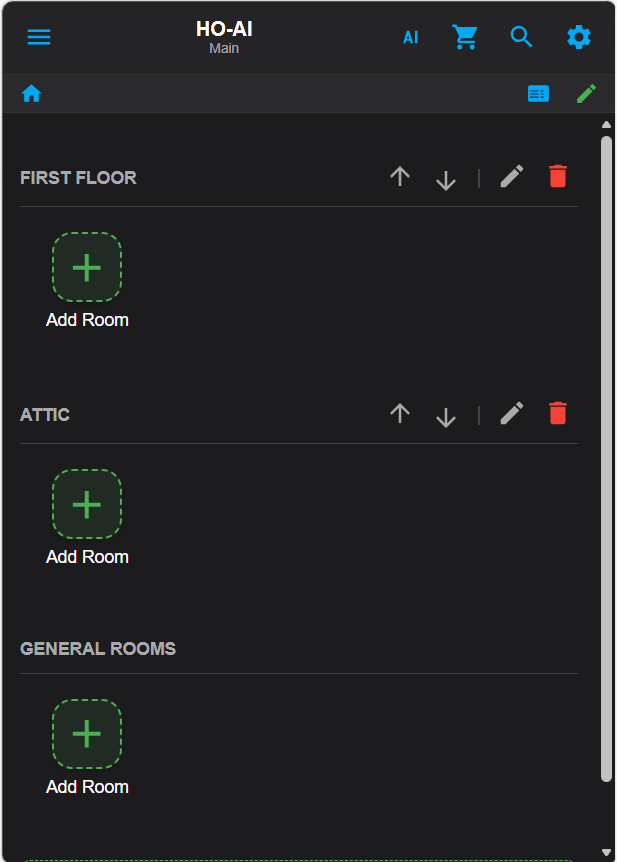
Click the Pencil Icon (✏️) in the top right to enter Edit Mode.
- Click Add Zone at the bottom to create broad areas like "First Floor".
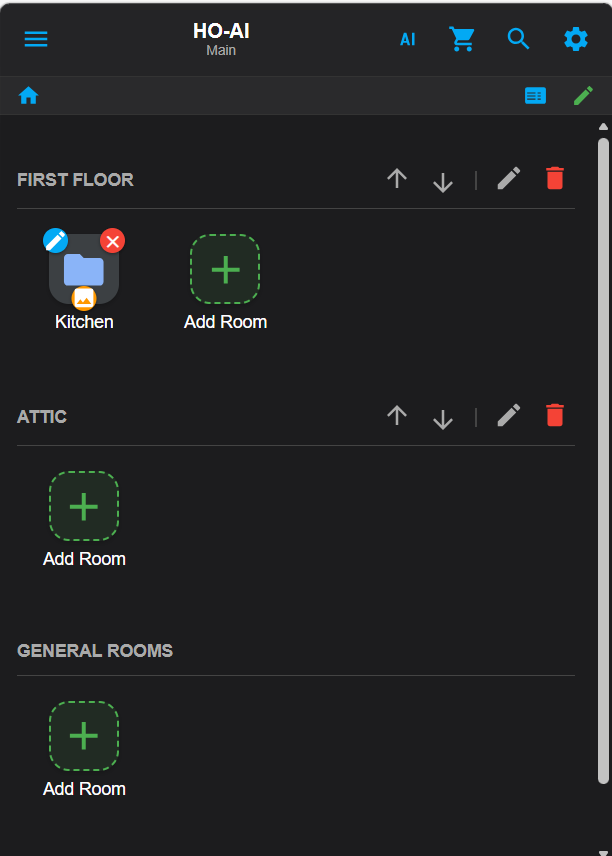
- Inside those zones, click the large green + Add Room button to create specific rooms like "Kitchen".
- Tip: You can use the up (↑) and down (↓) arrows to reorder your zones and rooms!
3. Customizing Icons
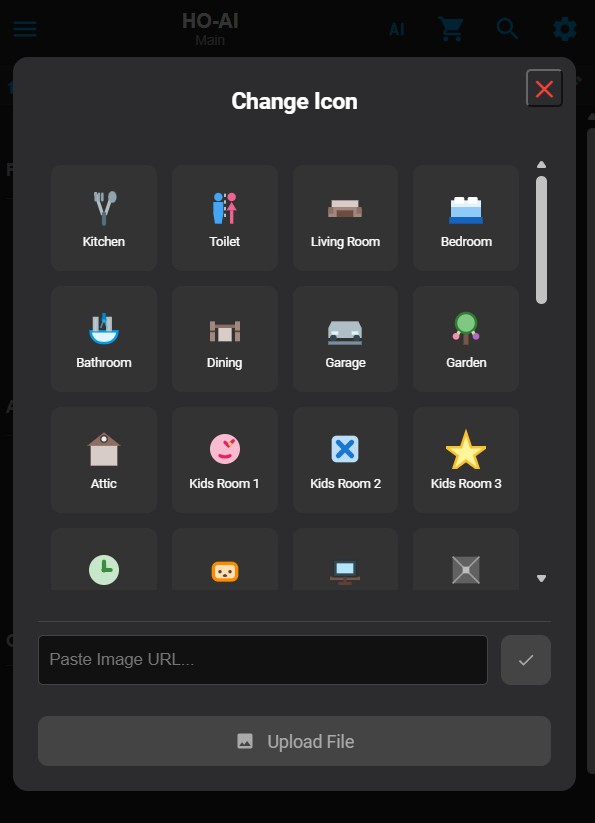
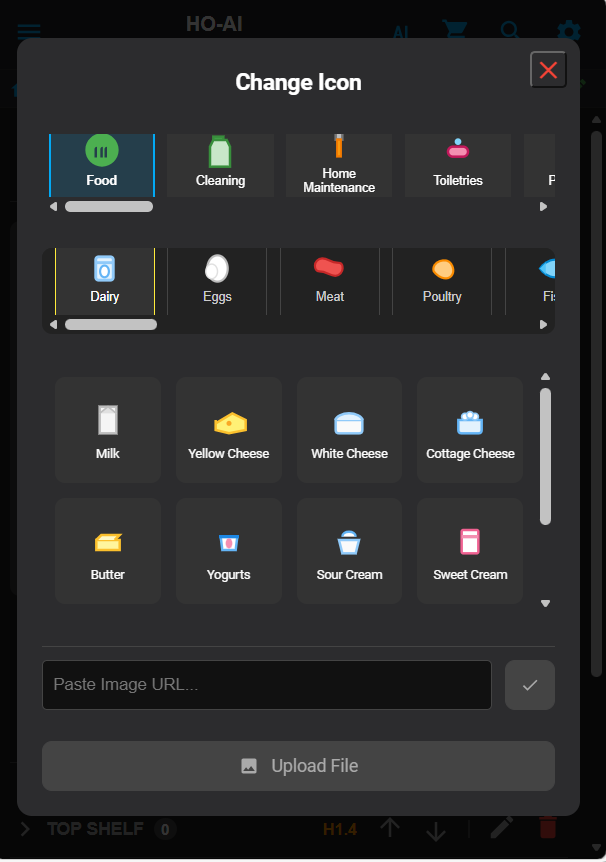
While still in Edit Mode (✏️), click the picture icon on the corner of your room folders to open the Icon Picker.
- Browse through hundreds of beautiful 3D icons, or use the Upload File button to paste an image URL directly!
4. Storage Locations & Sublocations
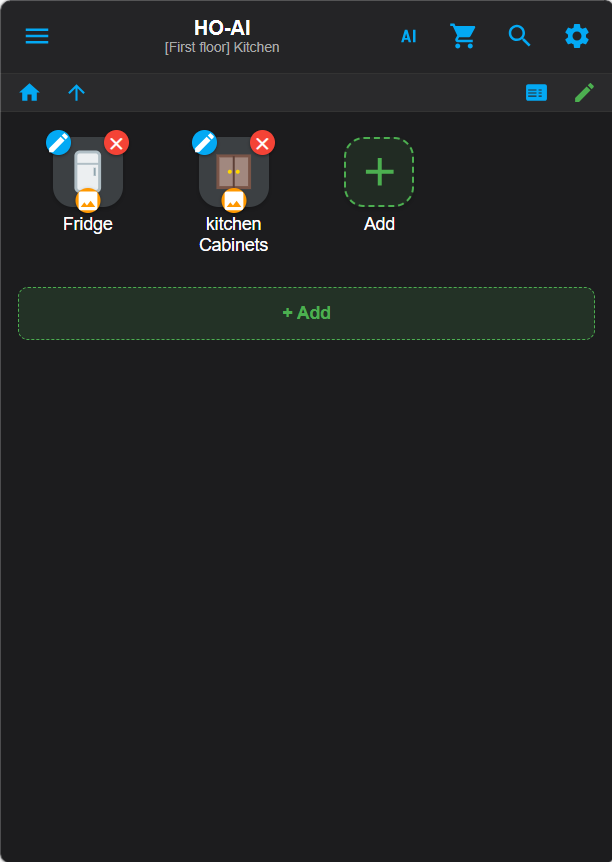
Click on a Room (e.g., Kitchen) to enter it. Add a Storage Location (like "Fridge"), click into it, and add a Sublocation (like "Top Shelf"). This hierarchy ensures you always know exactly where an item is.
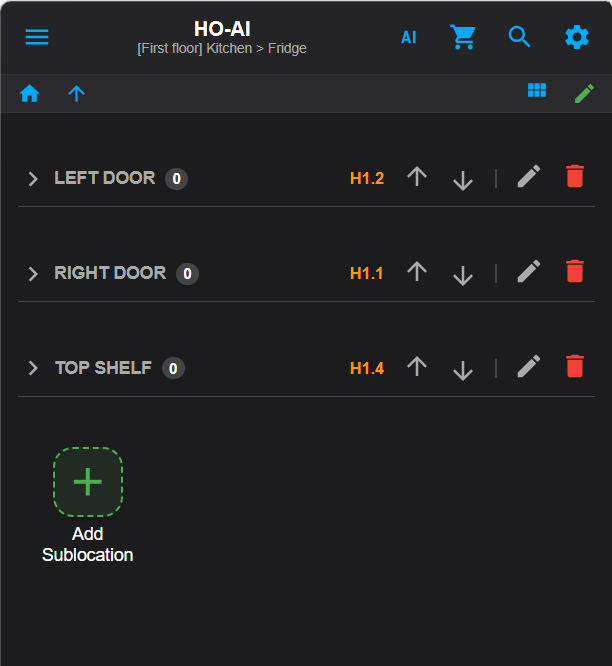
5. Adding and Managing Items manually
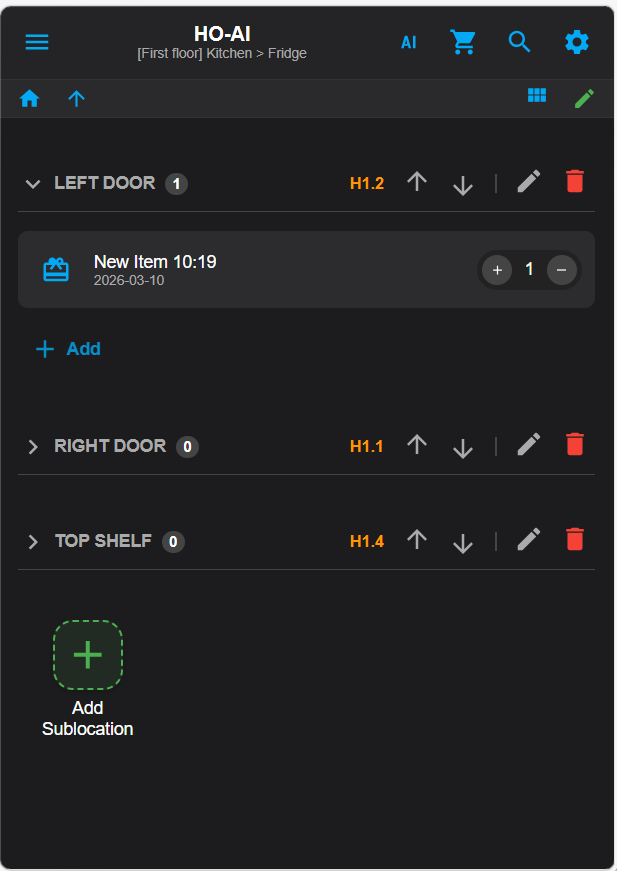
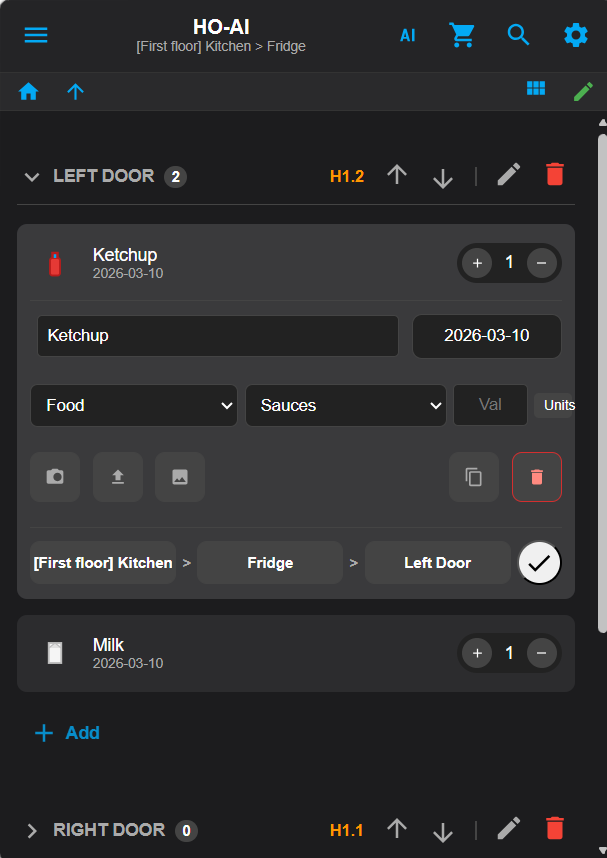
Turn off Edit Mode. Navigate to a sublocation and click + Add to create a new item manually.
- Categorize it, assign expiration dates, and use the Camera icon to snap a real photo of the item using the built-in AI Background Removal tool!
6. Grid View & Live Tracking
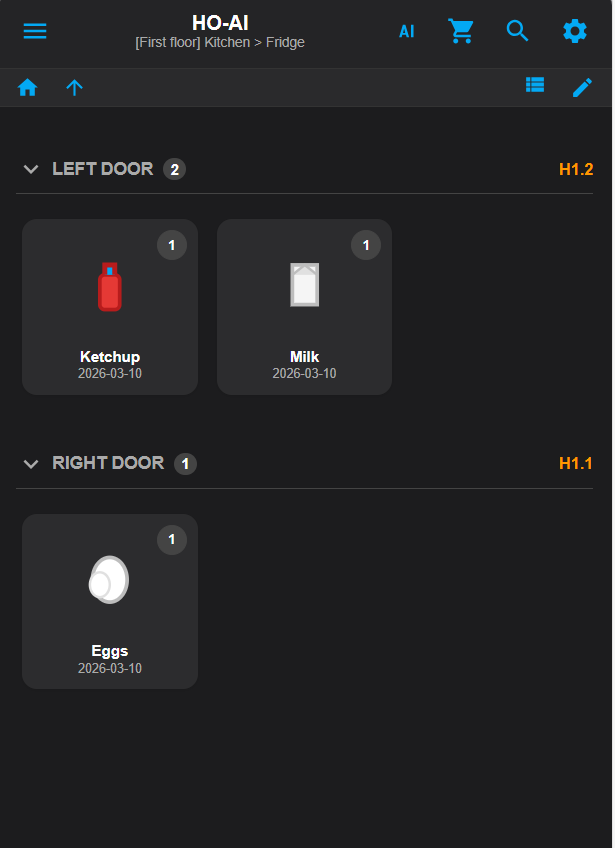
Use the View Toggle icon in the sub-bar to switch between a detailed List View and a beautiful visual Grid View. Hit the + or - buttons to update how much of an item you have left.
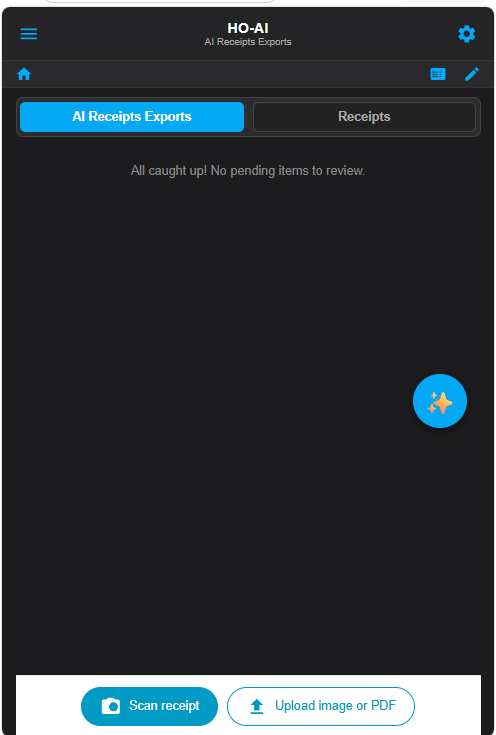
7. Invoice Scanning & AI Chat
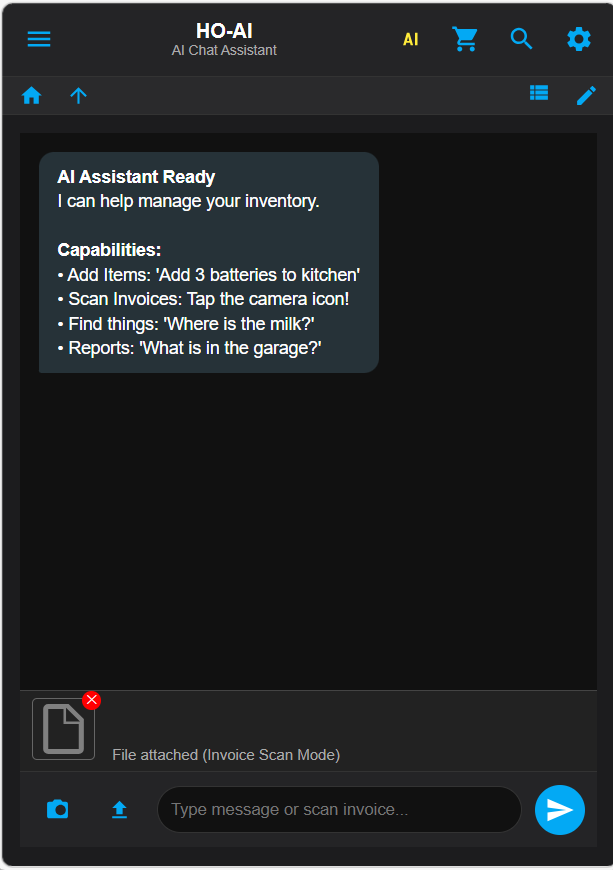
Click the Robot Icon (🤖) in the top bar to open your personal AI Chat Assistant.
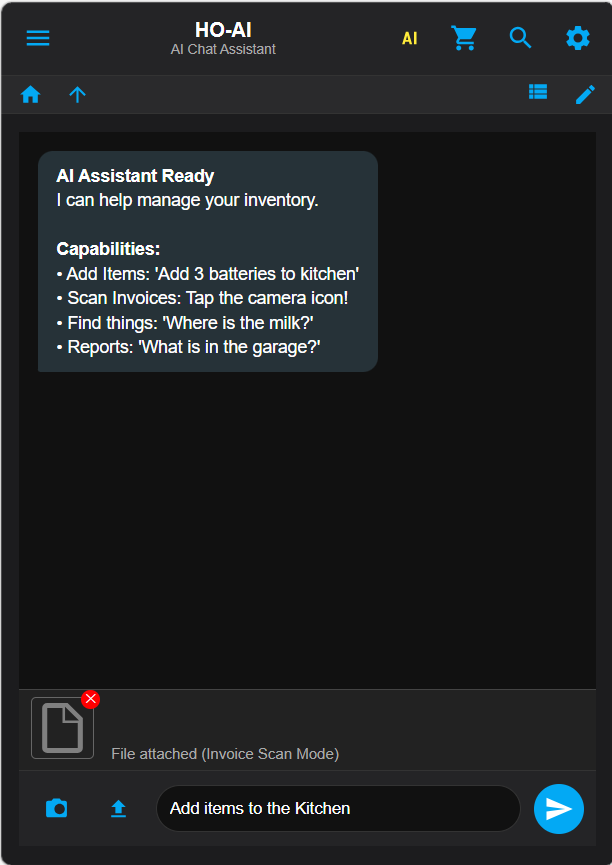
- Click the Camera Icon or the Upload Icon to attach a grocery receipt.
- The AI will read the receipt, translate it, map the items to your existing rooms, apply icons, and send them to your Review Tab (inside the Shopping Cart menu) for approval.
- You can also chat naturally via text or voice to manage your inventory and HA devices.
8. Setting up the Voice Assistant & HOCameraApp
Part A: Set HO as Your HA Voice Assistant
- In your main Home Assistant menu, go to Settings ➔ Voice Assistants.
- Click + Add Assistant.
- Under Conversation Agent, select HO-AI Agent (
conversation.ho_ai_agent). Save.
Part B: Install & Configure HOCameraApp (Android Users Only)
- Open the HO dashboard on your phone. Go to the Chat screen, tap the Camera icon (📸), then the Gear icon (⚙️). Click Download Android APK and install.
- Open the app and tap the Gear icon (⚙️) to open Settings.
- URL: Enter your exact internal HA IP (e.g.,
http://192.168.1.100:8123). - Token: Generate a Long-Lived Access Token in your HA profile.
- Device ID: Find your phone under HA Settings ➔ Devices. Look at your browser's address bar and copy the long string of characters at the very end of the URL. (Pro-tip: Do this on a PC and WhatsApp the Token and ID to yourself!)
- Enable Shake to Speak to activate the Ghost Screen, choose your Language, and adjust the Volume Override so the assistant speaks aloud even if your phone is on silent!
📋 Requirements
- Home Assistant 2024.1.0 or newer
- Google Gemini API Key: Required for AI chat, receipt scanning, and smart categorization.
📥 Installation
Option 1: HACS (Recommended)
- In Home Assistant, go to HACS > Integrations.
- Open the menu (top right) and select Custom repositories.
- Add
https://github.com/GuyAzria/home-organizeras an Integration. - Click Add, find Home Organizer, select Download, and Restart Home Assistant.
Option 2: Manual
- Download the
custom_components/home_organizerfolder. - Copy it to your
config/custom_components/directory and Restart Home Assistant.
⚙️ Setup
- Navigate to Settings > Devices & Services.
- Click Add Integration and search for Home Organizer.
- Enter your Google Gemini API Key when prompted. The Organizer icon will appear in your sidebar.
📄 License
This project is licensed under the MIT License. See LICENSE for details.
Made with ❤️ for the Home Assistant community by Guy Azria