
DevOps Learn
A self-paced DevOps learning platform with 20 tracks covering Linux, cloud, containers, CI/CD, security, and more. Everything runs locally in the browser with no backend required.
Features
- 20 learning tracks organized from beginner to advanced, with modules and individual lessons
- Progress tracking: Lesson completion state is saved automatically in your browser profile
- Profile system: Support for multiple learner profiles, each with independent progress tracking
- Module exams: Quiz-style assessments to test your knowledge at the end of each module
- Notes: Ability to attach personal study notes to any lesson
- Full-text search: Instant search across all 20 tracks, modules, and lessons
- Light / Dark mode: Easy theme toggling from the top navigation bar
- Lesson navigation: Previous/next links within a track and breadcrumb navigation
- No backend required: All data is saved locally using browser localStorage
Learning Tracks
| # | Track | Level | Topics |
|---|---|---|---|
| 01 | Linux | Beginner → Advanced | File system, permissions, process management, shell scripting, security hardening |
| 02 | Linux Networking | Beginner → Advanced | TCP/IP, DNS, firewalls, network troubleshooting, VPNs |
| 03 | Scripting & Automation | Beginner → Intermediate | Bash scripting, cron, automation patterns |
| 04 | SSH & Network Protocols | Beginner → Intermediate | SSH keys, tunneling, port forwarding, SCP/SFTP |
| 05 | Git | Beginner → Advanced | Branching, merging, rebasing, hooks, workflows |
| 06 | GitHub Actions | Beginner → Advanced | Workflows, runners, secrets, matrix builds, reusable workflows |
| 07 | GitLab CI/CD | Beginner → Advanced | Pipelines, runners, templates, environments, Container Registry, security scanning |
| 08 | Python | Beginner → Advanced | Core Python, scripting, automation, APIs, testing |
| 09 | Docker | Beginner → Advanced | Images, containers, volumes, networking, Docker Compose, security |
| 10 | Databases | Beginner → Intermediate | SQL, PostgreSQL, Redis, backups, connection pooling |
| 11 | Web Technology | Beginner → Intermediate | HTTP, TLS, reverse proxies, load balancing, CDNs |
| 12 | SDLC | Beginner → Intermediate | Agile, Scrum, Kanban, release management, SLOs |
| 13 | Go Programming | Beginner → Intermediate | Go fundamentals, concurrency, CLI tools, Docker/Kubernetes SDKs |
| 14 | Terraform | Beginner → Advanced | HCL, providers, modules, workspaces, remote state, advanced patterns |
| 15 | AWS | Beginner → Advanced | EC2, S3, VPC, IAM, RDS, EKS, Lambda, CloudFormation |
| 16 | Kubernetes | Intermediate → Advanced | Pods, deployments, services, ingress, RBAC, Helm, operators |
| 17 | DevSecOps | Intermediate → Advanced | Threat modeling, SAST/DAST, secret scanning, supply chain security |
| 18 | Troubleshooting | Intermediate → Advanced | Systematic debugging, observability, incident response, postmortems |
| 19 | Compliance | Intermediate → Advanced | SOC 2, ISO 27001, GDPR, audit trails, policy as code |
| 20 | Prompt Engineering | Beginner → Advanced | LLM fundamentals, prompt patterns, AI-assisted DevOps workflows |
Screenshots
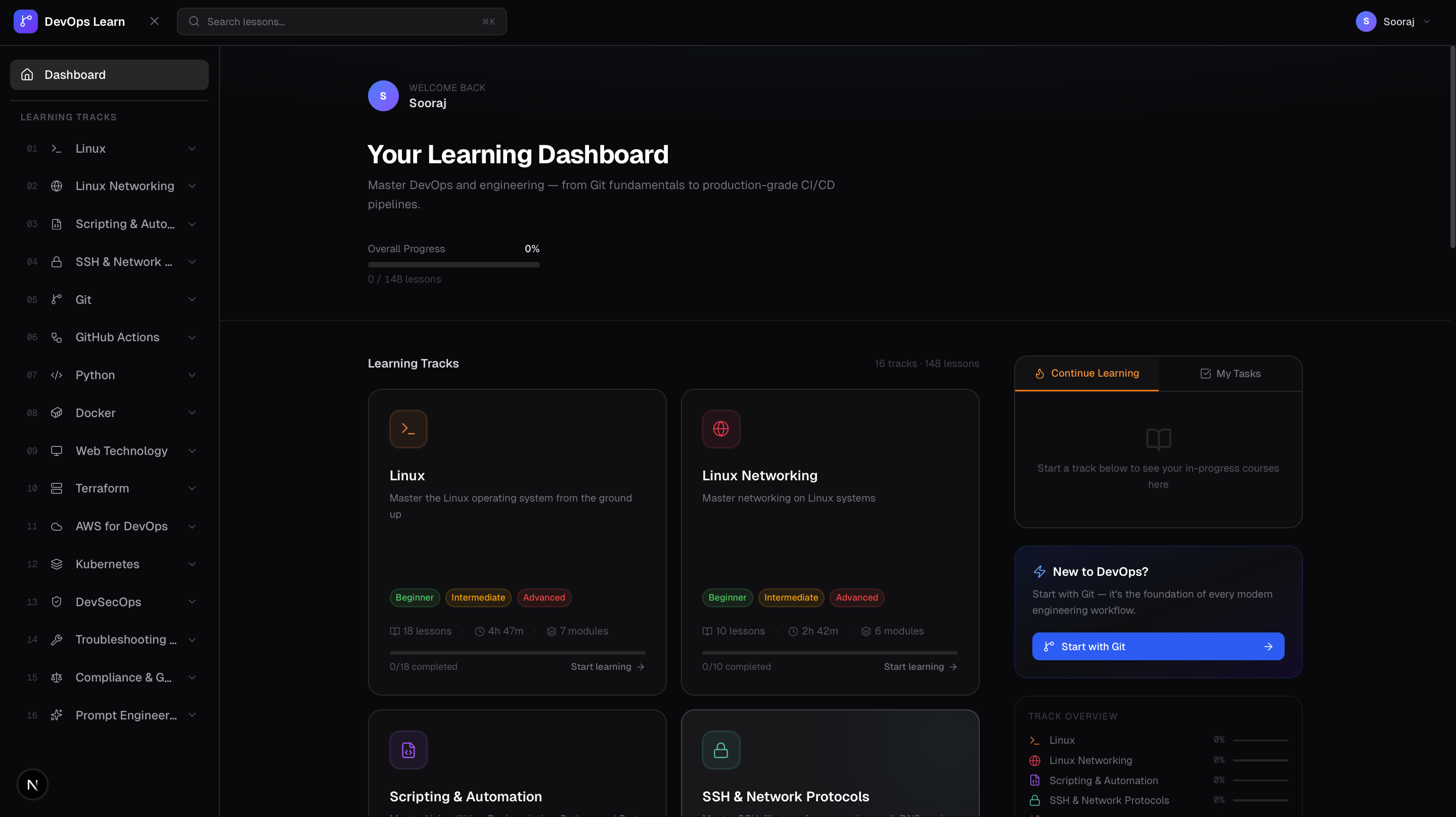
Dashboard
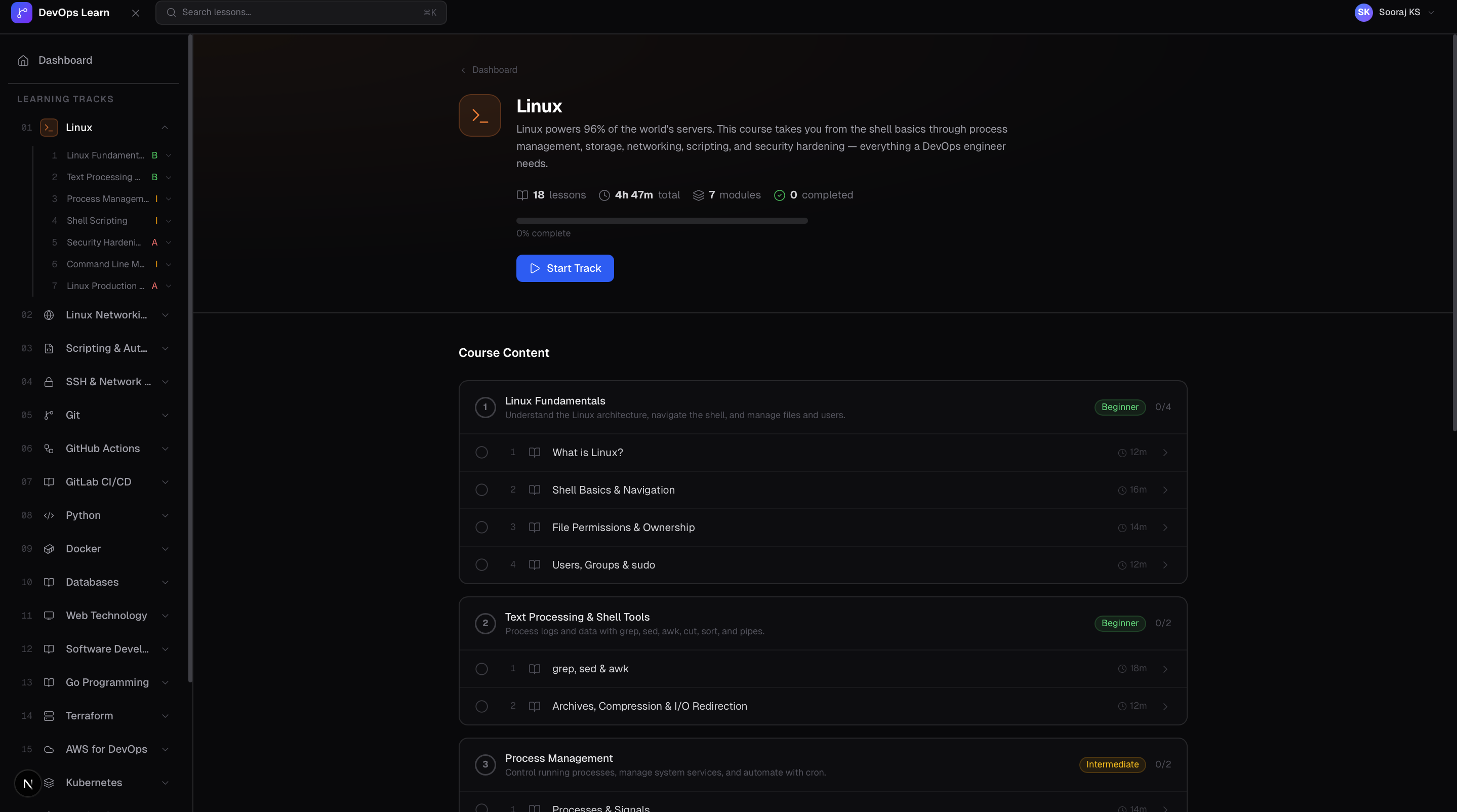
Track Page
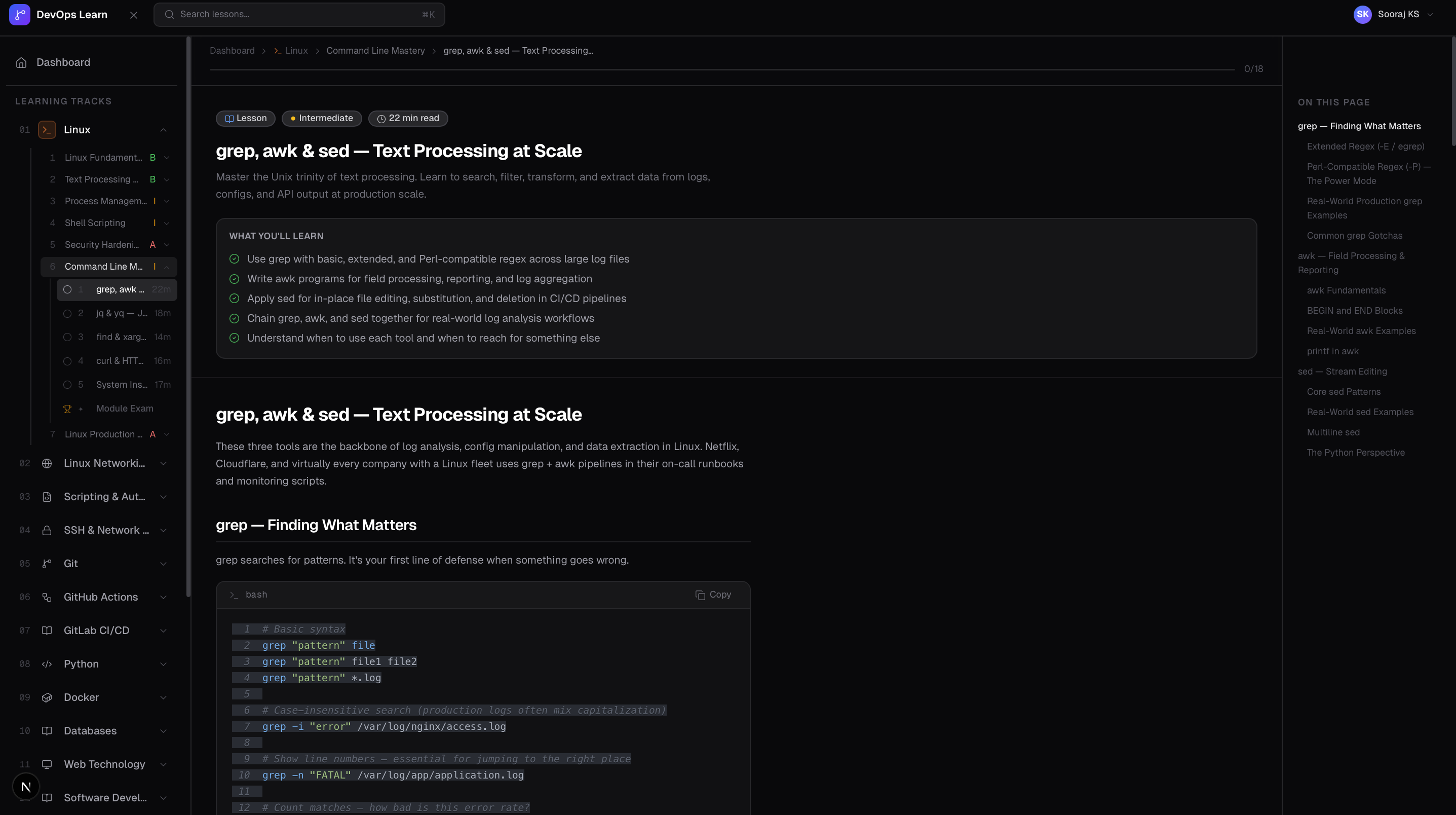
Lesson Viewer
Running Locally
What you need first
Before you start, make sure you have the following installed on your computer:
- Node.js v18 or higher: Download from nodejs.org (LTS version is recommended)
- To check if you already have it: open a terminal and run
node -v
- To check if you already have it: open a terminal and run
- Git: Download from git-scm.com
- To check if you already have it: run
git --version
- To check if you already have it: run
Step-by-step setup
1. Clone the repository
This downloads the project code to your computer.
git clone https://github.com/<your-username>/devops-lms.git
2. Enter the project folder
cd devops-lms
3. Install dependencies
This installs all the libraries the project needs. It may take a minute.
npm install
4. Start the development server
npm run dev
5. Open the app
Open your browser and go to: http://localhost:3000
You'll be asked to create a learner profile on first launch. Enter any name and click Get Started.
Tip: The development server supports hot reloading. Any changes you make to the code will appear in the browser instantly without restarting the server.
Running with Docker
Docker lets you run the app in a container without installing Node.js. This is the recommended way to run it in production.
What you need
- Docker Desktop: Download from docker.com and ensure it is running
Option 1: Pull the pre-built image from GitHub Container Registry
If the project has been pushed to GitHub, you can pull the ready-made image directly:
docker pull ghcr.io/<github-username>/<repo-name>:latest
docker run -p 3000:3000 ghcr.io/<github-username>/<repo-name>:latest
Then open http://localhost:3000.
Option 2: Build the image yourself
If you've cloned the repository and want to build locally:
# Build the image (this takes a few minutes the first time)
docker build -t devops-lms .

# Run the container
docker run -p 3000:3000 devops-lms
Then open http://localhost:3000.
To stop the container, press Ctrl + C in the terminal.
Run in the background (detached mode)
If you want the container to keep running after you close the terminal:
docker run -d -p 3000:3000 --name devops-lms devops-lms
To stop it later:
docker stop devops-lms
Building using Docker Compose (Self Hosting)
Docker Compose
docker compose up -d
Example compose file:
services:
  improving-everyday:
    image: ghcr.io/sooraj-sky/improving-everyday:latest
    container_name: devops-local-book

    ports:
      - "3000:3000"

    environment:
      NODE_ENV: production
      PORT: 3000
      HOSTNAME: 0.0.0.0

    restart: unless-stopped
Building for Production (without Docker)
If you want to run the optimised production build directly with Node.js:
# Build the app
npm run build

# Start the production server
npm start
The app will be available at http://localhost:3000. The production build is faster and uses less memory than the development server.
Tech Stack
| Technology | Purpose |
|---|---|
| Next.js | React framework (App Router) |
| TypeScript | Type-safe JavaScript |
| Tailwind CSS | Styling |
| localStorage | Client-side data storage (no external database required) |
| React Context | State management for profiles and progress |
| Lucide React | Icons |
Project Structure
devops-lms/
├── app/                  # Pages and routes (Next.js App Router)
├── components/
│   ├── layout/           # Sidebar, top nav, app shell
│   ├── lesson/           # Lesson viewer, code blocks, quizzes
│   └── ui/               # Reusable UI primitives (buttons, dialogs, etc.)
├── lib/
│   ├── content/          # All 20 learning tracks as TypeScript files
│   └── hooks/            # React hooks (useProfile, useProgress, useNotes, useTheme)
└── public/               # Static assets and screenshots
Adding a New Track
Each learning track is a single TypeScript file. To add your own:
- Create
lib/content/my-topic.tsby copying the structure of an existing track, such aslib/content/linux.ts - Import and add it to the
tracksarray inlib/content/index.ts - Add a gradient colour class for the track card in
app/globals.css
Troubleshooting
npm install fails
Make sure you have Node.js v18 or higher. Run node -v to check. If the version is lower, download the latest LTS from nodejs.org.
Port 3000 is already in use Another app is using port 3000. Either stop that app, or run the dev server on a different port:
npm run dev -- -p 3001
Then open http://localhost:3001.
Docker build fails with "Cannot connect to the Docker daemon" Docker Desktop is not running. Open it from your Applications folder (Mac) or Start menu (Windows) and wait for it to fully start before running the build command again.
Changes I make to the code don't appear
Make sure the development server (npm run dev) is running. If it is, try refreshing the browser. If the issue persists, stop the server with Ctrl + C and start it again.