
Inventarium
A lightweight laboratory inventory management system built with Python and Tkinter.





Overview
Inventarium is designed for small laboratory teams who need a simple, fast, and reliable way to track consumables, reagents, and supplies. No complex setup, no web server, no cloud dependencies - just a straightforward desktop application with a local SQLite database.
Key Features
- Product Hierarchy: Products → Packages (SKUs) → Batches (Lots) → Labels (individual units)
- Barcode Support: Generate and scan barcodes for quick stock operations
- Expiration Tracking: FEFO (First Expired, First Out) management with alerts
- Reorder Alerts: Automatic notifications when stock falls below threshold
- Request Workflow: Create purchase requests and track deliveries
- Memos Board: Quick notes for items to order ("bulletin board")
- Statistics Dashboard: Consumption analysis, rotation index, ABC classification
- Multi-language: Italian, English, Spanish, German, and French UI
Screenshots
| Dashboard | Warehouse |
|---|---|
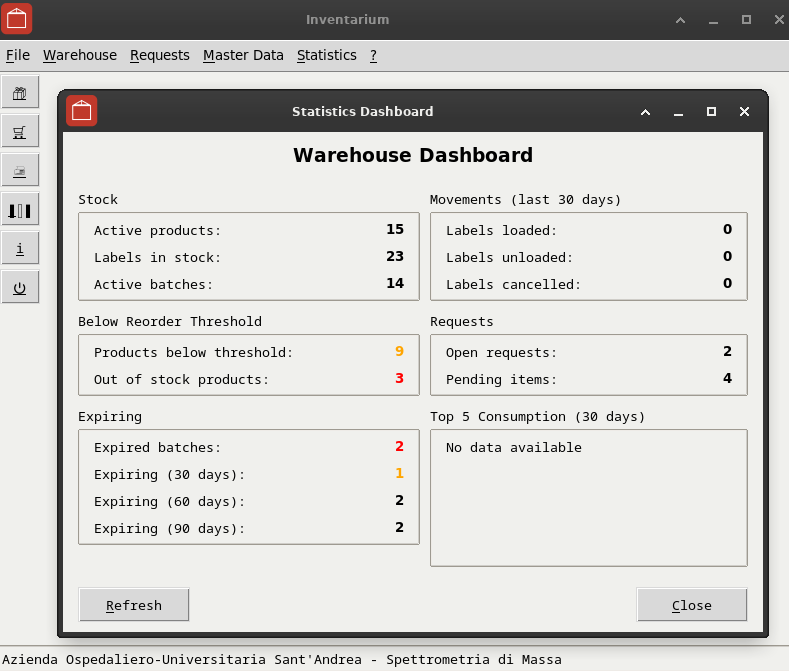 |
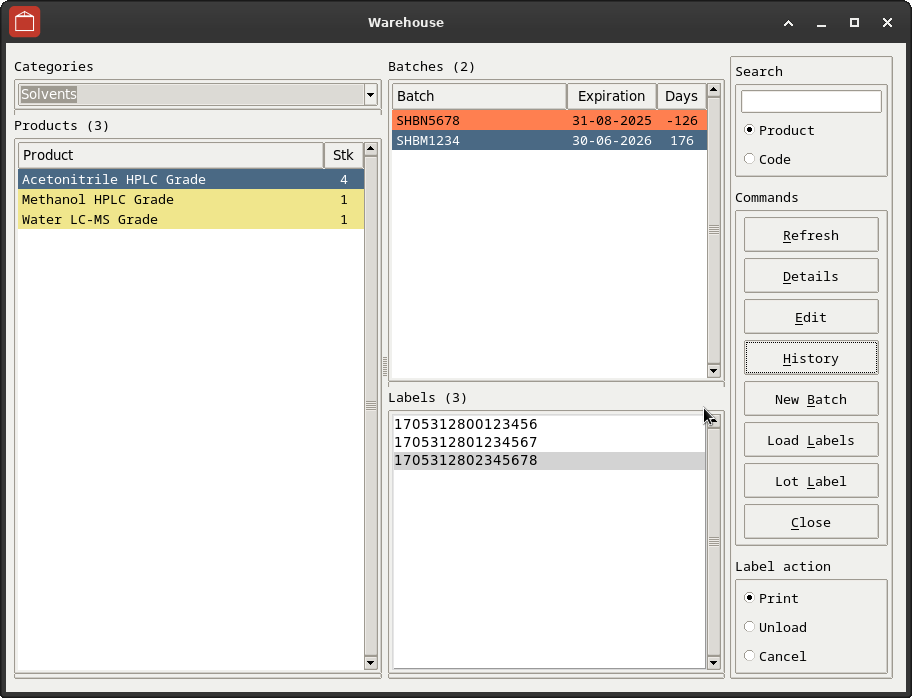 |
| Stock overview, alerts, expiration tracking | Products, batches, labels management |
| Barcode Scanner | Deliveries |
|---|---|
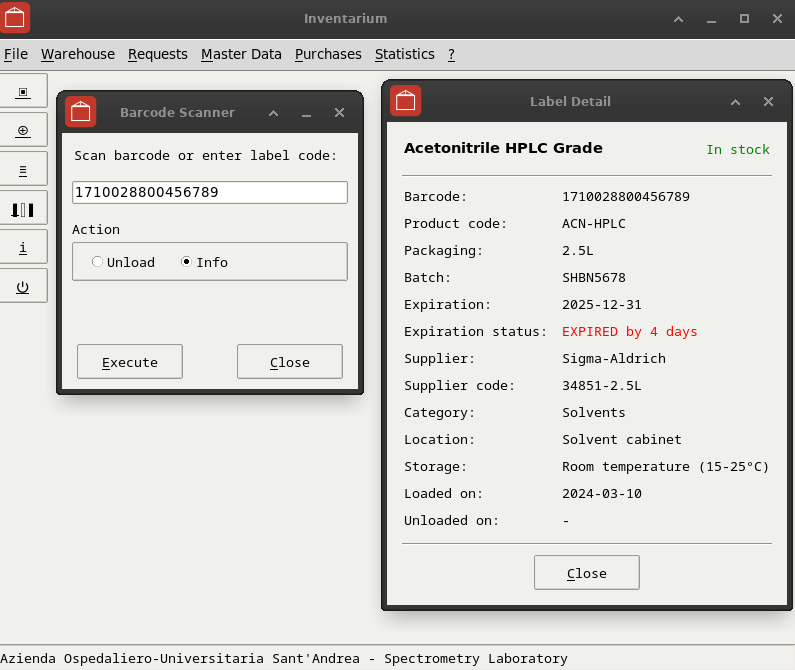 |
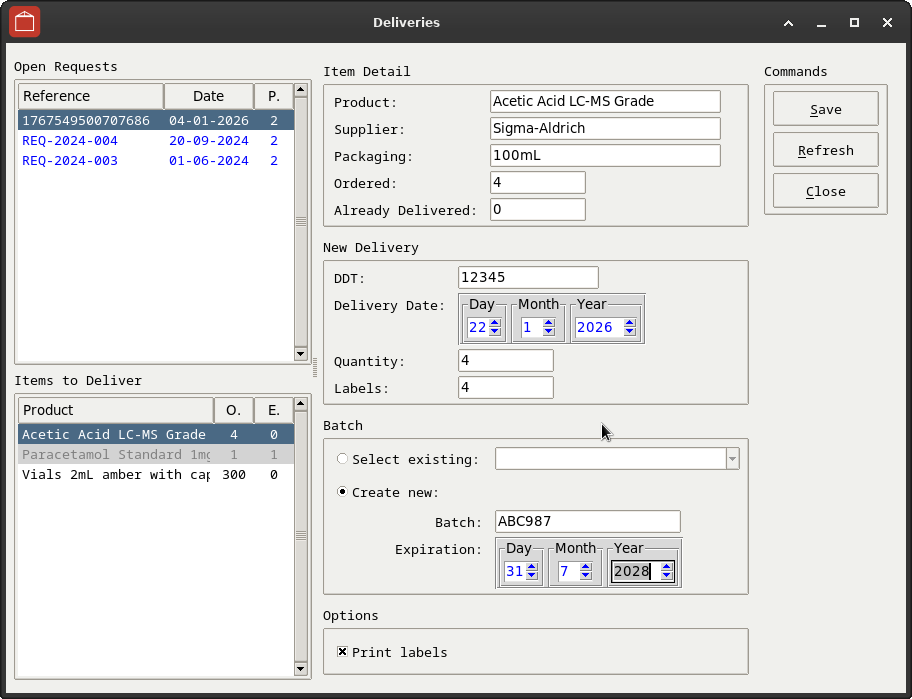 |
| Scan labels, view details | Register deliveries, create batches |
Installation
Development Platform
Inventarium is developed and tested on Linux Debian 12 (Bookworm) with Python 3.11+.
Production Environment
In our laboratory (Mass Spectrometry Lab, Sant'Andrea University Hospital, Rome), Inventarium runs on 4 Windows 10 workstations as a standalone executable compiled with Nuitka and Python 3.7. The database is shared via network path on a folder called "Spettri" (Italian for both "spectra" and "ghosts" - fitting for a mass spec lab where inventory items occasionally... vanish 👻).
Requirements
- Python 3.11 or higher
- Tkinter (usually included with Python on Linux)
- Virtual environment (venv)
On Debian/Ubuntu, ensure you have the required packages:
sudo apt install python3 python3-venv python3-tk
Quick Install (Debian/Ubuntu)
Download the .deb package from Releases and install:
sudo apt install ./inventarium_0.1.1-1_all.deb
This installs Inventarium system-wide with all dependencies. Launch from the application menu (Science → Inventarium) or run inventarium from terminal.
Setup from Source (Linux Debian 12)
- Clone the repository:
git clone https://github.com/1966bc/inventarium.git
cd inventarium
- Create the virtual environment:
python3 -m venv venv
- Activate the virtual environment:
source venv/bin/activate
Your prompt should now show (venv) at the beginning.
- Install dependencies:
pip install -r requirements.txt
- Run the application:
python3 inventarium.py
Quick Start (after first setup)
Every time you want to run Inventarium:
cd inventarium
source venv/bin/activate
python3 inventarium.py
Setup (Windows)
- Clone or download the repository
- Open Command Prompt in the project folder
- Install dependencies and run:
pip install -r requirements.txt
python inventarium.py
Optional: If you prefer to use a virtual environment:
python -m venv venv
venv\Scripts\activate
pip install -r requirements.txt
python inventarium.py
Note: For production use, we recommend the standalone executable (see Build Standalone Executable) which requires no Python installation.
Database
Inventarium uses SQLite - a single file database that requires no server setup.
First Run
On first run, if no database is found, a dialog will appear with options:
- Find existing database: Browse for an existing
.dbfile - Create new database: Creates a fresh database with demo data from
sql/init.sql
Demo Data
The sql/init.sql file contains the complete schema plus sample data:
- 18 products (solvents, standards, columns, consumables)
- 8 suppliers (Sigma-Aldrich, Thermo Fisher, ChromSystems, etc.)
- Sample batches, labels, requests, and deliveries
To reset an existing database to demo data:
sqlite3 inventarium.db ".read sql/init.sql"
Database CLI Access
The database can be accessed directly via SQLite command line for queries, maintenance, and troubleshooting. A setconsole file in the sql/ folder provides pre-configured console settings.
Linux:
cd sql
sqlite3 -init setconsole ../inventarium.db
Windows:
Download sqlite3.exe from sqlite.org/download.html (Precompiled Binaries for Windows) and place it in the sql/ folder, then:
cd sql
.\sqlite3 -init setconsole ..\inventarium.db
For network databases, use the path from config.ini:
.\sqlite3 -init setconsole "\\server\share\inventarium.db"
The sql/ folder is organized by SQL statement type:
ddl/- Schema changes (ALTER, CREATE)dml/- Data manipulation (INSERT, UPDATE, DELETE)dql/- Queries (SELECT)
Run utility scripts with:
.read dql/check_pending.sql
.read dml/fix_pending.sql
For a complete reference of SQLite CLI commands and useful queries, see SQLITE_CLI.md.
Configuration
On first run, if the database is not found, a dialog offers options to find an existing database or create a new one. The path is then saved to config.ini.
You can also edit config.ini manually:
[database]
path = sql/inventarium.db

[printer]
enabled = 1
name = BARCODE
path: Database location. For shared network access use//server/share/inventarium.dbenabled: Set to0to disable label printing on this workstationname: Label printer name (leave empty for system default)
Usage
Main Workflow
- Add Products: Define base products (e.g., "Acetonitrile HPLC Grade")
- Create Packages: Link products to suppliers with specific packaging (e.g., "2.5L bottle from Sigma")
- Register Batches: Add lot numbers with expiration dates
- Load Labels: Create individual stock units (each gets a unique barcode)
- Unload Labels: Scan or click to mark items as used
Keyboard Shortcuts
Alt+N- NewAlt+S- SaveAlt+C- Close/CancelEscape- Close window
Project Structure
inventarium/
├── inventarium.py      # Application entry point
├── app_config.py       # Configuration constants and functions
├── engine.py           # Core engine (combines all mixins)
├── dbms.py             # Database layer
├── controller.py       # Domain queries
├── tools.py            # Widget factories
├── i18n.py             # Translations
├── views/              # GUI windows
│   ├── main.py         # Main window
│   ├── config_dialog.py # First-run configuration
│   ├── warehouse.py    # Inventory management
│   ├── products.py     # Product list
│   └── ...
├── reports/            # Report generators
├── sql/                # Database scripts
│   ├── ddl/            # Schema changes (ALTER, CREATE)
│   ├── dml/            # Data manipulation (UPDATE, DELETE)
│   ├── dql/            # Queries (SELECT)
│   ├── init.sql        # Schema + demo data
│   └── setconsole      # SQLite CLI settings
└── images/             # Application icons
Architecture
The application uses a mixin-based architecture where the Engine class combines:
DBMS- Database connection and query executionController- Domain-specific queriesTools- Tkinter widget factoriesLauncher- Cross-platform file opener
All views access the engine via self.engine = self.nametowidget(".").engine.
Design Patterns
Inventarium implements several classic design patterns, making it a useful reference for learning software architecture:
| Pattern | Where | Purpose |
|---|---|---|
| Singleton | Engine (_EngineMeta), ParentView |
Ensures single instance per window/engine |
| Mixin | Engine |
Composition over inheritance |
| Template Method | ParentView, ChildView |
Common structure for windows and dialogs |
| Registry | dict_instances |
Global access to open windows |
| Builder | build_sql() |
Dynamic SQL query construction |
| Observer | Engine (subscribe, notify) |
Decoupled view communication |
Observer Pattern Example
Views communicate without knowing each other:
# In delivery.py (publisher)
self.engine.notify("stock_changed")

# In warehouse.py (subscriber)
self.engine.subscribe("stock_changed", self.on_stock_changed)

def on_stock_changed(self, data=None):
    self.refresh_batches()
Singleton via Metaclass
Engine uses a metaclass to guarantee a single instance. This is not strictly necessary since Engine is already instantiated once in App, but it's implemented for educational purposes:
class _EngineMeta(type):
    _instance = None

    def __call__(cls, *args, **kwargs):
        if cls._instance is None:
            cls._instance = super().__call__(*args, **kwargs)
        return cls._instance

class Engine(..., metaclass=_EngineMeta):
    ...
Build Standalone Executable (Windows)
To create a standalone .exe that runs without Python installed:
- Install dependencies:
pip install -r requirements.txt
pip install nuitka
- Run the build script:
build_on_windows.cmd
Requirements:
- Python 3.7+
- MinGW64 (downloaded automatically by Nuitka if missing)
The executable is created in dist\inventarium.dist\. Copy the entire folder to distribute - no Python installation needed on target machines.
Contributing
Contributions are welcome! Please feel free to submit issues or pull requests.
License
This project is licensed under the GNU General Public License v3.0 - see the LICENSE file for details.
Authors
Giuseppe Costanzi (@1966bc)
HAL 9000 (Claude by Anthropic)
Built with Python, Tkinter, and SQLite. Keep it simple.