
Jellyfin Newsletter - keep your users updated




A newsletter for Jellyfin to notify your users of your latest additions. Jellyfin Newsletter connects to the Jellyfin API to retrieve recently added items and send them to your users.
It is fully customizable and can be run on a schedule using a cron job or a task scheduler.
Table of Contents
What it looks like
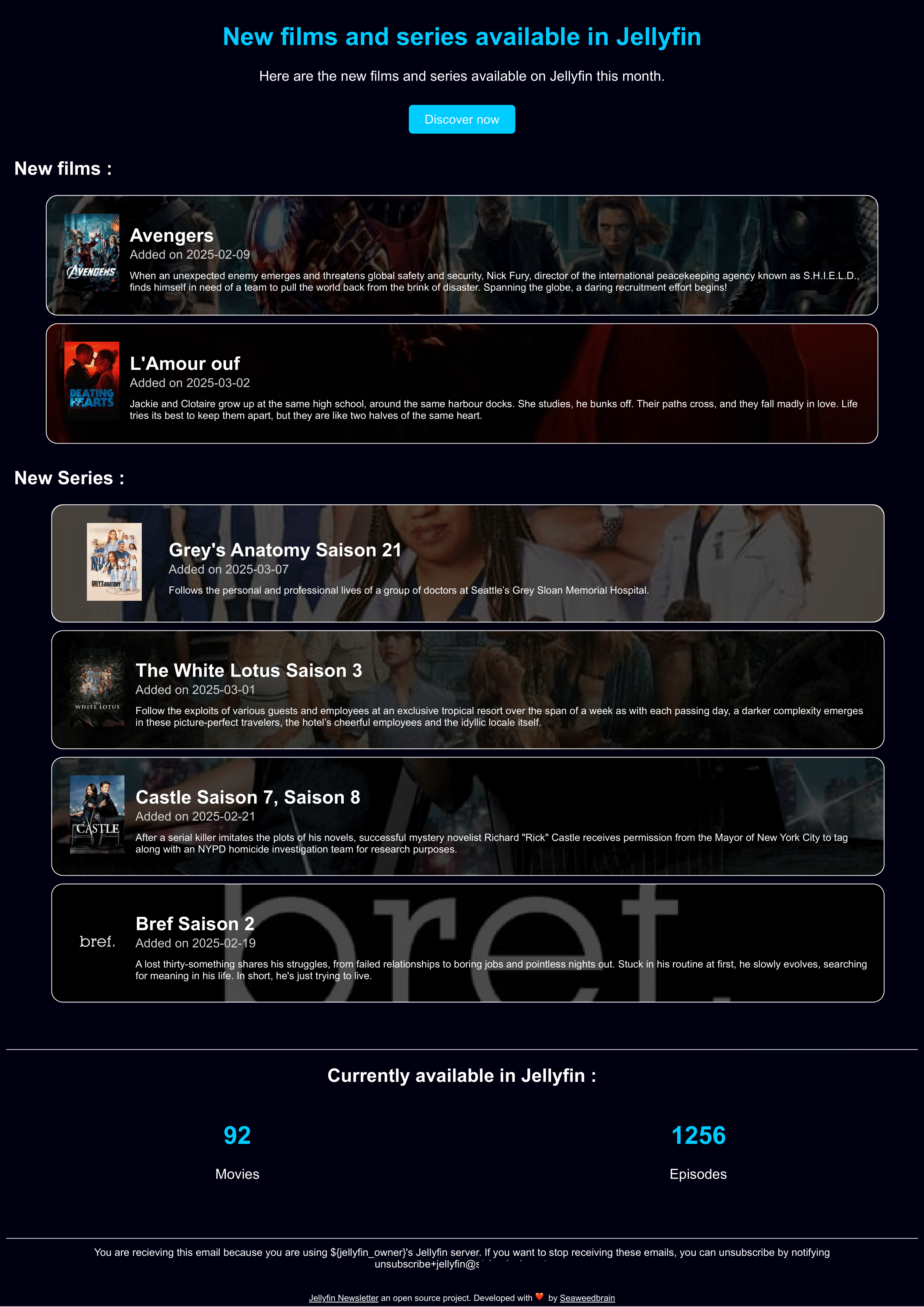
Features
- Retrieve the last added movies and TV shows from your Jellyfin server
- Send a newsletter to your users with the last added items
- Retrieve the movie details from TMDB, including poster
- Group TV shows by seasons
- Fully customizable and responsive email template
- Easy to maintain, extend, setup and run
- Support many languages (see below)
- Configure the list of recipients
- Configure specific folders to watch for new items
- Support themes
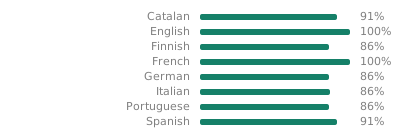
Supported languages
You can contribute to the translation of Jellyfin-Newsletter on Weblate
Create a new theme
You can create and propose a new theme by following the theme creation guide.
Currently available themes:
Classic
Recommended installation: Docker
Requirements
- Docker
- Jellyfin API key - How to generate an API key
- A TMDB API key (free) - How to generate a TMDB API key
- A SMTP server
Configuration with built-in cron job (recommended)
This is the default and recommended way to run the newsletter. The Docker container will run on a schedule using a built-in cron job. It will run on the schedule defined in the config/config.yml file.
- Download the docker-compose.yml file:
curl -o docker-compose.yml https://raw.githubusercontent.com/SeaweedbrainCY/jellyfin-newsletter/refs/heads/main/docker-compose.yml
-
(optional) Edit the
docker-compose.ymlfile to change the default user or timezone. -
Create a
configfolder in the same directory as thedocker-compose.ymlfile:
mkdir config
- Download the config file in the
configfolder:
curl -o config/config.yml https://raw.githubusercontent.com/SeaweedbrainCY/jellyfin-newsletter/refs/heads/main/config/config-example.yml
-
Edit the
config/config.ymlfile and fill in the required fields. All non-commented fields are required. -
Run the docker container with docker compose
docker compose up -d
[!note] Note: It is recommended to use a static version instead of
latest, and manually upgrade. Last version
Configuration with external cron job
Use this method if you want to run the script on a schedule using an external cron job or task scheduler, instead of the built-in cron job. Docker will run once, and exit after sending the newsletter.
- Create a
configfolder.
mkdir config
- Download the config file in the
configfolder:
curl -o config/config.yml https://raw.githubusercontent.com/SeaweedbrainCY/jellyfin-newsletter/refs/heads/main/config/config-example.yml
-
Edit the
config/config.ymlfile and fill in the required fields. All non-commented fields are required. -
Run the docker container to send the newsletter
docker run --rm \
    -v ./config:/app/config \
    ghcr.io/seaweedbraincy/jellyfin-newsletter:1.0.0
[!note] Note: It is recommended to use a static version instead of
latest, and manually upgrade. Last version
- Schedule the script to run on a regular basis.
# Unix :
crontab -e
# Add the following line to run the script every 1st of the month at 8am
0 8 1 * * root docker run --rm -v PATH_TO_CONFIG_FOLDER/config:/app/config/ ghcr.io/seaweedbraincy/jellyfin-newsletter:1.0.0
License
This project is licensed under the AGPLv3 License—see the LICENSE file for details.
Contribution
Feel free to contribute to this project by opening an issue or a pull request.
A contribution guide is available in the CONTRIBUTING.md file.
If you like this project, consider giving it a ⭐️.
If you encounter any issues, please let me know by opening an issue.
How to
How to generate a Jellyfin API key
- Go to your Jellyfin dashboard
- Scroll to advanced section and click on API keys
- Click on the
+button to create a new API key - Fill in the required fields and click on save
- Copy the generated API key
- Paste it in the
config.ymlfile underjellyfin.api_token
How to generate a TMDB API key
- Go to the TMDB website
- Create an account or log in
- Go to your account settings
- Click on the API section
- Click on the
Createbutton to create a new API key - Copy the API key named "API Read Access Token"
- Paste it in the
config.ymlfile undertmdb.api_key