
Kleos CLI - Your MindsDB Knowledge Base Toolkit
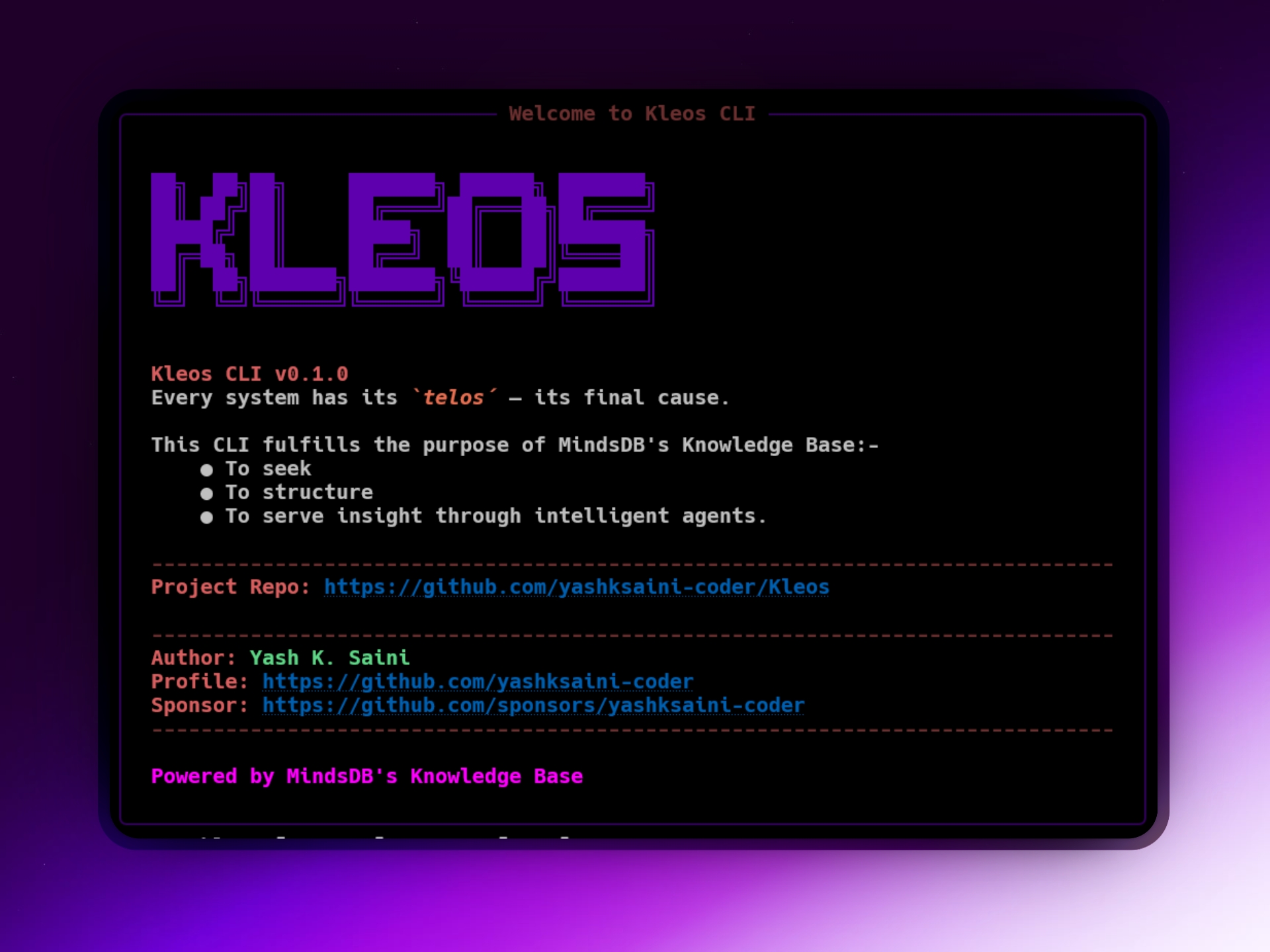

Kleos provides a powerful and interactive, Command Line Interface (CLI) for interacting with MindsDB, with a special focus on its Knowledge Base features and AI Agent integration. It also includes a suite of scripts for performance benchmarking, stress testing, and evaluating MindsDB's reranking capabilities.
-
To learn more about the commands and advanced usage, please refer to the COMMANDS_REFERENCE.md file.
-
For a quick overview of the most common commands and their usage, see the Quick-examples.md file.
🎥 Project Showcase
| Demo Video | DEV Post |
|---|---|
 |
|
Features
-
Enhanced CLI (
kleos):- Interactive mode for a shell-like experience (run
kleosthen type commands). - Manage MindsDB datasources (e.g.,
kleos setup hackernews). - Create, index, and query Knowledge Bases (e.g.,
kleos kb create ...,kleos kb query ...). - Ingest data into KBs (e.g.,
kleos kb ingest ...). - Create and query AI Agents linked to KBs (e.g.,
kleos kb create-agent ...). - Automate tasks using MindsDB Jobs (e.g.,
kleos job create ...). - Create and query general AI Models/Tables (e.g.,
kleos ai create-model ...). - Utility commands:
cls: Clears the terminal screen.info: Displays information about the Kleos CLI tool (version, description, repo).about: Displays information about the author.--help: Displays help for all commands and options.
- Interactive mode for a shell-like experience (run
-
Docker Support:
docker-compose.yml: For easily setting up local MindsDB and Ollama instances.DOCKERFILE: To build and run the Kleos CLI tool in a containerized environment.
1. Setup and Installation
1.1. Prerequisites
- Python 3.8+
- Access to a running MindsDB instance (local, Docker, or cloud).
- Access to an Ollama instance (local, Docker, or cloud) if using Ollama models.
- Ensure required models like
nomic-embed-textandllama3are available on your Ollama instance.
- Ensure required models like
- Google Gemini API Key if using Google Gemini models.
- Docker and Docker Compose (Optional, for containerized environment setup).
1.2. Installation Options
Option 1: Using the Developer Setup Script (Recommended for Developers)
This script automates Python version checks, virtual environment creation (optional), and dependency installation.
- Clone the repository:
git clone https://github.com/yashksaini-coder/Kleos cd Kleos - Run the setup script:
The script will guide you through the process. After completion, it will instruct you on how to activate the virtual environment (if created) and run# Ensure the script is executable: chmod +x scripts/setup-dev.sh (if needed) ./scripts/setup-dev.shkleos.
Option 2: Manual Installation
-
Clone the repository:
git clone https://github.com/yashksaini-coder/Kleos cd Kleos -
Create and activate a virtual environment (strongly recommended):
python3 -m venv .venv-kleos
source .venv-kleos/bin/activate  # On Windows: .venv-kleos\Scripts\activate
(You can replace
.venv-kleoswith your preferred venv name likevenv) -
Install Kleos CLI and its dependencies: This command reads
pyproject.tomland installs the package.pip install .Or, for an editable install (useful during development):
pip install -e .
1.3. Configuration
The application requires configuration for connecting to MindsDB and for API keys.
-
Copy the example configuration file:
cp config/config.py.example config/config.pyAlternatively, set environment variables directly. The application prioritizes environment variables.
-
Edit
config/config.pyor set environment variables:- MindsDB Connection:
MINDSDB_HOST,MINDSDB_PORT,MINDSDB_USER(optional),MINDSDB_PASSWORD(optional). - Google Gemini API Key (required for Google AI features):
GOOGLE_GEMINI_API_KEY. - Ollama Settings (if using default models):
OLLAMA_BASE_URL,OLLAMA_EMBEDDING_MODEL,OLLAMA_RERANKING_MODEL.
Using a
.envfile (recommended for local development): Create a.envfile in the project root (add this file to.gitignore):MINDSDB_HOST="http://127.0.0.1" MINDSDB_PORT=47334 GOOGLE_GEMINI_API_KEY="your_gemini_key" OLLAMA_BASE_URL="http://127.0.0.1:11434" # Add other variables as needed[!NOTE]: It will be more optimal to setup and use
config/config.pyfor production environments, as it allows for more complex configurations and is easier to manage in version control. - MindsDB Connection:
-
Install MindsDB (if not already installed): If you haven't installed MindsDB SDK yet, you can do so via pip:
pip install mindsdb_sdkOr, if you prefer to use Docker for MindsDB and Ollama, see the "Local Development Environment with Docker" section below.
-
Verify MindsDB is running: Ensure your MindsDB instance is up and running. If using the Docker Compose setup, you can check its logs or access the MindsDB UI at
http://127.0.0.1:47334/. -
(Optional) Ensure Ollama models are available: If using Ollama, ensure the required models (e.g.,
nomic-embed-text,llama3) are pulled on your Ollama instance. If using the Docker Compose setup, see instructions below for pulling models.
2. Local Development Environment with Docker
This project provides a docker-compose.yml to quickly set up local instances of MindsDB and Ollama, and a DOCKERFILE to containerize the Kleos CLI application itself.
2.1. Running MindsDB & Ollama Services with Docker Compose
The docker-compose.yml file configures and runs MindsDB and Ollama services.
-
Start the services: Navigate to the project root directory (where
docker-compose.ymlis located) and run:docker-compose up -dThis will start MindsDB (accessible at
http://127.0.0.1:47334) and Ollama (accessible athttp://127.0.0.1:11434) in detached mode. -
Pull Ollama Models: Once the Ollama container is running, you need to pull the models you intend to use. For example, to pull
nomic-embed-textandllama3:docker exec -it ollama_instance ollama pull nomic-embed-text docker exec -it ollama_instance ollama pull llama3Replace
ollama_instanceif you've changed the container name indocker-compose.yml. -
Configure Kleos to connect to these Dockerized services: Ensure your
config/config.pyor.envfile points to these local instances:MINDSDB_HOST="http://127.0.0.1" MINDSDB_PORT=47334 OLLAMA_BASE_URL="http://127.0.0.1:11434" # ... other configurations ... -
Stopping the services:
docker-compose downTo remove the persistent volumes (and thus all data stored by MindsDB and Ollama):
docker-compose down -v
2.2. Running Kleos CLI in Docker
A DOCKERFILE is provided to build an image for the Kleos CLI.
-
Build the Kleos Docker image: From the project root directory:
docker build -t kleos-cli . -
Run the Kleos CLI using the Docker image: You'll need to provide configuration to the container, typically by mounting your
.envfile orconfig/config.py.-
Using an
.envfile (recommended): Ensure your.envfile is configured to connect to your MindsDB/Ollama instances (which could be running viadocker-composeas described above, or elsewhere). If MindsDB/Ollama are running viadocker-composeon the same machine, Kleos running in its own Docker container might need to usehost.docker.internal(on Docker Desktop for Mac/Windows) or the host's IP address to connect to services exposed onlocalhostby Docker Compose.# Example: Assuming .env has MINDSDB_HOST="http://host.docker.internal" docker run -it --rm --env-file .env kleos-cli kb list-databases # To run interactively: docker run -it --rm --env-file .env kleos-cli -
Mounting
config/config.py:# Ensure config/config.py is correctly set up docker run -it --rm -v "$(pwd)/config/config.py:/app/config/config.py" kleos-cli info(Note:
$(pwd)works on Linux/macOS. For Windows PowerShell, use${PWD}. For CMD, you might need to use the full path.) -
Passing environment variables directly:
docker run -it --rm \
  -e MINDSDB_HOST="http://host.docker.internal:47334" \
  -e OLLAMA_BASE_URL="http://host.docker.internal:11434" \
  # Add other necessary env vars like GOOGLE_GEMINI_API_KEY if needed
  kleos-cli --help
Important for connecting to Docker Compose services from Kleos Docker container: If both Kleos and the MindsDB/Ollama services are running in Docker containers on the same machine:
- Option A (Recommended for Docker Compose): Add the Kleos service to the
docker-compose.ymland rundocker-compose run kleos ...ordocker-compose exec kleos .... This automatically handles networking. - Option B (Separate
docker runfor Kleos):- On Docker Desktop (Mac/Windows), you can often use
host.docker.internalas the hostname in your Kleos config to refer to services exposed onlocalhostby other Docker containers (like those fromdocker-compose.yml). - On Linux, you might need to connect the Kleos container to the same Docker network used by
docker-compose.yml(e.g.,kleos_network) usingdocker run --network kleos_network ...and then use the service names (e.g.,http://mindsdb_instance:47334).
- On Docker Desktop (Mac/Windows), you can often use
-
3. Usage
2.1. Kleos CLI
Once installed, use the kleos command:
General Help & Banner:
Run kleos without arguments to see the welcome banner and enter interactive mode.
kleos
To see help:
kleos --help
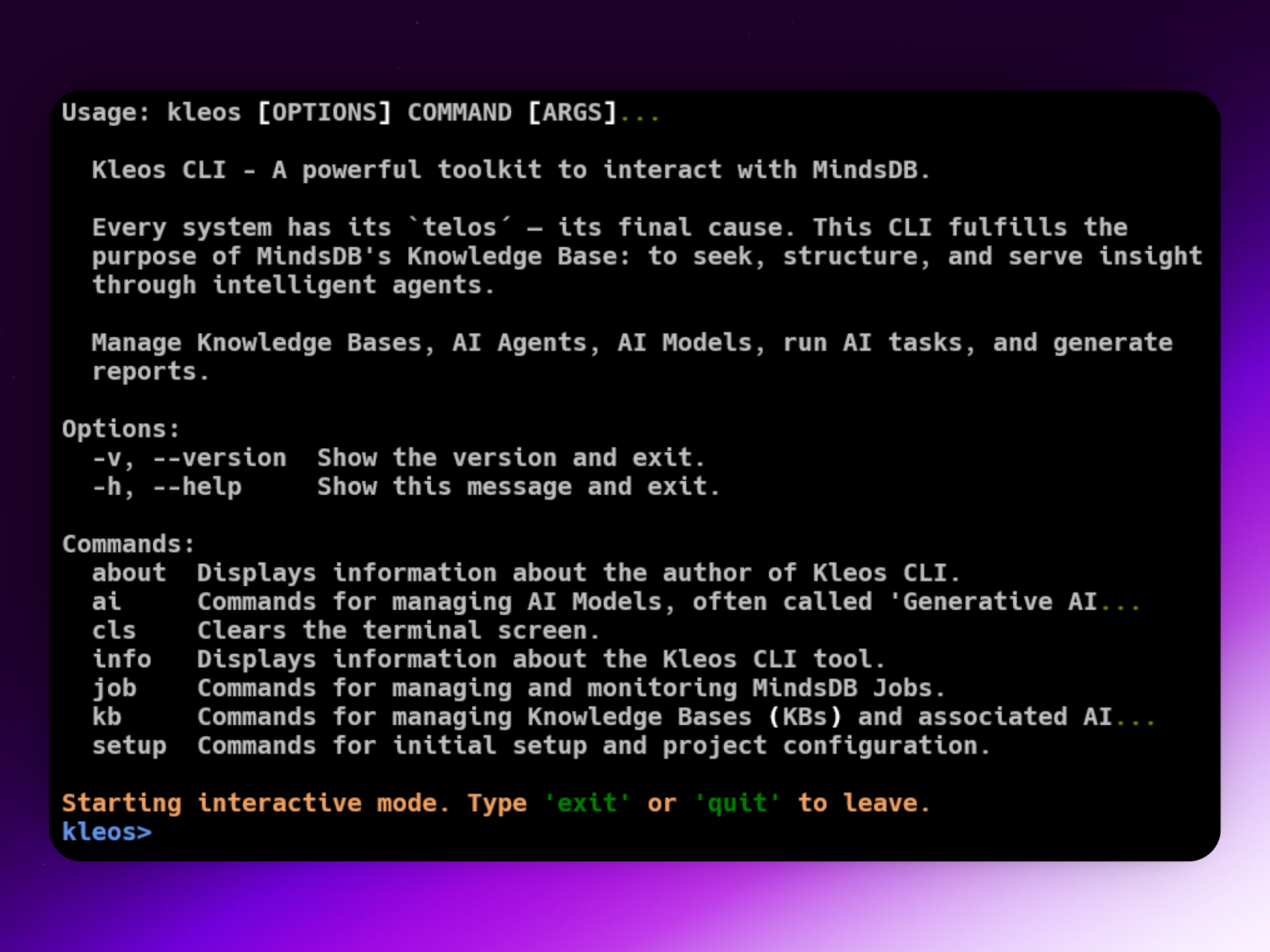
This lists available command groups: ai, job, kb, setup, and utility commands like info, about, cls.
Interactive Mode:
Simply run kleos to enter an interactive session where you can type commands directly:
kleos
You can type --help to see available commands and options, or <command> --help for specific command help.
Within interactive mode, typing a group name (e.g., kb) will show help for that group.
Direct Command Execution: You can also run commands directly:
kleos kb list-databases
kleos setup hackernews --name my_hn_db
Important Note on JSON Parameters:
When passing complex parameters as JSON strings via options like --metadata-map, --metadata-filter, or --agent-params, ensure they are correctly quoted and escaped for your specific command-line shell. Incorrect quoting is a common source of errors.
- For Windows Command Prompt (
cmd.exe): Typically, you'll need to enclose the entire JSON string in double quotes (") and escape all inner double quotes with a backslash (\"). Example:--metadata-map "{\"key\":\"value\"}" - For Linux/macOS (bash, zsh) or PowerShell: Often, enclosing the JSON string in single quotes (
') is sufficient: Example:--metadata-map '{"key":"value"}'
Knowledge Base Improvements: The Knowledge Base commands have been enhanced and thoroughly tested with:
- Auto-detection of sensible content and metadata columns for HackerNews tables (stories, comments)
- Improved error handling with clear, actionable error messages for common issues
- Robust JSON parsing with platform-specific examples for Windows CMD, PowerShell, and Unix shells
- Automatic datasource creation when the HackerNews datasource is missing
- Enhanced column mapping flexibility for custom use cases and data sources
- Validated SQL generation ensuring correct INSERT INTO ... SELECT syntax for MindsDB
- Windows compatibility with proper JSON escaping examples and testing
All command examples have been tested on Windows Command Prompt and include proper JSON escaping patterns.
Detailed Command Reference: For detailed information on all commands, options, and comprehensive examples for different platforms, please consult the COMMANDS_REFERENCE.md file.
Quick Examples (using kleos command):
-
Show CLI Information:
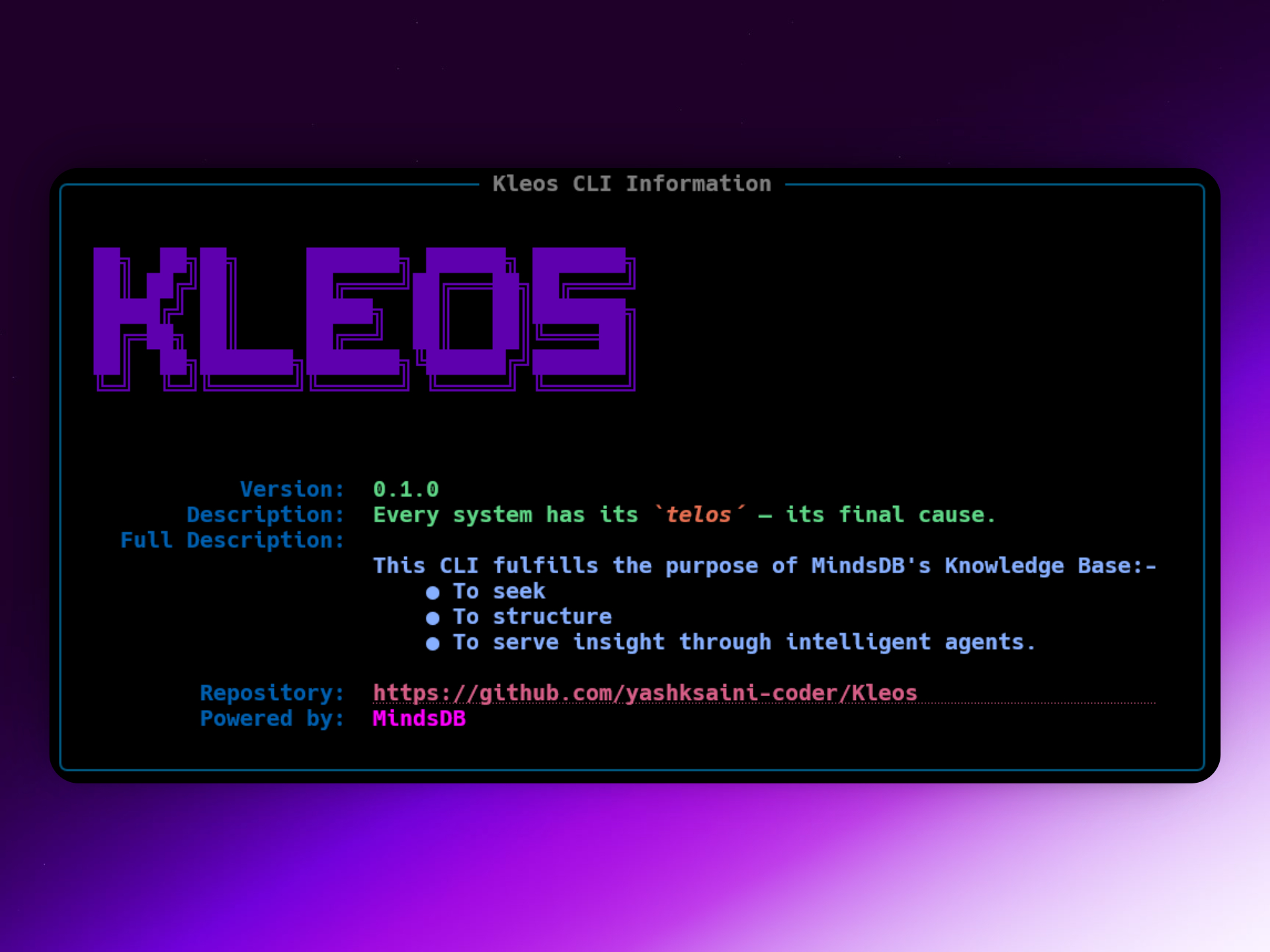
kleos info -
Show Author Information:
kleos about -
Clear Screen (in interactive mode or direct):
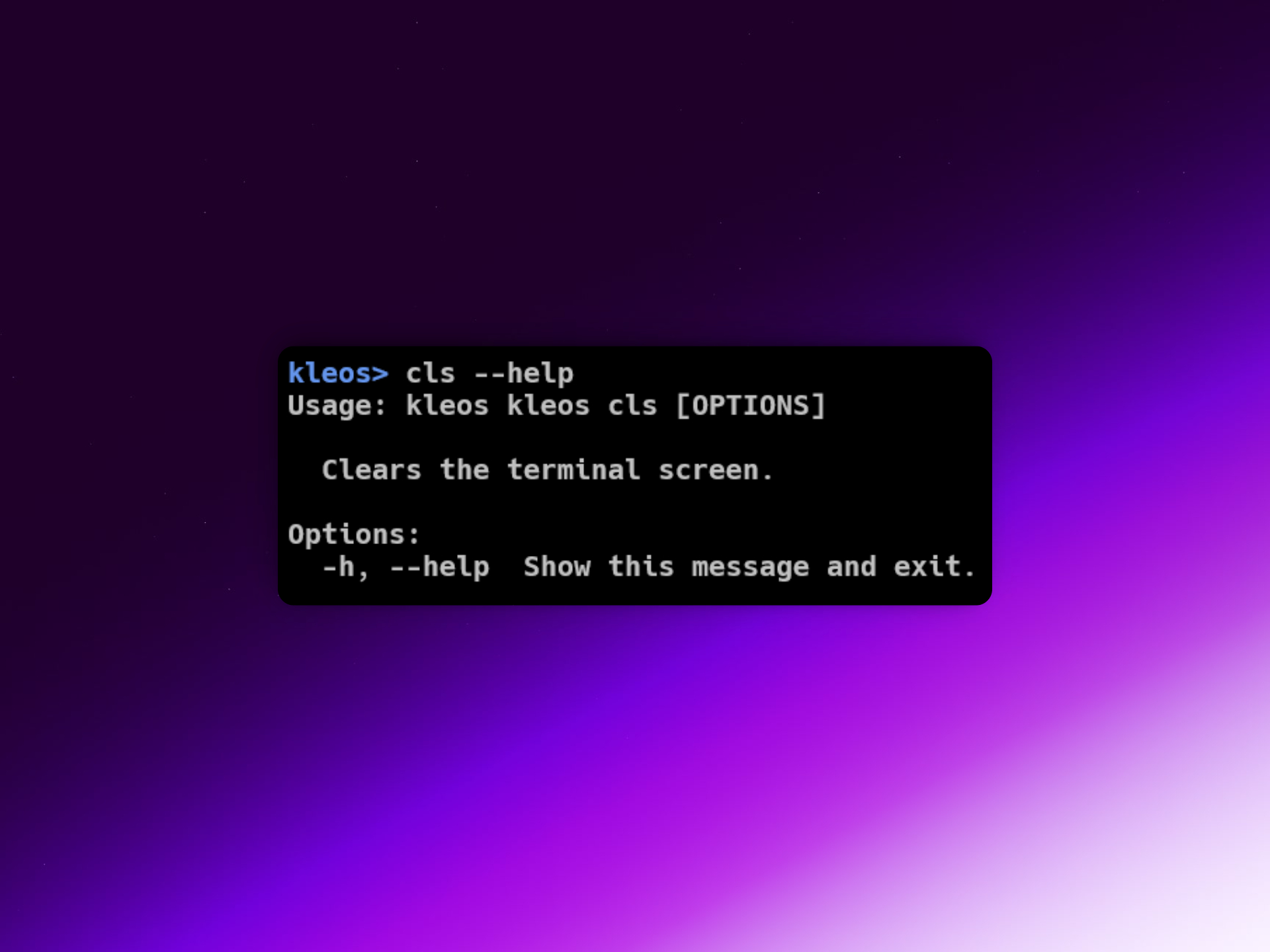
kleos cls -
Setup HackerNews Datasource:
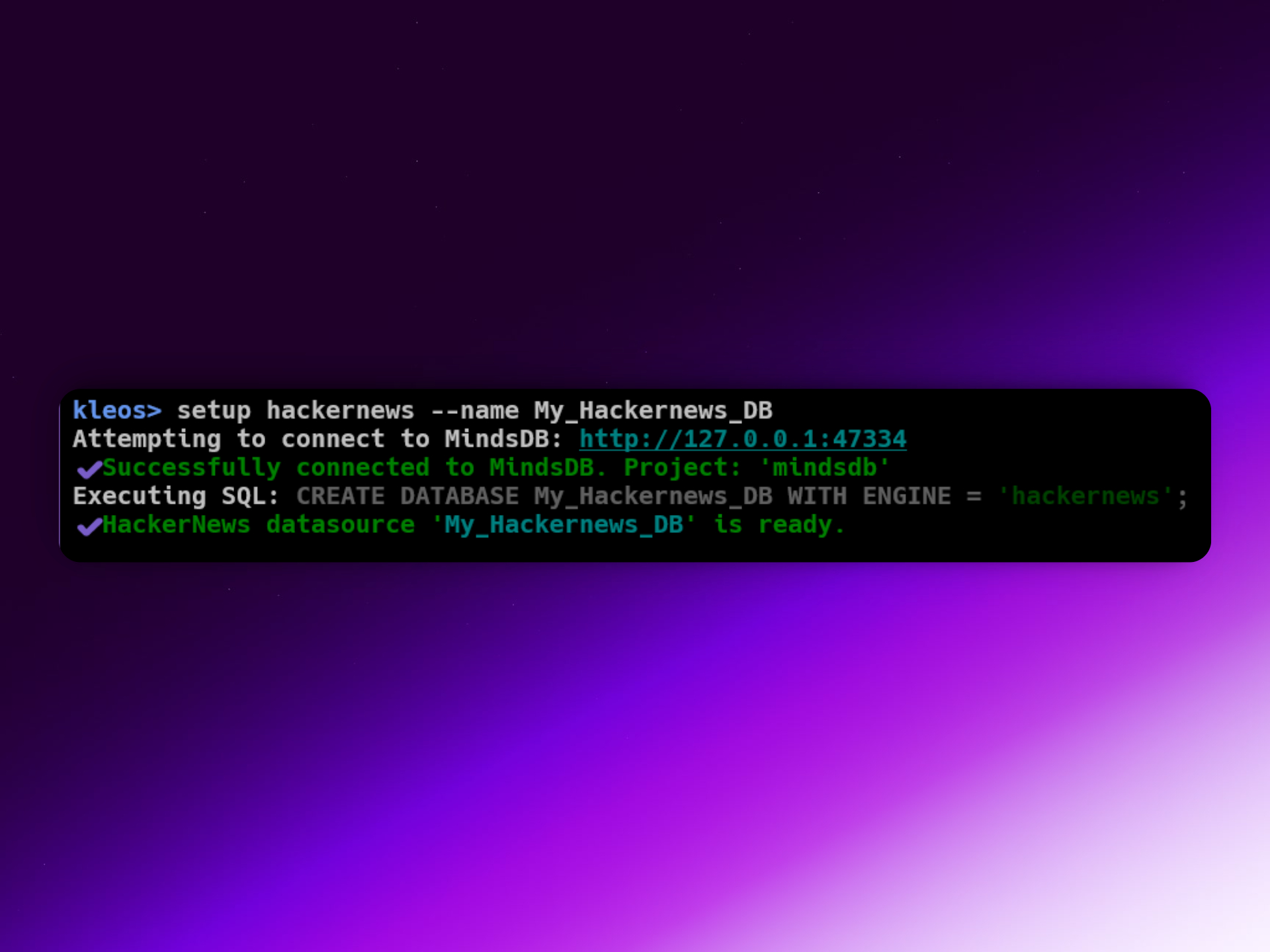
kleos setup hackernews --name hackernews_db -
List Available Databases:
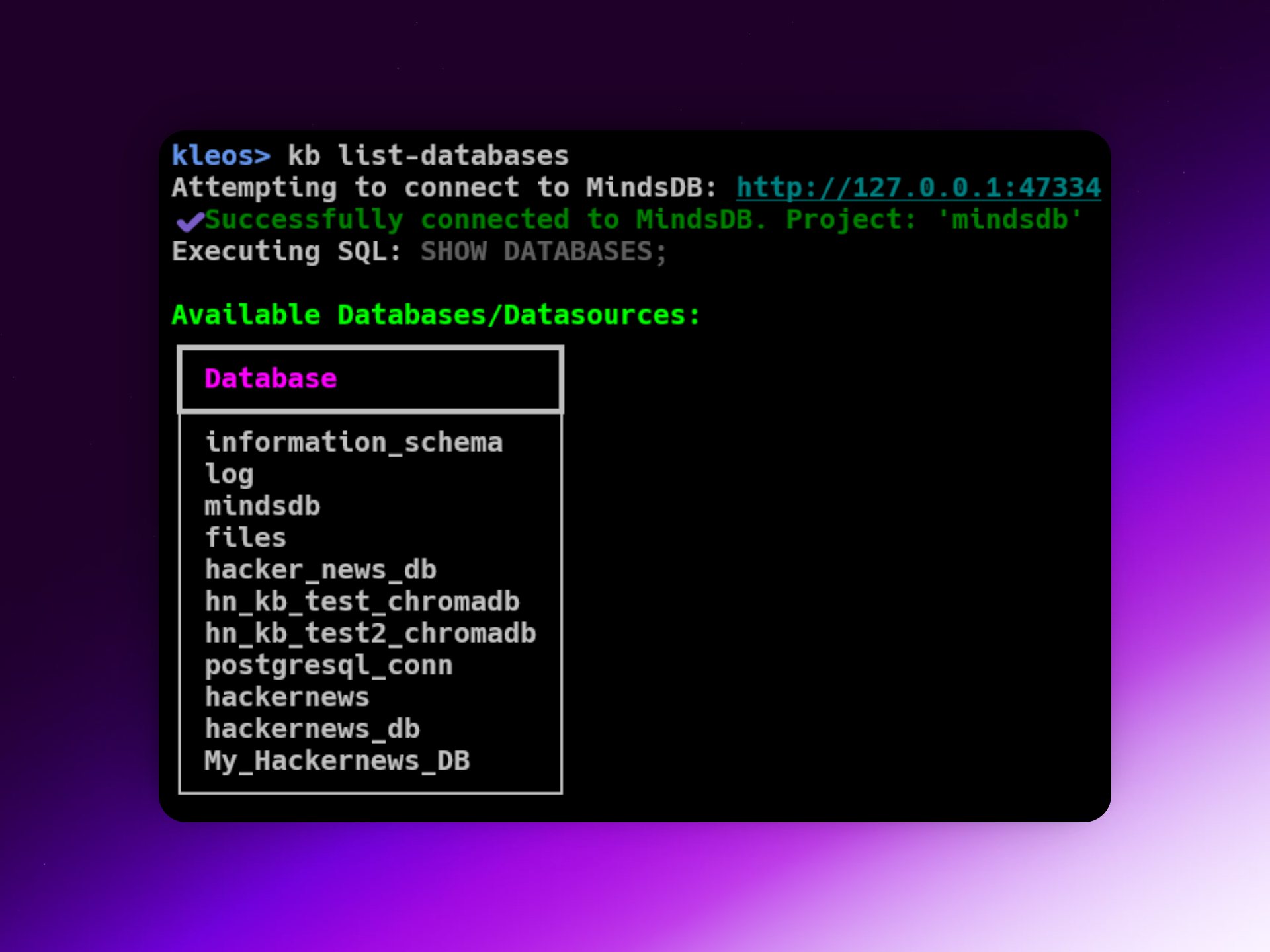
kleos kb list-databases -
Create a Knowledge Base with Custom Columns:
# Basic KB creation kleos kb create my_documents_kb --embedding-model nomic-embed-text --reranking-model llama3 # KB creation with custom content and metadata columns kleos kb create hn_stories_kb --embedding-model nomic-embed-text --reranking-model llama3 --content-columns "title,text" --metadata-columns "id,by,score,time" --id-column id -
Ingest Data into a Knowledge Base:
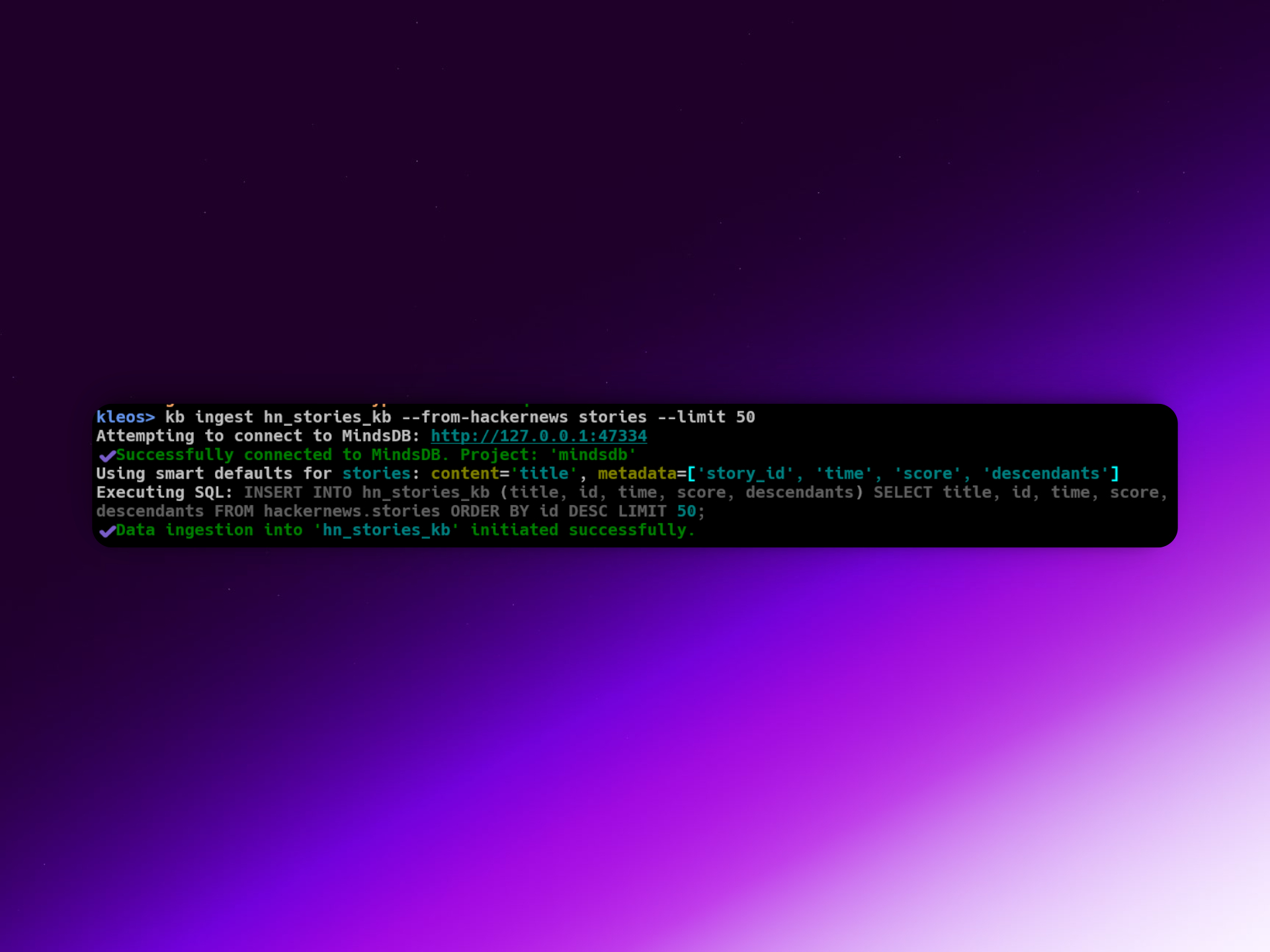
# Simple ingestion with auto-detected columns (for HackerNews tables) kleos kb ingest my_documents_kb --from-hackernews stories --limit 50 -
Create an AI Agent for a Knowledge Base:
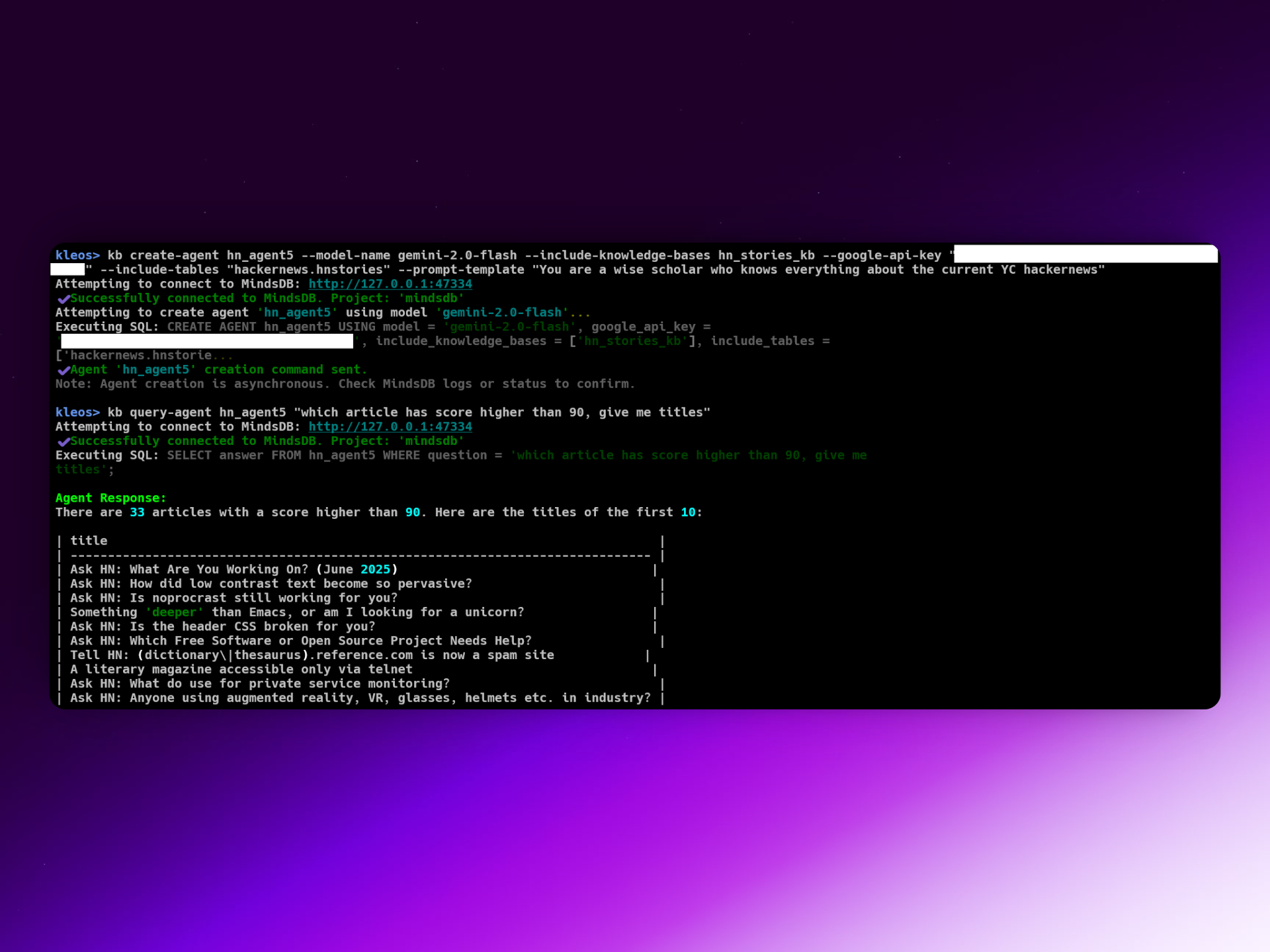
# Example for Bash/Zsh/PowerShell kleos kb create-agent hn_agent5 --model-name gemini-2.0-flash --include-knowledge-bases hn_stories_kb --google-api-key "<YOUR_GOOGLE_API_KEY>" --include-tables "hackernews.hnstories" --prompt-template "You are a wise scholar who knows everything about the current YC hackernews" -
Query the AI Agent:
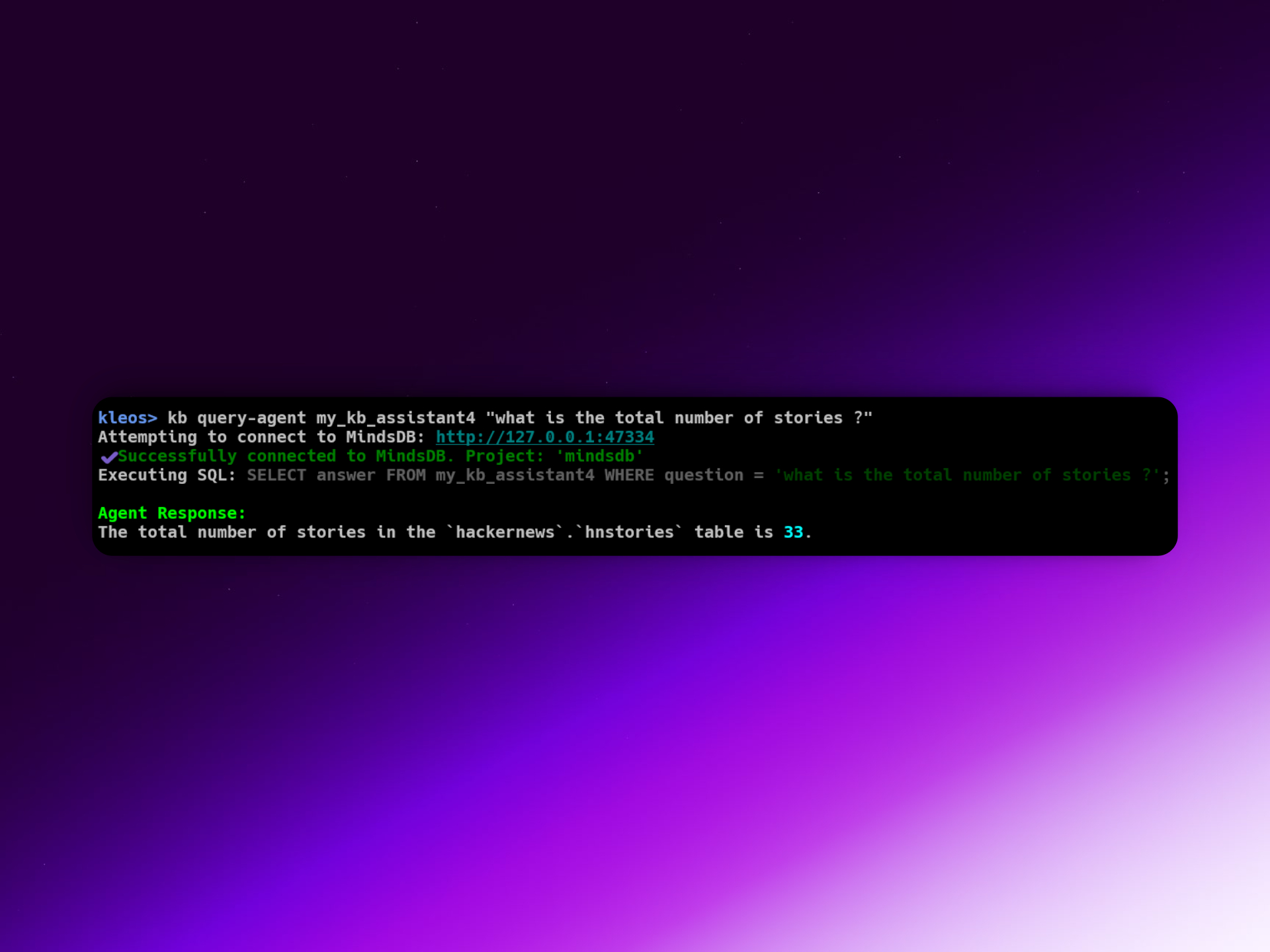
kleos kb query-agent my_kb_assistant4 "What is the total number of stories ?"
4. Project Internals & Development
Detailed Documentation:
- For a comprehensive guide to all CLI commands, options, and examples, please see COMMANDS_REFERENCE.md.

Yash K. Saini(Author) |
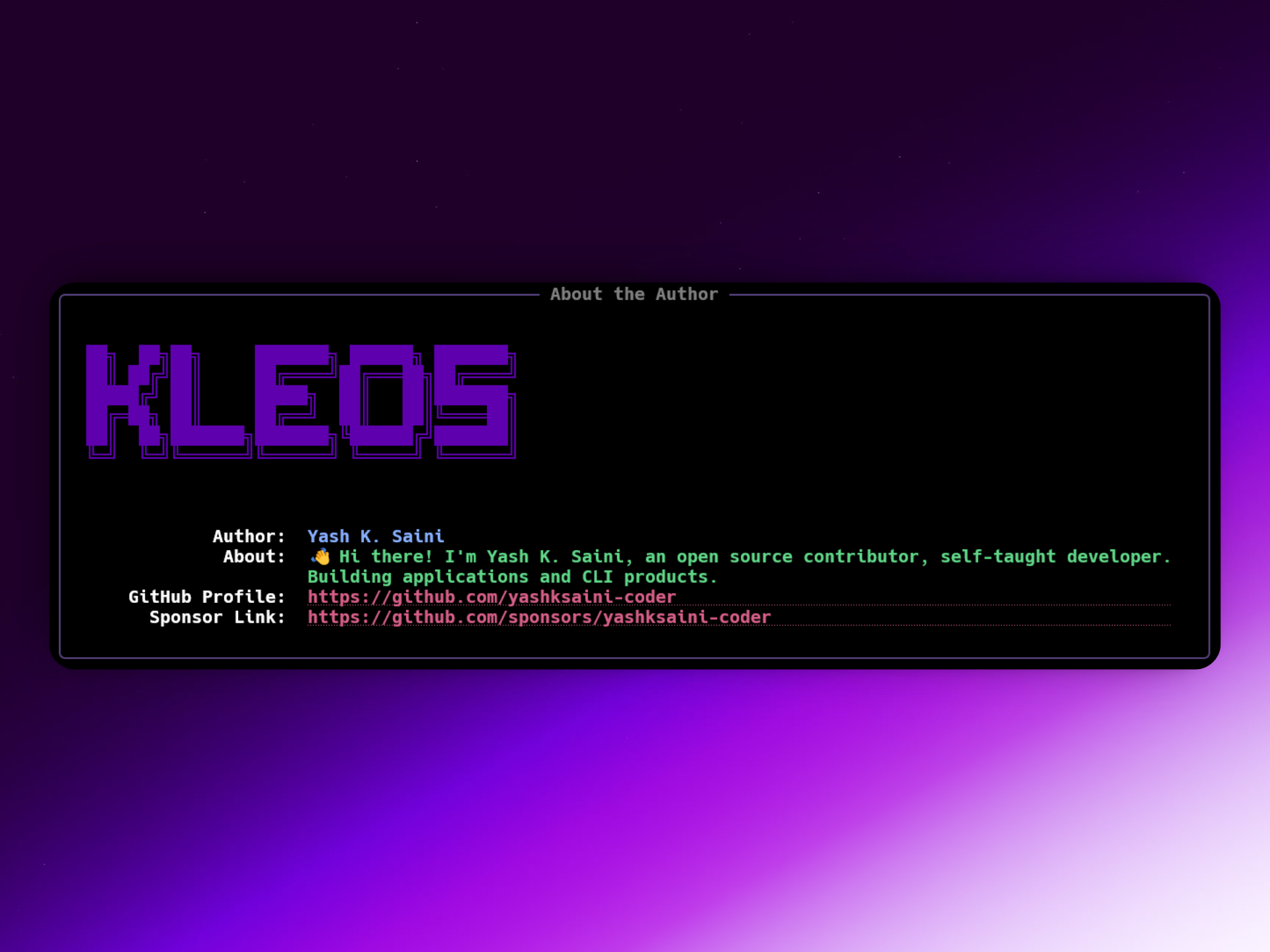
👋 Hi there! I'm Yash K. Saini, a self-taught software developer and a computer science student from India.
|