

Secure, Automated, and Multi-Cloud Bitwarden Backup and Import System
Lazywarden is a Python automation tool designed to Backup and Restore data from your vault, including Bitwarden attachments. It allows you to upload backups to multiple cloud storage services and receive notifications across multiple platforms. It also offers AES encrypted backups and uses key derivation with Argon2, ensuring maximum security for your data.
 Features
- 🔒 Maximum Security: Data protection with AES-256 encryption and Argon2 key derivation.
- 🔄 Automated Backups and Imports: Keep your Bitwarden vault up to date and secure.
- ✅ Integrity Verification: SHA-256 hash to ensure data integrity on every backup.
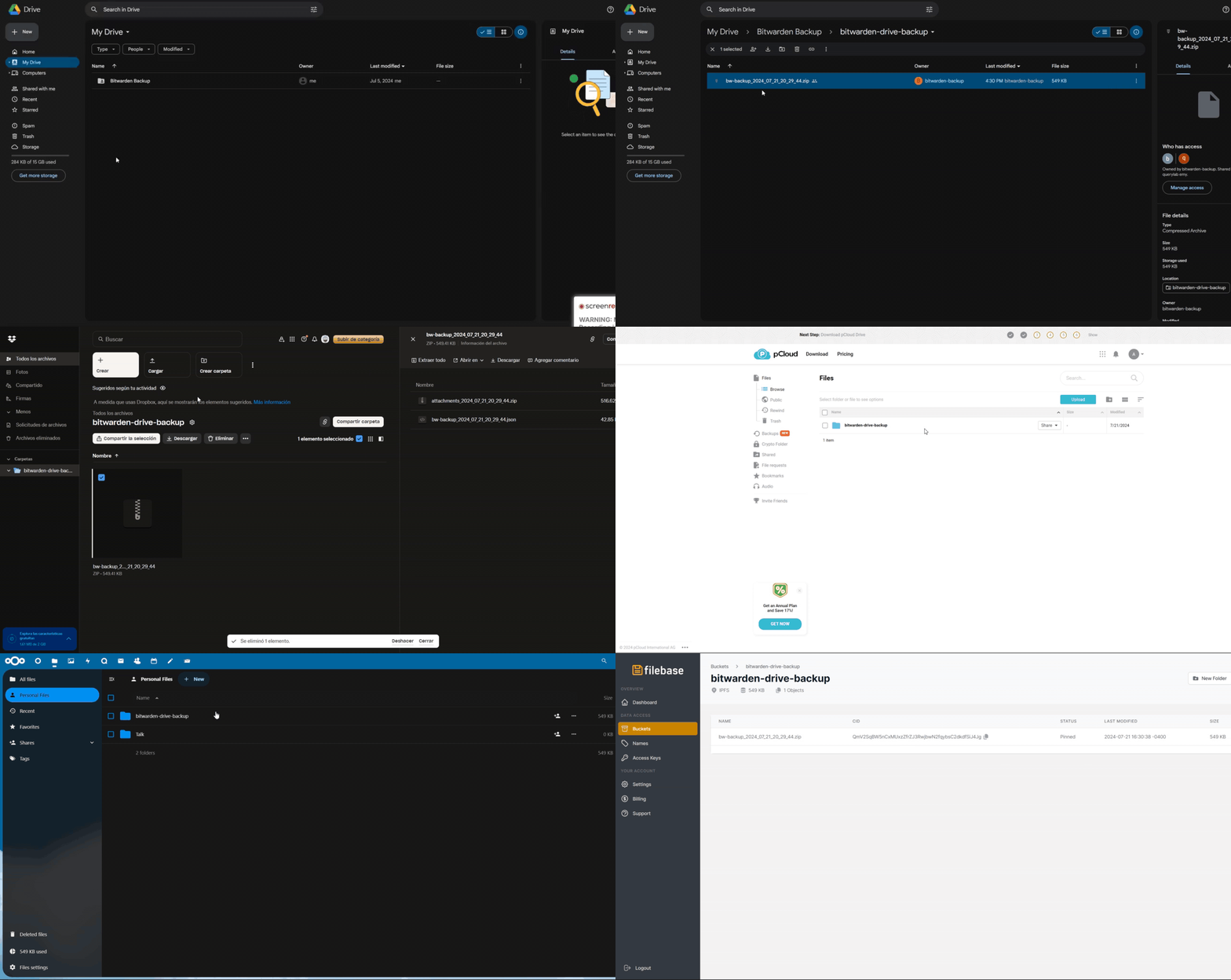
- ☁️ Multi-Cloud Support: Store backups to services such as Dropbox, Google Drive, pCloud, MEGA, NextCloud, Seafile, Storj, Cloudflare R2, Backblaze B2, Filebase (IPFS) and via SMTP.
- 🖥️ Local Storage: Save backups to a local path for greater control.
- 🔔 Real-Time Alerts: Instant notifications on Discord, Telegram, Ntfy and Slack.
- 🗓️ Schedule Management: Integration with CalDAV, Todoist and Vikunja to manage your schedule.
- 🐳 Easy Deployment: Quick setup with Docker Compose.
- 🤖 Full Automation and Custom Scheduling: Automatic backups with flexible scheduling options (daily, weekly, monthly, yearly). Integration with CalDAV, Todoist and Vikunja for complete tracking and email notifications.
- 🔑 Bitwarden Export to KeePass: Export Bitwarden items to a KeePass database (kdbx), including TOTP-seeded logins, URI, custom fields, card, identity attachments and secure notes.
 Platform Compatibility


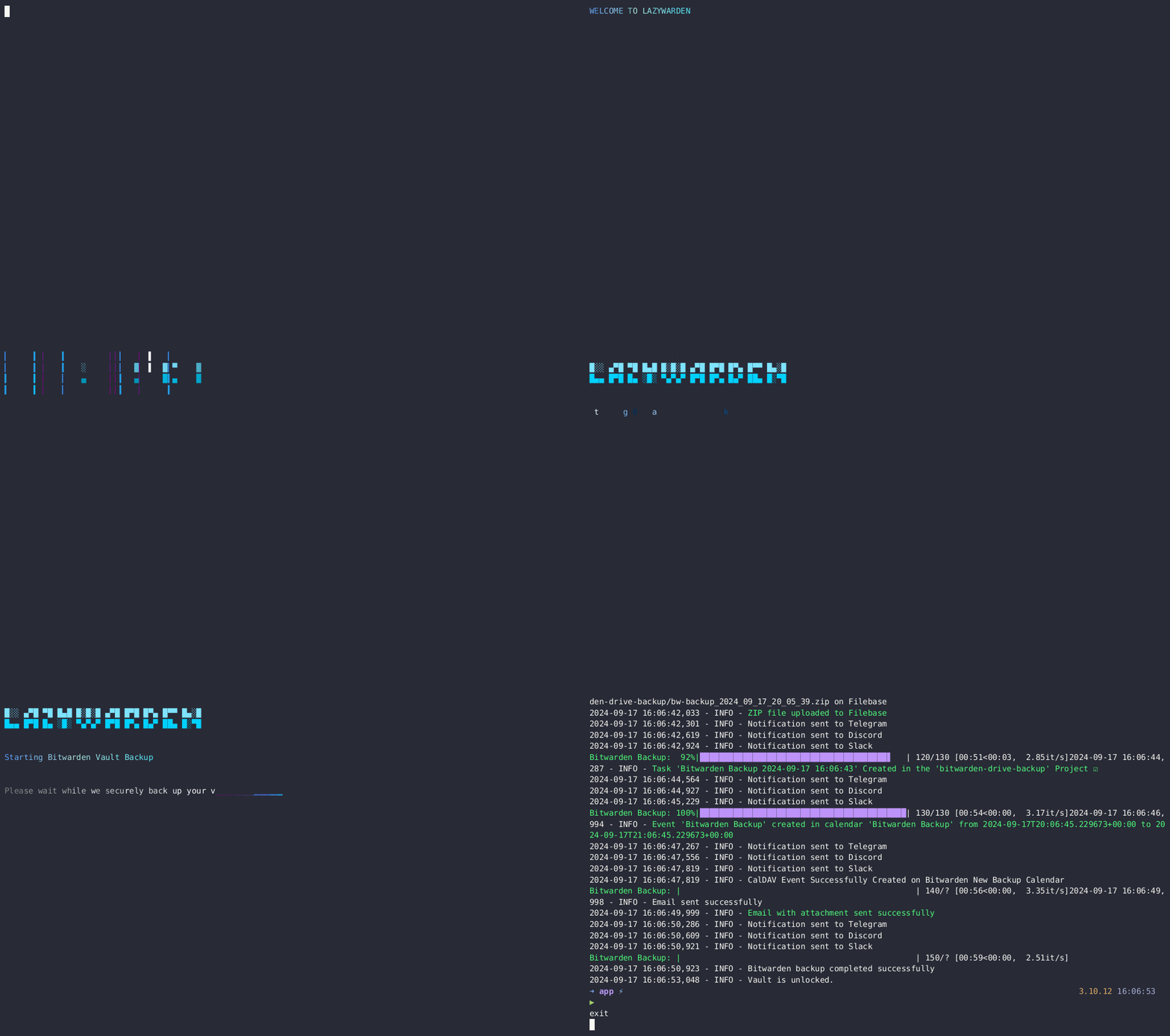
 Demo Backup

 System Requirements
-
Operating System: Compatible with major Linux distributions
- ✅ Ubuntu
- ✅ Debian
 Installation
Clone the repository
   git clone https://github.com/querylab/lazywarden.git
   cd lazywarden
Configure Environment Variables & Bitwarden Secrets Manager
- Create a
.envfile based on the on this.env.sampleexample file and fill in the necessary variables.
#---------------------------------------------------------------------------------------
# These are the 6 variables that are mandatory requirements for Bitwarden Secret Manager
BW_URL=f22bba66-e55d-1111-9a93-abf0dfad069e
BW_USERNAME=5eb0f2bb-1111-4e42-94f8-9333fda803cf
BW_PASSWORD=ba4dc990-1111-4d18-ae6b-0b899d513759
ENCRYPTION_PASSWORD=103c803c-1111-40d4-8578-8b3134c6e93e
ZIP_PASSWORD=2f9fb3a2-96a3-1111-990d-5d6399153e11
ZIP_ATTACHMENT_PASSWORD=b2abc553-1111-4b49-9172-1a94f9072715

#---------------------------------------------------------------------------------------

# TOTP Seed for Aegis,Authy,Ente,GoogleAuth (Optional)
BW_TOTP_SECRET=

# pCloud Credentials (Optional)
PCLOUD_USERNAME=
PCLOUD_PASSWORD=

# Mega Credentials (Optional)
MEGA_EMAIL=
MEGA_PASSWORD=

# Dropbox Credentials (Optional)
DROPBOX_ACCESS_TOKEN=
DROPBOX_REFRESH_TOKEN=
DROPBOX_APP_KEY=
DROPBOX_APP_SECRET=

# Todoist Credentials (Optional)
TODOIST_TOKEN=

# CalDAV Credentials (Optional)
CALDAV_URL=
CALDAV_USERNAME=
CALDAV_PASSWORD=

# Nextcloud Credentials (Optional)
NEXTCLOUD_URL=
NEXTCLOUD_USERNAME=
NEXTCLOUD_PASSWORD=

# Seafile Credentials (Optional)
SEAFILE_SERVER_URL=
SEAFILE_USERNAME=
SEAFILE_PASSWORD=

# Filebase Credentials (Optional)
FILEBASE_ACCESS_KEY=
FILEBASE_SECRET_KEY=

# KeePass Password (Optional)
KEEPASS_PASSWORD=

# Storj Credentials (Optional)
STORJ_ACCESS_KEY=
STORJ_SECRET_KEY=
STORJ_ENDPOINT=

# R2 Credentials (Optional)
R2_ACCESS_KEY_ID=
R2_SECRET_ACCESS_KEY=
R2_ENDPOINT_URL=

# Vikunja Credentials (Optional)
VIKUNJA_API_TOKEN=
VIKUNJA_URL=

# Backblaze B2 Credentials (Optional)
B2_APP_KEY_ID=
B2_APP_KEY=

# Google Drive Settings
GOOGLE_SERVICE_ACCOUNT_FILE=/root/lazywarden/config/bitwarden-drive-backup-google.json
GOOGLE_FOLDER_ID=

# Backup Settings
BACKUP_DIR=/root/lazywarden/backup-drive/
CRON_SCHEDULE="0 0 23 * *"
TIMEZONE=America/New_York
TIMESTAMP=2024_10_31_13_03_29


# API URLs for Bitwarden
API_URL=https://vault.bitwarden.com/api
IDENTITY_URL=https://vault.bitwarden.com/identity

# Organization ID
ORGANIZATION_ID=

# Access Token for Bitwarden Authentication
ACCESS_TOKEN=

# Notifications and Alerts (Optional)
TELEGRAM_TOKEN=
TELEGRAM_CHAT_ID=
DISCORD_WEBHOOK_URL=
SLACK_WEBHOOK_URL=
NTFY_URL=

# SMTP Configuration for Email Notifications (Optional)
SMTP_SERVER=mail.smtp2go.com
SMTP_PORT=8025
SMTP_USERNAME=
SMTP_PASSWORD=
EMAIL_RECIPIENT=
SENDER_EMAIL=
 Ubuntu Configuration
- Run the script to install all system dependencies and requirements
cd lazywarden/scripts
chmod +x setup-ubuntu-env.sh
./setup-ubuntu-env.sh
- Run this script to automatically install Docker & Docker-Compose:
chmod +x docker-ubuntu.sh
./docker-ubuntu.sh
- First, ensure you are in the root directory of the project
lazywarden/:
cd ..
source venv/bin/activate
- Now Install Bitwarden CLI using the
bitwarden-cli-install.pyscript, which will install all CLI dependencies:
python3 scripts/bitwarden-cli-install.py
- Change the system timezone using the following command. Replace
Region/Citywith the desired timezone (e.g.,America/New_York):
timedatectl set-timezone Region/City
- For example, to set the timezone to
America/New_York, you would run:
timedatectl set-timezone America/New_York
- Run the Lazywarden program. Navigate to the
app/folder and executemain.py:
cd app
python3 main.py
- In Ubuntu, if you encounter an error when running
main.py, it may be related to missing or outdated libraries. To fix this, I recommend running the following command to install all the necessary dependencies:
pip install -r requirements.txt
 Debian Configuration
- Run the script to install all system dependencies and requirements:
cd lazywarden/scripts
chmod +x setup-debian-env.sh
./setup-debian-env.sh
- Run this script to automatically install Docker & Docker-Compose:
chmod +x docker-debian.sh
./docker-debian.sh
- First, ensure you are in the root directory of the project
lazywarden/:
cd ..
source venv/bin/activate
- Install Bitwarden CLI using the
bitwarden-cli-install.pyscript, which will install all CLI dependencies:
python3 scripts/bitwarden-cli-install.py
- Change the system timezone using the following command. Replace
Region/Citywith the desired timezone (e.g.,America/New_York):
timedatectl set-timezone Region/City
- For example, to set the timezone to
America/New_York, you would run:
timedatectl set-timezone America/New_York
- Run the Lazywarden program. Navigate to the
app/folder and executemain.py:
cd app
python3 main.py
- In Debian, if you encounter an error when running
main.py, it may be related to missing or outdated libraries. To fix this, I recommend running the following command to install all the necessary dependencies:
pip install -r requirements.txt
 Tree Structure
lazywarden/
├── app/                           # This directory to contain the main application code
│   ├── backup.py                  # Backup functions
│   ├── bitwarden_client.py        # Client to interact with Bitwarden
│   ├── config.py                  # General application configurations
│   ├── imports.py                 # Handles common imports
│   ├── main.py                    # Main entry point of the application
│   ├── notifications.py           # Handles notifications
│   ├── secrets_manager.py         # Manages secrets
│   ├── import_to_bitwarden.py     # Import your bitwarden vault
│   ├── import_to_keepass.py       # Create kdbx database
│   ├── schedule_backup.py         # For create Schedule Backup
├── config/                        # Directory for configuration files
│   ├── bitwarden-drive-backup-google.json # Configuration for Google Drive
├── scripts/                       # Directory for installation and setup scripts
│   ├── bitwarden-cli-install.py   # Script to install the Bitwarden CLI
│   ├── docker-debian.sh           # Setup script for Debian with Docker
│   ├── docker-ubuntu.sh           # Setup script for Ubuntu with Docker
│   ├── setup-debian-env.sh        # Environment setup for Debian
│   ├── setup-ubuntu-env.sh        # Environment setup for Ubuntu
│   ├── alldecrypt-zip.py          # Decrypt all zip files
│   ├── json-only-decrypt.py       # Decrypt only json files (optional)
├── backup-drive/
│   ├── (This is where the generated backups will be stored local)
├── .env                           # File for environment variables
├── Dockerfile                     # Docker configuration file to create an application image
├── docker-compose.yml             # Docker Compose Configuration
├── entrypoint.sh                  # Entrypoint script for Docker
└── requirements.txt               # File that lists the project Python dependencies
 Docker Compose
The Docker container will run the main.py script every 24 hours to back up Bitwarden and upload it to the configured cloud services. Notifications will be sent to the specified services in case of success or failure. You can modify the backup frequency according to your needs, such as monthly, daily, or hourly.
services:
  lazywarden:
    container_name: lazywarden
    hostname: lazywarden
    image: querylab/lazywarden:latest
    env_file:
      - .env
    environment:
      UNLOCK_VAULT: "true"
    volumes:
      - /root/lazywarden/config:/root/lazywarden/config
      - /root/lazywarden/backup-drive:/root/lazywarden/backup-drive/
      - /root/lazywarden/.env:/app/.env
    restart: unless-stopped
Run Docker Compose
- Run the Docker container
docker compose up -d
Dockerfile
- The
Dockerfilesets up the environment, installs dependencies, and copies necessary files into the container.
docker-compose.yml
- The
docker-compose.ymlfile defines the lazywarden service and sets up environment variables and volumes for persistent storage.

 Security Recommendation: Run in Local Environment
- For security, run this project only in a local environment within your personal network. This significantly reduces the risk of exposure to external attacks, ensuring that sensitive data and credentials remain protected within a controlled environment.
📢 Warning
Important Note
- Large attachments in your Bitwarden account (e.g., MP4 videos, MP3 files, high-resolution photos) may cause the backup process to take longer. Uploading these larger backups to cloud services will also be slower. Local storage and importing data are much faster in comparison.
- A high number of attachments can significantly extend the total backup time. Upload errors may occur when sending files to Dropbox, Google Drive, pCloud, MEGA, Seafile, Nextcloud, Storj, Cloudflare R2, Backblaze B2, or Filebase. If an error occurs, retrying the backup often resolves the issue.
- Configuring the Bitwarden Secret Manager is required for the program to function correctly. Even if you don't have an account, you must set a random variable to ensure proper operation.
- This program is compatible with both self-hosted Bitwarden and Vaultwarden instances.
- Import functionality for Vaultwarden and self-hosted Bitwarden is not yet implemented in the Bitwarden API.
- CalDAV calendar integration has only been tested with the following providers: Baikal, Fruux, Memotoo, Posteo, and SOGo.
- Rotate the secrets stored in Bitwarden Secret Manager regularly for enhanced security.
- If you switch Bitwarden Accounts, make sure to run the
bw logoutcommand before logging into a new account. - I run the program using the root user.
 Motivations
-
I created Lazywarden to Automate Bitwarden Backups without manual effort or exposing sensitive data. After struggling with complex tools, I leveraged Bitwarden Secret Manager to securely manage secrets. Lazywarden automates backups and uploads them to multiple cloud services (Google Drive, Dropbox, pCloud, MEGA, Seafile, Nextcloud, Filebase, Storj, Cloudflare R2, Backblaze B2), and integrates with Telegram, Discord, Ntfy, Slack, Todoist, Vikunja, and CalDAV for notifications and tracking. Its standout feature is the ability to restore encrypted backups back into Bitwarden, making backup management simple, secure, and efficient.
-
If you like this project, please consider giving it a ⭐
