
LibreSprite-MCP


Prompt your way into LibreSprite
Model Context Protocol (MCP) server for prompt-assisted editing, designing, and scripting inside LibreSprite.
https://github.com/user-attachments/assets/71440bba-16a5-4ee2-af10-2c346978a290
Prerequisites
uv is the recommended way to install and use this server. Here are quick one-liners to install it if you haven't:
-
Windows: (run as administrator)
powershell -ExecutionPolicy ByPass -c "irm https://astral.sh/uv/install.ps1 | iex" -
Unix:
curl -LsSf https://astral.sh/uv/install.sh | sh
More on installing uv.
The package is published on PyPI, so feel free to consume it any other way you prefer (pipx, etc)
Usage
Step 1: Setting up the client
Add the MCP server with the following entrypoint command (or something else if you are not using uv) to your MCP client:
uvx libresprite-mcp
Examples:
-
Claude Desktop & Cursor
Edit Claude > Settings > Developer > Edit Config > claude_desktop_config.json or .cursor > mcp.json to include the server:
{
    "mcpServers": {
        // ...existing servers...
        "libresprite": {
            "type": "stdio",
            "command": "uvx",
            "args": [
                "libresprite-mcp"
            ]
        }
        // ...existing servers...
    }
}
You can also use this fancy badge to make it quick:

[!NOTE] You will have to restart Claude Desktop to load the MCP Server.
Step 2: Setting up LibreSprite
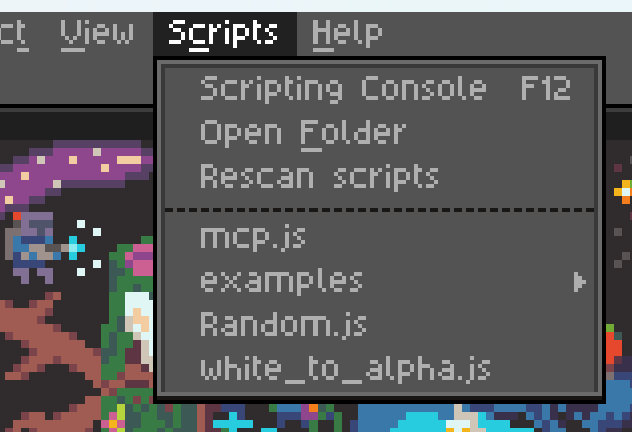
Download the latest stable remote script mcp.js from releases and add it to LibreSprite's scripts folder:
Step 3: Connect and use
Run the mcp.js script (that you see in the screenshot above), and make sure your MCP server is running (Claude Desktop/Cursor is loaded and running). If all went well, you should see the following screen:

Click the "Connect" button and you can now start talking to Claude about your next big pixel-art project!
Some pointers
- You can only run one instance of the MCP server at a time.
- The server expects port
64823to be free. - The server has a hacky and brittle implementation (see ARCHITECTURE), and is not extensively tested.
- The MCP resources are kinda low quality with unclear API reference and limited examples, leaving the LLM confused at times. If you're a LibreSprite expert, we need your help.