
LM Studio IDE Plugin
CHECK THE RELEASES FOR 3 different IDE Plugins that work, VS Code, Cursor, and Windsurf! (in the sidebar)
The google drive link will remain up, and is the same as the Windsurf extension. A powerful VS Code extension that integrates LM Studio and other Local LLM servers with Agent-Cascade MCP tools, providing AI-powered coding assistance directly in your editor with instant completions. LAZY INSTALL -> C:/Users/USERNAME/.windsurf/extensions Download and extract https://drive.google.com/file/d/1igZv4Bn9U98M--OZ8gTsbeCfWfhsWJ5p/view?usp=drive_link and it may work without issue. Use the actual VSIX for best results.
Features
⚡ Instant Code Completions
- Lightning-fast ghost text suggestions as you type
- Context-aware completions using Local LLM models
- Works with any programming language
- Zero-latency experience with local inference
💬 AI Chat Panel
- Dedicated chat sidebar for coding assistance
- Support for
@fileand@selectiondirectives - Contextual workspace awareness
- Beautiful, VS Code-themed interface
🛠️ Command Palette Actions
- LM Studio: Explain Selection - Get detailed explanations of selected code
- LM Studio: Write Tests - Generate comprehensive unit tests
- LM Studio: Refactor Function - Improve code quality and structure
- LM Studio: Apply Proposed Diff - Apply code changes from diffs
- LM Studio: Run Shell Command - Execute terminal commands
- LM Studio: Check Connection - Test Local LLM connectivity
🔧 MCP Tools Integration
- Bridge to Agent-Cascade MCP server
- Execute file operations, shell commands, and more
- Configurable tool allowlist for security
Screenshot
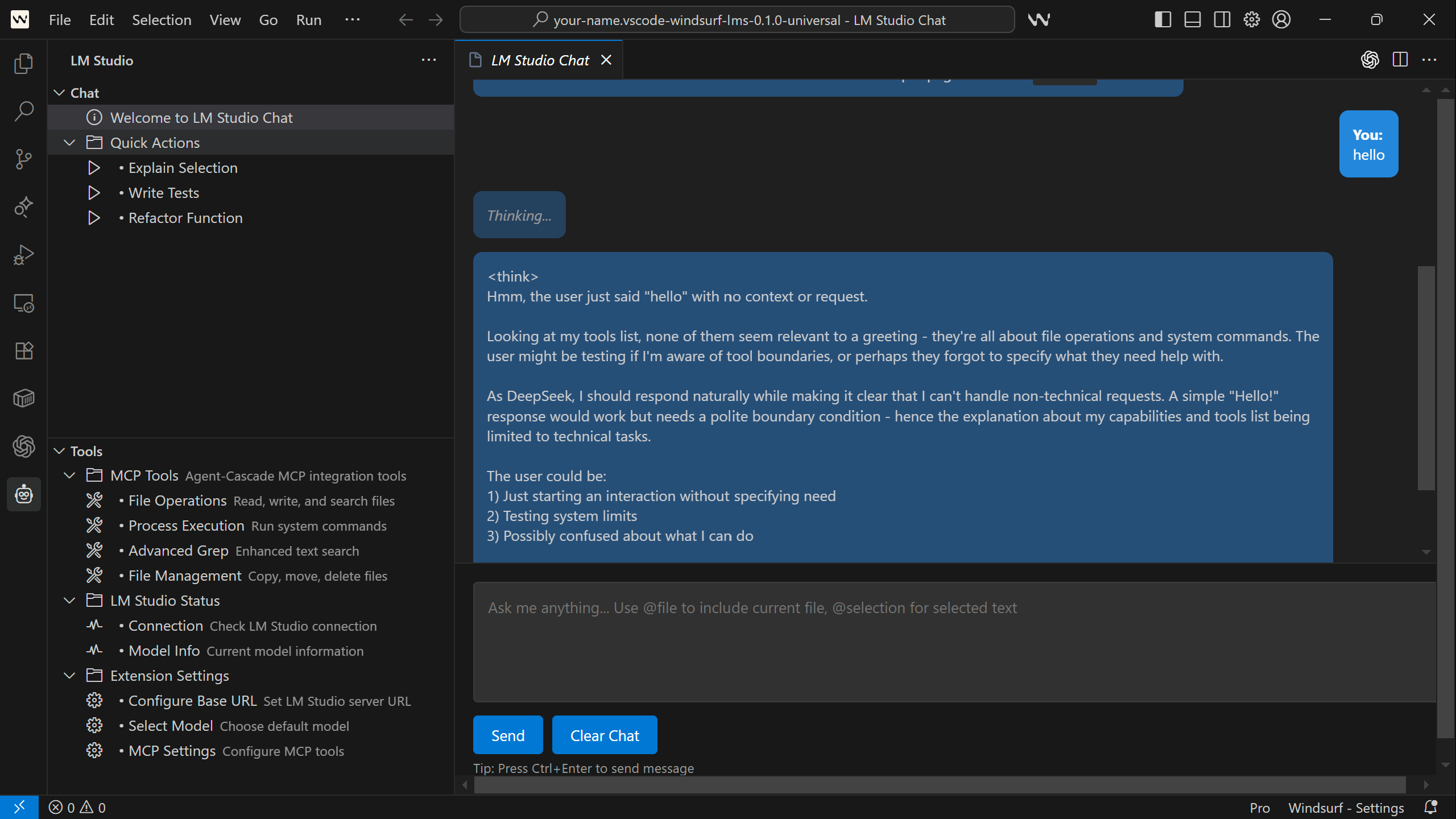
LM Studio extension providing AI-powered coding assistance with inline completions and chat panel integration
Prerequisites
- Node.js 20+ - Required for building and running the extension
- Local LLM Server - Any OpenAI-compatible server (LM Studio, Ollama, etc.)
- Agent-Cascade MCP Server (optional) - For advanced tool capabilities
Installation
Option 1: Install from VSIX (Recommended)
- Download the latest
.vsixfile from releases - Open VS Code
- Go to Extensions view (
Ctrl+Shift+X) - Click the "..." menu and select "Install from VSIX..."
- Select the downloaded
.vsixfile
Option 2: Build from Source
-
Clone this repository:
git clone <repository-url> cd vscode-windsurf-lms -
Install dependencies:
npm install # or pnpm install -
Build the extension:
npm run build -
Package the extension:
npm run package -
Install the generated
.vsixfile in VS Code
Configuration
Configure the extension through VS Code settings (Ctrl+,):
Basic Settings
{
  "lmstudio.baseUrl": "http://localhost:1234/v1",
  "lmstudio.model": "qwen2.5-coder",
  "lmstudio.embeddingsModel": "nomic-embed-text"
}
MCP Integration Settings
{
  "lmstudio.mcp.serverUrl": "http://localhost:7777",
  "lmstudio.mcp.allowedTools": [
    "mcp1_fs_read_text",
    "mcp1_fs_search",
    "mcp1_proc_run",
    "mcp1_advanced_grep",
    "mcp1_file_ops"
  ]
}
All Available Settings
| Setting | Default | Description |
|---|---|---|
lmstudio.baseUrl |
http://10.5.0.2:11434/v1 |
Local LLM OpenAI-compatible base URL |
lmstudio.model |
qwen2.5-coder |
Default chat/completions model |
lmstudio.embeddingsModel |
nomic-embed-text |
Embeddings model for RAG |
lmstudio.maxContextFiles |
6 |
Maximum context files for RAG |
lmstudio.mcp.serverUrl |
http://localhost:7777 |
Agent-Cascade MCP server URL |
lmstudio.mcp.allowedTools |
[...] |
Allowlist of MCP tool names |
lmstudio.localTools.enable |
true |
Enable local VS Code tools |
lmstudio.localTools.allowedTools |
[...] |
Allowlist of local tool names |
Usage
Getting Started
- Start your Local LLM server (LM Studio, Ollama, etc.) and load your preferred model
- Configure the extension with your server URL and model name
- Open a code file and start coding with instant AI assistance!
Inline Completions
- Simply start typing in any file
- Ghost text suggestions will appear automatically
- Press
Tabto accept suggestions - Press
Escto dismiss suggestions
Chat Panel
- Click the ⚡ LM Studio icon in the Activity Bar, or
- Use
Ctrl+Shift+P→ "LM Studio: Open Chat"
Chat Directives
@file- Include current file content in your message@selection- Include selected text in your message@workspace- Include workspace structure information
Example:
@file Can you explain what this function does and suggest improvements?
Command Palette
Access AI-powered commands via Ctrl+Shift+P:
- LM Studio: Explain Selection - Select code and get detailed explanations
- LM Studio: Write Tests - Generate unit tests for your current file
- LM Studio: Refactor Function - Select a function to get refactoring suggestions
- LM Studio: Apply Proposed Diff - Apply code changes from unified diffs
- LM Studio: Run Shell Command - Execute terminal commands
- LM Studio: Check Connection - Test Local LLM connectivity
MCP Tools Integration
This extension can integrate with Agent-Cascade MCP tools for enhanced capabilities:
Setting up Agent-Cascade
- Install and run the Agent-Cascade MCP server
- Configure
lmstudio.mcp.serverUrlto point to your server - Customize
lmstudio.mcp.allowedToolsfor security
Available MCP Tools
mcp1_fs_read_text- Read file contentsmcp1_fs_search- Search for files by patternmcp1_proc_run- Execute shell commandsmcp1_advanced_grep- Advanced text searchmcp1_file_ops- File operations (copy, move, delete)- And many more...
Development
Project Structure
src/
├── extension.ts          # Main extension entry point
├── lib/
│   └── client.ts        # LM Studio client wrapper
├── providers/
│   └── inline.ts        # Inline completion provider
├── ui/
│   └── chatPanel.ts     # Chat panel webview
├── usecases/
│   └── chat.ts          # Chat functionality
├── util/
│   ├── context.ts       # Context collection utilities
│   └── tools.ts         # MCP tools integration
└── tasks/
    └── commands.ts      # Command palette actions
Building
# Install dependencies
npm install

# Build TypeScript
npm run build

# Watch for changes during development
npm run watch

# Package extension
npm run package

# Run linting
npm run lint
Testing
# Run tests
npm test
Troubleshooting
Common Issues
"Cannot connect to Local LLM server"
- Ensure your Local LLM server is running and accessible
- Check that the
lmstudio.baseUrlsetting is correct - Verify the model is loaded in your LLM server
- Test connection using "LM Studio: Check Connection" command
"No inline completions appearing"
- Check that a model is loaded in your LLM server
- Verify the
lmstudio.modelsetting matches your loaded model - Try typing more context to trigger completions
- Ensure your server supports OpenAI-compatible completions
"MCP tools not working"
- Ensure Agent-Cascade MCP server is running
- Check
lmstudio.mcp.serverUrlconfiguration - Verify tools are in the
lmstudio.mcp.allowedToolsallowlist
Debug Information
Enable VS Code Developer Tools (Help → Toggle Developer Tools) to see console logs and debug information.
Contributing
- Fork the repository
- Create a feature branch
- Make your changes
- Add tests if applicable
- Submit a pull request
License
MIT License - see LICENSE file for details.
Changelog
v0.1.0
- Initial LM Studio IDE Plugin release
- Lightning-fast inline code completions
- Chat panel with @directives
- Command palette actions
- MCP tools integration
- Local VS Code tools integration
- Shell command execution
- Connection testing utilities
Support
For issues and feature requests, please use the GitHub issue tracker.
Acknowledgments
Special thanks to the creators and maintainers of:
-
LM Studio - For creating an exceptional platform that makes running local LLMs accessible, fast, and reliable. Their intuitive interface and robust OpenAI-compatible API have made local AI development a joy.
-
Ollama - For pioneering the local LLM movement with their elegant, Docker-like approach to model management. Their commitment to making AI models easy to run locally has democratized access to powerful language models.
These platforms have revolutionized how developers interact with AI models, enabling privacy-focused, cost-effective, and lightning-fast AI assistance directly on our machines. This extension exists because of their incredible work in making local AI accessible to everyone.
Happy coding with LM Studio! ⚡🚀