
Fusion Electronics: A MERN-Stack E-commerce Application
Welcome to Fusion Electronics, a MERN-Stack E-commerce Application! This project is a working demo of a full-stack web application that was built using the MERN stack (MongoDB, Express.js, React.js, Node.js). Additionally, it also includes features such as user authentication, checkout process, product recommendations with vector search, and more!
It also aims to provide a comprehensive example of building a modern e-commerce platform, covering frontend user interface, backend server logic, database management, and integration with third-party libraries. Let's dive in!

Table of Contents
- Introduction
- Live Deployment
- User Interface
- Features
- Technologies Used
- Getting Started
- Project Structure
- Running the Application
- Product Recommendations with Vector Database
- Testing the APIs
- Unit & Integration Testing
- Swagger API Documentation
- OpenAPI Specification
- Deployment
- Containerization
- GitHub Actions & CI/CD
- Contributing
- License
- Creator
Introduction
This project is a demonstration of building an e-commerce application using the MERN stack, which consists of MongoDB (database), Express.js (server), React.js (frontend), and Node.js (runtime environment). The application allows users to browse products, add them to a shopping cart, proceed to checkout, and simulate the order processing. It includes comprehensive validations for user inputs and simulates the checkout process on the backend.
The application is designed to be user-friendly and responsive, providing a seamless shopping experience. It also includes features such as product search, user authentication, and order confirmation. Additionally, it uses Pinecone (with optional Weaviate support) for product recommendations based on vector search, enhancing the user experience by suggesting relevant products.





























Live Deployment
The application is deployed live on Vercel. You can access it at the following URL: Fusion Electronics App.
The primary backend server is deployed on Vercel and can be accessed at the following URL: Fusion Electronics API.
The backup backend server is deployed on Render and can be accessed at the following URL: Fusion Electronics API.
[!IMPORTANT] Note: The backend server may take a few seconds to wake up if it has been inactive for a while. For your information, it is hosted on the free tier of Render, with 0.1 CPU and 512 MB of memory only, so it may take a bit longer to respond to requests, especially after periods of inactivity.
[!CAUTION] Warning: The vector recommendation pipeline relies on Pinecone's serverless index (free tier). Please make sure your Pinecone project has enough credits and remains active; otherwise, recommendation calls may fall back to heuristic suggestions. You can always run the application locally and provision your own Pinecone and/or Weaviate instances—see Product Recommendations with Vector Database for setup details.
User Interface
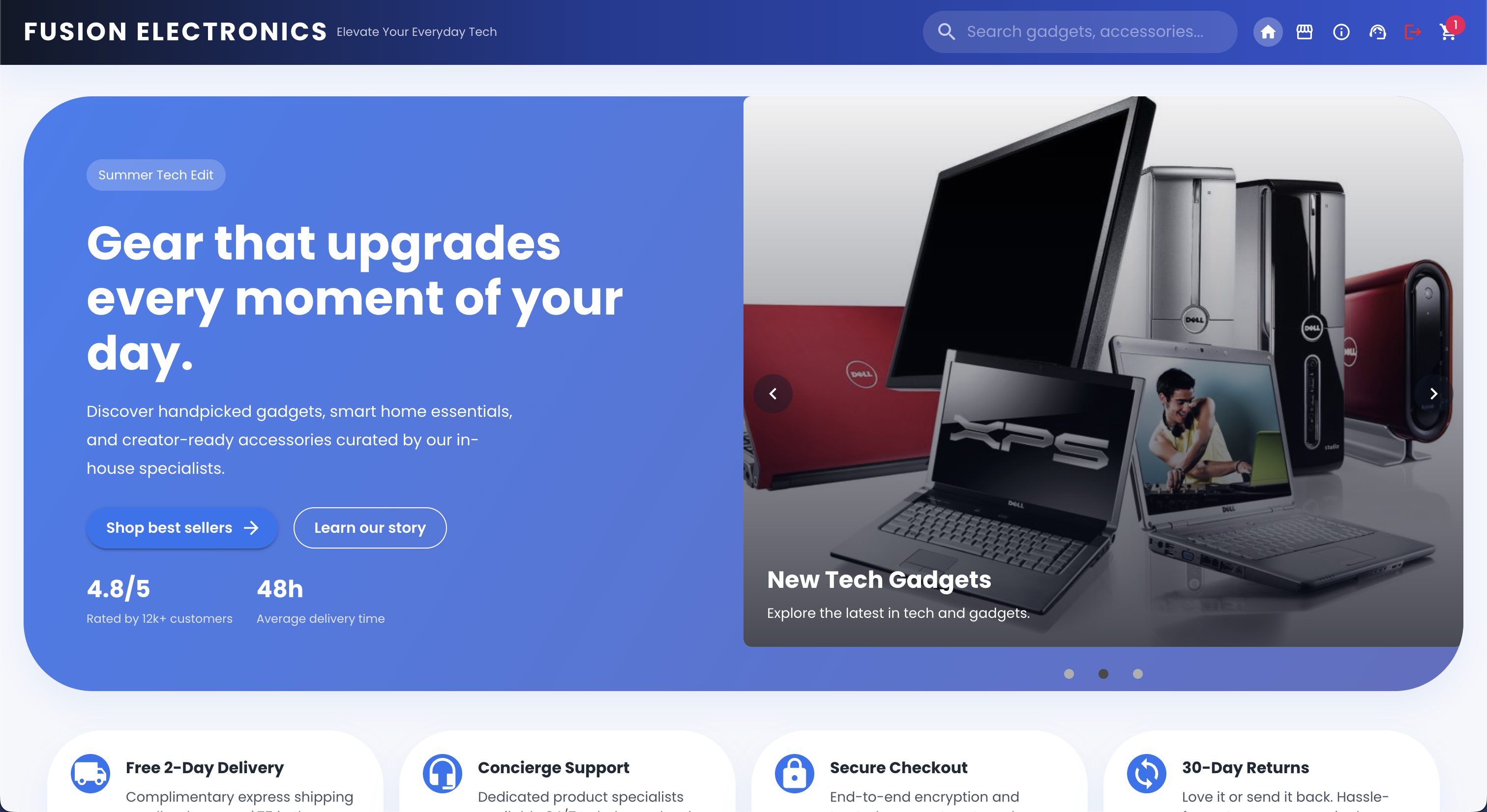
Home Page
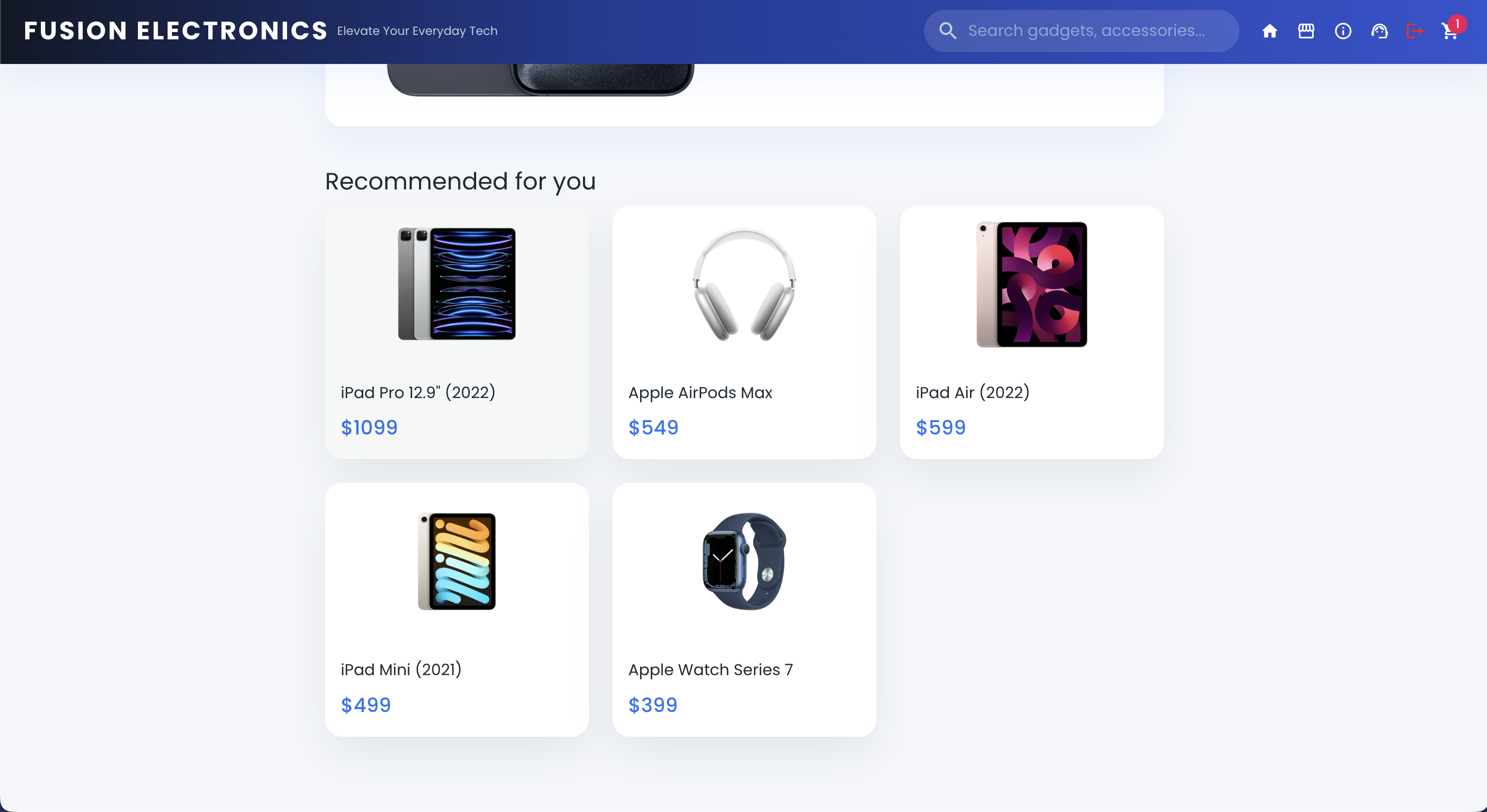
Recommended Products (based on user interaction)
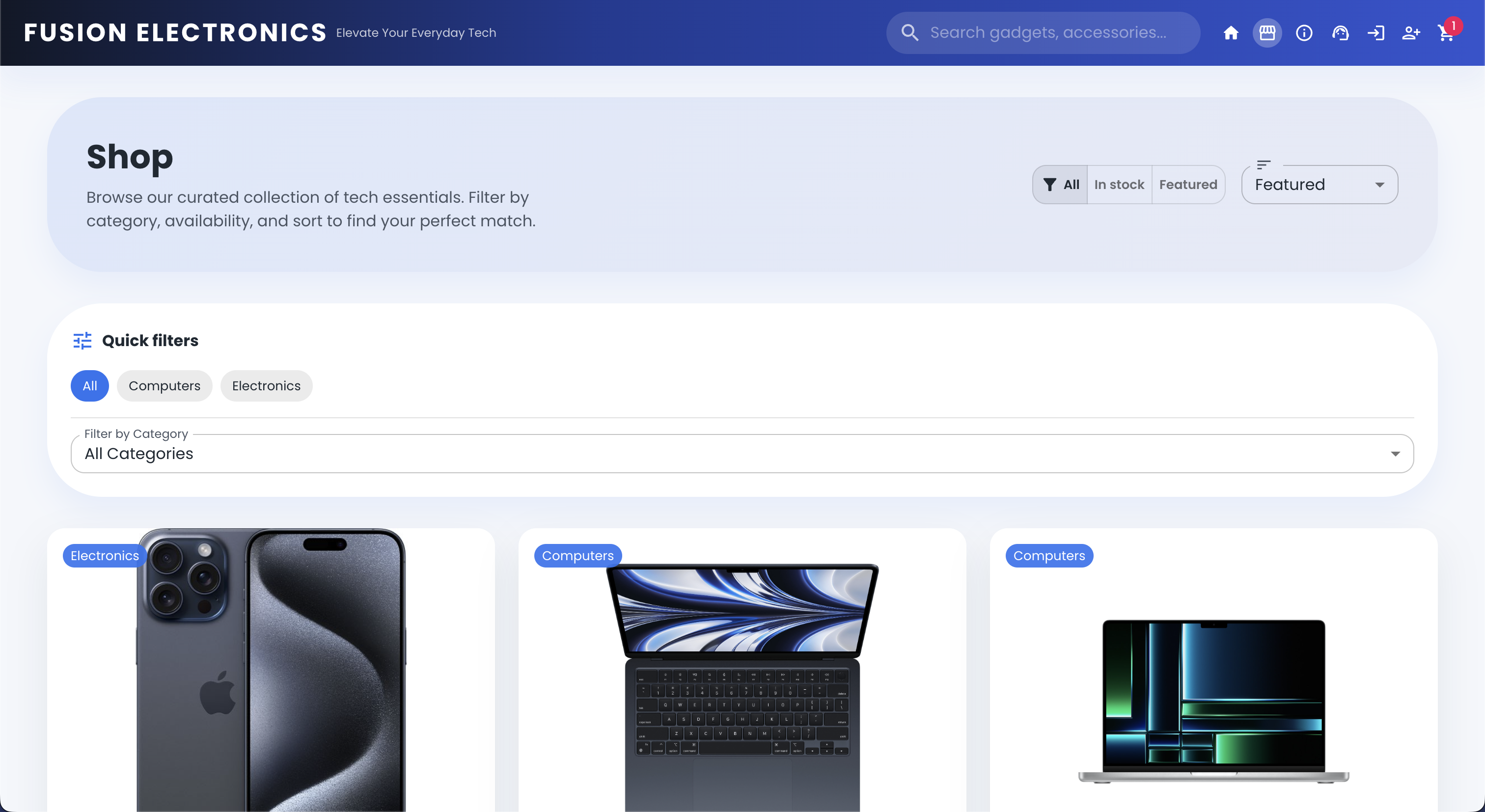
Full Product List
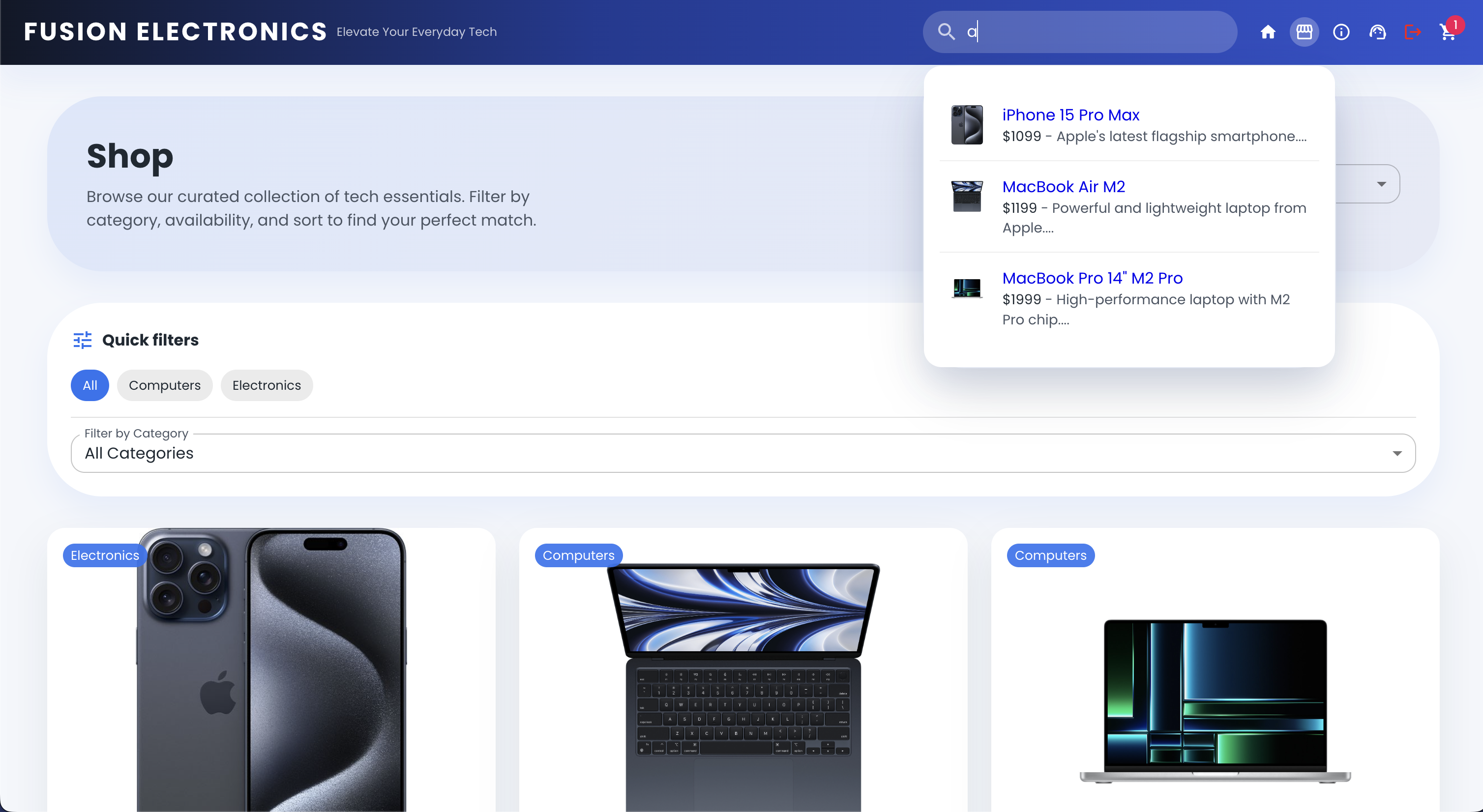
Search Results
Product Details Page
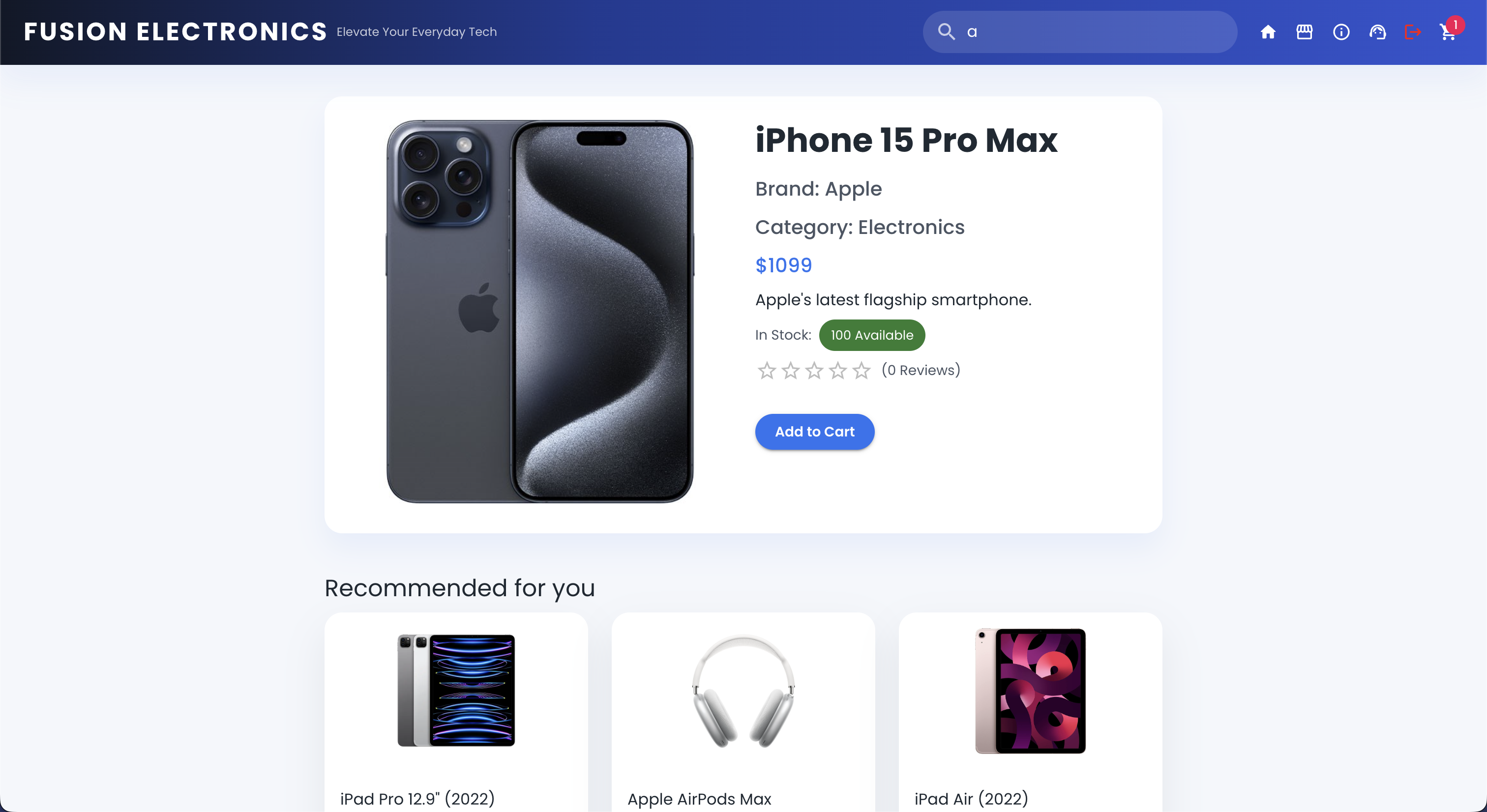
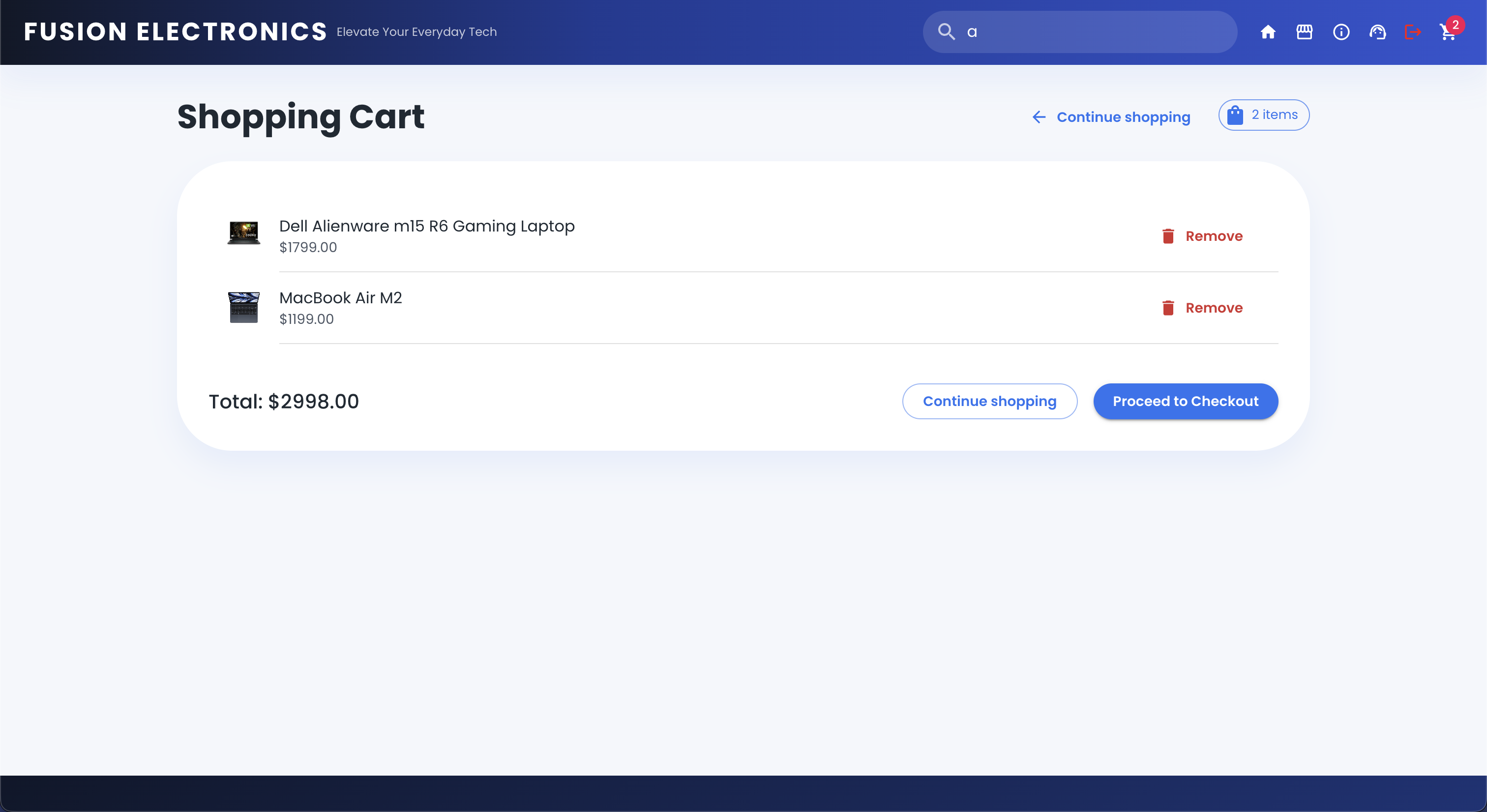
Cart Page
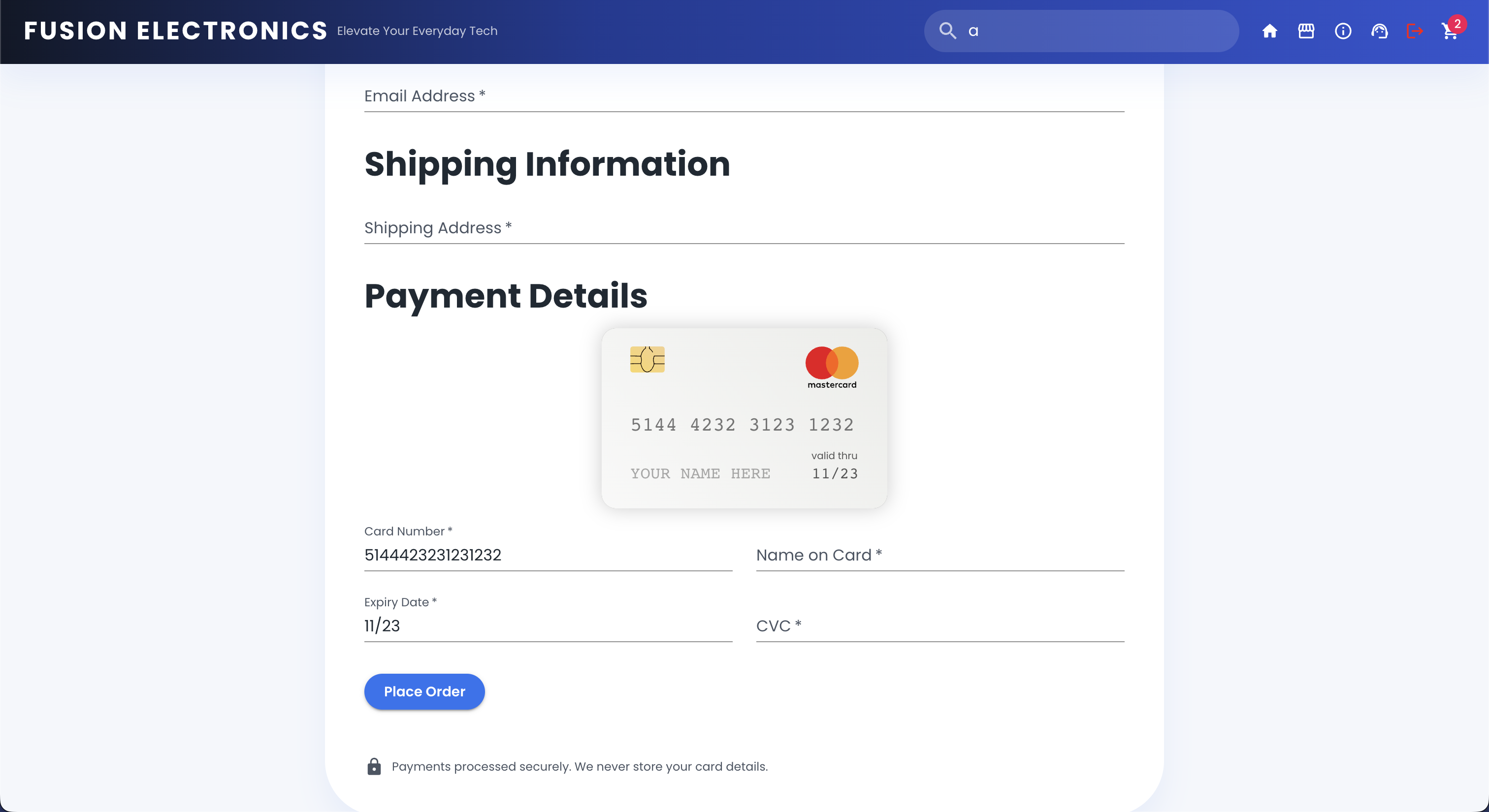
Checkout Page
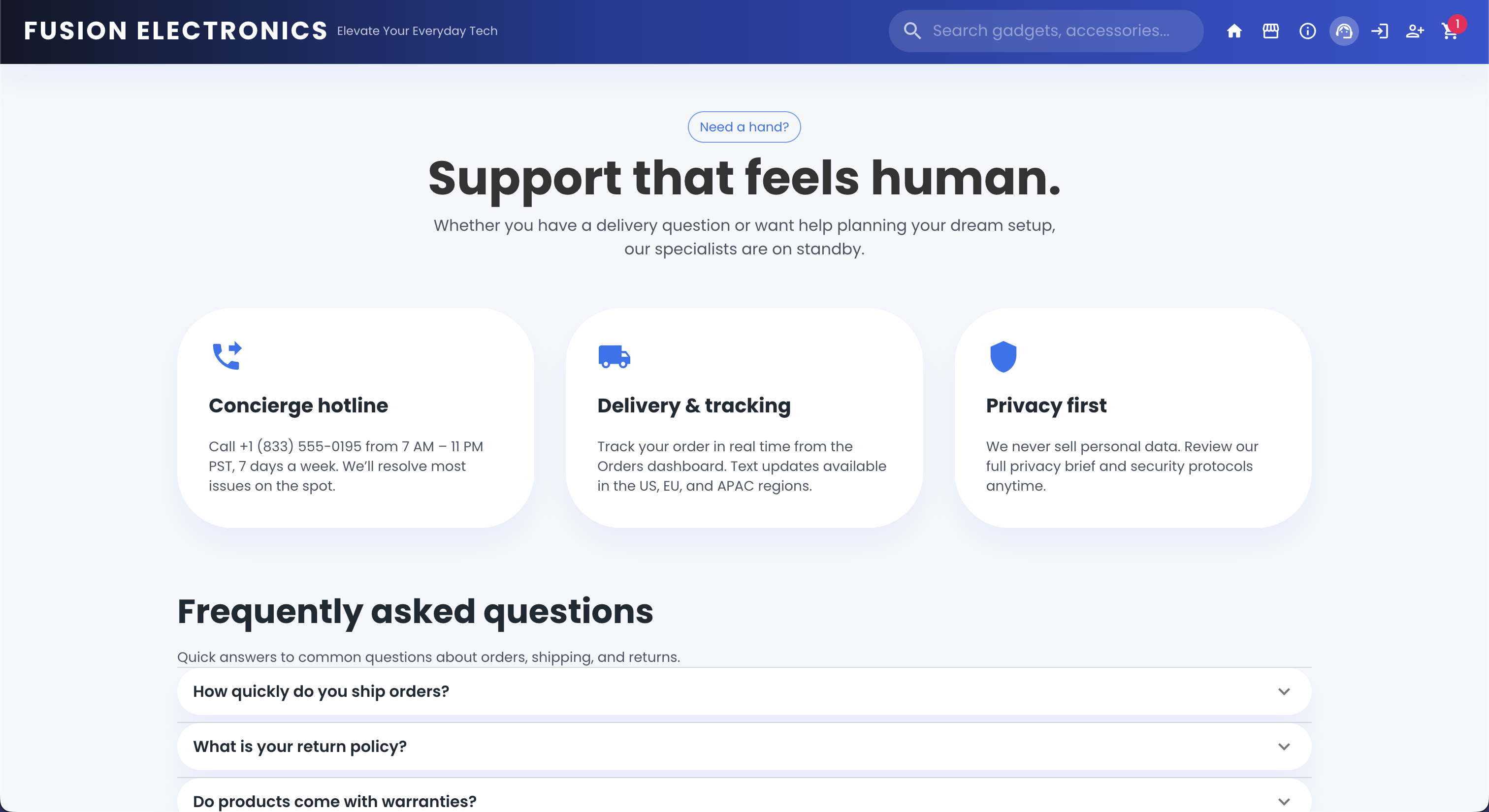
Support Page
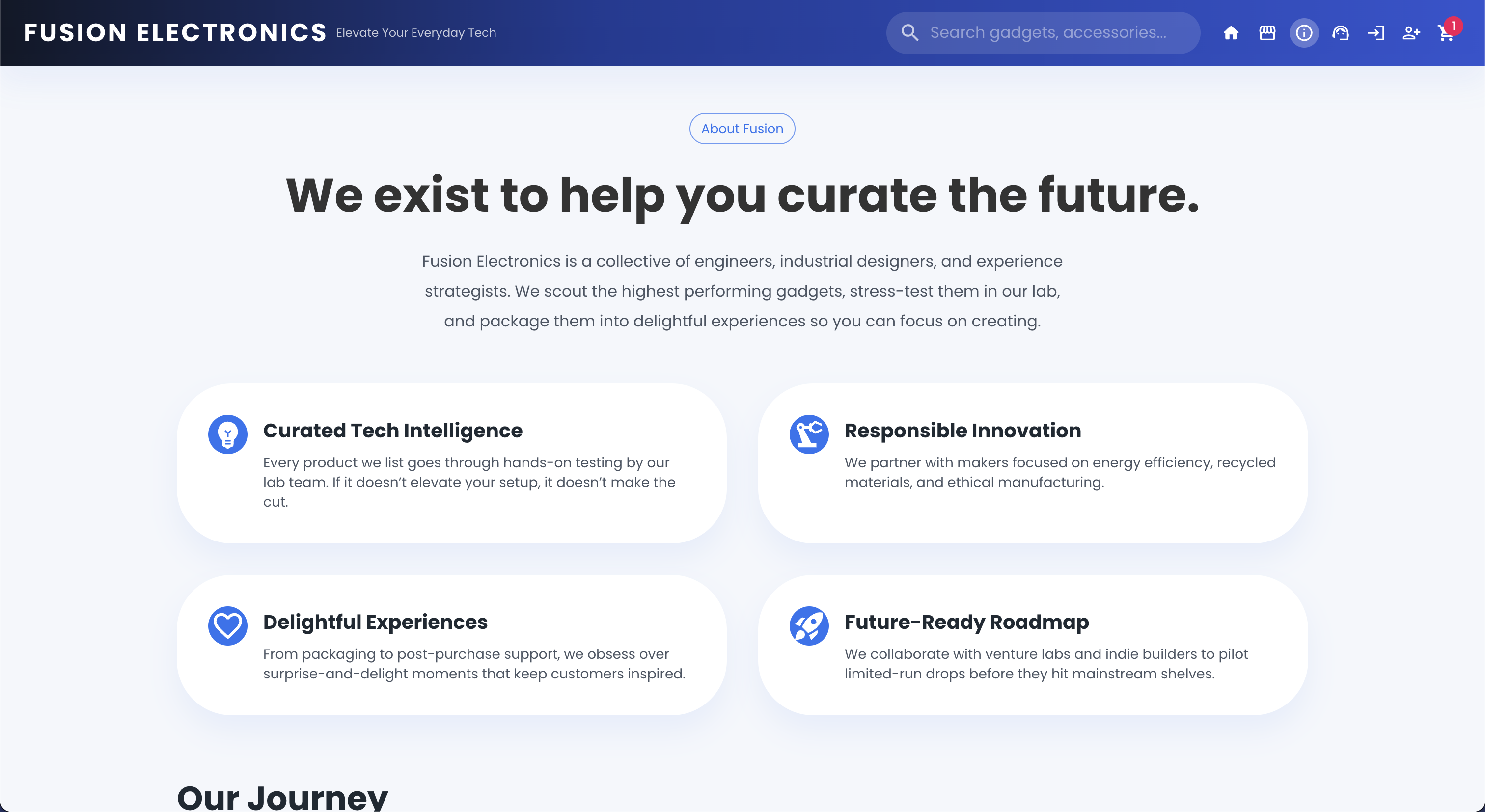
About Page
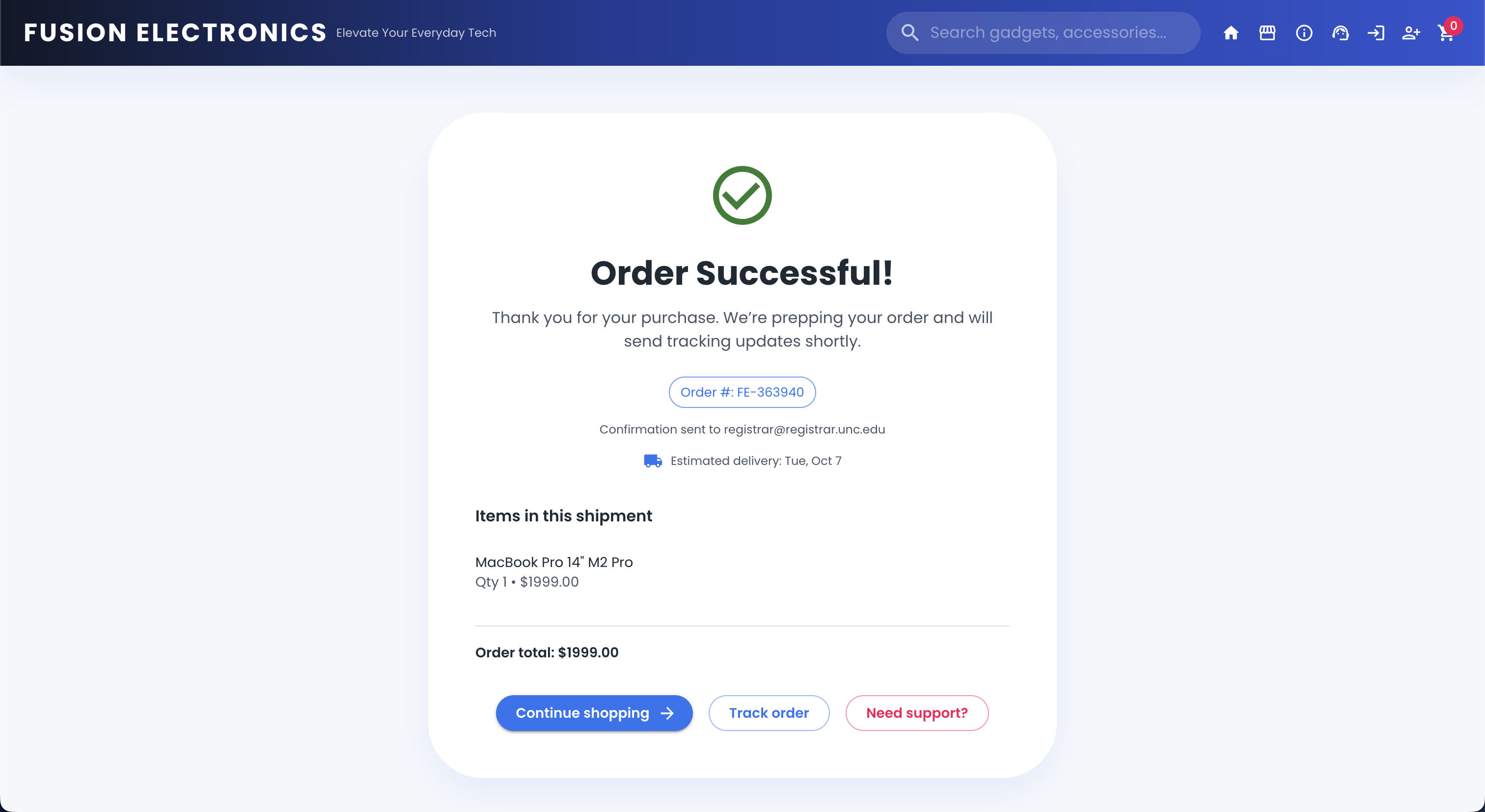
Order Confirmation
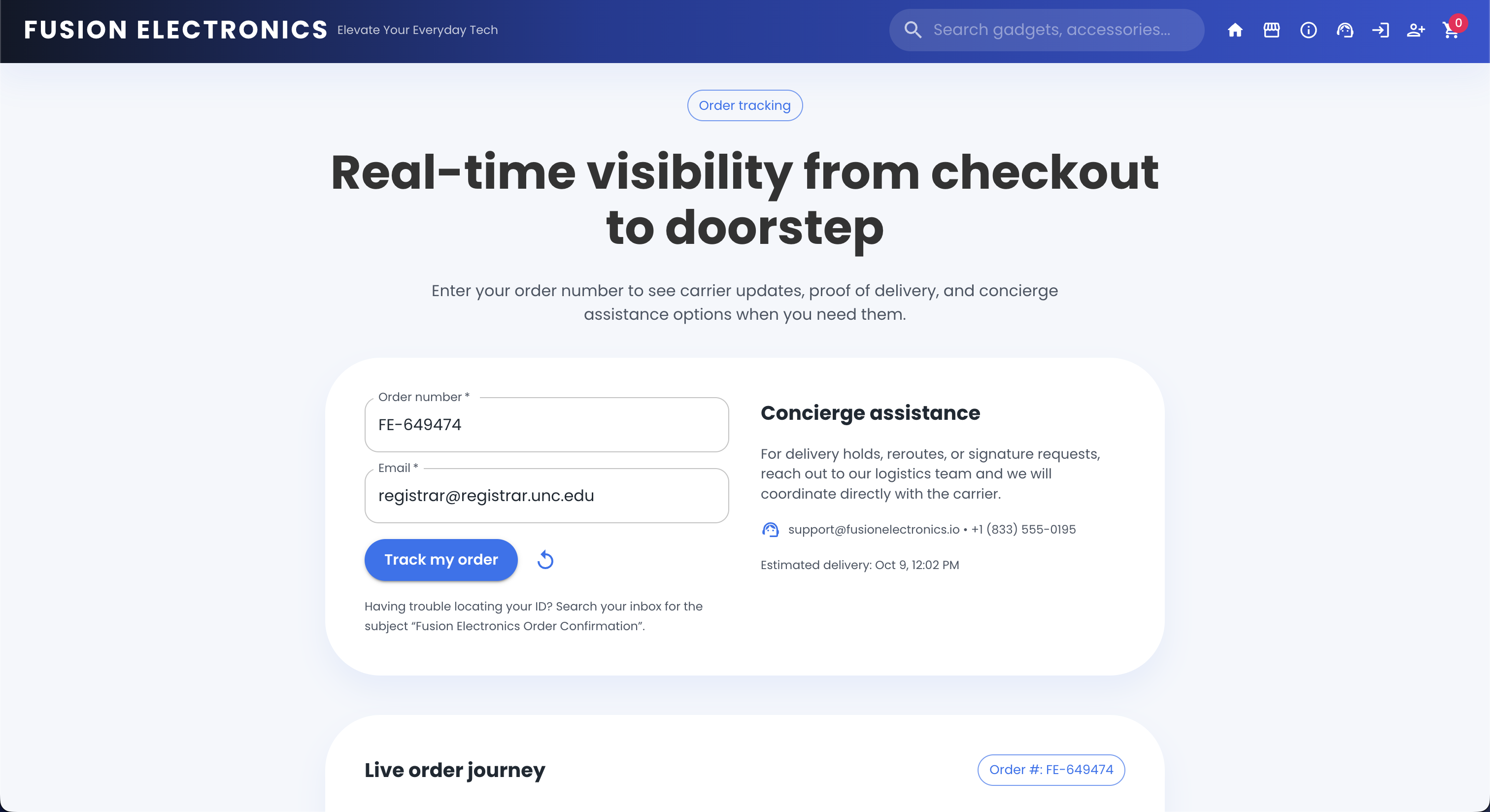
Order Tracking
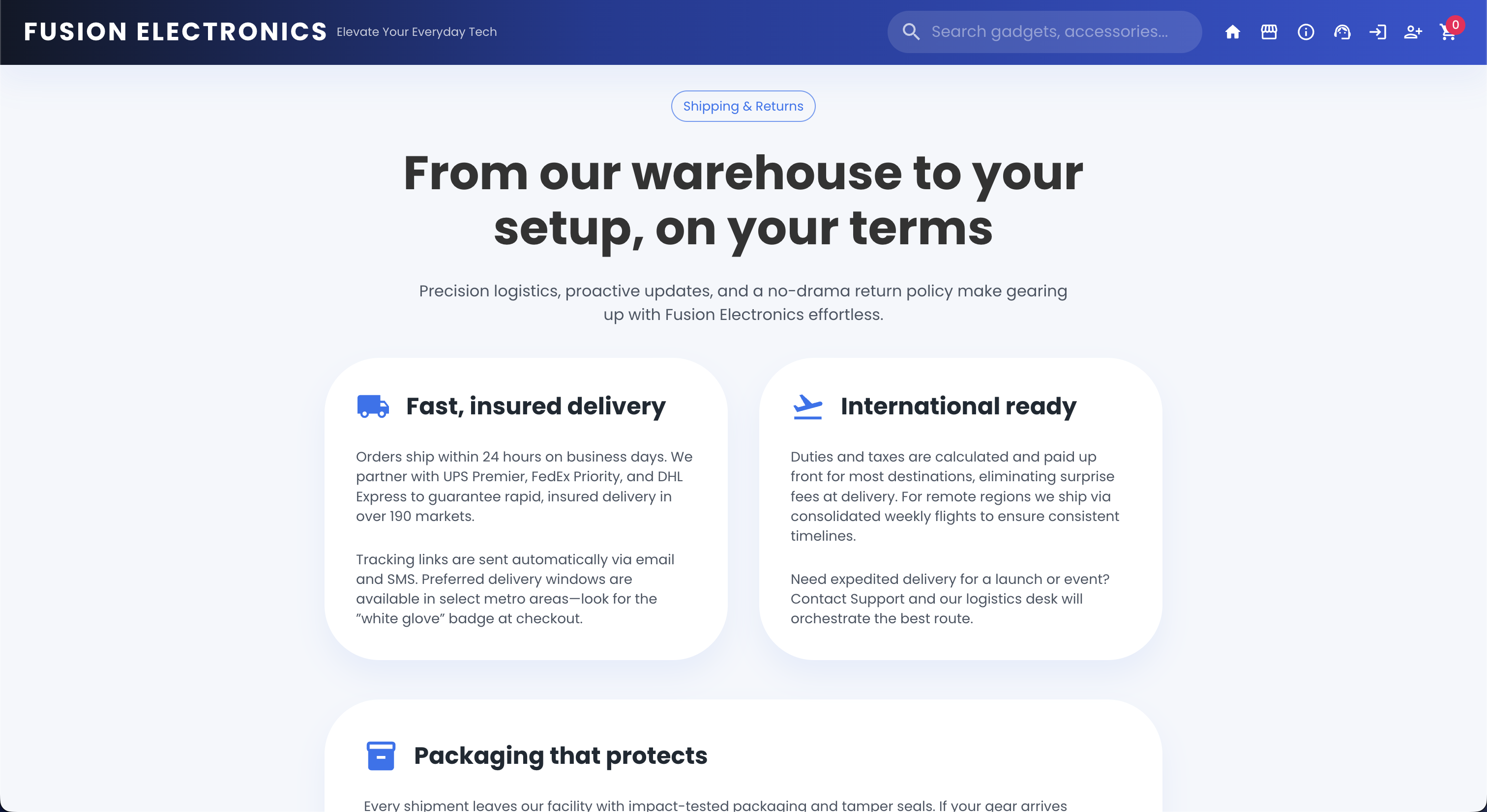
Shipping & Returns
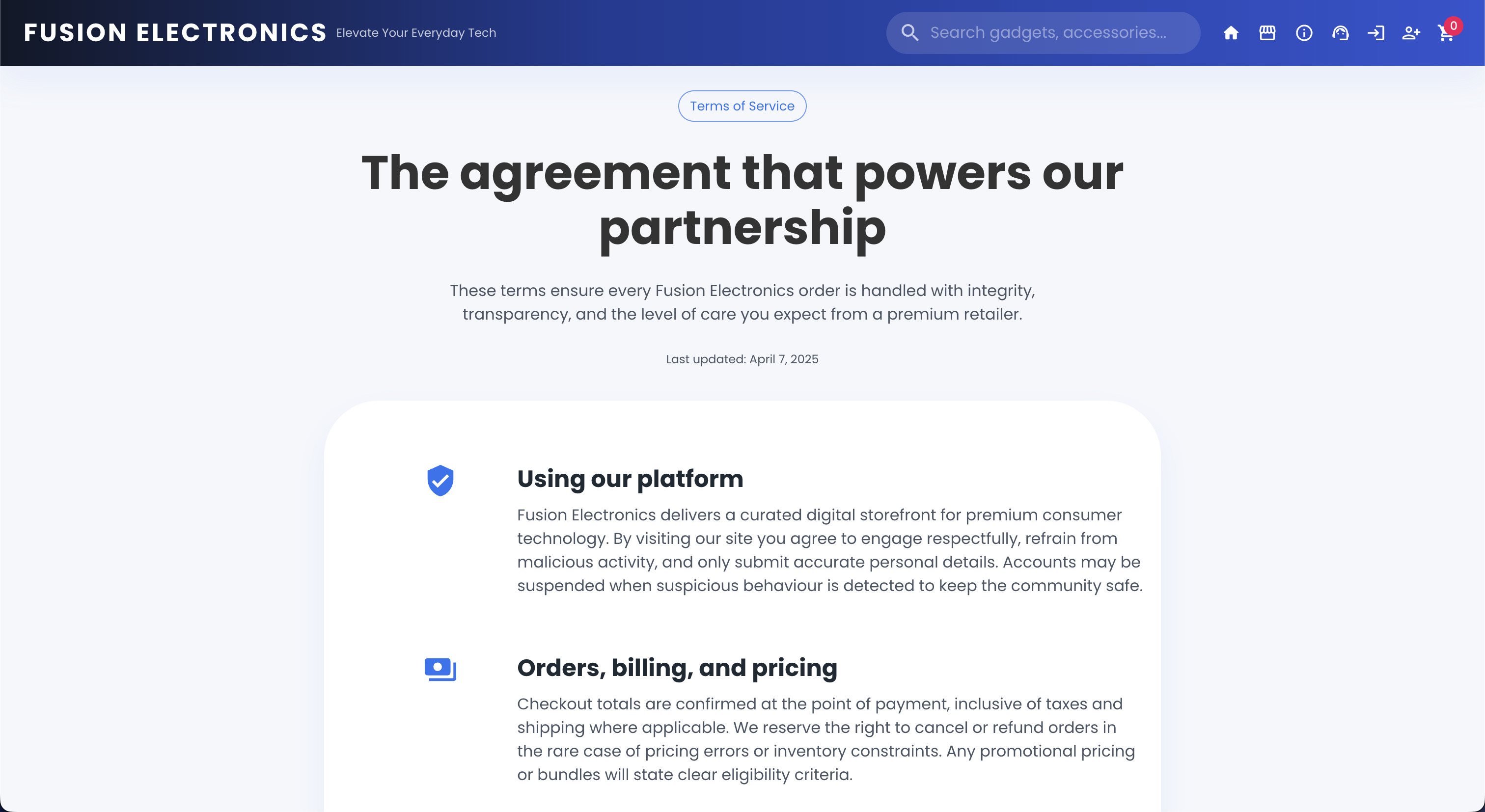
Terms of Service
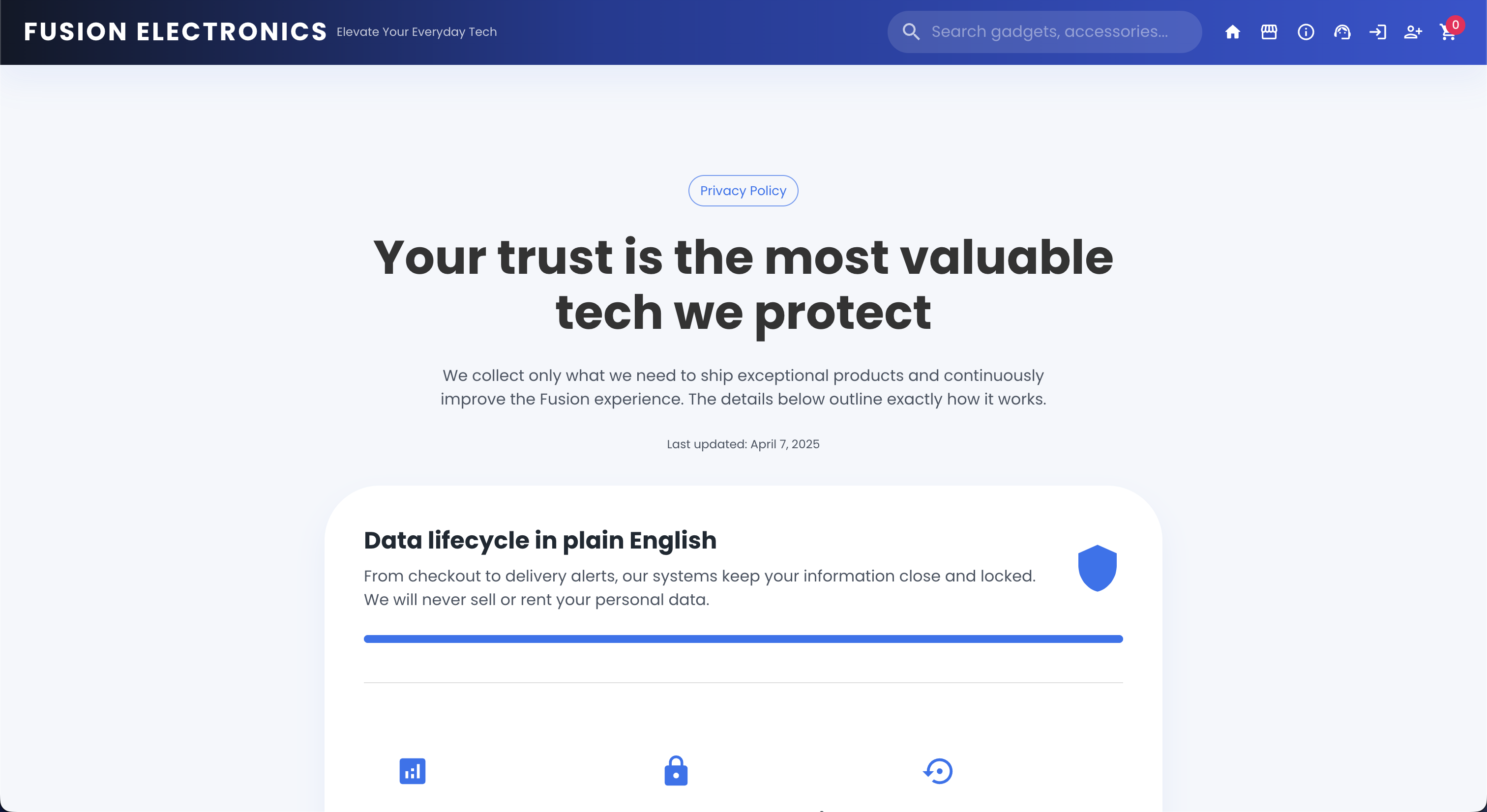
Privacy Policy
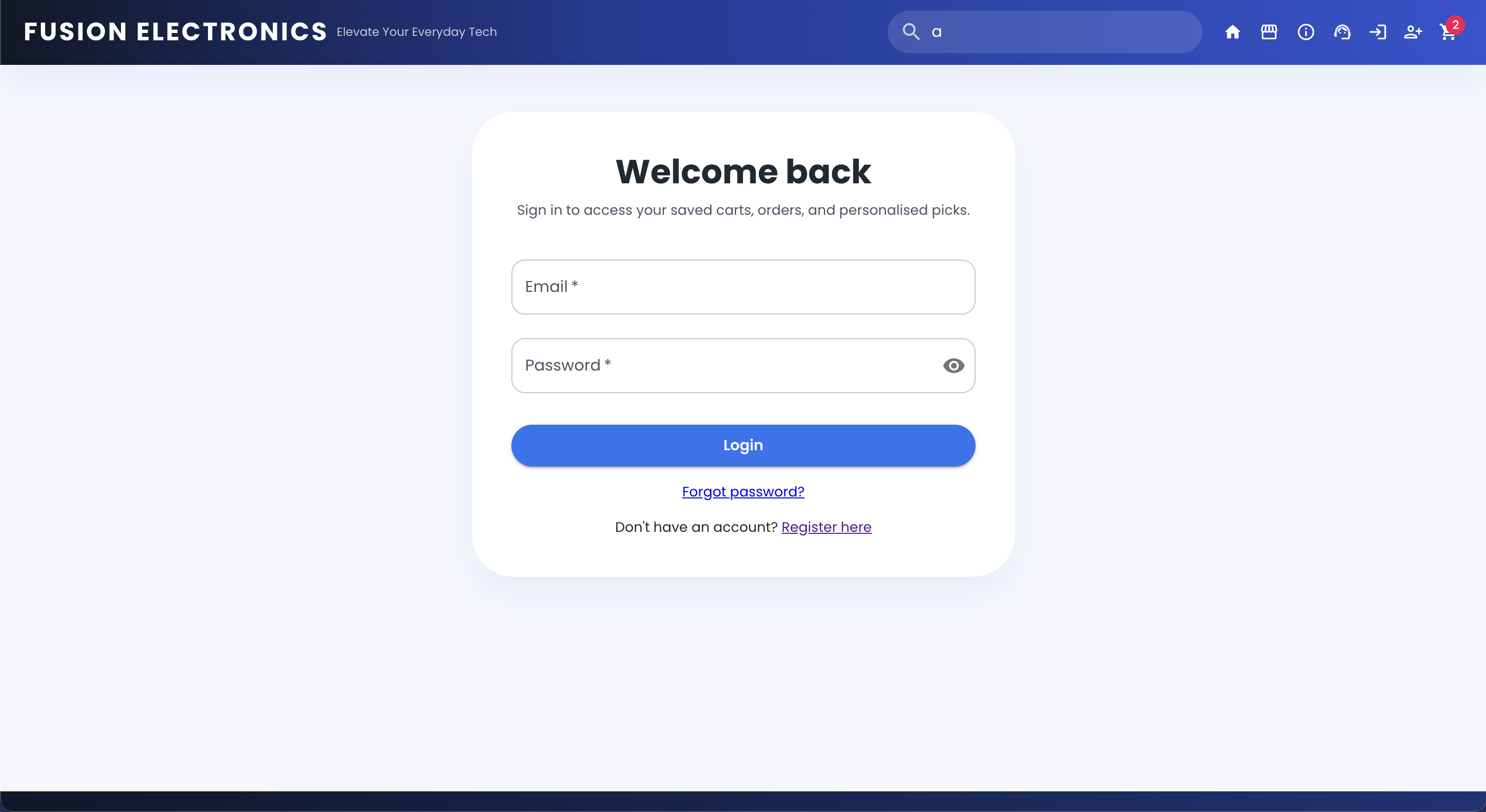
Login Page
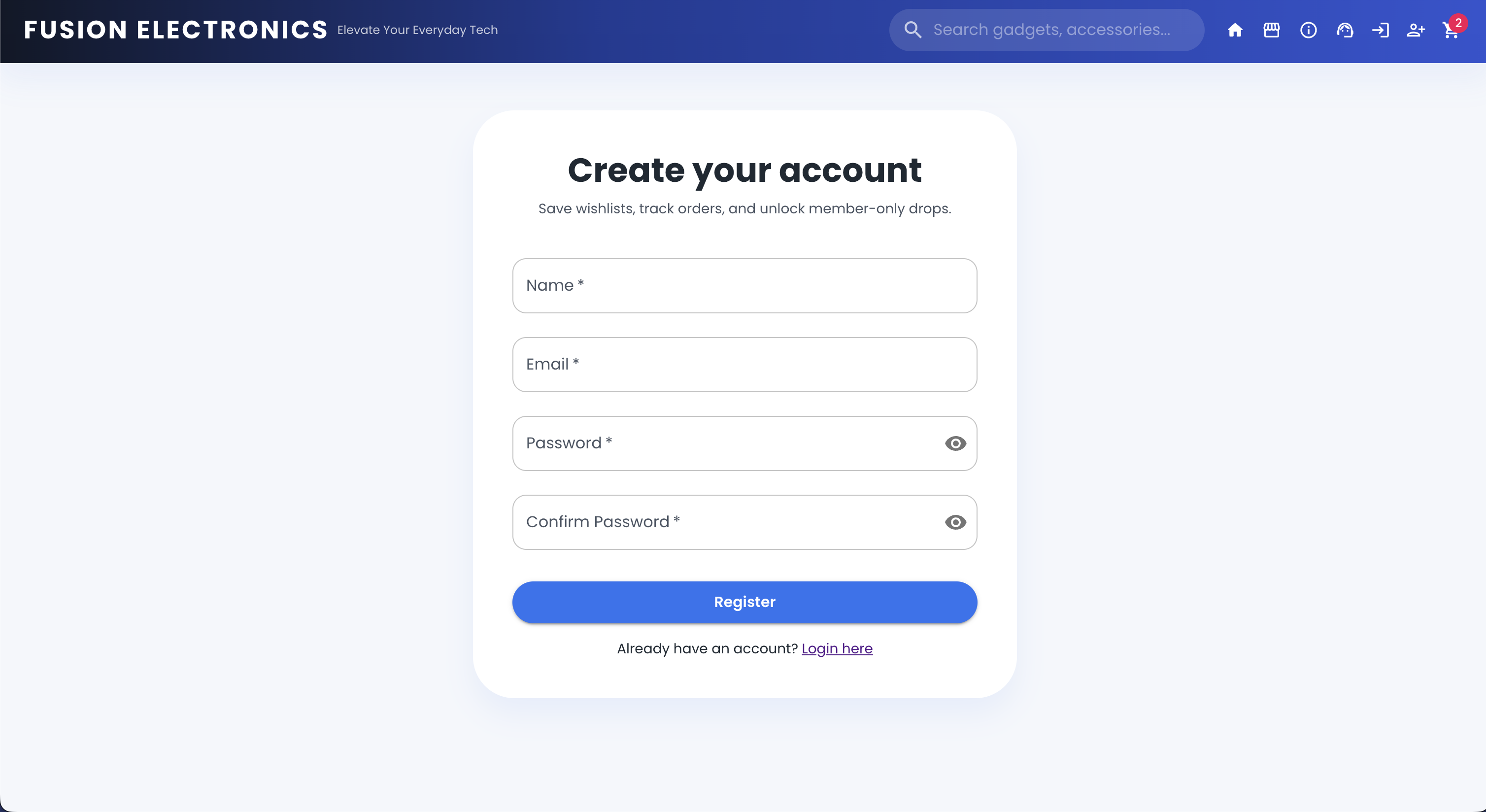
Register Page
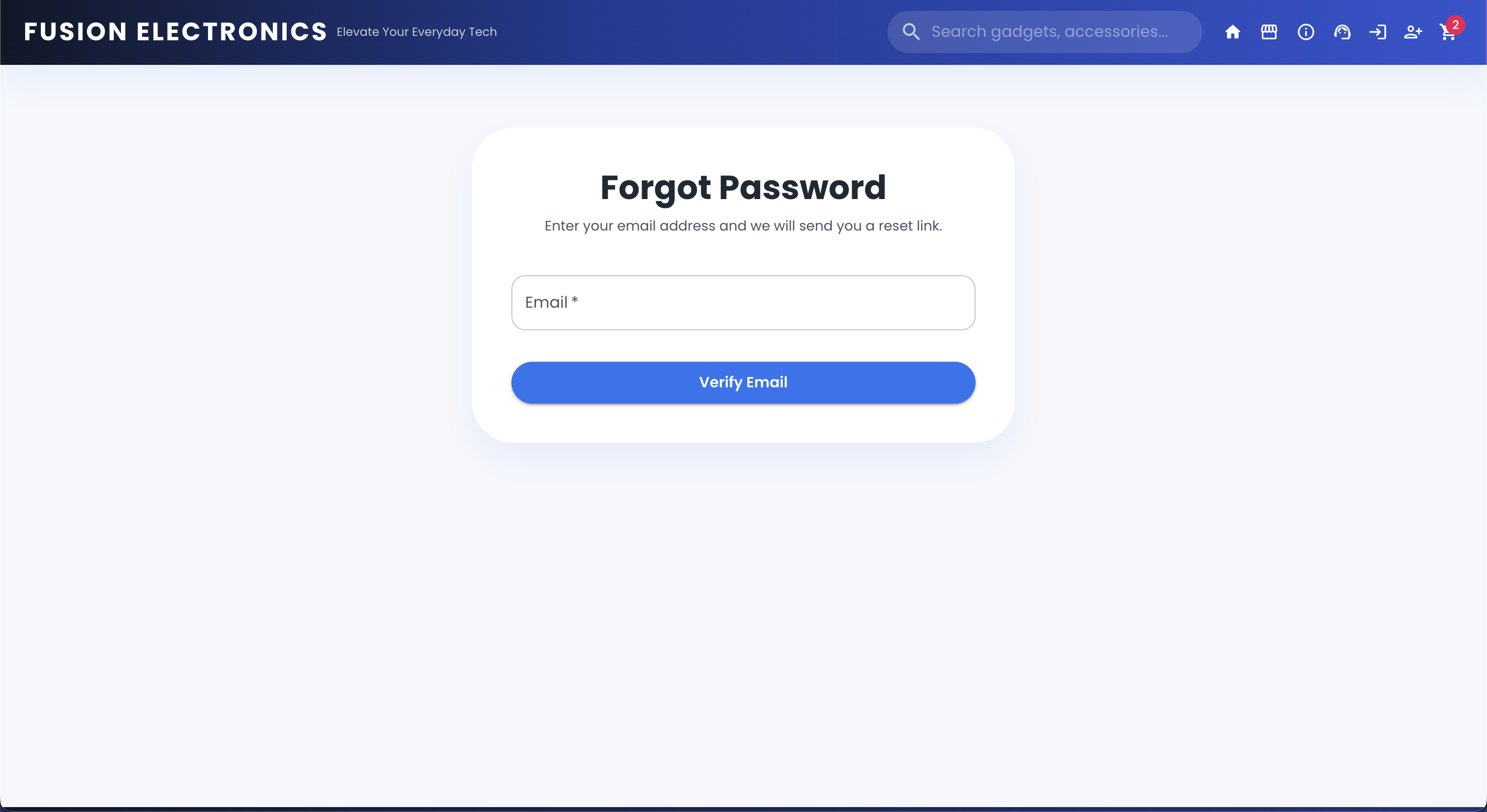
Forgot Password Page
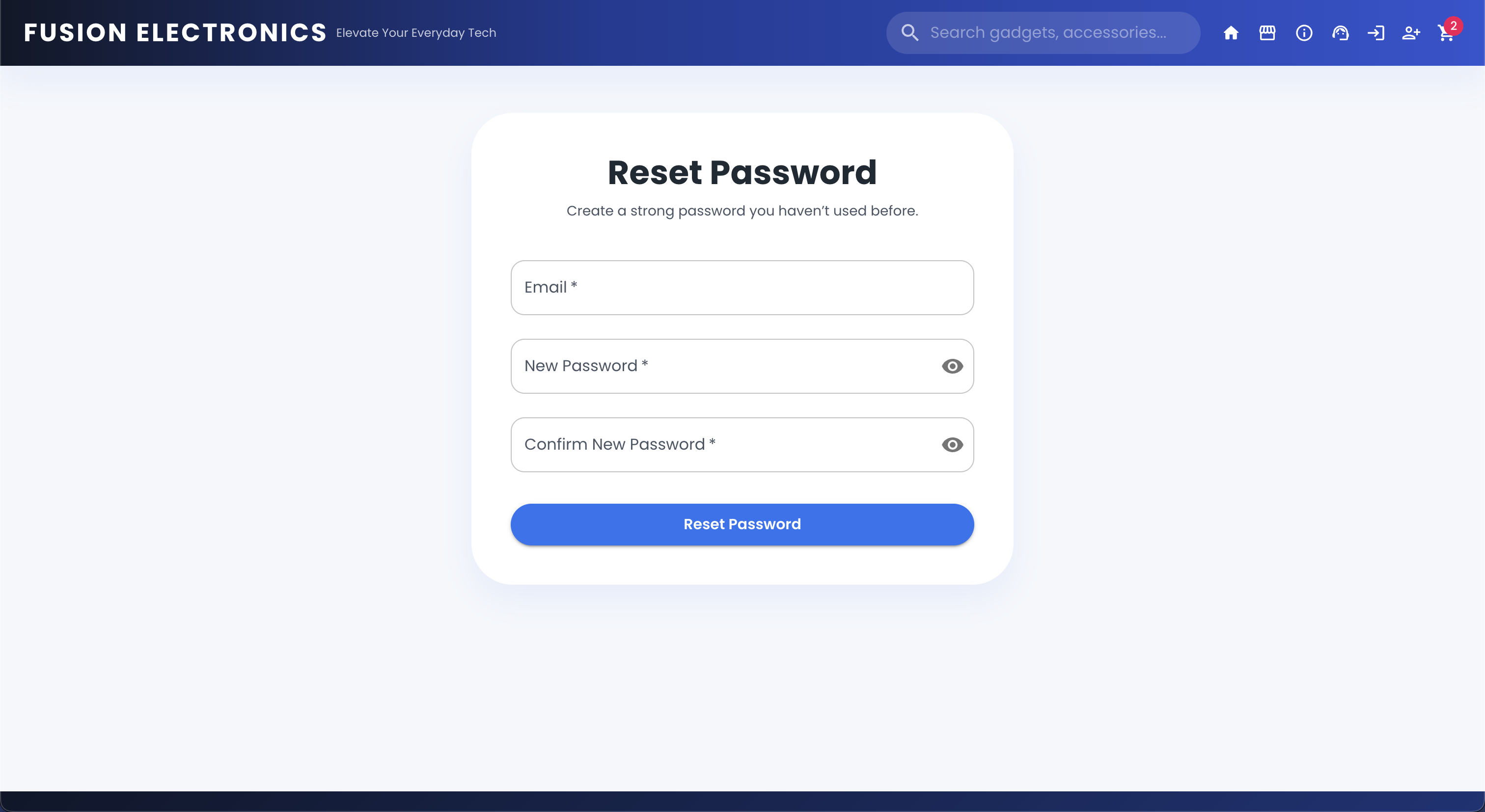
Reset Password Page
Footer

Features
-
Product Management:
- View a list of products.
- View detailed product information.
- Add products to the shopping cart.
-
Shopping Cart:
- View items in the shopping cart.
- Remove items from the cart.
- Calculate total amount of items in the cart.
-
Checkout Process:
- Enter billing, shipping, and payment information.
- Client-side credit card validation:
- Luhn algorithm validation for card number verification
- Automatic card type detection (Visa, Mastercard, Amex, Discover, Diners Club, JCB)
- Real-time validation with visual error feedback
- Expiry date validation (checks for valid month and ensures card hasn't expired)
- CVC validation (3 digits for most cards, 4 for American Express)
- Email format validation
- Simulate the order creation process on the backend.
- Receive confirmation of order success.
[!TIP] When testing the checkout process, you can use the following test credit card number:
4242 4242 4242 4242with any future expiry date and any CVC code. This is because we use Luhn algorithm validation for card number verification only, and no actual payment processing is done.
-
User Authentication:
- User registration and login.
- Password hashing for security.
- Protected routes for authenticated users.
- JWT-based authentication.
- Forgot and reset password functionality.
- User profile management (view and update profile information).
- Order history (view past orders).
-
Product Recommendations:
- Vector-based product recommendations using Pinecone (with optional Weaviate support).
- Similar products displayed on product detail pages.
-
Search Functionality:
- Search products by name, description, brand, or category.
- Real-time search suggestions.
- Filter and sort search results.
- Pagination for search results.
- Debounced search input to optimize performance.
-
Order Tracking:
- View order status and details.
- Get estimated delivery date and tracking information.
-
Terms of Service & Privacy Policy:
- Inform users about terms of service and privacy policy.
-
Support Page:
- Provide contact information and support resources.
- FAQ section.
- Contact form for user inquiries.
-
Responsive Design:
- Mobile-friendly layout.
- Responsive components for various screen sizes.
Technologies Used
-
Frontend:
- React.js
- Material-UI for styling
- Axios for API requests
react-credit-cards-2for credit card visualizationreact-router-domfor routingreact-hook-formfor form validationreact-toastifyfor toast notifications- Jest and React Testing Library for testing
-
Backend:
- Node.js
- Express.js
- MongoDB (with Mongoose ODM)
- Axios for external API requests
- JsonWebToken for user authentication
- Bcrypt for password hashing
- Dotenv for environment variables
- Cors for cross-origin resource sharing
- Swagger for API documentation
- Nodemon for server hot-reloading
- Middleware: JWT for securing API endpoints
- Pinecone and Weaviate for product recommendations with vector databases
- FAISS & LangChain for efficient similarity search
- Jest for unit and integration testing
- Supertest for API endpoint testing
- Cross-env for setting environment variables in scripts
-
Development Tools:
- Jetbrains WebStorm (IDE)
- Postman (for API testing)
- Git (version control)
- npm (package manager)
- Docker (for containerization)
- GitHub Actions (for CI/CD)
- Vercel and Render (for deployment)
Project Structure
The project is organized into two main "stacks": The backend is in the backend directory that hosts all product & order data and the frontend is in the root directory. Here is an overview of the project structure:
fullstack-ecommerce/
├── backend/                       # Node.js server files
│   ├── config/                    # Configuration files
│   │   └── db.js                  # Database connection
│   ├── docs/
│   │   └── swagger.js             # Swagger API documentation setup
│   ├── models/                    # Mongoose models
│   │   ├── user.js                # User schema
│   │   └── product.js             # Product schema
│   ├── routes/                    # Route handlers
│   │   ├── products.js            # Product routes
│   │   ├── search.js              # Search routes
│   │   └── checkout.js            # Checkout routes
│   ├── middleware/                # Middleware functions
│   │   ├── auth.js                # Authentication middleware
│   ├── scripts/                   # Scripts for various tasks
│   │   ├── build-faiss-index.js   # Script to build FAISS index
│   │   ├── search-faiss-index.js  # Script to search FAISS index
│   │   ├── query-weaviate.js      # Script to query Weaviate
│   │   ├── weaviate-upsert.js     # Script to upsert products to Weaviate
│   │   ├── sync-weaviate.js       # Script to synchronize products with Weaviate
│   │   └── sync-pinecone.js       # Script to synchronize products with Pinecone
│   ├── seed/                      # Database seed data
│   │   └── productSeeds.js        # Product seed data
│   ├── services/                  # Shared services (e.g., Pinecone sync helpers)
│   ├── weaviateClient.js          # Weaviate client setup
│   ├── pineconeClient.js          # Pinecone client setup
│   ├── faiss.sh                   # FAISS index setup script
│   ├── .env                       # Environment variables
│   └── index.js                   # Server entry point
├── public/                        # Frontend public assets
│   ├── index.html                 # HTML template
│   ├── manifest.json              # Web app manifest
│   └── favicon.ico                # Favicon
├── src/                           # React.js frontend files
│   ├── components/                # Reusable components
│   │   ├── CheckoutForm.jsx       # Checkout form component
│   │   ├── ProductCard.jsx        # Product card component
│   │   ├── NavigationBar.jsx      # Navigation bar component
│   │   ├── OrderConfirmation.jsx  # Order confirmation component
│   │   ├── ProductListing.jsx     # Product listing component
│   │   ├── SearchResults.jsx      # Search results component
│   │   └── ShoppingCart.jsx       # Shopping cart component
│   ├── dev/                       # Development utilities
│   │   ├── index.js               # Development entry point
│   │   ├── palette.jsx            # Color palette
│   │   ├── preview.jsx            # Component preview
│   │   └── useInitials.js         # Initials hook
│   ├── pages/                     # Page components
│   │   ├── Cart.jsx               # Cart page component
│   │   ├── Checkout.jsx           # Checkout page component
│   │   ├── Home.jsx               # Home page component
│   │   ├── ProductDetails.jsx     # Product details page component
│   │   ├── OrderSuccess.jsx       # Order success page component
│   │   ├── ProductDetails.jsx     # Product details page component
│   │   └── Shop.jsx               # Shop page component
│   ├── App.jsx                    # Main application component
│   ├── App.css                    # Main application styles
│   └── index.js                   # React entry point
├── build/                         # Frontend production build files
├── tests/                         # Test files
├── .gitignore                     # Git ignore file
├── package.json                   # NPM package file
├── jsconfig.json                  # JS config file
└── setupProxy.js                  # Proxy configuration
(... and more files not listed here ...)
Getting Started
Prerequisites
Before running this project, ensure you have the following installed:
- Node.js (with npm)
- MongoDB (with either local or remote instance)
- Git
Installation
-
Clone the repository:
git clone https://github.com/hoangsonww/MERN-Stack-Ecommerce-App.git cd MERN-Stack-Ecommerce-App # Fix the path if necessary -
Install project dependencies:
# Install server (backend) dependencies cd backend npm install # Note: If you encounter any issues with the backend/package-lock.json not updating, run the following command from root directory: npm install --no-workspaces --prefix backend # Install client (frontend) dependencies cd .. npm install -
Set up the backend:
-
Create a
.envfile in thebackend/directory and add the following environment variable (replace the URI with your MongoDB connection string):MONGO_URI=mongodb://localhost:27017/Ecommerce-Products JWT_SECRET=your_secret_keyFor your information, I am using MongoDB Atlas for this project. You can create a free account and get your connection string from there if you want to deploy the application to the cloud.
-
Ensure that your MongoDB server is running. If you're using Mac, you can start the MongoDB server with the following command:
brew services start mongodb-community-
Seed the database with sample data:
cd backend/seed node productSeeds.js dev -
Run the backend server: (first
cdinto the backend directory)cd .. npm start
-
-
Set up the frontend:
- First,
cdinto therootdirectory if you are not already there:
Orcd ..cd fullstack-ecommerce - Start the frontend development server:
npm start
- First,
[!TIP] The frontend server will run on
http://localhost:3000by default. If you encounter any errors when starting related to thereact-credit-cards-2package, it is OK to just ignore them as the application will still run correctly.
Running the Application
- Open your browser and navigate to
http://localhost:3000to view the application.
Product Recommendations with Vector Database
The application uses Pinecone as the primary vector database while still supporting Weaviate, FAISS, and LangChain for additional experimentation. Pinecone keeps MongoDB products and vector embeddings in sync automatically, ensuring recommendations remain fresh.
Configure Pinecone (required)
- Create a Pinecone project and serverless index (e.g.,
ecommerce-products) in the AWSus-east-1region. - Add the following variables to
backend/.env:
The Google AI key powers the embedding model (PINECONE_API_KEY=your_pinecone_api_key PINECONE_HOST=https://your-index.svc.YOUR-REGION.pinecone.io PINECONE_INDEX=ecommerce-products PINECONE_NAMESPACE=ecommerce-products # optional GOOGLE_AI_API_KEY=your_google_ai_api_key PINECONE_PURGE_ON_SYNC=true # set to false to skip clearing existing vectors during syncgemini-embedding-001). - Sync MongoDB products into Pinecone:
The backend also runs this sync during startup and re-syncs vectors automatically whenever products are created, updated (name/description/price/brand/image/category), or deleted. Whencd backend npm run sync-pineconePINECONE_PURGE_ON_SYNCis true (default), the sync clears the namespace first to prevent stale vectors building up.
Optional: Configure Weaviate & FAISS
- Provision a Weaviate instance at Weaviate Cloud and collect the host + API key.
- Add the variables to
backend/.env:WEAVIATE_HOST=https://your-weaviate-instance.weaviate.network WEAVIATE_API_KEY=your_weaviate_api_key - Index existing products in Weaviate:
If you want the recommendation endpoints to prioritize Weaviate responses, setcd backend npm run weaviate-upsert npm run sync-weaviateRECOMMENDATION_PREFER_WEAVIATE=trueinbackend/.env. - (Optional) Build and query the FAISS index:
cd backend
node scripts/build-faiss-index.js
npm run faiss-search -- "your search text" 5
With Pinecone configured, product pages and bundles leverage vector similarity for recommendations. When Pinecone or Weaviate lookups have no matches, the API falls back to metadata-based heuristics to ensure users always see relevant suggestions.
[!TIP] Pinecone, Weaviate, and FAISS can comfortably coexist—keep your Pinecone index active for production traffic, and spin up Weaviate/FAISS locally when you want to compare engines or run experiments.
Testing the APIs
- Simply open your browser and navigate to
http://localhost:5000/api/productsto view the list of products. - You can also change the sample data by navigating to
backend/seed/productSeeds.jsand modifying the data there.
Unit & Integration Testing
We have implemented unit and integration tests for the application using Jest and React Testing Library. To run the tests, follow these steps:
Backend Tests
cd backend

# Run backend tests (default mode)
npm run test

# Run frontend tests (watch mode - this will automatically re-run tests on file changes)
npm run test:watch

# Run frontend tests (coverage mode - this will generate a coverage report)
npm run test:coverage
Frontend Tests
cd .. # if you are still in the backend directory

# Run frontend tests (default mode)
npm run test

# Run frontend tests (watch mode - this will automatically re-run tests on file changes)
npm run test:watch

# Run frontend tests (coverage mode - this will generate a coverage report)
npm run test:coverage
[!NOTE] If you encounter any issues when running the tests, ensure that you have run
npm installin both thebackendandroot(frontend) directories to install all necessary dependencies.Also, if the issue persists, try removing the
node_modulesdirectory and thepackage-lock.jsonfile in both directories, and then runnpm installagain to reinstall all dependencies.
Swagger API Documentation
- The backend server includes Swagger API documentation that can be accessed at
http://localhost:5000/api-docs. - Before accessing the above URL, ensure that the backend server is running.
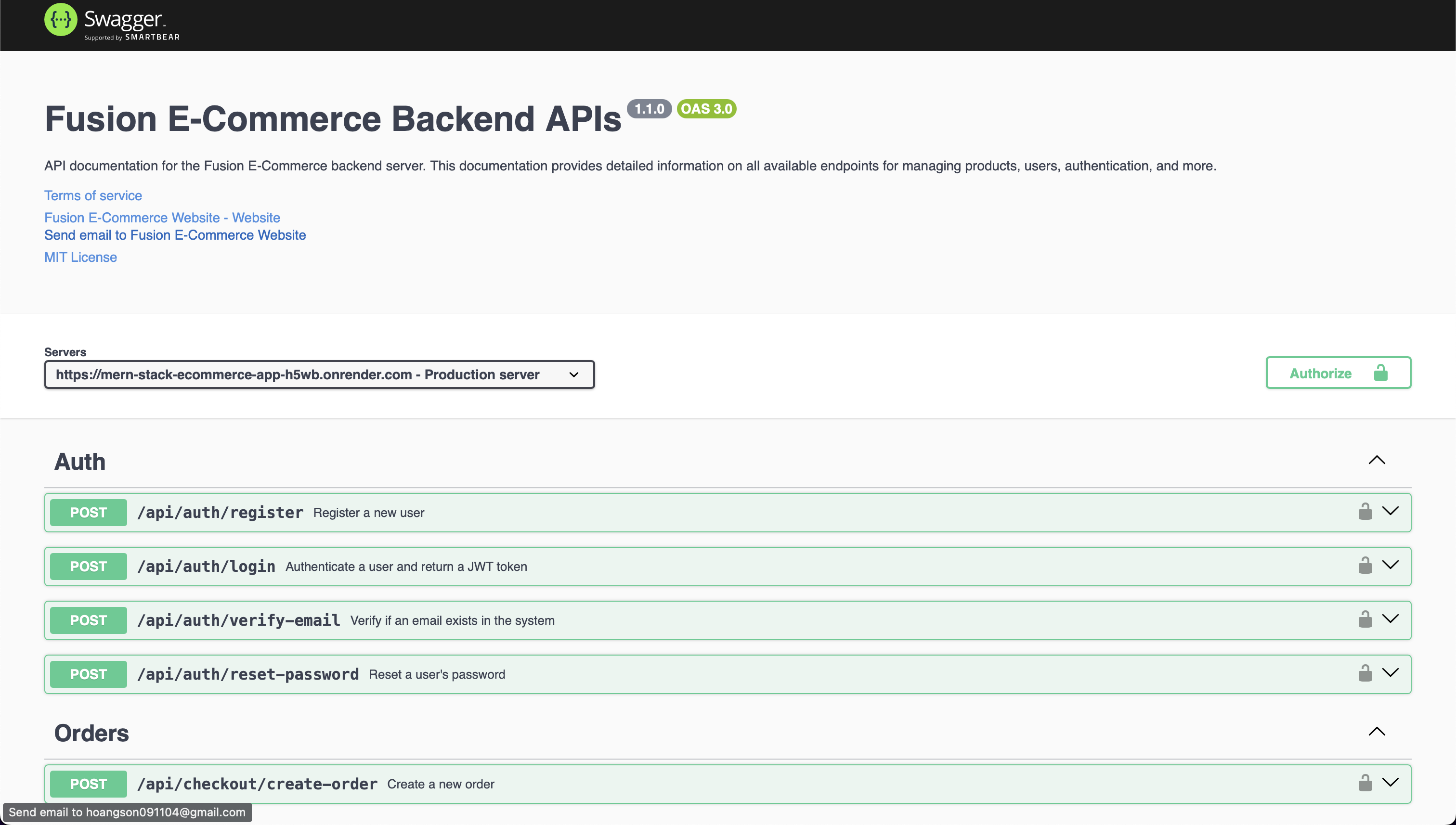
- The Swagger UI provides a detailed overview of the API endpoints, request/response schemas, and example requests.
- If you have everything set up correctly, you should see the Swagger UI documentation page:
OpenAPI Specification
Using the openapi.yaml File
- View the API Documentation
- Open Swagger Editor.
- Upload the
openapi.yamlfile or paste its content. - Visualize and interact with the API documentation.
- Test the API
- Import
openapi.yamlinto Postman:- Open Postman → Import → Select
openapi.yaml. - Test the API endpoints directly from Postman.
- Open Postman → Import → Select
- Or use Swagger UI:
- Provide the file URL or upload it to view and test endpoints.
- Generate Client Libraries
- Install OpenAPI Generator:
npm install @openapitools/openapi-generator-cli -g - Generate a client library:
openapi-generator-cli generate -i openapi.yaml -g <language> -o ./client - Replace
<language>with the desired programming language.
- Generate Server Stubs
- Generate a server stub:
openapi-generator-cli generate -i openapi.yaml -g <framework> -o ./server - Replace
<framework>with the desired framework.
- Run a Mock Server
- Install Prism:
npm install -g @stoplight/prism-cli - Start the mock server:
prism mock openapi.yaml
- Validate the OpenAPI File
- Use Swagger Validator:
- Upload
openapi.yamlor paste its content to check for errors.
- Upload
This guide enables you to view, test, and utilize the API. You can generate client libraries, server stubs, and run a mock server using the OpenAPI Specification.
Deployment
Fusion Electronics supports a wide range of deployment platforms, including Vercel, Render, AWS, and more. You can deploy both the frontend and backend servers to your preferred cloud provider.
It also supports containerized and enterprise-grade deployments (blue/green deployments, canary releases, etc.) using Docker and Kubernetes. For more details on deployments, see the DEPLOYMENT GUIDE file.
Containerization
This project can be containerized using Docker. First, ensure that Docker Desktop is running on your system. Then, to create a Docker image, run the following command:
docker compose up --build
This command will create a Docker image for the frontend and backend, and run the application in a containerized environment.
GitHub Actions & CI/CD
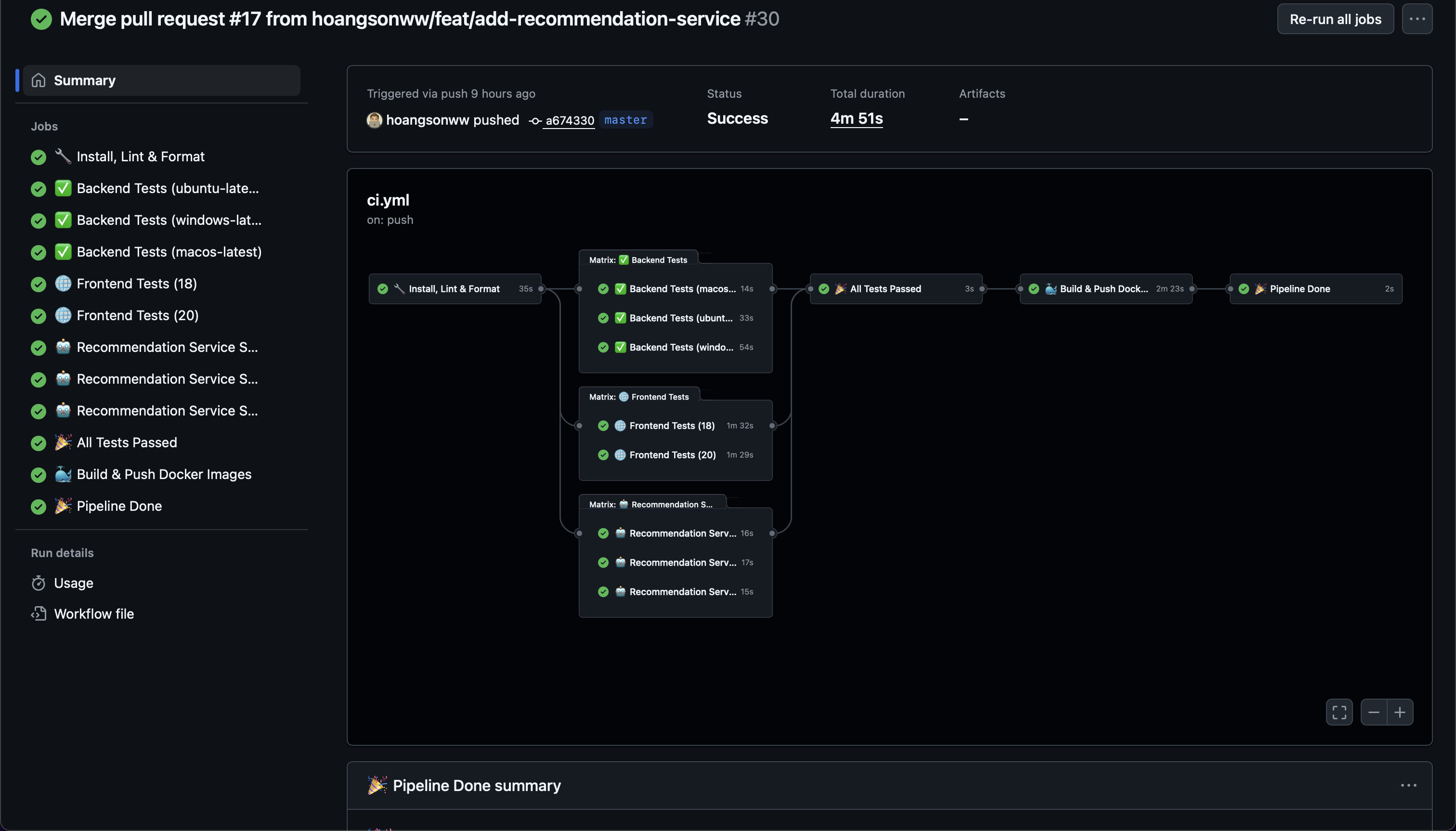
This project includes a GitHub Actions workflow for continuous integration and deployment. The workflow is defined in the .github/workflows/ci.yml file and will automatically run tests and build the application on every push or pull request.
Contributing
Contributions to this project are welcome! Here are some ways you can contribute:
- Report bugs and request features by opening issues.
- Implement new features or enhancements and submit pull requests.
- Improve documentation and README files.
License
This project is licensed under the MIT License - see the LICENSE file for details.
Creator
Fusion Electronics was created with ❤️ by:
- Son Nguyen - hoangsonww
- Email: [email protected].
Thank you for exploring Fusion Electronics - a MERN Stack E-commerce Application! If you have any questions or feedback, feel free to reach out or open an issue.
Happy coding! 🚀