
N8N VEO Video Generator
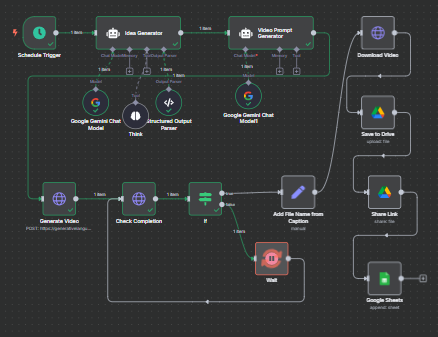
- Scheduled to create AI videos using Veo3, save video file on Google Drive and update Google Sheets about the new video created.
- You can check it out by importing
Veo3_Video_Generator.jsoninto n8n.
Output
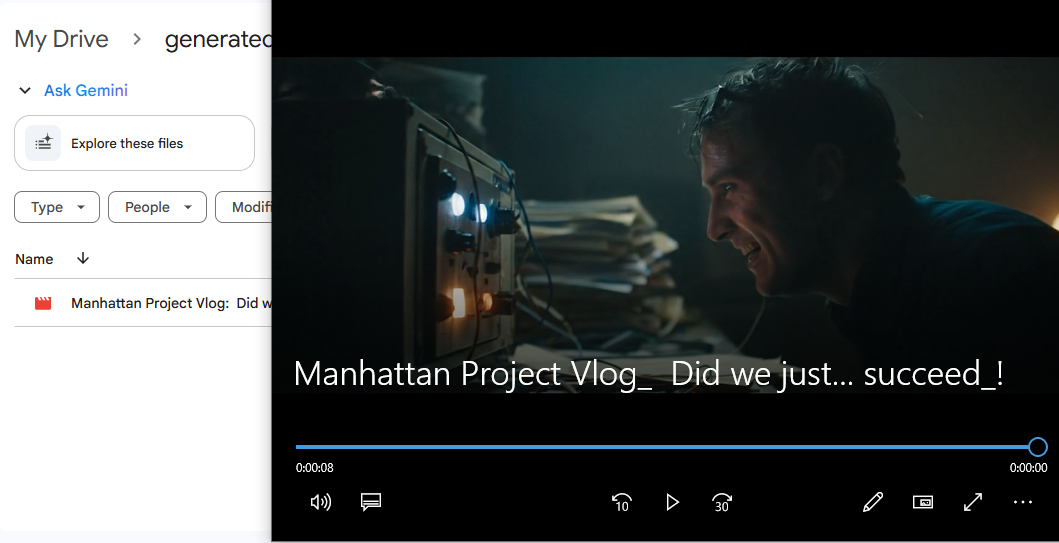
- It has successfully generated the video, saved the video file in google drive, and updated the google sheets with the link to the file.
Nodes
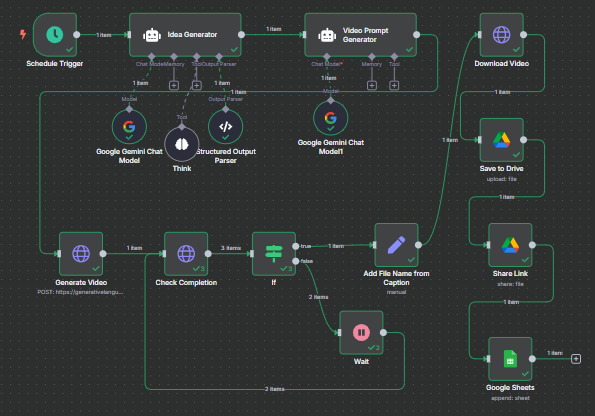
- Trigger
- Schedule Trigger
- AI Agent
- Idea Generator
- Video Prompt Generator
- Http Request Nodes
- Create Video
- Check Completion
- Download Video
- Google Drive
- Upload file
- Share file
- Set, Wait, If nodes
Steps
-
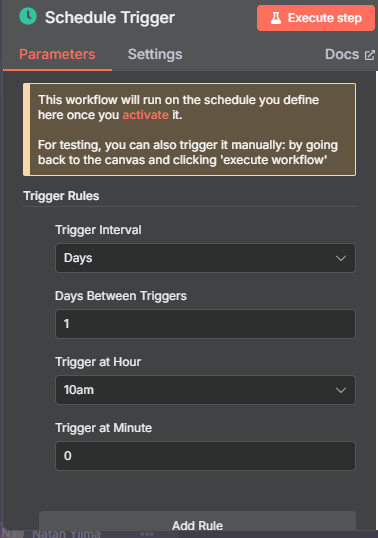
Create a trigger node.
-
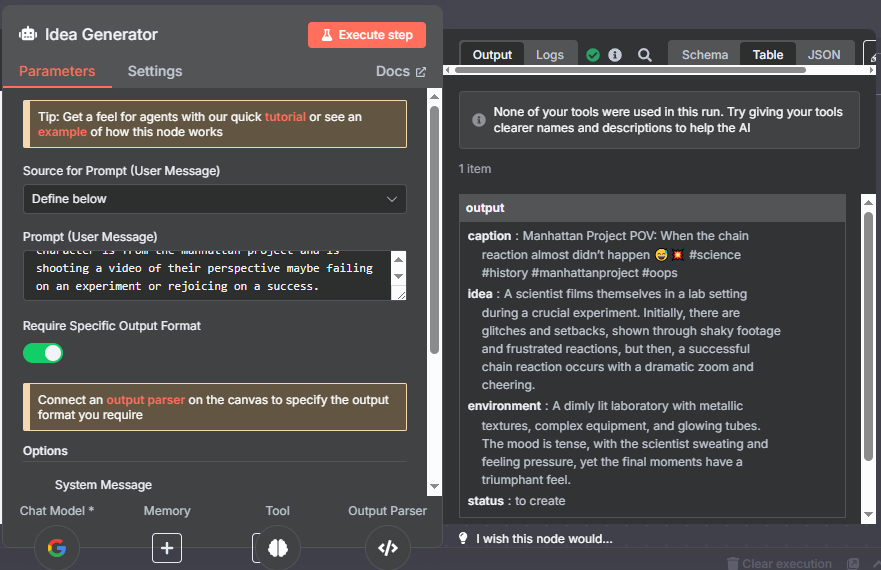
Attach an AI Agent node that will act as an Idea Generator with Structured Output Parser and Think Tool.
-
Attach another AI Agent node that will generate the video prompt.
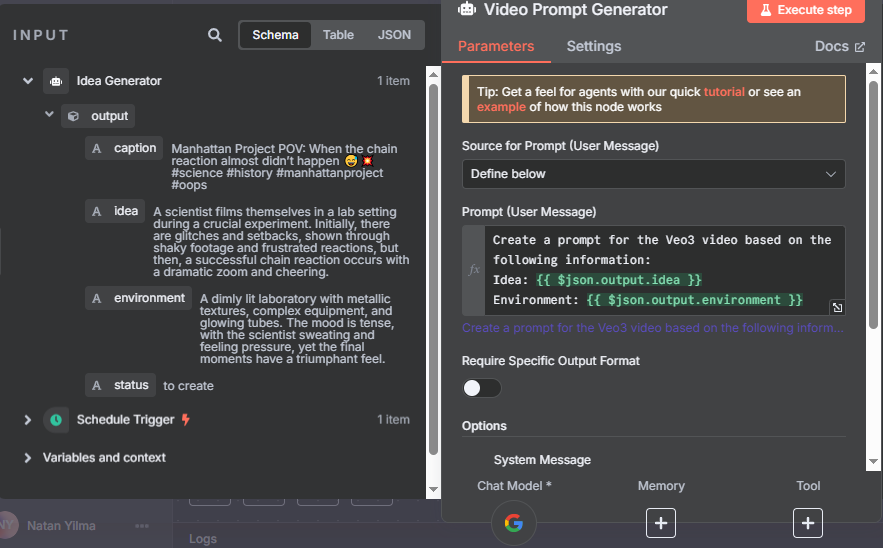
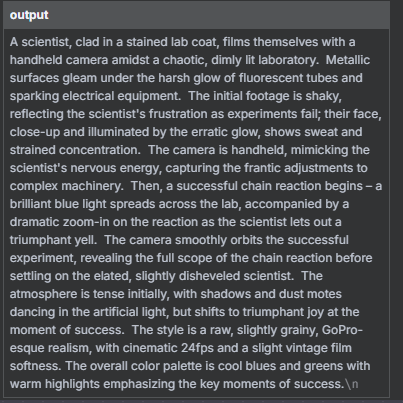
-
Go to Google One -> Google AI to start your Google AI Pro subscription free trial which will give you access to
Veo 3in Gemini. -
Go to Google AI studio to create your API key, and also to Google Cloud Console to enable Billing.
-
Attach an
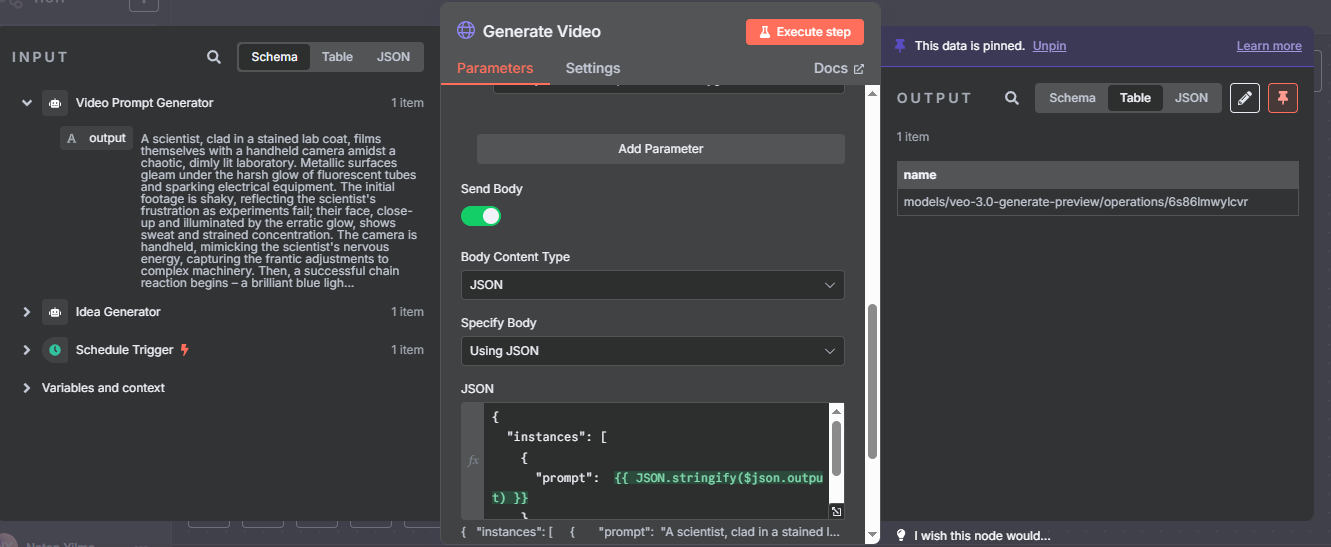
Http Requestnode after the Video Prompt Generator node and use theGemini APIdocumentation to find the Endpoints so choose REST among the options (python, javascript ...) and copy the curl command to import into the Http Request node. Don't forget to turn on Expression for the body instead of sending fixed since{{ JSON.stringify($json.output) }}should be parsed.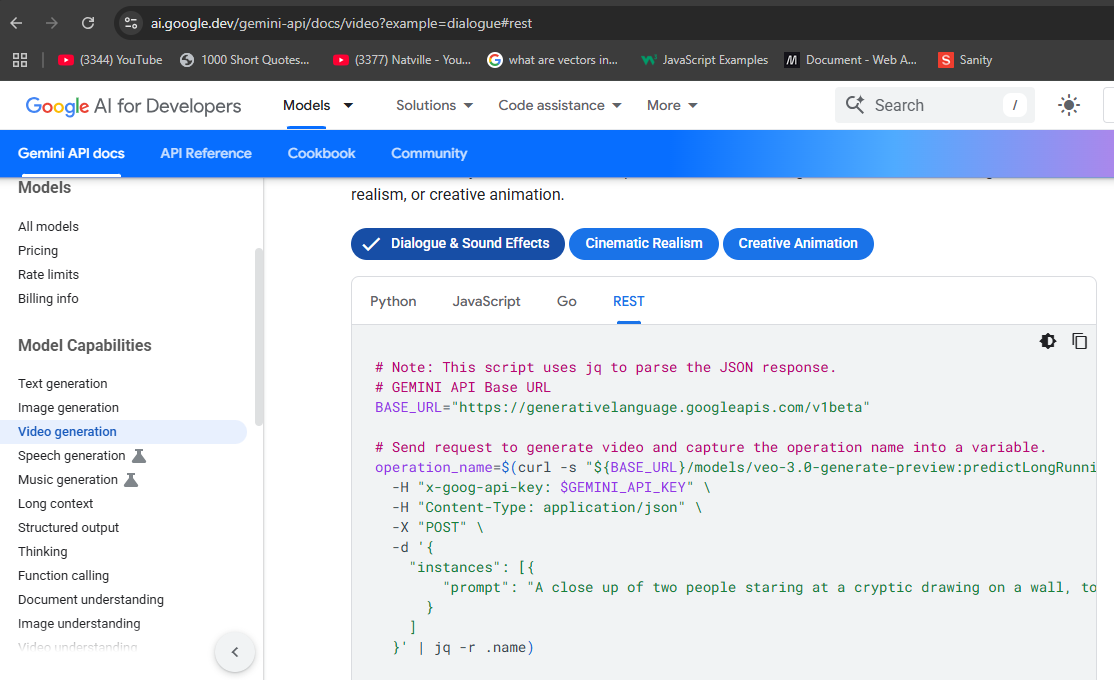
curl -s "https://generativelanguage.googleapis.com/v1beta/models/veo-3.0-generate-preview:predictLongRunning" \
-H "x-goog-api-key: YOUR_API_KEY_HERE" \
-H "Content-Type: application/json" \
-X POST \
-d '{
"instances": [
  {
    "prompt": {{ JSON.stringify($json.output) }}
  }
]
}'
-
Check completion by sending a get request using the
operation namefrom the response of the post request which will be in{{ $json.name }}.curl -s -H "x-goog-api-key: YOUR_API_KEY_HERE" \ "https://generativelanguage.googleapis.com/v1beta/{{ $json.name }}"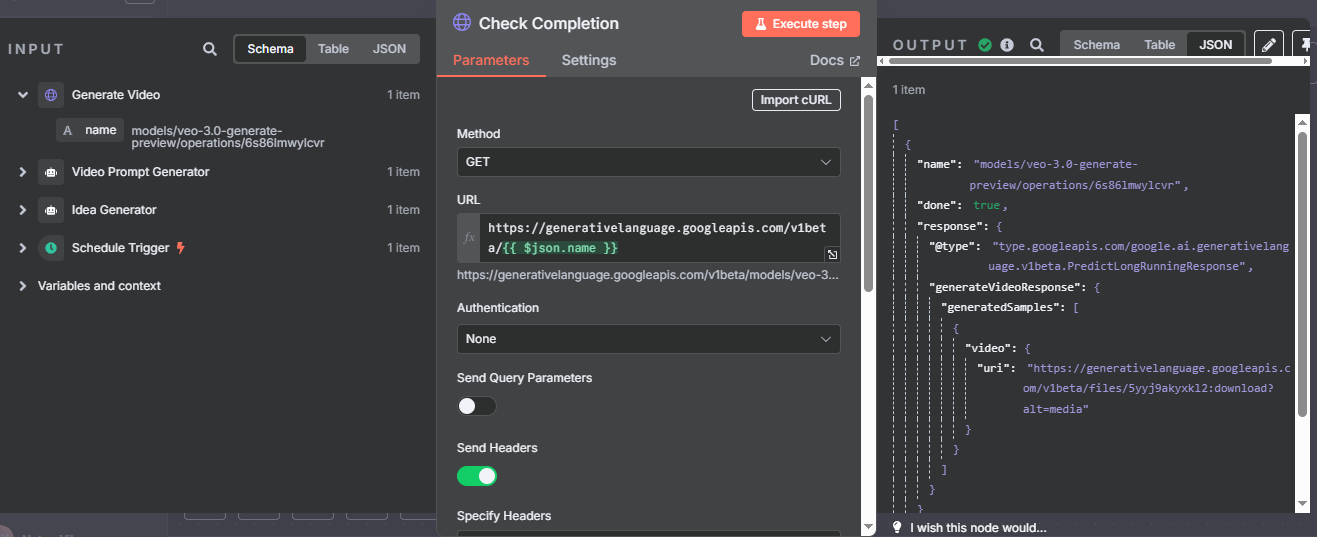
-
After the get request node, check if
{{ $json.done }}istrueusing an If node.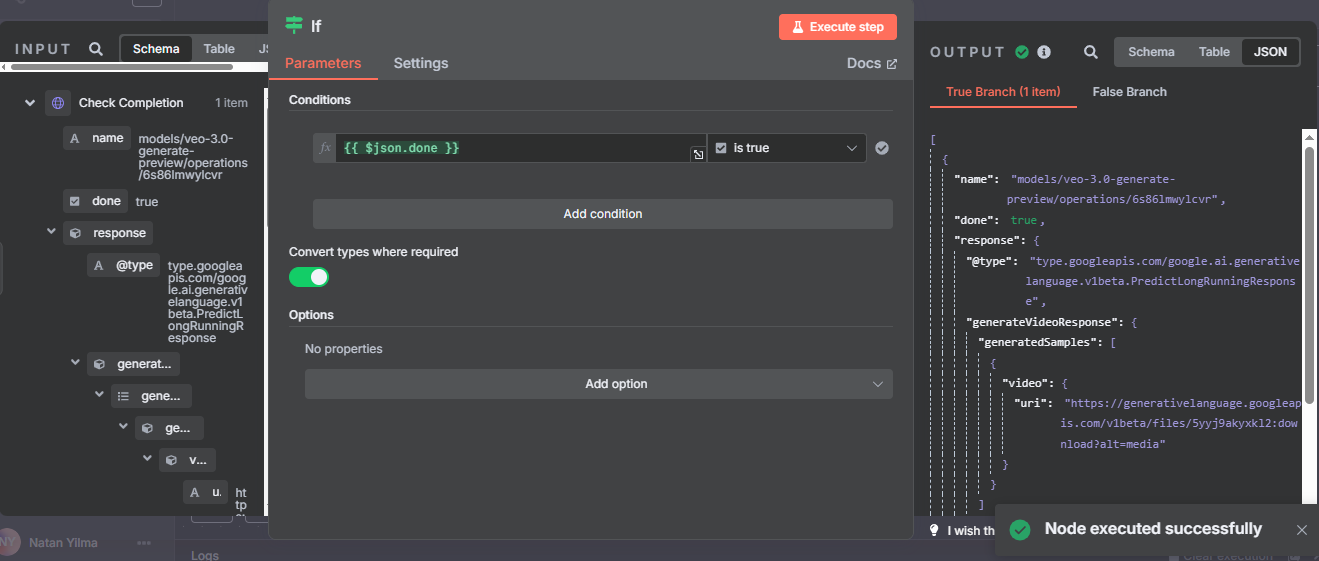
-
If completed (true branch), you need to download the video file so attach another Http Request node with a Get request to a URL provided by the
Check completionnode.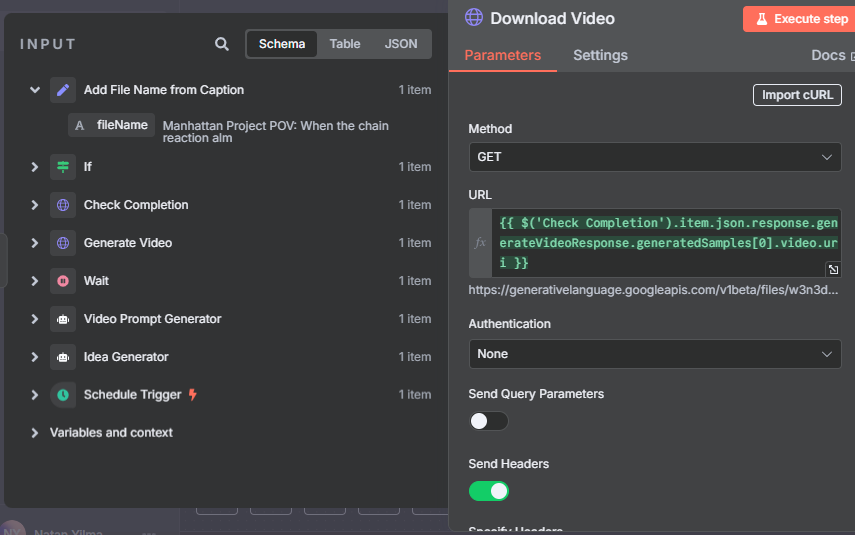
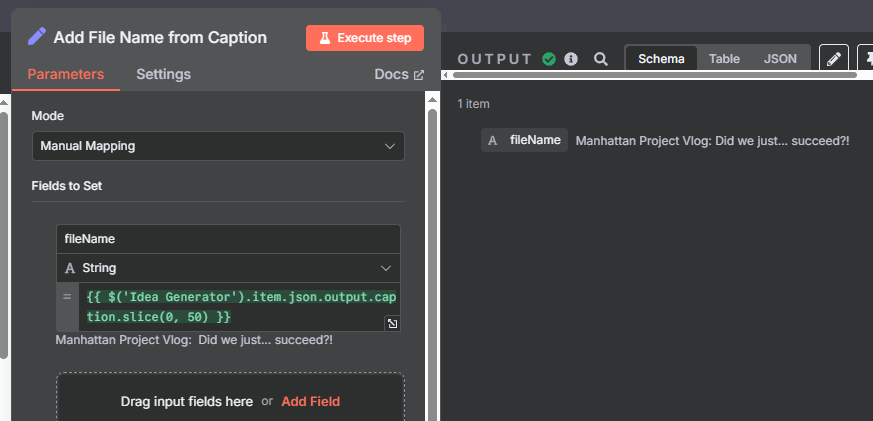
- But before downloading the file, in order to name it properly, attach a
Setnode that adds afileNamefield in the data by slicing the caption to a maximum of 50 characters.
-
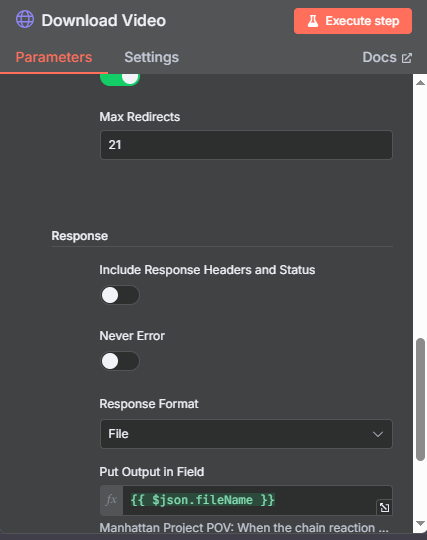
Then use the file name by adding response option to the Download node and apply file name in
Put Output in Fieldfield. -
Allow
Redirectsoption as adviced by the Gemini Api documentation.
- But before downloading the file, in order to name it properly, attach a
-
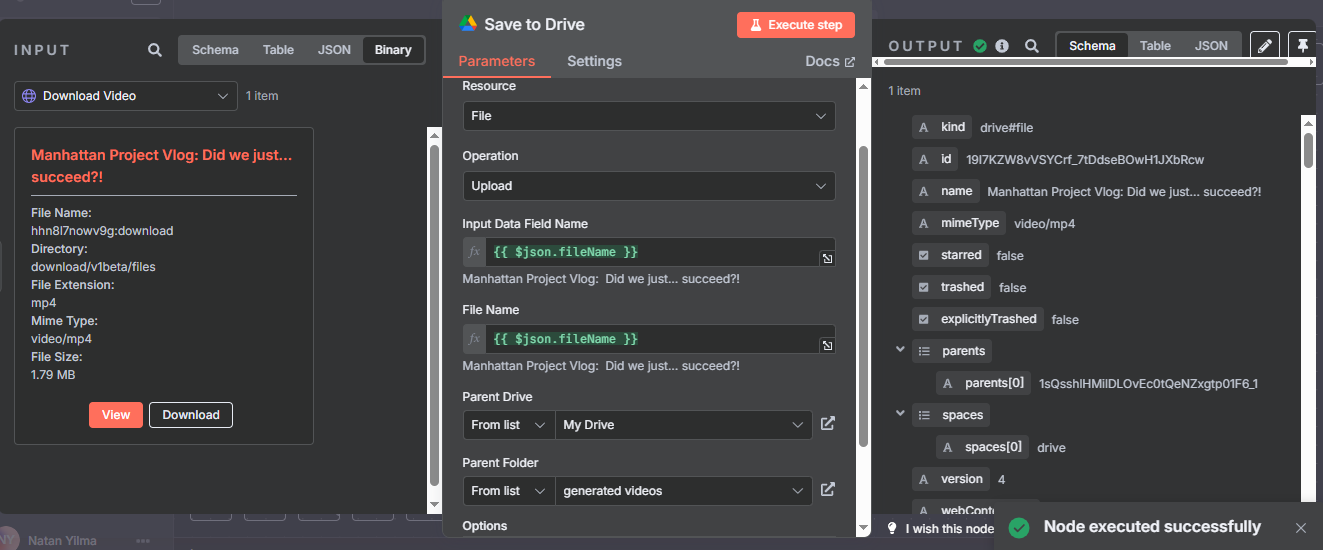
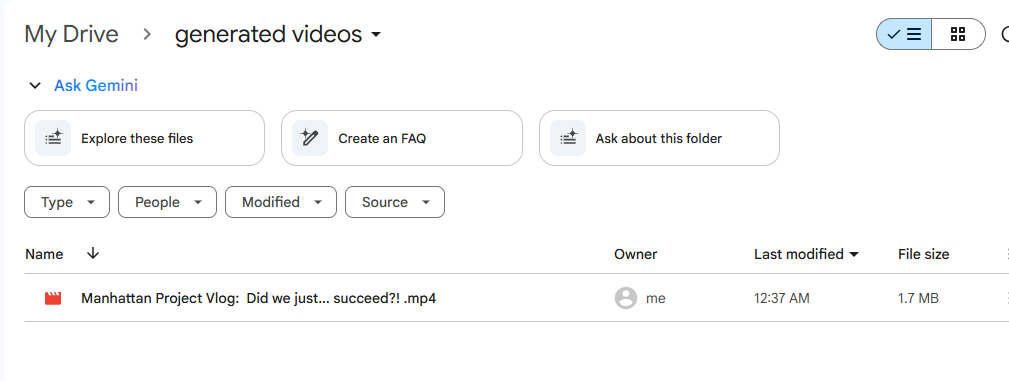
After receiving the file, you now have to save it in Google Drive
- Get your OAuth credentials by enabling
Google Drive Apiin Google Cloud Console and create or use your existing credentials. - You will use a
Upload filenode from Google Drive. Create a folder that you wish to save the videos in and select the folder.
- Get your OAuth credentials by enabling
-
In order to actually save the link for the file in a google sheet and later have no issues with permissions, you have to share the file or make it publicly accessible by it's link. Add a
Share filenode fromGoogle Driveand add permissionReaderforAnyone.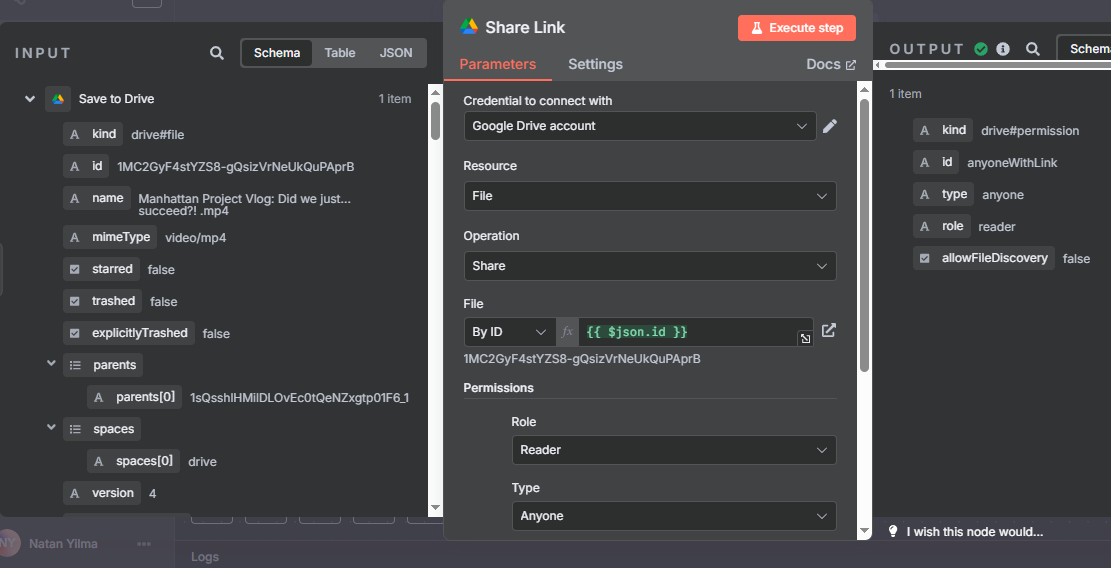
-
Create a new google sheet and add a google sheet
Append Rownode to save the Google Drive URL (webViewLink) and other information about the video.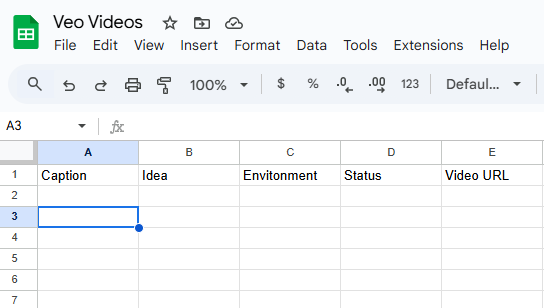
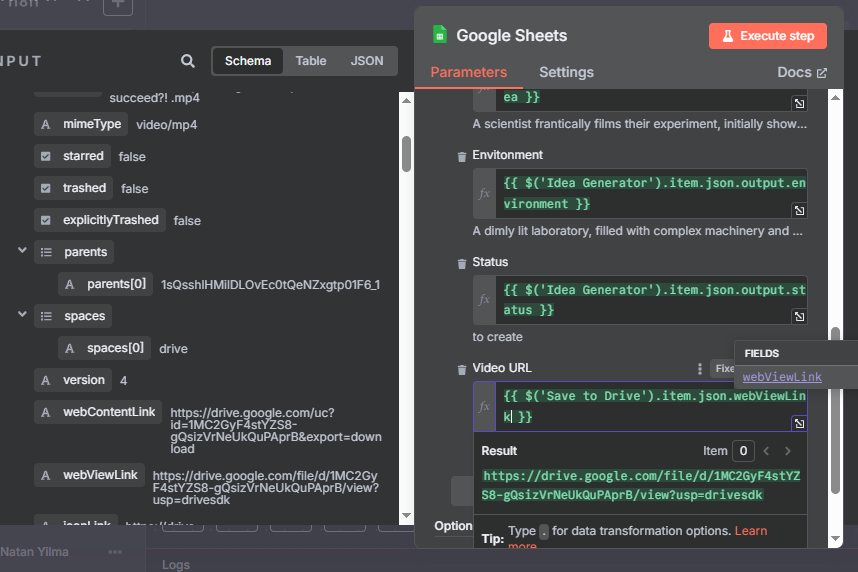
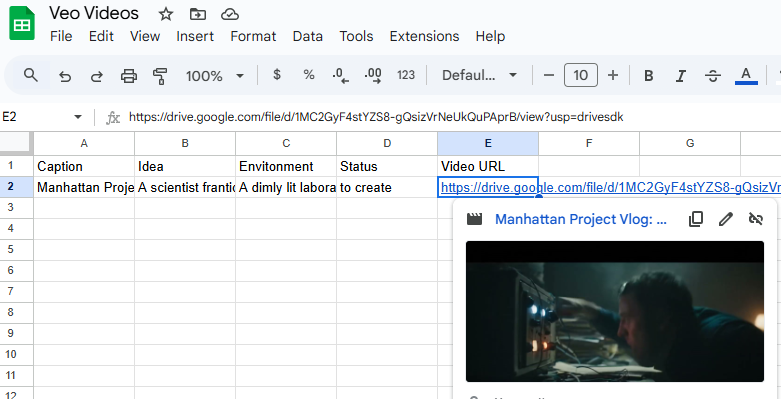
-
However, if the file is not ready and
$json.doneis false, you should add aWaitnode for the false branch of the If node which then loops back to theCheck completionnode.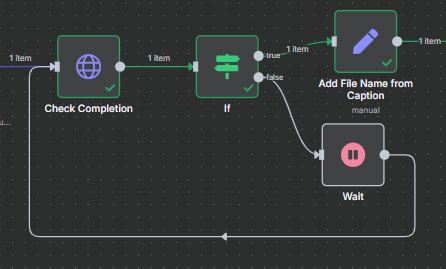
Contact
- LinkedIn: Natan Asrat
- Gmail: [email protected]
- Telegram: Natan Asrat
- Youtube: Natville