
Note Companion (formerly File Organizer 2000)
Turn messy captures into clean, searchable notes — transcribe audio/YouTube, chat with your vault, and auto-organize files right inside Obsidian. Works with Note Companion Cloud or a self-hosted backend where you configure your own AI provider keys.
✅ Best for: researchers, students, meeting-heavy workflows, and anyone with an "Inbox" full of unprocessed notes.
What you can do
- 🎬 Transcribe YouTube videos (multi-language, works even when captions aren't available in the usual way)
- 🎙️ Transcribe audio & video files (handles large files reliably)
- 🧠 Chat with your notes using vault context (mention files/folders/tags)
- 🗂️ Auto-organize & format notes (folder/tag/title/template suggestions; optional "Inbox" automation)
- 🧾 Meeting recorder → Enhance note (transcript, discussion points, action items, embedded audio)
- 🔌 Multiple AI providers: OpenAI, Claude, Gemini, Groq, Ollama/local models, and custom base URLs
- 🏠 Self-hosting supported (Docker + service examples)
Screenshots
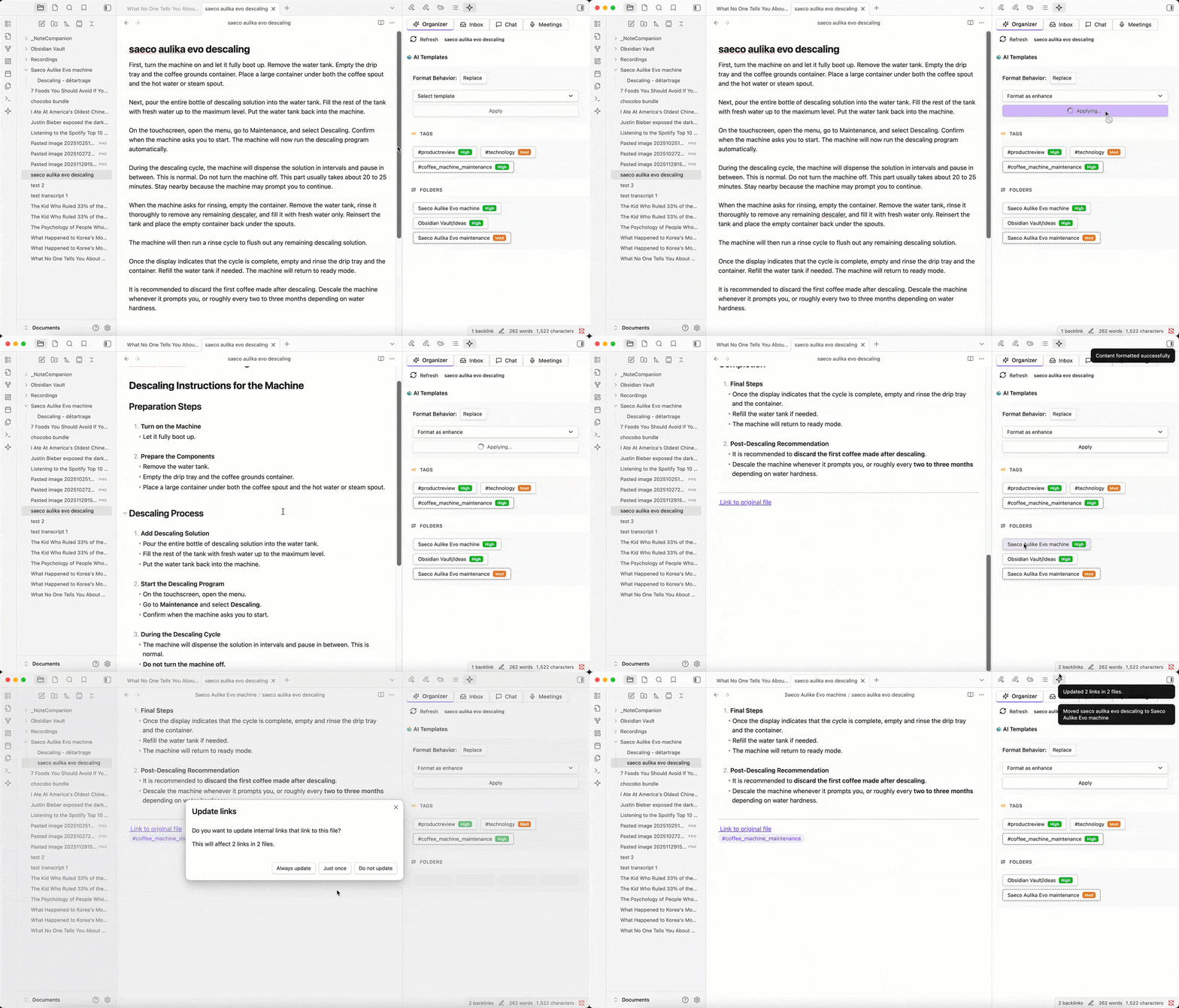
AI-powered tags, folders, and formatting suggestions
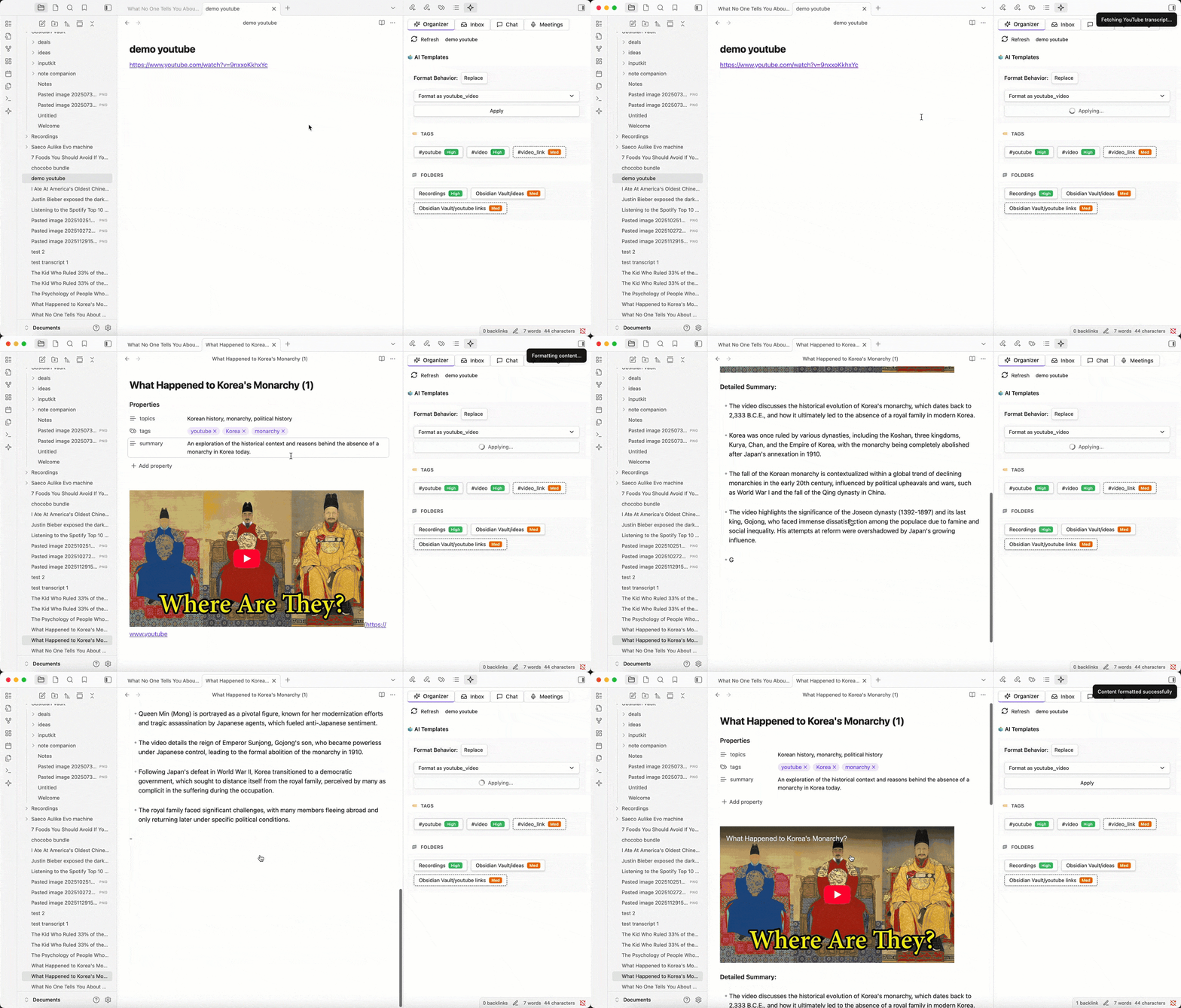
YouTube link → Transcript + Summary + Structured Notes
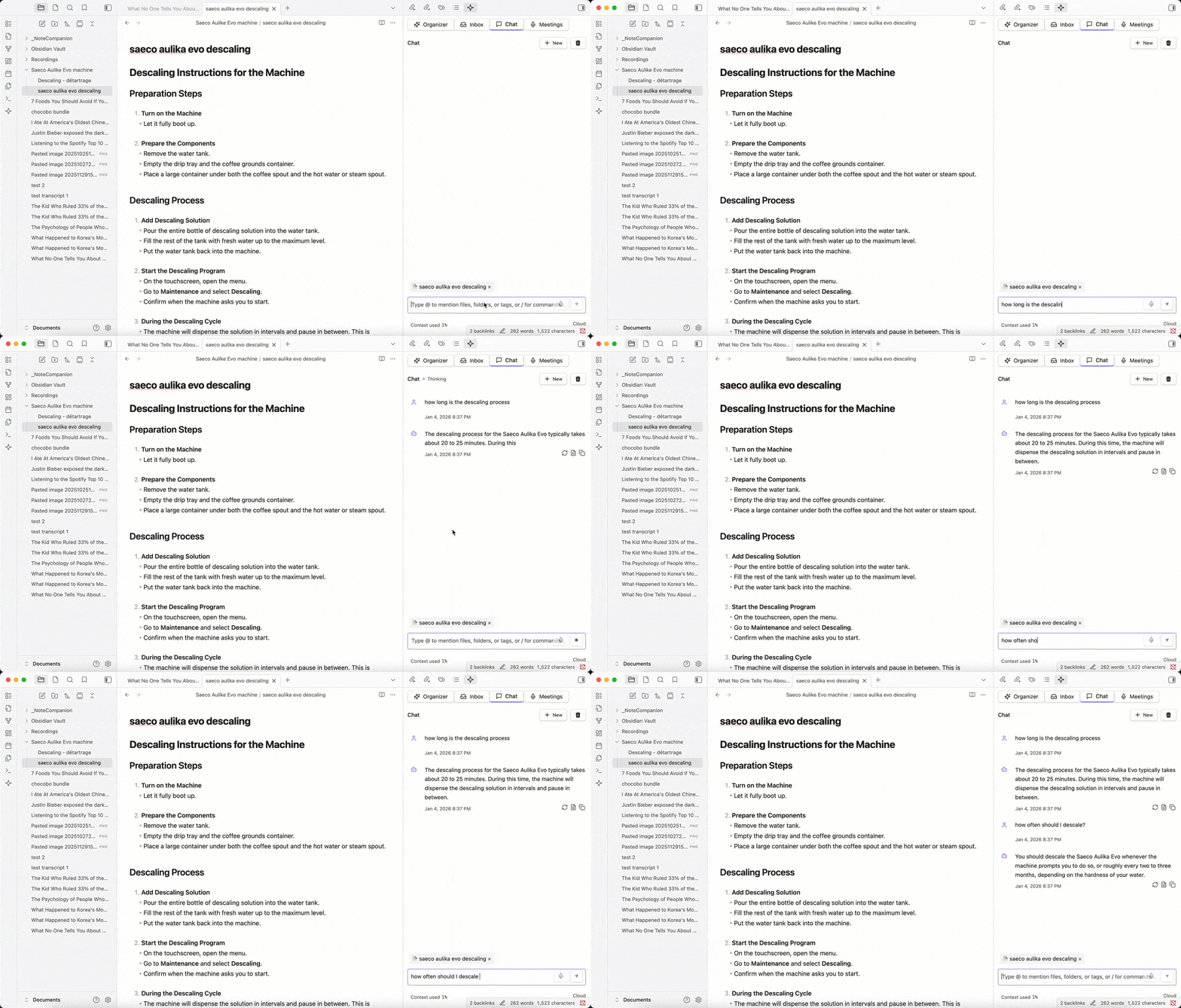
Chat with your notes using @mentions for files, folders, and tags
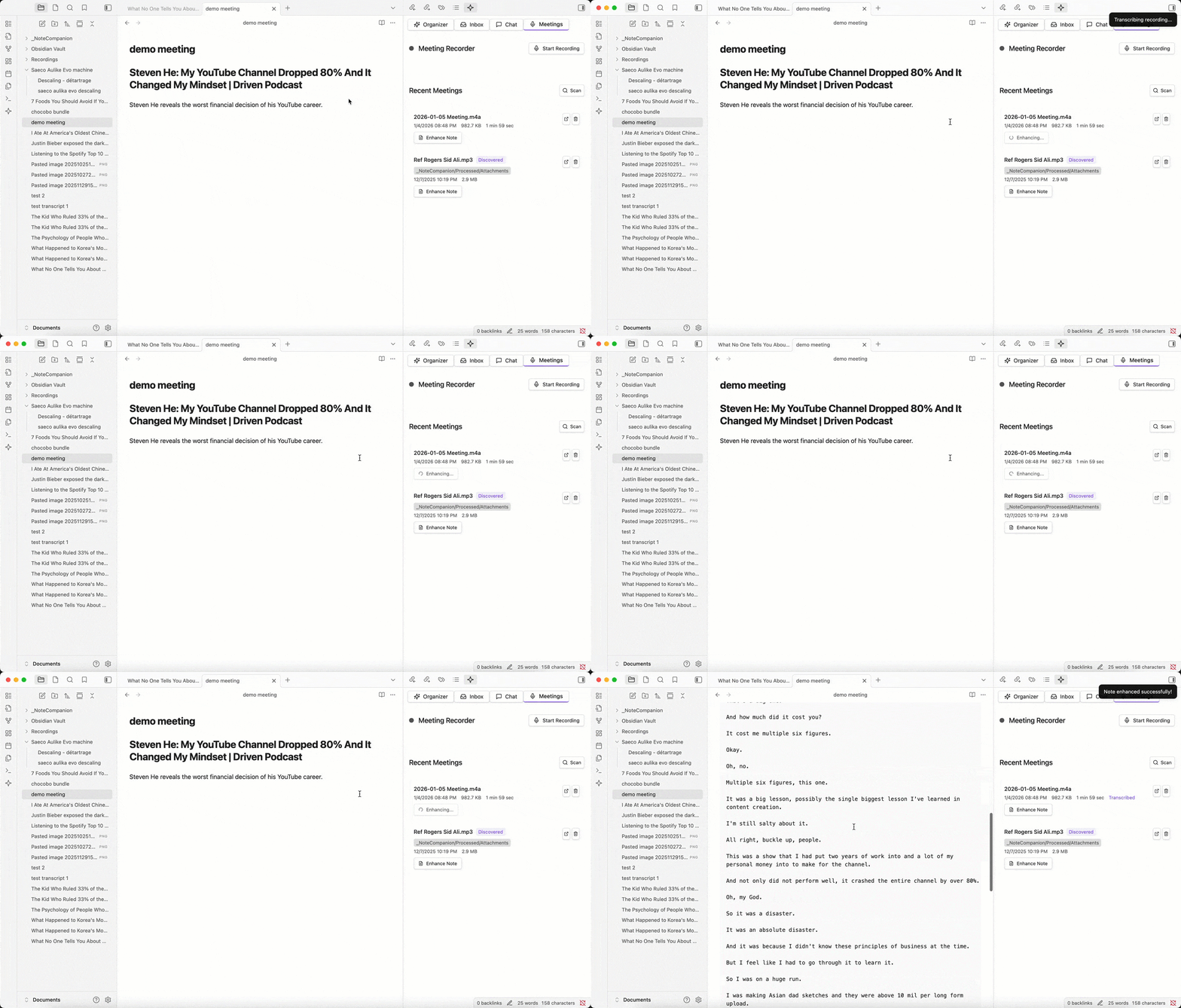
Record meetings, then enhance notes with transcript, discussion points, and action items
Install
Obsidian → Settings → Community plugins → Browse → "Note Companion" → Install → Enable
Platform support (Obsidian)
This plugin is for Obsidian on desktop only (Windows, macOS, and Linux). It is marked desktop-only in the plugin manifest, so Obsidian on iPhone, iPad, and Android will not load it and may show it as unsupported on mobile.
The plugin is built and tested for desktop Obsidian. Some features assume a typical desktop environment (for example, certain local integrations). We do not test or support the Obsidian plugin on mobile today.
Related: This repo also includes a separate Note Companion mobile app for capture and cloud-backed workflows. Development on that app is currently on pause. It is not a replacement for running the Obsidian plugin inside the mobile Obsidian app.
Setup
Open Settings → Note Companion and choose one of the paths below.
Important: The Obsidian plugin does not have a screen to paste OpenAI / Claude / Gemini API keys directly. Those keys are configured on your self-hosted backend (see path 2). The plugin's License Key field is for Note Companion Cloud access only.
Path 1 — Note Companion Cloud (default)
- Create an account at notecompanion.ai or sign up / sign in from the plugin's General tab
- Copy your license key from the web dashboard (API Keys) and paste it into Settings → Note Companion → General → License Key
- Click Activate
No cloud account is required for self-hosting (path 2).
Path 2 — Self-hosted / bring your own provider keys
Use this path to run AI through your own OpenAI, Claude, Gemini, Groq, or compatible API keys.
- Deploy the Note Companion backend — see SELF-HOSTING.md (Docker or
pnpm build:self-host) - Add provider keys to the server
.env(e.g.OPENAI_API_KEY,ANTHROPIC_API_KEY,MODEL_PROVIDER,MODEL_NAME; optionalOPENAI_API_BASEfor Ollama or other OpenAI-compatible endpoints) - In Obsidian: Settings → Note Companion → Advanced → Enable Self-Hosting
- Set Server URL to your backend (e.g.
http://localhost:3000) - Leave License Key empty or use any placeholder — self-hosted instances with
ENABLE_USER_MANAGEMENT=falsedo not require a cloud license
Path 3 — Local Ollama (chat only, experimental)
- Run Ollama locally
- Self-host the backend with
OPENAI_API_BASE=http://localhost:11434/v1, or enable Experiment → Local LLM Integration in plugin settings (requires Catalyst access for the in-plugin Ollama path) - Select the local model in the chat model picker
Quick test
- Open Command Palette → Note Companion: Open Chat
- Ask: "Summarize this note and suggest tags"
Quick workflows
1) YouTube → Note
- Copy a YouTube link
- In Note Companion Chat, paste the link
- Get transcript + summary + optional structured notes
2) Audio recording → Meeting note (best demo)
- Open Meetings tab → Start Recording
- Stop Recording → select a note → Enhance Note
- You'll get:
- embedded audio
- transcript
- discussion points + action items
3) Inbox auto-organization
- Create an Inbox folder (configured in settings)
- Drop raw notes / links inside
- Note Companion suggests (or auto-applies) folder + tags + title + formatting
Providers & privacy
| Mode | Where provider keys live | Plugin configuration |
|---|---|---|
| Note Companion Cloud | Note Companion servers | License key in General tab |
| Self-hosted (BYOK) | Your server .env |
Advanced → Self-Hosting + Server URL |
| Local Ollama | Your machine (Ollama) | Self-hosted OPENAI_API_BASE and/or Experiment → Local LLM |
Your data handling depends on the mode you choose. View our full privacy policy at notecompanion.ai/privacy
Cloud Service:
- Files are processed through our secure API for AI analysis
- Usage statistics collected for billing and rate limits
- Your vault content remains private and is only processed when you explicitly use plugin features
- Account sign-in on the web dashboard may offer Google OAuth (Clerk); the in-plugin sign-up uses email/password
Self-hosted / your provider keys:
- Provider keys are set on the backend, not in the Obsidian plugin UI
- All AI processing runs on infrastructure you control
- No cloud usage tracking when
ENABLE_USER_MANAGEMENT=false
Self-hosting
Want full control and local infrastructure?
➡️ See SELF-HOSTING.md for Docker + service setups and security notes.
Troubleshooting
If transcription fails:
- Check provider key, model availability, and file size limits
- Verify API key is valid and has sufficient credits
- For large files (>25MB), consider splitting or compressing
If YouTube import fails:
- Try a different fallback method
- Ensure the video is accessible and not private/restricted
- Check network connectivity
If local model doesn't respond:
- Verify Base URL and CORS/network settings
- Ensure the local server (e.g., Ollama) is running
- Check firewall settings
If plugin can't connect to server:
- Verify Server URL under Settings → Note Companion → Advanced (check for typos, trailing slashes, http vs https)
- Confirm the backend is running (
curl http://localhost:3000/api/healthor your configured URL) - Check firewall/network settings
If chat doesn't work:
- Cloud: verify your license key is activated in General
- Self-hosted: verify provider keys and
MODEL_PROVIDER/MODEL_NAMEin the server.env, and that self-hosting is enabled in Advanced - Check model availability for your provider
- Enable Debug Mode in Advanced and review logs there
Support / feedback
- GitHub Issues: Report bugs or request features
- Documentation: notecompanion.ai/docs
- Website: notecompanion.ai
- Obsidian Forum: Share feedback and discuss (add forum thread link when available)
For developers
If you want to build or contribute, start here: CONTRIBUTING.md
Important Disclosures
Account & Payment Requirements
- Payment required for cloud service: The plugin requires a paid subscription to use the cloud-hosted service
- 7-day free trial: New subscriptions include a 7-day trial period
- Self-hosting option available: You can run your own instance for free (see Self-Hosting above)
- Account creation: Using the cloud service requires creating an account at notecompanion.ai
Network Usage
This plugin communicates with the following remote services:
- Note Companion API Server (cloud service): For AI-powered features including file classification, formatting, transcription, and chat
- YouTube API: For fetching video transcripts when processing YouTube links
- AI Provider APIs: When self-hosting or using your own keys, you'll connect directly to your chosen AI provider (OpenAI, Anthropic, Google, etc.)
License
This project is licensed under the MIT License - see the LICENSE file for details.