
Notekeeper

A tiny bash script for taking and organizing simple text notes.
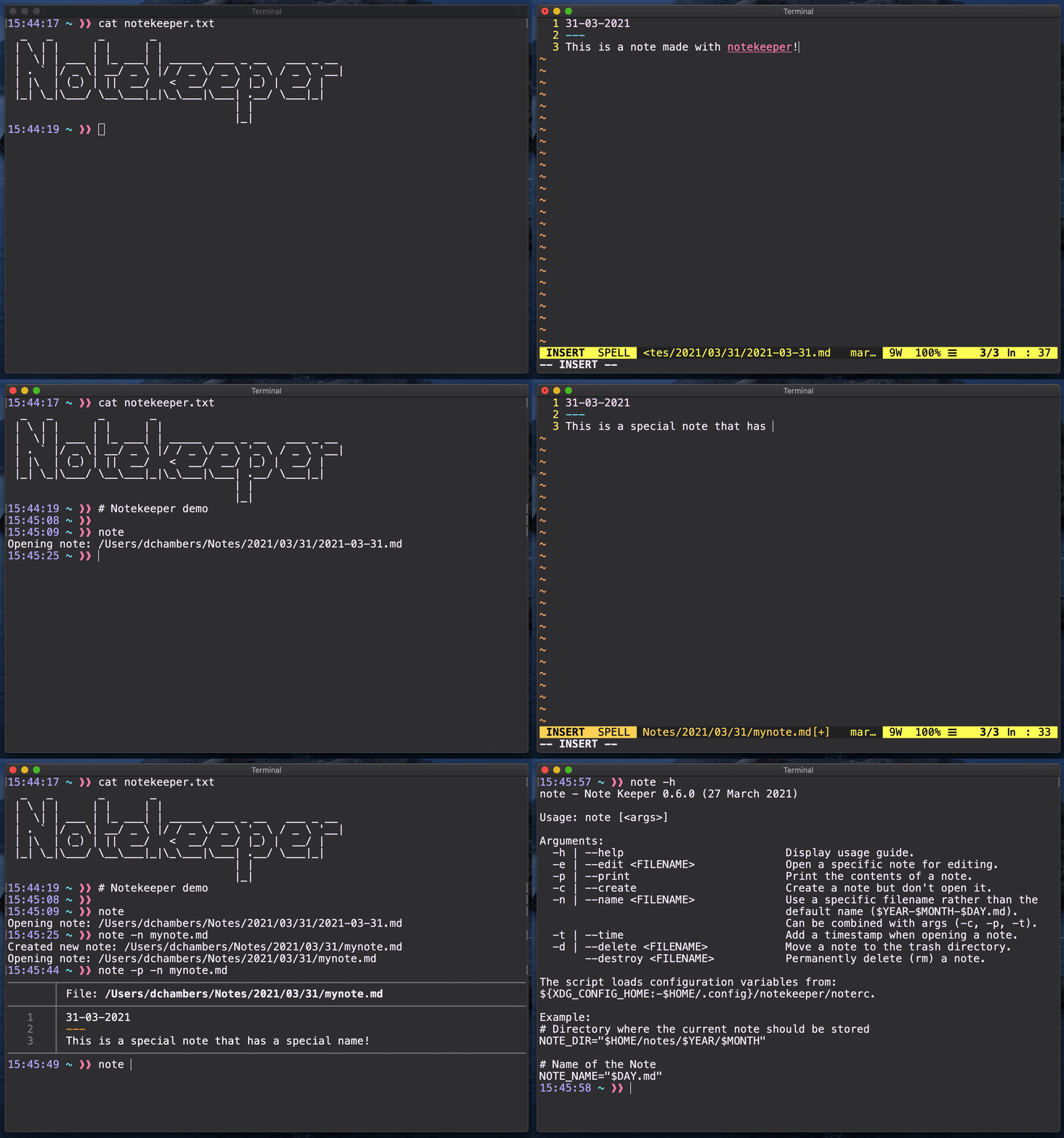
- Write a TODO list.
- Use as a copy/paste clipboard.
- Make ASCII art. :)
:question: Why use this instead of just typing vim /path/to/my/note.md ?
- Type fewer characters.
- Print and manage note files easily.
- Open the same note from any directory.
- Automatically organizes notes with a sane directory structure.
Installation
Homebrew
- Notekeeper can be easily installed via homebrew!
brew tap dcchambers/tap
brew update && brew install notekeeper
Arch Linux
- Maintained by Luis Pérez - thank you!
paru -S notekeeper
Manual Install
- Simply download the
note.bashscript file. - Place it somewhere nice (
mv note.bash /usr/local/bin/note). - Make it executable with
chmod +x /usr/local/bin/note - Add it to your
pathif necessary (e.g.export PATH=$PATH:/usr/local/bin) - You can then run the script anywhere by simply typing
noteat the command line.
Usage
-
Running
noteby itself with no arguments will create a new note file at~/$NOTE_DIR/$year/$month/$day/$year-$month-$day.mdif one does not exist, and will open that note file in Vim. -
-c | --create- Use the
-cflag to create a note without opening it.
- Use the
-
-p | --print- Use the
-pflag to print the contents of the note.
- Use the
-
-n | --name <FILENAME>- Set filename for note. Will be created in $NOTE_DIR. Can be combined with other options (-c, -p, -t)
-
-e | --edit <FILENAME>- Use the
-eflag with a DATE argument to edit a note from a specific date.
- Use the
-
-h | --help- Use the
-hflag to print usage information.
- Use the
-
-t | --time- Use the
-tflag to add a timestamp when creating/opening note.
- Use the
-
-d | --delete <FILENAME- Use the
-dflag to move a file into trash ($NOTE_DIR/trash)
- Use the
-
--destroy <FILENAME>- Use the
--destroyflag to permanently delete a note.
- Use the
-
-l | --list [<FILE EXTENSION>]- Use this
--listflag to list note files. Defaults to.mdfiles if no extension is specified.
- Use this
Demo (Asciinema)
File Organization
❱❱ tree ~/notes
/home/username/notes
└── 2020
    ├── 06
    │   ├── 21
    │   │   └── 2020-06-21.md
    │   └── 22
    │       └── 2020-06-22.md
    └── 07
        └── 28
            ├── 2020-07-28.md
            └── another-note.md
Configuration
- The default editor is set by your
$EDITORenvironment variable.- If no default editor is set, it will use Vim.
- It opens Vim in insert mode.
- If no default editor is set, it will use Vim.
- The default location to store notes is in the
~/notes/directory.- To change this, set a
NOTE_DIRvalue in yournotercfile.
- To change this, set a
Customize with noterc
You can use a noterc file to customize Notekeeper!
- Create this file at
${XDG_CONFIG_HOME}/notekeeper/noterc- On MacOS, this will be
~/.config/notekeeper/noterc
- On MacOS, this will be
- Example noterc file
The following variables can be set to overwrite Notekeeper defaults:
NOTE_DIR- The base directory for storing notes.- Default is
~/notes
- Default is
EDITOR- By default Notekeeper uses whatever is in your system
$EDITORvariable, and falls back to vim if none is set.
- By default Notekeeper uses whatever is in your system
NOTE_FORMAT- File format (file extension) used to create new notes.- Default is
.md
- Default is
NOTE_NAME- Default name for new notes that are created.- The default is
$YEAR-$MONTH-$DAY.$NOTE_FORMAT
- The default is
PRINT_TOOL- Default is
cat
- Default is
organize_by_date- Default is
true. Setorganize_by_date=falseif you do not want to use a date-based directory structure for organizing notes.
- Default is
Dependencies
- Notekeeper uses a few simple tools that you probably already have installed.
- A text editor (such as Vim or Emacs)
- The
findprogram - A program to print files (like
cat) - Basic programs that should be included in almost all Linux/Unix
distributions, including
mkdir,touch,mv,rm,echo,printf