

Base Board
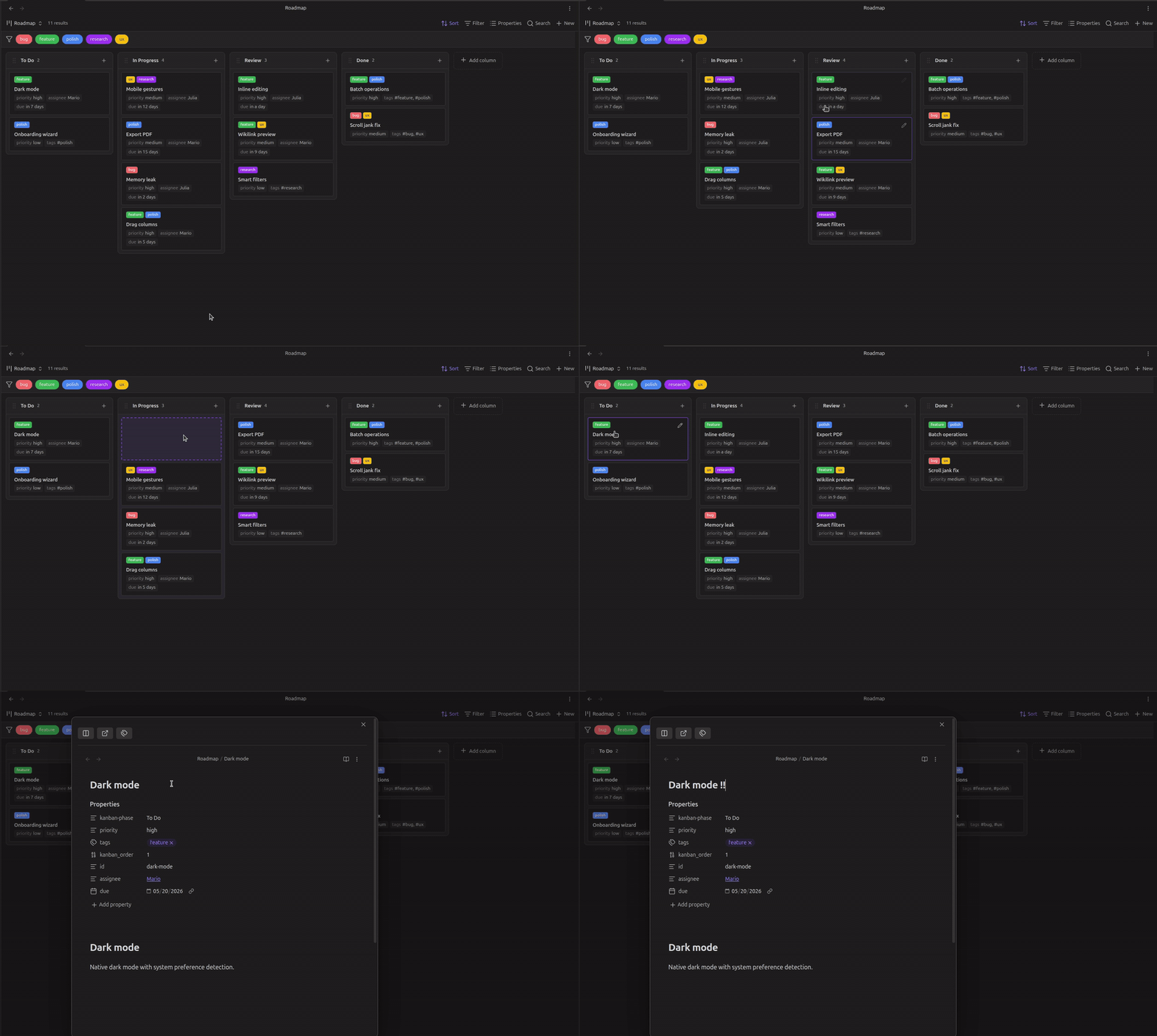
Base Board is an interactive, property-driven Kanban board view for Obsidian Bases. It allows you to organize your notes into visual columns based on any property in your frontmatter, providing a seamless drag-and-drop experience for managing tasks and structured data.
Key Features
- Property-Based Columns: Instantly generate columns from any frontmatter property.
- Intuitive Drag & Drop: Move cards between columns to update their properties automatically, and reorder cards within a column.
- Inline Power: Rename cards or column titles directly on the board.
- Native Editing Modal: Open any card into a fully-functional Obsidian editor floating directly over your workspace.
- Rich Cards: View key metadata fields as chips on each card for a quick overview.
- Configurable Card Title: Set
cardTitleProperty: note.titlein your.basefile to use a frontmatter property (e.g.title) as the card heading instead of the filename. - Tags: Color-coded tag chips on cards with a clickable filter bar to narrow the board by tag.
- Hover Preview: Native note previews on hover (uses the Page preview core plugin).
- One-Click Creation: Add new notes directly to a specific column without leaving the board view.
- WIP Limits: Set per-column work-in-progress limits via the column header context menu. Columns that exceed their limit are highlighted in red.
- Card Cover Images: Display cover images at the top of cards by specifying an image frontmatter property (e.g.,
cover: "[[image.png]]"or a web URL). Defaults to thecoverproperty. - Data First: All changes are written directly to your Markdown files.
Usage
Open the Command palette (Ctrl/Cmd + P) and run "Base Board: Create new board". Enter a name, choose a folder, and the plugin will scaffold everything for you — a .base file, a tasks folder, and sample task notes. The board opens automatically.
Card Navigation & Selection
By default, card interaction respects native Obsidian conventions:
- Click: Open the card's note in the active tab / pane.
- Ctrl/Cmd + Click: Open the note in a new tab.
- Ctrl/Cmd + Alt + Click (or Cmd + Option + Click on macOS): Open the note to the side in a split pane.
- Alt / Option + Click: Toggle selection of a card (for bulk actions or dragging).
- Shift + Click: Select a range of cards.
You can customize the default click behavior (e.g. to always open in a floating modal, split pane, or new tab) via the board toolbar under the view options menu.
Installation
From Obsidian Community Plugins
Search for Base Board in the Obsidian Community Plugins browser and click Install, or view the plugin directly on the Obsidian Community Plugins directory.
Using BRAT
- Install the BRAT plugin.
- Go to Settings → BRAT → Add Beta Plugin.
- Enter
mderazon/obsidian-base-boardand click Add Plugin.
Development
- Clone this repo.
- Run
npm install. - Run
npm run devto start the build process in watch mode.
License
This plugin is licensed under the MIT License.