
Offline Map Tile Downloader



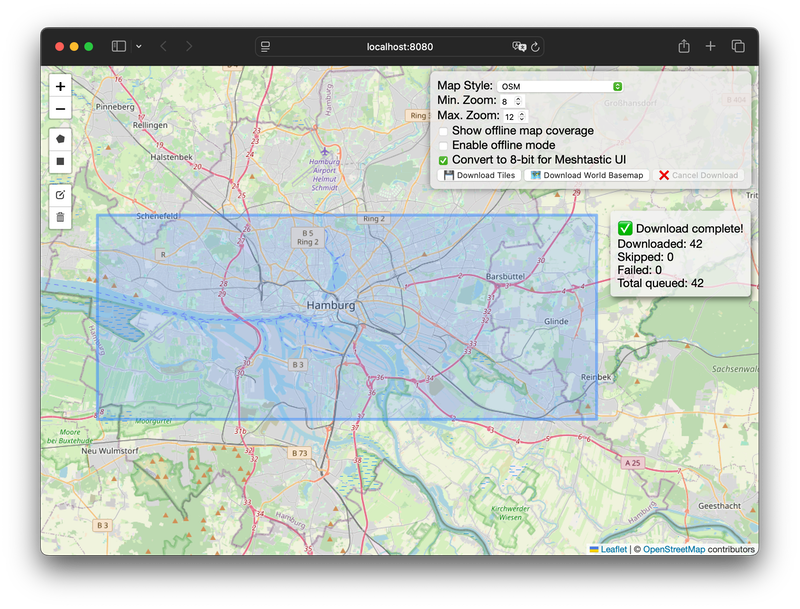
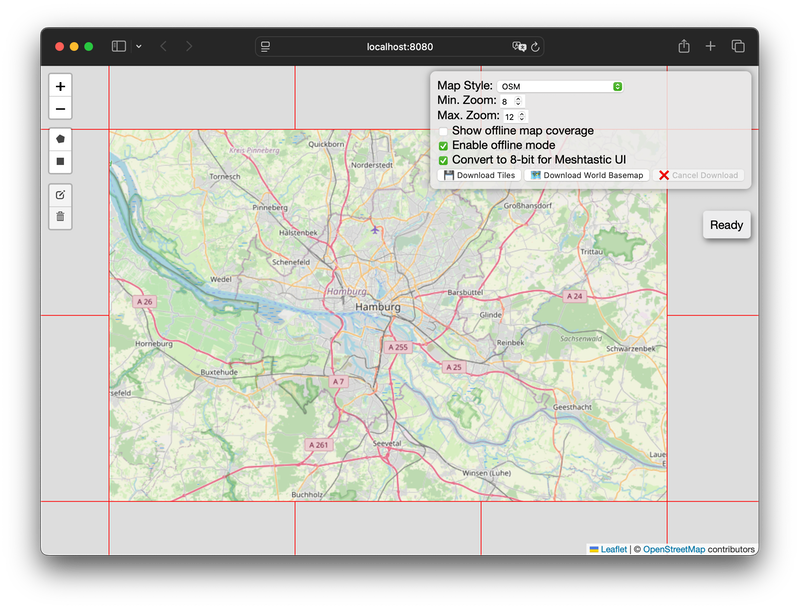
Create your own offline maps for any location on Earth! This tool allows you to download map tiles from various sources and use them in your offline applications, with a special focus on the needs of the Off-Grid, Meshtastic and MeshCore communities.
| Download | Offline Mode |
|---|---|
 |
 |
Whether you're a hiker, prepper, sailor, or just someone who wants to be prepared, having access to maps when you're disconnected from the internet is crucial. This tool makes it easy to create your own custom map sets for your specific needs.
Why?
In a world that's increasingly reliant on internet connectivity, being able to access information offline is a superpower. This is especially true for:
- The Off-Grid Community: When you're living off the grid, you can't rely on a stable internet connection. This tool allows you to have detailed maps of your surroundings, which is essential for navigation, resource management, and safety.
- The Meshtastic and MeshCore Community: This tool allows you to create custom map tiles that can be used with the Meshtastic UI or MeshCore Ripple Firmware, giving you a visual representation of your mesh network on a map, even when you're completely offline.
Features
- Web Interface: A user-friendly web UI for selecting download areas and monitoring progress.
- Polygon & Bounding Box Selection: Define download areas using polygons or bounding boxes.
- Concurrent Downloads: Downloads multiple tiles concurrently for faster performance.
- Rate Limiting: Limits the number of tile downloads per second to avoid overloading the tile server.
- Cancellable Downloads: Cancel ongoing downloads at any time.
- 8-bit PNG Conversion: Option to convert downloaded tiles to 8-bit PNGs, ideal for devices with limited color palettes like the Meshtastic UI and Ripple Firmware.
- Offline Tile Server: Serve downloaded tiles directly from the application, allowing you to use them in offline map applications.
- Cross-platform: Works on Windows, macOS, and Linux.
Getting Started
You can either download a pre-built binary for your operating system or build the application from source.
Pre-built Binaries (Recommended for most users)
This project require you to use a command-line interface. Don't worry, it's easier than it looks!
 Windows (PowerShell)
- Download the
offline-map-tile-downloader.exeapplication for Windows and your CPU architecture. If you are unsure, usuallyx86_64will work. - Rename it to:
offline-map-tile-downloader.exe - Press the Windows key + X.
- Choose "Windows PowerShell".
- Type
cdfollowed by the path to your your folder where you saved the application (e.g.,cd C:\Users\YourName\Documents\OfflineMaps) and press Enter. - Type
offline-map-tile-downloader.exeand press Enter. - Open your web browser and go to
http://localhost:8080.
 macOS (Terminal)
- Download the
offline-map-tile-downloaderapplication for macOS and your CPU architecture. - Rename it to:
offline-map-tile-downloader - Press Command + Space.
- Type "Terminal" and press Enter.
- Type
cdfollowed by the path to your folder where you saved the application (e.g.,cd /Users/YourName/Documents/OfflineMaps) and press Enter. - Type
chmod +x offline-map-tile-downloaderand press Enter. (This makes the tool work). - Type
./offline-map-tile-downloaderand press Enter. - (Optional) Allow unsigned app on macOS
- Go to System Settings
- Click on Privacy & Security
- Scroll down to Security section
- Look for a message about the blocked
offline-map-tile-downloaderapp and click "Open Anyway"
- Open your web browser and go to
http://localhost:8080.
 Linux (Terminal)
- Download the
offline-map-tile-downloaderapplication for Linux and your CPU architecture. - Rename it to:
offline-map-tile-downloader - Open a Terminal.
- Type
cdfollowed by the path to your your folder where you saved the application (e.g.,cd /home/YourName/OfflineMaps) and press Enter. - Type
chmod +x offline-map-tile-downloaderand press Enter. (This makes the tool work). - Type
./offline-map-tile-downloaderand press Enter. - Open your web browser and go to
http://localhost:8080.
Building from Source
If you're a developer or want to modify the code, you can build the application from source.
- Clone the repository:
git clone https://github.com/Cyclenerd/offline-map-tile-downloader.git cd offline-map-tile-downloader - Build the application:
go build . - Run the application:
./offline-map-tile-downloader - Open your web browser and go to
http://localhost:8080.
Responsible Usage
Please use this tool responsibly! When downloading map tiles:
- Respect tile server limits: Use reasonable rate limits to avoid overloading map tile servers. The default rate limit is 10 tiles per second, which is conservative for most servers.
- Avoid excessive downloads: Only download the areas and zoom levels you actually need. Downloading entire continents at high zoom levels can generate millions of tiles.
- Check terms of service: Review the terms of service of the map tile provider you're using. Some providers have specific restrictions on bulk downloading.
- Risk of being banned: Aggressive downloading patterns can result in your IP address being temporarily or permanently banned from tile servers.
- Consider self-hosting: For large-scale or repeated downloads, consider setting up your own tile server.
The default settings are designed to be respectful of tile servers, but you can adjust them based on your specific needs and the tile provider's policies.
File Storage
The downloaded map tiles are stored in the local filesystem. The default directory is maps, but you can change this using the -maps-directory command-line option. The tiles are organized by map style, zoom level, and tile coordinates.
Command-line Options
You can also use command-line options to configure the application:
-port: The port number for the server (default:8080).-maps-directory: The directory for cached map tiles (default:maps).-max-workers: The number of concurrent download workers (default:4, max:10). Lower values are more respectful to tile servers.-rate-limit: The maximum number of tiles to download per second (default:10, max:50). Keep this low to avoid being blocked.-max-retries: The maximum number of retries for downloading a tile (default:3).-user-agent: User-Agent header for HTTP requests (default:mesh/YYMMDD (OS)where date changes daily).-help: Show the help message.
Being respectful to tile servers:
- Uses conservative default rate limits (10 tiles/sec, 4 workers)
- Adds random delays (100-300ms) between requests to avoid hammering servers
- Identifies itself honestly as a tile downloader
- Respects retry limits with exponential backoff
To reduce load further (recommended):
./offline-map-tile-downloader -max-workers 2 -rate-limit 5
Important: Always respect the tile server's Terms of Service and usage policies. Many servers have usage limits. Consider:
- Using lower rate limits for large downloads
- Downloading during off-peak hours
- Setting up your own tile server for heavy usage
Example:
./offline-map-tile-downloader -port 8081 -maps-directory my-tile-cache -max-workers 2 -rate-limit 5
Meshtastic UI Integration
This tool is perfect for creating offline maps for the Meshtastic UI. Here's how to do it:
-
Download the tiles:
- Select the area you want to download.
- Crucially, check the "Convert to 8-bit" checkbox. This is required for Meshtastic.
- Click "Download Tiles".
-
Use with Meshtastic:
- The downloaded tiles are stored in the
mapsdirectory. You can now use these tiles with the Meshtastic UI. For more information on how to do this, please refer to the Meshtastic documentation.
- The downloaded tiles are stored in the
MeshCore Ripple and MeshOS Firmware Integration
This tool is perfect for creating offline maps for the MeshCore Ripple and MeshOS Firmware. Here's how to do it:
-
Download the tiles:
- Select the area you want to download.
- Check the "Convert to 8-bit" checkbox. This is recommended for the Ripple and MeshOS firmware to save storage space.
- Click "Download Tiles".
-
Use with Ripple Firmware:
- The downloaded tiles are stored in the
mapsdirectory. You can now use these tiles with the Ripple and MeshOS firmware. Copy the subfolder named after the selected map style to an SD card and rename ittiles. For more information on how to do this, please refer to the MeshRipple Firmware documentation.
- The downloaded tiles are stored in the
Configuration
You can add your own map sources by editing the config/map_sources.json file. The format is simple:
{
  "Map Source Name": "https://tile.server.url/{z}/{x}/{y}.png",
  "Another Map Source": "https://another.tile.server/{z}/{x}/{y}.png"
}
To activate the change, you must recompile the application.
Contributing
If you have an idea for a new feature or have found a bug, please open an issue or submit a pull request.
License
This project is licensed under the MIT License. See the LICENSE file for details.
The emoji graphics are from the open source project Twemoji. The graphics are copyright 2020 Twitter, Inc and other contributors. The graphics are licensed under CC-BY 4.0. You should review the license before usage in your project.
Leaflet is licensed under the BSD 2-Clause "Simplified" License. See the https://github.com/Leaflet/Leaflet/blob/main/LICENSE file for details.
Acknowledgements
- Leaflet: For the interactive map interface.
- Gorilla WebSocket: For real-time communication.
- mattdrum: For the original idea and a Python implementation.
- Google Gemini CLI: For providing invaluable assistance with code generation, debugging, and project documentation.