
OpenAI Chat API Workflow for Alfred

🎩 An Alfred 5 Workflow for using the OpenAI Chat API to interact with GPT models 🤖💬. It also allows file understanding 📎 (images, PDFs, Office documents, code, and more), image generation 🖼️, speech-to-text conversion 🎤, and text-to-speech synthesis 🔈.
📦 Download OpenAI Chat API Workflow (version 5.1.0)
You can execute all the above features using:
- Alfred UI 🖥️
- Selected text 📝
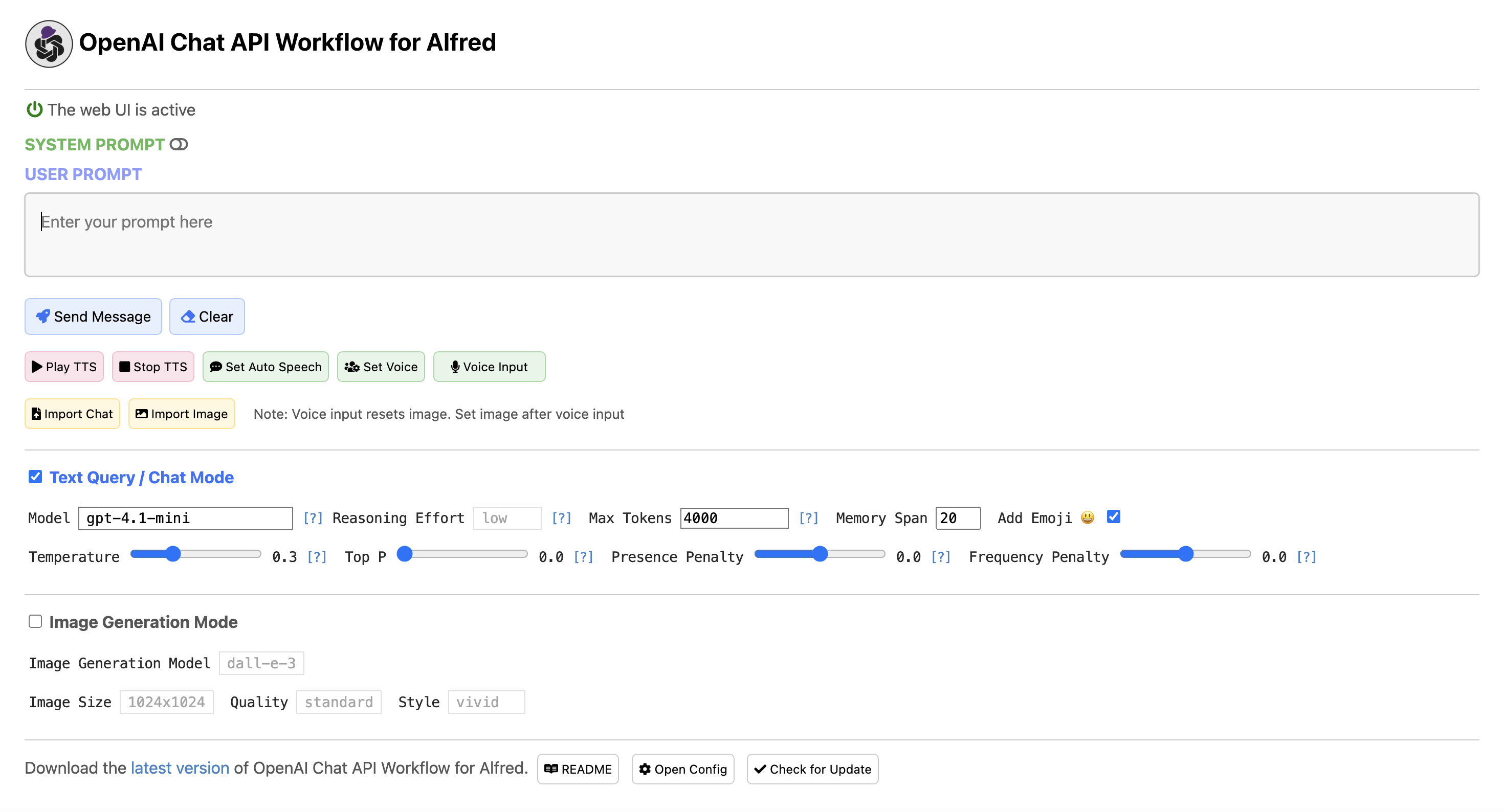
- A dedicated web UI 🌐
The web UI is constructed by the workflow and runs locally on your Mac 💻. The API call is made directly between the workflow and OpenAI, ensuring your chat messages are not shared online with anyone other than OpenAI 🔒. Furthermore, OpenAI does not use the data from the API Platform for training 🚫.
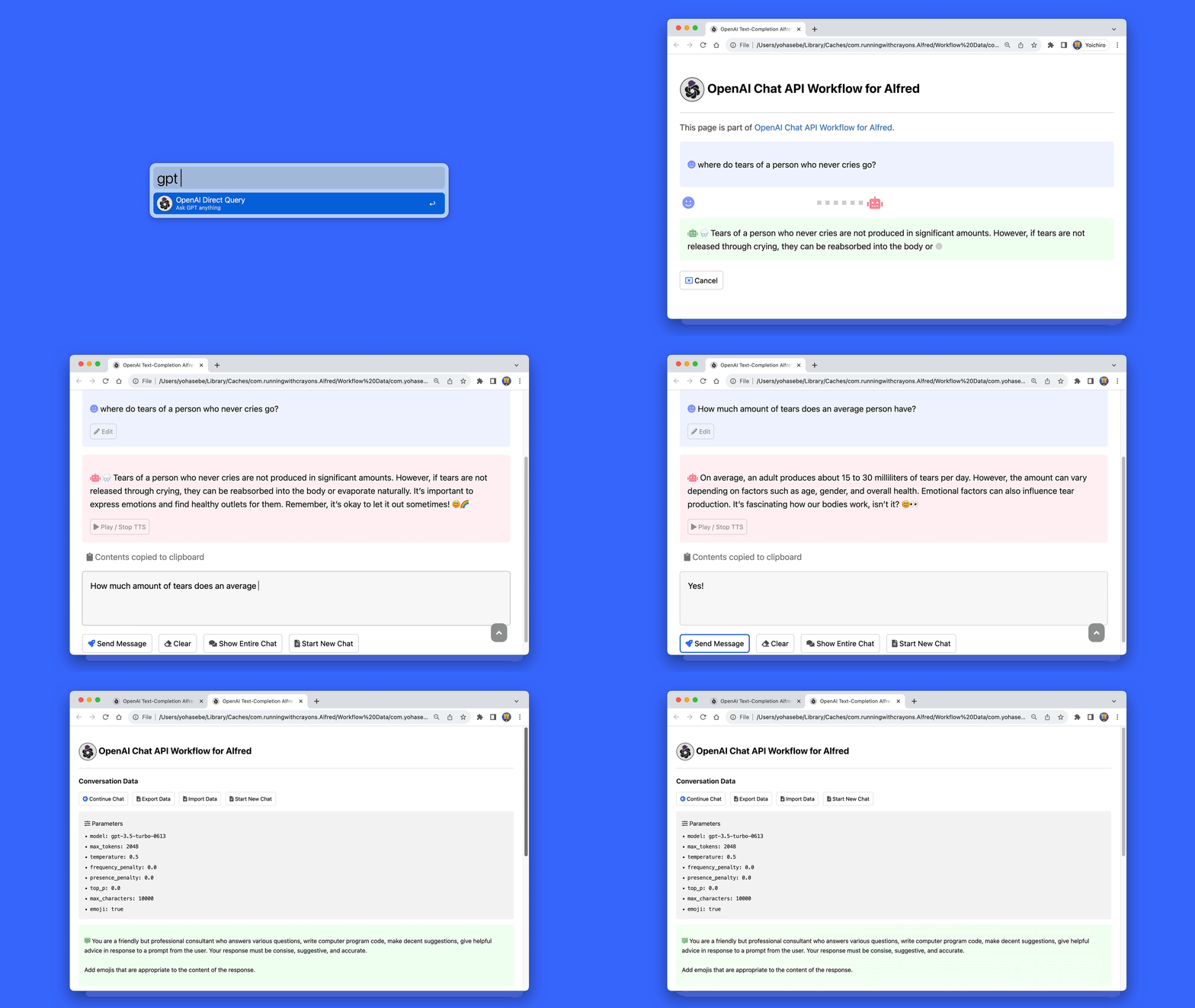
All messages in a conversation are displayed on a single scrollable page 📜, making it easy to review the full context. You can export the chat data to an external file in simple JSON format 📄, and it is possible to continue the chat by importing it later 🔄.
Installation
- Download and run OpenAI Chat API Workflow
- Set your OpenAI API key
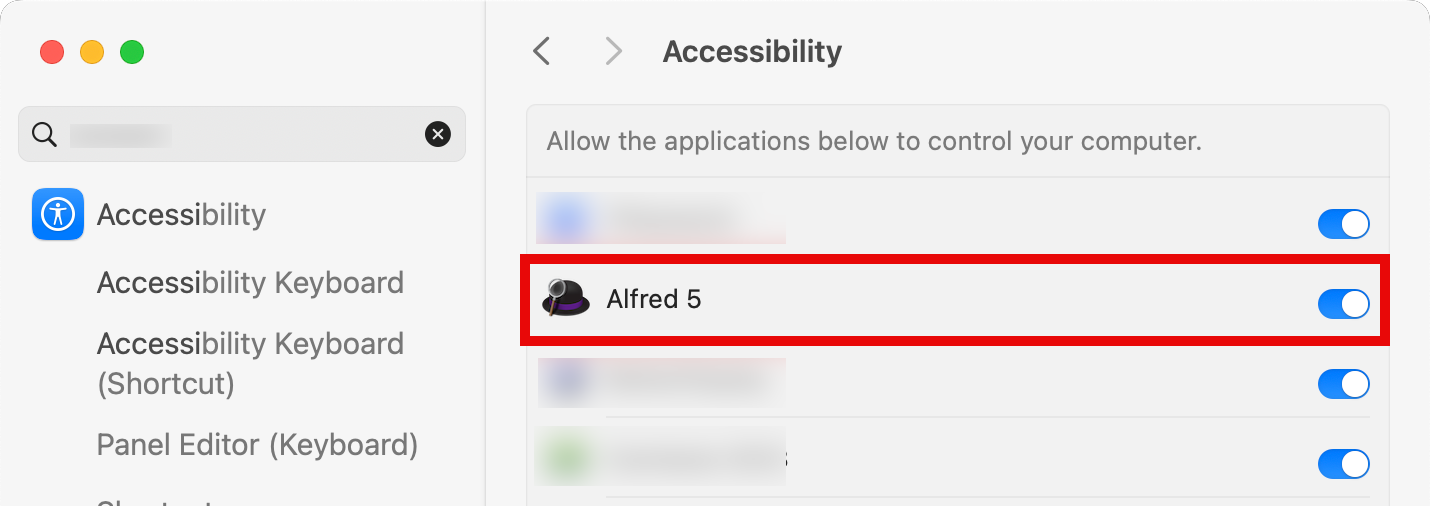
- Enable accessibility settings for Alfred in
System Preferences→Security & Privacy→Privacy→Accessibility
Setup Hotkeys
You can set up hotkeys in the settings screen of the workflow. To set up hotkeys, double-click on the light purple workflow elements.
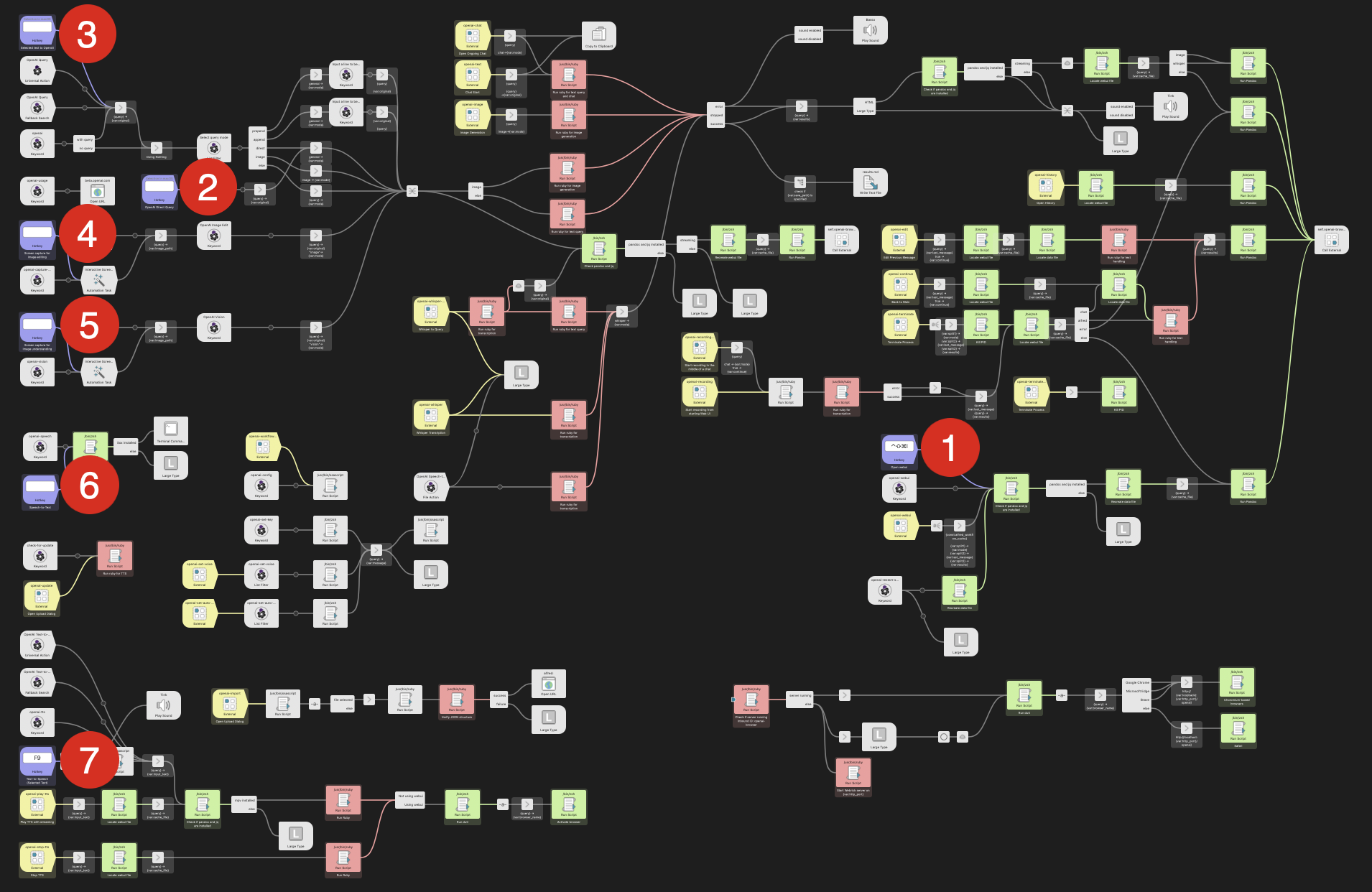
- Open Web UI (Recommended)
- Direct Query
- Send Selected Text
- Screen Capture for Image Editing
- Screen Capture for Image Understanding
- Speech to Text
- Text to Speech (Selected text)
There is also a "Stop text-to-speech playback" command to stop the playback of the text-to-speech audio stream. Current it needs to be assigned a hotkey different from that of the "Text to Speech" command.
Dependencies
No external dependencies (Homebrew, etc.) are required. All features work out of the box.
To start using this workflow, you must set the environment variable apikey, which you can obtain by creating a new OpenAI account. See also the Configuration section below.
Note: Voice input uses the browser's built-in Web Audio API in the Web UI. No external dependencies are required.
Recent Changelog
- 5.1.0:
- New model
gpt-5.5added as a selectable option (not the default) - Default chat model changed from
gpt-5-minitogpt-5.4-minifor a better balance of cost and capability - Removed unused expensive-model confirmation dialog mechanism (the
proflagship and o-series models are intentionally not bundled)
- New model
- 5.0.0:
- New image generation model
gpt-image-2(now default); simplified togpt-image-2andgpt-image-1.5 - File input via OpenAI Files API (
file_idreference) for images, PDFs, Office documents, text, code, and more - Uploaded files are automatically deleted from OpenAI's storage after each response
- Structured error display with Status/Code/Message/Request ID and collapsible debug info
- File input via Alfred Universal Action ("OpenAI File Input") for all supported file types
- Iterative image editing (Refine Image) with conversation history
- Automatic context truncation for long conversations
- Simplified command list: removed 12 legacy prompt modes (Write Program Code, Grammar Correction, etc.) — use natural language prompts instead
- Removed unused API parameters (Temperature, Top P, Frequency/Presence Penalty, Max Size for Image Understanding) from settings
- Unified file upload architecture: both starter and chat UIs now use WEBrick
/uploadendpoint - Improved WebSocket stability for large file uploads
- JSON export/import reliability improvements
- Cache management: auto-cleanup on server start (7+ days) and manual "Clear Cache" button
- No external dependencies required (Homebrew install step removed)
- New image generation model
- 4.8.0:
- New models:
gpt-5.4-mini,gpt-5.4-nano - Reasoning effort defaults optimized per model
- New models:
- 4.7.0:
- New models:
gpt-5.4,gpt-5.3-chat-latest,gpt-5.3-codex - Removed deprecated models and added invalid model fallback
- Fix outdated OpenAI documentation URLs
- New models:
- 4.6.0:
- Fix Large Type parallel firing issue on Alfred 5.7+ / macOS 16
- Remove date-suffixed TTS/STT model names; use base names as defaults
- Fix typo in JSON validation error message
- 4.5.0:
- Simplified image models:
gpt-image-1.5(default) andchatgpt-image-latest(lightweight) - Removed deprecated
gpt-image-1andgpt-image-1-minimodels
- Simplified image models:
- 4.4.0:
- Added
gpt-image-1.5as default image generation model - Removed DALL·E 2 and DALL·E 3 models (deprecated by OpenAI)
- Added
- 4.3.0:
- New TTS model:
gpt-4o-mini-tts-2025-12-15(now default) - New STT model:
gpt-4o-mini-transcribe-2025-12-15(now default) - Improved error rates, fewer hallucinations, better instruction following
- Enhanced support for Chinese, Japanese, Indonesian, Hindi, Bengali, Italian
- New TTS model:
- 4.2.0:
- GPT-5.2 series models now supported (
gpt-5.2,gpt-5.2-chat-latest,gpt-5.2-pro) - New
xhighreasoning effort level for maximum quality gpt-5.2-prohas very high API pricing - confirmation dialog added- Model-specific reasoning effort constraints for GPT-5.2 series
- Web UI updated with new models and pricing warning
- GPT-5.2 series models now supported (
- 4.1.0:
- GPT-5.1 series models now supported (
gpt-5.1,gpt-5.1-chat-latest,gpt-5.1-codex,gpt-5.1-codex-mini) gpt-5.1replacesgpt-5as the flagship model with enhanced reasoning capabilitiesgpt-5.1-chat-latestreplaceschatgpt-4o-latestfor latest optimizations- New codex variants (
gpt-5.1-codex,gpt-5.1-codex-mini) for code generation tasks - Model-specific reasoning effort constraints with dynamic UI adjustment
- Removed older models:
gpt-5,gpt-4.1series,gpt-4oseries,chatgpt-4o-latest - Default model remains
gpt-5-minifor balanced performance gpt-5-miniandgpt-5-nanocontinue to be supported
- GPT-5.1 series models now supported (
- 4.0.0:
- GPT-5 series models (
gpt-5,gpt-5-mini,gpt-5-nano) supported with Responses API - GPT-5 models feature reasoning capabilities with configurable reasoning_effort (minimal/low/medium/high)
- Note: Only
gpt-5supportsminimalreasoning_effort.gpt-5-mini,gpt-5-nano, and other reasoning-capable models do not supportminimal. - Default model changed to
gpt-5-mini - Removed support for o1, o3, o4 series reasoning models
- GPT-4.1 and earlier models continue to use Chat Completion API
- Full support for PDF and image understanding across all GPT-5 models
- GPT-5 series models (
Methods of Execution
Here are three methods to run the workflow: 1) Using commands within the Alfred UI, 2) Passing selected text to the workflow, 3) Utilizing the Web UI. Additionally, there's a convenient method for making brief inquiries to GPT. All methods share the same conversation history — messages accumulate on a single scrollable page, regardless of how you send them.
Commands within the Alfred UI
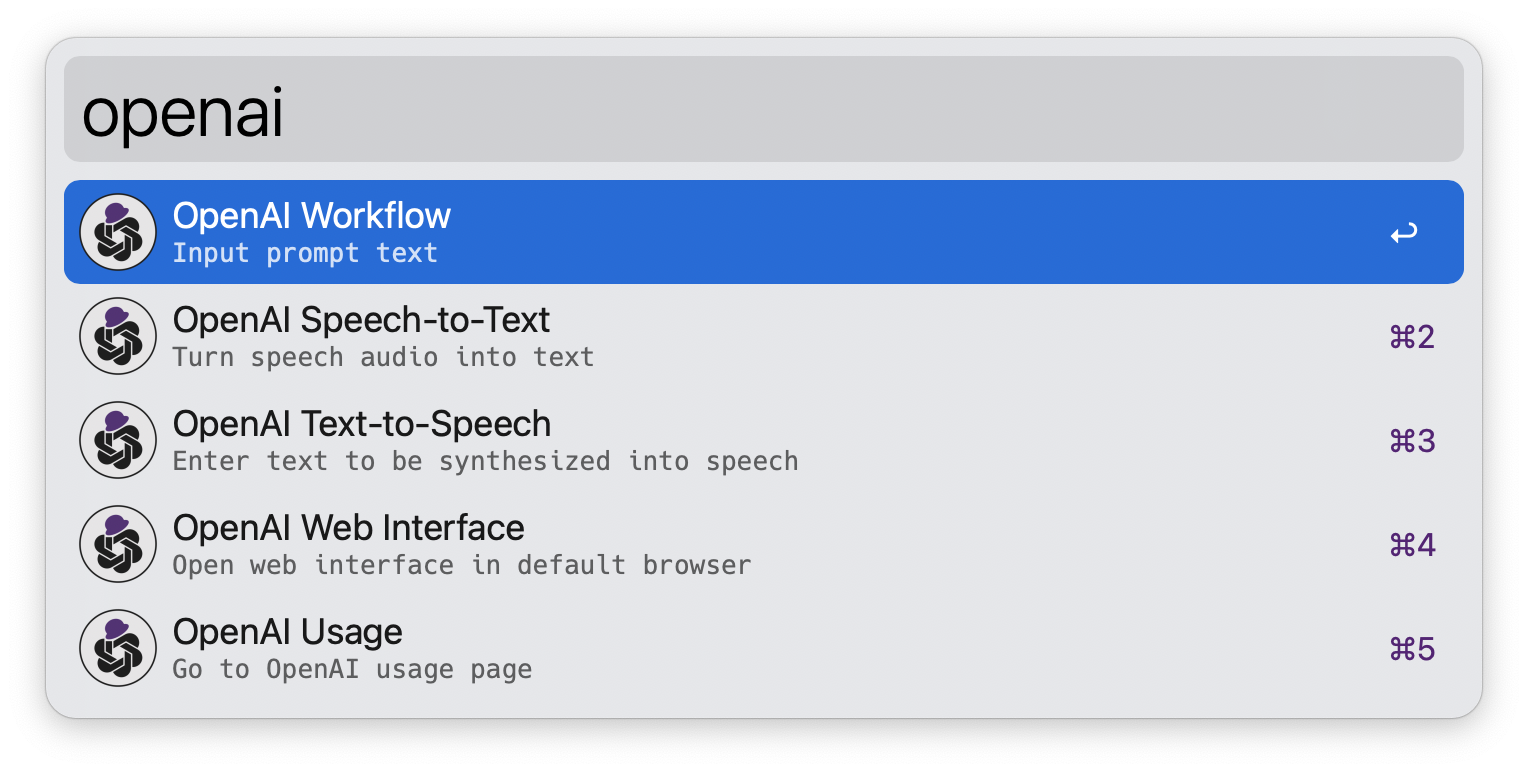
You can enter a query directly into Alfred's textbox:
- Method 1: Alfred textbox → keyword (
openai) → space/tab → input query → select a command (see below) - Method 2: Alfred textbox → input query → select fallback search (
OpenAI Query)
Passing Selected Text
You can select any text on your Mac and send it to the workflow:
- Method 1: Select text → universal action hotkey → select
OpenAI Query - Method 2: Set up a custom hotkey to
Send selected text to OpenAI
Using Web Interface
You can open the web interface:
- Method 1: Alfred textbox → keyword (
openai-webui) - Method 2: Set up a custom hotkey to
Open web interface
Using the Default Browser
If your default browser is set to one of the following, the web interface will automatically open in your chosen browser. If not, Safari will be used as the default.
- Google Chrome (Stable, Beta, Dev, etc.)
- Microsoft Edge (Stable, Beta, Dev, etc.)
- Brave Browser
Restart the OpenAI Workflow server by executing openai-restart-server if the web UI does not work as expected after changing the default browser.
Web UI Modes
Switch modes (light/dark/auto) with the Web UI Mode selector in the settings.
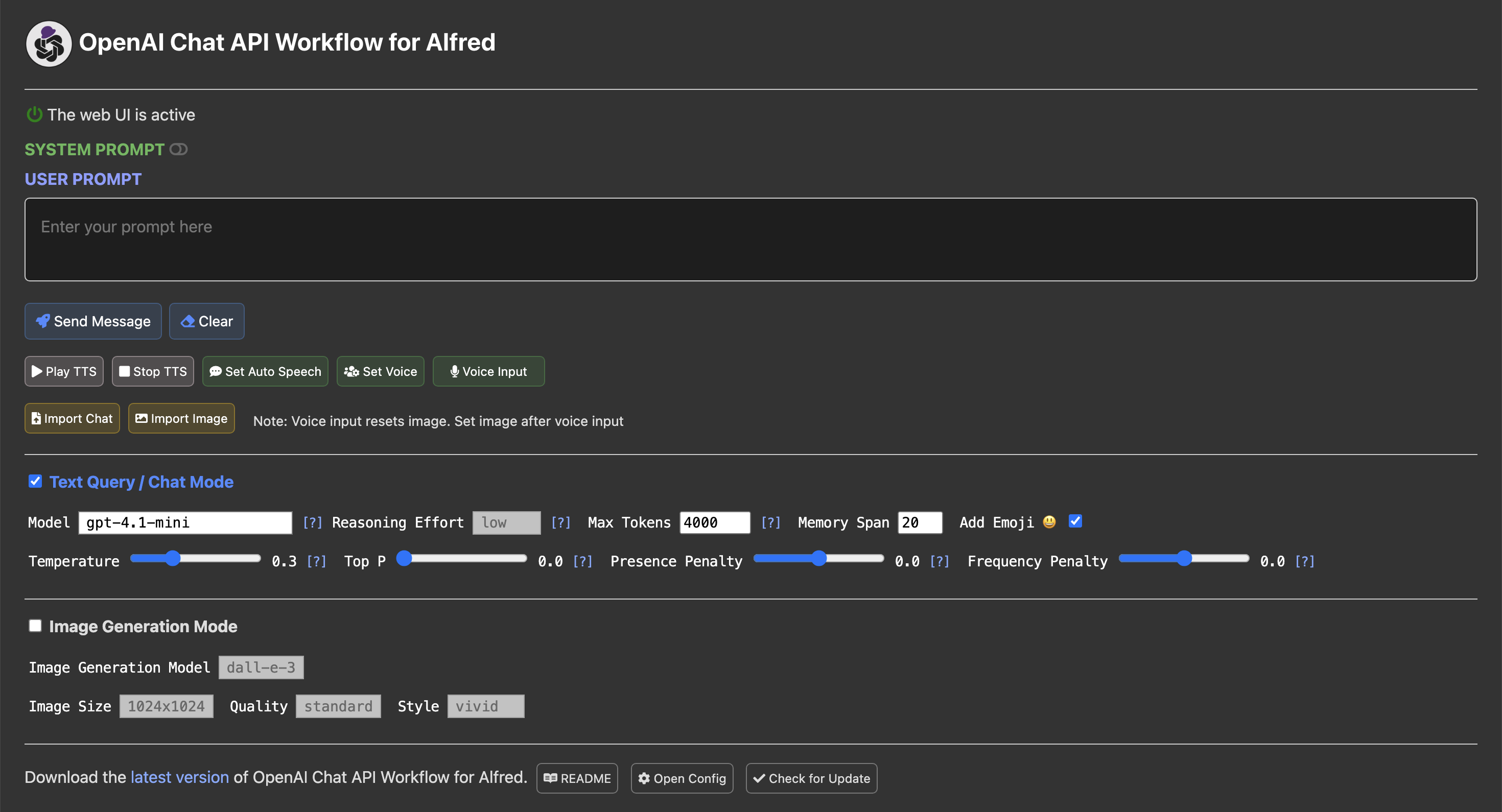
Simple Direct Query/Chat
To quickly chat with GPT:
- Method 1: Type keyword
gpt→ space/tab → input query (e.g., "gpt what is a large language model?") - Method 2: Set up a custom hotkey to
OpenAI Direct Query
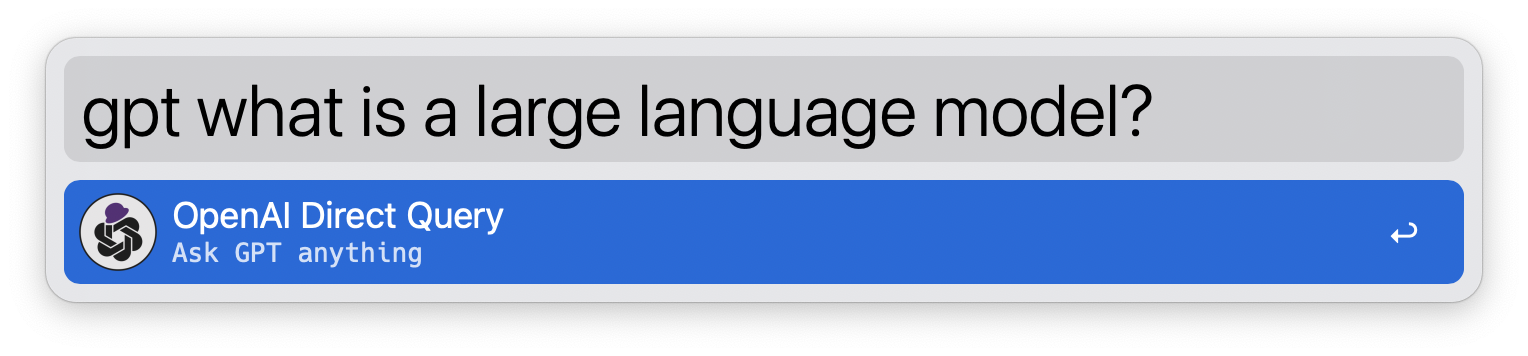
Basic Commands
With Direct Query, the input text is sent directly to the OpenAI Chat API as a prompt. You can also create a query by prepending or appending text to the input.
 Direct Query
The input text is directly sent as a prompt to the OpenAI Chat API.

 Prepend Text + Query
After entering the initial text, you are prompted for additional text. The additional text is added before the initial text, and the resulting text is used as the query.
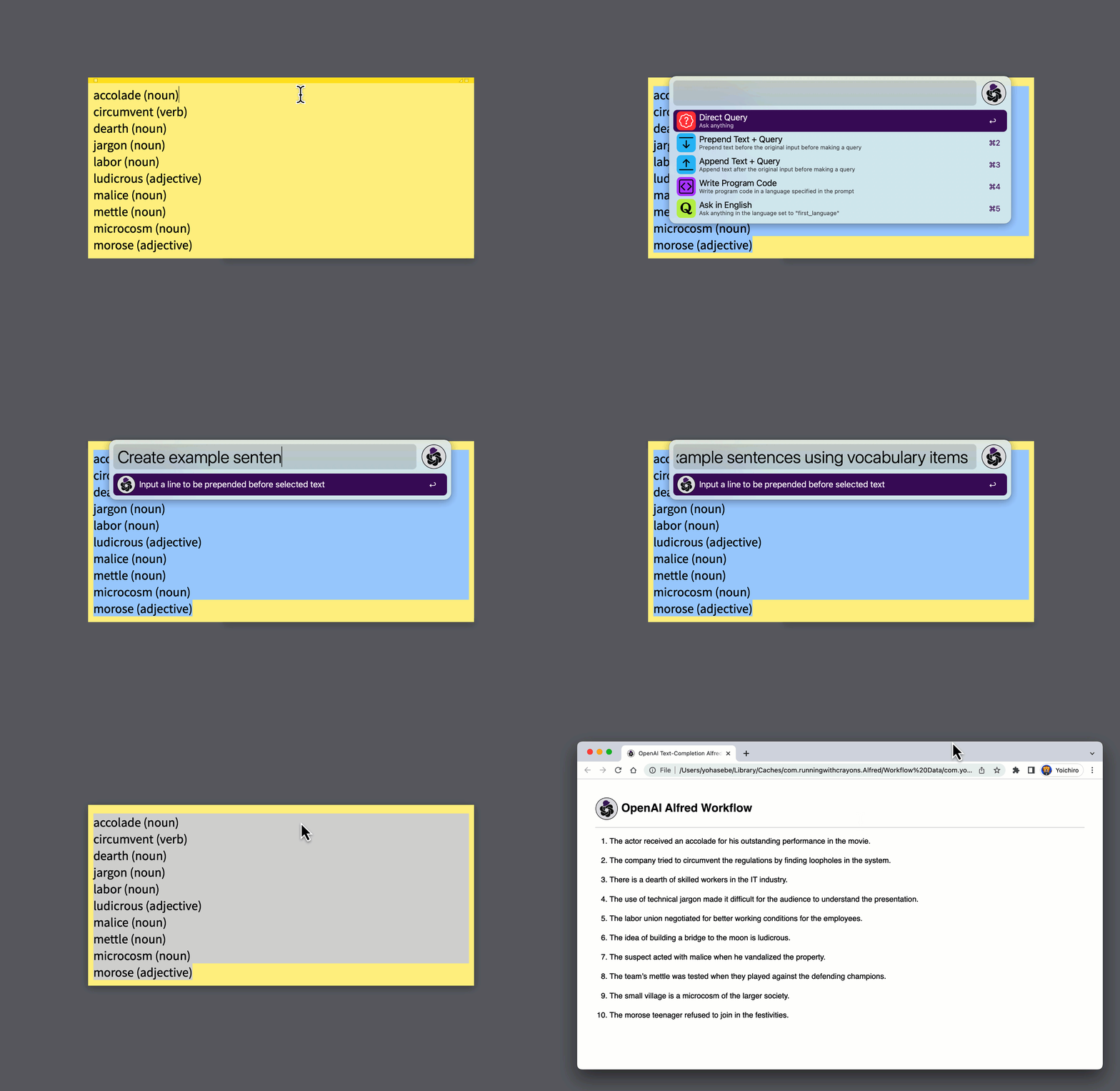
 Append Text + Query
After entering the initial text, you are prompted for additional text. The additional text is added after the initial text, and the resulting text is used as the query.
 Generate Image
The GPT Image API (gpt-image-2 or gpt-image-1.5) is used to generate images based on the entered prompts. See Image Generation below.
Image Generation
Image generation can be executed through one of the above commands. It is also possible to use the web UI. By using the web UI, you can interactively change the prompt to get closer to the desired image.
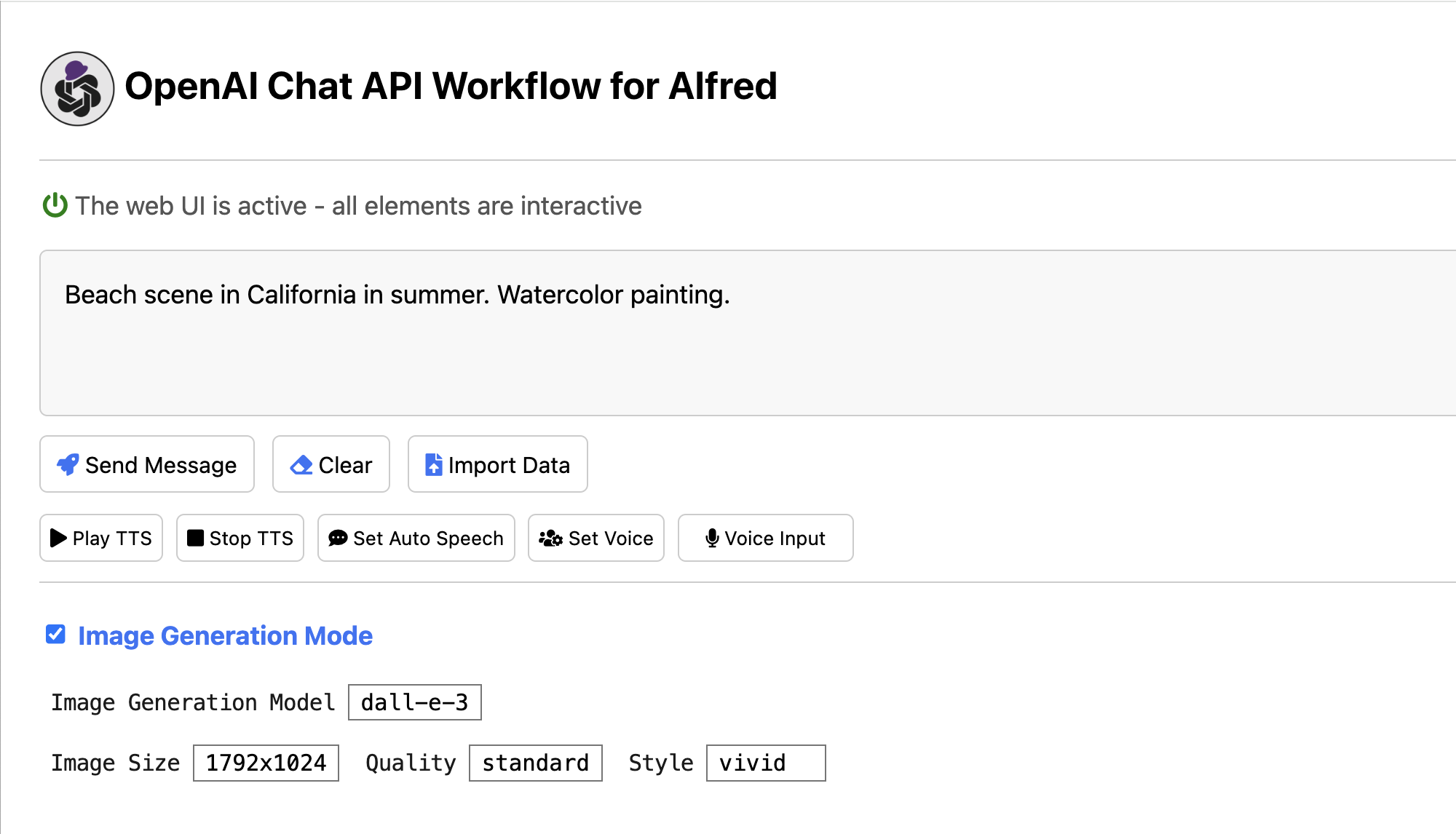
To use the image generation mode with the gpt-image-2 or gpt-image-1.5 model, you may need to complete the API Organization Verification from your developer console.
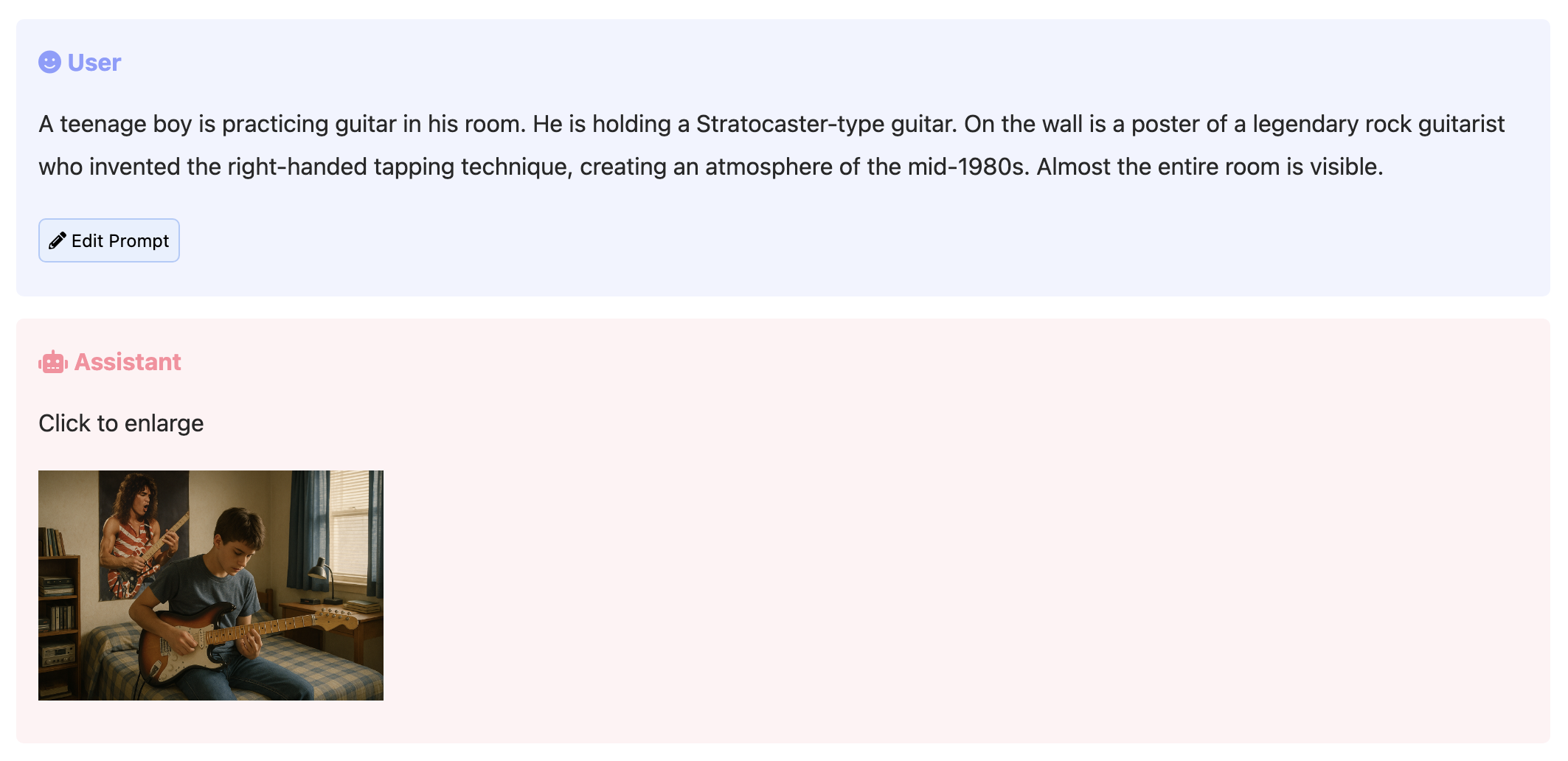
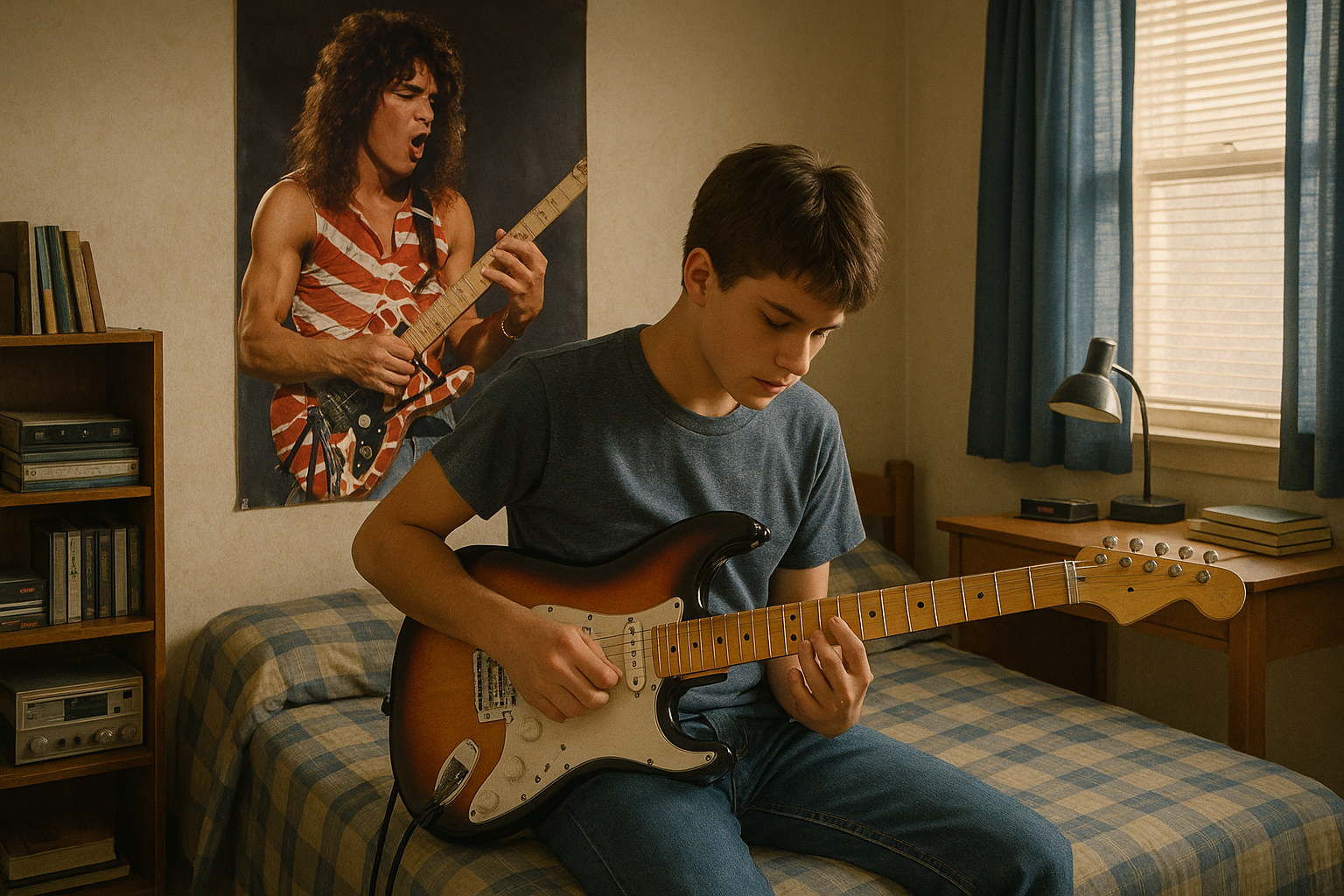
Image Editing
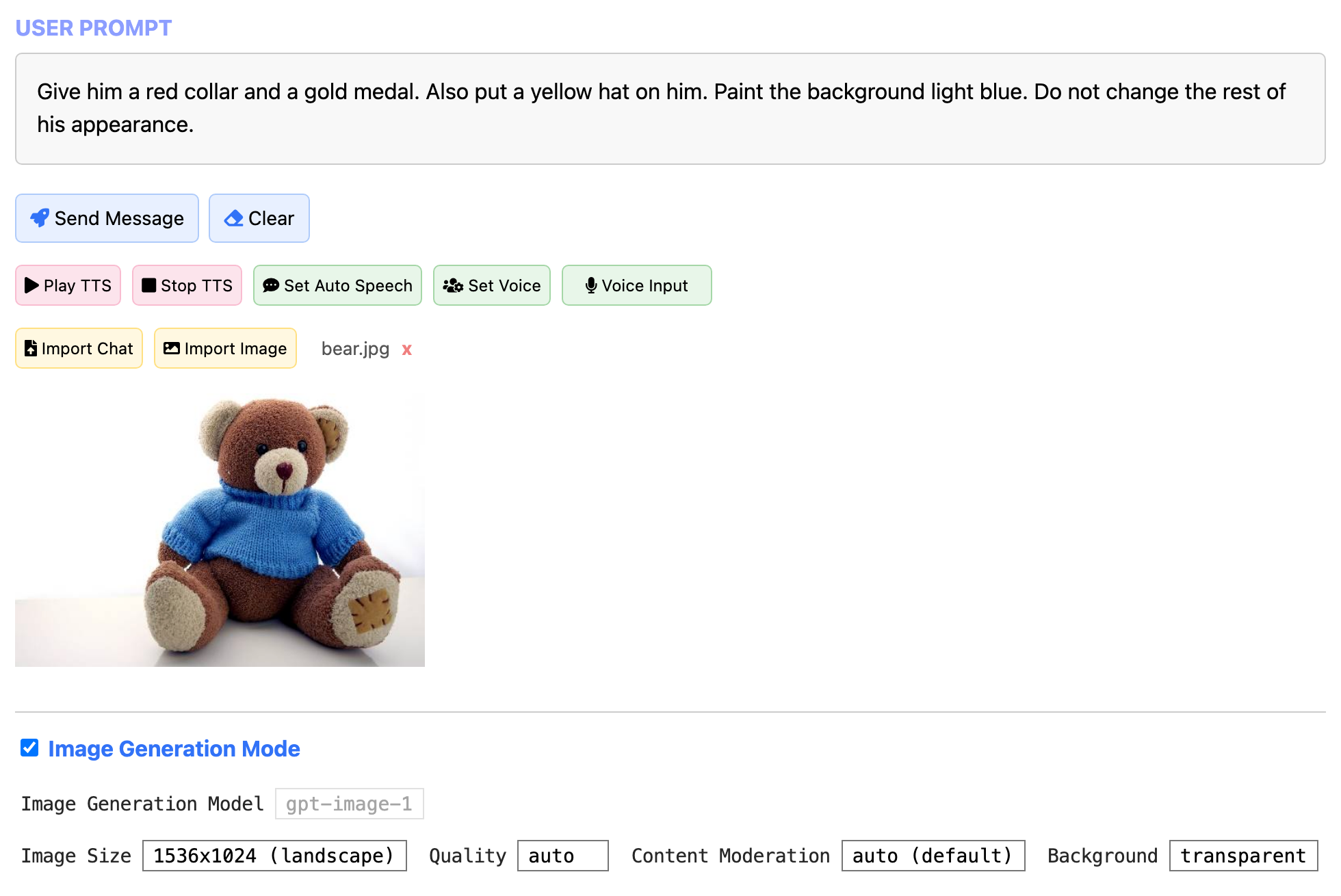
There is a command to edit images using gpt-image-2 or gpt-image-1.5. There is an Universal Action command OpenAI Image Edit. You can also use the web UI to upload an image file for editing. The image file is sent to the OpenAI Image Editing API, and the result is displayed after a while (at the maximum of 2 minutes).
Iterative Image Refinement
After an image is generated, a Refine Image panel appears below the result. You can type follow-up prompts to iteratively refine the image (e.g., "make the background blue", "zoom out"). The previously generated image is automatically used as the source for the next edit. The full conversation history (all prompts and images) is preserved on screen. Use Cmd+Enter or Ctrl+Enter to submit.
File Understanding
You can upload various file types for analysis through the web UI. Supported file types include:
- Images: PNG, JPG, JPEG, GIF, WebP
- Documents: PDF, Word (.doc, .docx), ODT, RTF
- Spreadsheets: Excel (.xls, .xlsx), CSV, TSV
- Presentations: PowerPoint (.ppt, .pptx)
- Text & Code: .txt, .md, .json, .html, .xml, .py, .rb, .js, .ts, .java, .c, .cpp, .go, .rs, .swift, .sql, and many more
Maximum file size is 50MB per file. Files are uploaded via OpenAI's Files API for processing and automatically deleted from OpenAI's storage after each response.
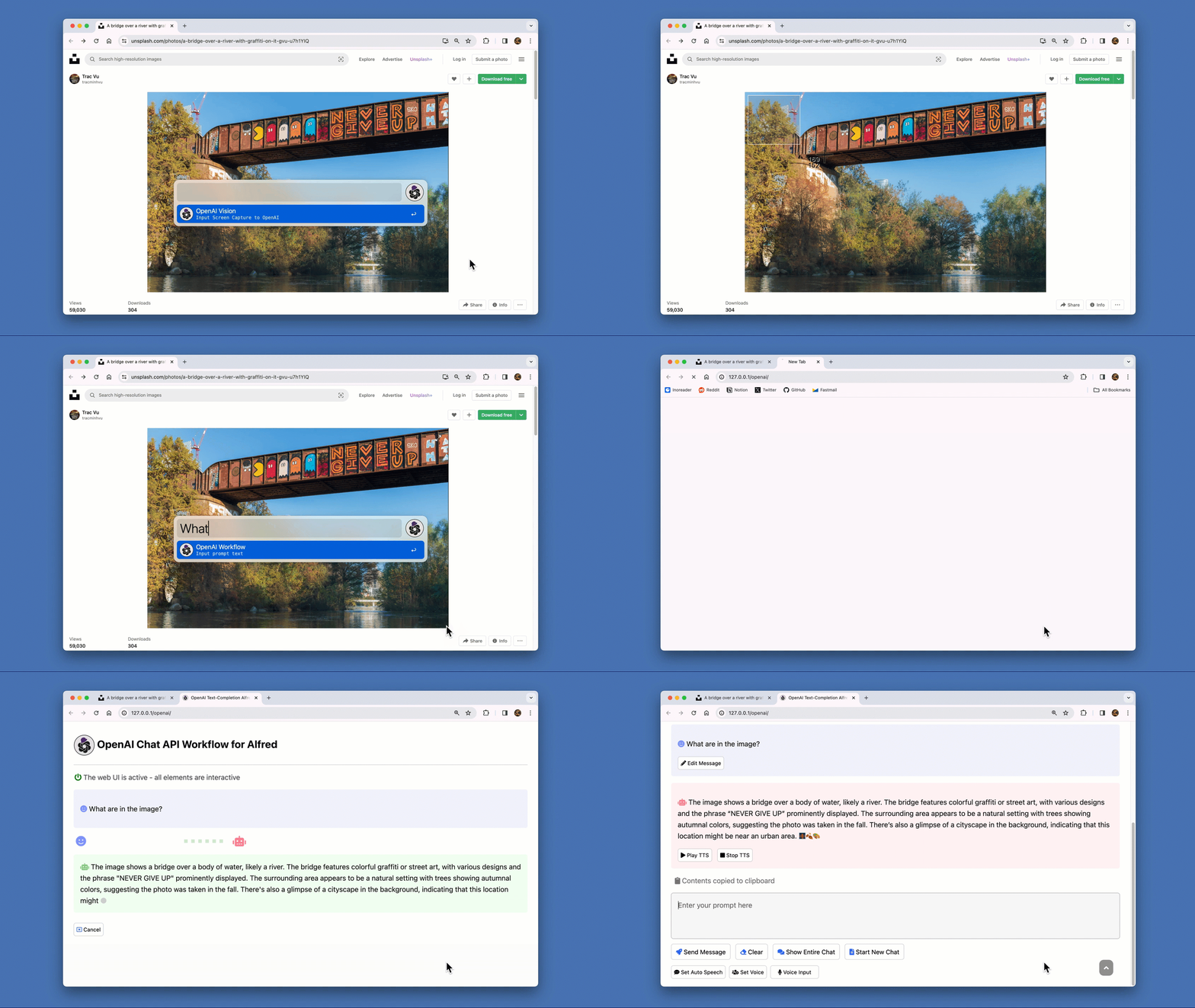
Screen capture analysis can be executed through the openai-vision command, which starts capture mode and lets you specify a part of the screen to be analyzed. You can also send any supported file to OpenAI using the "OpenAI File Input" universal action in Finder.
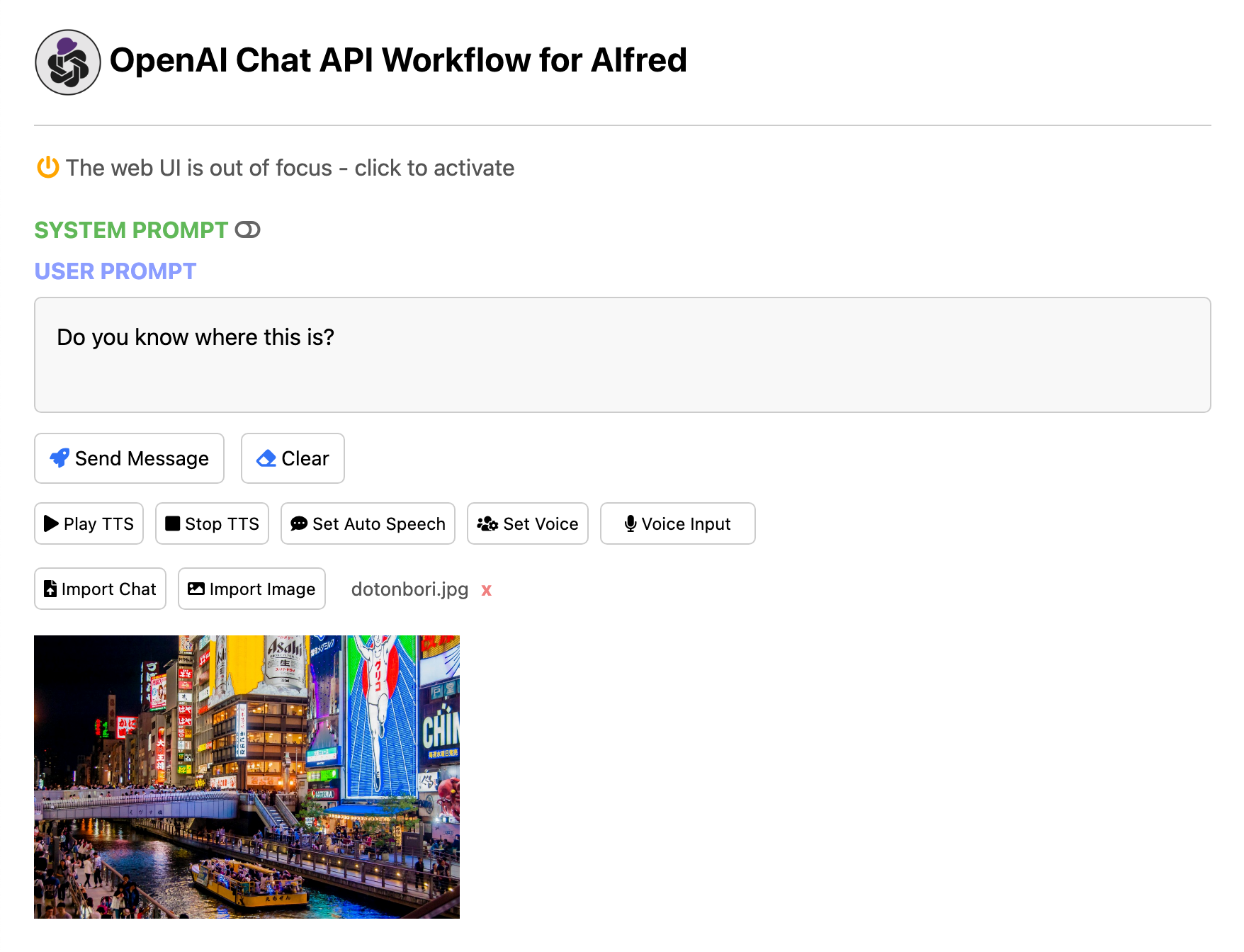
Alternatively, you can use the web UI to upload a file for analysis. The file is sent to the OpenAI API, and the result is displayed in the web UI.
You can also specify a file using the universal action hotkey on the file in Finder.
Speech Synthesis and Speech Recognition
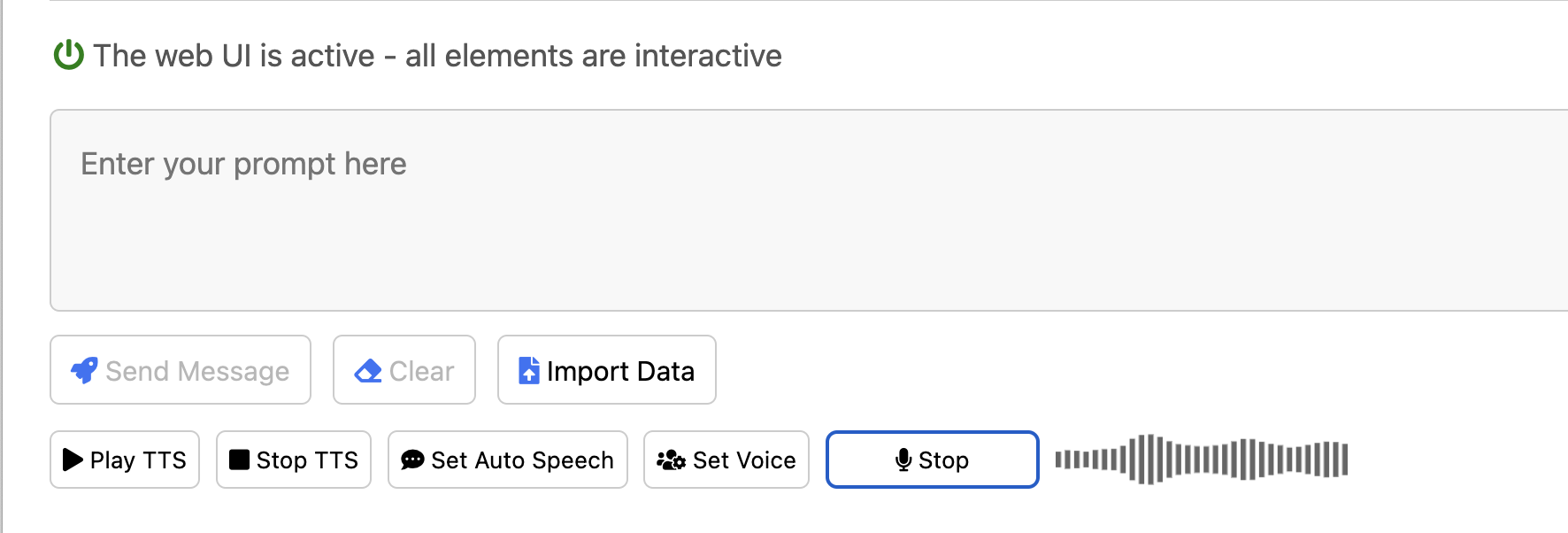
Most text-to-speech and speech-to-text features are available on the web UI. However, there are certain specific features provided as commands, such as audio file to text conversion and transcription with timestamps.
Text-to-Speech Synthesis
Text entered or response text from GPT can be read out in a natural voice using OpenAI's text-to-speech API.
- Method 1: Press the
Play TTSbutton on the web UI - Method 2: Select text → universal action hotkey → select
OpenAI Text-to-Speech
Speech-to-Text Conversion
- Method 1: Press the
Voice Inputbutton on the web UI - Method 2: Alfred textbox → keyword (
openai-speech)
Audio File to Text
You can select an audio file in mp3, mp4, flac, webm, wav, or m4a format (under 25MB) and send it to the workflow:
- Select the file → universal action hotkey → select
OpenAI Speech-to-Text
Record Voice Audio and Transcribe
You can record voice audio and send it to the Workflow for transcription using the speech-to-text API.
- Web UI (Recommended): Press the
Voice Inputbutton on the web UI to record and transcribe directly in the browser using the Web Audio API. No external tools required. - Alfred keyword: Alfred textbox → keyword (
openai-speech) → redirects to the Web UI for recording.
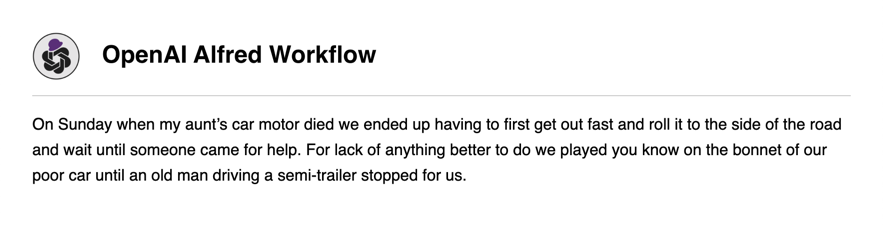
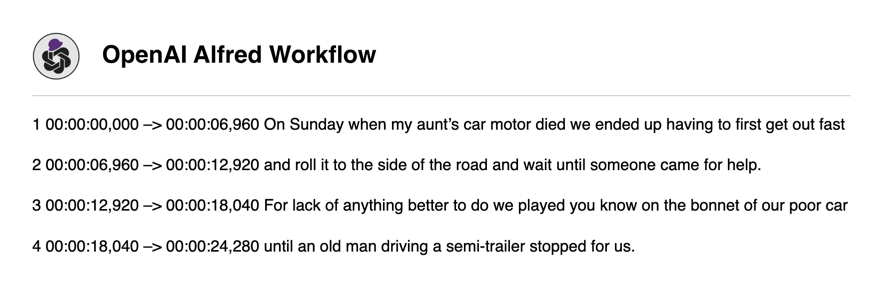
You can choose the format of the transcribed text as text, srt, or vtt in the workflow's settings. Below are examples in the text and srt formats:
-
Reasoning Effort: For GPT-5 series models, set the reasoning effort to control how many reasoning tokens the model generates before creating a response. Available values and defaults vary by model:
- gpt-5.5:
none,low,medium,high,xhigh(default:none) - gpt-5.4:
none,low,medium,high,xhigh(default:none) - gpt-5.4-mini:
none,low,medium,high,xhigh(default:none) - gpt-5.4-nano:
none,low,medium,high,xhigh(default:none) - gpt-5.3-chat-latest:
mediumonly (default:medium) - gpt-5.3-codex:
none,low,medium,high,xhigh(default:none) - gpt-5.1-codex-mini:
low,medium,high(default:low) - gpt-5-mini:
minimal,low,medium,high(default:minimal) - gpt-5-nano:
minimal,low,medium,high(default:minimal)
The
nonesetting provides lower-latency interactions similar to non-reasoning models. Thexhighsetting provides maximum quality for complex tasks. The web UI automatically adjusts available options based on the selected model.Note: When using Alfred's Configuration Builder (not the Web UI), all reasoning effort options are shown regardless of the selected model. If an invalid combination is selected (e.g.,
nonewithgpt-5.3-codex), the workflow automatically falls back to the model's default reasoning effort at runtime.Model selection policy: This workflow targets quick-turnaround Alfred interactions. Flagship
provariants (e.g.,gpt-5.5-pro) and theo-series reasoning models are intentionally not bundled because their pricing and latency profile do not fit the workflow's typical use case. The default model is aminitier (gpt-5.4-mini) so common usage stays affordable; you can switch to a flagship (gpt-5.5,gpt-5.4) for harder tasks.See OpenAI's documentation.
- gpt-5.5:
-
Max Tokens: Maximum number of tokens to be generated upon completion (default:
2048). If this parameter is set to0,nullis sent to the API as the default value (the maximum number of tokens is not specified). -
Memory Span: Set the number of past utterances sent to the API as context. Setting
4for this parameter means 2 conversation turns (user → assistant → user → assistant) will be sent as context for a new query. The larger the value, the more tokens will be consumed. (default:10) -
Max Characters: Maximum number of characters that can be included in a query (default:
50000). -
Timeout: The number of seconds (default:
10) to wait before opening the socket and connecting to the API. If the connection fails, reconnection (up to 20 times) will be attempted after 1 second. -
Add Emoji: If enabled, the response text from GPT will contain emoji characters appropriate for the content. This is realized by adding the following sentence at the end of the system content. (default:
enabled)Add emojis that are appropriate to the content of the response.
-
System Content: Text to send with every query sent to the API as general information about the specification of the chat. The default value is as follows:
You are a friendly but professional consultant who answers various questions, makes decent suggestions, and gives helpful advice in response to a prompt from the user. Your response must be concise, suggestive, and accurate.
Image Generation/Editing Parameters
Image editing feature is available for GPT Image models (gpt-image-2, gpt-image-1.5).
- Image Generation Model:
gpt-image-2(flagship) andgpt-image-1.5are available. (default:gpt-image-2) - Image Size: Set the size of images to generate:
auto,1024x1024,1536x1024, or1024x1536(default:auto) - Quality: Choose the quality of the image:
auto,low,medium, orhigh(default:auto) - Content Moderation:
autoorlow(default:auto) - Background:
auto,transparent, oropaque(default:auto)
Speech-to-Text Parameters
-
Transcription Model: One of the available transcription models:
whisper-1,gpt-4o-mini-transcribe, orgpt-4o-transcribe. (default:gpt-4o-mini-transcribe) -
Transcription Format: Set the format of the text transcribed from the microphone input or audio files to
text,srt, orvtt(default:text). Sincesrtandvttformats are supported bywhisper-1only, the workflow will automatically switch towhisper-1when these formats are selected. -
Processes after Recording: Set the default choice of what processes follow after audio recording finishes. (default:
Transcribe [+ delete recording]).- Transcribe [+ delete recording]
- Transcribe [+ save recording to desktop]
- Transcribe and query [+ delete recording]
- Transcribe and query [+ save recording to desktop]
-
Audio to English: When enabled, the speech-to-text (STT) API will transcribe the input audio and output text translated into English. (default:
disabled)
Text-to-Speech Parameters
- Text-to-Speech Model: One of the available TTS models:
tts-1,tts-1-hd, orgpt-4o-mini-tts. (default:gpt-4o-mini-tts) - Text-to-Speech Voice: The voice to use when generating the audio. Supported voices are:
alloy,ash,ballad,coral,echo,fable,onyx,nova,sage, andshimmer. (default:alloy) - Text-to-Speech Speed: The speed of the generated audio. Select a value from 0.25 to 4.0. (default:
1.0) - TTS Instruction: Specify character or speaking style instructions for text-to-speech synthesis.
- Automatic Text to Speech: If enabled, the results will be read aloud using the system's default text-to-speech language and voice. (default:
disabled)
Other Settings
- Sound: If checked, a notification sound will play when the response is returned. (default:
disabled) - Save File Path: If set, the results will be saved in the specified path as a markdown file. (default:
not set)
Environment Variables
Environment variables can be accessed by clicking the [x] button located at the top right of the workflow settings screen. Normally, there is no need to change the values of the environment variables.
http_keep_alive: This workflow starts an HTTP server when the web UI is first displayed. After that, if the web UI is not used for the time (in seconds) set by this environment variable, the server will stop. (default:7200= 2 hours)http_port: Specifies the port number for the web UI. (default:8787)- Note: Default changed to 8787 in v4.0.0 to avoid privileged port conflicts.
http_server_wait: Specifies the wait time from when the HTTP server is started until the page is displayed in the browser. (default:2.5)websocket_port: Specifies the port number for websocket communication used to display responses in streaming on the web UI. (default:8080)
Troubleshooting
- Port conflict or permission error
- The web UI binds to
127.0.0.1onhttp_port(default8787). If startup fails with a port error, change the environment variablehttp_portto a free non‑privileged port (e.g.,8888).
- The web UI binds to
- Logs location and rotation
- Logs are written to
$alfred_workflow_cache/workflow.logwith simple rotation (up to ~1MB × 5 files).
- Logs are written to
- macOS notification permission
- If startup error notifications do not appear, check System Settings → Notifications → allow notifications for Alfred.
- Cache management
- Uploaded files, TTS audio, and temporary HTML are cached in
$alfred_workflow_cache. Old files (7+ days) are automatically cleaned up when the server starts. - To manually clear all cached files, use the Clear Cache button on the web UI (starter page or chat page). This does not delete your current conversation data.
- Uploaded files, TTS audio, and temporary HTML are cached in
- No external dependencies required
- All features work out of the box with macOS built-in tools.
Author
Yoichiro Hasebe ([email protected])
License
The MIT License
Disclaimer
The author assumes no responsibility for any potential damages arising from the use of this software.