
-- org-adapt-indentation: nil; fill-column: 70; --
#+title: organice documentation
#+html:
organice - /'ɔ:gənaɪz/
#+html:
organice organizes Org files nicely!
#+html:

- General :PROPERTIES: :CUSTOM_ID: general :END:
** Code
REPO_PLACEHOLDER
INFO: We're using inline =#+HTML= notation in favor of the much more
readable =#+BEGIN_EXPORT html= notation, because GitHub uses legacy
Org parsers and wouldn't render the latter. GitHub would render
the legacy notation =#+BEGIN_HTML= which will not be properly
exported from Emacs, because it's legacy. Hence the glorious
solution: Write all HTML in one line.
#+HTML:

** Getting started :PROPERTIES: :CUSTOM_ID: getting_started :END:
To get you started, we have two kinds of documentation:
- [[https://organice.200ok.ch/sample][Interactive Tutorial]]
- [[https://organice.200ok.ch/documentation.html][Documentation (User manual and developer guide)]]
The [[https://organice.200ok.ch/sample][interactive tutorial]] allows users to explore and experiment with various org-mode functionalities directly within the application. It provides hands-on examples of tasks, tables, timestamps, and (most) other features.
On the other hand, the [[https://organice.200ok.ch/documentation.html][documentation]] contains more comprehensive and formal documentation, including installation instructions, deployment guides, contribution guidelines, and technical details about the project's architecture and development process. This file is aimed at both users seeking in-depth information and developers interested in contributing to the project.
** Community chat
Community chat:
- #organice on IRC [[https://libera.chat/][Libera.Chat]]
- [[https://matrix.to/#/#organice:matrix.org][#organice:matrix.org]] on Matrix
** Sponsors
Creating and maintaining organice is made possible by all the volunteering [[https://github.com/200ok-ch/organice/graphs/contributors][contributors]] and [[https://github.com/sponsors/200ok-ch][sponsors]]. If you enjoy using organice, and want to sponsor the development of Free and Open Source software, you can do so with [[https://github.com/sponsors/200ok-ch][Github Sponsors]] and [[https://www.patreon.com/200ok][Patreon]].🙏
#+HTML:



And one huge anonymous sponsor.
** What does this project do? :PROPERTIES: :CUSTOM_ID: what-does-this-project-do :END:
organice is an implementation of [[http://orgmode.org/][Org mode]] without the dependency of [[https://www.gnu.org/software/emacs/][Emacs]]. It is built for mobile and desktop browsers and syncs with [[https://www.dropbox.com/][Dropbox]], [[https://gitlab.com/][GitLab]], and [[https://en.wikipedia.org/wiki/WebDAV][WebDAV]].
At [[https://200ok.ch/][200ok]], we run an instance of organice at https://organice.200ok.ch, which is open for anyone to use! organice does not have a back-end (it's just a front-end application, which uses different back-end storage providers). We don't store any kind of data on our servers - we also don't use analytics on organice.200ok.ch.
[[https://raw.githubusercontent.com/200ok-ch/organice/master/images/screenshot-overview.png]]
** Why is this project useful
Emacs is great, but it's desktop software. For users who want to access or edit their Org mode files whilst on the go, organice is a great choice.
** Introduction
If you prefer a video to some text, we've got you covered! For [[https://emacsconf.org/2019/][EmacsConf 2019]], we've created a 10 minute introductory video into the rationale and usability of organice.
#+html:
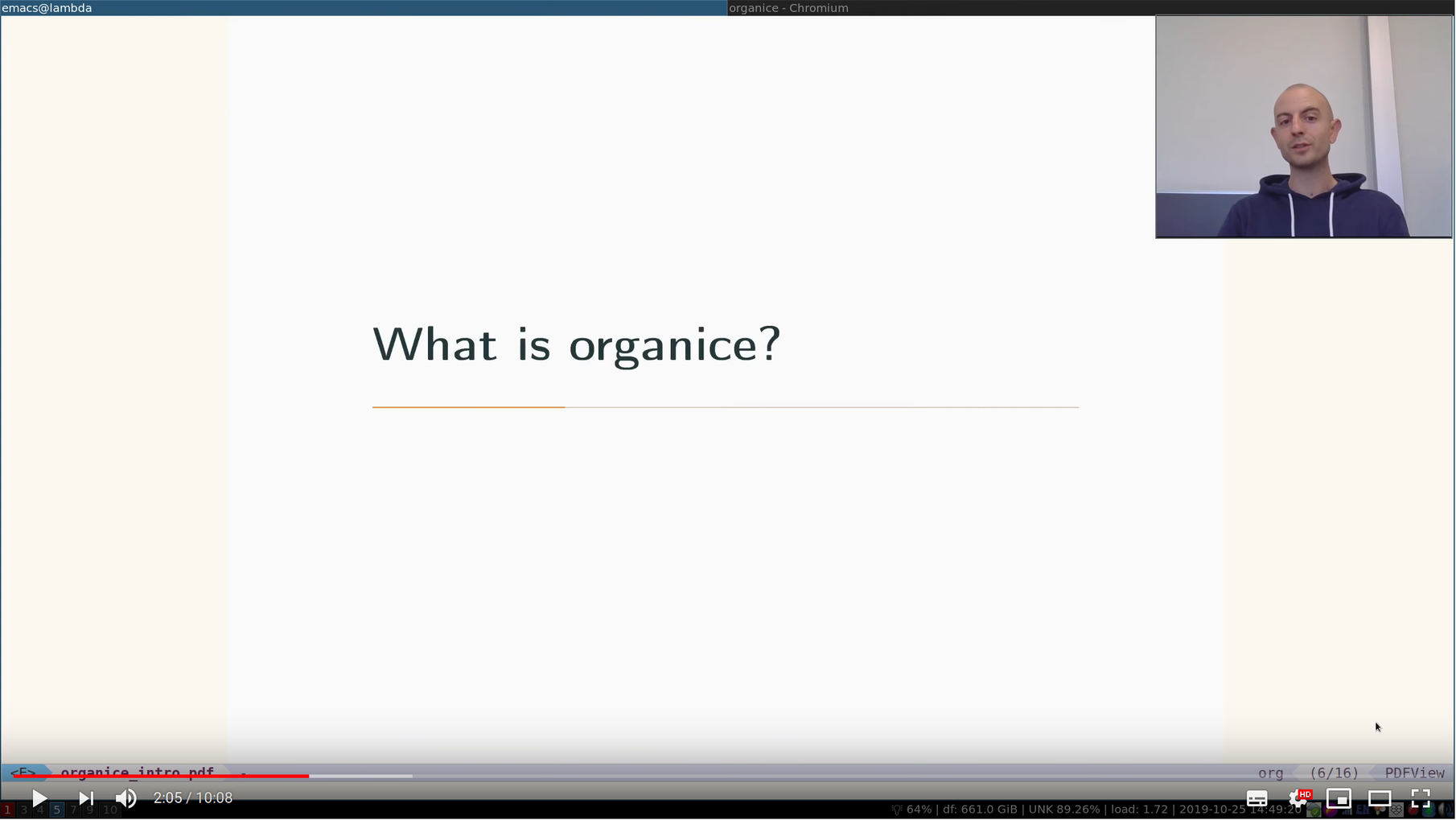
You can watch it on:
- [[https://www.youtube.com/watch?v=aQKc0hcFXCk][Youtube]]
- [[https://media.emacsconf.org/2019/05.html][emacsconf.org]]
- Installation :PROPERTIES: :CUSTOM_ID: installation :END:
organice is a web application. You can use it from any browser. On iOS and Android, you can install organice to your homescreen. When started from there, it will run in full-screen as a Progressive Web Application (PWA) which will add offline capabilities (see chapters [[#progressive_web_app][progressive web app]] and [[#offline_support][offline support]]).
To install organice to the homescreen follow these platform specific instructions:
-
iOS:
Open organice in Mobile Safari. Tap the "share" button and select "Add to Home Screen".
-
Android:
The exact procedure may differ depending on your browser and Android version. If you discover improvements to the following procedure, please [[https://organice.200ok.ch/documentation.html#contributing][let us know]]!
First open the organice web page in your mobile browser.
-
On Chrome, tap the "menu" button (three vertically stacked dots) and select "Add to homescreen".
-
On Firefox, "menu" button (three vertically stacked dots) and select "Install". If you don't have that option, you may have one to tap the home icon with the plus sign inside it which is immediately to the right of the URL in the address bar.
-
Other browsers may have a similar procedure to one of these.
At this point, most browsers will present a popup banner with the option to "Add to homescreen" or "Install".
-
By default, when you start organice, it will display your root file directory. If you prefer to display a specific Org file instead, you can select it in the [[https://organice.200ok.ch/settings][file settings]].
- Usage :PROPERTIES: :CUSTOM_ID: usage :END: ** Current restrictions/expectations of organice
"Current" means we're working hard on removing the following restrictions and expectations.
- organice understands only a few in-buffer settings (see [[#in_buffer_settings][Supported
in-buffer configuration]])
- Other in-buffer settings are imported and re-exported but are not editable with organice.
- Other content before the first headline is imported and re-exported, but invisible and currently not editable with organice.
- After potential in-buffer settings, your Org file has to begin with a headline.
Apart from these restrictions, organice is very robust in reading and editing your Org file and not breaking any of it. We're having users with 10'000 lines in their files including all kinds of native Org functionality - and even these files work just fine in organice!
Generally, when working with distributed Org files, we're recommending to put them under version control and to check for bugs and racing conditions between clients.
Please [[https://github.com/200ok-ch/organice/issues/new][file an issue]] if you find additional restrictions, expectations or bugs that you wouldn’t have expected.
*** Background information :PROPERTIES: :CUSTOM_ID: background-information :END:
organice has [[https://github.com/200ok-ch/organice/blob/master/src/lib/parse_org.js][a custom parser]] for Org files. It works quite fine and has unit tests to prove it. One of the quality goals for the parser is that when it parses and re-exports an Org file, it should not change the original file. Not seeing unrelated diffs is important for the productivity of the user. It sounds trivial, but lots of alternative products do not live up to this expectation.
Writing a parser for a complex syntax like Org mode in custom code is hard. Therefore, we are in the process of implementing a proper EBNF based parser and a set of tests behind that. If you're interested, please check it out: [[https://github.com/200ok-ch/org-parser]]
The strategy we're using with regard to the parser is this:
- Keep improving the existing custom parser for new features and make bug fixes as long as the new one isn't ready.
- In parallel, work on the new one until there is feature parity between both parsers.
- When the new one is finished, integrate it into organice.
** Progressive Web App :PROPERTIES: :CUSTOM_ID: progressive_web_app :END:
organice can run as a PWA (Progressive Web App) - see the [[#installation][installation instructions]] and does have offline support. From your home screen, organice will start up in full screen and it will use a [[https://developer.mozilla.org/en-US/docs/Web/API/Service_Worker_API][Service Worker]] to cache the application. On a desktop browser, the Service Worker will be used automatically. This is generally managed through the build process with Parcel and service worker configurations, enabling the following features:
- All static assets are cached so that organice loads fast on subsequent visits, regardless of network connectivity.
- Updates are downloaded in the background.
- organice works regardless of network state, even if offline.
- On mobile devices, organice can be added directly to the user's home screen, app icon and all.
Following that, if you start modifying your Org file when offline, organice will recognize that you are offline and queue up the synchronization until you are online again.
organice also understands when it's local Org file is outdated compared to the upstream file and will ask you what you want to do - pull the one from the synchronization back-end, push the one from organice or cancel. This happens when you made changes to your file on at least two machines at the same time without synchronizing them in the meantime. For this, we recommend putting your Org file under version control which is the idiomatic solution for changing text based files on multiple machines in parallel.
** Offline Support :PROPERTIES: :CUSTOM_ID: offline_support :END:
Additionally to the offline support provided through implementing organice as a [[#progressive_web_app][progressive web app]] (see above) organice has the following offline capabilities:
- Every file opened in organice will automatically be cached on your device (through =localStorage=).
- When visiting the file, again, it will immediately be loaded from the local storage and then loaded from the remote back-end.
- That makes loading and switching between files instant and gives you the ability to work on multiple files when being offline.
** Multi file support :PROPERTIES: :CUSTOM_ID: multi_file_support :END:
Agenda, Search, Task List, Refile and Capture Templates have the ability to work on multiple files. You can adjust the behavior for these on a file per file basis by creating "file settings" in the settings menu. Multi file support works well with the offline capabilities documented in [[#progressive_web_app][progressive web app]] and [[#offline_support][offline support]].
- Customization :PROPERTIES: :CUSTOM_ID: customization :END:
** General
Since organice implements Org mode, one might wonder if we plan to duplicate the Emacs configuration strategy. In Emacs Org mode, there's more than [[https://orgmode.org/worg/org-tutorials/org-customize.html][650 variables for customization]] - and on top of that, there's often two ways to configure things:
- Using elisp
- Using [[https://orgmode.org/manual/In_002dbuffer-settings.html][in-buffer settings]]
Modifying Org behavior using elisp (variables) is certainly mighty and powerful. However, the goal of organice is not to clone Emacs in full. In fact, it could be argued that this is not possible. Emacs being a LISP machine has inherent power that cannot be brought to a web application. Instead, the goal is to make Org mode accessible on smartphones and for non-Emacs users. For both use-cases, elisp variable configuration is not an idiomatic or ergonomic option.
organice implements this customization strategy:
- Use in-buffer settings where appropriate
- Build custom and mobile friendly user interfaces where appropriate
- For example [[#capture_templates][capture templates]]
** Supported in-buffer configuration :PROPERTIES: :CUSTOM_ID: in_buffer_settings :END:
*** In-buffer settings
- =#+TODO=
- =#+TYP_TODO=
- =#+SEQ_TODO=
*** =#+STARTUP:= options
- =nologrepeat=: Do not record when reinstating repeating item
*** Drawer properties :PROPERTIES: :END:
- =logrepeat= and =nologrepeat=: Whether to record when reinstating repeating item
#+BEGIN_EXAMPLE :PROPERTIES: :LOGGING: logrepeat :END: #+END_EXAMPLE
** Themes / Color scheme / Dark Mode / Light Mode :PROPERTIES: :CUSTOM_ID: themes :END:
organice bundles several popular color themes, each in =light mode= and =dark mode=.
If you've set up a color scheme preference in your operating system, organice will honor this preference. It uses the =prefers-color-scheme= media query for this. Here, you can see if your browser supports this media query: https://caniuse.com/?search=prefers-color-scheme
If you change your color scheme preference directly within organice, this naturally overrides your operating system preference. The color schemes in organice are implemented in a strategy pattern, so that adding new themes is quite easy.
These themes come bundled with organice:
*** Solarized
#+html:
#+html: <img style="height: 30em;"src="https://github.com/200ok-ch/organice/wiki/images/themes/solarized_light.png"/> #+html: #+html: <img style="height: 30em;"src="https://github.com/200ok-ch/organice/wiki/images/themes/solarized_dark.png"/> #+html:
*** One
#+html:
#+html: <img style="height: 30em;"src="https://github.com/200ok-ch/organice/wiki/images/themes/one_light.png"/> #+html: #+html: <img style="height: 30em;"src="https://github.com/200ok-ch/organice/wiki/images/themes/one_dark.png"/> #+html:
*** Gruvbox #+html:
#+html: <img style="height: 30em;"src="https://github.com/200ok-ch/organice/wiki/images/themes/gruvbox_light.png"/> #+html: #+html: <img style="height: 30em;"src="https://github.com/200ok-ch/organice/wiki/images/themes/gruvbox_dark.png"/> #+html:
*** Smyck #+html:
#+html: <img style="height: 30em;"src="https://github.com/200ok-ch/organice/wiki/images/themes/smyck_light.png"/> #+html: #+html: <img style="height: 30em;"src="https://github.com/200ok-ch/organice/wiki/images/themes/smyck_dark.png"/> #+html:
*** Code #+html:
#+html: <img style="height: 30em;"src="https://github.com/200ok-ch/organice/wiki/images/themes/one_light.png"/> #+html: #+html: <img style="height: 30em;"src="https://github.com/200ok-ch/organice/wiki/images/themes/one_dark.png"/> #+html:
** Other customizations
For some customizations, organice exposes a mobile friendly user interface. Please find them in the 'settings' view (cogs icon in the header on the right).
[[https://raw.githubusercontent.com/200ok-ch/organice/master/images/screenshot-settings.png]]
- Development :PROPERTIES: :CUSTOM_ID: development :END:
organice is built with [[https://reactjs.org/][React]] and [[https://redux.js.org/][Redux]]. It was bootstrapped with [[https://parceljs.org/][Parcel]] as its build tool. The tests are written with [[https://testing-library.com/docs/react-testing-library/intro][React Testing Library]]. The internal data structures are written as immutable persistent data collections with the [[https://github.com/immutable-js/immutable-js][Immutable]] library.
** Prerequisites
You will need a version of the Node.js engine installed which fulfills the requirement stated in =package.json=. If you don't already have this installed, it is recommended to install it via [[https://github.com/nvm-sh/nvm][nvm]]. The organice repository already contains an =.nvmrc= file, so once you have nvm installed, the following commands should be sufficient:
#+BEGIN_SRC shell nvm install nvm use #+END_SRC
If you have the [[https://nixos.org/][Nix package manager]] installed, just type:
: nix develop
** Setup
*** Installation of packages
To install the necessary packages, run:
#+BEGIN_SRC shell yarn install --production=false #+END_SRC
*** Setup any of the synchronization back-ends
organice can sync your Org files using Dropbox, GitLab, and WebDAV as back-ends.
If you want to develop a feature that needs synchronization, then you will have to set up any of those options. If you want to work on a feature that does not need synchronization, you can skip this step.
**** WebDAV
organice has support for WebDAV and ships with a Docker container with a WebDAV server based on Apache. You can make use of that and use this WebDAV back-end for local development.
Having said that, if you're a Dropbox user, then it's convenient to have a working setup for it if you want to test on files that are already in those back-ends. But it doesn't have to be a barrier, just to get started. And maybe you don't want to host your files with either of them anyway and use WebDAV all the way.
In any case, [[https://organice.200ok.ch/documentation.html#faq_webdav][here's how to get running locally with a WebDAV setup]].
**** Dropbox or GitLab
To test against your own Dropbox or GitLab application, you'll need to create a
.env file by copying [[https://github.com/200ok-ch/organice/blob/master/.env.sample][.env.sample]] to just .env.
#+BEGIN_SRC shell cp .env.sample .env #+END_SRC
Then, fill in the blanks in .env with your Dropbox or GitLab
credentials. More information about that is in the section
[[https://organice.200ok.ch/documentation.html#synchronization_back_ends][Synchronization back-ends]].
*** Running the application
#+BEGIN_SRC shell yarn start #+END_SRC
*** Running the tests:
#+BEGIN_SRC shell yarn test #+END_SRC
**** E2E Tests
End-to-end tests are written with [[https://playwright.dev/][Playwright]] and test the application in real browsers.
#+BEGIN_SRC shell
Run all E2E tests (Chromium, Firefox, WebKit, Mobile)
yarn test:e2e
Run specific browser
yarn test:e2e --project=chromium
Run with UI mode
yarn test:e2e:ui
View HTML report
yarn test:e2e:report
Run Jest + Playwright
yarn test:all #+END_SRC
E2E tests are located in the e2e/ directory. See e2e/README.md for detailed E2E testing documentation.
*** Search :PROPERTIES: :CUSTOM_ID: search_grammar :END:
For searching the Org file, there's a [[https://github.com/200ok-ch/organice/blob/master/src/lib/headline_filter_parser.grammar.pegjs][grammar]] for the search clause. It's written in [[https://pegjs.org/][pegjs]]. Generating the parser code happens automatically on =yarn start|build|test=. When working on the parser, you can manually generate it with:
#+BEGIN_SRC shell ./bin/compile_search_parser.sh #+END_SRC
** Testing
When you're developing a new feature and you want to manually test it, it's best to check it out in a Desktop browser and on your smartphone. This is how you do that:
*** Desktop
Run the application with =yarn start= which will open organice in your configured default browser. Alternatively, visit =http://localhost:3000= in the browser of your choice.
*** Smartphone
There are multiple options on how you can connect from your smartphone to your computer running organice.
When running organice with =yarn start=, it will show you all the IPs that the application server is bound to. One will be local to your computer, one will be on your network (if you're connected to a LAN or Wifi, that is).
If your smartphone has access to the same network, you can access it with the given IP address and port number.
If your new feature doesn't require a synchronization back-end, just open the =sample.org= file which doesn't require a login. You're good to go.
Synchronizing with Dropbox or GitLab
If your new feature does require the Dropbox or GitLab synchronization back-end, there's an extra step you need to perform.
Both Dropbox and GitLab require a whitelist of domains that they can be synchronized from. The whitelist for local domains is exclusively short: =http://localhost:3000=.
Hence, to be able to login from your phone to your dev instance of organice, you'll need to set up [[https://help.ubuntu.com/community/SSH/OpenSSH/PortForwarding][port forwarding]]. If you have a shell on your phone and an ssh client, you can do that with the following command:
#+BEGIN_SRC shell ssh -L 3000:localhost:3000 user-dev-machine #+END_SRC
If you don't have a shell on your phone, you can use a dedicated SSH application (like [[https://www.termius.com/][Termius]]).
** Debugging Tests
Apart from the popular choice of =console.log=-debugging, it's easy to use Chrome or Chromium for debugging tests.
Place a =debugger;= statement in any test, then run:
#+begin_src shell yarn test:dbg #+end_src
This will start running your Jest tests, but pause before executing to allow a debugger to attach to the process.
Open the following in Chrome:
#+begin_example about:inspect #+end_example
After opening that link, the Chrome Developer Tools will be displayed. Select inspect on your process and a breakpoint will be set at the first line of the test script (this is done to give you time to open the developer tools and to prevent Jest from executing before you have time to do so). Click the button that looks like a "play" button in the upper right hand side of the screen to continue execution. When Jest executes the test that contains the debugger statement, execution will pause and you can examine the current scope and call stack.
For more details on test configuration after migrating from Create React App, see the Parcel migration guide: https://parceljs.org/migration/cra/#6.-migrate-tests
** Automatic deployments of reference instance
The productive reference instance of organice is deployed to https://organice.200ok.ch/. On merging a pull request to =master=, code and documentation are automatically deployed to production.
For more complicated features (aka epics) that require more than one pull request, there is a reference stage instance on [[https://staging.organice.200ok.ch/]]. When working on epics, we follow the popular [[https://nvie.com/posts/a-successful-git-branching-model/][nvie git branching model]] in that we successively create feature branches against =develop= until the epic is finished. On merging a pull request to =develop=, code and documentation are automatically deployed to stage.
** Contributions
Please see our [[https://github.com/200ok-ch/organice/blob/master/CONTRIBUTING.org][contributor guidelines]] and our [[https://github.com/200ok-ch/organice/blob/master/CODE_OF_CONDUCT.md][code of conduct]].
** Mockups :PROPERTIES: :CUSTOM_ID: mockups :END:
When discussing new UX, it is often helpful to add a mockup to the discussion to ensure that everyone is on the same page. When a new contributor suggests a UX change and it's not trivial, we will ask to include a mockup to the issue.
Of course, you're completely free to create such a mockup with whatever tool you feel comfortable with. A scan of a pen and paper will do, using [[https://inkscape.org/][Inkscape]] or Illustrator is nice and so on. If you don't have a personal preference, and want to get going quickly, you can use the mockup included in this repository. Find the file /[[https://github.com/200ok-ch/organice/blob/master/doc/mockups/organice-mockup.excalidraw][doc/mockups/organice-mockup.excalidraw]] and upload it to the open source sketching tool [[https://excalidraw.com/][excalidraw.com]]. There, make any changes you like, and export the result as either .png or .excalidraw and attach it to the original issue.
NB: The .excalidraw file can also be opened by any SVG capable tool like [[https://inkscape.org/][Inkscape]].
- Deployment :PROPERTIES: :CUSTOM_ID: deployment :END:
Since organice is a front-end only application, it can easily be deployed to any server capable of serving a static application.
Please note: If you want the hosted application to connect to Dropbox, GitLab or WebDAV, please read the section on [[https://organice.200ok.ch/documentation.html#synchronization_back_ends][Synchronization back-ends]].
** FTP
First create the production build locally: =yarn run build= Note: Creating a build will actually make your =REACT_APP_*= variables from the =.env= file available under =process.env= even though it'll be a front-end application.
And then upload to your web-server. Here's a sample script for your convenience:
#+BEGIN_SRC shell HOST='your_ftp_server_host' USER='ftp_user' PASSWD='ftp_password'
lftp $HOST <<END_SCRIPT user $USER $PASSWD mirror -R build/ quit END_SCRIPT exit 0 #+END_SRC
The reference instance (https://organice.200ok.ch), for example, is deployed via FTP. The full build script is in [[https://github.com/200ok-ch/organice/blob/master/bin/compile_and_upload.sh][bin/compile_and_upload.sh]].
** Docker :PROPERTIES: :CUSTOM_ID: docker :END:
organice is also available as a Docker image.
The docker image recognizes a couple of environment variables. For example =REACT_APP_WEBDAV_URL= prefills the URL field in the WebDAV signin form. See [[https://github.com/200ok-ch/organice/blob/master/docker-compose.yml][docker-compose.yml]] for an example how to use it.
A full list of such environment variables can be found in [[https://github.com/200ok-ch/organice/blob/master/.env.sample][.env.sample]]. The prefix =REACT_APP_= has to be replaced with =ORGANICE_=. The naming should be pretty self explanatory.
*** With =docker-compose=
Organice provides a unified =docker-compose.yml= file that supports both production and development environments using profiles.
**** Production
To download and run the latest production-ready image (or build it locally if not available). This uses the =organice= service defined in the =docker-compose.yml= file:
#+BEGIN_SRC shell docker compose --profile prod up -d organice #+END_SRC
The webserver will be listening on port 5000 by default: http://localhost:5000
To build the production image yourself and run it: #+BEGIN_SRC shell docker compose --profile prod build organice docker compose --profile prod up -d organice #+END_SRC
The production image is optimized for size and contains only the necessary files to run organice.
**** Development
To set up a development environment with the source code mounted for hot-reloading. This uses the =organice-dev= service:
#+BEGIN_SRC shell docker compose --profile dev up -d organice-dev #+END_SRC
This starts a container running a bash shell (via =tail -f /dev/null= to keep it alive). You can then execute commands inside it:
#+BEGIN_SRC shell
Start the development server (Parcel)
docker compose --profile dev exec organice-dev yarn start
Run tests
docker compose --profile dev exec organice-dev yarn test
Open an interactive shell in the container
docker compose --profile dev exec organice-dev bash #+END_SRC
The development server is typically available on port 3000: http://localhost:3000. Note that the =organice-dev= service in =docker-compose.yml= maps port 3000 on your host to port 3000 in the container.
*** Without docker-compose (Running Production Image)
If you prefer to run the production image directly without docker-compose (after pulling it from Docker Hub or building it locally using =docker build --target production -t twohundredok/organice:latest .=):
#+BEGIN_SRC shell docker run -p 5000:5000 --name organice twohundredok/organice:latest #+END_SRC
Again the webserver is listening on port 5000 and can be reached here: http://localhost:5000 ** Heroku Assuming, you have an account and have installed the [[https://devcenter.heroku.com/articles/heroku-cli][command line tools]], deployment is as easy as:
#+BEGIN_SRC shell heroku create heroku config:set ON_HEROKU=1 git push heroku master #+END_SRC
** Synchronization back-ends :PROPERTIES: :CUSTOM_ID: synchronization_back_ends :END:
*** Dropbox :PROPERTIES: :CUSTOM_ID: dropbox :END:
To configure your own instance of organice for Dropbox, please go [[https://www.dropbox.com/developers/apps/][to
the Dropbox developer console]], create a new app and configure the
resulting =clientId= in a newly created .env file (analogous to
.env.sample) as the value of the key =REACT_APP_DROPBOX_CLIENT_ID=.
Make sure to add your own host URL (or http://localhost:3000/ for local development) as =Redirect URI=.
Your dropbox app needs permission to read and write files.
*** WebDAV :PROPERTIES: :CUSTOM_ID: webdav :END:
**** General
With WebDAV support, organice can potentially be used with a multitude of synchronization back-ends: Client/Server services [[https://doc.owncloud.com/server/user_manual/files/access_webdav.html][ownCloud]], [[https://docs.nextcloud.com/server/latest/user_manual/en/files/access_webdav.html][Nextcloud]] and [[https://manual.seafile.com/extension/webdav/][Seafile]], but also self hosted dedicated WebDAV servers like [[https://httpd.apache.org/docs/2.4/mod/mod_dav.html][Apache]] or [[https://nginx.org/en/docs/http/ngx_http_dav_module.html][Nginx]].
**** More information
In the [[https://organice.200ok.ch/documentation.html#faq_webdav][WebDAV FAQ]], you'll find lots more information regarding WebDAV:
- A screencast of how organice works when logging in to a WebDAV server
- Documentation how on to setup your own WebDAV Server with Apache2 on Debian
- Documentation how to configure Nextcloud behind haproxy to allow WebDAV
- Documentation on Nextcloud sharing
*** GitLab :PROPERTIES: :CUSTOM_ID: gitlab :END:
To configure your own instance of organice for GitLab, please create an OAuth application by going to [[https://gitlab.com/-/profile/applications][GitLab's application settings for your profile]] and filling out the form with the following details:
- Name: "organice test" (or whatever you prefer)
- Redirect URI:
http://localhost:3000/for local development, or whatever domain you are hosting it with. - Confidential: /uncheck/ this
- Expire access tokens: leave checked
- Scopes: =api= only
Once filled out, click "save application" and keep this page open.
Then, create a new .env file (analogous to .env.sample) and set
the following variables:
- =REACT_APP_GITLAB_CLIENT_ID=: The value that GitLab provides for =Application ID=
- =REACT_APP_GITLAB_SECRET=: The value that GitLab provides for =Secret=.
You may also refer to [[https://docs.gitlab.com/ee/integration/oauth_provider.html#user-owned-applications][GitLab's documentation]] for more information regarding OAuth applications, if interested.
*** Encryption :PROPERTIES: :CUSTOM_ID: encryption :END:
If you do not trust your data with third parties like Dropbox, you are free to use Gitlab ([[https://about.gitlab.com/solutions/open-source/][which is open-source]]) or host your own [[https://organice.200ok.ch/documentation.html#webdav][WebDAV]] server and take any number of precautionary measures.
For example, you can encrypt your data on disk. organice itself is just a front-end application, requires no server and has no tracking system. Therefore, the data within any organice instance (self hosted or not) is already only accessible to you, your browser and the network between your browser and your chosen back-end. Therefore, if you have a strong SSL certificate configured on your WebDAV server and organice instance, then organice will communicate securely via HTTPS to your server where your data is as secure as you make it. Then, your data will be encrypted and inaccessible to any third party.
Of course, security is hard. So the above statement is not a guarantee, but a guideline. You're responsible to ensure that the technologies employed (HTTPS, SSL, WebDAV, Browser, etc) are up to date and secure.
** Routing :PROPERTIES: :CUSTOM_ID: routing :END:
Whilst organice is a true [[https://developer.mozilla.org/en-US/docs/Glossary/SPA][Single Page Application]] (SPA) and therefore has no back-end whatsoever, this does have an implication for deployment with regard to routing. For routes like =example.com/foo= to work, we need a little something extra. Within the context of a running SPA, =/foo= would be matched by the React Router and the proper page would be rendered by JavaScript. When initially requesting a route like that from the web server itself, the SPA is not running yet and the web server itself wouldn't find a file called =/foo=. It would return a 404. The whole topic is explained in depth in this SO answer: https://stackoverflow.com/a/36623117
For https://organice.200ok.ch we've opted to:
- Use the modern HTML5 history API with [[https://github.com/ReactTraining/react-router/blob/master/packages/react-router-dom/docs/api/BrowserRouter.md][BrowserRouter]]
- Not configure a back-end for isomorphic routing, because it would complicate application and deployment unnecessarily (SEO is a non-issue for organice)
- Use good old [[https://httpd.apache.org/][Apache Webserver]] for hosting the compiled static assets
Therefore configuring a catchall is as easy as setting up a =.htaccess= file in the root of the organice folder containing:
#+BEGIN_EXAMPLE RewriteEngine On RewriteCond %{DOCUMENT_ROOT}%{REQUEST_URI} -f [OR] RewriteCond %{DOCUMENT_ROOT}%{REQUEST_URI} -d RewriteRule ^ - [L]
RewriteRule ^ /index.html [L] #+END_EXAMPLE
N.B.: If you're using WebDAV as a sync back-end, and the =RewriteRule= is allowed to apply to a WebDAV directory, it will break PUT requests to upload new files! [[https://organice.200ok.ch/documentation.html#webdav_apache_rewrite_engine][Here's documentation]] on how to configure both features together correctly.
- Contrib :PROPERTIES: :CUSTOM_ID: contrib :END:
organice aims to follow the 'batteries included' philosophy. For example, the documentation is rather extensive and includes wider topics than just its own functionality - for example it includes documentation on various tested [[https://organice.200ok.ch/documentation.html#deployment][deployment strategies]].
However, the community regularly comes up with a whole range of options on how to use organice more effectively for specific use-cases. Sometimes, these options are generic enough so that the maintainers take the functionality into core. Sometimes, it's not that well suited to be added into core, but still is potentially very well suited to a wider range of users. For that, organice follows the =contrib= model which many bigger projects use (i.e. [[https://orgmode.org/worg/org-contrib/][Org mode]]) for such contributions.
Please see the [[https://github.com/200ok-ch/organice/tree/master/contrib][contrib folder]] for details.
- Capture templates :PROPERTIES: :CUSTOM_ID: capture_templates :END:
organice supports capture templates by implementing a flexible mechanism using URL parameters. These three of the following parameters are required and must be URL encoded:
captureTemplateName: the name of the capture template to use. This capture template must already exist in Settings > Capture templates.captureFile: the =path= for Dropbox of the file in which to execute the capture template.captureContent: the content you'd like to capture. This content will be placed at the cursor position if specified in the capture template (with%?), or at the end of the template if it's not specified.
You can also specify additional custom variables for use in your
templates. They should be in the format captureVariable_, and should also be URL encoded. In your capture template
they'd show up as %.
organice allows you to specify where the captured content will be inserted, via a "header path" which is a list of headers to match. If the list is empty, the content will be inserted at the end of the file, or the beginning if the prepend option is selected.
** Examples *** Simple: Capture a string
Say, you want to capture thoughts/todos as they occur to you. You might want to have a capture template to just get these things out of your head.
This makes for a good "Inbox" capture template:
Capture Template
#+BEGIN_EXAMPLE ,* TODO %? %U #+END_EXAMPLE
Example URL
Result
#+BEGIN_EXAMPLE ,* TODO Read up on capture templates [2019-09-08 Sun 20:54] #+END_EXAMPLE
*** With custom variable :PROPERTIES: :CUSTOM_ID: media_capture :END:
If you want to add web pages to a reading queue (with a title, a capture date and a URL), this would be a good starting point:
Capture Template
#+BEGIN_EXAMPLE ,* %? %u
- URL: %mediaURL #+END_EXAMPLE
Example URL
Result
#+BEGIN_EXAMPLE ,* Play Emacs like an instrument [2019-09-08 Sun]
- URL: https://200ok.ch/posts/2018-04-27_Play_Emacs_like_an_Instrument.html #+END_EXAMPLE
- Bookmarklets :PROPERTIES: :CUSTOM_ID: bookmarklets :END:
Since organice is a web application, you can use the capture templates feature to create bookmarklets, of course! For example, if you want a bookmarklet to add the current page (title, capture date and URL) to your reading queue using [[#media_capture][this capture template]], all you need is a little bit of JavaScript:
#+BEGIN_SRC javascript
javascript:(function() {
const {title} = document;
const url = https://organice.200ok.ch?captureTemplateName=Media&captureContent=${title}&captureFile=/org/media.org&captureVariable_mediaURL=${window.location.href};
window.open(url, "_blank");
})()
#+END_SRC
** Bookmarklets Demo
*** iOS
This is what using a bookmarklet to capture a website looks like in iOS:
[[https://github.com/200ok-ch/organice/wiki/videos/demo-bookmarklet-iOS.gif]]
- Siri integration :PROPERTIES: :CUSTOM_ID: siri_integration :END:
The organice capture mechanism integrates very nicely with the [[https://support.apple.com/guide/shortcuts/welcome/ios][Siri Shortcuts]] feature in iOS, allowing you to use Siri to execute capture templates.
You can use [[https://www.icloud.com/shortcuts/14f91f8cf8f547a183a0734396240984][this sample Shortcut]] to get started with this right away in iOS 12 or newer. Open the link on your iOS device and click "Get Shortcut". Then open up the Shortcuts app and edit the template by following the directions in the comments. Then [[https://support.apple.com/en-us/HT209055][record a Siri trigger]] and you're good to go!
- Comparison :PROPERTIES: :CUSTOM_ID: comparison :END:
** Beorg
Before starting work on organice, [[https://github.com/munen/][@munen]] (the original maintainer) used Beorg and donated to it multiple times, because he was very happy to have a good option to access Org files on my phone with it.
The important differences to him were:
- organice is FOSS which is very much in the spirit of Org whilst Beorg is proprietary
- organice is web based, so there is no lock-in to a specific device or OS
** org-web
organice has a shared history with [[https://github.com/DanielDe/org-web][org-web]]. In fact, it is a friendly fork. organice differs from org-web in that:
-
organice is a community driven project. See our
- [[https://github.com/200ok-ch/organice/blob/master/CODE_OF_CONDUCT.md][Code of conduct]]
- [[https://github.com/200ok-ch/organice/blob/master/CONTRIBUTING.org][Contributing guidelines]]
- Community chat: #organice on IRC [[https://libera.chat/][Libera.Chat]], or [[https://matrix.to/#/!DfVpGxoYxpbfAhuimY:matrix.org?via=matrix.org&via=ungleich.ch][#organice:matrix.org]] on Matrix on Matrix
-
organice has the commitment of a Swiss company (200ok llc: https://200ok.ch/) behind it to continually work on it.
- 200ok has a strong track record in fostering Free and Open Source Software (https://200ok.ch/floss.html) and has co-organized [[https://200ok.ch/tags/emacsconf.html][EmacsConf 2019]].
- That's also why organice is Free Software (with the strong [[https://github.com/200ok-ch/organice/blob/master/LICENSE][AGPL-3.0]] license) whereas org-web is Open Source (with [[https://github.com/DanielDe/org-web/blob/master/LICENSE][The Unlicense]]).
- The continuous effort yields a certain power over time. At the time of writing this, organice has many times more commits (~2400 vs ~600) and contributors (36 vs. 9). Of course, quantity doesn't trump quality. However, many of the new contributors brought significant features and improvements, not just tiny patches.
-
organice initially focused on becoming bug free - for example on parsing and exporting org files correctly.
-
organice continues to evolve independently with its own feature set. For example, it has [[https://organice.200ok.ch/documentation.html#faq_webdav][WebDAV support]]. For a list of all user visible changes, please see [[https://github.com/200ok-ch/organice/blob/master/changelog.org][the changelog]].
-
organice is a project with equal focus on mobile as desktop browsers.
-
org-web [[https://github.com/DanielDe/org-web/issues/75][tracks users]] with Google Analytics. organice [[https://github.com/200ok-ch/organice/issues/41][does not]].
-
organice has great documentation: https://organice.200ok.ch/documentation.html
*** What's new?
To see how organice differs from org-web, please consult the [[https://github.com/200ok-ch/organice/blob/master/changelog.org][changelog]] which contains the user visible changes since forking.
*** Acknowledgment
We are extraordinarily grateful to DanielDe, the original creator!
We forked the project, because we have different visions on how to go forward. He envisions a mobile only solution, we think it's great to have organice be available to any browser to enable anyone on the go or any non-Emacs user easy access to Org files. Also, DanielDe thinks of org-web as [[https://github.com/DanielDe/org-web//issues/72][his pet project]] whereas organice has the full power of [[https://200ok.ch][200ok llc]] behind it whilst building a strong self-sufficient community around it.
Thank you for all, DanielDe!🙏
- Attributions :PROPERTIES: :CUSTOM_ID: attributions :END:
** Logo
Illustration credit: [[https://www.vecteezy.com/][Vecteezy.com]]