
pad.ws - whiteboard as an IDE 🎨
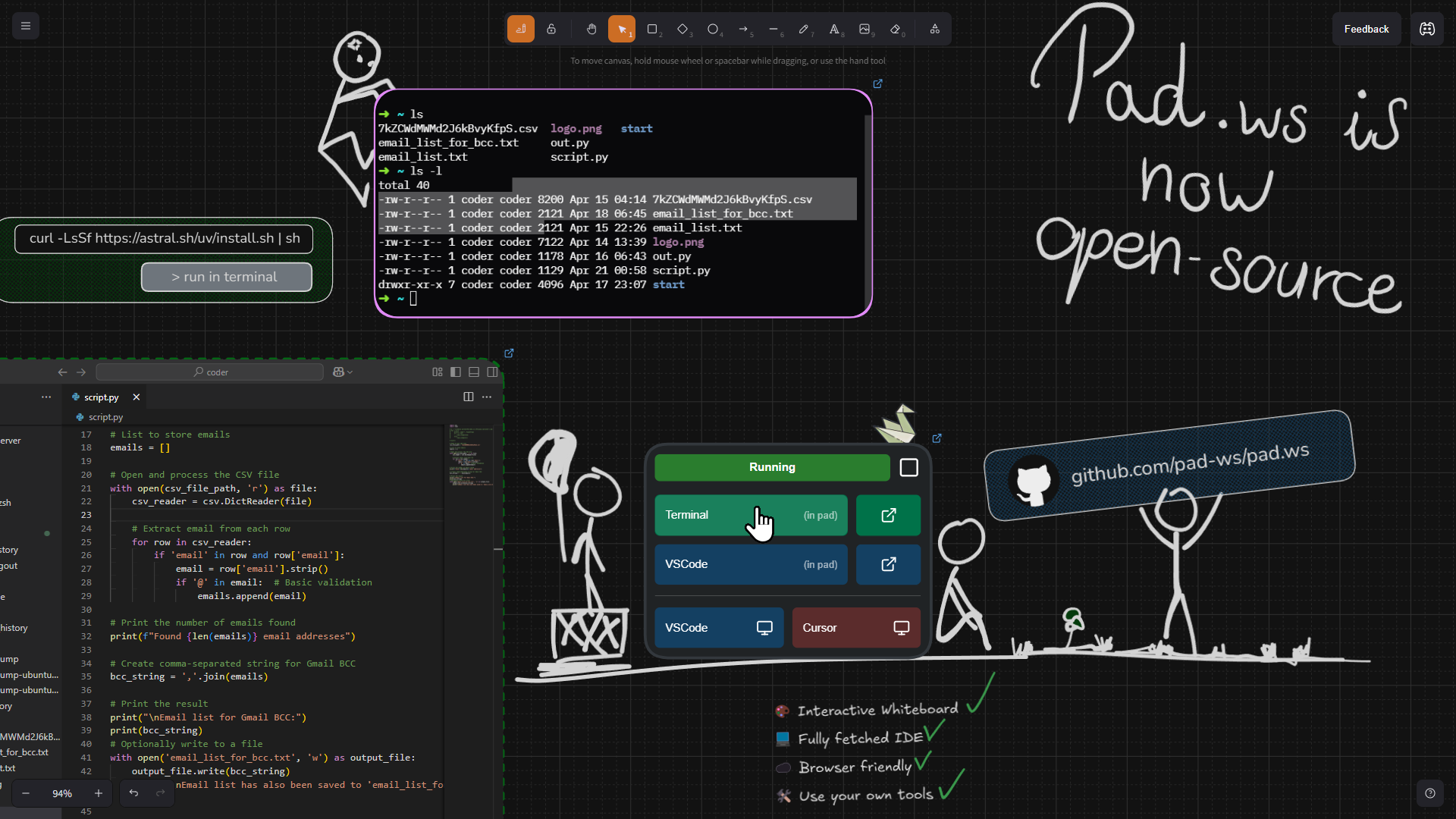
pad.ws is a whiteboard app that acts as a dev environment in your browser
✨ Features
- 🎨 Interactive Whiteboard - Draw, sketch and visualize your ideas with Excalidraw
- 💻 Fully fledged IDE - Access terminals and VS Code directly within the whiteboard
- ☁️ Browser friendly - Access your dev env from any device
- 🔄 Seamless Workflow - Switch between visual ideation and coding
- 🛠️ Use your own tools - Access your VM from your desktop client (VS Code & Cursor supported)
This uses Excalidraw for the whiteboard interface while Coder powers the cloud development environments.
Try it online 🌐
Visit pad.ws for an official managed instance. During this beta, we offer free ubuntu dev environments without any setup
Self-Hosting 🛠️
⚠️ IMPORTANT NOTICE: This repository is in early development stage. The setup provided in docker-compose.yml is for development and testing purposes only.
This simplified example lets you host pad on localhost but is not safe for real-life use without further configurations ⚠️
✅ Prerequisites
- Linux Host (This was tested on Ubuntu only)
- Docker & Docker Compose: Ensure you have both installed. Install Docker / Install Docker Compose
1️⃣ .env
- Copy and review the default values
cp .env.template .env
2️⃣ PostgreSQL 🐘
Ensure persistence for the whole deployment (canvases and configs)
-
Run the PostgreSQL container using the provided configuration (e.g., in your
docker-compose.yml)docker compose up -d postgres
3️⃣ Redis 🔄
In-memory data store for caching and session management with password authentication
- Run the Redis container with password authentication
docker compose up -d redis - The Redis password is configured in your
.envfile using theREDIS_PASSWORDvariable
4️⃣ Keycloak 🔑
OIDC provider for access and user management (within coder and pad app)
- Run the Keycloak container
docker compose up -d keycloak - Access the Keycloak admin console http://localhost:8080
- Create a Realm: Name it appropriately (e.g.,
pad-ws) - Create a Client:
- Give it a
Client ID(e.g.,pad-ws-client) - Enable Client Authentication
- Add * to the valid redirect urls
- You can leave other settings as default for now
- Give it a
- Get Credentials:
- Navigate to
Clients->[Your Client ID]->Credentialstab - Note the Client secret.
- Update your environment variables file (
.env) with:OIDC_REALM=your_oidc_realm OIDC_CLIENT_ID=your_client_id OIDC_CLIENT_SECRET=your_client_secret
- Navigate to
- Create a User:
- Navigate to
Users->Create user - Fill in the details
- Important: Tick
Email verified - Go to the
Credentialstab for the new user and set a password
- Navigate to
- Create an Audience:
- Navigate to
Clients->[Your Client ID]->Client Scopes - Click on the dedicated scope of your Client (
[clientid]-dedicated) - Click on
Configure a new mapper - Then click on
Audience - Ensure
Included Client Audiencematches yourClient ID - Ensure
Add to access tokenis On
- Navigate to
5️⃣ Coder 🧑💻
- Find Docker Group ID: You'll need this to grant necessary permissions
getent group docker | cut -d: -f3 - Update your
.envfile with theDOCKER_GROUP_ID:DOCKER_GROUP_ID=your_docker_group_id - Run the Coder container.
docker compose up -d coder - Access Coder UI: Open localhost:7080 in your browser
- First Login: Create an administrator user (e.g.,
admin) - Create a Template:
- Use the "Start from template" option.
- Choose a base image (e.g.,
docker-containersor a simple Ubuntu). Configure it as needed
- Generate API Key:
- Click your profile picture (top right) ->
Account->API Keys - Generate a new token
- Update your
.envCODER_API_KEY=your_coder_api_key
- Click your profile picture (top right) ->
- Get Template ID:
- Visit
http://localhost:7080/api/v2/templatesin your browser (or usecurl) - Find the
idof the template you created - Update your
.envCODER_TEMPLATE_ID=your_coder_template_id # Example: 85fb21ba-085b-47a6-9f4d-94ea979aaba9
- Visit
- Get Default Organization ID:
- Visit
http://localhost:7080/api/v2/organizationsin your browser (or usecurl) - Find the
idof your organization (usually the default one) - Update your
.env:CODER_DEFAULT_ORGANIZATION=your_organization_id # Example: 70f6af06-ef3a-4b4c-a663-c03c9ee423bb
- Visit
- If you use a custom name for your workspace:
- You need to provide the name as
CODER_WORKSPACE_NAMEin your.env. Otherwise, it will assume your workspace name is the default we chose:ubuntu.
- You need to provide the name as
6️⃣ Pad App 📝
The fastAPI app that both serves the build frontend and the backend API to interface with Coder
- Run the Application:
-
Ensure all environment variables in your
.envfile are correctly set -
Run the
padapplication containerdocker compose up -d pad
-
🎉 Congratulations! You should now be able to access and login to your self-hosted pad at localhost:8000
🚧 Did you have any issue while following this guide?
Please let us know so we can improve the onboarding flow