
psbFinances
Personal and Small Businesses Financial Manager
psbFinances is an open source application to manage personal and small business finances.
Introduction
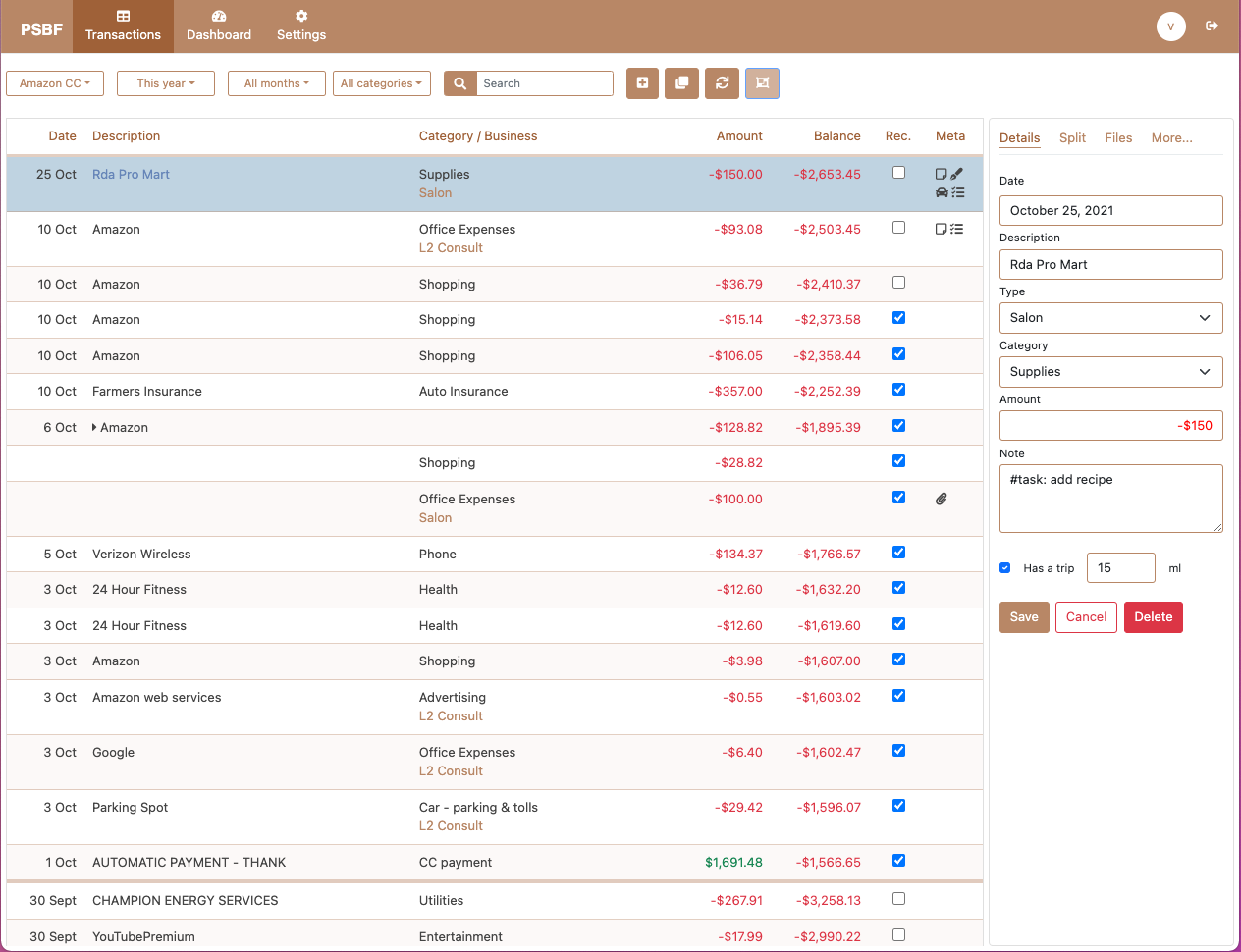
psbFinances is an open-source web application to manage personal and small business finances "under one roof". Think of it as a combination of Mint and QuickBooks Self-Employed.
Purpose
psbFiances allows managing personal and small business finances in a single application. Users who will get the most benefit from it are those who:
- manage their personal finances
- have small businesses, and
- do the accounting themselves.
Example: if you ever used your credit card to make purchase for both personal and business needs, or need to split your purchase to personal and business, then psbFinances will be a useful tool for you, especially if you have multiple businesses.
Features
- Import transactions from multiple sources (Mint, Apple Card)
- Add transactions manually
- Categorise transaction as personal or business (assign it to a specific business)
- Add your own personal categories and use business categories as they are defined in tax return
- Split transaction to personal and business
- Track car mileages for your business taxes
- Setup detailed budget for each month/year
- Schedule future transactions and reconcile them when you have bank statement
- View projected cash flow
- Use comprehensive dashboard to monitor personal and business financial health
- Let multiple users to use the application
- Track all the changes that were made by users (who, what, when)
- Create followup task for transaction and assign it to a specific user
- Attach copies of receipts or other documents to transactions
- Create rules for imported data to automatically assign to specific categories and/or businesses.
Who is it for?
This application is primarily for those who:
- manage their personal finances
- have at least one small business
- does their own accounting and want to keep it simple
What it's not
psbFinances is not a tool:
- to automatically download your financial data from multiple institutes (data scraping)
- to have a complex financial accounting (General Ledger, Chart of Accounts)
Get started
Requirements
To run psbFinances you will need a server with:
Installation steps
1. Clone the repository
Clone psbFinances repository and install dependencies:
git clone https://github.com/pbsfinances/psbfinances.git psbfiannces
cd psbfiances
npm i
2. Setup the database
Log in with the root account to configure the database.
mysql -u root -p
Create a database called 'psbf'.
CREATE DATABASE psbf CHARACTER SET utf8mb4 COLLATE utf8mb4_unicode_ci;
Create a user called 'psbf' and its password 'strong-password'.
CREATE USER 'psbf'@'localhost' IDENTIFIED BY 'strong-password';
Authorize the new user on the psbf database so that user is allowed to change the database.
GRANT ALTER, CREATE, INDEX, DELETE, INSERT, UPDATE, SELECT ON psbf.* TO 'psbf'@'localhost';
Apply the changes and exit the database.
FLUSH PRIVILEGES;
exit
3. Configure the application
Copy development configuration file server/config/config._dev.yaml to server/config/config.dev.yaml.
Generate JWT secret that is required for user authentication. There are many ways to do that, check this Q&A from StackOverflow.
Update server/config/config.dev.yaml file with database settings and JWT secret.
4. Run the application
Run the server:
npm run start:server
Run frontend with webpack development server:
npm run start:web
Use psbFinances
1. Launch the application
Open browser and navigate to localhost:9001.
2. Create first user account
On the home screen click [Sign Up] button, enter an email and password, and click [Sign Up].
3. Add data
3.1 Manual setup
Start by navigating to Settings and add at least:
- Account
- Business
- Categories (psbFiances add categories for business transactions automatically)
Go to Transactons and add a transaction manually by clicking [+].
3.2. Mint import
Another option is to import transactions from Mint:
- Download Mint transactions (see help)
- Navigate to
Settings,Imports - Select downloaded file with transactions
- Select
Mintas a format, and click[Import]
This will import transactions and create accounts and categories. The table will show information about the imported file. Please note that you can undo the import by clicking [Undo] button, but note that this button is available for a short period of time after import.
4. Final step
And now have Fun.
Acronyms
TL - Transaction List
TF - Transaction From
License
Copyright © 2020–2022
psbFinances is open-source under the GNU Affero General Public License Version 3 (AGPLv3). Check it here.