
pw 🔐 - Terminal Password Manager • powered by fzf
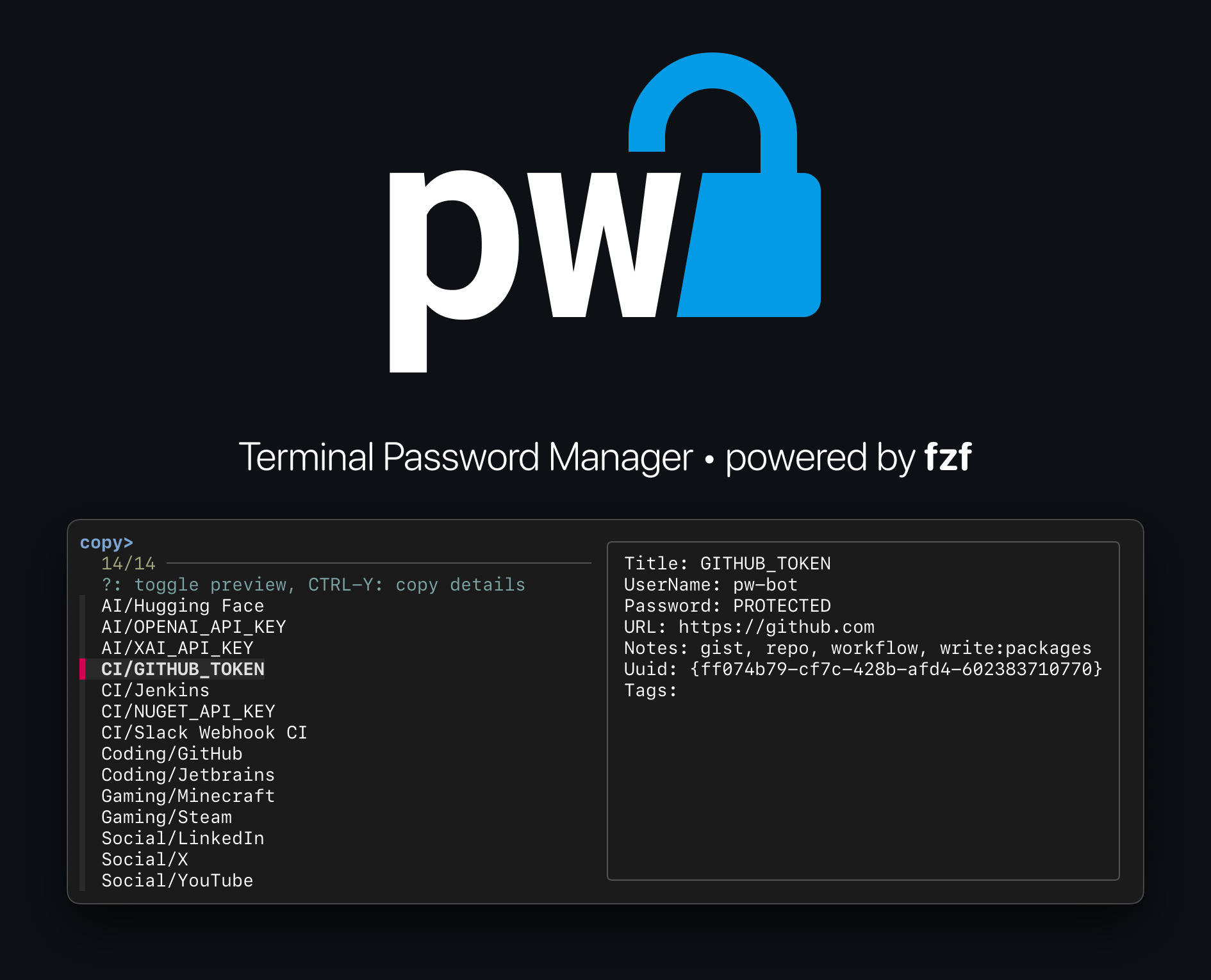
pw (pronounced /ˈpeːveː/) is a command-line password manager unifying trusted password managers
like macOS Keychain,
KeePassXC and GnuPG in a single interface within the terminal.
It combines the security of your favourite password managers with the speed and
simplicity of the fzf fuzzy finder and allows
you to interact with various keychains effortlessly.



Why pw?
- Built on Proven Tools: Instead of reinventing password management,
pwcombines reliable, established tools into one convenient interface. - Efficiency: With the fzf fuzzy finder,
pwallows for rapid and intuitive interaction with your keychains - nice! - Simplicity:
pwis built using simple bash, making it easy to understand, modify, and extend. - Extensibility: Adding plugins for your preferred password managers takes only minutes (see plugins).
- Clipboard Management: Automatically clears passwords from the clipboard after a configurable time.
- Multiple Keychain Support: Effortlessly manage and switch between multiple keychains stored in various locations.
Install and update pw
See requirements for dependencies.
Install script (recommended)
sudo bash -c "$(curl -fsSL https://raw.githubusercontent.com/sschmid/pw-terminal-password-manager/main/install)"
Manual install
git clone https://github.com/sschmid/pw-terminal-password-manager /opt/pw
ln -s /opt/pw/src/pw /usr/local/bin/pw
Download
You can download the latest release from the releases page or use the following link to download the latest release directly: pw.zip
Download the latest release, extract it, and add the src folder to your $PATH.
Alternatively, you can use pw directly from the src directory.
~/Downloads/pw/src/pw
Update
sudo pw update
Uninstall
sudo /opt/pw/install --uninstall
| Tested on the following platforms: | ||
|---|---|---|
 |
macOS | |
 |
Alpine Linux | Containerfile |
 |
Arch Linux | Containerfile |
 |
Debian | Containerfile |
 |
Fedora | Containerfile |
 |
openSUSE Tumbleweed | Containerfile |
 |
Ubuntu | Containerfile |
Quickstart
# create a keychain (.keychain-db for macOS Keychain, .kdbx for KeePassXC)
pw init ~/secrets.keychain-db

# optionally configure keychains in ~/.config/pw/pw.conf so you can access them
# from anywhere, otherwise, pw will discover keychains in the current directory
echo 'keychain = ~/secrets.keychain-db' >> ~/.config/pw/pw.conf

# add an entry
pw add GitHub sschmid

# add another entry interactively
pw add

# copy the password directly by providing the name
pw GitHub

# or use fzf to select an entry (-p prints the password instead of copying it)
pw -p
If you would like to manage your passwords yourself, you can use pw with
GnuPG to store encrypted passwords in a directory:
# make sure you have a GPG key
# if not, create one with: gpg --full-generate-key

# create a keychain
pw init ~/secrets/   # end with `/` for GnuPG
cd ~/secrets

# optionally configure keychains in ~/.config/pw/pw.conf so you can access them
# from anywhere, otherwise, pw will discover gpg encrypted passwords in the
# current directory
echo 'keychain = ~/secrets/' >> ~/.config/pw/pw.conf

# add an entry
# if you haven't configured ~/.config/pw/pw.conf yet, you need to specify the
# keychain once because the directory is empty and pw can't determine the
# keychain type yet
pw -k ~/secrets add GitHub sschmid

# add another entry interactively
pw add

# output binary format (default)
pw add GitHub.gpg

# output ASCII-armored format
pw add GitHub.asc

# copy the password directly by providing the name
pw GitHub

# or use fzf to select an entry (-p prints the password instead of copying it)
pw -p
How pw works
pw provides a unified interface to interact with various keychains and forwards
commands to the respective password manager using plugins. Plugins are simple
bash scripts that implement the following functions (see plugins):
initaddeditmvgetshowrmlsopenlockunlock
Password managers may vary in their capabilities, so pw provides a
consistent interface by implementing workarounds where necessary.
Here's an overview of which features are supported by each plugin:
| Feature | macOS Keychain | KeePassXC | GnuPG |
|---|---|---|---|
| Create keychain | ✅ | ✅ | ✅ (directory) |
| Add entry with name and password | ✅ | ✅ | ✅ |
| Add entry with name, account, url, notes and password | ✅ | ✅ | 🔐 |
| Allow multiple entries with the same name given the account is different |
✅ | ❌ | ❌ |
| Add entry in groups (e.g. Coding/Work) | ❌ | 🔐 | ✅ |
| Edit entry | ✅ | ✅ | ✅ |
| Move (rename) entry | ❌ | 🔐 | ✅ |
| Remove entry | ✅ | ✅ | ✅ |
| List entries | ✅ | ✅ | ✅ |
| Open keychain | ✅ | ✅ | ✅ |
| Lock keychain | ✅ | ℹ️ keychain is never left unlocked | ✅ |
| Unlock keychain | ✅ | ✅ starts interactive session | ✅ |
| Key file support | ❌ | ✅ | ❌ |
| YubiKey support | ❌ | ✅ | ❌ |
| Automatic keychain discovery | ✅ | ✅ | ✅ |
🔐: workaround implemented by pw
❌: not supported by the password manager
Security Considerations
[!IMPORTANT]
pwsupports the macOSsecuritycommand andgpgthrough its plugins, which may introduce security risks. These risks arise from the behavior of these underlying commands, not frompwitself.
macOS security Command
Typically, when accessing keychain items added by other applications, the user
is prompted to allow or always allow access. However, when keychain entries
are added using the security command itself, the command is automatically
granted access to those items without future prompts. This can be a security risk,
because other applications can use the security command to access these items
without prompting the user.
pw changes this behaviour to reduce security risks by not automatically adding
the security command to the keychain's access control list. This way you have
full control over which applications can access your keychain items and decide
whether to allow or deny access on a item-by-item basis.
See Plugin specific configuration to change this behaviour.
If you decide to change this behaviour, consider the following recommendations:
[!TIP]
- Change the keychain settings to require a password after a certain time and activate the option to lock the keychain when the computer sleeps.
- Lock the keychain after each use to secure it.
pw lock
Additionally, keychain entries can be listed without requiring a password, even
when the keychain is locked. This can expose metadata about the keychain entries
like the name, account, URL and comments. This cannot be prevented by pw and
is a limitation of the macOS Keychain. There are workarounds like encrypting the
keychain and only temporarily decrypting it when needed.
GPG Passphrase Caching
GPG caches passphrases after use, which can allow access to the private key without re-entering the passphrase.
[!TIP]
- Shorten the GPG passphrase caching time by adjusting the
gpg-agentsettings.- Kill the GPG agent process to clear the passphrase cache.
pw lock # will run 'gpgconf --kill gpg-agent' to kill the GPG agent process
Additionally, while GPG encrypts files, the file names can still be listed
without requiring the passphrase, thereby exposing the file names. This cannot
be prevented by pw and is a limitation of GPG. There are workarounds like
using a separate encrypted container or using a tool like tar to encrypt the
files into a single archive.
KeePassXC
[!NOTE] KeePassXC, unlike the
securitycommand and GPG, remains locked when not in use and does not have these risks.
Security Comparison
| Security Considerations | macOS Keychain | KeePassXC | GnuPG |
|---|---|---|---|
| Keychain stays unlocked | ⚠️ | ✅ | ⚠️ |
| Metadata exposure while keychain is locked | ⚠️ | ✅ | ⚠️ |
⚠️: potential security risk, but can be mitigated
🚨: potential security risk, no mitigation possible
Usage
In all following examples, [<args>] refers to the optional
arguments name, account, url, notes in that order.
When using fzf mode to select an entry, such as when getting, editing,
or removing an entry, you can toggle the entry preview by pressing ?.
The entry preview shows details like the name, account, url, and notes and
is off by default.
Press CTRL-Y on any entry to copy (or print) the details.
Config file
The suggested location for the pw configuration file is $XDG_CONFIG_HOME/pw/pw.conf,
which usually resolves to ~/.config/pw/pw.conf. pw will automatically create
this file with default values if it doesn't exist.
You can specify a different configuration file using the -c option:
pw -c /path/to/config
Create keychain
pw init <keychain> create keychain
Examples:
pw init ~/secrets.keychain-db   # macOS Keychain
pw init ~/secrets.kdbx          # KeePassXC
pw init ~/secrets/              # GnuPG (end with `/` to create a directory)

# macos_keychain special behaviour
pw init secrets.keychain-db            # will create a keychain in ~/Library/Keychains
pw init "${PWD}/secrets.keychain-db"   # will create a keychain in the current directory
Add entry with name and optional account
pw add [<args>] add entry. If no args, interactive mode
Examples:
pw add                                      # add interactively
pw add GitHub                               # add entry with name
pw add Google [email protected]              # add entry with name and account
pw add Google [email protected]
pw add Homepage admin https://example.com   # add entry with name, account, url
pw add Coveralls "" https://coveralls.io "login via GitHub" # add entry with name, url, notes
If a plugin doesn't support multiple entries with the same name, you can add the account to the name:
pw add "Google (Work)" [email protected]
pw add "Google (Personal)" [email protected]
Add entry in group
Examples:
pw add Coding/GitHub
pw add Coding/JetBrains
Edit entry
pw edit [<args>] edit entry. If no args, fzf mode
Examples:
pw edit          # starts fzf to select an entry
pw edit GitHub
Move (rename) entry
mv [<args>] move (rename) entry. If no args, fzf mode
Examples:
pw mv          # starts fzf to select an entry
pw mv GitHub
Get entry
pw [-p] [<args>] copy (or print) password. If no args, fzf mode
Examples:
pw          # starts fzf to select an entry
pw GitHub
Show entry
pw [-p] show [<args>] copy (or print) details. If no args, fzf mode
Examples:
pw show          # starts fzf to select an entry
pw show GitHub
Remove entry
pw rm [<args>] remove entry. If no args, fzf mode
Examples:
pw rm          # starts fzf to select an entry
pw rm GitHub
Generate a password
pw [-p] gen [<length>] [<class>]   generate password with given length and
                                   character class (default: 35 [:graph:])
Examples:
pw gen                  # equivalent to pw gen 35 '[:graph:]'
pw gen 16
pw gen 24 '[:alnum:]'
pw gen 32 '[:digit:]'
Automatic keychain discovery
pw automatically searches for keychains in the current directory. This way
you can keep your keychains in the same directory as your project and pw will
automatically discover and use them.
Specifying a keychain
There are multiple ways to specify a keychain:
# specify keychain using -k for the current command (overrides PW_KEYCHAIN)
pw -k secrets.keychain-db
# specify keychain for the current command
PW_KEYCHAIN=secrets.keychain-db pw
# export default keychain for the current shell
export PW_KEYCHAIN=secrets.keychain-db
pw
Using multiple keychains
pw allows you to interact with multiple keychains from different password
managers. This feature is particularly useful when you have keychains stored
in various locations. You can specify different keychains using the
configuration file, which defaults to ~/.config/pw/pw.conf.
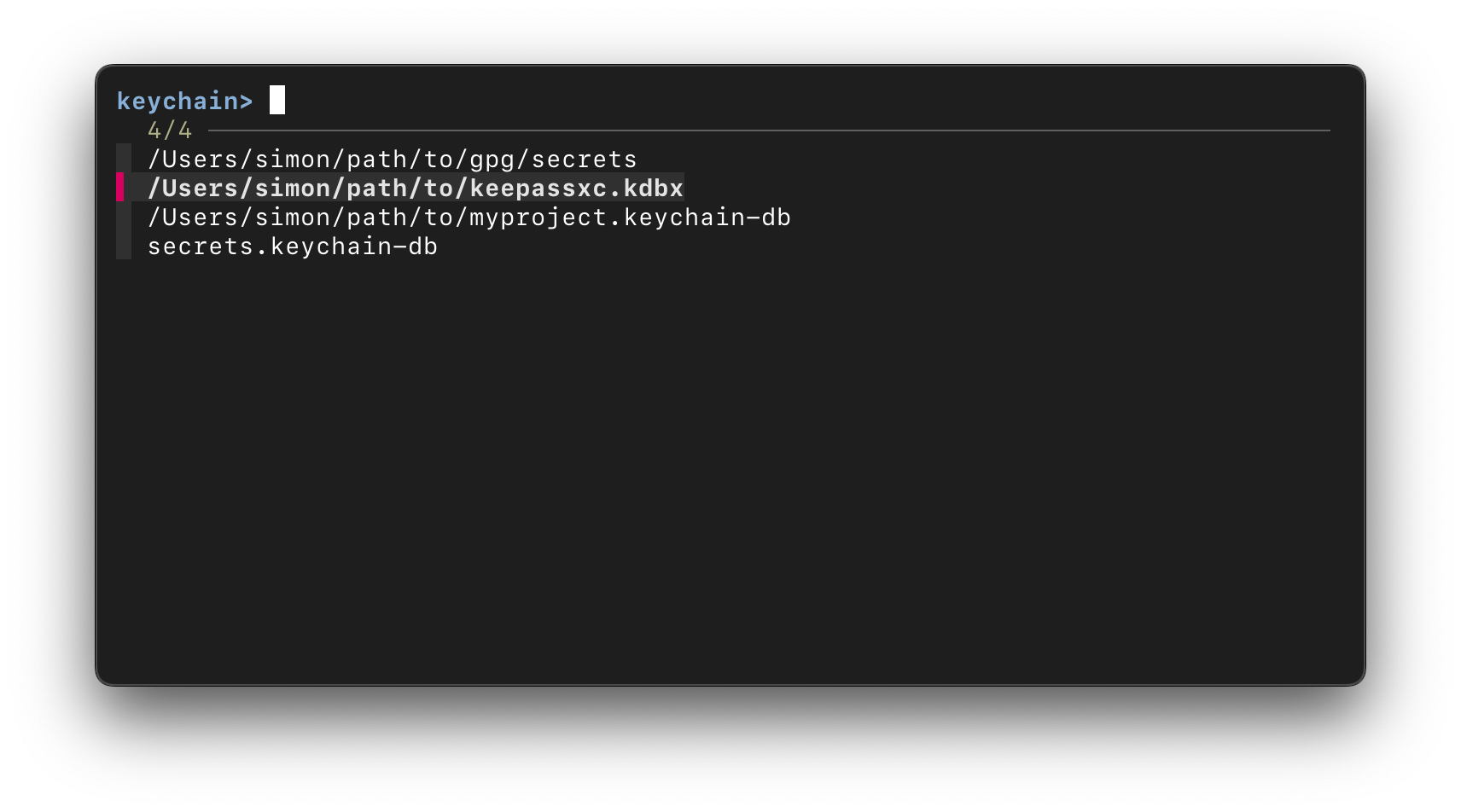
To use multiple keychains, add your desired keychains to ~/.config/pw/pw.conf, e.g.:
[keychains]
keychain = secrets.keychain-db
keychain = ~/path/to/myproject.keychain-db
keychain = ~/path/to/keepassxc.kdbx
keychain = ~/path/to/gpg/secrets
After configuring your keychains, continue using pw as usual. If no keychain
is specified with -k or by setting PW_KEYCHAIN, pw allows you to select
one from your ~/.config/pw/pw.conf file using the fuzzy finder.
Using pw in a command or script
Use pw to avoid leaking secrets in scripts that you share or commit.
curl -s -H "Authorization: token $(pw -p GITHUB_TOKEN)" https://api.github.com/user
Provide passwords via STDIN
To avoid password prompts that can interrupt scripts,
you can provide passwords via STDIN.
[!CAUTION] Avoid providing passwords in plain text, because they can be exposed in process listings, shell history, logs, and through insecure network transmissions, making them vulnerable to theft or misuse. Instead, use secure methods like environment variables to protect sensitive information.
echo "${MY_PASSWORD}" | pw init ~/secrets.kdbx
echo "${MY_PASSWORD}" | pw add Google [email protected]
echo "${MY_PASSWORD}" | pw unlock
If your shell supports STDIN with here string (like bash), you can use it like this:
pw init ~/secrets.kdbx <<< "${MY_PASSWORD}"
pw add Google [email protected] <<< "${MY_PASSWORD}"
pw unlock <<< "${MY_PASSWORD}"
Customization
Configure pw in ~/.config/pw/pw.conf with the following options:
[general]
password_length = 35
password_character_class = [:graph:]
clipboard_clear_time = 45

# pbcopy/pbpaste, xclip, xsel, and wl-copy/wl-paste are supported by default.
# If you're using a different clipboard manager, you can specify it here:
# copy = my-copy-command
# paste = my-paste-command

[plugins]
plugin = $PW_HOME/plugins/gpg
plugin = $PW_HOME/plugins/keepassxc
plugin = $PW_HOME/plugins/macos_keychain

[keychains]
keychain = secrets.keychain-db
keychain = ~/path/to/your/gpg/vault
keychain = ~/path/to/your/keychain.kdbx
keychain = ~/path/to/your/keychain.keychain-db
Additionally, you can use environment variables to customize pw. They will
override the settings in ~/.config/pw/pw.conf.
# Default keychain used when not specified with -k
# otherwise, ~/.config/pw/pw.conf is used to select a keychain with fzf
export PW_KEYCHAIN=secrets.keychain-db

# Default length of generated passwords
export PW_GEN_LENGTH=35

# Default character class for generated passwords
export PW_GEN_CLASS='[:graph:]'

# Time after which the password is cleared from the clipboard
export PW_CLIP_TIME=45
Plugin specific configuration
Some plugins support additional configuration options by appending them to the
keychain path after a colon :, e.g. /path/to/keychain:key=value.
This syntax can be used everywhere a keychain is specified, e.g.:
pw -k ~/secrets.kdbx:key1=value1,key2=value2
In your ~/.config/pw/pw.conf:
...
keychain = ~/secrets.kdbx:key1=value1,key2=value2
...
macOS Keychain
As mentioned in the Security Considerations section,
pw won't automatically add the security command to the keychain's access
control list to reduce security risks. If you want to add the security command
to the keychain's access control list by default, you can add this to your
~/.config/pw/pw.conf file below the [plugin] section:
[plugins]
plugin = $PW_HOME/plugins/gpg
plugin = $PW_HOME/plugins/keepassxc
plugin = $PW_HOME/plugins/macos_keychain

[macos_keychain]
keychain_access_control = always-allow
or set the environment variable PW_MACOS_KEYCHAIN_ACCESS_CONTROL to always-allow:
export PW_MACOS_KEYCHAIN_ACCESS_CONTROL="always-allow"
KeePassXC
If you want to use a key file for unlocking the database, you can specify the path to the key file:
~/secrets.kdbx:keyfile=/path/to/keyfile
If you're using a YubiKey with KeePassXC, you can specify the slot to use:
~/secrets.kdbx:yubikey=1:23456789
GnuPG
To set a different gpg key as the default for encryption, you can specify the key id:
~/path/to/gpg/secrets:key=634419040D678764
You can control the gpg output format by specifying a file extension:
# output binary format (default)
pw add GitHub.gpg

# output ASCII-armored format
pw add GitHub.asc
There may be false positives when discovering keychains. To ignore specific folders,
add the following to your ~/.config/pw/pw.conf file below the [plugin] section:
[plugins]
plugin = $PW_HOME/plugins/gpg
plugin = $PW_HOME/plugins/keepassxc
plugin = $PW_HOME/plugins/macos_keychain

[gpg]
ignore_path = ~
ignore_path = ~/ignored_folder
or set the environment variable PW_GPG_IGNORE_PATHS:
export PW_GPG_IGNORE_PATHS="${HOME};${HOME}/ignored_folder;"
Requirements
Install the following DEPENDENCIES to use pw:
bashfzfgnupg(optional, for GnuPG plugin)keepassxc(optional, for KeePassXC plugin)
Make sure to have a clipboard manager installed to copy passwords to the clipboard. Currently supported clipboard managers are:
pbcopy,pbpaste(macOS, built-in)xclip(Linux)xsel(Linux)wl-clipboard(Wayland)
If you're using a different clipboard manager,
you can specify it in your ~/.config/pw/pw.conf file.
[general]
copy = my-copy-command
paste = my-paste-command