
react-bootstrap-sweetalert




 Openbase Dashboard
SweetAlert for React/Bootstrap
An awesome replacement for JavaScript's alert.
Support
If you think I've done a good job, consider showing your support by buying me a beer. Cheers! :beers:

Demo & Examples
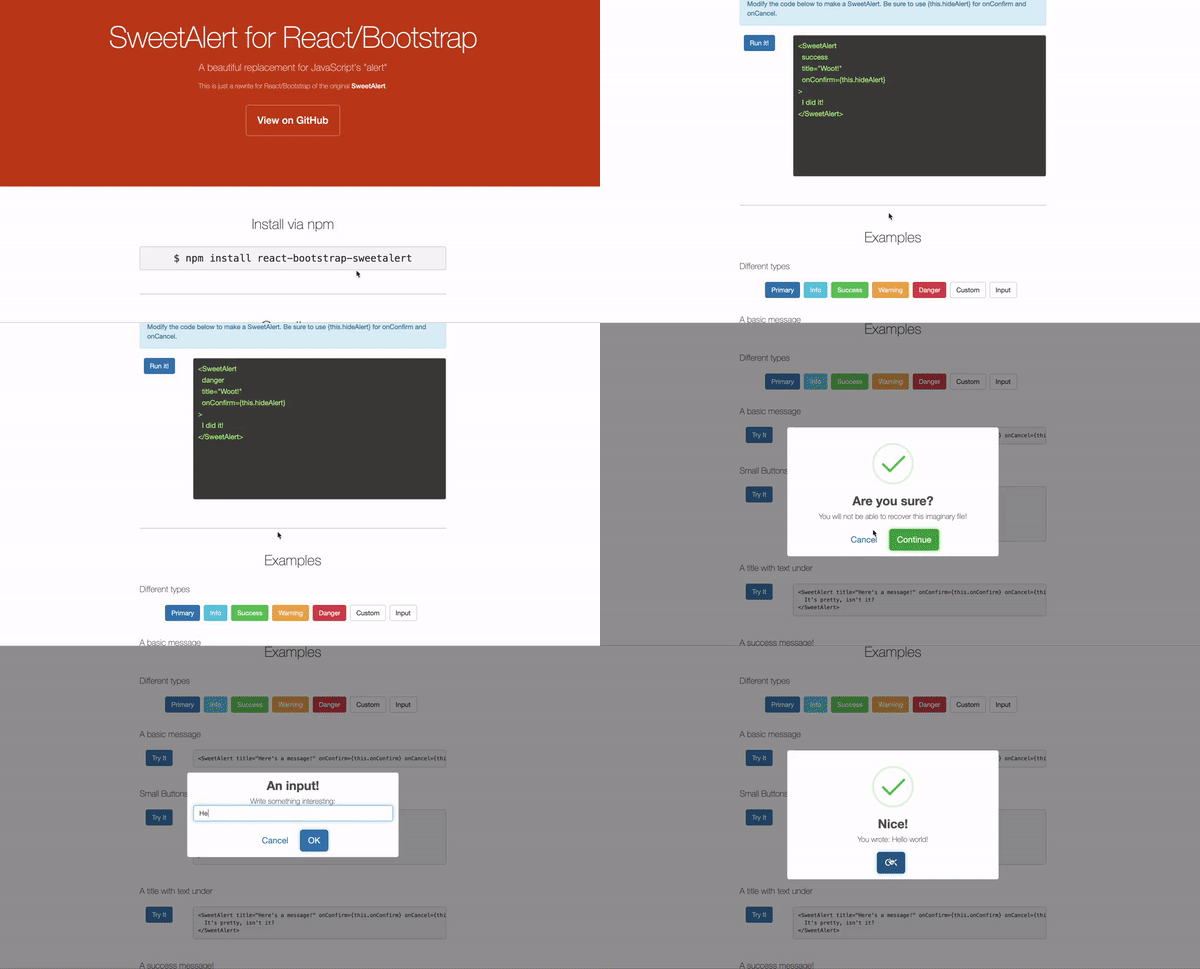
See the demo with examples of common use cases and a live editor.
:alien: TAKE ME TO YOUR DEMO :alien:
Getting Started
Installation
$ npm i react-bootstrap-sweetalert
or
$ yarn add react-bootstrap-sweetalert
Import
const SweetAlert = require('react-bootstrap-sweetalert');
or
import SweetAlert from 'react-bootstrap-sweetalert';
Recommended Usage
It is recommended that you keep an alert in your state, and remove it when the onConfirm or onCancel callbacks are invoked.
You can have stackable alerts by keeping an array of alerts in your data store, and always providing the first alert in the array as the visible alert. When an alert is closed, remove it from the store.
See examples/redux for a working example of how to implement stackable alerts with a Redux store.
Tip: Receiving an input value
If you're using input type, the value of the input will be sent to the onConfirm callback as the first argument.
onConfirm={(response) => this.onRecieveInput(response)}
Custom Forms / Using Render Props
If you want to build an alert that re-renders based on external state changes, or simply want to build a custom form, then you will find the render props pattern to be your best option.
- For re-rendering based on external state changes, use props.dependencies
- See the
SweetAlertRenderPropsinterface in types.ts for some information on the available render props.
<SweetAlert
 title={"Uses render props"}
 onConfirm={this.onConfirm}
 onCancel={this.onCancel}
 dependencies={[this.state.firstName, this.state.lastName]}
>
  {(renderProps: SweetAlertRenderProps) => (
    <form>
      Your name is: {this.state.firstName} {this.state.lastName}
      <hr/>
      <input
        type={'text'}
        ref={renderProps.setAutoFocusInputRef}
        className="form-control"
        value={this.state.firstName}
        onKeyDown={renderProps.onEnterKeyDownConfirm}
        onChange={(e) => this.setState({ firstName: e.target.value })}
        placeholder={'First name'}
      />
      <br />
      <input
        type={'text'}
        className="form-control"
        value={this.state.lastName}
        onKeyDown={renderProps.onEnterKeyDownConfirm}
        onChange={(e) => this.setState({ lastName: e.target.value })}
        placeholder={'Last name'}
      />
      <hr/>
    </form>
  )}
</SweetAlert>
Changes in version 5.2
- Added
props.dependenciesthat re-renders the alert whenever the provided Array ofdependenciesvalue changes. - Added new supported value of
'controlled'forprops.type. Ifprops.type === 'controlled'thenprops.onConfirmwill returnprops.dependencies. - Added support for using a function as your alert content/children, aka render props.
For more see CHANGE_LOG.md
Props
- title (required)
- type
- onConfirm (required)
- onCancel
- customIcon
- allowEscape
- closeOnClickOutside
- hideOverlay
- timeout
- show
- dependencies
Buttons
- btnSize
- confirmBtnText
- confirmBtnBsStyle
- confirmBtnCssClass
- confirmBtnStyle
- cancelBtnText
- cancelBtnBsStyle
- cancelBtnCssClass
- cancelBtnStyle
- showCloseButton
- reverseButtons
- customButtons
- focusConfirmBtn
- focusCancelBtn
- closeBtnStyle
- showConfirm
- showCancel
- disabled
Input
Hooks
Styling
Animations
props.title
The text to display for the title. JSX/ReactNode allowed.
- Type:
ReactNode|string - Default:
undefined
props.onConfirm
Invoked when user clicks confirm button. Also invoked if user hits ENTER key.
- Type:
(response?: any) => any - Default:
undefined
props.onCancel
Invoked when user clicks cancel button. Also invoked if allowEscape is true and user hits ESCAPE key.
- Type:
() => any - Default:
undefined
props.type
The type of alert to display.
- Type:
'default'|'info'|'success'|'warning'|'danger'|'error'|'input'|'custom'|'controlled' - Default:
'default'
NOTE
- If
props.type === 'controlled'thenprops.onConfirmwill receiveprops.dependenciesas its first argument.- If
props.type === 'input'thenprops.onConfirmwill receiveprops.dependenciesas its first argument.
props.btnSize
The type of alert to display.
- Type:
'lg'|'sm'|'xs' - Default:
'lg' - Allowed values:
'lg','sm','xs'
props.confirmBtnText
Content of confirm button, or JSX/ReactNode.
- Type:
ReactNode|string - Default:
'OK'
props.confirmBtnBsStyle
Bootstrap style of confirm button.
- Type:
'default'|'primary'|'link'|'info'|'success'|'warning'|'danger'|'secondary'|'outline-{variant}' - Default:
'primary'
props.confirmBtnCssClass
CSS class added to confirm button.
- Type:
string - Default:
''
props.confirmBtnStyle
Inline style added to confirm button.
- Type:
CSSProperties - Default:
{}
props.cancelBtnText
Content of cancel button, or JSX/ReactNode.
- Type:
ReactNode|string - Default:
'Cancel'
props.cancelBtnBsStyle
Text of cancel button, or JSX/ReactNode.
- Type:
string - Default:
'link' - Recommended values:
'default'|'primary'|'link'|'info'|'success'|'warning'|'danger'|'secondary'|'outline-{variant}'
props.cancelBtnCssClass
CSS class added to cancel button.
- Type:
string - Default:
''
props.cancelBtnStyle
Inline style added to cancel button.
- Type:
CSSProperties - Default:
{}
props.showCloseButton
If set to true, then an X close button will be shown in the top right of the alert.
NOTE: You must also implement
props.onCancelin order for this props to work. This is because visibility of the component is controlled externally through eitherprops.showor by removing the<SweetAlert />in your render method.
- Type:
boolean - Default:
false
props.reverseButtons
Reverses the order of the Confirm and Cancel buttons. Default positioning is [Cancel] [Confirm]
- Type:
boolean - Default:
false
props.customButtons
Custom buttons to use in place of the default Confirm and Cancel buttons. Can render any JSX/ReactNodes here.
- Type:
ReactNode - Default:
undefined
props.customIcon
Either a string url for an image to use as the icon, or JSX/ReactNode.
- Type:
ReactNode|string - Default:
undefined
props.placeholder
If props.type is 'input', this is the placeholder for the input field.
- Type:
string - Default:
undefined
props.show
If false, the alert will not be rendered.
Warning: Using this option should be a last resort, and is somewhat of an anti-pattern for this library.
The recommended way to control visibility is to only render a <SweetAlert/> element when you want one to be displayed,
and remove it when the onConfirm or onCancel methods are called.
- Type:
boolean - Default:
true
props.dependencies
If you have external state that should trigger your alert to re-render it's content, you can provide an Array of dependencies.
Whenever the dependencies are changed, using === comparision, the content of the alert will be re-rendered.
- Type:
any[] - Default:
true
Example
const [firstName, setFirstName] = useState('');
const [lastName, setLastName] = useState('');

<SweetAlert dependencies={[firstName, lastName]}>
  <div>
    <h4>Hello {{firstName}} {{lastName}}</h4>
    <input value={firstName} onChange={(e) => setFirstName(e.target.value)} />
    <input value={lastName} onChange={(e) => setLastName(e.target.value)} />
  </div>
</SweetAlert>
props.focusConfirmBtn
If true the Confirm button will receive focus automatically. NOTE: Does not apply when props.type is 'input'
- Type:
boolean - Default:
true
props.focusCancelBtn
If true the Cancel button will receive focus automatically. NOTE: Does not apply when props.type is 'input'
- Type:
boolean - Default:
false
props.required
If props.type is 'input', this prop controls whether the input field is required to have a value.
- Type:
boolean - Default:
true
props.validationMsg
If props.type is 'input' and props.required is true, this is the message to display when the user clicks confirm without entering a value.
- Type:
string - Default:
'Please enter a response!'
props.validationRegex
If props.type is 'input' and props.required is true, this Regex is used to validate input value.
- Type:
RegExp - Default:
/^.+$/
props.defaultValue
If props.type is 'input', this is the default value for the input field.
- Type:
number|string - Default:
undefined
props.inputType
If props.type is 'input', this is the default value for the input field.
- Type:
string - Default:
'text' - Recommended values:
'text'|'password'|'number'|'textarea'
props.style
Style overrides applied to the sweetalert wrapper.
- Type:
CSSProperties - Default:
{}
props.closeBtnStyle
Style overrides applied to the X close button.
- Type:
CSSProperties - Default:
{}
props.customClass
Custom CSS class applied to the sweetalert wrapper.
- Type:
string - Default:
''
props.showConfirm
If true, the Confirm button will show.
- Type:
boolean - Default:
true
props.showCancel
If true, the Cancel button will show.
- Type:
boolean - Default:
false
props.allowEscape
If true, the onCancel function will be invoked when the user hits the ESCAPE key.
- Type:
boolean - Default:
true
props.closeOnClickOutside
If true, the onCancel function will be invoked when clicking outside the modal.
- Type:
boolean - Default:
true
props.hideOverlay
If true, then the modal overlay will not be rendered.
- Type:
boolean - Default:
false
props.disabled
If true, then the Confirm button will be disabled. (NOTE: This does not effect the props.allowEscape behavior.)
If you set disabled to true but do not provide an onCancel function, then the disabled property will not be honored.
- Type:
boolean - Default:
false
props.beforeMount
Hook which is invoked at the end of the component constructor function.
- Type:
() => any - Default:
() => {}
props.afterMount
Hook which is invoked at the end of the componentDidMount method.
- Type:
() => any - Default:
() => {}
props.afterUpdate
Hook which is invoked at the end of the componentDidUpdate method.
- Type:
() => any - Default:
() => {}
props.beforeUnmount
Hook which is invoked at the end of the componentWillUnmount method.
- Type:
() => any - Default:
() => {}
props.timeout
If defined, and greater than 0, props.onConfirm will be invoked to close the alert automatically after the specified number of milliseconds.
- Type:
number - Default:
0
props.openAnim
Provide custom show animation or false to have no animation. To specify a custom animation, provide the name of your css animation and duration of the animation in milliseconds.
- Type:
boolean|SweetAlertAnimationProps - Default:
{ name: 'showSweetAlert', duration: 300 }
props.closeAnim
Provide custom hide animation or false to have no animation. To specify a custom animation, provide the name of your css animation and duration of the animation in milliseconds. For a simple hide animation you can use { name: 'hideSweetAlert', duration: 100 }
- Type:
boolean|SweetAlertAnimationProps - Default:
false
Related projects
- SweetAlert
- SweetAlert for Android
- SweetAlert for Bootstrap
- SweetAlert for AngularJS
- SweetAlert for RubyOnRails
Development
$ yarn demo && open http://localhost:3000