


- Supported versions
- Installation
- Platform Integrations
- Android
- IOS
- App Groups
- Recommendations
- Search Recommendations
- Story
- App Banner
- In-App URL Clicks
- Request Permission
- Request and Send IDFA (iOS Only)
- Request Location Permission
- Geofencing Interval (Android Only)
- Sending Location Status Information
- Spin to win & Scratch to win
- User Anonymization
- Using Push Notification Messages
- Get User Data
- Usage
Supported versions
"react": ">=16.8.6"
"react-native": ">=0.60.0"
Installation
- Install prerequisites.
npm i @react-native-async-storage/async-storage
yarn add @react-native-async-storage/async-storage
- Install package.
npm i react-native-related-digital
yarn add react-native-related-digital
- Install pods (IOS only).
$ cd ios
$ pod install
Platform Integrations
Android
- Create a Firebase project and register your app. Download google-services.json file and place it in
android/appfolder. - Add below line to your
android/build.gradlefile's both repositories sections. If you are going to do Huawei integration, add theagconnect-services.jsonfile to the same location.
mavenCentral()
maven {
    url 'http://developer.huawei.com/repo/'
    allowInsecureProtocol = true
}
- Add below lines to your
android/build.gradlefile's dependencies section.
classpath 'com.google.gms:google-services:4.3.10'
classpath 'com.huawei.agconnect:agcp:1.6.5.300'
- Change your
minSdkVersionto 23. - Change your
compileSdkVersionandtargetSdkVersionto 34. - Add below lines to your
android/app/build.gradlefile's bottom.
apply plugin: 'com.google.gms.google-services'
apply plugin: 'com.huawei.agconnect'
- Add below line to your
android/app/build.gradlefile's defaultConfig section.
multiDexEnabled true
- Add below line to your
android/app/build.gradlefile's dependencies section.
implementation 'org.jetbrains:annotations:16.0.2'
- Add below code to your
AndroidManifest.xmlfile'sapplicationsection to receive notifications when the app is foreground.
<service
    android:name="euromsg.com.euromobileandroid.service.EuroFirebaseMessagingService"
    android:exported="false">
    <intent-filter>
        <action android:name="com.google.firebase.MESSAGING_EVENT" />
    </intent-filter>
</service>
- If you are going to do Huawei integration, add the following lines to the file.
<service
    android:name="euromsg.com.euromobileandroid.service.EuroHuaweiMessagingService"
    android:exported="false">
    <intent-filter>
      <action  android:name="com.huawei.push.action.MESSAGING_EVENT"  />
    </intent-filter>
</service>
-
In order to send push to Huawei devices, you need to follow the steps in the link from the Huawei Developer panel. https://developer.huawei.com/consumer/en/doc/HMS-Plugin-Guides-V1/config-agc-0000001050178043-V1
-
Add below code to your
AndroidManifest.xmlfile'sapplicationsection to enable geofence capability.
<service
    android:name="com.visilabs.gps.geofence.GeofenceTransitionsIntentService"
    android:enabled="true"
    android:permission="android.permission.BIND_JOB_SERVICE" />

<receiver
    android:name="com.visilabs.gps.geofence.VisilabsAlarm"
    android:exported="false" />

<receiver
    android:name="com.visilabs.gps.geofence.GeofenceBroadcastReceiver"
    android:enabled="true"
    android:exported="true" />
- Modify your
MainApplication.javaorMainApplicaiton.ktas below to init library. Change geofenceEnabled parameter as you want.
Java
import com.visilabs.Visilabs;
import euromsg.com.euromobileandroid.EuroMobileManager;
import euromsg.com.euromobileandroid.enums.RDNotificationPriority;

import android.content.BroadcastReceiver;
import android.content.Intent;
import android.content.IntentFilter;
import android.os.Build;
import org.jetbrains.annotations.Nullable;
@Override
public Intent registerReceiver(@Nullable BroadcastReceiver receiver, IntentFilter filter) {
    if (Build.VERSION.SDK_INT >= 34 && getApplicationInfo().targetSdkVersion >= 34) {
        return super.registerReceiver(receiver, filter, Context.RECEIVER_EXPORTED);
    } else {
        return super.registerReceiver(receiver, filter);
    }
}

@Override
public void onCreate() {
  // ...

  initEuroMessage();
}

private void initEuroMessage() {
    String appAlias = "demo-alias";
    String huaweiAppAlias = "demo-alias-huawei";
    String organizationId = "OID";
    String siteId = "SID";
    String datasource = "datasource";
    String channel = "Android";
    String segmentUrl = "http://lgr.visilabs.net";
    String realtimeUrl = "http://rt.visilabs.net";
    String targetUrl = "http://s.visilabs.net/json";
    String actionUrl = "http://s.visilabs.net/actjson";
    String geofenceUrl = "http://s.visilabs.net/geojson";

    Visilabs.CreateAPI(organizationId, siteId, segmentUrl,
            datasource, realtimeUrl, channel, this, targetUrl, actionUrl, 30000, geofenceUrl, true, "reactnative");

    EuroMobileManager euroMobileManager = EuroMobileManager.init(appAlias, huaweiAppAlias, this);

    // optional
    euroMobileManager.setPushIntent("com.pushsdk.MainActivity", this);
    euroMobileManager.setNotificationTransparentSmallIcon(R.drawable.ic_launcher, this);
    euroMobileManager.setNotificationTransparentSmallIconDarkMode(R.drawable.ic_launcher, this);
    euroMobileManager.useNotificationLargeIcon(true);
    euroMobileManager.setNotificationLargeIcon(R.drawable.ic_launcher, this);
    euroMobileManager.setNotificationLargeIconDarkMode(R.drawable.ic_launcher, this);
    euroMobileManager.setNotificationColor("#d1dbbd");
    euroMobileManager.setChannelName("Channel", this);
    euroMobileManager.setNotificationPriority(RDNotificationPriority.NORMAL, this); // Set to HIGH for push notifications to appear as temporary banners
}
Kotlin
import com.visilabs.Visilabs;
import euromsg.com.euromobileandroid.EuroMobileManager;
import euromsg.com.euromobileandroid.enums.RDNotificationPriority;

import android.content.BroadcastReceiver;
import android.content.Intent;
import android.content.IntentFilter;
import android.os.Build;
import org.jetbrains.annotations.Nullable;
override fun registerReceiver(receiver: BroadcastReceiver?, filter: IntentFilter?): Intent? {
  return if (Build.VERSION.SDK_INT >= 34 && applicationInfo.targetSdkVersion >= 34) {
      super.registerReceiver(receiver, filter, Context.RECEIVER_EXPORTED)
  } else {
      super.registerReceiver(receiver, filter)
  }
}

override fun onCreate() {
  // ...

  initEuroMessage()
}

private fun initEuroMessage() {
    val appAlias = "demo-alias"
    val huaweiAppAlias = "demo-alias-huawei"
    val organizationId = "OID"
    val siteId = "SID"
    val datasource = "datasource"
    val channel = "Android"
    val segmentUrl = "http://lgr.visilabs.net"
    val realtimeUrl = "http://rt.visilabs.net"
    val targetUrl = "http://s.visilabs.net/json"
    val actionUrl = "http://s.visilabs.net/actjson"
    val geofenceUrl = "http://s.visilabs.net/geojson"

    Visilabs.CreateAPI(
        organizationId,
        siteId,
        segmentUrl,
        datasource,
        realtimeUrl,
        channel,
        this,
        targetUrl,
        actionUrl,
        30000,
        geofenceUrl,
        true,
        "reactnative")

    val euroMobileManager = EuroMobileManager.init(appAlias, huaweiAppAlias, this)
    // Optional settings
    euroMobileManager.setPushIntent("com.pushsdk.MainActivity", this)
    euroMobileManager.setNotificationTransparentSmallIcon(R.mipmap.ic_launcher, this)
    euroMobileManager.setNotificationTransparentSmallIconDarkMode(R.mipmap.ic_launcher, this)
    euroMobileManager.useNotificationLargeIcon(true)
    euroMobileManager.setNotificationLargeIcon(R.mipmap.ic_launcher, this)
    euroMobileManager.setNotificationLargeIconDarkMode(R.mipmap.ic_launcher, this)
    euroMobileManager.setNotificationColor("#d1dbbd")
    euroMobileManager.setChannelName("Channel", this)
    euroMobileManager.setNotificationPriority(RDNotificationPriority.NORMAL, this)
}
- If you want to track installed apps, call below method.
await visilabsApi.sendTheListOfAppsInstalled()
Also, add one of the below sections to your AndroidManifest.xml
Option 1
<manifest package="com.example.myApp">
    <queries>
        <package android:name="com.example.app1" />
        <package android:name="com.example.app2" />
    </queries>
</manifest>
Option 2
<uses-permission android:name="android.permission.QUERY_ALL_PACKAGES"
tools:ignore="QueryAllPackagesPermission" />
- Add below listener to be able to handle carousel push notification's item click.
  addEventListener('carouselItemClicked', async (carouselItemInfo) => {
    console.log('carouselItemInfo is ', carouselItemInfo)
  }, euroMessageApi)
IOS
- Enable Push Notifications and Background Modes->Remote Notifications capabilities.
Objective-C
- Add
Empty.swiftfile to your project as the sdk contains Swift code and xcode requires at least one empty swift file in each target.
AppDelegate.mm
// other codes...
#import "RelatedDigitalPushModule.h"
#import <UserNotifications/UserNotifications.h>

@implementation AppDelegate

- (BOOL)application:(UIApplication *)application didFinishLaunchingWithOptions:(NSDictionary *)launchOptions
{
  // other codes...

  UNUserNotificationCenter *center = [UNUserNotificationCenter currentNotificationCenter];
  center.delegate = self;

  [RelatedDigitalPushModule initRelatedDigital:@"organization_id" profileId:@"profile_id" dataSource:@"datasource" appAlias:@"rdgencallariostest" inAppNotificationsEnabled:true requestTimeoutSeconds:30 geofenceEnabled:false askLocationPermmissionAtStart:false maxGeofenceCount:20 isIDFAEnabled:false loggingEnabled:true];

  return // other codes...
}

- (void)application:(UIApplication *)application didRegisterUserNotificationSettings:(UIUserNotificationSettings *)notificationSettings
{
 [RelatedDigitalPushModule didRegisterUserNotificationSettings:notificationSettings];
}

- (void)application:(UIApplication *)application didRegisterForRemoteNotificationsWithDeviceToken:(NSData *)deviceToken
{
 [RelatedDigitalPushModule didRegisterForRemoteNotificationsWithDeviceToken:deviceToken];
}

- (void)application:(UIApplication *)application didReceiveRemoteNotification:(NSDictionary *)userInfo
fetchCompletionHandler:(void (^)(UIBackgroundFetchResult))completionHandler
{
  [RelatedDigitalPushModule didReceiveRemoteNotification:userInfo fetchCompletionHandler:completionHandler];
}

- (void)application:(UIApplication *)application didFailToRegisterForRemoteNotificationsWithError:(NSError *)error
{
 [RelatedDigitalPushModule didFailToRegisterForRemoteNotificationsWithError:error];
}

-(void)userNotificationCenter:(UNUserNotificationCenter *)center willPresentNotification:(UNNotification *)notification withCompletionHandler:(void (^)(UNNotificationPresentationOptions options))completionHandler
{
  completionHandler(UNAuthorizationOptionSound | UNAuthorizationOptionAlert | UNAuthorizationOptionBadge);
}

// other codes...
Swift
AppDelegate.swift
// other codes...
import UserNotifications
import react_native_related_digital

@main
class AppDelegate: UIResponder, UIApplicationDelegate, UNUserNotificationCenterDelegate {
  // other codes...

  // 🔔 Push Notification delegate settings
  let center = UNUserNotificationCenter.current()
  center.delegate = self

  // 🔔 Related Digital init
  RelatedDigitalPushModule.initRelatedDigital(
    "organization_id", // OID
    profileId: "profile_id", // SID
    dataSource: "datasource",
    appAlias: "app_alias",
    inAppNotificationsEnabled: true,
    requestTimeoutSeconds: 30,
    geofenceEnabled: false,
    askLocationPermmissionAtStart: false,
    maxGeofenceCount: 20,
    isIDFAEnabled: true,
    loggingEnabled: true,
    deliveredBadge: true
  )

  return true
}

// MARK: - Push Notification Delegate Methods
func application(_ application: UIApplication, didRegister notificationSettings: UIUserNotificationSettings) {
  RelatedDigitalPushModule.didRegister(notificationSettings)
}
func application(_ application: UIApplication, didRegisterForRemoteNotificationsWithDeviceToken deviceToken: Data) {
  RelatedDigitalPushModule.didRegisterForRemoteNotifications(withDeviceToken: deviceToken)
}
func application(_ application: UIApplication,
                 didReceiveRemoteNotification userInfo: [AnyHashable : Any],
                 fetchCompletionHandler completionHandler: @escaping (UIBackgroundFetchResult) -> Void) {
  RelatedDigitalPushModule.didReceiveRemoteNotification(userInfo, fetchCompletionHandler: completionHandler)
}
func application(_ application: UIApplication, didFailToRegisterForRemoteNotificationsWithError error: Error) {
  RelatedDigitalPushModule.didFailToRegisterForRemoteNotificationsWithError(error)
}
func userNotificationCenter(_ center: UNUserNotificationCenter,
                            willPresent notification: UNNotification,
                            withCompletionHandler completionHandler: @escaping (UNNotificationPresentationOptions) -> Void) {
  completionHandler([.sound, .alert, .badge])
}
// other codes...
- Add
NSUserTrackingUsageDescriptionto yourInfo.plistfile to be able to use AdvertisingTrackingID on iOS 14 and later. If you don't want to use it, setisIDFAEnabledtofalseamong theinitRelatedDigitalparameters. - If you have any issues while building the app due to
_swift_getFunctionReplacementor any swift related errors, try editing your project's (not target)Library Search Pathsand remove$(TOOLCHAIN_DIR)/usr/lib/swift-5.0/$(PLATFORM_NAME)line. - If you are going to use in app notifications feature, add below lines to your project target's
Build Phases->Copy Bundle Resourcessection. SelectCreate folder referenceswhen prompted.Pods/VisilabsIOS/Sources/TargetingAction/InAppNotification/Views/VisilabsMiniNotificationViewController.xibPods/VisilabsIOS/Sources/TargetingAction/InAppNotification/Views/VisilabsFullNotificationViewController.xibPods/VisilabsIOS/Sources/TargetingAction/drawer/drawerView.xibPods/VisilabsIOS/Sources/TargetingAction/InAppNotification/BannerView/BannerView.xibPods/VisilabsIOS/Sources/TargetingAction/InAppNotification/BannerView/BannerCollectionViewCell.xib
-
To enable rich notification capabilites like showing image or video;
- Add
Notification Service Extensiontarget to your project and name itRelatedDigitalNotificationService. Change this service's target iOS version to 10.0. Then change newly addedNotificationService.mfile contents with the following: (Don't forget to enter your app name instead ofAPP_ALIAS)
#import "NotificationService.h"
#import "RelatedDigitalNotificationService.h"

@interface NotificationService ()

@property (nonatomic, strong) void (^contentHandler)(UNNotificationContent *contentToDeliver);
@property (nonatomic, strong) UNMutableNotificationContent *bestAttemptContent;

@end

@implementation NotificationService

- (void)didReceiveNotificationRequest:(UNNotificationRequest *)request withContentHandler:(void (^)(UNNotificationContent * _Nonnull))contentHandler {
    self.contentHandler = contentHandler;
    self.bestAttemptContent = [request.content mutableCopy];

  [RelatedDigitalNotificationService didReceiveNotificationRequest:@"APP_ALIAS" withBestAttemptContent:self.bestAttemptContent withContentHandler:self.contentHandler];
}

- (void)serviceExtensionTimeWillExpire {
    // Called just before the extension will be terminated by the system.
    // Use this as an opportunity to deliver your "best attempt" at modified content, otherwise the original push payload will be used.
  [RelatedDigitalNotificationService didReceiveNotificationRequest:@"APP_ALIAS" withBestAttemptContent:self.bestAttemptContent withContentHandler:self.contentHandler];
}

@end
- Add below lines to your Podfile's root level.
target 'RelatedDigitalNotificationService' do
  pod 'react-native-related-digital', :path => '../node_modules/react-native-related-digital'

  use_native_modules!
end

# Post Install processing for RelatedDigitalNotificationService causing errors
def notification_service_post_install(installer)
  installer.pods_project.targets.each do |target|
    target.build_configurations.each do |config|
      config.build_settings['APPLICATION_EXTENSION_API_ONLY'] = 'NO'
    end
  end
end
- Modify Podfile and have the following in main target section.
post_install do |installer|
  notification_service_post_install(installer)
  # Other post install function calls
end
- Add
Empty.swiftfile to your RelatedDigitalNotificationService target as the sdk contains Swift code and xcode requires at least one empty swift file in each target. - Make sure your deployment target is ios 10.
platform :ios, '10.0'
- Execute
pod installthen run.
-
To enable push notification carousel;
- Add
Notification Content Extensiontarget to your project and name itRelatedDigitalNotificationContent. Change this service's target iOS version to 11.0. Remove newly added files under RelatedDigitalNotificationContent except Info.plist. Then add EMNotificationViewController.swift file with the following content.
import UIKit
import UserNotifications
import UserNotificationsUI
import Euromsg

@objc(EMNotificationViewController)
class EMNotificationViewController: UIViewController, UNNotificationContentExtension {

    let carouselView = EMNotificationCarousel.initView()
    var completion: ((_ url: URL?, _ bestAttemptContent: UNMutableNotificationContent?) -> Void)?

    var notificationRequestIdentifier = ""

    func didReceive(_ notification: UNNotification) {
        notificationRequestIdentifier = notification.request.identifier
        Euromsg.configure(appAlias: "APP_ALIAS", launchOptions: nil, enableLog: true, deliveredBadge: true)
        carouselView.didReceive(notification)
    }
    func didReceive(_ response: UNNotificationResponse, completionHandler completion: @escaping (UNNotificationContentExtensionResponseOption) -> Void) {
        carouselView.didReceive(response, completionHandler: completion)

    }
    override func loadView() {
        completion = { [weak self] url, bestAttemptContent in
            if let identifier = self?.notificationRequestIdentifier {
                UNUserNotificationCenter.current().removeDeliveredNotifications(withIdentifiers: [identifier])
                UNUserNotificationCenter.current().getDeliveredNotifications(completionHandler: { notifications in
                    bestAttemptContent?.badge =  NSNumber(value: notifications.count)
                })
            }
            if let url = url {
                if #available(iOSApplicationExtension 12.0, *) {
                    self?.extensionContext?.dismissNotificationContentExtension()
                }
                self?.extensionContext?.open(url)
            } else {
                if #available(iOSApplicationExtension 12.0, *) {
                    self?.extensionContext?.performNotificationDefaultAction()
                }
            }
        }
        carouselView.completion = completion
        carouselView.delegate = self
        self.view = carouselView
    }
}

/**
 Add if you want to track which carousel element has been selected
 */
extension EMNotificationViewController: CarouselDelegate {

    func selectedItem(_ element: EMMessage.Element) {
        // Add your work...
        print("Selected element is => \(element)")
    }

}
- Add or replace the following lines in newly added
RelatedDigitalNotificationContent/Info.plist
<key>NSExtension</key>
<dict>
  <key>NSExtensionAttributes</key>
  <dict>
    <key>UNNotificationExtensionUserInteractionEnabled</key>
    <true/>
    <key>UNNotificationExtensionDefaultContentHidden</key>
    <false/>
    <key>UNNotificationExtensionCategory</key>
    <string>carousel</string>
    <key>UNNotificationExtensionInitialContentSizeRatio</key>
    <real>1</real>
  </dict>
  <key>NSExtensionPrincipalClass</key>
  <string>RelatedDigitalNotificationContent.EMNotificationViewController</string>
  <key>NSExtensionPointIdentifier</key>
  <string>com.apple.usernotifications.content-extension</string>
</dict>
- Add below lines to your Podfile's root level.
target 'RelatedDigitalNotificationContent' do
  use_native_modules!

  pod 'Euromsg', '>= 2.0.0'
end
- In Xcode, select
RelatedDigitalNotificationContenttarget and add below files toBuild Phases->Copy Bundle Resourcessection. SelectCreate folder referenceswhen prompted.Pods/Euromsg/Sources/Euromsg/Classes/EMNotificationCarousel/CarouselCell.xibPods/Euromsg/Sources/Euromsg/Classes/EMNotificationCarousel/EMNotificationCarousel.xib
- Make sure your deployment target is ios 10.
platform :ios, '10.0'
- Execute
pod installthen run.
App Groups
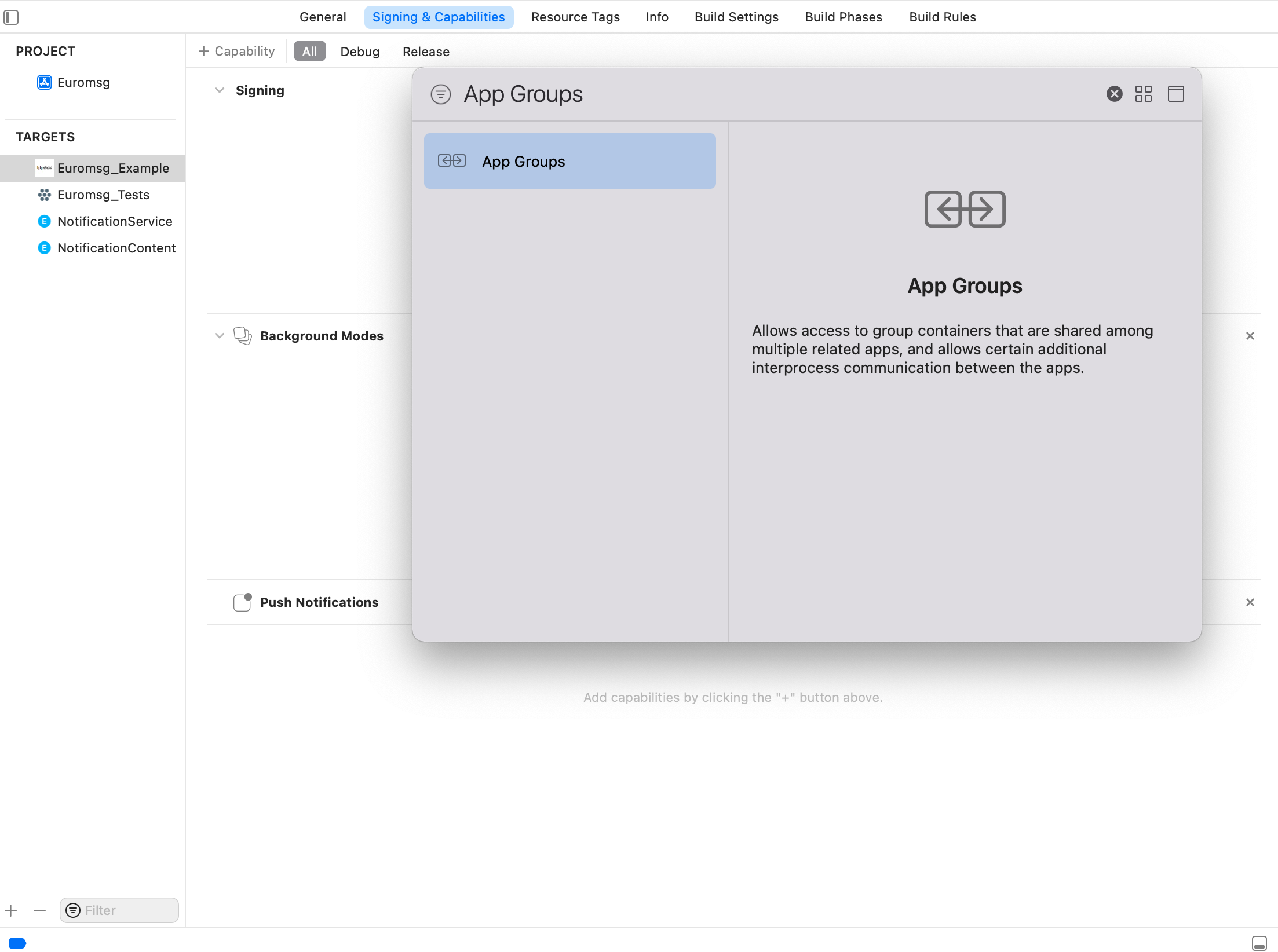
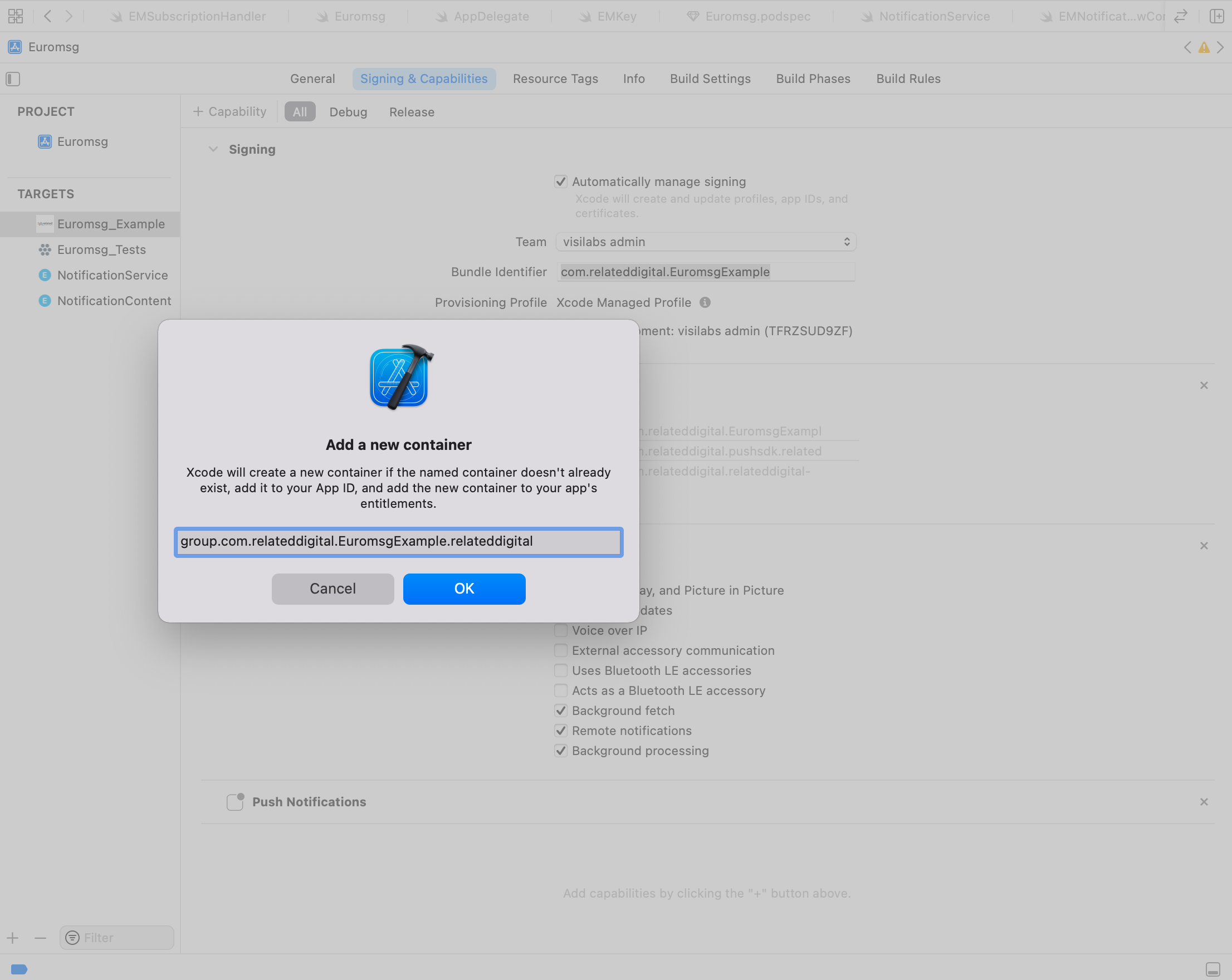
Enable App Groups Capability for your targets. App Groups allow your app to execute code when a notification is recieved, even if your app is not active. This is required for Related Digital's analytics features and to store and access notification payloads of the last 30 days.
- In your Main App Target go to
Signing & Capabilities > All. - Click
+ Capabilityif you do not have App Groups in your app yet. - Select App Groups.
- Under App Groups click the
+button. - Set the
App Groupscontainer to begroup.BUNDLE_ID.relateddigitalwhereBUNDLE_IDis the same as set inBundle Identifier. - Press OK.
- In the NotificationServiceExtension Target
- Go to
Signing & Capabilities > All - Click
+ Capabilityif you do not have App Groups in your app yet. - Select App Groups
- In the NotificationContentExtension Target go to
Signing & Capabilities> All`. - Click
+ Capability. - Select App Groups
- Under App Groups click the
+button. - Set the
App Groupscontainer to begroup.BUNDLE_ID.relateddigitalwhereBUNDLE_IDis the same as your Main App TargetBundle Identifier. Do Not IncludeNotificationServiceExtensionandNotificationContentExtension. - Press OK
Errors and Solutions
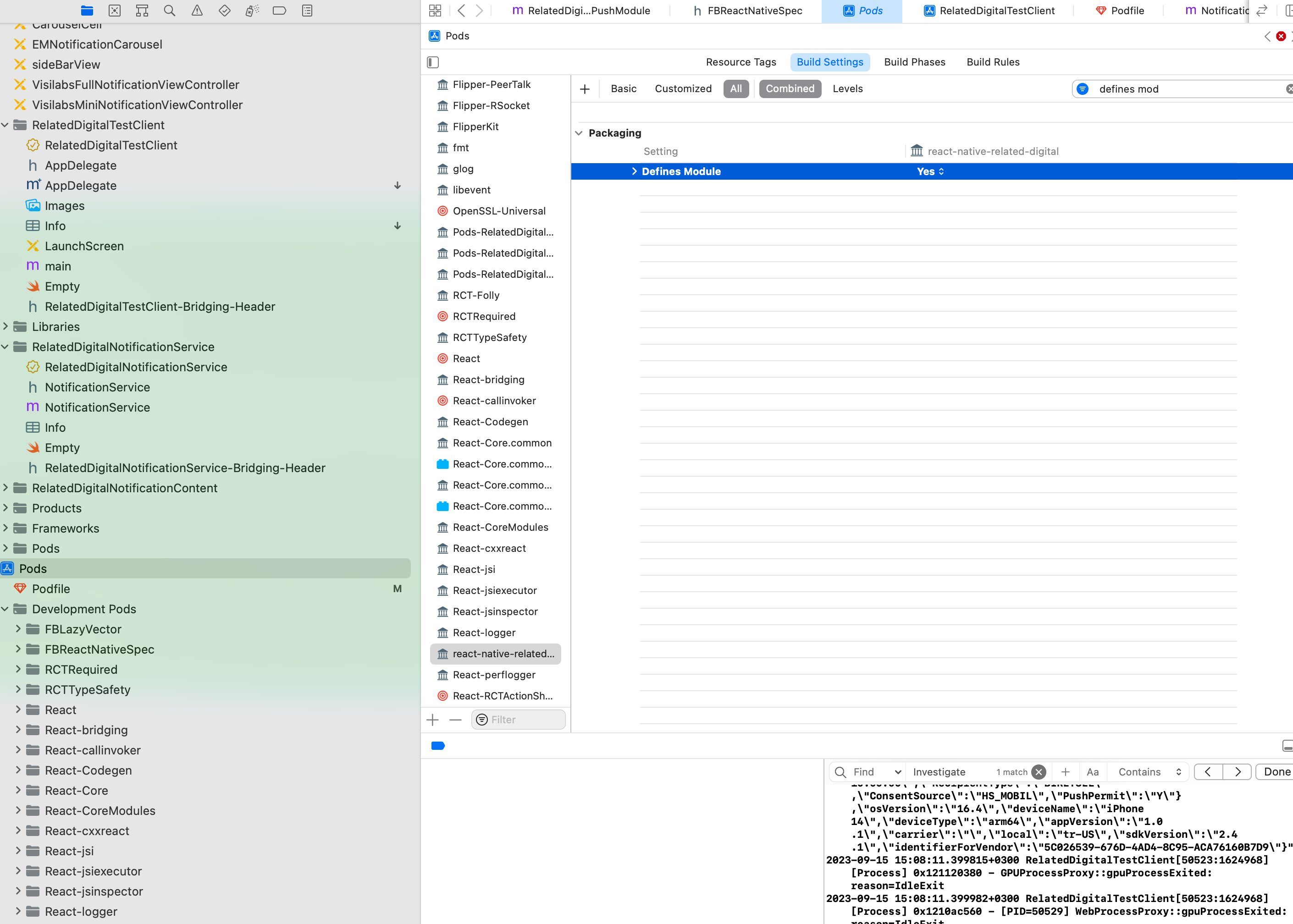
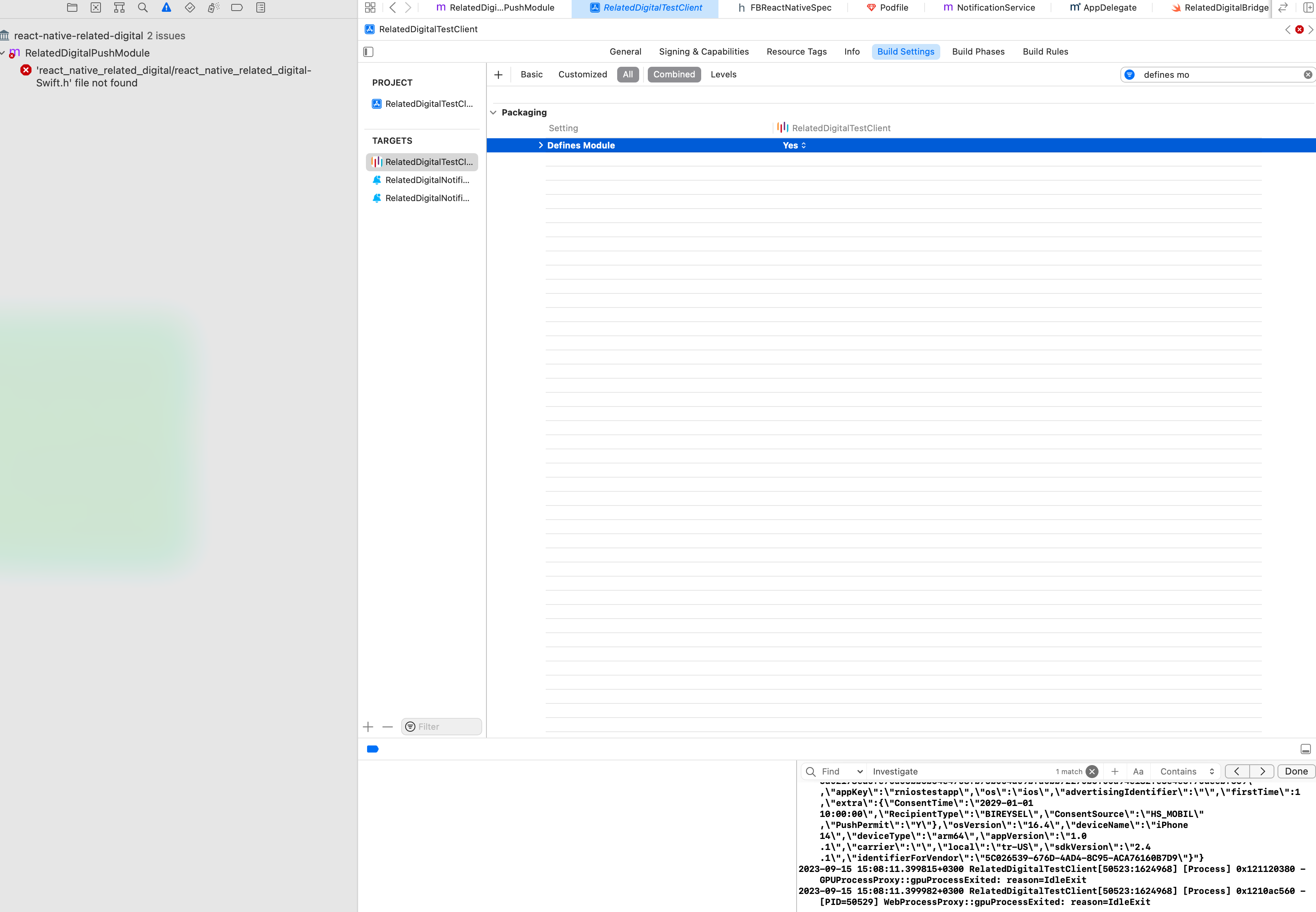
If you are getting errors regarding the firebase app, update all Define Module parameters to YES as shown in the screenshots.
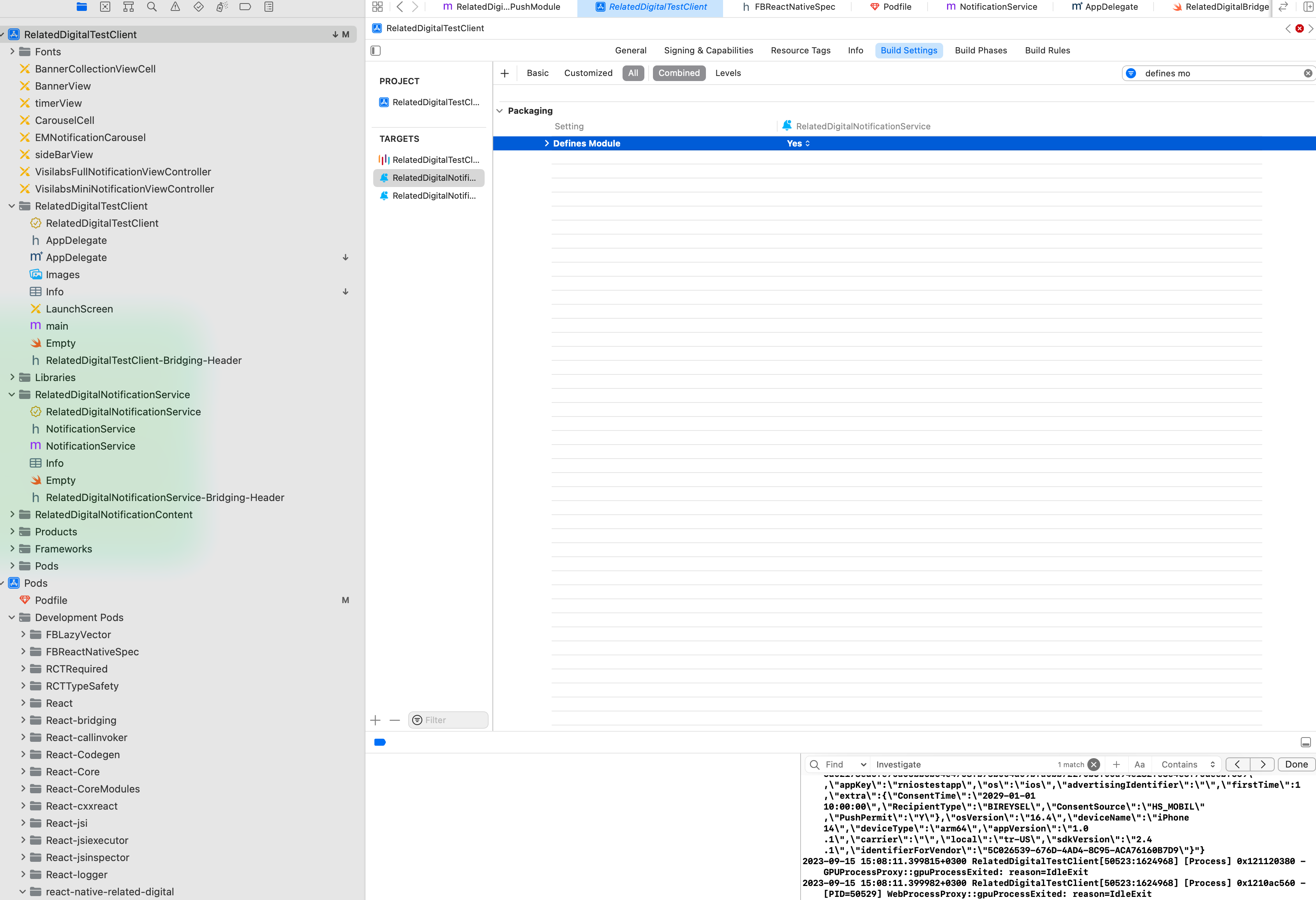
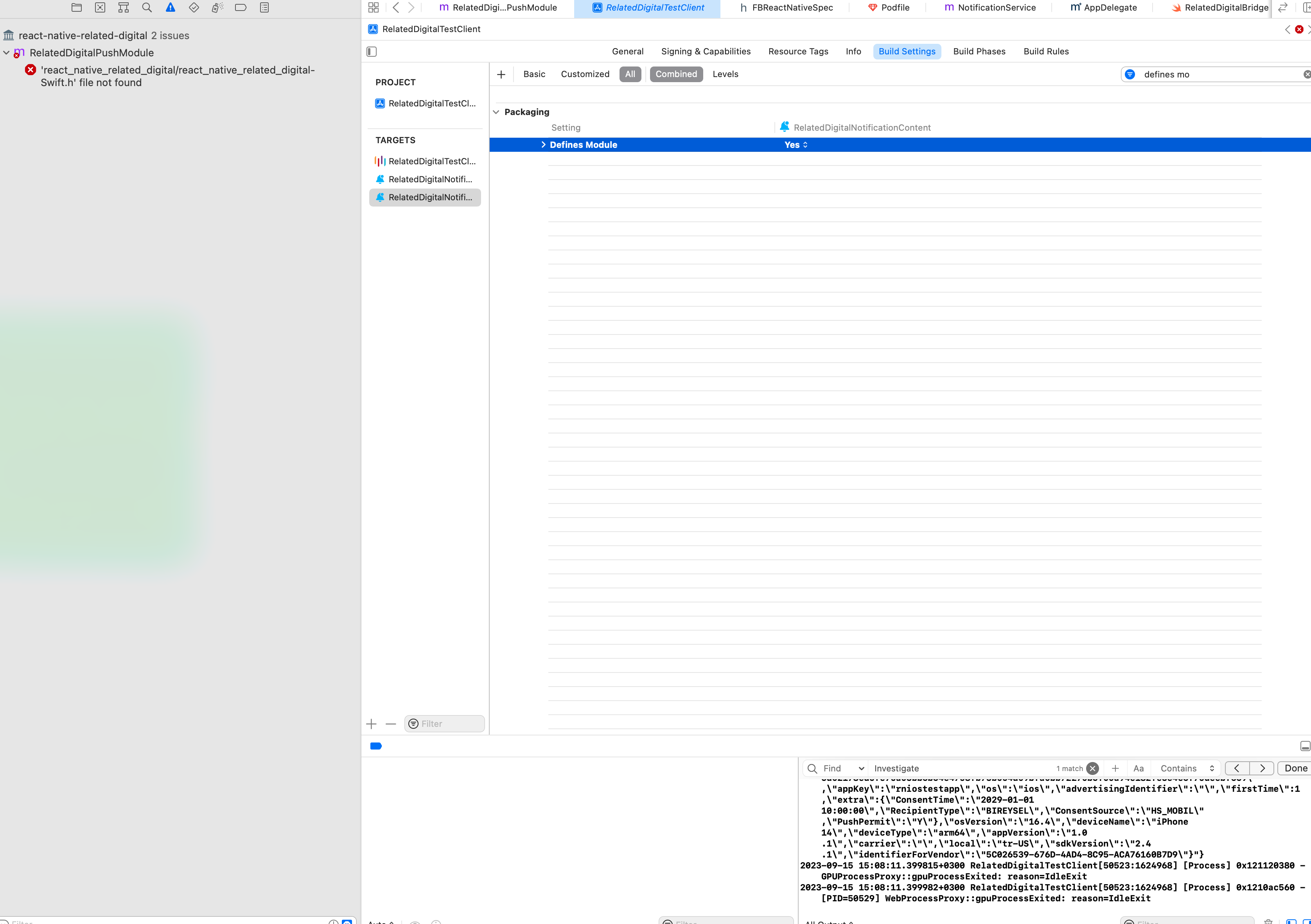
Recommendations
To view recommendations, use visilabsApi.getRecommendations(zoneId, productCode, properties, filters) method.
{
    "recommendations": [
        {
            "attr1": "420494",
            "attr10": "",
            "attr2": "",
            "attr3": "",
            "attr4": "",
            "attr5": "",
            "attr6": "",
            "attr7": "",
            "attr8": "",
            "attr9": "",
            "brand": "Related Digital",
            "code": "1159092",
            "comment": 0,
            "cur": "TRY",
            "dcur": "TRY",
            "dest_url": "https://relateddigital.com/example-product?OM.zn=You%20Viewed-w60&OM.zpc=1159092",
            "discount": 0,
            "dprice": 5.25,
            "freeshipping": false,
            "img": "https://cdn.relateddigital.com/example.png",
            "price": 5.25,
            "qs": "OM.zn=You Viewed-w60&OM.zpc=1159092",
            "rating": 0,
            "samedayshipping": false,
            "title": "Titiz TP-115 Yeşil Ayakkabı"
        }
    ],
    "title": "Display You Viewed"
}
After clicking on each product, run the following function with the qs parameter. This parameter is included in the response returned from the getRecommendations function.
visilabsApi.trackRecommendationClick(qs)
More information Rmc Docs
Search Recommendations
Search recommendations are handled by the visilabsApi.searchRecommendation(keyword: string, searchType: string): Promise<any>; method of SDK. You have to pass 2 mandatory arguments which are keyword and searchType to searchRecommendation method. Value of searchType parameter can be acquired from the RMC panel. The value of searchType is defined in the search widget page's Search Type combo box.
The return type of the searchRecommendation method is a JSON object. The JSON object contains 4 containers which are brandContainer, categoryContainer, productAreaContainer, and searchContainer. An example of the return type is shown below.
{
  "brandContainer": {
    "isActive": false,
    "popularBrands": [
      {
        "name": "Brand Name"
      }
    ],
    "title": "",
    "report": {
      "click": "OM.zn=search-1&OM.zpc=search-brand",
      "impression": "OM.zdn=search-1&OM.zcp=search-web"
    }
  },
  "categoryContainer": {
    "isActive": true,
    "popularCategories": [
      {
        "name": "Book"
      },
      {
        "name": "Laptop"
      },
      {
        "name": "SSD"
      }
    ],
    "report": {
      "click": "OM.zn=search-1&OM.zpc=search-category",
      "impression": "OM.zdn=search-1&OM.zcp=search-web"
    }
  },
  "productAreaContainer": {
    "changeTitle": false,
    "products": [
      {
        "brandName": "Visilabs",
        "code": "123",
        "currency": "TRY",
        "discountCurrency": "TRY",
        "discountPrice": 1499.99,
        "imageUrl": "https://www.visilabs.com/123.jpg",
        "name": "Product Name 123",
        "price": 2999.99,
        "url": "https://www.visilabs.com/123"
      },
      {
        "brandName": "Euromessage",
        "code": "124",
        "currency": "TRY",
        "discountCurrency": "TRY",
        "discountPrice": 1499.99,
        "imageUrl": "https://www.visilabs.com/124.jpg",
        "name": "Product Name 124",
        "price": 2999.99,
        "url": "https://www.visilabs.com/124"
      }
    ],
    "searchResultMessage": "",
    "report": {
      "click": "OM.zn=search-1&OM.zpc=search-productarea",
      "impression": "OM.zdn=search-1&OM.zcp=search-web"
    }
  },
  "searchContainer": {
    "isActive": true,
    "popularSearches": [
      {
        "name": "Product Name 123"
      },
      {
        "name": "Scifi Books"
      },
      {
        "name": "Visilabs"
      }
    ],
    "report": {
      "click": "OM.zn=search-1&OM.zpc=search-word",
      "impression": "OM.zdn=search-1&OM.zcp=search-web"
    }
  }
}
An example of how to use the searchRecommendation method is shown below.
let searchKeyword = "shoe";
let searchType = "web";

let productSearchResults = [];
let categorySearchResults = [];
let brandSearchResults = [];
let popularSearchSearchResults = [];


let products = [];
let categories = [];
let brands = [];
let popularSearches = [];

const searchRecommendationResponse = await visilabsApi.searchRecommendation(searchKeyword, searchType);


// productAreaContainer
const productAreaContainer = searchRecommendationResponse.productAreaContainer;
const productAreaContainerProducts = productAreaContainer.products;
const productAreaContainerReport = productAreaContainer.report;

productAreaContainerProducts.forEach(productObject => {
  const productName = productObject.name;
  products.push(productObject);
  productSearchResults.push({ name: productName, report: productAreaContainerReport });
});

// categoryContainer
const categoryContainer = searchRecommendationResponse.categoryContainer;
const categoryContainerPopularCategories = categoryContainer.popularCategories;
const categoryContainerReport = categoryContainer.report;

categoryContainerPopularCategories.forEach(categoryObject => {
  const categoryName = categoryObject.name;
  categories.push(categoryObject);
  categorySearchResults.push({ name: categoryName, report: categoryContainerReport });
});

// brandContainer
const brandContainer = searchRecommendationResponse.brandContainer;
const brandContainerPopularBrands = brandContainer.popularBrands;
const brandContainerReport = brandContainer.report;

brandContainerPopularBrands.forEach(brandObject => {
  const brandName = brandObject.name;
  brands.push(brandObject);
  brandSearchResults.push({ name: brandName, report: brandContainerReport });
});

// searchContainer
const searchContainer = searchRecommendationResponse.searchContainer;
const searchContainerPopularSearches = searchContainer.popularSearches;
const searchContainerReport = searchContainer.report;

searchContainerPopularSearches.forEach(popularSearchObject => {
  const popularSearchName = popularSearchObject.name;
  popularSearches.push(popularSearchObject);
  popularSearchSearchResults.push({ name: popularSearchName, report: searchContainerReport });
});
To report the clicks of search recommendations you need to call the trackSearchRecommendationClick method with the report property of container objects. For example, if you want to report the click of a product, you need to call the trackSearchRecommendationClick method with the report property of the container.
let products = [];
let searchKeyword = "shoe";
let searchType = "web";
const searchRecommendationResponse = await visilabsApi.searchRecommendation(searchKeyword, searchType);


// productAreaContainer
const productAreaContainer = searchRecommendationResponse.productAreaContainer;
const productAreaContainerProducts = productAreaContainer.products;
const productAreaContainerReport = productAreaContainer.report;

productAreaContainerProducts.forEach(productObject => {
  const productName = productObject.name;
  products.push(productObject);
});

visilabsApi.trackSearchRecommendationClick(productAreaContainer.report);
Story
Follow the step below to add a countdown to your stories.
iOS
Add below lines to your project target's Build Phases->Copy Bundle Resources section. Select Create folder references when prompted.
Pods/VisilabsIOS/Sources/TargetingAction/Story/Views/timerView/timerView.xib
Android
No special installation required
Usage
To add story view to your app, import RDStoryView and use as below:
import { RDStoryView } from 'react-native-related-digital'
...
...
<RDStoryView
  actionId={'1'} // optional
  onItemClicked={(data) => {
    console.log('Story data', data)
  }}
  style={{ flex: 1 }}
/>
App Banner
iOS
Add below lines to your project target's Build Phases->Copy Bundle Resources section. Select Create folder references when prompted.
Pods/VisilabsIOS/Sources/TargetingAction/InAppNotification/BannerView/BannerView.xibPods/VisilabsIOS/Sources/TargetingAction/InAppNotification/BannerView/BannerCollectionViewCell.xib
Android
No special installation required
Usage
To add banner view to your app, import RDBannerView and use as below:
import { RDBannerView } from 'react-native-related-digital'
...
...
<RDBannerView
  properties={{
    // 'OM.inapptype': 'banner_carousel',
  }}
  onRequestResult={isAvailable =>
    console.log('Related Digital - Banners', isAvailable)
  }
  onItemClicked={data =>
    console.log('Related Digital - Banner data', data)
  }
  style={{
    flex: 1,
  }}
/>
onRequestResult response
{ "isAvailable": true } // or false
onItemClicked response
{ "bannerLink": "URL" }
In-App URL Clicks
Use inAppUrlClicked to handle in-app notification CTA URLs inside your React Native navigation instead of opening them with the platform default browser. The SDK keeps the existing browser behavior unless this listener is added.
import { addEventListener, removeEventListener } from 'react-native-related-digital'

addEventListener('inAppUrlClicked', async (inAppUrlInfo) => {
  console.log('Related Digital - In-app URL', inAppUrlInfo)
  // navigation.navigate(inAppUrlInfo.url)
}, euroMessageApi, visilabsApi)

// When the listener is no longer needed:
removeEventListener('inAppUrlClicked')
inAppUrlClicked response
{
  "url": "https://www.example.com/product/123",
  "platform": "ios", // or "android"
  "source": "inAppNotification"
}
Request Permission
It is used to request notification permission from the user. On iOS devices, a prompt asking for permission to receive notifications will appear. On Android devices, if Android 13 (API 33) or a higher version is used, a similar prompt will be displayed. In lower versions, permission is assumed to be granted by default. It should be called every time the application is launched.
IMPORTANT NOTE: The notification permission here indicates whether permission has been granted from the device. If your user turns off notification permission from your application's account settings, the permission status here will not change. Therefore, you should check the permission information managed by the user from their account settings on your side. Otherwise, notifications may be sent to users without permission. For example;
pushPermitRequest = async (isProvisional) => {
    const pushPermit = await requestPermissions(isProvisional)
    console.log("Device Push Permit",pushPermit);
    if (
        user.pushPermit == true // If permission has been granted before
        || // or
        typeof user.pushPermit === 'undefined' // If no definition has been made regarding the permission status
      ) {
        euroMessageApi.setUserProperties({pushPermit: pushPermit ? 'Y' : 'N'}).then(() => {
          euroMessageApi.subscribe(this.state.token)
        })
    }
  }
Provisional Push (iOS Only)
To use provisional push feature on iOS, call requestPermissions method with parameter false
const isProvisional = true
requestPermissions(isProvisional)
Request and Send IDFA (iOS Only)
You can call the requestIDFA function whenever you want to show App Tracking Transparency prompt to request IDFA and send the value to Visilabs servers. If you are going to use this function, you should set the isIDFAEnabled parameter to false in the initial parameters.
requestIDFA()
Request Location Permission
If you have set the (iOS only)askLocationPermmissionAtStart parameter in initRelatedDigital to false in the AppDelegate.m file, you can request location permission wherever you want with this function.
requestLocationPermission()
requestLocationPermissionWithPopup(title,message,positiveButton,negativeButton) // only android
requestBackgroundLocationPermission() // only android
requestBackgroundLocationPermissionWithPopup(foregroundTitle, foregroundMessage, backgroundTitle, backgroundMessage, positiveButton, negativeButton) // only android
Geofencing Interval (Android Only)
(Android only) You can change the geofence location update interval with the setGeofencingIntervalInMinute function.
setGeofencingIntervalInMinute(15)
Sending Location Status Information
You can call the sendLocationPermission method to to send the location permission status of your users to Visilabs servers and use this information on the panel later.
await visilabsApi.sendLocationPermission()
This information is sent with the OM.locpermit parameter and can take one of the following 3 values:
- "always" : Location permission is obtained while the application is open and closed.
- "appopen" : Location permission is only obtained when the app is open.
- "none" : Location permission is not obtained.
Spin to win & Scratch to win
To use these features, call customEvent method with the page name you created on RMC dashboard.
visilabsApi.customEvent('*spintowin*', {
  'OM.pv': '77',
  'OM.pn': 'Nectarine Blossom & Honey Body & Hand Lotion',
  'OM.ppr': '39'
})

visilabsApi.customEvent('*scratchtowin*', {
  'OM.pv': '77',
  'OM.pn': 'Nectarine Blossom & Honey Body & Hand Lotion',
  'OM.ppr': '39'
})
User Anonymization
To anonymize a user, you should first call one of the following functions, setUserProperty or setUserProperties, as shown below:
let userData = {
  // ...other properties
  "SetAnonymous": true
}
euroMessageApi.setUserProperties(userData)

// OR

await euroMessageApi.setUserProperty('SetAnonymous', 'true')
After the set operation is completed, you must save the changes by calling the subscribe function:
euroMessageApi.subscribe(this.state.token)
IMPORTANT NOTE: If you do not set the SetAnonymous parameter back to false, the user will remain anonymous indefinitely.
Using Push Notification Messages
You can access payload list of last 30 days if you have completed iOS NotificationServiceExtension and App Groups setup. Using getPushMessages method you can access these payloads. Android does not require special installation.
When sending a notification, if you add the pushCategory parameter to the custom parameters field, you can retrieve the category parameter you sent for the respective push within the payload. This process will enable you to categorize your notifications. Example values include transactional, order, bulk, campaign, reco, etc.
const getPushMessages = async () => {
    const messages = await euroMessageApi.getPushMessages()
    console.log('messages', messages)
}

// pushId optional. If a pushId is sent, it will mark only the relevant push as read. If no parameters are sent, it will mark all notifications as read.
const readPushMessages = async (pushId) => {
  const result = await euroMessageApi.readPushMessages(pushId)
    console.log('READ Push Messages', JSON.stringify(result))
}

// pushId is optional. If a PushId is provided, only the corresponding notification will be removed from the notification center. If no parameters are sent, all notifications will be cleared from the OS notification center.
// Note: pushId should be sent in the payload for iOS, and notificationId for Android.
const deletePushMessages = async (pushId) => {
  const result = await euroMessageApi.deletePushNotificationsFromNotificationCenter(pushId)
  console.log('DELETE Push Messages', JSON.stringify(result))
}

// pushId is optional. If a PushId is provided, only the corresponding notification will be removed from the LOCAL notification center. If no parameters are sent, all notifications will be cleared from the LOCAL notification center.
// Note: The pushId included in the payload should be sent as a parameter value for all operating systems.
const deletLocalPushMsg = async (pushId) => {
  const result = await euroMessageApi.deletePushMessages(pushId)
  console.log('DELETE Push Messages', JSON.stringify(result))
  }
Messages are sorted by date. The most recent message is displayed at the top of the list.
// Android response
[
  {
    "altUrl": "",
    "date": "2025-03-27 17:02:19",
    "emPushSp": "D9DED6935B934325972EF0A4EC814AB3|2CCE03D672E4492EB6C85CDBD8AB9D5E|05F46A9218A04757AD2AA802D4B0FD49|2164102|1|0|true|false|0|0|3215470e-067b-49cc-b48c-3c2637a16bd6",
    "email": "[email protected]",
    "extraData": {
      "map": {
        "altUrl": "",
        "badgeCount": "0",
        "expiredate": "912345678",
        "pushType": "Text",
        "test": "true",
        "utm_campaign": "campaign",
        "utm_medium": "medium",
        "utm_source": "source"
      }
    },
    "keyID": "[email protected]",
    "mediaUrl": "",
    "message": "baris test",
    "notificationId": 1889709228,
    "openDate": "",
    "params": {
      "emPushSp": "CF203B70D23C40DF84167C339648CC94",
      "mediaUrl": "",
      "message": "baris test",
      "pushId": "f6e9e487-126e-4805-a3ef-bcf0e5df3ca0",
      "silent": "false",
      "sound": "",
      "title": "baris test",
      "url": ""
    },
    "pushId": "f6e9e487-126e-4805-a3ef-bcf0e5df3ca0",
    "pushType": "Text",
    "pushCategory": "x campaign",
    "silent": "false",
    "sound": "",
    "status": "D",
    "title": "baris test",
    "url": ""
  }
]

// iOS response
[
    {
      "aps": {
        "category": "rmc",
        "alert": {
          "title": "Message Title",
          "body": "Message body"
        }
      },
      "altUrl": "",
      "url": "",
      "utm_medium": "medium",
      "openedDate": "",
      "emPushSp": "CF203B70D23C40DF84167C339648CC94",
      "mediaUrl": "https:\/\/raw.githubusercontent.com\/relateddigital\/euromessage-ios\/master\/screenshots\/appgroups-name.png",
      "utm_source": "source",
      "email": "[email protected]",
      "status": "D",
      "utm_campaign": "campaign",
      "pushType": "Image",
      "keyID": "[email protected]",
      "deepLink": "",
      "pushId": "75dff035-295d-4a3d-969a-2a9f4d89d9df",
      "formattedDateString": "2025-03-27 16:05:22",
      "customExpireDate": "912345678", // custom
      "customParameter": "test",  // custom
      "pushCategory": "x campaign", // custom
    }
]
Get User Data
You can use getUserAllData method to access user data.
import {getUserAllData} from 'react-native-related-digital'
...
...
...
 getUser = async () => {
    const result = await getUserAllData();
    console.log("ALL Storage Data", result);
    console.log("Visilabs - Exvisitorid", result.visilabs.exVisitorId);
    console.log("Euromsg - Keyid", result.euromsg.extra.Keyid);
    console.log("Euromsg - Email", result.euromsg.extra.Email);
    console.log("JS Euromsg - Keyid", result.js.euromsgsubextra?.Keyid);
    console.log("JS Euromsg - Email", result.js.euromsgsubextra?.Email);
}
Response
{
    "euromsg": {
        "appKey": "rniostestapp",
        "appVersion": "1.0",
        "deviceName": "iPhone 14 Pro",
        "deviceType": "x86_64",
        "extra": {
            "ConsentSource": "HS_MOBIL",
            "ConsentTime": "2022-11-12 10:00:00",
            "Email": "[email protected]",
            "Keyid": "1234-B-5678",
            "PushPermit": "Y",
            "RecipientType": "BIREYSEL"
        },
        "firstTime": 0,
        "identifierForVendor": "57BA15B3-9B97-4B2D-AB21-211DDE7D56C6",
        "local": "tr-US",
        "method": "POST",
        "osName": "iOS",
        "osVersion": "16.2",
        "path": "subscription",
        "prodBaseUrl": ".euromsg.com",
        "sdkVersion": "2.6.6",
        "subdomain": "pushs"
    },
    "js": {
        "euromsgsub": {
            "advertisingIdentifier": "",
            "appKey": "rniostestapp",
            "appVersion": "1.0",
            "carrier": "",
            "deviceName": "iPhone 14 Pro",
            "deviceType": "x86_64",
            "extra": {
                "ConsentSource": "HS_MOBIL",
                "ConsentTime": "2022-11-12 10:00:00",
                "Email": "[email protected]",
                "Keyid": "1234-B-5678",
                "PushPermit": "Y",
                "RecipientType": "BIREYSEL"
            },
            "firstTime": 1,
            "identifierForVendor": "57BA15B3-9B97-4B2D-AB21-211DDE7D56C6",
            "local": "tr-US",
            "os": "ios",
            "osVersion": "16.2",
            "sdkVersion": "2.4.1",
            "token": null
        },
        "euromsgsubextra": {
            "ConsentSource": "HS_MOBIL",
            "ConsentTime": "2022-11-12 10:00:00",
            "Email": "[email protected]",
            "Keyid": "1234-B-5678",
            "PushPermit": "Y",
            "RecipientType": "BIREYSEL"
        },
        "expiresubscribecheckdate": 1681132339166
    },
    "visilabs": {
        "apiver": "IOS",
        "appVersion": "1.0",
        "channel": "IOS",
        "cookieId": "6EA1D2E6-74CF-4A61-A845-D297BCEE0108",
        "exVisitorId": "1234-B-5678",
        "mappl": "true",
        "sdkVersion": "3.9.0",
        "userAgent": "Mozilla/5.0 (iPhone; CPU iPhone OS 16_2 like Mac OS X) AppleWebKit/605.1.15 (KHTML, like Gecko) Mobile/15E148",
        "vchannel": "IOS"
    }
}
Usage
import React, { useState, useEffect } from 'react';
import {
  SafeAreaView,
  StyleSheet,
  ScrollView,
  Button,
  View,
  ActivityIndicator,
  Platform
} from 'react-native';

import { addEventListener, removeEventListener, requestPermissions, requestIDFA, EuroMessageApi, VisilabsApi, setApplicationIconBadgeNumber, logToConsole, RDStoryView, RecommendationAttribute, RecommendationFilterType, requestLocationPermission, setGeofencingIntervalInMinute } from 'react-native-related-digital'

const App = () => {
  const [loading, setLoading] = useState(false)

  const appAlias = 'alias'

  const siteId = "SID";
  const organizationId = "OID";
  const dataSource = "datasource";

  const euroMessageApi = new EuroMessageApi(appAlias)
  const visilabsApi = new VisilabsApi(appAlias, siteId, organizationId, dataSource)

  useEffect(() => {
    logToConsole(true)

    addExtra()
    addListeners()

    return () => removeListeners()
  }, [])

  const addListeners = () => {

    addEventListener('register', async (token) => {
      const subscribeResult = await euroMessageApi.subscribe(token)

      visilabsApi.register(token, (result) => {

      })
    }, (notificationPayload) => {
      console.log('notification payload', notificationPayload)
    }, euroMessageApi, visilabsApi)

    addEventListener('registrationError', async (registrationError) => {
      console.log('registrationError is ', registrationError)
    }, euroMessageApi)

    addEventListener('carouselItemClicked', async (carouselItemInfo) => {
      console.log('carouselItemInfo is ', carouselItemInfo)
    }, euroMessageApi)
  }

  const addExtra = async () => {
    // IYS parameters
    // await euroMessageApi.setUserProperty('ConsentTime', '2021-06-05 10:00:00')
    // await euroMessageApi.setUserProperty('RecipientType', 'BIREYSEL')
    // await euroMessageApi.setUserProperty('ConsentSource', 'HS_MOBIL')

    // Single
    // await euroMessageApi.setUserProperty('Email', EMAIL)
    // await euroMessageApi.setUserProperty('keyid', KEYID)
    // await euroMessageApi.setUserProperty('PushPermit', 'Y')

    // Or Object
    let userData = {
      "KeyId":KEYID,
      "Email":EMAIL,
      "PushPermit":"Y" // Y=active, N=passive
    }
    return euroMessageApi.setUserProperties(userData)
  }

  const login = async () => {
    addExtra().then(() =>
      euroMessageApi.subscribe(token)
    );
  }

  const setBadgeNumber = () => {
    const number = 3
    setApplicationIconBadgeNumber(number)
  }

  const sendCustomEvent = () => {
    visilabsApi.customEvent('*', {
      'id': '1',
      'name': 'Product Name'
    })
  }

  const getRecommendations = async () => {
    try {
      const zoneId = '6'
      const productCode = ''

      const properties =  {
        "OM.cat":"65" // Category code
      }

      // optional
      const filters = [{
        attribute: RecommendationAttribute.PRODUCTCODE,
        filterType: RecommendationFilterType.equals,
        value: '78979,21312,45345'
      }]

      const recommendations = await visilabsApi.getRecommendations(zoneId, productCode, properties, filters)
      console.log('recommendations', recommendations)
    }
    catch (e) {
      console.log('recommendations error', e)
    }
  }

  const showMailSubscriptionForm = () => {
    visilabsApi.customEvent('*pagename*', {
      'OM.pv': '77',
      'OM.pn': 'Product',
      'OM.ppr': '39'
    })
  }

  const getFavoriteAttributeActions = async () => {
    try {
      const actionId = '474'

      const favoriteAttrs = await visilabsApi.getFavoriteAttributeActions(actionId)
      console.log('favoriteAttributeActions', favoriteAttrs)
    }
    catch (e) {
      console.log('favoriteAttributeActions error', e)
    }
  }

  const showSpinToWin = () => {
    visilabsApi.customEvent('*pragma_spintowin*', {
      'OM.pv': '77',
      'OM.pn': 'Nectarine Blossom & Honey Body & Hand Lotion',
      'OM.ppr': '39'
    })
  }

  const trackInstalledApps = async () => {
    // android only
    await visilabsApi.sendTheListOfAppsInstalled()
  }

  const showScratchToWin = () => {
    visilabsApi.customEvent('*pragma_scratch*', {
      'OM.pv': '77',
      'OM.pn': 'Nectarine Blossom & Honey Body & Hand Lotion',
      'OM.ppr': '39'
    })
  }

  const sendLocationPermissionEvent = async () => {
    await visilabsApi.sendLocationPermission()
  }

  const getPushMessages = async () => {
    const messages = await euroMessageApi.getPushMessages()
    console.log('messages', messages)
  }

  const getUser = async () => {
    const user = await visilabsApi.getUser()
    console.log('USER DATA', user)
  }

  const pushPermitRequest = async (isProvisional) => {
    const pushPermit = await requestPermissions(isProvisional)
    console.log("Device Push Permit",pushPermit);
    if (
        user.pushPermit == true // If permission has been granted before
        || // or
        typeof user.pushPermit === 'undefined' // If no definition has been made regarding the permission status
      ) {
      euroMessageApi.setUserProperties({pushPermit: pushPermit ? 'Y' : 'N'}).then(() => {
        euroMessageApi.subscribe(this.state.token)
      })
    }
  }

  const removeListeners = () => {
    removeEventListener('register')
    removeEventListener('registrationError')
    removeEventListener('carouselItemClicked')
    removeEventListener('inAppUrlClicked')
  }

  return (
    <>
      <SafeAreaView>
        {
          loading ?
          <ActivityIndicator
            size='large'
            animating={loading} /> :
          <ScrollView
            contentInsetAdjustmentBehavior="automatic"
            style={styles.scrollView}>
            <RDStoryView
              actionId={'1'} // optional
              onItemClicked={(data) => {
                console.log('Story data', data)
              }}
              style={{ flex: 1 }}
            />
            <Button
              title='REQUEST PERMISSONS'
              onPress={() => {
                const isProvisional = false
                pushPermitRequest(isProvisional)
              }}
            />
            <Button
              title='REQUEST IDFA'
              onPress={() => {
                requestIDFA()
              }}
            />
            <Button
              title='REQUEST LOCATION PERMISSION'
              onPress={() => {
                requestLocationPermission()
              }}
            />
            <Button
              title='LOGIN/SIGNUP'
              onPress={() => {
                login()
              }}
            />
            <Button
              title='SET BADGE NUMBER TO 3 (IOS)'
              onPress={() => {
                setBadgeNumber()
              }}
            />
            <Button
              title='SEND CUSTOM EVENT'
              onPress={() => {
                sendCustomEvent()
              }}
            />
            <Button
              title='GET RECOMMENDATIONS'
              onPress={async () => {
                await getRecommendations()
              }}
            />
            <Button
              title='SHOW MAIL FORM'
              onPress={() => {
                showMailSubscriptionForm()
              }}
            />

            <Button
              title='GET FAVORITE ATTRIBUTE ACTIONS'
              onPress={async () => {
                await getFavoriteAttributeActions()
              }}
            />

            <Button
                title='SPIN TO WIN'
                onPress={() => {
                  showSpinToWin()
                }}
              />

            <Button
                title='SCRATCH TO WIN'
                onPress={() => {
                  showScratchToWin()
                }}
              />

              <Button
                title='TRACK INSTALLED APPS'
                onPress={() => {
                  trackInstalledApps()
                }}
              />

              <Button
                title='SEND LOCATION PERMISSION'
                onPress={() => {
                  sendLocationPermissionEvent()
                }}
              />

              <Button
                title='GET PUSH MESSAGES'
                onPress={() => {
                  getPushMessages()
                }}
              />

              <Button
                title='GET USER DATA'
                onPress={() => {
                  getUser()
                }}
              />

          </ScrollView>
        }
      </SafeAreaView>
    </>
  );
};

const styles = StyleSheet.create({
  scrollView: {
    backgroundColor: '#FFF',
    padding: 20
  },
  divider: {
    height: 20
  }
});

export default App;