
Recently Added Media Card


A cinematic Home Assistant card that displays recently added movies and TV shows from Plex, Kodi, Jellyfin, or Emby — all in one card.
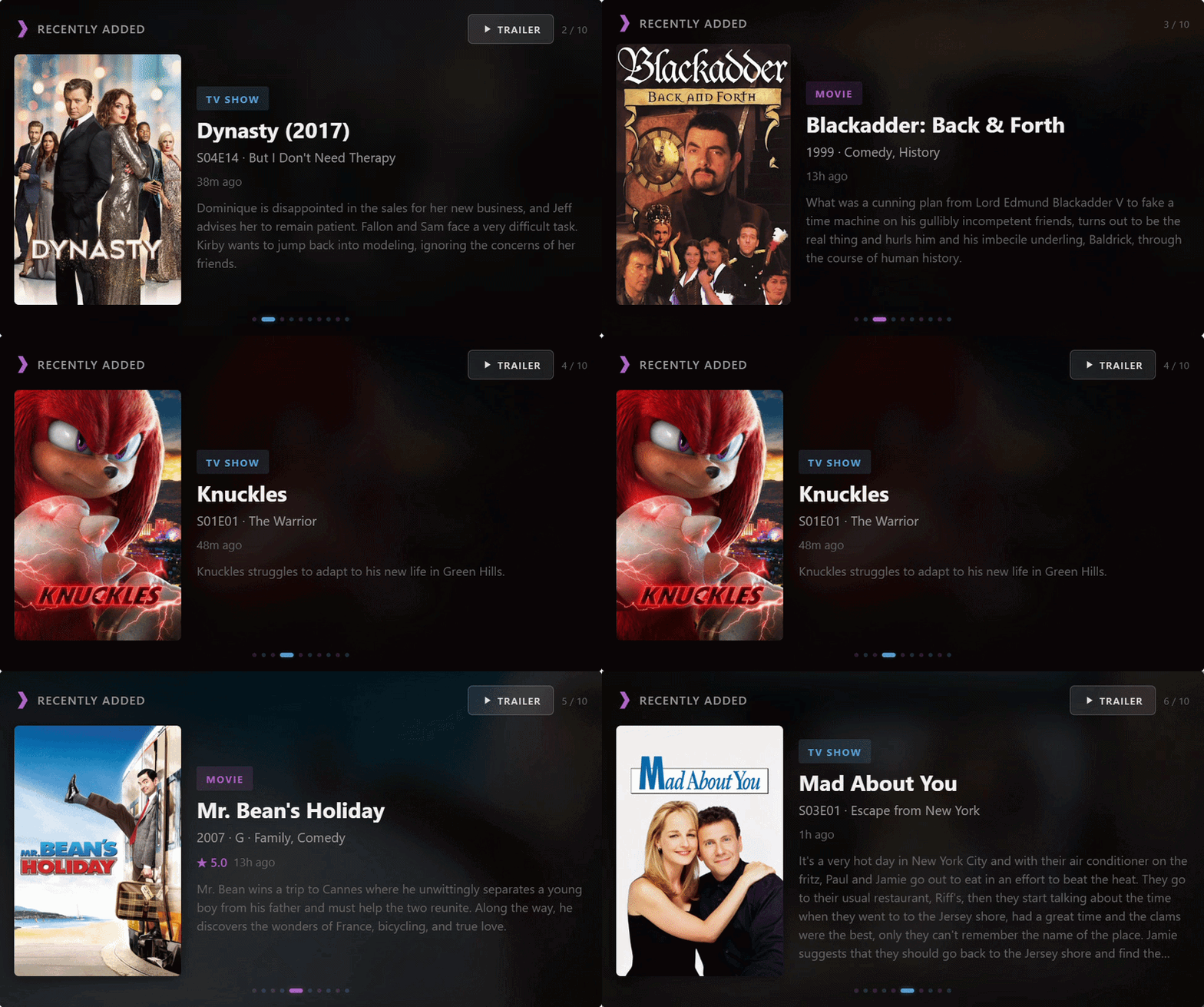
v2.0.0 — This card unifies and replaces the previous standalone cards (plex-recently-added-card, kodi-recently-added-card, jellyfin-recently-added-card, emby-recently-added-card) into a single card with a server type selector, themed accents, inline trailer playback, and swipe navigation.
Features
- Multi-server support — Plex, Kodi, Jellyfin, and Emby, selected from a dropdown in the visual editor
- Inline trailer playback — trailers play directly inside the card (not a popup overlay), powered by the YouTube IFrame API
- Themed accents — each server type has its own default colours and logo, plus selectable colour presets (Midnight Blue, Sunset, Forest, and more)
- Swipe navigation — swipe left/right on touch devices or click-and-drag on desktop to move through the carousel
- Cinematic design — blurred background art, poster on left, info on right, smooth crossfade transitions
- Auto-cycling carousel — rotates through recently added items with colour-coded dots (movie/TV)
- Synopsis and metadata — title, year, genres, content rating, star rating, time since added, and full synopsis
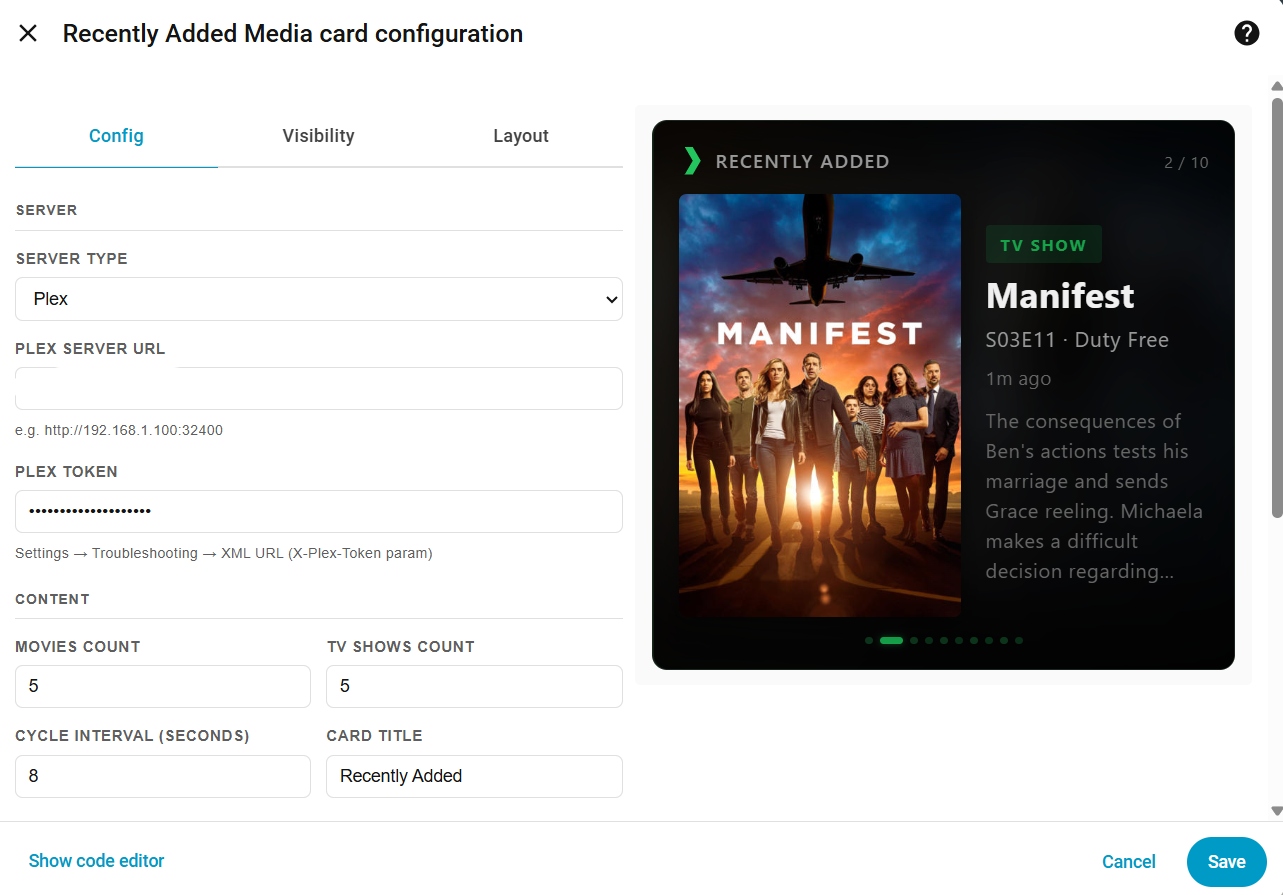
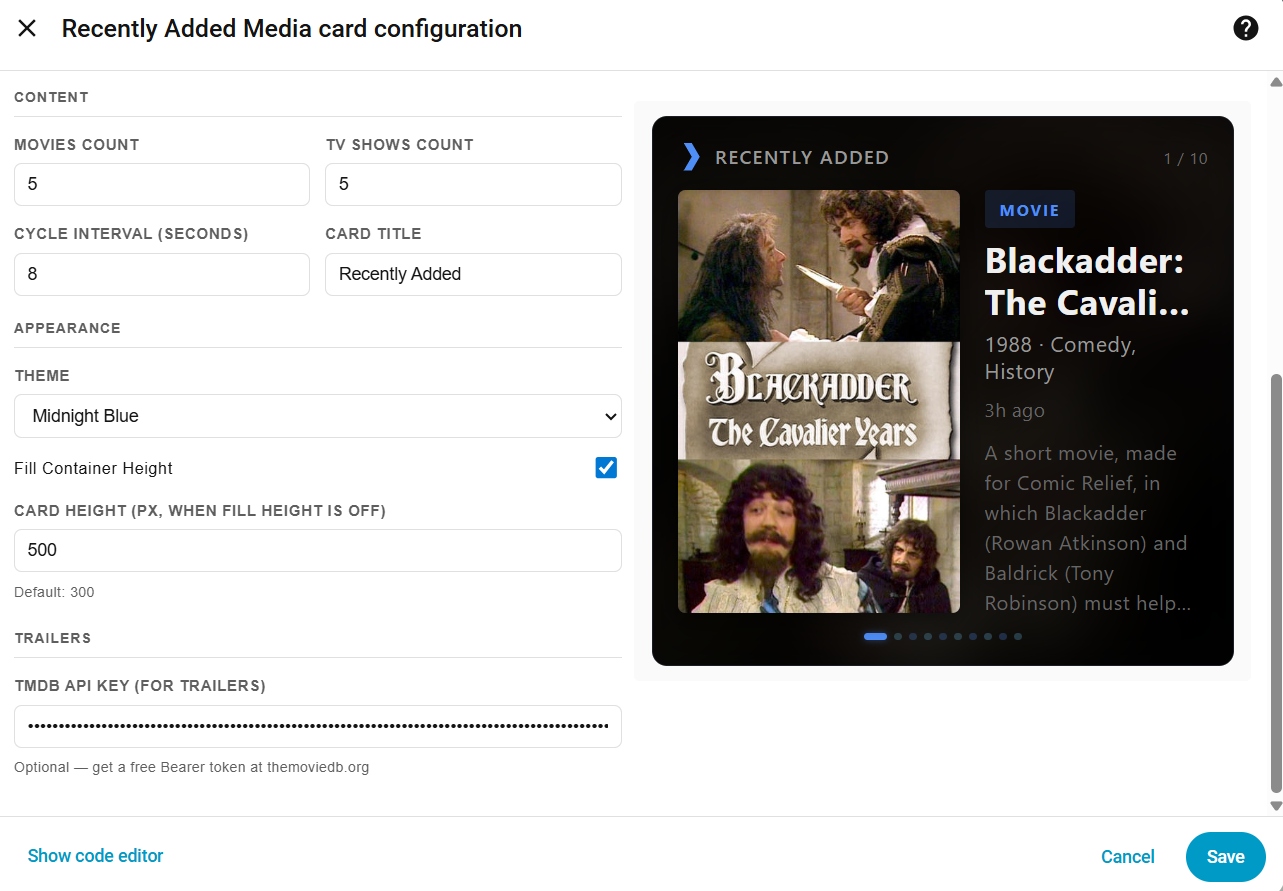
- Visual editor — configure everything from the HA UI with dynamic fields per server type
- Fill height / fixed height — adapts to any HA layout mode
- TMDB trailers — fetches trailers for movies and TV shows via TMDB API (optional)
Inline Trailers
Click the Trailer button and it plays right inside the card:

Visual Editor
The editor dynamically shows the right config fields based on your server type:
Install via HACS (Recommended)
- Open HACS in Home Assistant
- Click the three dots menu (top right) → Custom repositories
- Paste
https://github.com/rusty4444/recently-added-media-cardand select Dashboard as the category - Click Add
- Search for Recently Added Media Card in HACS → Download
- Refresh your browser (Ctrl+Shift+R)
Install Manually
- Download
recently-added-media-card.jsfrom the latest release - Copy it to
/config/www/recently-added-media-card.js - Go to Settings → Dashboards → Resources and add:
- URL:
/local/recently-added-media-card.js - Type: JavaScript Module
- URL:
- Refresh your browser
Configuration
Search for the card by name in the Add Card dialog — the visual editor lets you configure everything without writing YAML.
Or add a Manual card with YAML (examples below for each server type).
Plex
type: custom:recently-added-media-card
server_type: plex
plex_url: http://YOUR_PLEX_IP:32400
plex_token: YOUR_PLEX_TOKEN
movies_count: 5
shows_count: 5
cycle_interval: 8
title: Recently Added
tmdb_api_key: YOUR_TMDB_READ_ACCESS_TOKEN  # Optional: enables trailers
Kodi
type: custom:recently-added-media-card
server_type: kodi
kodi_url: http://YOUR_KODI_IP:8080
kodi_username: kodi        # Optional
kodi_password: kodi         # Optional
movies_count: 5
shows_count: 5
cycle_interval: 8
title: Recently Added
tmdb_api_key: YOUR_TMDB_READ_ACCESS_TOKEN
Jellyfin
type: custom:recently-added-media-card
server_type: jellyfin
jellyfin_url: http://YOUR_JELLYFIN_IP:8096
jellyfin_api_key: YOUR_JELLYFIN_API_KEY
jellyfin_user_id: YOUR_JELLYFIN_USER_ID
movies_count: 5
shows_count: 5
cycle_interval: 8
title: Recently Added
tmdb_api_key: YOUR_TMDB_READ_ACCESS_TOKEN
Emby
type: custom:recently-added-media-card
server_type: emby
emby_url: http://YOUR_EMBY_IP:8096
emby_api_key: YOUR_EMBY_API_KEY
emby_user_id: YOUR_EMBY_USER_ID
movies_count: 5
shows_count: 5
cycle_interval: 8
title: Recently Added
tmdb_api_key: YOUR_TMDB_READ_ACCESS_TOKEN
Options
| Option | Type | Default | Description |
|---|---|---|---|
server_type |
string | Required | plex, kodi, jellyfin, or emby |
plex_url |
string | — | Plex server URL (e.g., http://192.168.1.100:32400) |
plex_token |
string | — | Plex authentication token |
kodi_url |
string | — | Kodi JSON-RPC URL (e.g., http://192.168.1.100:8080) |
kodi_username |
string | — | Kodi username (if authentication is enabled) |
kodi_password |
string | — | Kodi password |
jellyfin_url |
string | — | Jellyfin server URL (e.g., http://192.168.1.100:8096) |
jellyfin_api_key |
string | — | Jellyfin API key |
jellyfin_user_id |
string | — | Jellyfin user ID |
emby_url |
string | — | Emby server URL (e.g., http://192.168.1.100:8096) |
emby_api_key |
string | — | Emby API key |
emby_user_id |
string | — | Emby user ID |
movies_count |
number | 5 |
Number of recently added movies to display |
shows_count |
number | 5 |
Number of recently added TV shows to display |
cycle_interval |
number | 8 |
|
title |
string | "Recently Added" |
|
theme |
string | "auto" |
|
tmdb_api_key |
string | — | |
trailer_mode |
string | "inline" |
|
mobile_mode |
boolean | false |
|
fill_height |
boolean | true |
|
card_height |
number | 300 |
Finding Your Credentials
Plex Token
- Sign in to the Plex Web App
- Browse to any media item
- Click Get Info → View XML
- The token is in the URL as
X-Plex-Token=XXXXX
Kodi JSON-RPC
- In Kodi, go to Settings → Services → Control
- Enable Allow remote control via HTTP
- Set the port (default 8080) and optionally a username/password
- The URL is
http://YOUR_KODI_IP:8080/jsonrpc
Jellyfin API Key
- Go to your Jellyfin dashboard → Administration → API Keys
- Create a new API key
- For your User ID, go to Administration → Users, click your user, and copy the ID from the URL
Emby API Key
- Go to your Emby dashboard → Advanced → API Keys
- Create a new API key
- For your User ID, go to Users, click your user, and copy the ID from the URL
TMDB API Key (for trailers)
- Create a free account at themoviedb.org
- Go to API Settings
- Copy the Read Access Token (the long
eyJ...string, not the short API Key)
Themes
The theme option controls the accent colours used for badges, dots, ratings, and highlights.
| Theme | Primary Accent | Description |
|---|---|---|
auto |
Based on server type | Default — matches Plex/Kodi/Jellyfin/Emby colours |
plex |
Gold (#e5a00d) | Plex's signature gold |
kodi |
Blue (#1da1f2) | Kodi blue |
jellyfin |
Purple (#aa5cc3) | Jellyfin purple |
emby |
Green (#52b54b) | Emby green |
dark |
Grey (#888888) | Neutral dark theme |
midnight |
Deep blue (#4a9eff) | Midnight blue accents |
sunset |
Orange (#e07c3e) | Warm sunset tones |
forest |
Green (#4a8c5c) | Dark forest green |
How It Works
The card connects directly to your media server's API from the browser and fetches recently added content:
- Plex: Discovers library sections, then fetches recently added items from each movie and TV show library
- Kodi: Uses JSON-RPC to call
VideoLibrary.GetRecentlyAddedMoviesandVideoLibrary.GetRecentlyAddedEpisodes - Jellyfin: Calls the
/Users/{userId}/Items/Latestendpoint filtered by movie and series types - Emby: Same approach as Jellyfin with Emby's API endpoints
Items are interleaved (movie, show, movie, show...) and displayed in a cycling carousel with smooth crossfade transitions.
Important Notes
- The card makes API calls from the browser, not from the HA server. Your media server URL must be reachable from the device viewing the dashboard.
- If HA is served over HTTPS and your media server is on plain HTTP, browsers will block the requests (mixed content). Either access both over HTTPS, or use Plex's built-in
.plex.directHTTPS URLs. - For CORS issues behind a reverse proxy (e.g., Nginx Proxy Manager), add
Access-Control-Allow-Originheaders to your proxy config.
Swipe Navigation
On touch devices, swipe left or right on the card to move through items. On desktop, click and drag left/right. The auto-cycle timer resets after each swipe.
Migrating from the Standalone Cards
If you're currently using one of the standalone cards (e.g., plex-recently-added-card), switching is straightforward:
- Install this card via HACS or manually
- Edit your existing card and change the type:
# Old type: custom:plex-recently-added-card # New type: custom:recently-added-media-card server_type: plex - All other config options (
plex_url,plex_token,movies_count, etc.) stay the same - Optionally add a
themeto customise the look
The standalone cards will continue to work but won't receive new features.
Known Issues
- Geo-restricted trailers: Some trailers may show "Video unavailable — The uploader has not made this video available in your country." This is a YouTube/TMDB restriction and cannot be fixed by the card.
- Mixed content (HTTPS/HTTP): If your HA is on HTTPS and your media server is on HTTP, browsers block the requests. Use HTTPS for both, or use Plex's
.plex.directURLs.
Related
- coming-soon-card — Upcoming movies and TV episodes from Radarr and Sonarr
- plex-now-showing — Cinema-style "Now Showing" display for active Plex playback
- kodi-now-showing — Now Showing for Kodi
- jellyfin-now-showing — Now Showing for Jellyfin
- emby-now-showing — Now Showing for Emby
Credits
- Built by Sam Russell - AI Used in development
- YouTube embed fix based on the approach from loryanstrant/ha-youtubevideocard — YouTube IFrame API for Home Assistant
- Trailer data from The Movie Database (TMDB)
- Built for the Home Assistant community