
Redmine Canvas Gantt
High-performance Canvas-based Gantt chart plugin for Redmine.
Listed on Redmine Plugins Directory: https://www.redmine.org/plugins/redmine_canvas_gantt



日本語 README · Releases · Issues
Overview
Redmine Canvas Gantt renders the timeline on HTML5 Canvas while keeping the left task list editable. It is designed for projects where the default Redmine Gantt view becomes hard to read or slow to operate.
Highlights
- Fast Canvas rendering with smooth scrolling and zooming
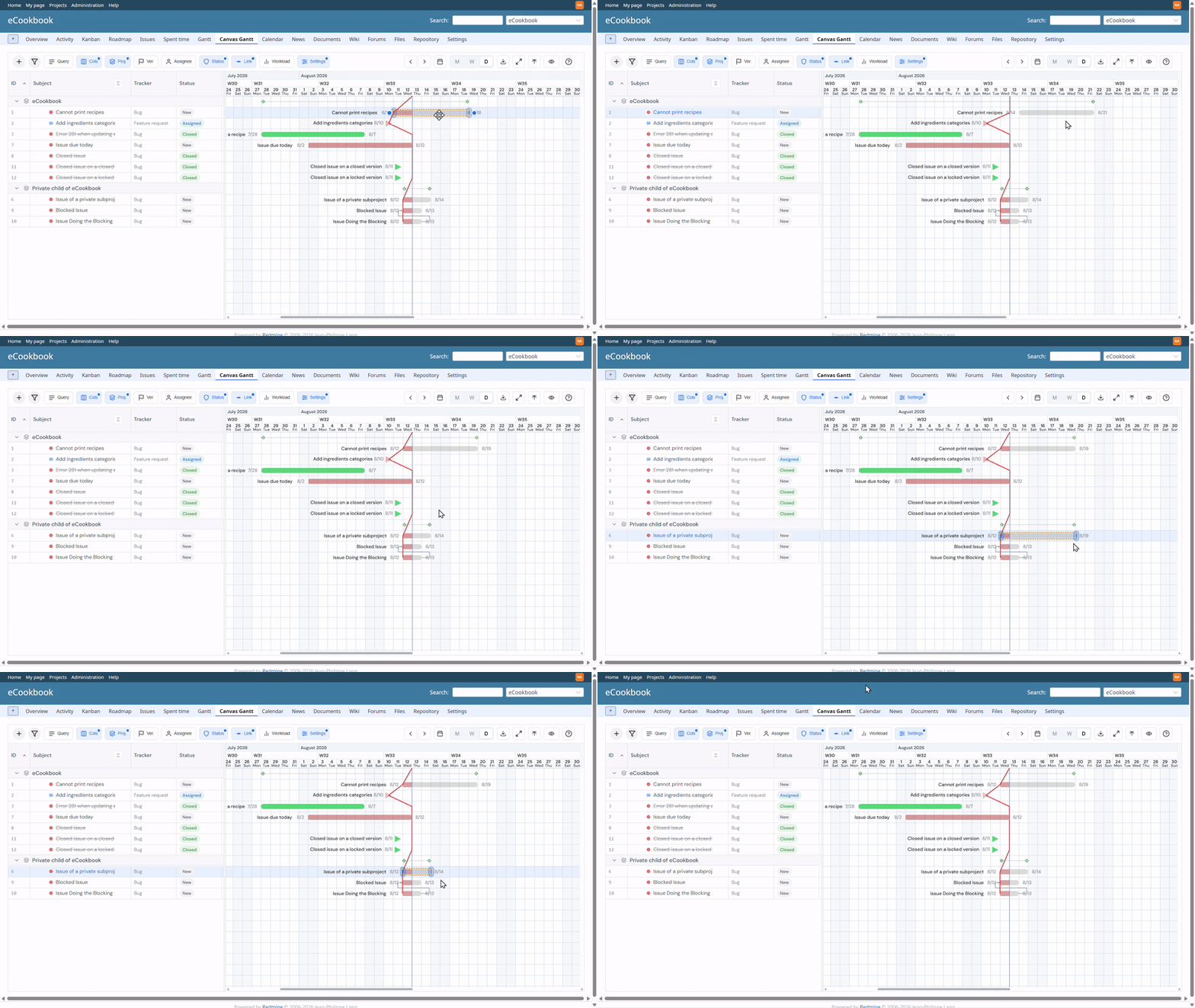
- Drag tasks to move them, resize date ranges, and create dependencies from task endpoints
- Dependency management with create, update, and delete operations
- Inline quick edit for subject, assignee, status, progress, due date, and custom fields
- Drag and drop in the sidebar to change parent-child relationships
- Bulk child task creation from multiple subject lines
- Baseline snapshots for visual comparison, saved for either the current filtered view or the whole project
- Saved queries, Redmine query editing, and round-tripping back to the issue list with supported filters
- Filters and grouping by project, assignee, status, version, and subject text
- Workload pane, export to PNG or CSV, full screen mode, and toolbar controls for zoom, row height, and font size
- Display settings that can be stored per project or shared across all projects
- Version headers, progress line, hierarchy lines, orphan date points, task titles, and dependency-based organization
Demo
Requirements
- Redmine 6.x
- Ruby 3.x
- Node.js 20+ for SPA build and frontend development
- REST API enabled in Redmine
Security and impact
- Database migration: none
- Added permissions:
view_canvas_gantt,edit_canvas_gantt - Uninstall: remove the plugin directory and restart Redmine
Installation
-
Clone the plugin into Redmine's
plugins/directory.cd /path/to/redmine/plugins git clone https://github.com/tiohsa/redmine_canvas_gantt.git -
Restart Redmine.
Restart your application server after placing the plugin.
Usage
-
Enable the REST API. Go to Administration -> Settings -> API and enable Enable REST web service.
-
Enable the project module. Open Project -> Settings -> Modules and enable Canvas Gantt.
-
Grant permissions. In Administration -> Roles and permissions, grant
view_canvas_ganttandedit_canvas_ganttas needed. -
Open the chart. Click Canvas Gantt from the project menu.
-
Use the chart and toolbar.
- Zoom with Ctrl/Cmd + mouse wheel or the toolbar controls.
- Drag tasks to move them on the timeline.
- Drag task edges to resize date ranges.
- Drag from endpoint dots to create dependencies.
- Open dependency editing to change the relation type, delay, or remove the relation.
- Drag a sidebar row onto another task to make it a child issue.
- Use bulk subtask creation to add multiple child issues at once.
- Open the workload pane to review capacity and focus filters.
- Use display settings to save and share UI preferences across projects.
- Export the current view as PNG or CSV when the layout supports it.
- Toggle full screen for more workspace when needed.
Baseline snapshots
- Baseline is comparison-only. It is not used for scheduling or CPM calculations.
- Each project stores a single baseline snapshot, and saving a new one replaces the previous snapshot.
- The toolbar lets you save either the current filtered view or the whole project as the baseline scope.
- Baseline bars and diff popovers only render for tasks currently visible in the chart, even when the saved scope was the whole project.
- Viewing baseline comparison requires
view_canvas_gantt. Saving a baseline requiresedit_canvas_gantt.
Workload, display settings, and export
- The workload pane can show daily capacity, peak and total workload, and filters for leaf issues, closed issues, and today-onward focus.
- Display settings can be stored per project or shared across all projects. Shared display settings cover zoom level, view mode, chart position, progress line, task titles, hierarchy lines, orphan date points, version headers, baseline visibility, visible columns, column order, dependency-based organization, column widths, sidebar width, custom zoom scales, row height, and font size.
- The configuration screen also supports tracker icon mapping with a JSON object that maps tracker IDs to icon kinds.
- Auto save determines whether edits are committed immediately or kept pending until you save them manually.
- The help dialog documents the current toolbar actions and editing flows if you need a quick refresher in the UI.
Shared Views and Query Parameters
Canvas Gantt separates shared business conditions from personal UI preferences.
- Shared business conditions are resolved from the URL and optional
query_idparameter - Personal UI state such as zoom, viewport, and sidebar width stays in
localStorage - Display columns and sorting are treated as shared state that synchronizes with Redmine's standard queries
- Project-specific query and filter state, such as project selection, status, assignee, version, or custom field conditions, is not shared
- When the Canvas Gantt tab opens a bare
/canvas_ganttURL, shared query conditions fall back to the last-used state stored inlocalStoragefor that project - When the same shared condition is provided by multiple sources, the precedence is:
URL parameters -> saved query (
query_id) -> project-scoped last-used shared state -> defaults
Query editing flow
Canvas Gantt does not reimplement Redmine's query editor. Query creation, editing, and saving are done in the standard Redmine issue list, and Canvas Gantt consumes both saved queries and the supported subset of Redmine issue-list URL parameters.
- Use the Saved Queries menu in the Canvas Gantt toolbar to browse saved Redmine queries that are visible in the current project
- Select a saved query to apply its
query_idand reload Canvas Gantt from Redmine's saved query definition - Use Clear saved query to remove
query_idwhile keeping the currently resolved shared filters in the URL - Use Save custom query to open the standard Redmine issue list inside an iframe dialog and save the current filter set without leaving Canvas Gantt
- Use Edit Query in Redmine from the same menu to open the standard issue list in the current tab
- Adjust filters in the Redmine issue list and save the query with Redmine's built-in Save action
- Use Open in Canvas Gantt in the issue list to return to Canvas Gantt with the current issue-list URL state
- When the issue list is showing a saved query, the return link includes
query_id - When the issue list is showing an unsaved standard filter, the return link carries the supported Redmine-standard filter parameters directly
The saved-query editor dialog also exposes Open in new tab as a fallback when the embedded Redmine page is not convenient to use.
query_id alone is enough only when the current view exactly matches the saved query. Display columns and sorting are also restored based on the saved query definition. If Canvas Gantt adds extra shared filters, visible columns, or sorting on top of that saved query, the toolbar sends query_id plus standard Redmine parameters so the issue list can reproduce the same view as closely as possible.
When the project menu opens a bare Canvas Gantt URL with no shared query input, Canvas Gantt restores the last-used shared filter state for that project and rewrites the browser URL to the canonical shared query params.
Supported Shared Parameters
| Parameter | Description |
|---|---|
query_id |
Use an existing Redmine saved issue query as the base condition |
status_ids[] |
Filter by issue status IDs |
assigned_to_ids[] |
Filter by assignee IDs. Use none for unassigned issues |
project_ids[] |
Narrow the visible projects inside the current project/subproject scope |
fixed_version_ids[] |
Filter by target version IDs. Use none for issues without a version |
group_by |
Grouping criteria. project or assigned_to |
sort |
Frontend sort key plus direction. e.g., subject:asc, startDate:desc |
c[] |
Specify visible columns (compatible with Redmine's c[]). e.g., c[]=subject&c[]=status |
show_subprojects |
Subproject visibility. 0 to hide, omit or 1 to include |
Compatibility with Redmine Issue List
| Category | Supported Items |
|---|---|
| Parameters | set_filter=1, f[], op[field], v[field][], c[], group_by, sort |
| Fields | status_id, assigned_to_id, project_id, fixed_version_id, subproject_id |
| Operators | = (equal), * (all), !* (none), o (open), c (closed) |
Current compatibility limits:
- Unsupported Redmine fields or operators are ignored and shown as warnings
assigned_to_idwith both specific assignees and unassigned issues cannot be represented exactly when exporting back to the Redmine issue list, so the unassigned part is omitted with a warning- Issues without a target version are supported in Canvas-specific URLs via
fixed_version_ids[]=none, but that case is omitted when exporting a Redmine-standard issue-list URL - Default sort (
startDate:asc) may be omitted when exporting a Redmine issue-list URL
Example URLs
Use a saved Redmine query as the base view:
/projects/demo/canvas_gantt?query_id=12
Override a saved query with explicit status and assignee filters:
/projects/demo/canvas_gantt?query_id=12&status_ids[]=1&status_ids[]=2&assigned_to_ids[]=5
Open Canvas Gantt directly from a supported Redmine-standard issue-list URL:
/projects/demo/canvas_gantt?query_id=12&set_filter=1&f[]=status_id&op[status_id]==&v[status_id][]=1&group_by=assigned_to&sort=start_date:desc
Open a shared project/version view without relying on browser storage:
/projects/demo/canvas_gantt?project_ids[]=3&fixed_version_ids[]=7&group_by=project&sort=startDate:asc
Hide subprojects and show only unassigned issues:
/projects/demo/canvas_gantt?assigned_to_ids[]=none&show_subprojects=0
Configuration
Canvas Gantt does not expose a plugin configuration screen. UI defaults are fixed in code, and baseline snapshots are stored internally in Setting.plugin_redmine_canvas_gantt without requiring a database migration.
To use the Vite dev server during development, set CANVAS_GANTT_USE_VITE_DEV_SERVER=1.
Compatibility note
If redmica_ui_extension applies Select2 behavior that interferes with Canvas Gantt controls, open Administration -> Plugins -> Redmica UI Extension -> Configure and disable searchable select boxes.
Docker Quick Start
This repository includes docker-compose.yml for running a local Redmine 6.0 + MariaDB environment.
Start the stack
docker compose up -d --wait
Open Redmine at http://localhost:3000.
Load initial data
docker compose exec -T -e REDMINE_LANG=en redmine bundle exec rake redmine:load_default_data
docker compose exec -T redmine bundle exec rake db:fixtures:load
Enable Canvas Gantt in a project
- Open the target project.
- Go to Settings -> Modules.
- Enable Canvas Gantt.
- Ensure the active role has
view_canvas_ganttandedit_canvas_ganttif editing is required.
Stop the stack
docker compose down
Development
The SPA frontend lives in spa/.
cd spa
npm ci
npm run build
npm run lint
npm run test -- --run
For live frontend development:
cd spa
npm run dev