
 Raspberry Pi MQTT Monitor







The easiest way to monitor your Raspberry Pi or Linux system health in Home Assistant — up and running in minutes with zero manual HA configuration.
Features
- Zero-config Home Assistant setup — MQTT discovery messages create devices and sensors automatically
- Remote control — restart, shutdown, and update your device from Home Assistant
- Flexible delivery — publish over MQTT or directly via the Home Assistant REST API
- Run as a service or cron job — auto-configured by the installer
- External sensor support — DS18B20 (temperature) and SHT21 (temperature + humidity)
- Sensor availability — sensors are marked unavailable in HA when readings fail
- Multi-language — English, German, French, and Bulgarian
- Easy updates — run
rpi-mqtt-monitor --updateor trigger from the Home Assistant UI
What Gets Monitored
| Metric | Config key | Default |
|---|---|---|
| CPU load | cpu_load |
enabled |
| CPU temperature | cpu_temp |
enabled |
| Used disk space | used_space |
enabled |
| Used disk space on extra paths/drives | used_space_paths |
disabled |
| Memory usage | memory |
enabled |
| Uptime (timestamp) | uptime |
enabled |
| Uptime (seconds) | uptime_seconds |
disabled |
| Network data sent/received | net_io |
enabled |
| Swap usage | swap |
disabled |
| CPU clock speed | sys_clock_speed |
disabled |
| CPU voltage | voltage |
disabled |
| WiFi signal quality (%) | wifi_signal |
disabled |
| WiFi signal strength (dBm) | wifi_signal_dbm |
disabled |
| Local IPv4 address | local_ipv4 |
disabled |
| Local IPv6 address | local_ipv6 |
disabled |
| External IPv4 address | external_ipv4 |
disabled |
| External IPv6 address | external_ipv6 |
disabled |
| RPi 5 fan speed | rpi5_fan_speed |
disabled |
| RPi power/throttle status | rpi_power_status |
disabled |
| HDD/SSD temperature | drive_temps |
disabled |
| SSD SMART status | ssd_health |
disabled |
| SSD wear / life used (%) | ssd_health |
disabled |
| SSD power-on hours | ssd_health |
disabled |
| SSD data written (TB) | ssd_health |
disabled |
| APT updates available | apt_updates |
disabled |
| Intel GPU render busy (%) | intel_gpu_render |
disabled |
| Intel GPU video busy (%) | intel_gpu_video |
disabled |
| Intel GPU frequency (MHz) | intel_gpu_freq |
disabled |
| Intel GPU power (W) | intel_gpu_power |
disabled |
| NVIDIA GPU utilization (%) | nvidia_gpu_util |
disabled |
| NVIDIA GPU memory (%) | nvidia_gpu_mem |
disabled |
| NVIDIA GPU frequency (MHz) | nvidia_gpu_freq |
disabled |
| NVIDIA GPU power (W) | nvidia_gpu_power |
disabled |
| NVIDIA GPU temperature (°C) | nvidia_gpu_temp |
disabled |
| AMD GPU utilization (%) | amd_gpu_util |
disabled |
| AMD GPU memory (%) | amd_gpu_mem |
disabled |
| AMD GPU frequency (MHz) | amd_gpu_freq |
disabled |
| AMD GPU power (W) | amd_gpu_power |
disabled |
| AMD GPU temperature (°C) | amd_gpu_temp |
disabled |
| Script update available | git_update |
enabled |
| External sensors | ext_sensors |
disabled |
GPU sensors. The installer autodetects your GPU vendor and enables the matching sensors.
- Intel uses
intel-gpu-tools(intel_gpu_top); it requires root, so values only populate when running as the systemd service.- NVIDIA uses the native
pynvmllibrary (nvidia-ml-py) and the NVIDIA driver — no root required.- AMD reads
sysfs(/sys/class/drm, in-kernelamdgpudriver) with no extra tools — no root required.
CPU voltage. On a Raspberry Pi this reads
vcgencmd measure_volts. On other hosts (e.g. x86 / Ubuntu) it falls back to aVcorereading fromhwmon(lm-sensors), which requires a supported Super-I/O driver — runsensors-detectifsensorsshows noVcore. Where neither source exists the sensor reports as unavailable.
SSD health. The installer autodetects non-rotating drives (NVMe and SATA SSDs) and offers to install
smartmontoolsand enable thessd_healthsensors.smartctlneeds root, so values populate when running as the systemd service, or in cron mode via the passwordless sudoers entry the installer adds forsmartctl. NVMe metrics come from the uniform SMART health log; SATA wear and data-written are read from the vendor attribute table and are best-effort (they vary by manufacturer).
Table of Contents
- Installation
- Uninstallation
- CLI Reference
- Configuration
- Home Assistant Integration
- How to Update
- Feature Requests
Installation
Automated
bash <(curl -s https://raw.githubusercontent.com/hjelev/rpi-mqtt-monitor/master/remote_install.sh)
The installer will:
- Install missing dependencies (
git,python3,pip,paho-mqtt,requests,psutil) - Create a Python virtual environment (
rpi_mon_env) - Prompt you to configure MQTT host and credentials in
config.py - Set up a systemd service or cron job
Running as a service is recommended — it enables the restart, shutdown, and display control buttons in Home Assistant.
Automated Installation Preview

Manual
See the Manual Installation wiki page for step-by-step instructions including service and cron configuration.
Uninstallation
rpi-mqtt-monitor --uninstall
CLI Reference
usage: rpi-mqtt-monitor [-h] [-H] [-d] [-s] [-v] [-u] [-w] [-c] [--uninstall]

Monitor CPU load, temperature, frequency, free space, etc., and publish the
data to an MQTT server or Home Assistant API.

options:
  -h, --help       show this help message and exit
  -H, --hass_api   send readings via Home Assistant API (not via MQTT)
  -d, --display    display values on screen
  -s, --service    run as a service; sleep interval set in config.py
  -v, --version    display installed version and exit
  -u, --update     update script and config then exit
  -w, --hass_wake  display Home Assistant wake-on-LAN configuration
  -c, --config     open the interactive TUI configurator and exit
  --uninstall      uninstall rpi-mqtt-monitor and remove all related files
Interactive configurator
Run rpi-mqtt-monitor --config to open a terminal UI for editing config.py. Move
through the settings with the ↑/↓ arrows; each setting shows its description and
default value. Press Enter to edit the selected value — booleans toggle, while numbers
and strings open an inline editor pre-filled with the current value (Esc cancels an
edit). Press s to save and q to quit. Comments, ordering, formatting and the
existing quote style in config.py are preserved; complex settings (lists and the output
function) are shown read-only with a note to edit them directly in the file.
Configuration
All options live in src/config.py. Key settings:
| Setting | Description |
|---|---|
mqtt_host |
MQTT broker address |
mqtt_user / mqtt_password |
MQTT credentials |
mqtt_port |
MQTT port (default 1883, 8883 for TLS) |
mqtt_tls |
Enable TLS/SSL for the MQTT connection |
mqtt_tls_ca_certs / mqtt_tls_insecure |
Optional CA file for a self-signed broker cert, or skip cert verification |
mqtt_websockets / mqtt_websocket_path |
Connect over MQTT-over-WebSockets (ports ~9001/8084) and its URL path |
mqtt_discovery_prefix |
HA discovery prefix (default homeassistant) |
mqtt_topic_prefix |
Topic prefix (default rpi-MQTT-monitor) |
mqtt_uns_structure |
Optional UNS prefix prepended to all topics |
discovery_messages |
Publish HA auto-discovery config messages |
service_sleep_time |
Seconds between readings when running as a service |
update_check_interval |
Seconds between update checks (default 3600) |
use_availability |
Mark sensors unavailable in HA on read failure |
retain |
Set MQTT retain flag on published messages |
qos |
MQTT QoS level (0, 1, or 2) |
language |
UI language: en, de, fr, bg |
ha_device_name |
Override hostname as the HA device name |
hass_host / hass_token |
Home Assistant API URL and long-lived token |
restart_button |
Add a restart button to HA |
shutdown_button |
Add a shutdown button to HA |
display_control |
Add display on/off buttons to HA (auto-detects backend: see below) |
display_on_command / display_off_command |
Optional custom commands for display control (override auto-detection) |
group_messages |
Send all values as a single CSV message (disables discovery) |
Full configuration reference: Configuration wiki
Display control backends
With display_control = True, the monitor on/off buttons auto-detect a working backend for the current environment:
| Environment | Backend used |
|---|---|
| X11 desktop | xset dpms force on/off |
| wlroots Wayland (Pi labwc/wayfire, sway) | wlr-randr --output <out> --on/--off |
| Raspberry Pi | vcgencmd display_power 1/0 |
| GNOME / generic Wayland | ddcutil (DDC/CI, hardware level) |
GNOME and most non-wlroots Wayland compositors expose no CLI to force monitors off, so external monitors are controlled over DDC/CI with ddcutil. When you enable display control during install.sh, the installer detects your backend and offers to perform this setup for you. To do it manually:
sudo apt install ddcutil
echo i2c-dev | sudo tee /etc/modules-load.d/i2c-dev.conf
sudo modprobe i2c-dev
sudo usermod -aG i2c $USER     # the service runs as this user; re-login or restart the service afterwards
ddcutil detect                 # confirm your monitor(s) are listed
Each monitor must have DDC/CI enabled in its on-screen (OSD) menu — some ship with it off.
If none of the above fits your setup, set display_on_command / display_off_command in config.py to any custom command, which always takes precedence over auto-detection.
Home Assistant Integration
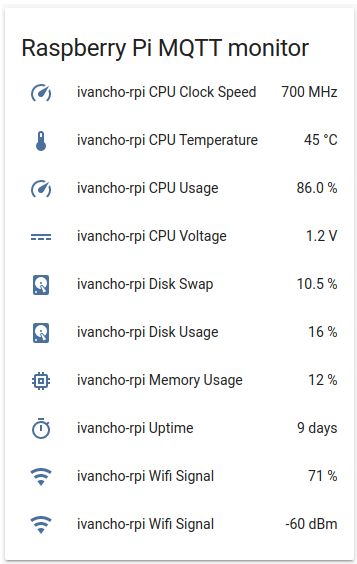
When discovery_messages = True (the default), a new MQTT device is created in Home Assistant automatically — no configuration.yaml edits required. Just add it to a dashboard.
Home Assistant API
To bypass MQTT and push directly to the HA REST API, use the --hass_api flag and configure hass_host and hass_token in config.py.
Wake on LAN
Run rpi-mqtt-monitor --hass_wake to print the YAML snippet for a Home Assistant Wake-on-LAN switch preconfigured with your device's MAC address and IP.
Home Assistant Dashboard
External Sensors
Supports DS18B20 (1-Wire temperature) and SHT21 (I²C temperature + humidity) sensors.
Configure in config.py:
ext_sensors = [
    ["Housing", "ds18b20", "0014531448ff", -300],
    ["ext2",    "sht21",   0,              [-300, 0]],
]
Full setup guide: External Sensors wiki
Feature Requests
Open an issue or submit a pull request — contributions are welcome.