
Verisure OWA


A Home Assistant integration for Verisure (formerly Securitas Direct in some markets), supporting Argentina, Brazil, Chile, France, Ireland, Italy, Peru, Portugal, Spain, and the United Kingdom.
Upgrading from a previous version? See CHANGES.md for what's new and the breaking changes in this release.
What's included
Full alarm control: the mappings between HA's five buttons (Home/Away/Night/Vacation/Custom) and your Verisure modes are yours to set. Optional local PIN. If your install has multiple circuits, you can opt into a dedicated sub-panel for each (Interior, Perimeter, Annex).
Smart locks, with optional auto-lock when you arm and auto-disarm when you unlock from HA. Cameras with on-demand capture and full-resolution images. Sentinel temperature/humidity/air-quality sensors. A connectivity diagnostic for the panel itself.
Bundled Lovelace cards: alarm card, alarm badge, Mushroom chip, camera card, activity-log card.
The activity log mirrors what you see in the Verisure app — arm/disarm, intrusions, image requests, power events — surfaced as a sensor, a card, and an event bus. Actions you take from HA are tagged with the real HA user and deduplicated against the panel's later echo, so automations fire once.
Multiple installations per account work out of the box. 2FA is handled at setup. Your password isn't stored on disk — it gets used once to mint a refresh token, then discarded.
Supported Countries
| Code | Country |
|---|---|
| AR | Argentina |
| BR | Brazil |
| CL | Chile |
| ES | Spain |
| FR | France |
| GB | United Kingdom |
| IE | Ireland |
| IT | Italy |
| PE | Peru |
| PT | Portugal |
Installation
HACS (recommended)

Or manually:
- Install HACS if you don't have it already.
- Open the HACS dashboard in Home Assistant.
- Search for Verisure OWA.
- Click download.
Setup
Go to Settings → Integrations → Add Integration and search for Verisure OWA.
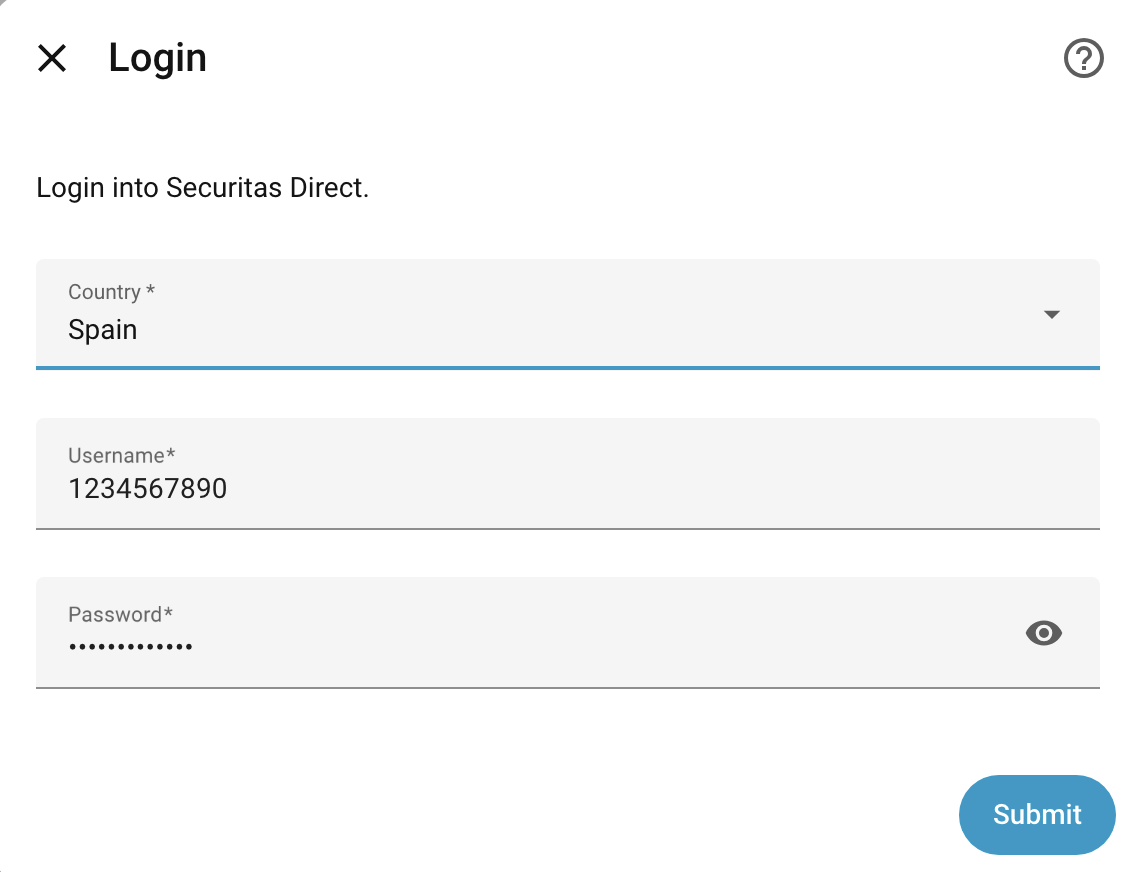
The wizard handles login (with SMS 2FA if your account uses it), picks an installation if your account has more than one, walks through PIN / notifications / sub-panel options, and lets you map each HA alarm button to a Verisure mode. Repeat the flow once per installation if you have several. Locks and cameras are discovered in the background — the Lock automation screen appears under Configure once they're registered.
Naming: securitas vs verisure_owa
The integration's HA domain is securitas for historical reasons, but every service, event, and card name is also registered under verisure_owa.* / verisure_owa_* — use that form when you write new automations. Old securitas.* automations keep working. See docs/FUTURE_MIGRATION_PLAN.md for why this is unresolved.
Options
After setup, change settings via Settings → Integrations → Verisure OWA → Configure. The dialog walks you through three screens — or four if you have locks: a settings page, the alarm state mappings, and (when locks are present) the lock automation page.
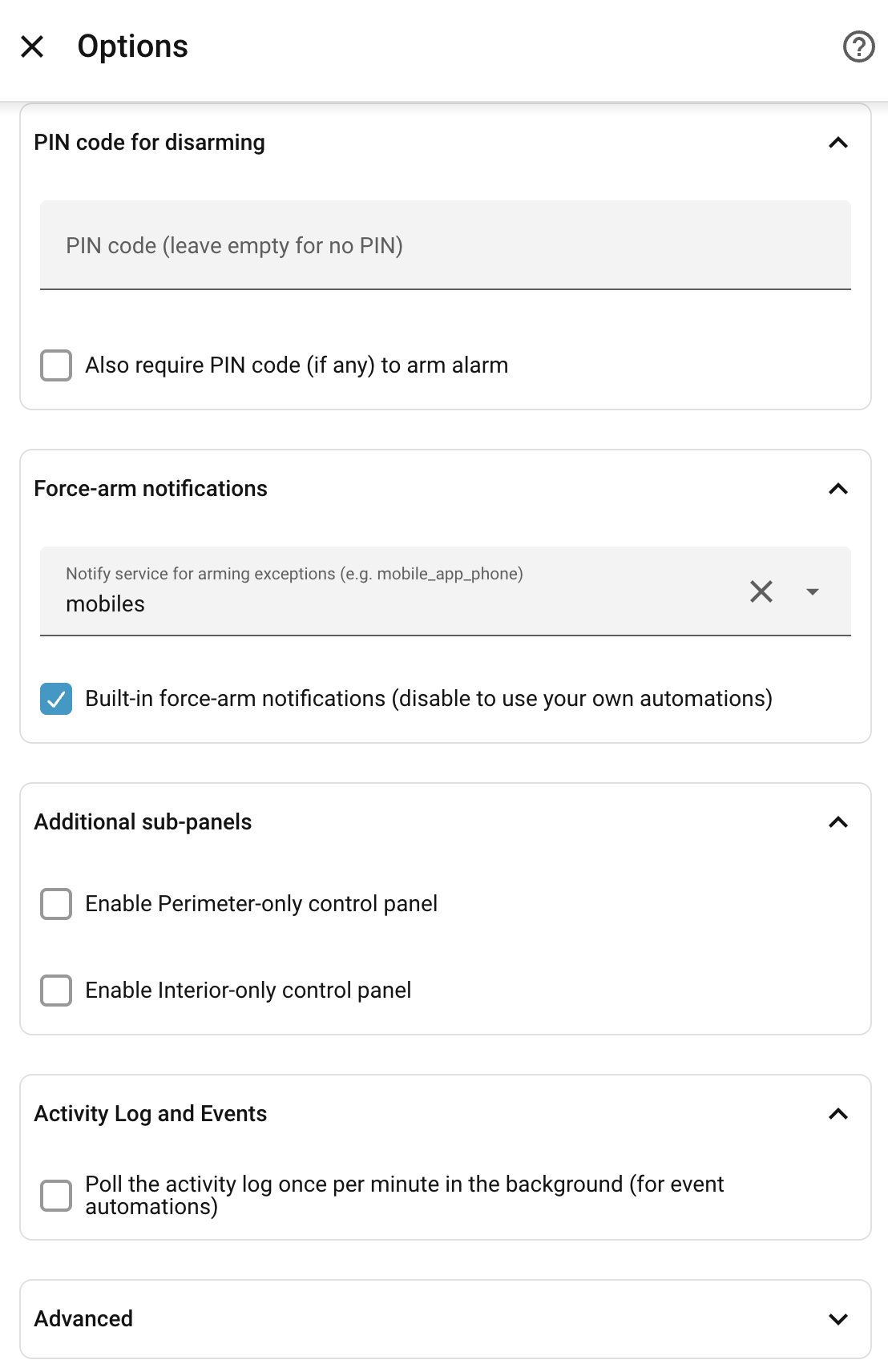
Settings
| Section | Option | Default | Description |
|---|---|---|---|
| PIN code for disarming | PIN code | (empty) | Optional local PIN for the HA alarm panel. This PIN is not sent to Verisure — it only protects the panel in Home Assistant. Numeric or alphanumeric. |
| Require PIN to arm | No | When enabled, the PIN is also required to arm (not just disarm). No effect if no PIN is set. | |
| Force-arm notifications | Notify service | (none) | A notify service to call when arming is blocked. Pick a mobile app notify service to receive an actionable notification with Force Arm and Cancel buttons. |
| Built-in force-arm notifications | Yes | When enabled (default), the integration creates persistent and mobile notifications when arming is blocked. Disable to handle the verisure_owa_arming_exception event from your own automations. See Force Arming (advanced). |
|
| Additional sub-panels (only when supported) | Enable Perimeter-only panel | No | Adds a Perimeter - <alias> alarm panel that controls the perimeter circuit only. Visible only on installations with perimeter sensors. |
| Enable Annex-only panel | No | Adds an Annex - <alias> alarm panel that controls the annex circuit only. Visible only on installations with an annex zone. |
|
| Enable Interior-only panel | No | Adds an Interior - <alias> alarm panel that controls the interior circuit only. Visible whenever any sibling circuit is supported. |
|
| Activity Log and Events | Poll the activity log once per minute in the background | No | Off by default: the log refreshes on demand from the card, and remote events (someone arming at the panel, an intrusion, a power cut) don't fire on the verisure_owa_activity bus. Turn it on if you want every event to fire — see How often it refreshes. |
| Advanced (collapsed) | Update scan interval | 120s | How often the integration checks the alarm status. Set to 0 to disable automatic polling. |
| Delay between API requests | 2s | Minimum gap between consecutive API requests. Higher values reduce the risk of WAF rate limiting. | |
| Operation poll timeout | 120s | How long to wait for the panel to confirm an arm/disarm action before treating it as accepted-but-unconfirmed (range 60–300s). Raise this if arm/disarm operations log not confirmed within timeout warnings. |
Alarm State Mappings
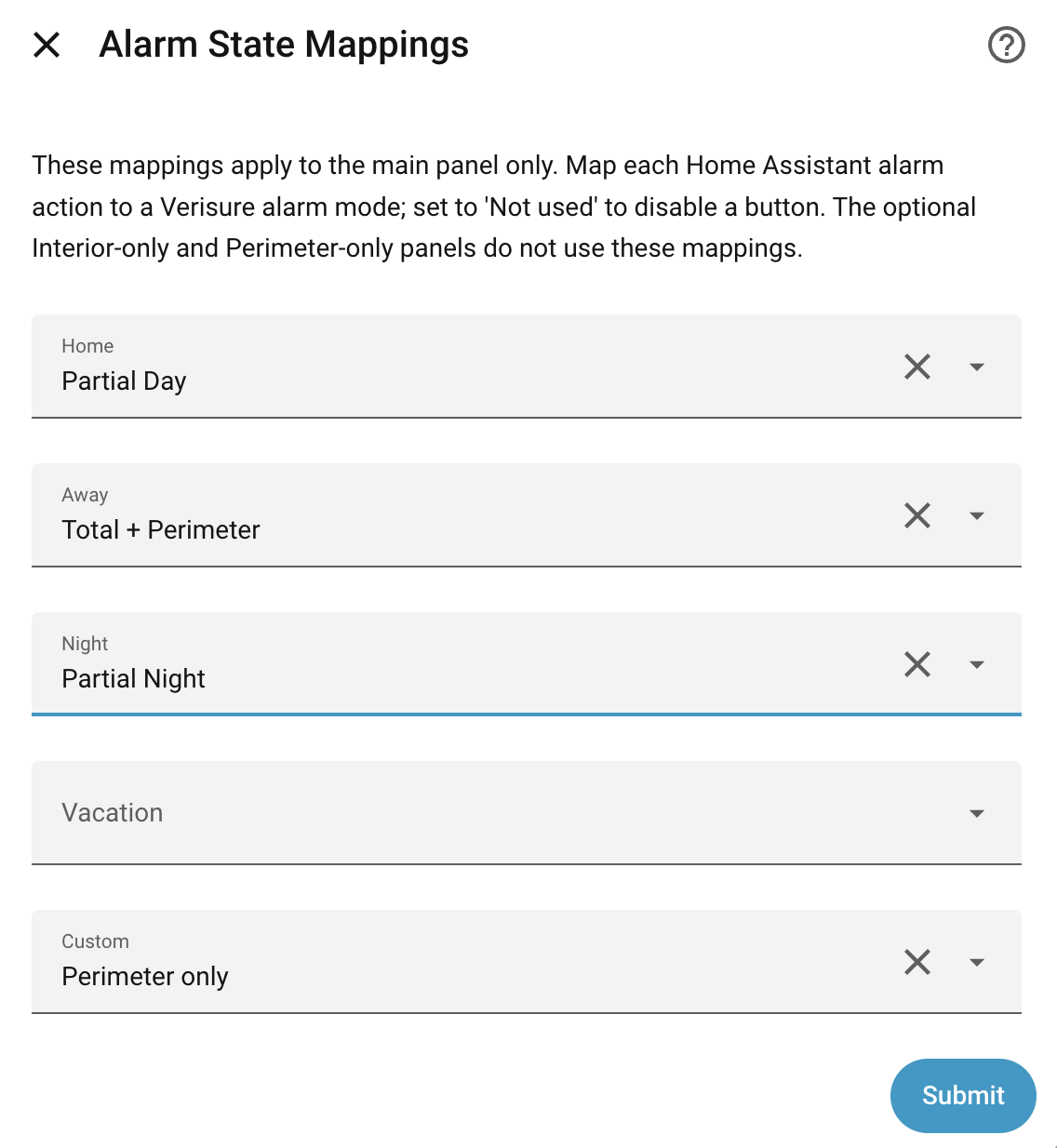
Verisure supports several alarm modes, but Home Assistant's alarm panel only has five buttons: Home, Away, Night, Vacation, and Custom Bypass. This integration lets you choose which Verisure mode each button activates.
Available Modes
| Mode | Description |
|---|---|
| Partial Day | Interior sensors armed (daytime) |
| Partial Night | Interior sensors armed (nighttime) |
| Total | All interior sensors armed |
| Perimeter only | External/outdoor sensors only |
| Partial Day + Perimeter | Daytime interior + external sensors |
| Partial Night + Perimeter | Nighttime interior + external sensors |
| Total + Perimeter | All interior + external sensors |
| Annex only | Annex armed, main alarm disarmed |
| Partial Day + Annex | Daytime interior + annex |
| Partial Night + Annex | Nighttime interior + annex |
| Total + Annex | All interior + annex |
| Perimeter + Annex | External sensors + annex |
| Partial Day + Perimeter + Annex | Daytime interior + external sensors + annex |
| Partial Night + Perimeter + Annex | Nighttime interior + external sensors + annex |
| Total + Perimeter + Annex | All interior + external sensors + annex |
You only see the modes your installation actually supports. A standard install gets the four interior modes; perimeter installations get the four perimeter combinations on top, annex installations the four annex combinations, and an install with both gets all sixteen. Leave a mapping blank to hide that HA button.
The mapping works both ways: when Verisure reports "Total + Perimeter" and you've mapped that to Away, the panel shows Armed Away. Switching between modes (Armed Home → Armed Away + Perimeter → Disarmed, etc.) is sorted out for you.
Note: Your country may only support a single Partial mode, rather than Partial Day and Partial Night. If so, use Partial Day.
Defaults
| HA Button | Standard | Perimeter installs |
|---|---|---|
| Home | Partial Day | Partial Day |
| Away | Total | Total + Perimeter |
| Night | Partial Night | Partial Night |
| Custom | (blank) | Perimeter only |
| Vacation | (blank) | (blank) |
When the panel sits in an unmapped state
If the alarm enters a Verisure state you haven't mapped (e.g. perimeter is armed from a physical keypad but you haven't mapped a HA button to it), the entity shows as Custom Bypass. To resolve, add a mapping or enable the relevant capability. To check which status code is being reported, enable debug logging.
Sub-panels
The default setup gives you one alarm panel per installation: Main - <alias>, driven by the Home / Away / Night / Vacation / Custom mappings. That works for almost everyone.
If your installation has more than one alarm circuit (interior, perimeter, annex), you can opt into a dedicated panel for each circuit under Configure:
- Interior-only (
Interior - <alias>) — Home / Away / Night / Disarmed. - Perimeter-only (
Perimeter - <alias>) — Armed Away / Disarmed. Only offered when perimeter sensors are detected. - Annex-only (
Annex - <alias>) — Armed Away / Disarmed. Only offered when an annex zone is detected.
The Interior toggle appears whenever any sibling circuit exists; otherwise the main panel already does the same job. If perimeter or annex isn't detected automatically, enable debug logging and share the capability detection for ... line in a bug report.
If you expose entities to a voice assistant, remember each new sub-panel is a separate entity — exposing all of them to voice tends to make commands ambiguous. A common pattern is to enable all sub-panels for dashboards but expose only the main panel to voice.
Custom Alarm Card
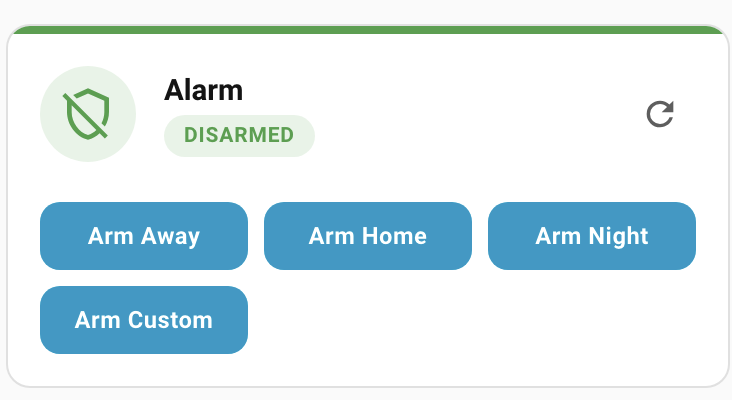
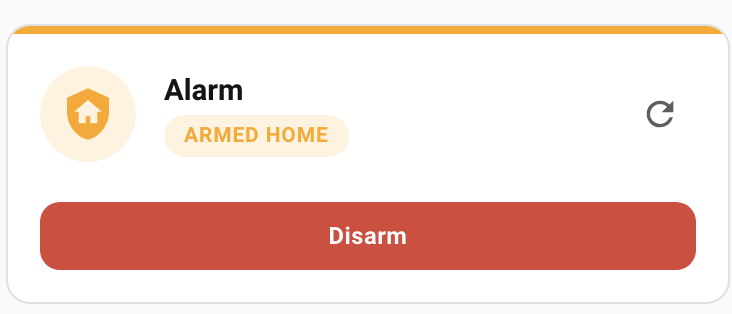
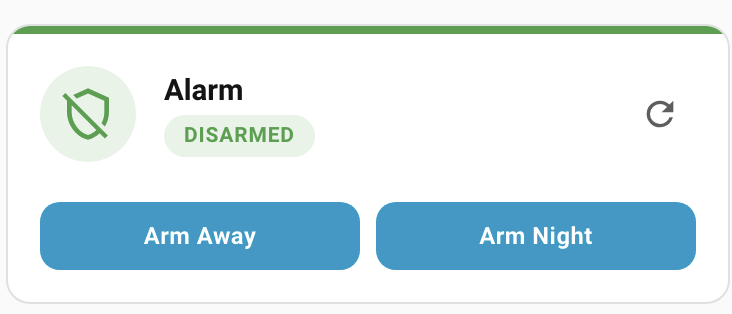
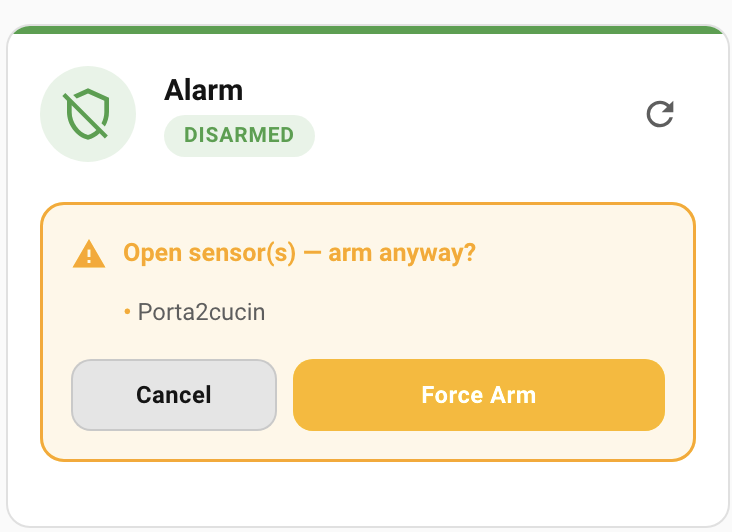
The custom alarm card (verisure-owa-alarm-card) is the default way to interact with the alarm from a dashboard. Unlike the stock HA alarm panel card, it surfaces the force-arm warning and buttons inline when arming is blocked.
| Disarmed | Armed (Home) | Custom Mapping |
|---|---|---|
 |
 |
 |
| PIN Keypad | Force Arm |
|---|---|
 |
 |
- Dynamic arm buttons — only the modes you've mapped are shown.
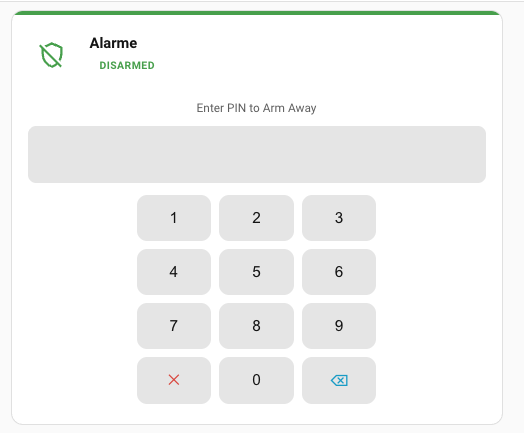
- PIN keypad — appears automatically when you've configured a PIN. Numeric codes get a numeric keypad; alphanumeric codes get a text input. The keypad on arm only appears if you've enabled "Require PIN to arm".
- Force-arm UI — when arming is blocked, the card shows the affected sensors with inline Force Arm / Cancel buttons.
- Theme-aware — works correctly in both light and dark mode.
To add it, click Add Card → Search for "Verisure OWA Alarm Card" and pick your alarm panel entity.
Badge
A compact dashboard badge for the badges row, with a state-specific shield icon (amber warning triangle when arming fails). Tap to open the full alarm card; hold and double-tap can be configured to arm/disarm directly — see Gesture Actions below.
Add it via Add Badge → "Verisure OWA Alarm Badge" and pick your alarm panel entity.
Mushroom Chip
For a Mushroom Chips Card, use type: verisure-owa-alarm. Same icon and colors as the badge in a Mushroom-compatible pill. Tap opens the alarm card; hold and double-tap are configured in YAML — see Gesture Actions below.
type: custom:mushroom-chips-card
chips:
  - type: verisure-owa-alarm
    entity: alarm_control_panel.my_alarm
Gesture Actions
All three variants — card, badge, chip — support configurable tap, hold, and double-tap actions. The card and badge expose them in the visual editor; the chip is YAML-only.
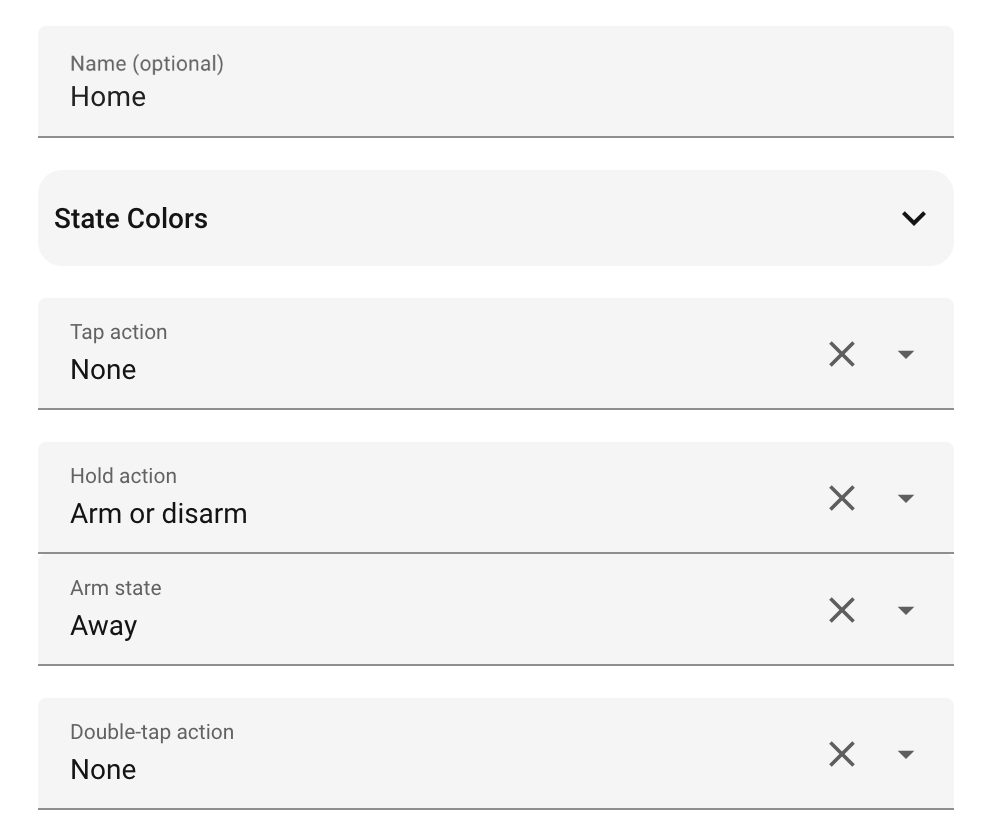
| Action | Badge default | Chip default | Card default |
|---|---|---|---|
| Tap | Open alarm card | Open alarm card | (none) |
| Hold | Arm / Disarm | (none) | (none) |
| Double-tap | (none) | (none) | (none) |
Each action can be:
| Option | Description |
|---|---|
| None | Do nothing. |
| Navigate | Navigate to a dashboard path. A path selector appears to choose the destination. |
| Arm | Arm the alarm to a chosen state (Home, Away, Night, Custom, or Vacation). Only fires when disarmed. |
| Disarm | Disarm the alarm. Only fires when armed. |
Example: set Hold to Disarm on the badge to disarm with a long press without opening the card popup.
Chip YAML
type: custom:mushroom-chips-card
chips:
  - type: verisure-owa-alarm
    entity: alarm_control_panel.my_alarm
    tap_action:
      action: more-info           # default — opens alarm card popup
    hold_action:
      action: arm_or_disarm       # arms when disarmed, disarms when armed
    double_tap_action:
      action: navigate
      navigation_path: /lovelace/security
| Action | YAML value |
|---|---|
| None | action: none |
| Open alarm card | action: more-info |
| Navigate | action: navigate + navigation_path: /path |
| Arm or Disarm | action: arm_or_disarm (optionally + arm_state: armed_away etc.) |
Sentinel Sensors
If your installation includes Sentinel devices, the integration automatically creates temperature, humidity, and air quality sensors for each one.
Smart Locks
Smart door locks become lock entities you can operate from HA — multiple locks per installation, each with its own entity. If your lock supports latch hold-back, the entity also gets an Open action that unlatches the door without unlocking it.
Lock automations
Each lock can be wired up under Configure → Lock automation with two optional behaviours:
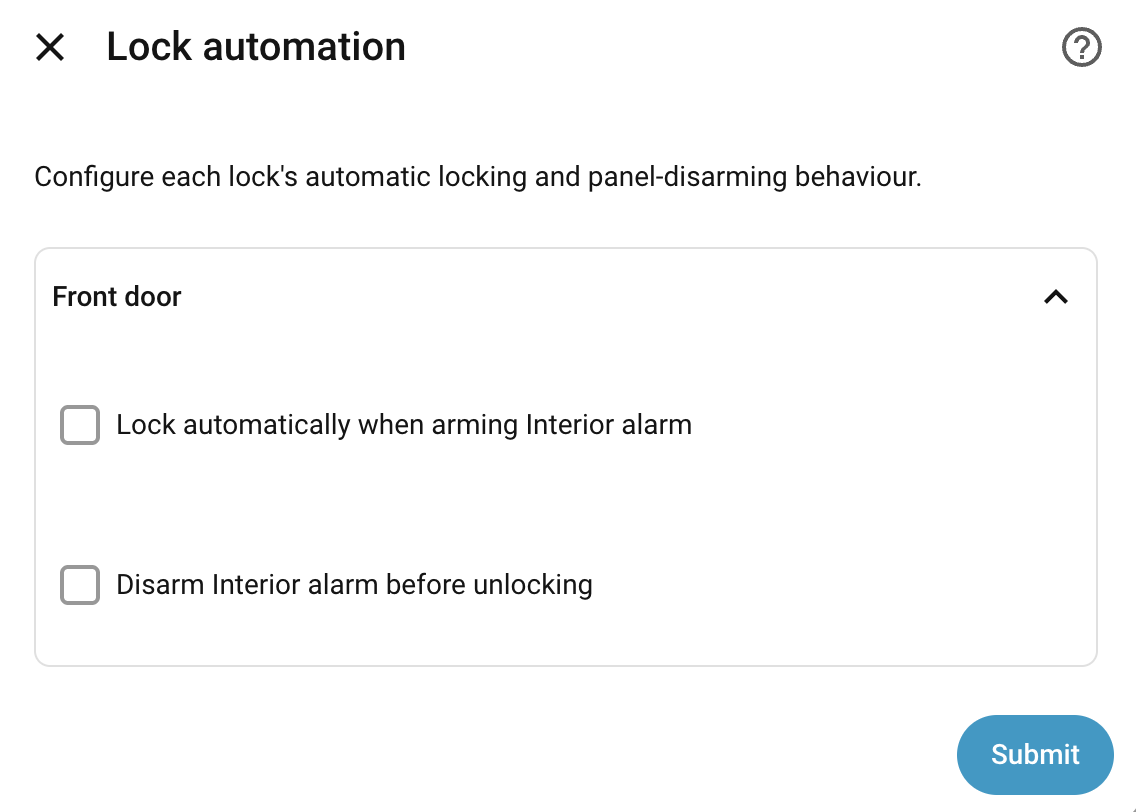
- Auto-lock on arm — pick which circuits should lock the door when they arm. Tick Interior and arming Interior anywhere — main panel, Interior sub-panel, the Verisure app, the physical panel — locks the door.
- Auto-disarm on unlock — pick which circuits should be disarmed when the lock is unlocked from HA. The disarm and the unlock dispatch in parallel, so both finish in roughly the time of one, and your sub-panels animate the disarm in the meantime.
Auto-disarm only fires when the unlock comes from inside HA. Unlocking from the Verisure app or the physical lock doesn't disarm anything.
[!IMPORTANT] Disable autolock in the Verisure app before using auto-lock here. Verisure's own autolock runs on its own timer and will fight this integration's arm-driven locking — leaving you with the door locking and unlocking unexpectedly. Turn it off in the app so this integration is the only thing driving the lock.
[!NOTE] The direction is reversed from the Verisure app. The app unlocks when you disarm; this integration disarms when you unlock from HA. The usual reason to disarm is that you're about to open the door, so triggering off the unlock makes more sense than the other way around — and we only react to HA-initiated unlocks so the disarm and unlock stay in lockstep instead of drifting apart while we wait for a status poll.
When something goes wrong, you get a persistent notification:
| Notification | When it fires |
|---|---|
| Auto-lock failed | The auto-lock fired but the lock couldn't reach the locked state. |
| Auto-disarm failed | The pre-unlock disarm didn't disarm the configured circuits. The unlock still proceeds. |
| Unlock failed | The disarm succeeded but the lock didn't unlock — the alarm is now disarmed but the door is still locked. |
Cameras
Each Verisure camera produces two entities — camera.<name> for the thumbnail and camera.<name>_full_image for the full-resolution image. To request a fresh image, call the verisure_owa.capture_image service on the thumbnail entity from an automation, the Developer Tools, or the bundled camera card's refresh button. The thumbnail entity exposes a capturing attribute (true while a request is in flight) so dashboards and automations can react to it.
Captures can take up to 30 seconds to appear, depending on how busy the API is — the integration waits for a frame strictly newer than the one being displayed before completing.
Custom Camera Card
There's a custom camera card (verisure-owa-camera-card) tailored to the Verisure camera entities.
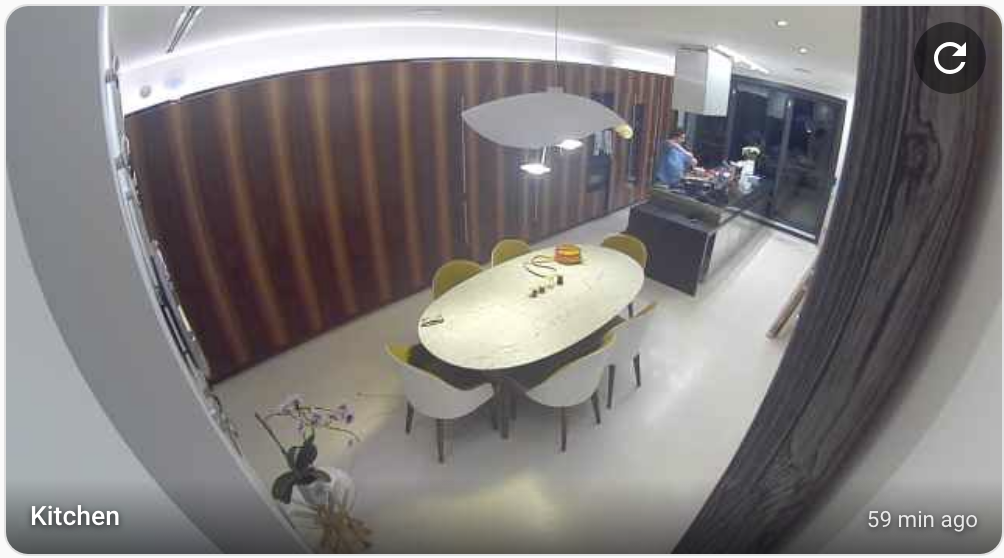
It shows the latest thumbnail image with:
- Capture button — shown in the top-right corner, requests a new photograph
- Timestamp overlay — displays when the image was taken, with a relative time and an absolute tooltip
- Click to open — clicking the image opens the HA more-info dialog. If a full-resolution image is available (auto-discovered from the same device), it opens the full-resolution entity; otherwise the thumbnail entity.
To add it to your dashboard, click Add Card → Search for "Verisure OWA Camera Card" and pick your camera entity from the dropdown. Only two options: entity (the thumbnail camera, required) and name (display name, optional — defaults to the device name).
type: custom:verisure-owa-camera-card
entity: camera.sala
name: Sala
Activity Log
The Activity Log mirrors the history shown in the Verisure app: arm/disarm events, who did them, intrusions, image requests, power cuts, and more.
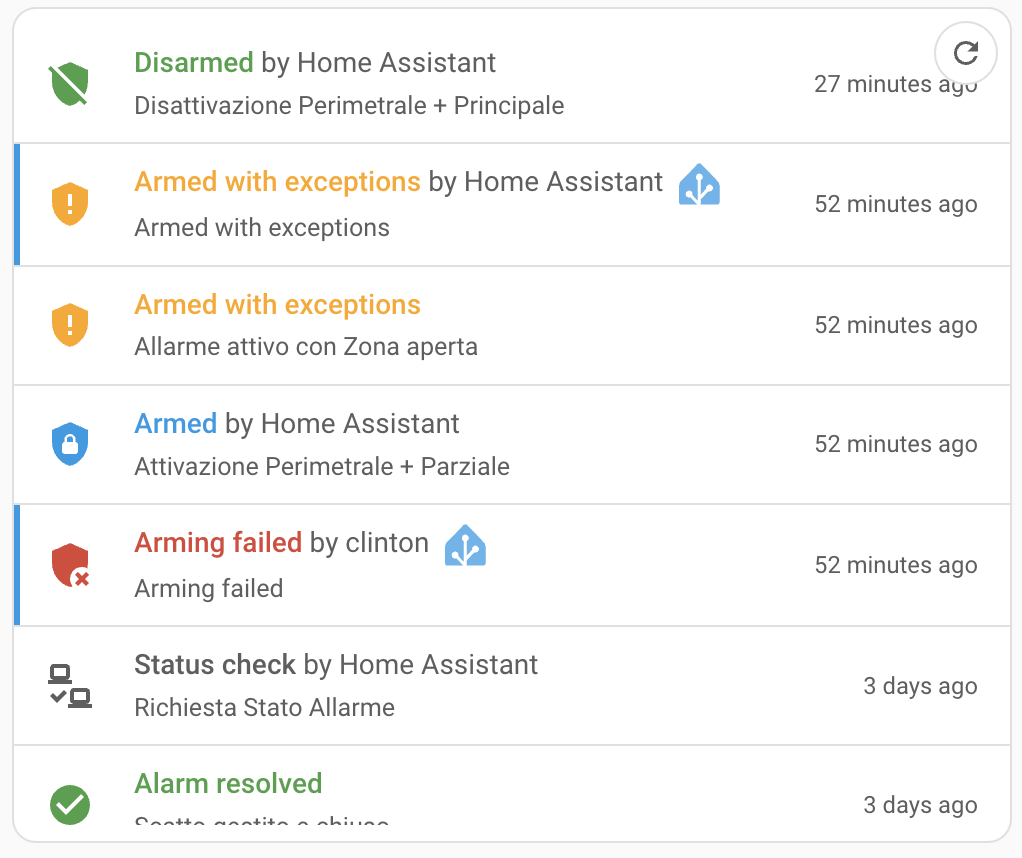
The integration surfaces this history in three places:
- A Lovelace card — Add Card → "Verisure OWA Activity Log Card". Click any row for details (including images for image-request entries); the refresh button is top-right.
- A sensor —
sensor.<alias>_activity_logexposes the most recent event as state, with the last 30 entries in itseventsattribute for templates and custom cards. - The event bus — each new entry fires a
verisure_owa_activityevent you can trigger automations on.
How often it refreshes
By default the integration doesn't poll the activity log on a timer — fetching it every minute is wasted effort for setups that never look at it. Refreshes happen on demand instead:
- The card pulls the latest entries while it's on screen — once on open, then once a minute. Close the dashboard and the polling stops.
- The refresh button (top-right of the card) and the
verisure_owa.refresh_activity_logservice fetch immediately.
There's a side effect on the verisure_owa_activity event bus: with on-demand refresh, remote events don't fire on the bus (otherwise you'd get a burst of stale events the next time you open a dashboard — the sensor and card update silently instead). The exception is actions you take from HA — those fire as they happen, regardless of the polling setting. So with polling off, automations catch HA-originated activity but miss events from elsewhere (someone arming at the physical panel, an intrusion, a power cut).
If you want every event to fire on the bus, turn on continuous polling under Settings → Integrations → Verisure OWA → Configure → Activity Log and Events.
Each entry carries a category — a stable label for the type of event. The full list:
armed, armed_with_exceptions, arming_failed, disarmed, alarm, alarm_resolved, tampering, sabotage, image_request, power_cut, power_restored, status_check, communication_failed, communication_restored, unknown.
Activity events vs the alarm panel entity
For automations, you have two natural triggers to choose from. Use the alarm panel entity (alarm_control_panel.<alias>) when you only care about the current armed/disarmed state — "turn the lights off when armed", "notify me when triggered", that kind of thing. Reach for activity events when you need who did it, what zones were involved, or for events the panel state doesn't reflect at all (tampering, sabotage, image requests, power cuts).
If both would work, the panel entity is simpler.
Triggering automations on activity events
Trigger on a category and you'll catch every event of that kind:
trigger:
  - platform: event
    event_type: verisure_owa_activity
    event_data:
      category: disarmed
Useful fields on trigger.event.data:
| Field | What it tells you |
|---|---|
category |
The stable label above (always present). |
alias |
The panel's own description, in your panel's language. |
verisure_user |
The Verisure account name that performed the action, if any. |
injected |
true if this event came from a Home Assistant action (see below). |
"Who disarmed it?" example
trigger:
  - platform: event
    event_type: verisure_owa_activity
    event_data:
      category: disarmed
action:
  - service: notify.mobile_app
    data:
      message: "Alarm disarmed by {{ trigger.event.data.verisure_user or 'someone at the panel' }}"
Home Assistant actions, panel echoes, and the injected flag
When you arm, disarm, or request an image from Home Assistant (the card, an automation, the alarm panel entity, a service call), the integration writes an enriched event into the log immediately — tagged with the actual HA user, any arming exceptions, and the captured image where applicable. These entries show a small Home Assistant badge in the card, have injected: true, and fire on the verisure_owa_activity bus straight away.
The panel records that same action too and returns it on the next refresh, usually attributed to the Verisure account the integration signs in as. The integration pairs this echo to the HA event by category and timestamp (within a few seconds, so it works even hours later and regardless of how the panel names the user) and tags it duplicate_of: "<injected id>". The echo is kept — its entry carries the panel's native-language description and precise type, which the generic injected row lacks — but the card folds it into the HA event's detail (unfold the row to see the "Verisure record") instead of showing a second row, and it does not fire on the event bus. So an HA-issued action enriches the log once and triggers automations once.
If you specifically want to react only to actions taken outside Home Assistant (at the panel, in the Verisure app, etc.), exclude the injected entries with a template condition:
condition:
  - condition: template
    value_template: "{{ not trigger.event.data.injected }}"
Help us improve coverage
Two things to keep an eye out for and open an issue about:
- Unknown event rows. If a row shows up as "Unknown event", the panel sent a code we haven't catalogued. Click the row to expand it — there's a prompt asking for a screenshot. Send that along with a note about what triggered it (a manual disarm, an alarm test, etc.).
- Missing HA enrichment. If you arm, disarm, force-arm, or take an image from HA and the log shows a plain row (no HA badge, no user name) instead of an enriched one, we don't yet inject for that category. Tell us what you did and what showed up.
Automations & Scripts
Arm and disarm using the standard alarm_control_panel.alarm_arm_* actions (alarm_arm_home, alarm_arm_away, alarm_arm_night, alarm_arm_vacation, alarm_arm_custom_bypass) and alarm_control_panel.alarm_disarm. Only the modes you've mapped in the Alarm State Mappings will work — calling alarm_arm_home on a panel where Home is blank fails with an error. Pass code: "12345" if you have a PIN configured.
action: alarm_control_panel.alarm_arm_away
target:
  entity_id: alarm_control_panel.my_alarm
data:
  code: "12345"
Integration services
| Service | Target | Description |
|---|---|---|
verisure_owa.refresh_alarm |
alarm_control_panel.* |
Authoritative status round-trip with the panel (not a lightweight read). Same as the alarm card's refresh button. |
verisure_owa.capture_image |
camera.* (thumbnail) |
Request a fresh image capture. Waits up to 30 s for a strictly newer frame before completing. Injects an image_request activity event. |
verisure_owa.refresh_activity_log |
sensor.*_activity_log |
Foreground-refresh the activity timeline on demand. Same as the activity log card's refresh button. (Background polling is off by default — see Activity Log → How often it refreshes.) |
verisure_owa.fetch_activity_image |
sensor.*_activity_log |
On-demand historical image fetch for an activity event. Returns base64-encoded bytes + mime_type (response service). Takes required id_signal + signal_type fields. |
verisure_owa.force_arm |
alarm_control_panel.* |
Force-arm overriding non-blocking exceptions from a previous failed arm. See Force Arming. |
verisure_owa.force_arm_cancel |
alarm_control_panel.* |
Cancel a pending force-arm context and dismiss the arming-exception notification. |
force_arm and force_arm_cancel also work as securitas.* aliases (kept indefinitely for v4-era automations). All other services are verisure_owa.* only. The pre-v5.0.2 button.*_capture and per-installation refresh button still work but are deprecated — call the services above instead.
Force Arming (advanced)
Most users won't need anything below — the alarm card and built-in mobile notifications already handle the "window left open" case. This section is for people writing their own automations against the verisure_owa_arming_exception event, or calling verisure_owa.force_arm directly.
What happens when arming is blocked
The arm command reverts, the entity gains force_arm_available and arm_exceptions attributes, and a verisure_owa_arming_exception event fires (always, regardless of the notifications toggle). The card shows a warning with Force Arm / Cancel buttons. If built-in notifications are enabled, you also get a persistent notification and — when a notify service is configured — a mobile notification with the same buttons.
You then have ~180 seconds to either fix the underlying issue and arm normally, or force-arm from the card, the mobile notification, the verisure_owa.force_arm service, or your own automation. After that the context expires and you have to retry.
Some panels refuse force-arming altogether (Spain has been observed). In that case you'll get an "Arm command failed: Open zone (...)" notification instead — close the zone and retry.
The verisure_owa_arming_exception event
| Field | What it tells you |
|---|---|
entity_id |
The alarm panel entity that failed to arm. |
mode |
The HA state that was attempted (armed_away, armed_home, …). |
zones |
Open zone names, e.g. ["Kitchen window", "Bedroom sensor"]. |
details.installation |
The Verisure installation number. |
details.exceptions |
Full exception list from the API (alias, zone_id, device_type). |
The verisure_owa_force_arm_expired event
Fires when the 180 s force-arm window expires without the user acting on it. Useful for sending a follow-up message ("alarm was not armed — please retry") that's distinct from the initial "arming blocked" alert. Fires regardless of the notifications toggle.
| Field | What it tells you |
|---|---|
entity_id |
The alarm panel entity whose force-arm context expired. |
mode |
The HA state that was originally attempted. |
zones |
Open zone names from the original failure. |
details.installation |
The Verisure installation number. |
details.exceptions |
Full exception list captured at the original failure. |
_event_id |
UUID for deduplication. |
The verisure_owa_arming_exception_dismissed event
Fires when an active force-arm context is cleared by something other than the user tapping Force Arm or Cancel — either a different arm/disarm action ("user moved on"), or the integration itself being torn down (options change, reauth, reload) while the context was still alive. Does NOT fire from the canonical resolutions (async_force_arm / async_force_arm_cancel). Useful for dismissing your own custom notifications when the context goes away involuntarily.
| Field | What it tells you |
|---|---|
entity_id |
The alarm panel entity that HELD the dismissed context (may differ from the panel the user just interacted with — multi-panel installations are scoped per installation). |
reason |
"user_arm", "user_disarm", or "integration_reload". |
new_mode |
The state the user is moving to (armed_home, armed_away, …, or "disarmed"). null when reason == "integration_reload" — no new mode applies. |
details.installation |
The Verisure installation number. |
_event_id |
UUID for deduplication. |
Watch out: automations that match reason in ['user_arm', 'user_disarm'] will miss the reload case. If you want the broader "context lost" signal, match on the event type alone or include 'integration_reload'. Automations that read new_mode.startswith(...) will fail with an UndefinedError on the reload case — guard with new_mode is not none first.
Writing your own automations
Disable Built-in force-arm notifications in the integration options, then trigger on the event. The most common pattern is to auto-force-arm only when the user picks Away (because at that point they've left the building):
- alias: "Alarm: auto force-arm when leaving"
  triggers:
    - trigger: event
      event_type: verisure_owa_arming_exception
  conditions:
    - condition: template
      value_template: "{{ trigger.event.data.mode == 'armed_away' }}"
  actions:
    - action: verisure_owa.force_arm
      target:
        entity_id: "{{ trigger.event.data.entity_id }}"
The zones field on the event makes it easy to send a custom notification with the open zone names, or to branch by mode (force-arm Away, only notify on Night, etc.).
Notifying multiple people
The Notify service field accepts a single service name. To notify several people, create a notify group in configuration.yaml:
notify:
  - platform: group
    name: Mobiles
    services:
      - service: mobile_app_your_phone
      - service: mobile_app_partner_phone
After a restart, notify.mobiles shows up in the dropdown. The action buttons in the notification are scoped to the installation, so any household member who taps Force Arm or Cancel triggers the right action.
Don't include notify.persistent_notification in the notify group. The integration already creates its own persistent notification directly. Adding notify.persistent_notification to your group will produce a second, duplicate persistent card every time arming is blocked — with no action buttons and a generic body. The integration filters notify.persistent_notification out of the Notify service dropdown for the same reason; if you build the group in YAML, leave it out yourself.
Troubleshooting
- HTTP 403 errors / rate limiting — Verisure uses a web application firewall (WAF) that blocks requests if you poll too frequently. The integration retries once automatically, but if you see repeated 403 errors in the logs:
- Increase the update interval — Go to Settings → Integrations → Verisure OWA → Configure, expand the Advanced section, and increase the Update scan interval (default: 120 seconds). Try 180 or 300 seconds.
- Increase the API request delay — The Delay between API requests (default: 2 seconds) controls the minimum gap between consecutive API calls. Increasing this to 4–5 seconds reduces request bursts.
- If you have multiple installations on one account, each one polls independently, multiplying the request rate. All API requests to the same country domain are serialized through a shared queue, which helps, but the total volume still increases with each installation.
- Alarm shows wrong state after using the Verisure app — Periodic polling reads the last known status from the Verisure server, which may take a moment to reflect changes made via the app. Press the Refresh button to force an immediate panel check.
- Arm/disarm logs
not confirmed within timeout— On a slow or congested backend the panel can accept an arm/disarm but not confirm it within the poll window. The integration shows the intended state provisionally (with a "… not confirmed" notification) and reconciles automatically on the next status read — it no longer reverts to the previous state or reports a hard failure. If this happens often, raise the Operation poll timeout under Configure → Advanced. - Stale lock state after lock/unlock — If the lock shows the old state after a lock or unlock command and only self-corrects after the next periodic poll (~2 minutes), please open an issue with your debug logs. We are actively improving lock status polling and your logs will help.
- Cannot clear PIN code — In the options flow, clear the PIN field and save. The PIN will be removed.
- 2FA issues — If 2FA fails, remove and re-add the integration; you'll be prompted for a new SMS code. If that doesn't work, create a new user in the Verisure mobile app, then log in to the customer web portal for your country to accept the terms of use before using those credentials in HA.
Reporting Issues
If you encounter a bug or unexpected behavior, please open an issue and include the following:
-
Home Assistant version and integration version (from Settings → Integrations → Verisure OWA).
-
Country code you are using.
-
Debug logs — enable debug logging from the UI: go to Settings → Integrations → Verisure OWA, click the three-dot menu, and select Enable debug logging. Reproduce the issue, then click Disable debug logging to download the log file.
If you need debug logs before the integration has been set up (e.g. during initial installation), run this action from Settings → Developer Tools → Actions:
action: logger.set_level
data:
  custom_components.verisure_owa: debug
Then retrieve the logs from Settings → System → Logs → three dots in the top right corner → Show full logs.
-
Steps to reproduce — what you did, what you expected, and what happened instead.
-
If the issue is about an unmapped alarm state, include the
protomResponsecode shown in the Verisure OWA integration log messages (after enabling debug logging and reproducing the issue).
HAR file (for tricky bugs)
For protocol-level bugs — wrong alarm state, lock or camera misbehaving — a HAR capture of the requests the Verisure website makes is often the fastest way to a fix. Log in to your country's Verisure customer site, open the browser's Developer Tools → Network tab with Preserve log ticked and graphql in the filter, perform the action that's broken, then save the network log as HAR.
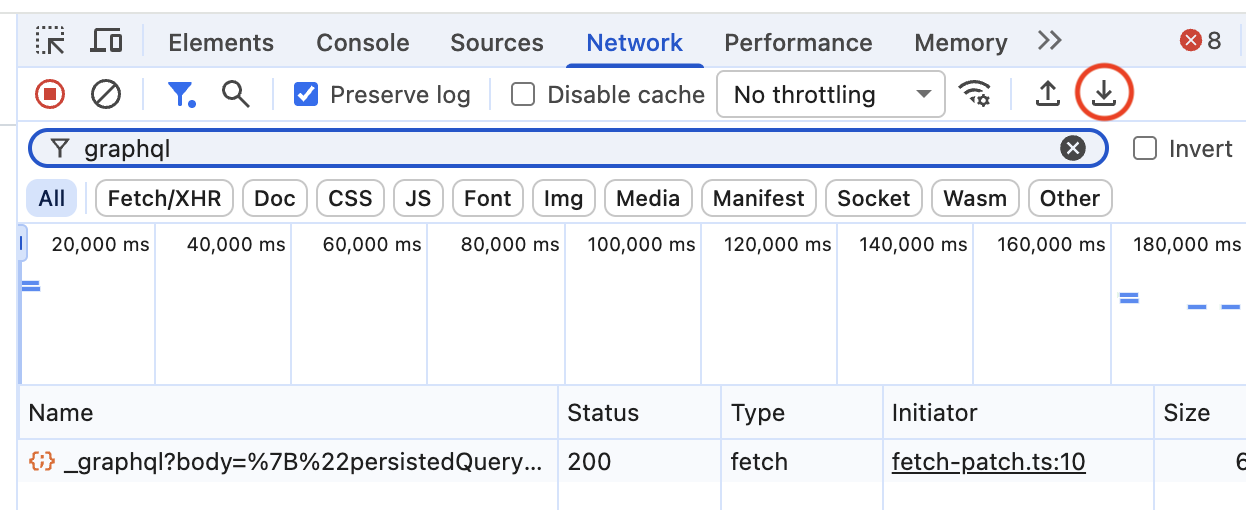
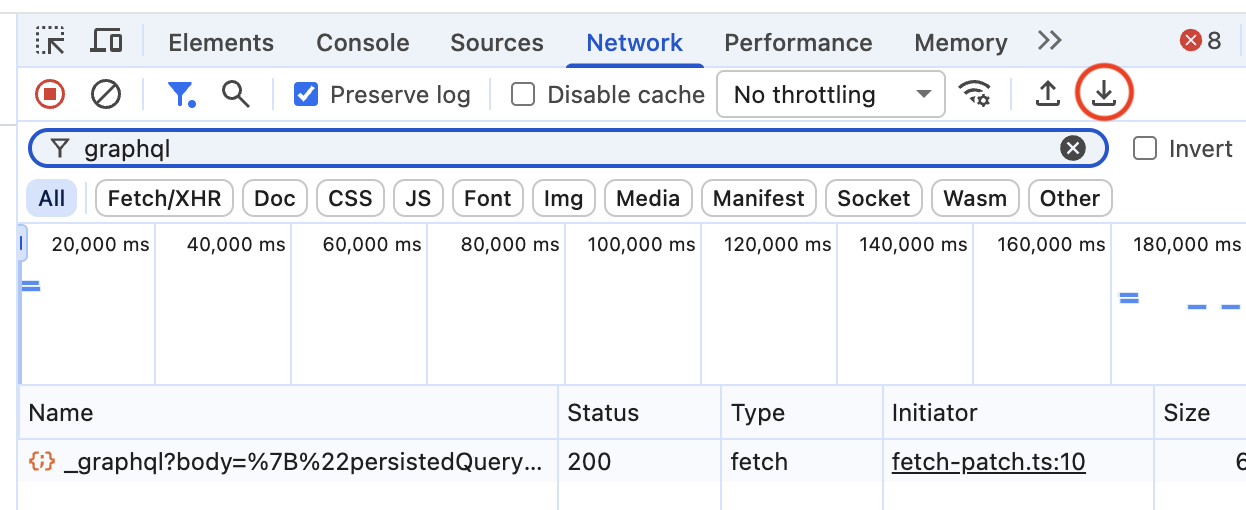
Warning: HAR files can contain credentials or session tokens. Either redact them (it's plain JSON) or email it to one of the maintainers directly.
The same technique is used to capture payloads for new operations if you'd like to help add support.