
Support Portal for FreeScout
A web-based support portal that integrates with FreeScout (support ticketing system), providing a user-friendly form interface for submitting and tracking support requests.
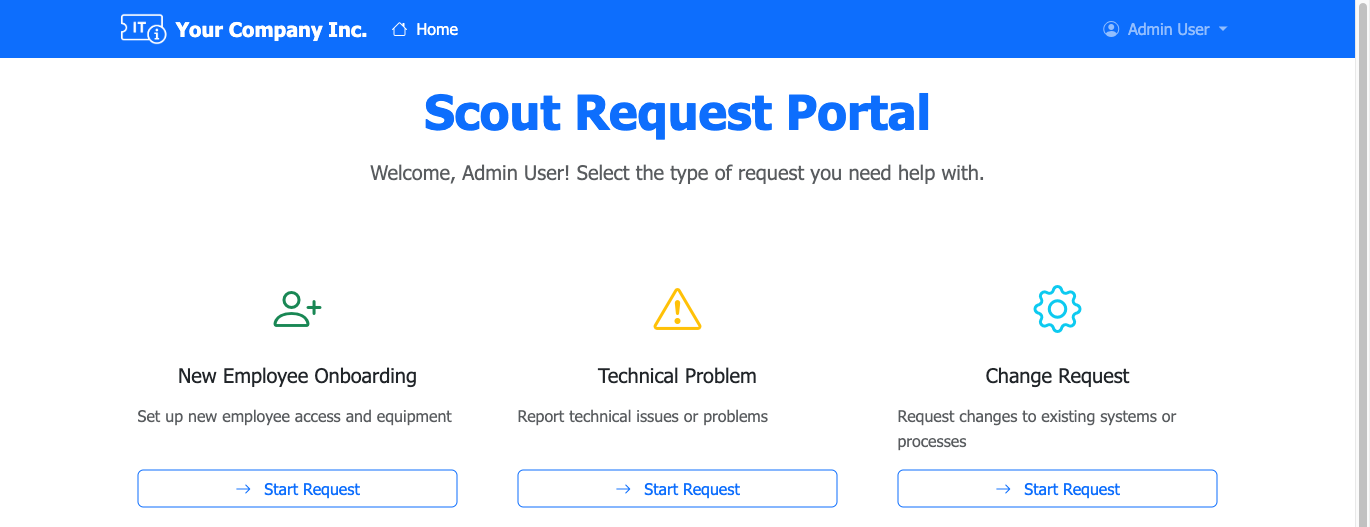
Features
- 🎫 Create Multiple Request Types - Onboarding, Problem, Change, Software Request, Access Request, and more
- 🔐 Flexible Authentication - Supports LDAP/Active Directory and local authentication
- 📝 Dynamic Forms - Conditional field logic based on request type
- 📎 File Attachments - Upload files with ticket submissions
- 🔍 Ticket Dashboard - View all your submitted tickets with real-time status updates
- 💬 Two-Way Communication - Reply to tickets and view responses from support staff
- 📊 Status Tracking - Monitor ticket progress (Active, Pending, Closed) with automatic updates
- 🎨 Customizable Branding - Configure company logo, colors, and portal name
- 🔄 Auto-save - Automatic form data saving to prevent loss
Prerequisites
Required
- PHP 8.0+ with extensions:
pdo_sqliteldap(if using LDAP authentication)curljsonmbstringfileinfo
- Composer - PHP dependency manager
- Web Server - Apache or Nginx
- FreeScout Installation with the API Module (required)
FreeScout Modules
The following FreeScout modules are required or optional for full functionality:
Required Modules
- API Module - Enables REST API access for ticket creation and management
- Without this module, the application cannot communicate with FreeScout
- Available from the FreeScout Modules marketplace
Optional Modules (Enhance Functionality)
- Custom Fields Module - Allows mapping form fields to custom FreeScout fields
- Enables structured data storage beyond the ticket body
- Recommended for better ticket organization and reporting
- Tags Module - Supports automatic tagging of tickets by request type
- Improves ticket categorization and filtering
- Recommended for multi-team helpdesk operations
Note: The application will work with just the API module, but custom fields and tags will be ignored if those modules are not installed in FreeScout.
Installation
1. Clone the Repository
git clone https://github.com/jeffcaldwellca/support-portal.git
cd support-portal
2. Install Dependencies
composer install
3. Configure Environment
Copy the example environment file and configure it:
cp .env.example .env
Edit .env with your settings:
# FreeScout Integration (REQUIRED)
FREESCOUT_API_KEY=your_api_key_here
FREESCOUT_API_URL=https://your-freescout-instance.com/api
FREESCOUT_MAILBOX_ID=1

# Authentication
ENABLE_LDAP_AUTH=true
ENABLE_LOCAL_AUTH=false
DISABLE_AUTH=false

# LDAP Configuration (if ENABLE_LDAP_AUTH=true)
LDAP_HOST=ldap.yourdomain.com
LDAP_PORT=389
LDAP_BASE_DN=dc=yourdomain,dc=com
# ... (see .env.example for all options)

# Application
APP_DEBUG=false
APP_LOG_LEVEL=info
4. Set Up Database and Directories
# Create necessary directories
mkdir -p data uploads logs tmp/cache

# Set permissions
chmod 755 data uploads logs tmp/cache
The SQLite database will be created automatically on first run.
5. Configure Web Server
Apache
Point your DocumentRoot to the public directory:
<VirtualHost *:80>
    ServerName helpdesk.yourdomain.com
    DocumentRoot /var/www/html/public

    <Directory /var/www/html/public>
        AllowOverride All
        Require all granted

        RewriteEngine On
        RewriteCond %{REQUEST_FILENAME} !-f
        RewriteCond %{REQUEST_FILENAME} !-d
        RewriteRule ^ index.php [QSA,L]
    </Directory>

    ErrorLog /var/log/apache2/helpdesk_error.log
    CustomLog /var/log/apache2/helpdesk_access.log combined
</VirtualHost>
Enable required modules:
sudo a2enmod rewrite headers
sudo systemctl restart apache2
Nginx
server {
    listen 80;
    server_name helpdesk.yourdomain.com;
    root /var/www/html/public;

    index index.php;

    location / {
        try_files $uri $uri/ /index.php?$query_string;
    }

    location ~ \.php$ {
        fastcgi_pass unix:/var/run/php/php8.0-fpm.sock;
        fastcgi_index index.php;
        fastcgi_param SCRIPT_FILENAME $document_root$fastcgi_script_name;
        include fastcgi_params;
    }
}
6. Configure FreeScout
- Install the API Module in FreeScout (required)
- Generate an API key in FreeScout: Settings → API
- Add the API key to your
.envfile - Set the Mailbox ID - Find your mailbox ID in FreeScout: Manage → Mailboxes (the ID is visible in the URL when editing a mailbox, or via the API)
- (Optional) Install Custom Fields and Tags modules to FreeScout for enhanced functionality
- (Optional) Configure custom fields in FreeScout that match your form field names
Configuration
FreeScout Environment Variables
| Variable | Required | Default | Description |
|---|---|---|---|
FREESCOUT_API_URL |
Yes | - | The base URL for your FreeScout API (e.g., https://helpdesk.example.com/api) |
FREESCOUT_API_KEY |
Yes | - | API key generated in FreeScout Admin > Manage > API |
FREESCOUT_MAILBOX_ID |
Recommended | Auto-detect | The numeric ID of the FreeScout mailbox to submit tickets to. If not set, the application will attempt to use the first available mailbox from the API. |
Finding your Mailbox ID:
- Navigate to FreeScout Admin > Manage > Mailboxes
- Click on the mailbox you want to use
- The mailbox ID is the number in the URL (e.g.,
/mailboxes/1/editmeans ID is1) - Alternatively, use the FreeScout API:
GET /api/mailboxesto list all mailboxes with their IDs
Form Fields
Form fields are defined in config/form_fields.yaml.
FreeScout Integration
Configure how form fields map to FreeScout in config/form_fields.yaml or config/freescout_mappings.php.
Authentication
The application supports three authentication modes:
- LDAP Only - Corporate directory authentication
- Local Auth Only - SQLite-based local accounts
- Both - Users choose their authentication method
Branding
Customize the appearance of your helpdesk portal:
COMPANY_NAME="Your Company Inc."
COMPANY_SHORT_NAME="Your Company"
PORTAL_TITLE="IT Helpdesk"
PORTAL_NAME="Support Portal"
BRAND_ICON=bi-headset
USE_LOGO=true
[email protected]
SUPPORT_PHONE="+1 (555) 123-4567"
[email protected]
SELF_SERVICE_URL=https://kb.yourcompany.com
Managing Local Users
When local authentication is enabled, you can manage user accounts:
Self-Service Registration
Users can create their own accounts at /auth/register when ENABLE_LOCAL_AUTH=true.
Command-Line Management
# Create a user
php bin/manage-local-users.php create username [email protected] "Full Name"

# List all users
php bin/manage-local-users.php list

# Reset password
php bin/manage-local-users.php reset-password username

# Disable/enable user
php bin/manage-local-users.php disable username
php bin/manage-local-users.php enable username

# Delete user
php bin/manage-local-users.php delete username
Usage
Submitting a New Ticket
- Access the Portal - Navigate to your configured URL
- Sign In - Use LDAP or local credentials
- Select Request Type - Choose from available ticket types
- Fill Out Form - Complete required fields
- Attach Files - Add any relevant screenshots or documents (optional)
- Submit - Ticket is created in FreeScout and you'll receive a confirmation
Managing Your Tickets
After submitting tickets, you can:
- View Your Ticket Dashboard - Click "My Tickets" to see all your submitted tickets
- Check Status - See real-time status updates (Active, Pending, Closed)
- Read Responses - View all replies and updates from the support team
- Reply to Tickets - Add additional information or ask follow-up questions
- Track Progress - Monitor the conversation history and resolution status
Each ticket shows:
- Ticket subject and type
- Current status with color-coded badges
- Submission date and time
- Full conversation thread with all messages
- Option to add new replies while ticket is active
Troubleshooting
FreeScout API Issues
Problem: Tickets not being created in FreeScout
Solutions:
- Verify API module is installed and enabled in FreeScout
- Check API key is correct in
.env - Verify FreeScout API URL is accessible from the server
- Check FreeScout mailbox ID exists
- Review logs in
logs/app.log
Authentication Issues
Problem: LDAP authentication fails
Solutions:
- Verify LDAP server is accessible
- Check LDAP credentials and base DN
- Test LDAP connection from server:
ldapsearch -x -H ldap://server -D "user" -W -b "dc=domain,dc=com" - Review logs in
logs/app.log
Problem: Cannot create local account
Solution: Ensure ENABLE_LOCAL_AUTH=true in .env
File Upload Issues
Problem: File uploads fail
Solutions:
- Check
uploads/directory permissions (755 or 775) - Verify PHP upload limits:
upload_max_filesizeandpost_max_size - Check disk space
Development
Running Locally
# Using PHP built-in server (development only)
php -S localhost:8000 -t public

### Running Tests

```bash
composer test
Security Considerations
- API Keys - Store in
.env, never commit to version control - LDAP Credentials - Use service account with minimal permissions
- File Uploads - Validate file types and sizes
- Database - SQLite file should be read-only by web server (600 permissions)
- HTTPS - Always use HTTPS in production
- Session Security - HttpOnly and Secure flags enabled on cookies
Support
- Review application logs in
logs/app.log
Acknowledgments
This project is built on top of FreeScout, an open-source help desk and shared inbox application. Good work, team!
- FreeScout Website: https://freescout.net/
- FreeScout GitHub: https://github.com/freescout-helpdesk/freescout
License
This project is licensed under the GNU General Public License v3.0 - see the LICENSE file for details.