
TailPOS
TailPOS an Offline First Open Source POS for ERPNext

Showcase
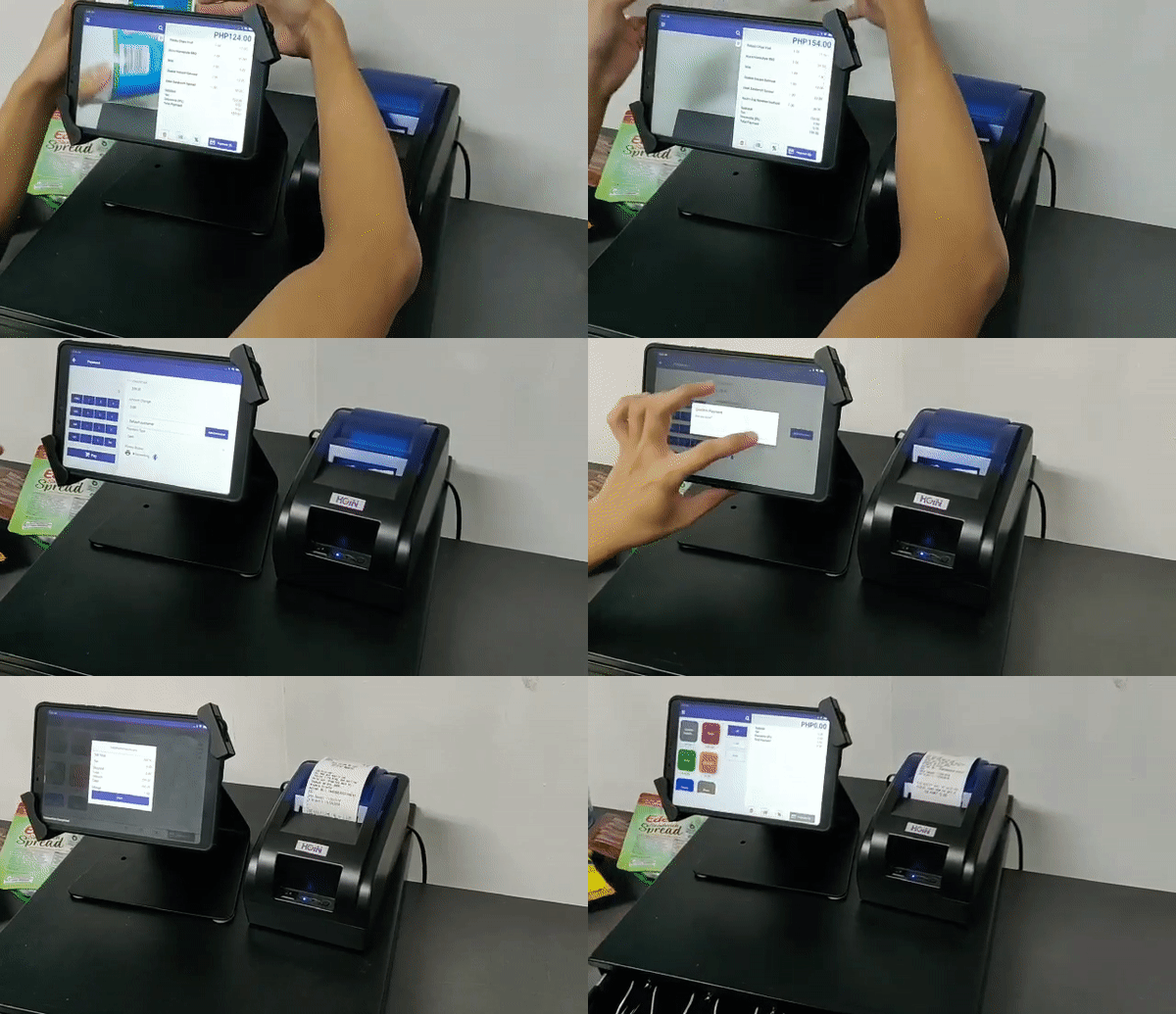
Features
o Two-way Sync to ERPNext Two-way syncing to an ERPNext instance for a full suite of back-office functionalities.
o Offline-first Approach Continue to make sales and keep running the business even no internet or unstable.
o Mobile POS
Uses the tablet for a lightweight setup. Built-in rear camera of the tablet can be used as a barcode scanner. Any bluetooth barcode scanner is compatible with tailpos
o Print receipts Print sales receipts for customers using any ESC/POS receipt printer.
o Multiple payment modes Can process credit card,mobile payments and cash.
o Discounts Program Can apply discount to an invoice or on specific items.
o Inventory Management Keep track of stock levels easily. Easy-to-use menu for item maintenance such as creating and updating item information.
o Sales Reports Can generate X and Z readings and attendant shift sales totals.
License
This project is released under the GPLv3 license, for more details, take a look at the LICENSE file in the source.
Quick Start
A quick demo of syncing the tailpos to a Frappe/Erpnext server
https://docs.tailpos.com/tailpos/syncing-to-frappe-erpnext
Login to demo server
server: https://demo.tailerp.com
username: [email protected]
password: @Bailabs
Making a new item.
- Go To
ItemList. - Make a new
Item. - Select your new
Itemto see its properties.

- Select
Item PriceunderPricing. Make sure theIn TailPOScheckbox is checked.

- Don't forget to save your Item.
Setup TailPOS Sync Settings
- Go to
Settings> Sync - Fill the following
ERPNext Server: demo.tailerp.com
Username: [email protected]
Password: @Bailabs
Device ID: <>
Setting up device ID
- Go to
Devicelist. - Create a new
Device - Input the
Device NameandPOS Profile - Fill out information need in the
POS profile
Name: <>
Series: ACC-SINV-.YYYY.-

Accounting
Write Off Accounting: Write Off – D
Write Off Cost Center: Main – D


- Select your new
Device. Device IDis displayed at the top-right corner near theSavebutton.

Syncing
- Once your done, save your
Sync Settings. - Press
Force Sync. - Once
Force Syncis successful, go to yourSalestab and fill up a sample transaction. - Confirm the transaction by looking at your
Receiptstab. - Now go back to your
Settings>SyncandForce Syncthe receipt data to the server. - Verify by going to
ReceiptsList in ERPNext and check the receipts if they are generated.
How To Compile TailPOS in your local machine
If you are interested contributing the tailpos, the following guide will give you instructions in compiling the tailpos.
First, you'll need nodejs and npm:
sudo apt install curl
curl -sL https://deb.nodesource.com/setup_8.x | sudo -E bash -
sudo apt-get install -y nodejs
nodejs -v
v8.4.0
Install development tools to build native addons:
sudo apt-get install gcc g++ make
Install the yarn package manager, run:
curl -sL https://dl.yarnpkg.com/debian/pubkey.gpg | sudo apt-key add -
echo "deb https://dl.yarnpkg.com/debian/ stable main" | sudo tee /etc/apt/sources.list.d/yarn.list
sudo apt-get update && sudo apt-get install yarn
Then you can install react-native-cli using npm
sudo npm install -g react-native-cli
Now you need to install Java and Android
sudo apt-get install default-jre
sudo apt-get install default-jdk

sudo add-apt-repository ppa:webupd8team/java
sudo apt-get update
sudo apt-get install oracle-java8-installer
- Install Android
- Install Android SDK requirements
cd ~
mkdir android-sdk
cd android-sdk
wget https://dl.google.com/android/repository/sdk-tools-linux-3859397.zip
sudo apt-get install unzip
unzip sdk-tools-linux-3859397.zip
We add the path of our Android SDK tools to .bashrc so that we have access to the Android tools.
cd ~
nano .bashrc

# Add these lines to the top of the file
export ANDROID_HOME=$HOME/android-sdk
export PATH=$PATH:$ANDROID_HOME/tools
export PATH=$PATH:$ANDROID_HOME/tools/bin
export PATH=$PATH:$ANDROID_HOME/platform-tools

# CTRL+O (uppcase o) to save
# CTRL+X to exit

source ~/.bashrc
android update sdk --no-ui
# Answer 'y' to all prompts

sdkmanager "platforms;android-23" "build-tools;23.0.1" "add-ons;addon-google_apis-google-23"
Installing TailPOS
cd ~
mkdir Projects
cd Projects
git clone https://github.com/bailabs/tailpos.git
cd tailpos
yarn
Updating react-native-camera modules
- remove
buildscriptsection
  buildscript {
  repositories {
    jcenter()
    maven {
      url 'https://maven.google.com'
    }
  }

  dependencies {
    classpath 'com.android.tools.build:gradle:3.0.0'
  }
}
compileOnlytoprovidedimplementationtocompile
cd ~
nano Projects/tailpos/node_modules/react-native-camera/android/build.gradle
Updating react-native-maps modules
compileOnlytoprovidedimplementationtocompile
cd ~
nano Projects/tailpos/node_modules/react-native-maps/lib/android/build.gradle
Updating react-native-bluetooth-serial modules
- remove
@Overridein line 23 (the second@Override)
cd ~
nano Projects/tailpos/node_modules/react-native-bluetooth-serial/android/src/main/java/com/rusel/RCTBluetoothSerial/RCTBluetoothSerialPackage.java
Updating react-native-device-info with support-v4 fix
ERROR: In <declare-styleable> FontFamilyFont, unable to find attribute android:fontVariationSettings
ERROR: In <declare-styleable> FontFamilyFont, unable to find attribute android:ttcIndex
Set the following under build.gradle under react-native-device-info
android {
  compileSdkVersion 26
  buildToolsVersion "26.0.2"
  ...
}

dependencies {
  ...
  compile "com.google.android.gms:play-services-gcm:12.0.1"
  compile "com.android.support:support-v4:27.1.0"
}
Update react-native-localization
implementationtocompile
Building TailPOS
cd ~
cd Projects/tailpos
react-native run-android