
Task Keeper

This project aims to be a list editor for power users.
Example use cases:
- A TODO list
- A list of meals and ingredients
- Notes from a meeting
- A list of things to remember
Features
- Document editing:
- Productivity shortcuts for actions such as 'remove task', 'swap task down', 'open link', 'convert selection to lower case', ...
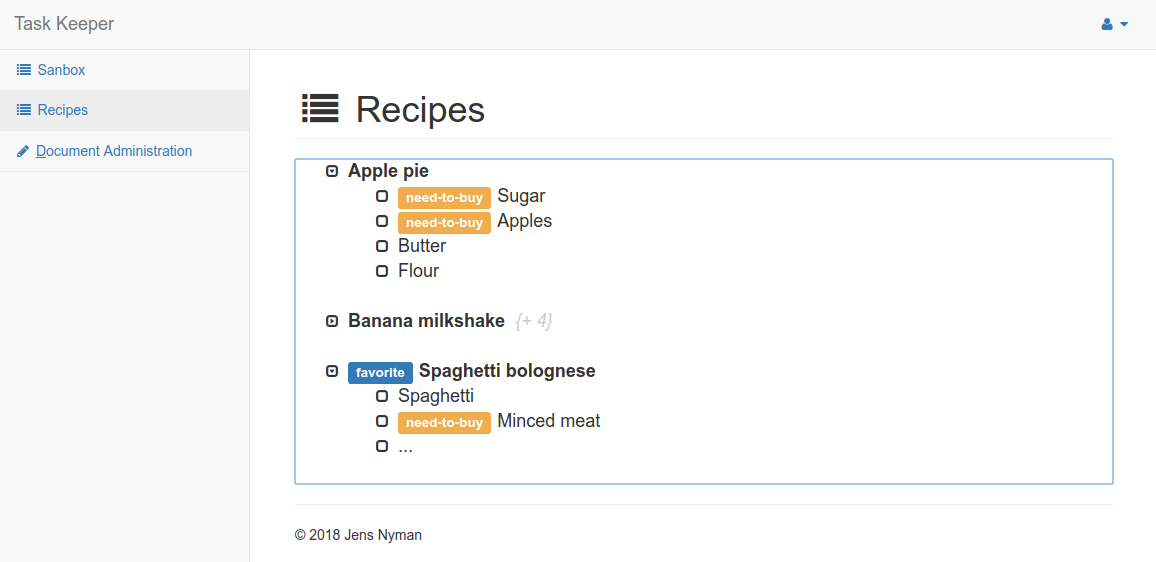
- Ability to collapse all indented tasks beneath selected task
- Tasks can have tags
- Many documents:
- Easy switching between documents
Screenshot
Installation from release
- Install Java 11 (JDK 11) on your server
- Download "Binaries (compiled files) with demo configuration" from the latest release
- Unpack the archive
- Open
conf/application.confin the unpacked folder:- Configure a database. The easiest way is to set up a MariaDB server locally,
create an empty database called
pigaand configure it as follows:
- Configure a database. The easiest way is to set up a MariaDB server locally,
create an empty database called
db.default.driver=com.mysql.jdbc.Driver
db.default.url="jdbc:mysql://localhost/piga?user=mysqluser&password=mysqlpassword"
db.default.slick.profile = "slick.jdbc.MySQLProfile$"
-
Choose secret values for
play.http.secret.keyandapp.setup.defaultPassword -
Open a terminal in the unpacked folder
-
Run following commands to get the app running:
# Create database tables bin/server -DdropAndCreateNewDb # Create admin user bin/server -DcreateAdminUser # Run application bin/server -
Browse to http://<ip_address>:9000/app/useradministration (username: "admin", password: "changeme")
Installation with Docker
The following commands will launch a new server alongside a database in Docker containers:
# Get the docker-compose.yml file
wget https://raw.githubusercontent.com/nymanjens/piga/master/docker-compose.yml

# Choose a unique random string here of sufficient length
export APPLICATION_SECRET="$(cat /dev/urandom | tr -dc 'a-zA-Z0-9' | fold -w 32 | head -n 1)"

# Create an empty database with a single admin user
docker-compose run web bin/server -DdropAndCreateNewDb
docker-compose run web bin/server -DcreateAdminUser

# Bring up the server
docker-compose up
When done, browse to http://<ip_address>:9000/app/useradministration (username: "admin", password: "changeme")
Configuration
conf/application.conf:
Setup and configure a database here.- Add users:
A default user is created with the-DcreateAdminUserflag (username: admin, password: changeme). This account can create new users.
Shortcuts
- Basics
- Indentation
tab: Increase current indentationshift + tab: Decrease current indentation
- Formatting
ctrl + I: Toggle 'italic'ctrl + B: Toggle 'bold'ctrl +`: Toggle 'code font'alt + shift + 5: Toggle 'strikethrough'ctrl + \: Reset formatting
- Undo/redo
ctrl + Z: undoctrl + Y: redoctrl + shift + Z: redo
- Indentation
- Special actions
ctrl + K: Create or edit a linkalt + shift + T: Create or edit a tagctrl + P: Open "Go to file" dialogctrl + plus: Expand current taskctrl + minus: Collapse current taskalt + shift + 4: Mark as 'done'
- Power user shortcuts
- Copying
ctrl + shift + C: Copy selected task and its childrenctrl + shift + X: Cut selected task and its childrenalt + shift + M: Copy selected task and its children as Markdown
- Tasks
alt + up: Swap current task with the previous taskalt + down: Swap current task with the next taskctrl + shift + P: Go to the parent taskctrl + D: Delete current taskctrl + shift + B: Duplicate current task
- Change casing
ctrl + alt + U: Convert selection to uppercasectrl + shift + U: Convert selection to uppercasectrl + alt + L: Convert selection to lowercasectrl + shift + L: Convert selection to lowercasealt + shift + L: Convert selection to CamelCasealt + shift + K: Convert selection to snake_casealt + shift + H: Convert selection to dash-case
- Selection
ctrl + enter: Open selected linkctrl + M: Select current wordctrl + shift + M: Select current quoted sentencectrl + J: Select current taskctrl + G: Find next occurrence of selected text
- Other
ctrl + Q: Go to the last editctrl + shift + delete: Delete the remainder of the line after the cursor
- Copying