


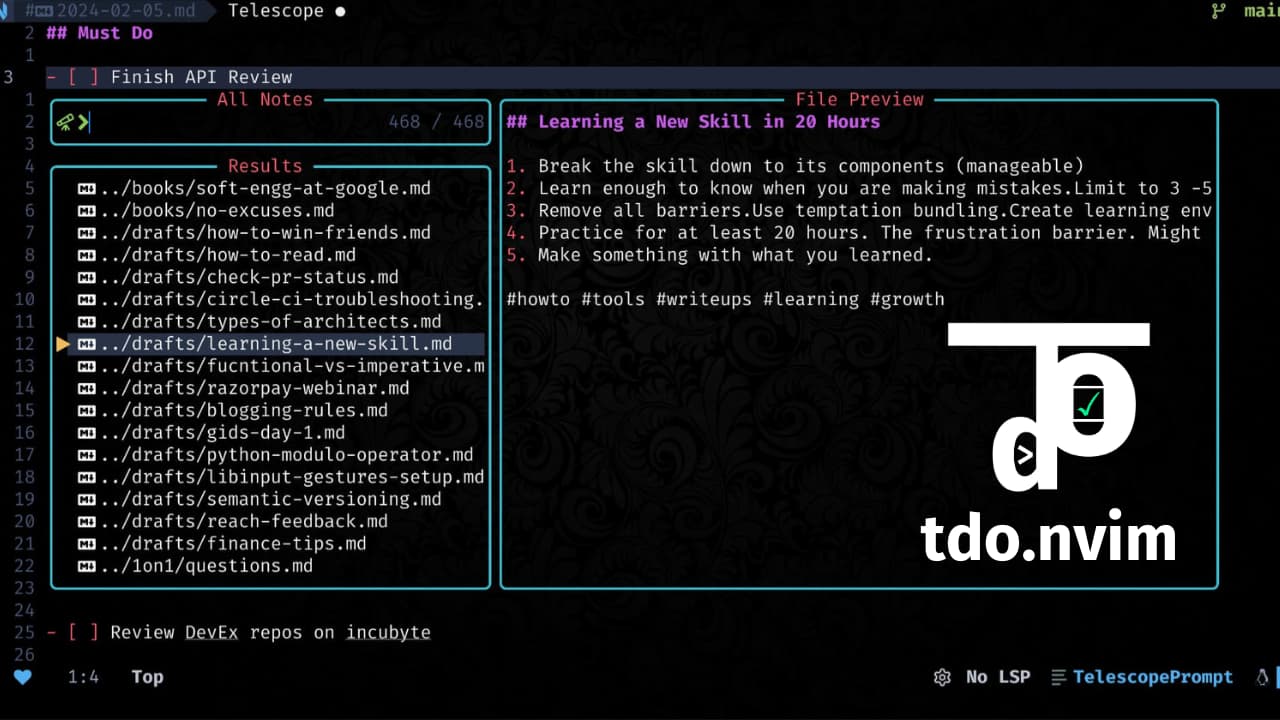
tdo.nvim integrates tdo into your neovim workflow to make managing notes and todos super simple and fast. Demo video
✨ Features
- All features provided by tdo
- Various commands to make working with tdo seamless
- Todo navigation and toggle helpers
- Fuzzy autocompletion for notes navigation
- Integration with various pickers via pickme.nvim for easy notes searching
- Integration with lualine for pending todos
⚡ Setup
⚙️ Requirements
- tdo must be setup
- pickme.nvim for picker support
💻 Installation
Add the following to your lazy/packer config
    -- Lazy
    {
        '2kabhishek/tdo.nvim',
        dependencies =  '2kabhishek/pickme.nvim',
        cmd = { 'Tdo' },
        -- Add more keybindings you need for lazy loading from the table below
        keys = { '<leader>nn', '<leader>nf', '<leader>nh', '<leader>nl', '<leader>nt', '<leader>nx', '[t', ']t' },
        opts = {} -- Required if you are not calling tdo.setup setup manually, you can add your config here
    },
🚀 Usage
⚙️ Configuration
tdo.nvim can be configured using the following options:
local tdo = require('tdo')

tdo.setup({
    add_default_keybindings = true, -- Add default keybindings for the plugin
    completion = {
        offsets = {},               -- Custom offsets / date expressions for completion
        ignored_files = { 'README.md', 'templates' }, -- Files/directories to ignore in completions
    },
    cache = {                       -- You don't really need to change these
        timeout = 5000,             -- Completion cache timeout in milliseconds
        max_entries = 100,          -- Maximum number of cached completion entries
    },
    lualine = {                     -- Only used for lualine integration
        update_frequency = 300,     -- How frequently to update the pending todo count in lualine
        only_show_in_notes = false, -- Whether to show the lualine component only in notes buffers
    }
})
📡 Commands
tdo.nvim provides the following commands.
:Tdo [date_expression / note]: Opens todo with flexible date formats - available expressions- Ex:
:Tdo- Open today's todo - Ex:
:Tdo tomorrow- Open tomorrow's todo - Ex:
:Tdo monday- Open this Monday's todo - Ex:
:Tdo next-friday- Open next Friday's todo - Ex:
:Tdo 2-weeks-ago- Open todo from 2 weeks ago - Ex:
:Tdo 2025-07-14- Open todo for specific date - Ex:
:Tdo vim- Open note file "vim.md" in notes dir
- Ex:
:Tdo entry [date_expression]: Opens journal entry with same flexible date formats- Ex:
:Tdo entry- Open today's journal entry - Ex:
:Tdo entry last-tue- Open last Tuesday's journal entry
- Ex:
:Tdo note [title/note-file]: Create new note, if empty creates timestamped draft:Tdo files: Review all your notes:Tdo find [text]: Search for text in all notes:Tdo todos: Show all incomplete todos:Tdo toggle: Toggle todo state
Command Completion
The modern Tdo command supports comprehensive tab completion:
- Subcommands:
entry,note,files,find,todos,toggle - File paths: Auto-complete note paths with fuzzy matching
- Natural dates:
today,tomorrow,yesterday,monday,next-friday,last-week- powered by yourcompletion.offsetsconfig, available expressions - Context-aware: Shows relevant completions based on subcommand
⌨️ Keybindings
By default, these are the configured keybindings.
| Keybinding | Command | Description |
|---|---|---|
<leader>nn |
:Tdo<CR> |
Today's Todo |
<leader>ne |
:Tdo entry<CR> |
Today's Entry |
<leader>nf |
:Tdo files<CR> |
All Notes |
<leader>ng |
:Tdo find<CR> |
Find Notes |
<leader>nh |
:Tdo yesterday<CR> |
Yesterday's Todo |
<leader>nl |
:Tdo tomorrow<CR> |
Tomorrow's Todo |
<leader>nc |
:Tdo note<CR> |
Create Note |
<leader>ns |
:lua require("tdo.notes").run_with("commit")<CR> |
Commit Note |
<leader>nt |
:Tdo todos<CR> |
Incomplete Todos |
<leader>nx |
:Tdo toggle<CR> |
Toggle Todo |
]t |
/\v\[ \]\_s*[^[]<CR>:noh<CR> |
Next Todo |
[t |
?\v\[ \]\_s*[^[]<CR>:noh<CR> |
Prev Todo |
<leader>nd[1-9] |
:Tdo [1-9]<CR> |
Todo N Days Later |
<leader>nD[1-9] |
:Tdo -[1-9]<CR> |
Todo N Days Ago |
<leader>nw[1-9] |
:Tdo [1-9]-weeks-later<CR> |
Todo N Weeks Later |
<leader>nW[1-9] |
:Tdo [1-9]-weeks-ago<CR> |
Todo N Weeks Ago |
<leader>nm[1-9] |
:Tdo [1-9]-months-later<CR> |
Todo N Months Later |
<leader>nM[1-9] |
:Tdo [1-9]-months-ago<CR> |
Todo N Months Ago |
<leader>ny[1-9] |
:Tdo [1-9]-years-later<CR> |
Todo N Years Later |
<leader>nY[1-9] |
:Tdo [1-9]-years-ago<CR> |
Todo N Years Ago |
I recommend customizing these keybindings based on your preferences.
Note: Keybindings are only active when add_default_keybindings = true in your configuration.
📊 Lualine Integration
You can display your pending todo count in your lualine statusline.
Copy the component from lua/tdo/lualine.lua and add it to your lualine sections config (recommended)
Alternative (No Lazy Loading!)
require('lualine').setup({
    sections = {
        lualine_x = { require('tdo.lualine'), 'fileformat', 'filetype' },
    }
})
🏗️ What's Next
You tell me!
🧑💻 Behind The Code
🌈 Inspiration
Most note-taking systems offer a lot more than I needed, so I wrote tdo and then tdo.nvim for better integration.
💡 Challenges/Learnings
- Dove deeper into nvim APIs
- Learned about not interactive shell scripting.
🧰 Tooling
- dots2k — Dev Environment
- nvim2k — Personalized Editor
- sway2k — Desktop Environment
- qute2k — Personalized Browser
🔍 More Info
- co-author.nvim — Easily add git co authors
- nerdy.nvim — Easily add nerd glyphs
⭐ hit the star button if you found this useful ⭐
Source | Blog | Twitter | LinkedIn | More Links | Other Projects