
TF-ICON: Diffusion-Based Training-Free Cross-Domain Image Composition (ICCV 2023)
[Project Page] [Poster]


Official implementation of TF-ICON: Diffusion-Based Training-Free Cross-Domain Image Composition.
TF-ICON: Diffusion-Based Training-Free Cross-Domain Image Composition
Shilin Lu, Yanzhu Liu, and Adams Wai-Kin Kong
ICCV 2023Abstract:
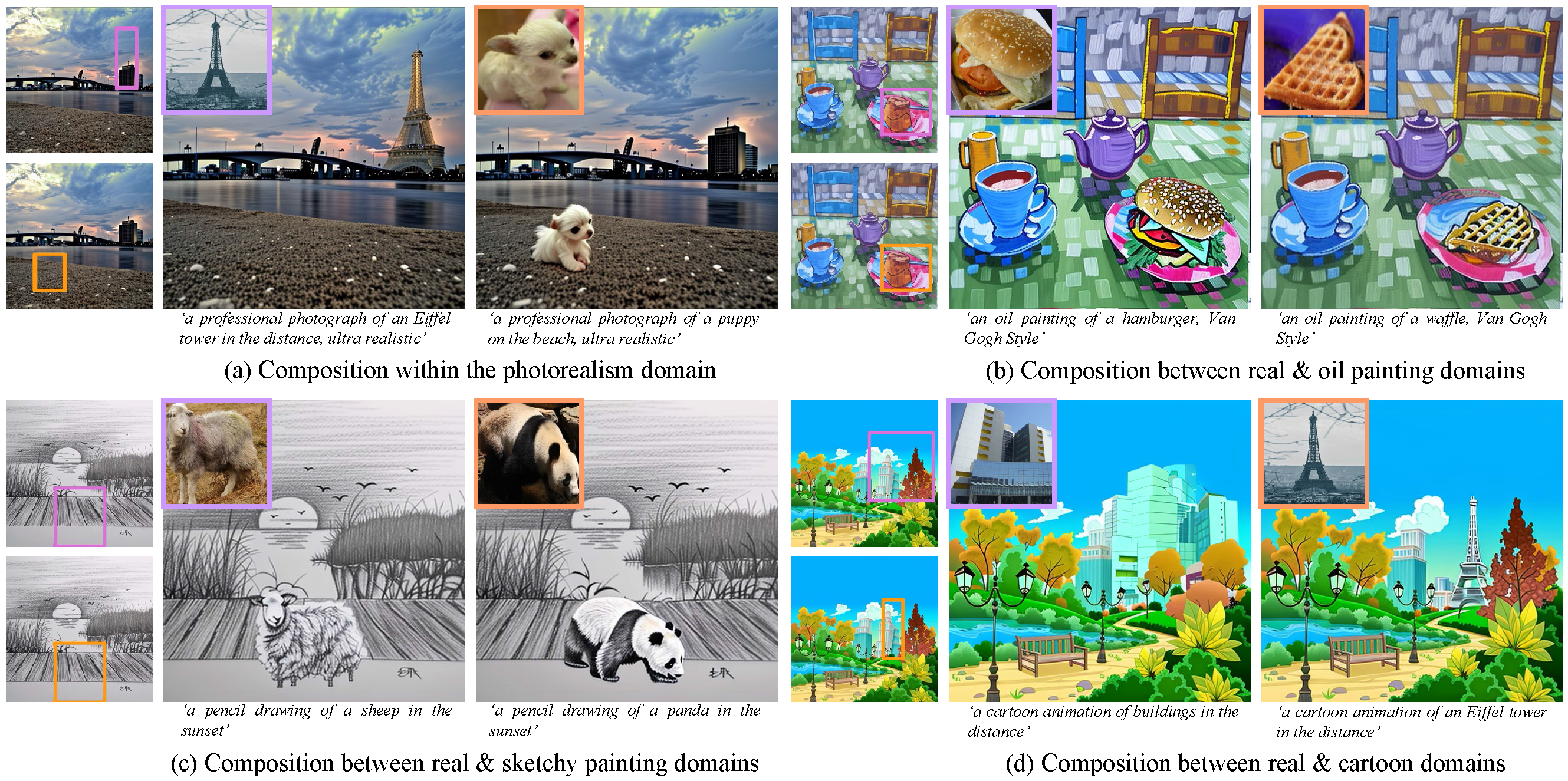
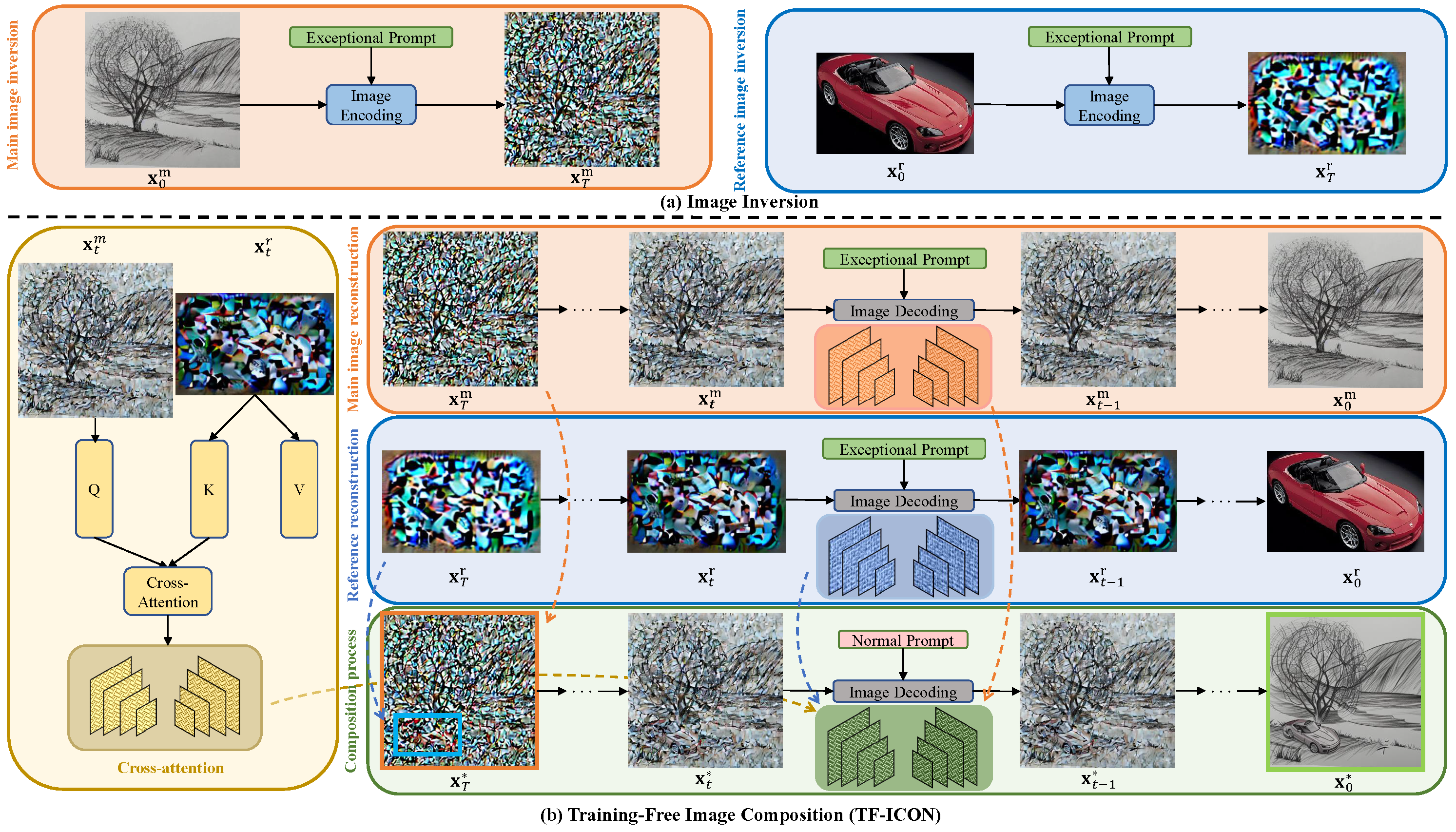
Text-driven diffusion models have exhibited impressive generative capabilities, enabling various image editing tasks. In this paper, we propose TF-ICON, a novel Training-Free Image COmpositioN framework that harnesses the power of text-driven diffusion models for cross-domain image-guided composition. This task aims to seamlessly integrate user-provided objects into a specific visual context. Current diffusion-based methods often involve costly instance-based optimization or finetuning of pretrained models on customized datasets, which can potentially undermine their rich prior. In contrast, TF-ICON can leverage off-the-shelf diffusion models to perform cross-domain image-guided composition without requiring additional training, finetuning, or optimization. Moreover, we introduce the exceptional prompt, which contains no information, to facilitate text-driven diffusion models in accurately inverting real images into latent representations, forming the basis for compositing. Our experiments show that equipping Stable Diffusion with the exceptional prompt outperforms state-of-the-art inversion methods on various datasets (CelebA-HQ, COCO, and ImageNet), and that TF-ICON surpasses prior baselines in versatile visual domains.
Contents
Setup
Our codebase is built on Stable-Diffusion and has shared dependencies and model architecture. A VRAM of 23 GB is recommended, though this may vary depending on the input samples (minimum 20 GB).
Option 1: Using Conda
# Clone the repository
git clone https://github.com/Shilin-LU/TF-ICON.git
cd TF-ICON

# Create and activate the conda environment
conda env create -f tf_icon_env.yaml
conda activate tf-icon
Option 2: Using Pip with Virtual Environment
# Clone the repository
git clone https://github.com/Shilin-LU/TF-ICON.git
cd TF-ICON

# Create and activate a virtual environment
python -m venv venv
source venv/bin/activate  # On Windows: venv\Scripts\activate

# Install the package and dependencies
pip install -e .

# For development dependencies
# pip install -e ".[dev]"
Option 3: Using Pip (Global Installation)
# Clone the repository
git clone https://github.com/Shilin-LU/TF-ICON.git
cd TF-ICON

# Install the package and dependencies
pip install -e .
Note: For Options 2 and 3, you need to ensure you have compatible CUDA drivers installed on your system. For optimal performance, CUDA 11.3 is recommended.
Downloading Stable-Diffusion Weights
Download the StableDiffusion weights from the Stability AI at Hugging Face
(download the sd-v2-1_512-ema-pruned.ckpt file), and put it under ./ckpt folder.
Alternatively, you can also use the following commands to download and place the weights in the correct location:
# Create the ckpt directory if it doesn't exist
mkdir -p ckpt

# Download the model weights (using wget)
wget -O ckpt/v2-1_512-ema-pruned.ckpt https://huggingface.co/stabilityai/stable-diffusion-2-1-base/resolve/main/v2-1_512-ema-pruned.ckpt

# Alternative: Using curl
# curl -L https://huggingface.co/stabilityai/stable-diffusion-2-1-base/resolve/main/v2-1_512-ema-pruned.ckpt -o ckpt/v2-1_512-ema-pruned.ckpt
Running TF-ICON
Data Preparation
Several input samples are available under ./inputs directory. Each sample involves one background (bg), one foreground (fg), one segmentation mask for the foreground (fg_mask), and one user mask that denotes the desired composition location (mask_bg_fg). The input data structure is like this:
inputs
├── cross_domain
│  ├── prompt1
│  │  ├── bgxx.png
│  │  ├── fgxx.png
│  │  ├── fgxx_mask.png
│  │  ├── mask_bg_fg.png
│  ├── prompt2
│  ├── ...
├── same_domain
│  ├── prompt1
│  │  ├── bgxx.png
│  │  ├── fgxx.png
│  │  ├── fgxx_mask.png
│  │  ├── mask_bg_fg.png
│  ├── prompt2
│  ├── ...
More samples are available in TF-ICON Test Benchmark or you can customize them. Note that the resolution of the input foreground should not be too small.
- Cross domain: the background and foreground images originate from different visual domains.
- Same domain: both the background and foreground images belong to the same photorealism domain.
Image Composition
To execute the TF-ICON under the 'cross_domain' mode, run the following commands:
python scripts/main_tf_icon.py  --ckpt ckpt/v2-1_512-ema-pruned.ckpt      \
                                --root ./inputs/cross_domain      \
                                --domain 'cross'                  \
                                --dpm_steps 20                    \
                                --dpm_order 2                     \
                                --scale 5                         \
                                --tau_a 0.4                       \
                                --tau_b 0.8                       \
                                --outdir ./outputs                \
                                --gpu cuda:0                      \
                                --seed 3407
For the 'same_domain' mode, run the following commands:
python scripts/main_tf_icon.py  --ckpt ckpt/v2-1_512-ema-pruned.ckpt      \
                                --root ./inputs/same_domain       \
                                --domain 'same'                   \
                                --dpm_steps 20                    \
                                --dpm_order 2                     \
                                --scale 2.5                       \
                                --tau_a 0.4                       \
                                --tau_b 0.8                       \
                                --outdir ./outputs                \
                                --gpu cuda:0                      \
                                --seed 3407
ckpt: The path to the checkpoint of Stable Diffusion.root: The path to your input data.domain: Setting 'cross' if the foreground and background are from different visual domains, otherwise 'same'.dpm_steps: The diffusion sampling steps.dpm_solver: The order of the probability flow ODE solver.scale: The classifier-free guidance (CFG) scale.tau_a: The threshold for injecting composite self-attention maps.tau_b: The threshold for preserving background.
TF-ICON Test Benchmark
The complete TF-ICON test benchmark is available in this OneDrive folder. If you find the benchmark useful for your research, please consider citing.
Additional Results
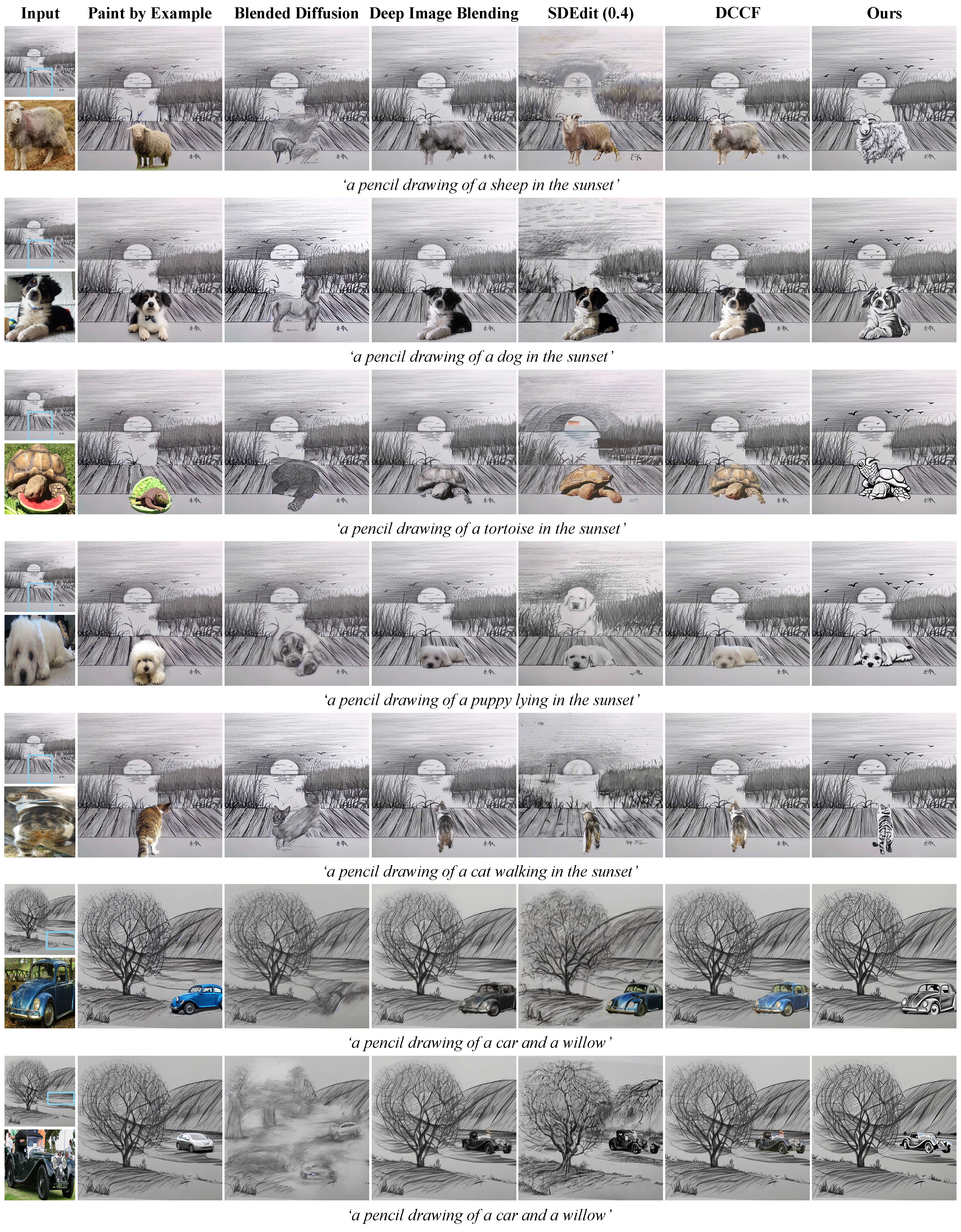
Sketchy Painting
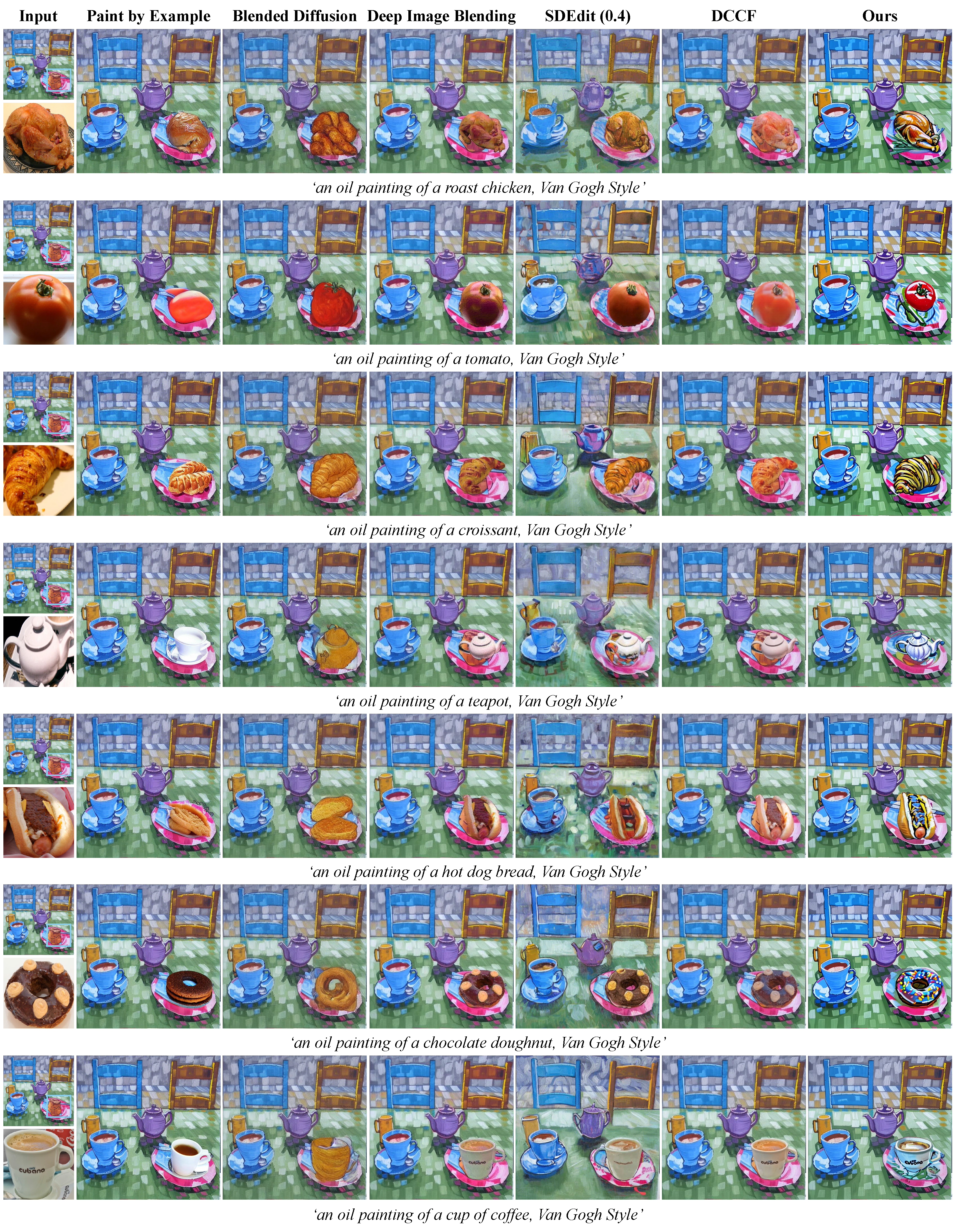
Oil Painting
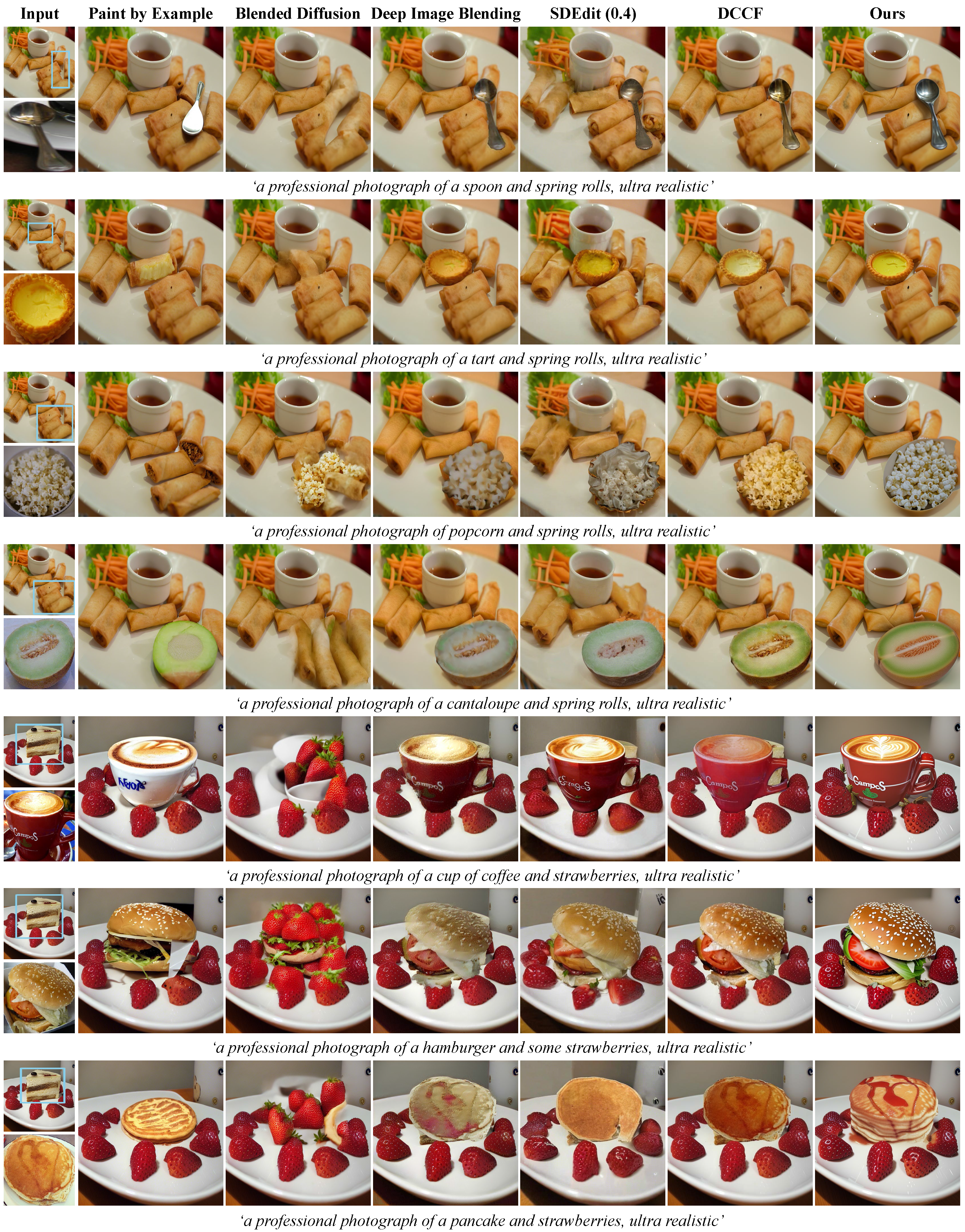
Photorealism
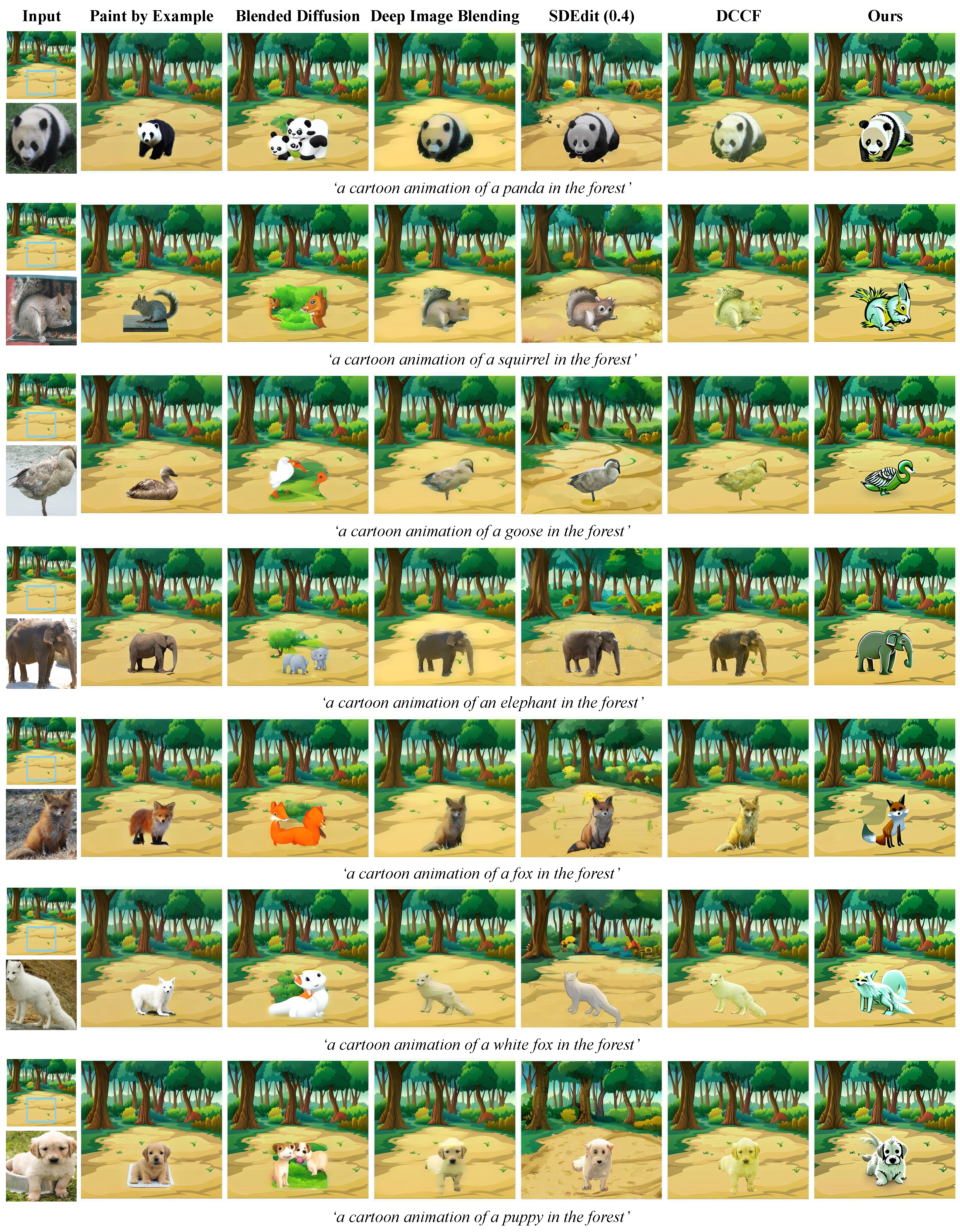
Cartoon
Acknowledgments
Our work is standing on the shoulders of giants. We thank the following contributors that our code is based on: Stable-Diffusion and Prompt-to-Prompt.
Citation
If you find the repo useful, please consider citing:
@inproceedings{lu2023tf,
  title={TF-ICON: Diffusion-Based Training-Free Cross-Domain Image Composition},
  author={Lu, Shilin and Liu, Yanzhu and Kong, Adams Wai-Kin},
  booktitle={Proceedings of the IEEE/CVF International Conference on Computer Vision},
  pages={2294--2305},
  year={2023}
}