

Issue and Project Tracking System (DEMO)
Use Trackit! Tracking system that allows team members to collaborate, discuss and manage projects effectively
✨ Features
- Team management
- Project management
- Ticket management
- User assignment
- Project statistics
- Advanced searching
- Commenting
- Role based organization (Create custom permissions)
- Custom field creation
- Attachments (Not done yte)
- Change tracker (Not done yet)
🛠️Technologies
| Front-end |
|
|
|
|
|---|---|---|---|---|
| Back-end |
|
|
|
|





Project will be dockerized soon
🚀 Quick start
Start developing locally.
Step 1: Download Node.js and MongoDB
Download: MongoDB Download: Node.js - 18.14.0
Step 2: Clone the repo
Fork the repository then clone it locally by doing
git clone https://github.com/Jenil-Vekaria/Trackit.git
Step 2: Install Dependencies
cd into the client and server directory, and install the dependencies
cd client & npm install
cd server & npm install
Step 3: Setup .env
To run the server, you will need the .env variables
Rename .env.EXAMPLE file to .env
Step 4: Seed database
Execute the following command to seed the database
npm run seed
Login Info
| Password | Role | Permissions | |
|---|---|---|---|
| [email protected] | password | Admin | Manage admin page/projects/tickets |
| [email protected] | password | Developer | Manage projects/tickets |
| [email protected] | password | Submitter | Manage tickets |
You are all setup!
Run client application
npm run dev
Run server application
npm run start
Setup Issue? Create an issue in this repository
Give a ⭐, if you liked the project
📸 Screenshots
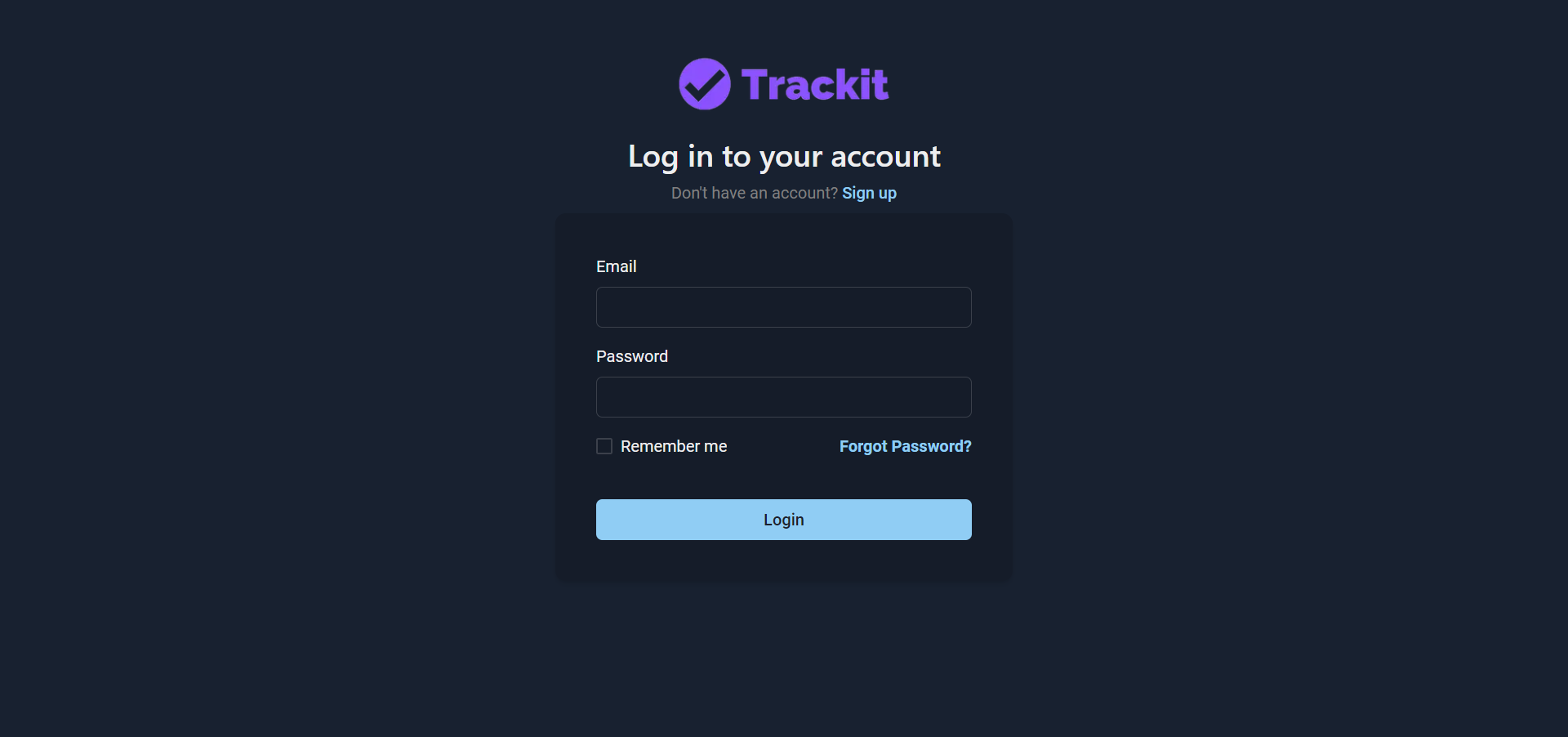
Login
Log into the application with your credentials. If you don't have an account, click Sign Up to create a new account. Once you have logged in, you will be directed to projects page
View All Projects
You will find all the projects you have created or belong to. You can also search and sort the projects. Click on Add Project to create new project
If your permissions doesn't allow you to manage project, "Add Project" will not be displayed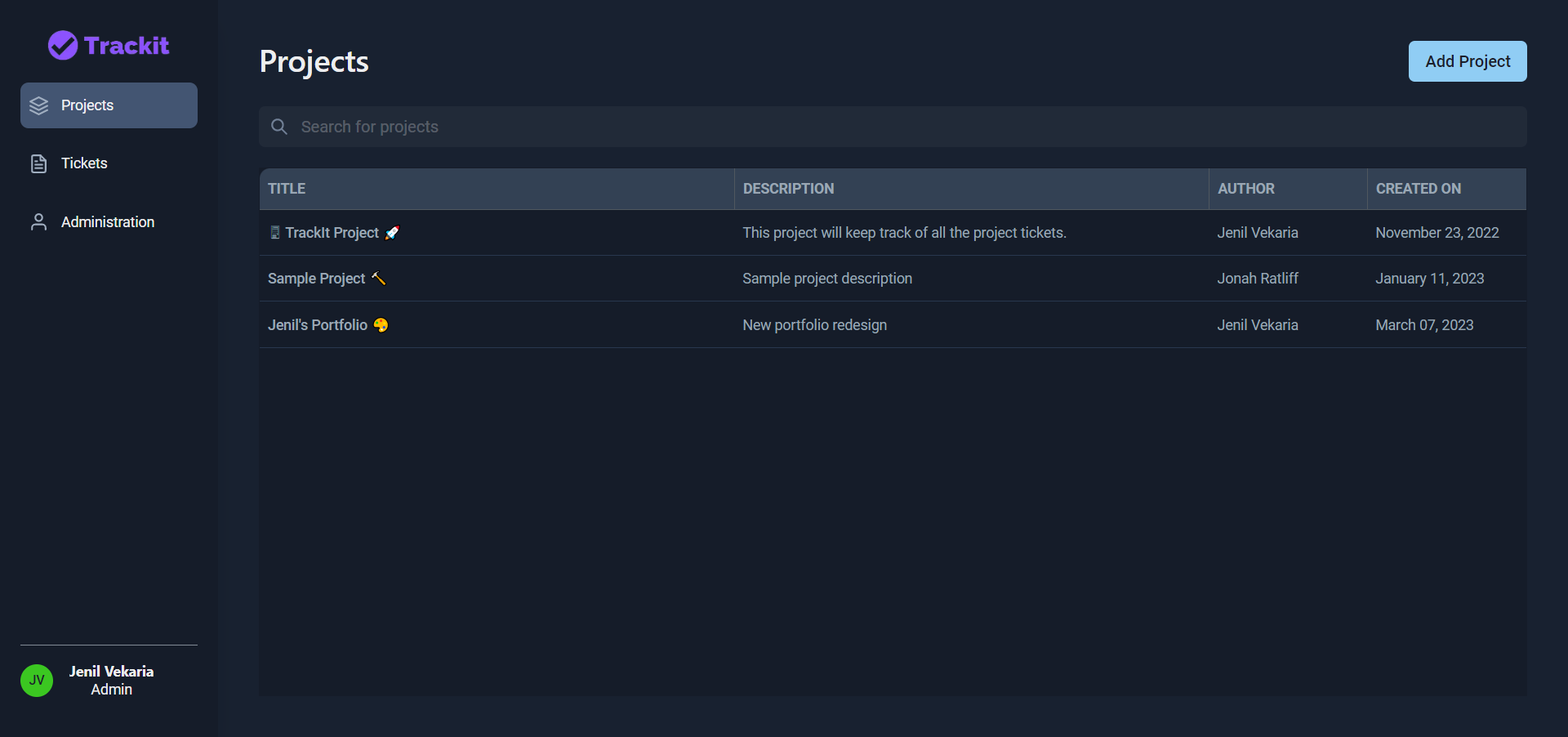
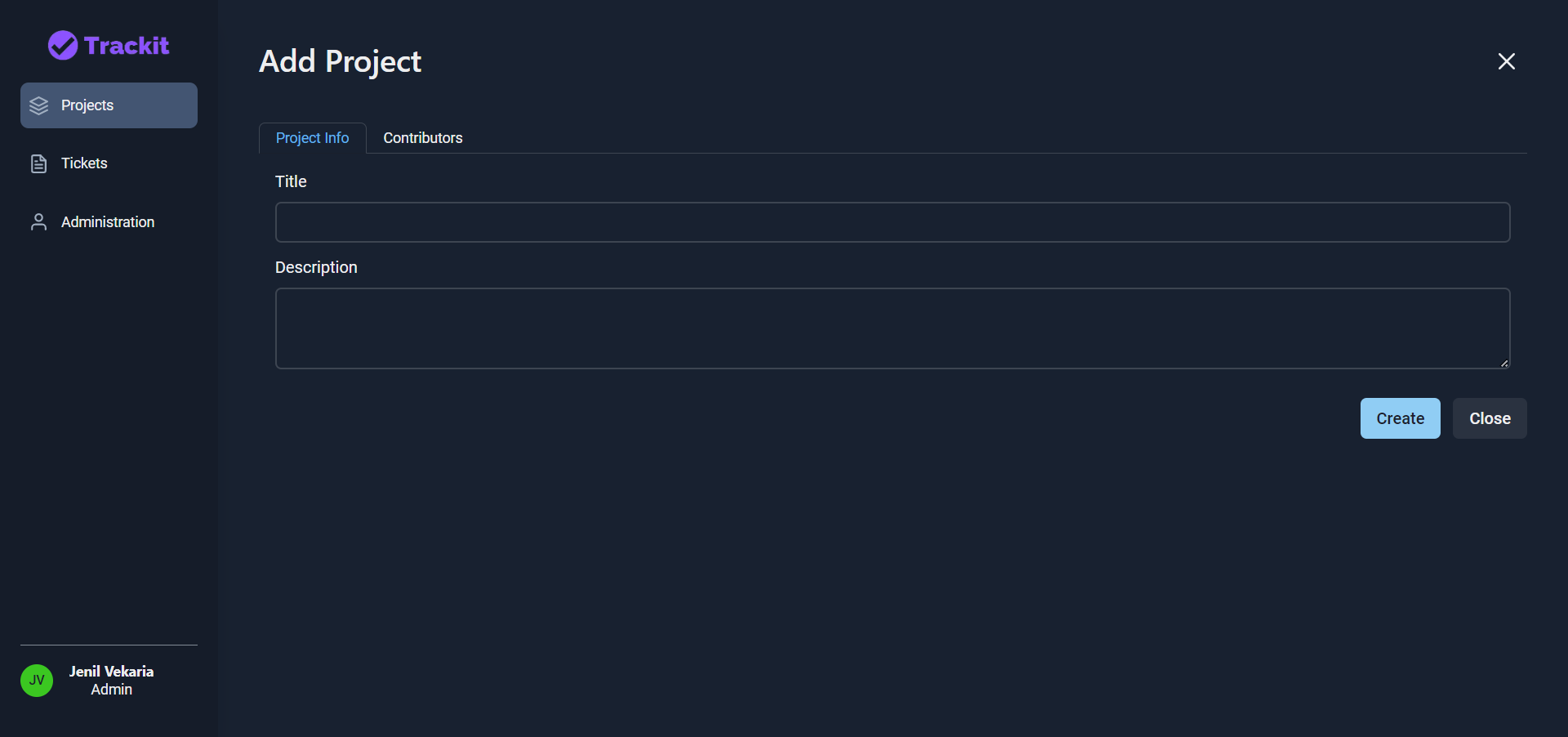
Add Project
Enter your project information here (Title and description)
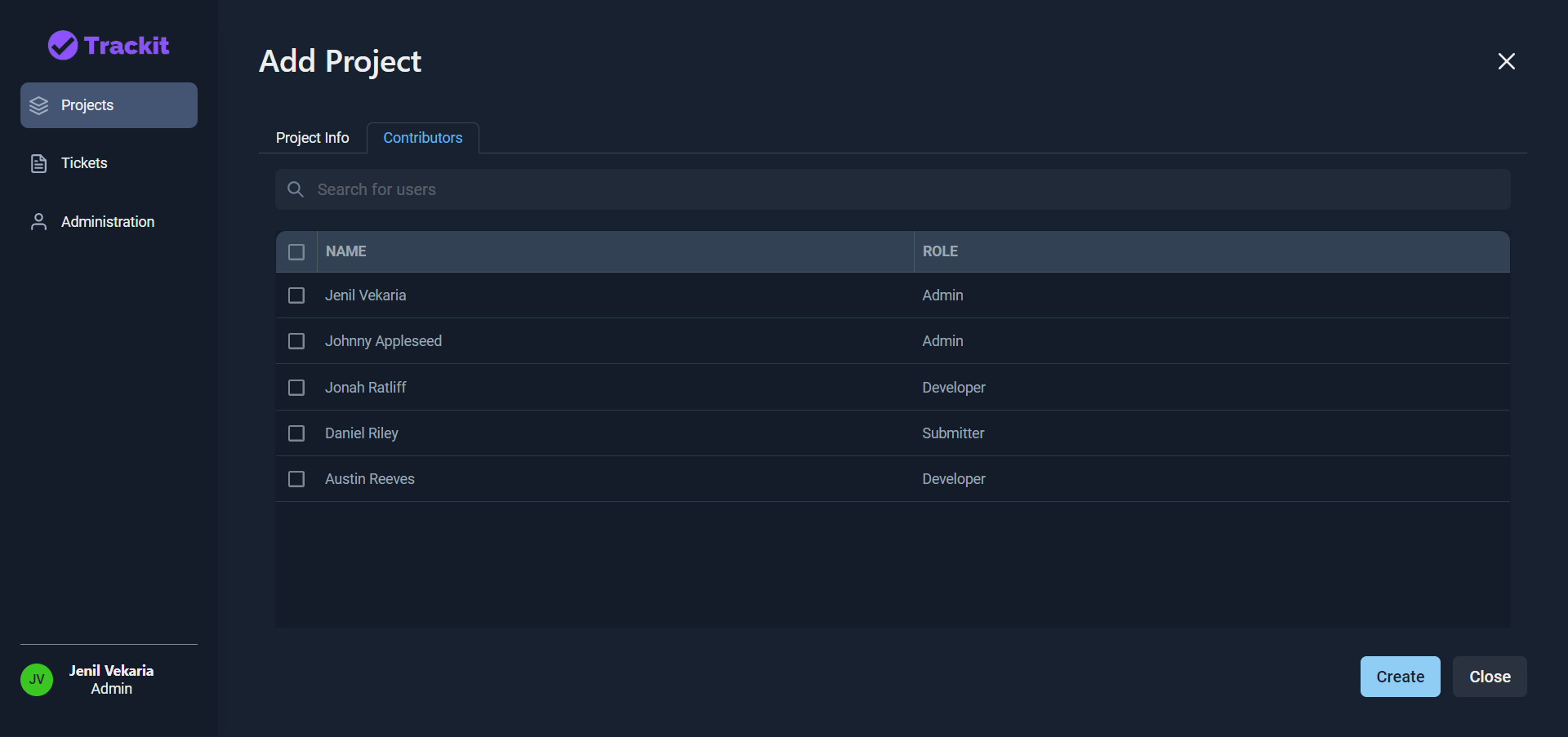
Add Project (Contributor)
Select all the project contributors. You will also see what type of role the user belong to.
View Project Info
Once you have created your project, you will see all your project tickets (intially none). You create new tickets, view project info and edit exisiting ticket.
If your permissions doesn't allow you to manage tickets, "Add Ticket" will not be displayed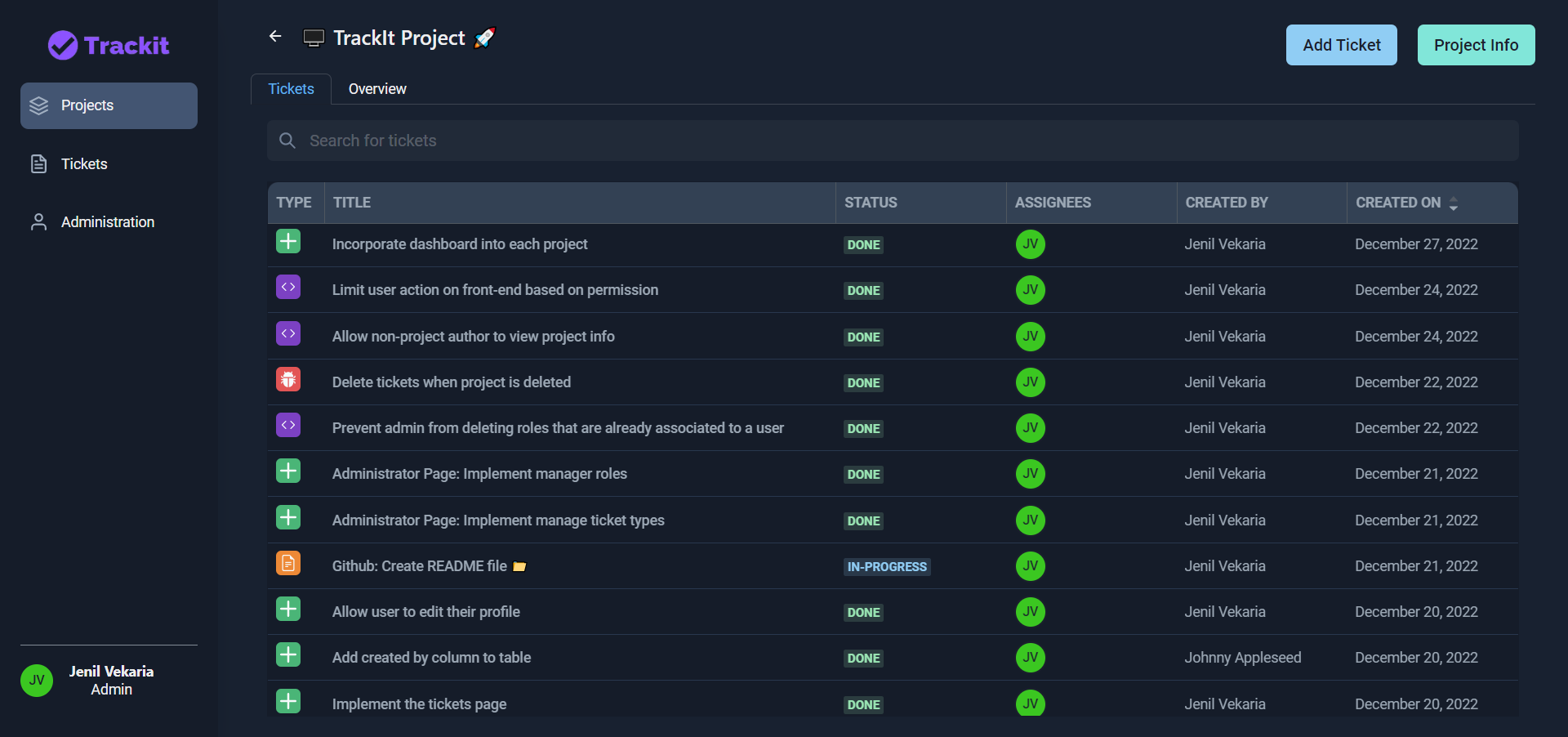
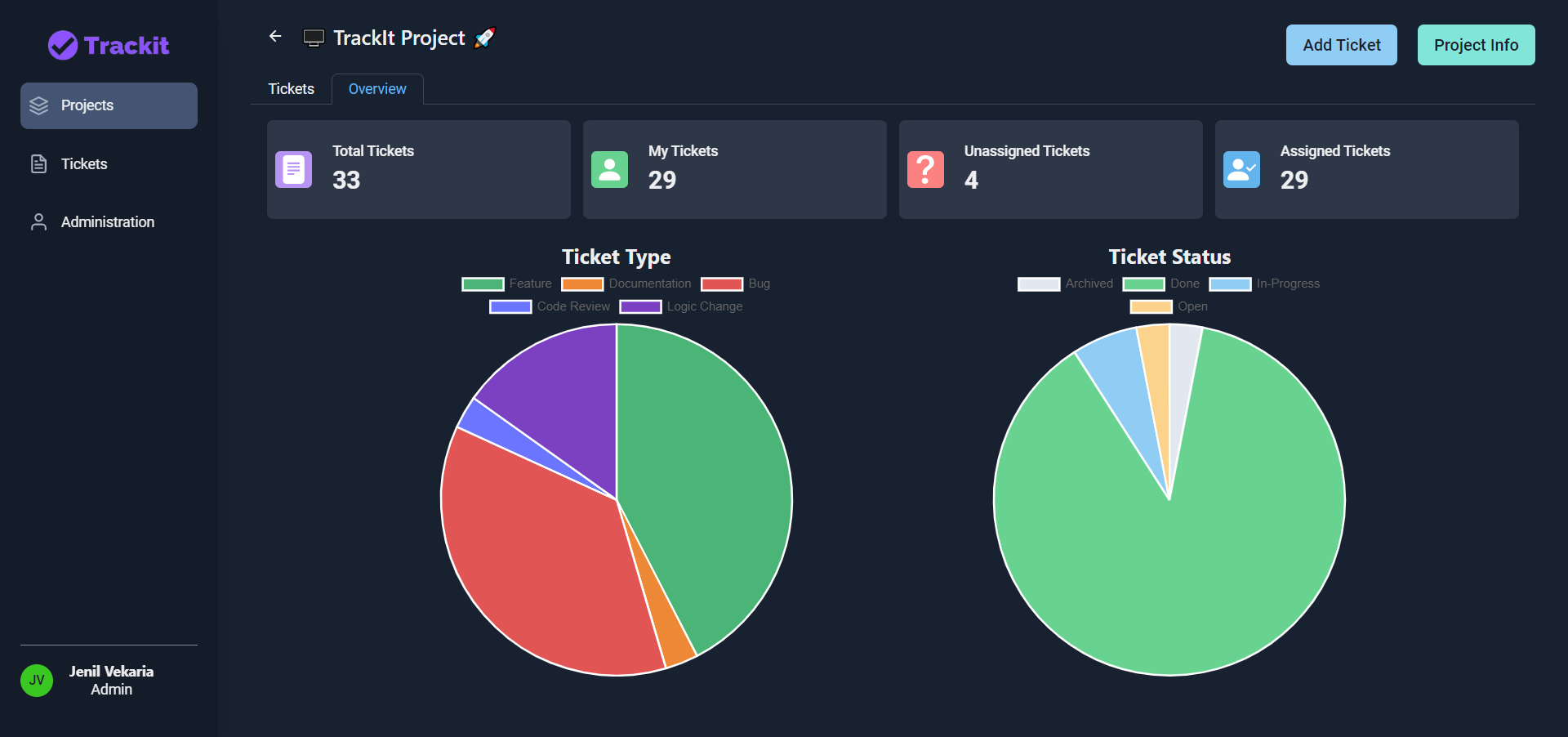
Project Overview
Click on Overview to see the project statistics
View Ticket Info
Click on the existing ticket, you can edit the ticket info, add comment or update the ticket assignee
If your permission doesn't allow you to manage tickets, all the fields, comments, assigness will be disabled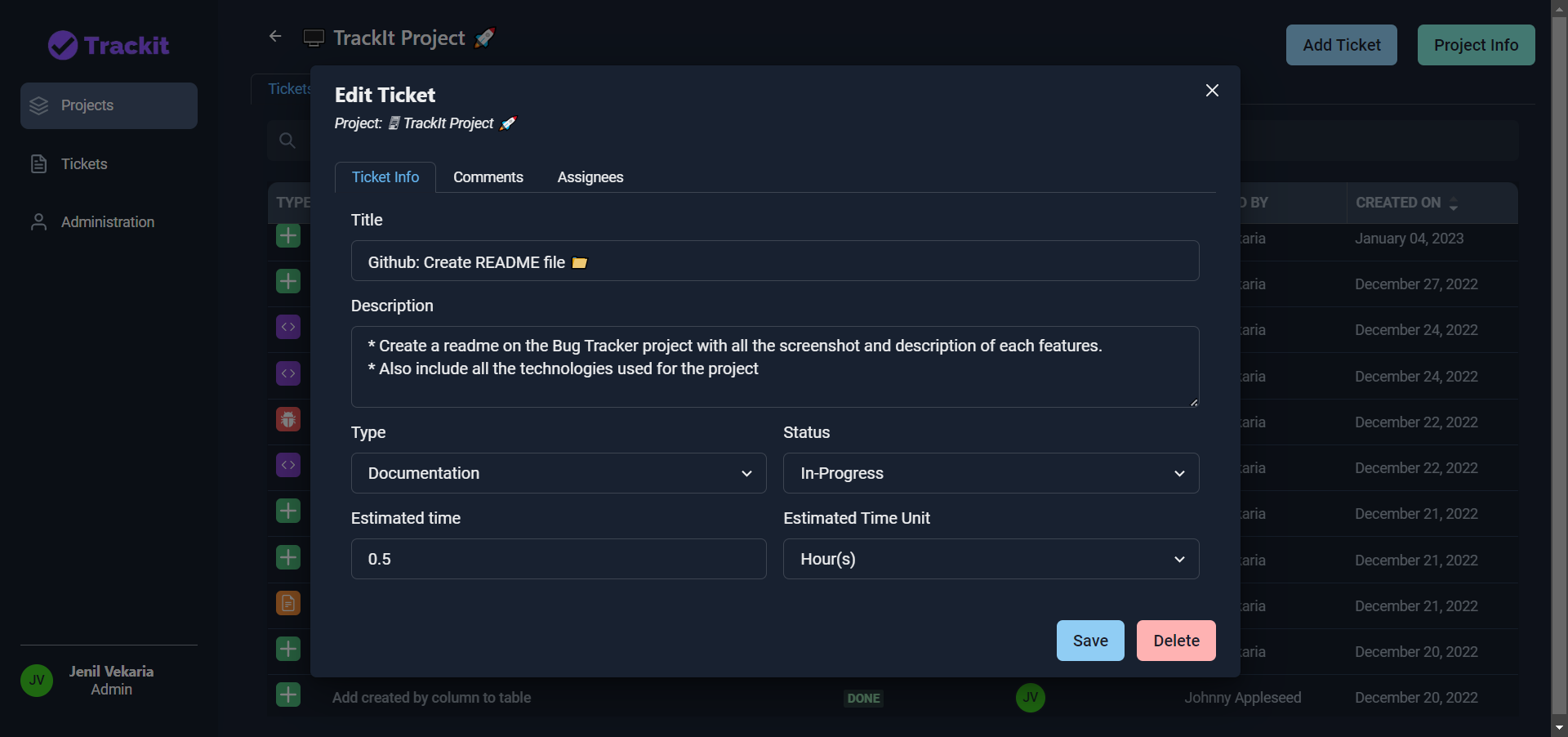
View Ticket Comments
Click on comments tab, you will see all the ticket comments and you can also comment on it.
If your permission doesn't allow you to manage comments, you will not be able to comment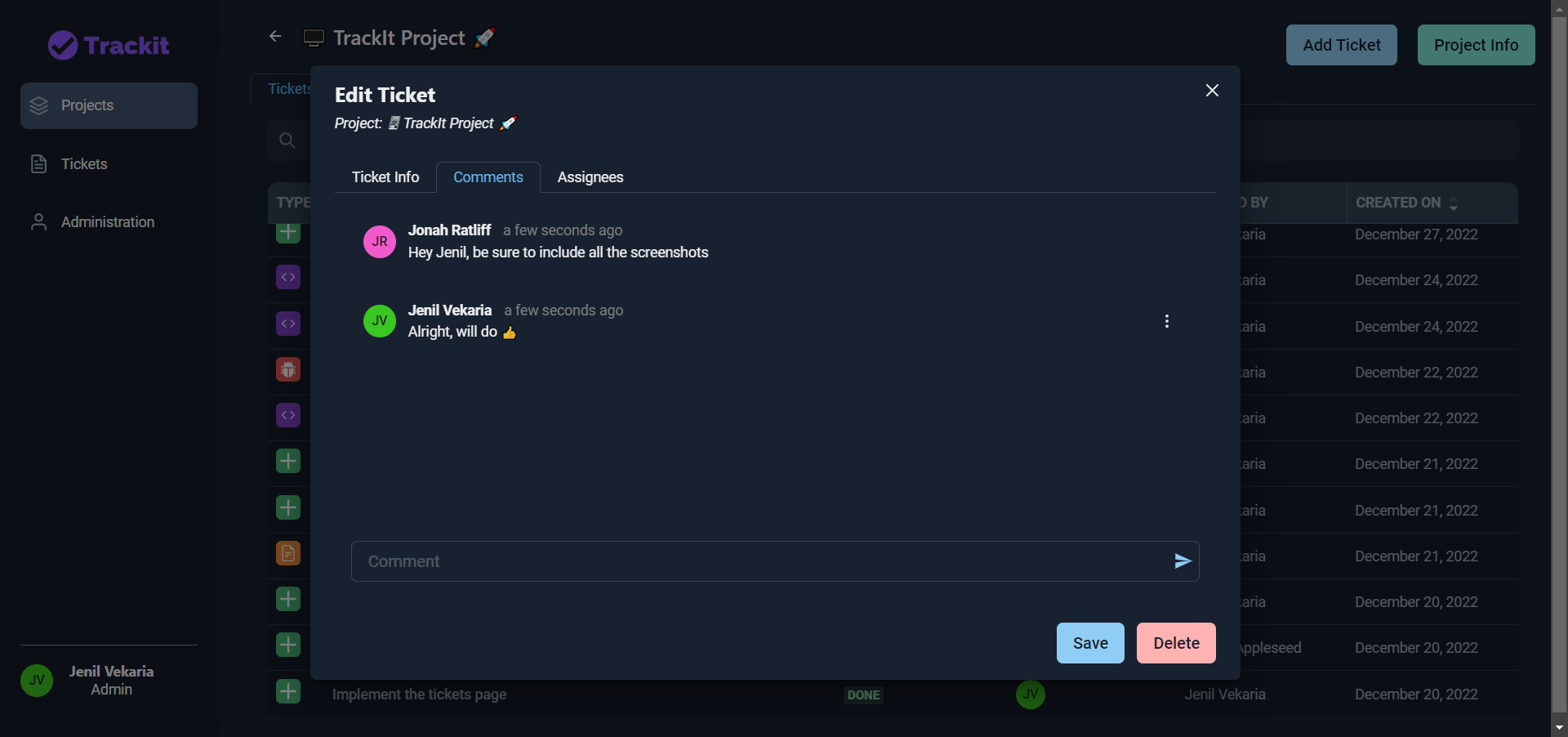
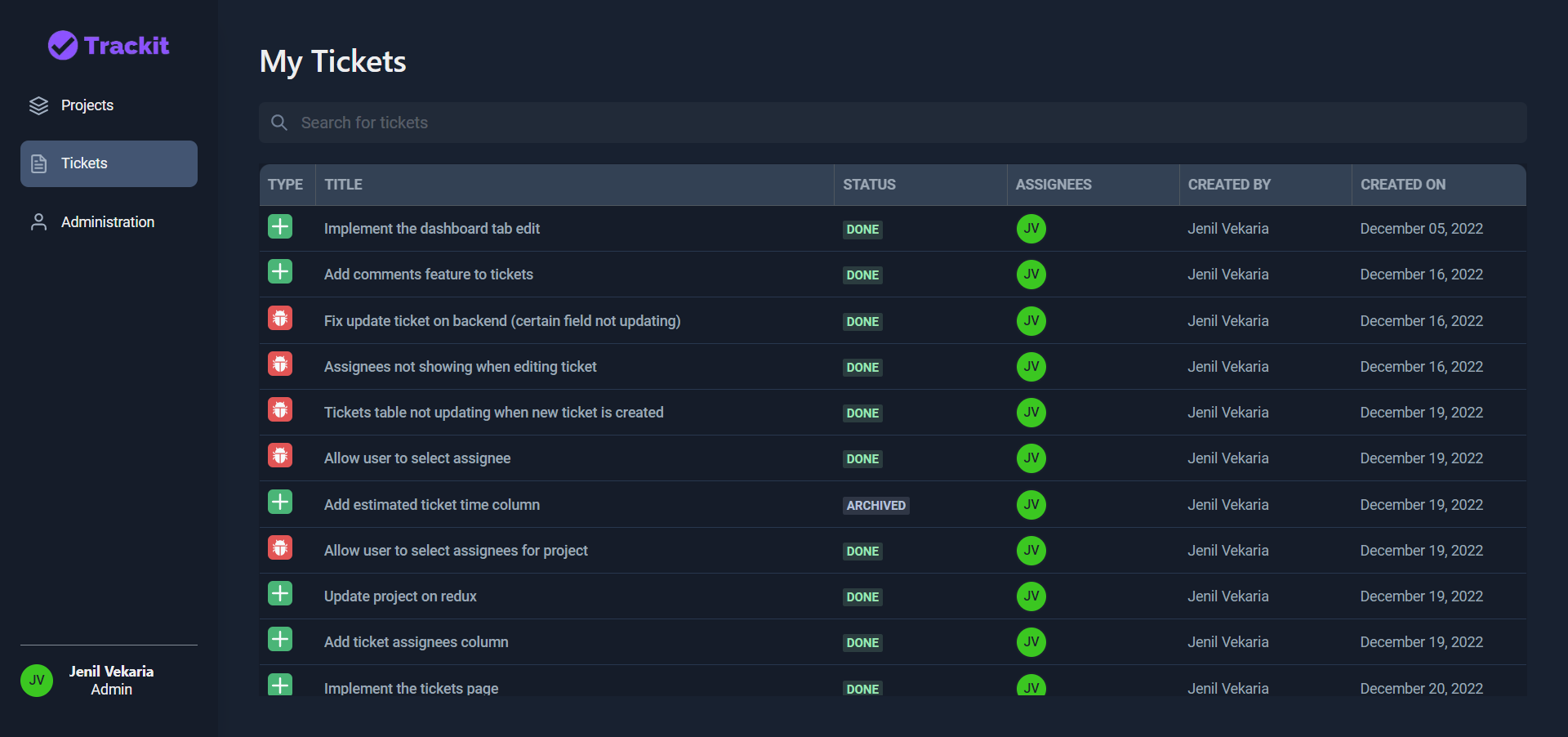
My Tickets
Click on Tickets tab to see all your tickets regarless of what project it belongs to. Clicking on the ticket will allow you to edit it
Admin - Manage Users
Click on Admin to manage the organization (Users, Roles, Custom Ticket Type)
Click on Manage User to manage all the users and their roles. Clicking on the user will allow you to update their role
This tab will only be displayed if you are the admin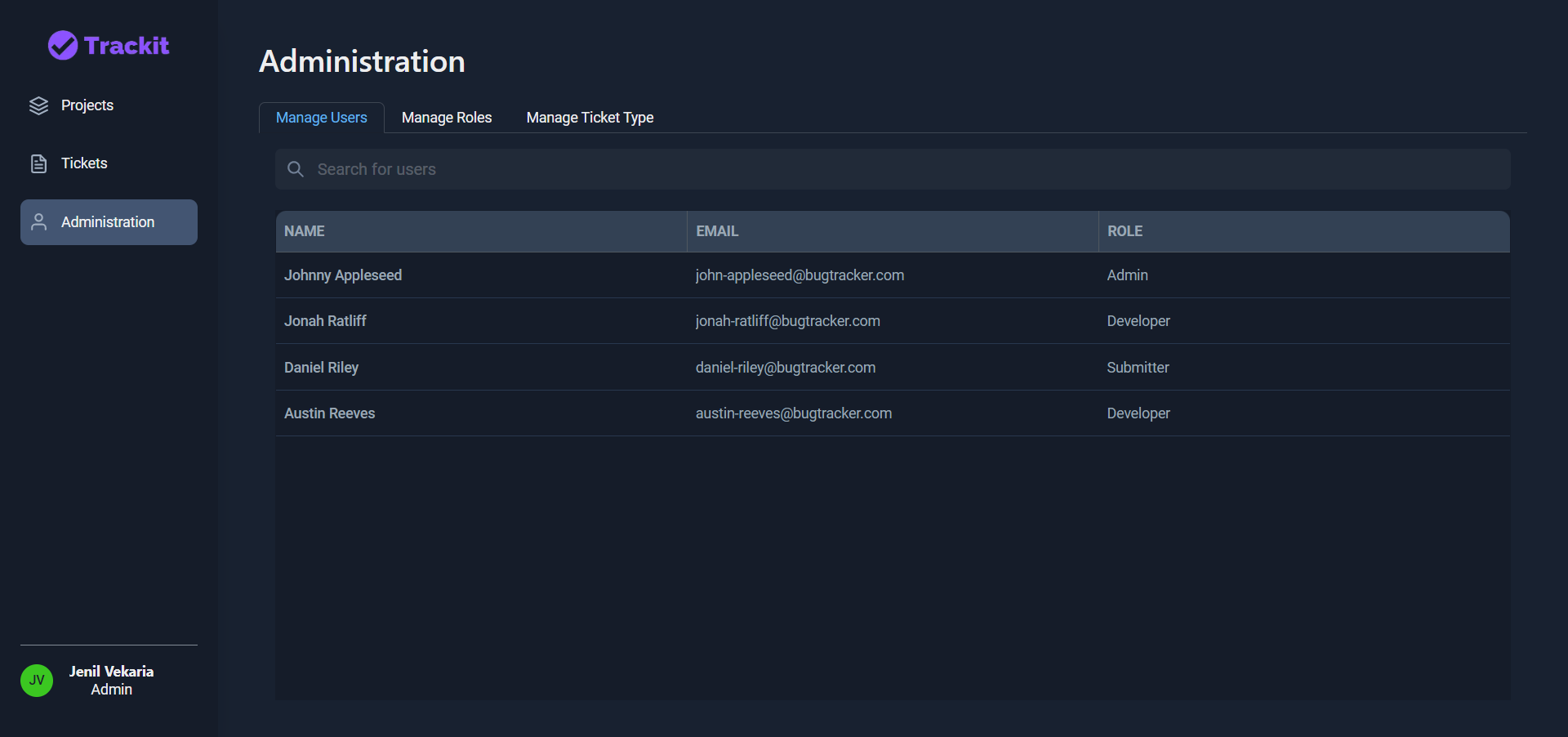
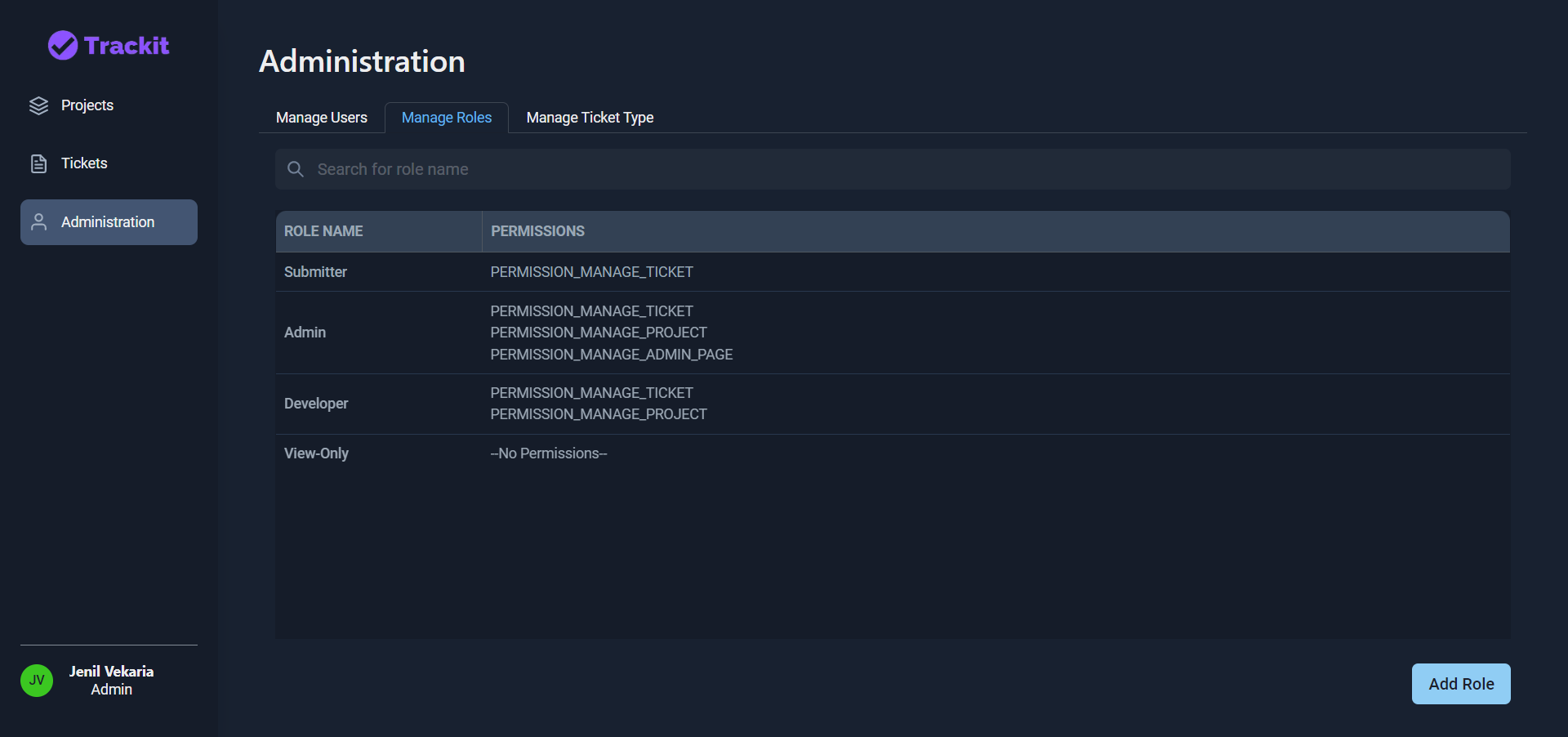
Admin - Manage Roles
Manage Roles tab will display all the roles and their respective permissions. To create custom role, click on Add New Role
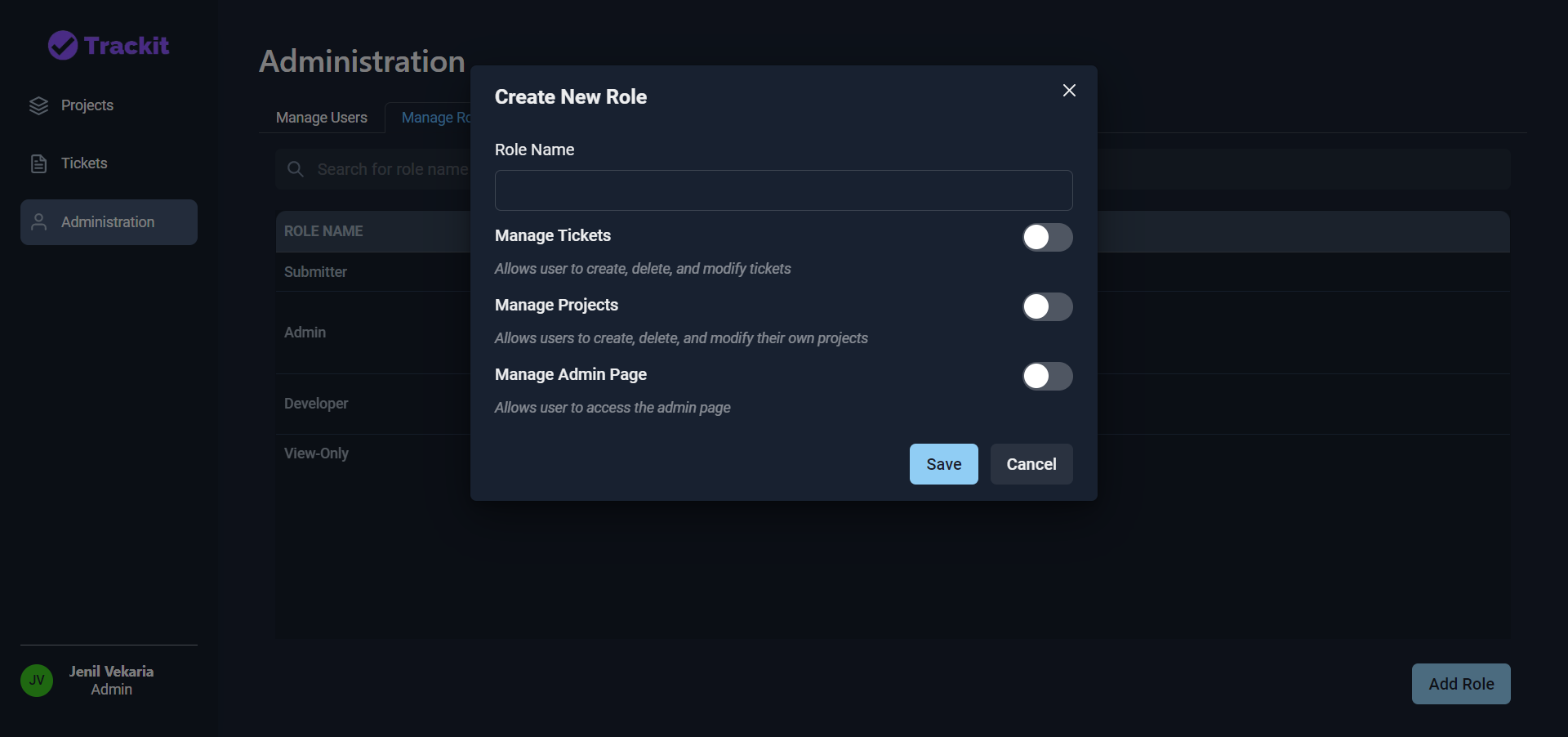
Admin - Manage Roles (Add)
You can create your custom role by giving a role name and selecting the types of allowed actions
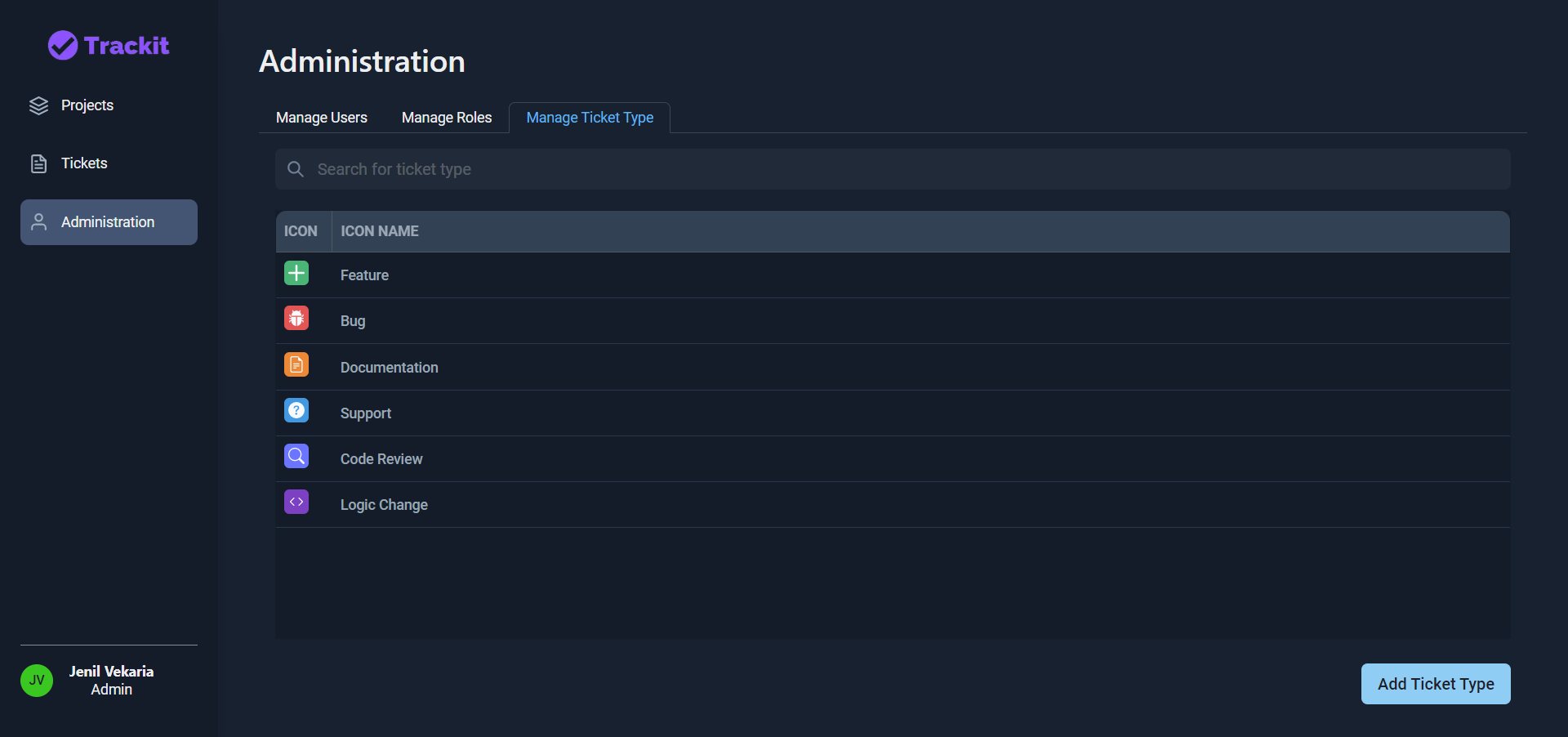
Admin - Manage Ticket Types
You will see all the ticket types here. There are some pre-defined ticket types (Feature, Bug, Documentation, Support), but you may create custom ticket types by clicking on Add New Ticket Type
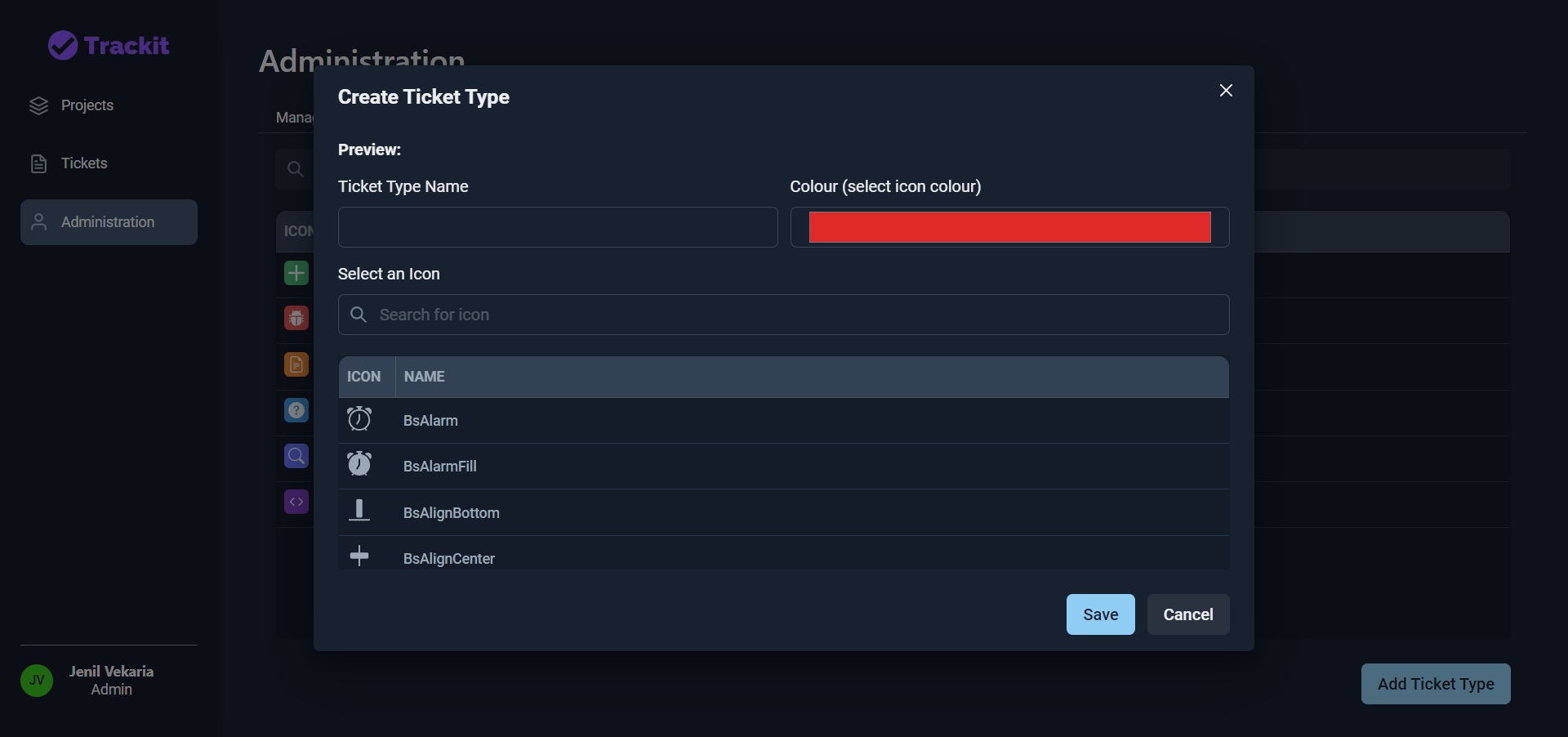
Admin - Manage Ticket Types (Add)
Create custom ticket type by giving ticket type name, selecting an icon, and the icon colour
Author
- Github: @Jenil-Vekara
- Portfolio: Jenil-Vekaria.netlify.app
- LinkedIn: @JenilVekaria