
tuiboard
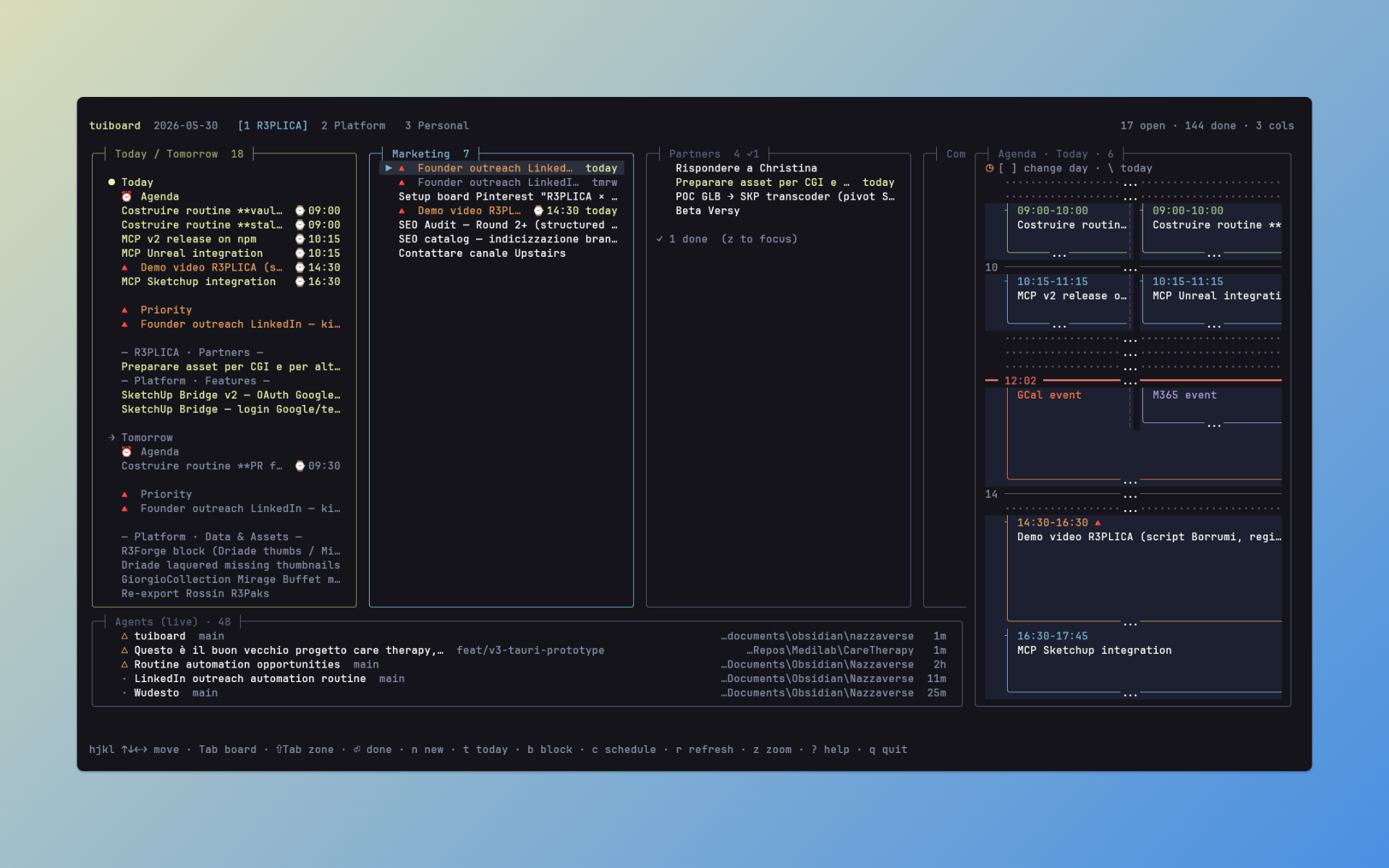
A terminal kanban board on plain markdown files, with three optional panels you switch on or off: a Today/Tomorrow planner across all your boards, a 24-hour agenda with a read-only Google / Microsoft 365 calendar overlay, and a live view of your Claude Code sessions. Run it as a pure kanban, or any mix of the four. The board is always on; the rest is opt-in (see Zones).
Built with OpenTUI + SolidJS on Bun. Cross-platform (Linux, macOS, Windows). No vendor lock-in: boards are CommonMark with the Obsidian Tasks-plugin emoji vocabulary, so they open and edit fine in any markdown editor.
Install
Requires Bun ≥ 1.2 — tuiboard runs on the Bun runtime (it's not a Node CLI). OpenTUI ships its own native renderer binaries; Bun picks the right one for your platform automatically. Pick whichever install fits:
Global, straight from GitHub (no npm needed) — run tuiboard from anywhere:
bun install -g github:NazzarenoGiannelli/tuiboard
tuiboard
Global, from npm:
bun install -g tuiboard # or run once, no install: bunx tuiboard
From source (for hacking on it):
git clone https://github.com/NazzarenoGiannelli/tuiboard.git
cd tuiboard
bun install
bun run dev          # or: bun link  → then `tuiboard` globally, live-linked
Quick start
Starting fresh — no Obsidian, no special folders required:
- Install Bun (bun.sh), then
bun install -g tuiboard. - Make one or more board files. A board is a plain
.mdfile: every##heading is a column, every- [ ]line is a task. The simplest board:
Create one file per tab you want (e.g.## To Do - [ ] My first task ## In Progress ## DoneWork.md,Personal.md). Columns named exactlyDoneandArchiveare treated specially (hidden from the board view but used by the done-stats and the archive action). - Point tuiboard at them. Create
~/.config/tuiboard/config.yaml(found from any directory) with absolute paths:
Or skip the config entirely and just runboards: - path: /home/you/notes/Work.md name: Work - path: /home/you/notes/Personal.md name: Personaltuiboardinside a folder that already contains.mdfiles with- [ ]tasks — it auto-discovers them. - Run it:
tuiboard(or the short aliastb).
The Agent view needs zero setup. tuiboard reads your local Claude Code
sessions from ~/.claude/ automatically, so the live agent strip fills in as
soon as you've used Claude Code — nothing to connect or configure. (Tools that
don't write to ~/.claude, like Codex, won't show up there.)
See Configure for assignees, the done/archive column names, and the optional custom "open session in your terminal" command.
Let an AI agent set it up for you
Paste this into Claude Code (or Codex / Cursor) from any directory — it interviews you and wires everything up:
I just installed `tuiboard` (a terminal kanban dashboard:
https://github.com/NazzarenoGiannelli/tuiboard). Set it up for me from scratch:

1. Ask me: (a) which directory should hold my board markdown files,
   (b) how many boards/tabs I want and their names (e.g. Work, Personal),
   (c) any assignee names I use.
2. Create one markdown file per board in that directory. Each file: a few `##`
   column headings — default `## To Do`, `## In Progress`, `## Done` — and no
   tasks yet. Always include a `## Done` column (tuiboard treats columns named
   `Done` and `Archive` specially and hides them from the board view).
3. Create a global config at `~/.config/tuiboard/config.yaml` (resolve the real
   home path) with a `boards:` list pointing at those files by ABSOLUTE path,
   plus `assignees: [...]`, `done_column: Done`, `archive_column: Archive`.
4. Ask me which zones I want besides the kanban board: the Today/Tomorrow
   planner, the 24h agenda, and the live Claude Code agents view. For any I
   don't want, add a `zones:` block setting it to `off` (e.g. someone who
   doesn't use Claude Code would set `agents: off`). If I want them all, omit
   the block. Do NOT configure the agents view beyond on/off — it reads
   `~/.claude` automatically when enabled.
5. Ask me whether I want to overlay my Google Calendar or Microsoft 365 events
   on the Agenda (skip this if I turned the agenda off). If yes, tell me to run
   `tuiboard calendar-setup google` (or `microsoft`) — it interviews me, opens
   the browser, and prints the exact `calendars:` YAML block to add. Don't try
   to do the OAuth yourself. If no, skip it (it's optional and can be added later).
6. Show me the final config, then tell me to run `tuiboard`, and how to add a
   board later (create a new `.md` and append it to the `boards:` list).

Confirm the directory and file names with me before writing any files.
Configure
Copy .tuiboard/config.example.yaml to a config location and edit the
boards: list to point at your markdown files. tuiboard resolves the config
in this order (first hit wins):
$TUIBOARD_CONFIG— explicit path to a config file.- Project-local —
.tuiboard/config.yaml, walking up from the cwd. Drop a.tuiboard/folder at a project/vault root and it's used whenever you launch from inside that tree. - Global —
~/.config/tuiboard/config.yaml(or~/.tuiboard/config.yaml). Use absolute board paths here andtuiboardshows your boards from any directory — the usual setup for a single-vault user. - Fallback — scan the cwd for any
.mdfile containing- [ ]tasks.
boards:
  - path: ./Work.md
    name: Work
  - path: ./Personal.md
    name: Personal

assignees: [Alice, Bob]
done_column: Done
archive_column: Archive

# Optional: override Enter in the Agents zone. argv array, {cwd}/{sessionId}
# substituted, run directly (no shell — element 0 must be a real binary/abs
# path, NOT a shell builtin or Windows App Execution Alias). Defaults to
# opening a WezTerm tab with `claude --resume <id>`. For a custom layout:
# resume_command: ["nu", "C:/Users/you/.config/tuiboard/code-resume.nu", "{cwd}", "{sessionId}"]
Zones
tuiboard is four zones — board (kanban), planner (Today/Tomorrow across all boards), agenda (24h timeline + calendar overlay), and agents (live Claude Code sessions). Only want some of them? The board is always on; the other three are yours to configure:
zones:
  planner: on      # Today/Tomorrow panel          (toggle at runtime with F1)
  agenda: on       # 24h agenda + calendars        (F2)
  agents: off      # live Claude Code view         (F3)
Each zone takes one of:
| Value | Behavior |
|---|---|
on |
Enabled and shown at launch (the default). |
off |
Disabled entirely — never rendered, skipped by Shift-Tab, its F-key is inert, and its background work never starts (no calendar fetch, no ~/.claude reads). |
hidden |
Enabled but collapsed at launch — reveal it any time with its F-key. |
true/false work as aliases for on/off. So a pure kanban is just
agenda: off and agents: off; kanban + calendar is agents: off. The
difference between off and the F-key hide: off means the feature never runs
at all — handy if you don't use Claude Code and don't want tuiboard reading
~/.claude.
Calendars (Agenda overlay)
The Agenda zone (the 24h timeline) can overlay events from Google Calendar
and Microsoft 365 alongside your time-blocked tasks — timed events render as
colored 📅 blocks on the grid, and all-day events ride in a chip strip at the
top (like Google Calendar's all-day band). The day's real shape is visible at a
glance. Each calendar keeps its own color. Events are cached 30 min on disk and
refreshed every 5 min. Bring your own credentials — there's nothing to sign
up for and nothing leaves your machine. (Reading is the default; opt into
creating/editing events below.)
Connect a calendar with the built-in setup command:
tuiboard calendar-setup google      # opens your browser (read-only scope)
tuiboard calendar-setup microsoft   # device-code flow, no redirect
Microsoft needs an Azure app registration (Public client, Calendars.Read
delegated) whose client ID goes in ~/.config/tuiboard/azure_config.json —
running calendar-setup microsoft with no config writes a template that walks
you through it.
Google: one-time OAuth client setup
There's no hosted tuiboard app — you create your own free OAuth client in your own Google Cloud project, so nothing is shared and your data never passes through anyone else's servers. It takes about five minutes, once:
- Go to the Google Cloud Console and create a project (or pick an existing one) from the project dropdown.
- APIs & Services → Library → search "Google Calendar API" → Enable.
- APIs & Services → OAuth consent screen: if prompted, choose External, give the app a name and your email, and save. You don't need to publish it or submit for verification — as the project owner you're automatically a test user of your own app, which is all tuiboard needs. (Add your Google address under Test users if it asks.)
- APIs & Services → Credentials → Create credentials → OAuth client ID. Application type: Desktop app. Create.
- Download JSON on the client you just made, and save it as
~/.config/tuiboard/google_credentials.json. - Run
tuiboard calendar-setup google(add--writeto also create/edit/delete — see below). Your browser opens; approve the access. You'll briefly see an "unverified app" notice — that's expected for your own personal client; click Advanced → go to (your app) to continue. The token is saved and the command prints the YAML block to paste into your config.
The calendar-setup command prints these exact steps too if it doesn't find the
credentials file.
After connecting, the command prints the exact YAML to paste into your config:
calendars:
  google:
    enabled: true
    token: ~/.config/tuiboard/google_token.json
  microsoft:
    enabled: true
    config: ~/.config/tuiboard/azure_config.json
    token_cache: ~/.config/tuiboard/ms_token.json
Paths support ~ and resolve against the config dir if relative. A missing,
expired, or unconfigured calendar never breaks the board — it just shows no
events. Set either provider's enabled: false (or drop the block) to turn it
off; add a color: to override the fallback block color.
Creating, editing & deleting events (Google, opt-in)
Reading is the default. To also create, edit, and delete Google Calendar events from the Agenda, re-authorize with the write scope:
tuiboard calendar-setup google --write
Create — in the Agenda zone, press n (or click an empty time slot)
to open the new-event modal: type a title, press Enter, pick the target calendar
with j/k, Enter to create. Only calendars you can write to (owner/writer)
show in the picker. Append tokens to the title to set the time and date:
Standup 9:00-9:30            # today (or the viewed day), 09:00–09:30
Lunch m 12-13                # tomorrow (m), 12:00–13:00
Review 2026-06-10 15-16      # that date, 15:00–16:00
Call +3 16:00-16:30          # in 3 days · lun = next Monday also works
Holiday 2026-12-25 allday    # an all-day event (no time)
The date defaults to whichever day the Agenda is showing; an explicit date token
(t / m / +N / weekday / YYYY-MM-DD — the same t/m = today/tomorrow as
the board keys) overrides it. The time is taken from
the clicked slot, or HH:MM-HH:MM. Add allday (or all-day) anywhere in
the title to create an all-day event instead — it lands in the top chip strip.
Edit / delete — click an existing event in the Agenda to select it (only events on writable calendars can be selected; read-only ones just say so). Then:
e(or Enter) opens the edit modal, prefilled with the title and time — change the title, time, and/or date (sameTitle [date] HH:MM-HH:MMsyntax) and Enter to save. A date token moves the event to another day.ddeletes it (with a confirm).Escdeselects.
Edits stay on the same calendar (moving an event between calendars isn't supported). Every change appears in the Agenda right away and on Google Calendar.
Set the calendar new events default to with default_calendar (a calendar id;
unset → your primary). You can still override per-event in the modal:
calendars:
  google:
    enabled: true
    token: ~/.config/tuiboard/google_token.json
    default_calendar: [email protected]   # optional; default target for new events
The write scope is opt-in: without --write, tuiboard stays read-only and the
n shortcut / slot-click / event-selection do nothing. Microsoft event write
isn't supported yet (read-only).
Markdown board format
tuiboard reads and writes plain CommonMark with the Obsidian
Tasks-plugin emoji vocabulary. Any markdown editor renders these files
sensibly; the Obsidian Kanban plugin renders them as a kanban; we render
them as a TUI.
Minimal example
---
kanban-plugin: board
---

## Today

- [ ] Fix auth flow @nazza ⏳ 2026-05-27 ⌚ 09:00-10:30 #pr-followup
- [x] Review PR #412 ✅ 2026-05-26

## In Progress

- [ ] Migrate timeline to OpenTUI @nazza

## Done
The kanban-plugin: board frontmatter is optional — it's only there so the
file also renders as a board in Obsidian's Kanban plugin. tuiboard itself needs
just the ## column headings and - [ ] task lines.
Metadata vocabulary
| Symbol | Meaning | Notes |
|---|---|---|
## Heading |
Column name | One column per H2 heading |
- [ ] / - [x] |
Task (open / done) | Standard markdown task list |
@name |
Assignee | Configurable list in config.yaml |
#tag |
Tag | Any hashtag; passed through verbatim |
⏳ YYYY-MM-DD |
Scheduled date | Tasks-plugin convention |
📅 YYYY-MM-DD |
Due date | Tasks-plugin convention |
🛫 YYYY-MM-DD |
Start date | Tasks-plugin convention |
✅ YYYY-MM-DD |
Done date | Tasks-plugin convention |
⌚ HH:MM-HH:MM |
Time block | tuiboard-specific (Tasks plugin has no time-of-day) |
🔺 ⏫ 🔼 🔽 ⏬ |
Priority | Tasks-plugin convention |
Anything else stays in the task text untouched on write-back. Roundtrip is byte-for-byte preserving when a task hasn't been edited; structured fields are rebuilt only after an in-app mutation.
Layouts
Launch tuiboard with no flag for the default dashboard (every enabled zone).
| Flag | View | Use case |
|---|---|---|
| (none) | Dashboard — every enabled zone | Default; your configured layout |
--view=board |
Kanban + planner panel only | Focus mode, or a single WezTerm pane |
--view=timeline |
Timeline fullscreen | Wall-mounted "what's now" |
--view=agents |
Agent view fullscreen | Cross-machine session monitor |
The dashboard auto-collapses optional zones on narrow terminals:
| Terminal width | Default zones visible |
|---|---|
| ≥ 150 cols | planner + board + timeline + agents |
| 120–149 | planner + board + agents |
| 100–119 | planner + board |
| < 100 | board only |
F1 / F2 / F3 toggles override the auto-collapse for the current
session (until the next terminal resize).
Keyboard
Navigation
| Key | Action |
|---|---|
h j k l / arrows |
Move cursor inside the active zone |
Tab |
Cycle to next board |
1..9 |
Jump to board N |
v |
Toggle Today/Tomorrow planner panel focus |
Shift-Tab |
Cycle active zone (planner → board → timeline → agents) |
F1 / F2 / F3 |
Toggle visibility of Planner / Timeline / Agents zones |
z |
Zoom active zone to full screen |
r |
Refresh everything — reload boards from disk, rescan agents, force-refetch the agenda calendar (bypasses the 30-min cache) |
Agenda (timeline zone)
| Key | Action |
|---|---|
[ / ] |
Previous / next day — shows that day's tasks and calendar events (works from any zone) |
\ |
Jump back to today |
c |
Arm mode: click a task, then click a slot to schedule (works from any zone) |
j / k |
While armed: nudge the block ±15 min |
+ / - |
While armed: resize the block's end ±15 min |
Task actions (work in board, planner, AND timeline zones)
| Key | Action |
|---|---|
Enter |
Toggle done |
o |
Open detail view |
e |
Edit task text |
s |
Schedule date modal |
t |
Set scheduled = today |
m |
Set scheduled = tomorrow |
. |
Schedule now — time block at the next 15-min slot |
b |
Set time block modal |
p |
Cycle priority (none → 🔺 → ⏫ → 🔼 → 🔽 → ⏬ → none) |
a |
Set assignee |
c |
Toggle calendar arm mode — then click a task, click a timeline slot, repeat |
Shift-C |
Copy task to clipboard (markdown line — paste as context for Claude Code) |
d |
Delete task (with confirm) |
Shift-X |
Archive task → moves to Archive column |
Multi-select
| Key | Action |
|---|---|
Space |
Mark / unmark task — task actions then apply to ALL marked |
Esc |
Clear marks (when no modal is open) |
Board-only / bulk / global
| Key | Action |
|---|---|
n |
New task in current column (quick-add syntax) |
Shift-T |
Reset ALL overdue tasks (any board) to today |
Ctrl-Z |
Undo last mutation |
? |
Help modal with the full reference |
q · Ctrl-C |
Quit |
Status
See CHANGELOG.md for the full release history.
- v0.8 — write to Google Calendar from the Agenda: create, edit, and delete
events (opt-in), set their date and time in the modal, plus all-day events in
the top strip, consistent
t/mdate shortcuts, and a boot splash. - v0.7 — configurable zones: turn the planner, agenda, or agents view off
(or start it collapsed) via the
zones:config, so tuiboard can be a pure kanban, kanban + calendar, or any mix. - v0.6 — adds the Agenda calendar overlay (Google + Microsoft 365,
read-only, BYO credentials), day-navigation (
[/]/\) to page tasks and events across days, and a manual full-refresh key (r). - v0.5 — daily-driver ready. Kanban + planner + timeline + agents all functional, multi-select, undo, atomic file roundtrip, mouse click, responsive layout. Tested on Windows with WezTerm; Linux/macOS should work via the same OpenTUI binaries (untested).
Contributing
Contributions are welcome — bugs, docs, fixes, features, or just trying it on a platform I haven't tested. See CONTRIBUTING.md for setup, the project layout, and the checks to run, and the good first issues for a place to start.
License
MIT — see LICENSE.